students-kompetenzstufen
 Micha Trautweiler
Use gamification to track progress of students through primary education based on the Kompetenzstufen of lehrplan21.

Comments (0)
Sign in to leave a comment
System Requirements
System Requirements Document for students-kompetenzstufen
1. Introduction
students-kompetenzstufen is a gamified progress-tracking product for primary education in the Swiss lehrplan21 context. Its purpose is to let primary-school students see their own advancement through the Kompetenzstufen (competence levels) of lehrplan21 as a playful, collectible journey, and to let their teachers follow how each student is progressing across those same competence levels.
The product intent is derived directly from the requester's stated goal: use gamification to track progress of students through primary education based on the Kompetenzstufen of lehrplan21. Two hard constraints follow from that statement and govern everything in this document:
- Progress tracking is structured by the Kompetenzstufen of lehrplan21: a Kompetenzstufe is an entry in an ordered list of a competence, and competences are grouped into a Fachbereich. The current contents of Kompetenzstufen, competences and Fachbereiche follow https://be.lehrplan.ch/index.php.
- The tracked scope is primary education.
- Each student sees only their own progress; each teacher sees the progress of all of their own students; each parent sees the progress of all of their own children.
- The teacher — or the system, in the case of an online exam — marks a Kompetenzstufe as completed and presents a choice of the next Kompetenzstufen.
- The system maximizes student motivation to complete the next Kompetenzstufe, like a level in a game.
The audience is three human roles — Student (a primary-school learner, roughly ages 4–12), Teacher (the adult who follows student progress), and Parent (the adult who follows the progress of their own child or children). The interface must be encouraging and legible for young readers while remaining tidy and scannable for teachers and parents; progress is presented as level-by-level advancement that feels like collecting and completing something, not like reading a report card.
2. System Overview
students-kompetenzstufen is delivered as a first-party web application with application-owned identity. It consists of:
- A React frontend providing the public entry surface, identity access surfaces, and the two protected progress views.
- A shared FastAPI backend process that serves all application APIs and domain modules (identity, lehrplan21 catalog of Fachbereiche → competences → ordered Kompetenzstufen, progress records, completion marking by teacher or system, badges, teacher–student associations, parent–child associations).
- A MariaDB database holding application-owned persistent data: accounts, roles, the lehrplan21 Kompetenzstufen structure, per-student progress state, earned badges, and the association between a parent account and the student(s) whose progress that parent may view.
Actors
- Student (human, active): enrolls, verifies identity on return, and views their own gamified progress through the Kompetenzstufen.
- Teacher (human, active): enrolls, verifies identity on return, browses/inspects the gamified progress of all of their own students through the Kompetenzstufen, and marks a Kompetenzstufe as completed for a student, which presents the choice of the next Kompetenzstufen.
- Parent (human, active): enrolls, verifies identity on return, and views the gamified progress of all of their own children (read-only).
- Backend system (non-persona): persists progress state, computes level and badge state, marks a Kompetenzstufe as completed in the online-exam case, presents the resulting choice of next Kompetenzstufen, and enforces role-restricted access to the protected views.
Accepted behavior at a glance
- Anonymous visitors learn what the product does on Landing.
- Students, teachers, and parents self-enroll on Sign Up and verify on return on Login.
- Students see their own gamified advancement on My Progress (role-restricted to students).
- Teachers browse and inspect the gamified progress of all of their own students on Students (role-restricted to teachers), and mark a Kompetenzstufe as completed there, which presents a choice of the next Kompetenzstufen.
- Parents view the gamified progress of all of their own children on Child Progress (role-restricted to parents).
- All progress is expressed against the Kompetenzstufen of lehrplan21 — ordered entries of a competence, competences grouped into Fachbereiche — scoped to primary education.
Narrow exclusions
- No content beyond primary education is tracked.
- No progress structure other than the lehrplan21 Kompetenzstufen is used.
- No photography, stock classroom imagery, or generic SaaS visual language is used.
- Parents do not mark Kompetenzstufen as completed and do not edit progress; only the teacher (or the system in the online-exam case) marks completion.
- No family- or account-management screens, invitation flows, or class-management capabilities are added beyond the associations needed to resolve a teacher's own students and a parent's own children.
Removed from scope
- None. No concept was removed by the user across the requirement thread.
2a. Product Interpretation and Delivery Boundary
The product is a first-party application: the application itself owns identity, the Kompetenzstufen catalog, and all progress state. There is no provider-owned or external-only surface for the accepted journeys.
Access ownership. Landing is anonymously reachable and explains the product. Sign Up and Login are anonymously reachable entry surfaces that establish and verify application-owned identity for students, teachers, and parents. My Progress, Students, and Child Progress are protected, role-restricted destinations: My Progress is available only to a signed-in student and shows only that student's own progress; Students is available only to a signed-in teacher and shows the progress of the students the teacher follows; Child Progress is available only to a signed-in parent and shows the progress of the student(s) that parent is associated with. A protected destination never owns the interaction that establishes access to itself — that interaction lives on Sign Up and Login.
Current vs. future. Everything described in this document is current. No future-horizon capabilities are accepted; nothing is deferred.
Delivery shape. Custom first-party UI, application-owned identity, durable server-side state, and a shared backend reused for all feature APIs.
2c. Page Content and Component Coverage
The page inventory is the closed, ordered contract: Landing, Login, Sign Up, My Progress, Students, Child Progress.
Each page below is a current product commitment: it is part of the product being built now, not a future option. Where a page or requirement is marked required inference, it exists only because an accepted journey cannot run without it — it is the smallest supporting mechanism needed for that journey, and it does not introduce any additional user-facing capability beyond what the journey already states.
Landing
- Purpose / information: Anonymous first impression explaining gamified progress tracking through the lehrplan21 Kompetenzstufen for primary-education students and their teachers.
- State: Static public content; no identity required. A signed-in visitor may still view it.
- Primary actions: Navigate to Sign Up (primary CTA) and Login (secondary link). A "Teacher view" text link points toward the teacher-facing framing of the product (routing to Login/Sign Up as appropriate for a teacher).
- Supporting content: Oversized VT323 headline "Your next Stufe is one step away."; a horizontal competence ribbon of six chunky ink-outlined tiles, each with a pixel pictogram, a Stufe number, and a stepped progress meter, with the current tile lifted and accent-outlined; a small pixel-avatar chip in the top-right of the hero composition.
- Domain entities (display only): Kompetenzstufe (illustrative), competence area pictogram.
- Component responsibilities: Hero headline block; competence ribbon (scrollable/wrapping at narrow viewports, static wrap under reduced motion); CTA button with hard offset shadow; top-right avatar chip and Teacher view link.
- States: Loading — not applicable (static). Empty — not applicable. Success — page renders fully. Error — not applicable. Recovery — not applicable.
Login
- Purpose / information: Returning verification for students, teachers, and parents accessing their protected progress views.
- State: Anonymous entry; on success, establishes a session and routes the actor to their role-appropriate protected view (Student → My Progress; Teacher → Students; Parent → Child Progress).
- Primary actions: Submit credentials to sign in. Supporting actions: Link to Sign Up for first-time users; link back to Landing.
- Domain entities: Account (email/identifier + credential), Role (Student | Teacher | Parent).
- Component responsibilities: Credential form; submit control; inline validation; error banner; role-aware post-login redirect.
- States: Loading — submit disabled with pending indicator. Empty — blank fields with labels. Success — session established, redirect to role-appropriate protected view. Error — invalid credentials shown as an inline, non-destructive message with fields preserved for retry. Recovery — user may correct and resubmit, or navigate to Sign Up.
Sign Up
- Purpose / information: Self-service first-use enrollment for students, teachers, and parents who independently begin using the product.
- State: Anonymous entry; on success, creates an application-owned account with a chosen role and routes the actor to their role-appropriate protected view.
- Primary actions: Choose role (Student, Teacher, or Parent), provide required enrollment details, and submit to create the account. Supporting actions: Link to Login for returning users; link back to Landing.
- Domain entities: Account, Role.
- Component responsibilities: Role selector with three options (Student, Teacher, Parent); enrollment form; submit control; inline validation; duplicate-account error handling; role-aware post-signup redirect.
- States: Loading — submit disabled with pending indicator. Empty — blank form with role unselected. Success — account created, session established, redirect to role-appropriate protected view. Error — validation or duplicate-account message shown inline with entered values preserved. Recovery — correct and resubmit, or switch to Login.
My Progress
- Purpose / information: Student-owned view of their own gamified advancement through the lehrplan21 Kompetenzstufen.
- Access: Role-restricted to a signed-in Student; shows only that student's own progress.
- State: Loads the student's current Kompetenzstufen progress, current level, completed levels, and earned badges.
- Primary actions: Browse competence areas via the left icon-tile rail; inspect level cards within an area; view earned badges. Supporting actions: Sign out.
- Domain entities: Kompetenzstufe, competence area, level card, stepped progress meter, badge.
- Component responsibilities: Top strip of earned badges (pixel badge stamps); left rail of competence-area pictogram tiles with active accent fill and VT323 caps label; main column of level cards on a strict grid, each with a stepped progress meter (discrete 12.5% blocks with visible gaps); current level marked in burnt orange.
- States: Loading — skeleton tiles in the grid. Empty — no progress recorded yet, shown as a friendly "start your first Stufe" state with the ribbon at zero. Success — full dashboard with badges, rail, and level cards. Error — inline retry message if progress cannot be loaded. Recovery — retry control re-fetches progress.
Students
- Purpose / information: Teacher-owned browse and inspection of each student's gamified progress through the lehrplan21 Kompetenzstufen.
- Access: Role-restricted to a signed-in Teacher.
- State: Loads the list of students the teacher follows with each student's current level and a compact progress summary.
- Primary actions: Browse the student list; select a student to inspect their Kompetenzstufen progress in detail. Supporting actions: Sign out.
- Domain entities: Student record, Kompetenzstufe, level meter, pixel-avatar chip.
- Component responsibilities: Dense ordered table with a 2px ink header rule, aligned label/value rows, a pixel-avatar chip per row, and a 3-block mini meter per student; detail panel or expanded row showing the selected student's level-by-level progress.
- States: Loading — table skeleton. Empty — no students yet, shown as a calm explanatory state. Success — populated table with selectable rows and detail. Error — inline retry message. Recovery — retry control re-fetches the list.
Child Progress
- Purpose / information: Parent-owned, read-only view of the gamified advancement through the lehrplan21 Kompetenzstufen of the student(s) the parent is associated with.
- Access: Role-restricted to a signed-in Parent; shows only the progress of the student(s) associated with that parent account.
- State: Loads the associated student(s) with each student's current Kompetenzstufen progress, current level, completed levels, and earned badges.
- Primary actions: View the associated student's progress; when more than one student is associated, switch between them. Supporting actions: Sign out.
- Domain entities: Student record, Kompetenzstufe, competence area, level card, stepped progress meter, badge, pixel-avatar chip.
- Component responsibilities: Student selector (shown only when more than one student is associated); the same read-only progress presentation used on My Progress — top strip of earned badges, left rail of competence-area pictogram tiles with active accent fill and VT323 caps label, and main column of level cards with stepped progress meters (discrete 12.5% blocks with visible gaps), current level marked in burnt orange. No editing controls.
- States: Loading — skeleton tiles in the grid. Empty — no progress recorded yet, shown as a friendly "start your first Stufe" state with the ribbon at zero. Success — full read-only progress view with badges, rail, and level cards. Error — inline retry message if progress cannot be loaded. Recovery — retry control re-fetches progress.
3. Functional Requirements
Each requirement is a distinct story point with provenance, lifecycle facts, and observable acceptance.
How to read provenance. Explicit means the requirement comes directly from the requester's stated product goal. Required inference means the requirement is not separately requested but is the minimum supporting mechanism an accepted journey needs in order to work at all; it adds no user-facing capability of its own. Every requirement in this section is a current product commitment — it is in scope for this build, with no deferred or future-horizon items.
FR-1 — Gamified progress tracking (explicit). As a Student, I should see my progress through primary education presented in a gamified way, so that advancing through competence levels feels like collecting and completing something.
- Trigger/input: signed-in student opens My Progress.
- Observable result: level cards, stepped progress meters, and earned badges reflect the student's current Kompetenzstufen state.
- Access: role-restricted to Student.
- Failure/recovery: if progress cannot load, an inline retry is offered.
- Continuation: student browses competence areas and inspects level cards.
FR-2 — Progress structured by lehrplan21 Kompetenzstufen (explicit). As a Student, I should see my progress organized by the Kompetenzstufen of lehrplan21, so that my advancement maps to the actual competence levels of the curriculum.
- Trigger/input: My Progress loads.
- Observable result: competence areas and level cards are labeled by Kompetenzstufe and grouped by competence area.
- Access: role-restricted to Student.
- Failure/recovery: as FR-1.
- Continuation: student moves between competence areas via the left rail.
FR-3 — Teacher view of student progress (explicit). As a Teacher, I should see each student's gamified progress through the lehrplan21 Kompetenzstufen, so that I have an accurate, up-to-date picture of where each learner stands.
- Trigger/input: signed-in teacher opens Students.
- Observable result: a dense ordered table lists each student with a pixel-avatar chip, current level, and a 3-block mini meter; selecting a student reveals level-by-level detail.
- Access: role-restricted to Teacher.
- Failure/recovery: inline retry if the list cannot load.
- Continuation: teacher selects another student or signs out.
FR-4 — Self-service enrollment (required_inference). As a Student, Teacher, or Parent, I should be able to create my own account and choose my role, so that I can begin using the product without waiting for provisioning.
- Trigger/input: anonymous visitor opens Sign Up and submits enrollment details with a role (Student, Teacher, or Parent).
- Observable result: an application-owned account is created, a session is established, and the actor is routed to their role-appropriate protected view.
- Access: anonymous.
- Failure/recovery: validation or duplicate-account errors are shown inline with entered values preserved; the actor may correct and resubmit or switch to Login.
- Continuation: actor lands on My Progress (Student), Students (Teacher), or Child Progress (Parent).
FR-5 — Returning verification (required_inference). As a returning Student, Teacher, or Parent, I should be able to verify my identity, so that I can reach my protected progress views.
- Trigger/input: anonymous visitor opens Login and submits credentials.
- Observable result: a session is established and the actor is routed to My Progress (Student), Students (Teacher), or Child Progress (Parent).
- Access: anonymous.
- Failure/recovery: invalid credentials produce an inline, non-destructive error with fields preserved; the actor may retry or navigate to Sign Up.
- Continuation: actor reaches their protected view.
FR-6 — Teacher role assignment to reach the teacher-restricted view (required_inference). As a Teacher, I should have the Teacher role bound to my account, so that I can reach the teacher-restricted Students view.
- Trigger/input: role chosen at Sign Up (or held on the account).
- Observable result: a Teacher-role account can open Students; a Student-role or Parent-role account cannot.
- Access: enforced by the backend on the Students route.
- Failure/recovery: a non-teacher attempting Students is denied and returned to their own protected view.
- Continuation: teacher proceeds to browse students.
FR-7 — Anonymous product explanation (required_inference). As an anonymous visitor, I should understand what the product does on Landing, so that I can decide to sign up or log in.
- Trigger/input: visitor opens Landing.
- Observable result: headline, competence ribbon, and CTA to Sign Up / Login are shown.
- Access: none.
- Failure/recovery: not applicable (static).
- Continuation: visitor proceeds to Sign Up or Login.
FR-8 — Parent view of their child's progress (explicit). As a Parent, I should see the gamified progress through the lehrplan21 Kompetenzstufen of the student(s) I am associated with, so that I can follow how my child is advancing through the competence levels.
- Trigger/input: signed-in parent opens Child Progress.
- Observable result: the read-only progress presentation — earned badges, competence-area rail, and level cards with stepped meters — reflects the current Kompetenzstufen state of the associated student(s); when more than one student is associated, the parent can switch between them.
- Access: role-restricted to Parent; only the student(s) associated with that parent account are shown.
- Failure/recovery: if progress cannot load, an inline retry is offered.
- Continuation: parent browses competence areas and inspects level cards, switches to another associated student, or signs out.
FR-9 — Parent role assignment to reach the parent-restricted view (required_inference). As a Parent, I should have the Parent role bound to my account, so that I can reach the parent-restricted Child Progress view.
- Trigger/input: role chosen at Sign Up (or held on the account).
- Observable result: a Parent-role account can open Child Progress; a Student-role or Teacher-role account cannot.
- Access: enforced by the backend on the Child Progress route.
- Failure/recovery: a non-parent attempting Child Progress is denied and returned to their own protected view.
- Continuation: parent proceeds to view their child's progress.
FR-10 — Parent–child association for the parent view (required inference). As a Parent, I should have the student(s) whose progress I may view associated with my account, so that Child Progress can show my child's Kompetenzstufen progress and nothing else.
- Trigger/input: a Parent-role account opens Child Progress.
- Observable result: the backend resolves the student(s) associated with the signed-in parent account and returns only those students' progress; a parent with no association sees the empty state rather than any other student's data.
- Access: role-restricted to Parent; enforced by the backend on the Child Progress route.
- Failure/recovery: if the association cannot be resolved, an inline retry is offered; no other student's progress is ever substituted.
- Continuation: parent views the associated student's progress, switches between associated students when more than one is associated, or signs out.
- Scope note: this is the minimum mechanism that makes FR-8 executable. It does not add family- or account-management screens, invitation flows, or parent editing of progress.
4. User Personas
Student
- Product context: A primary-school learner (roughly ages 4–12) working through the Kompetenzstufen of lehrplan21. The interface must be legible and encouraging for young readers.
- Primary goal: See their own advancement through the competence levels as a gamified, collectible journey.
- Distinct responsibilities: Enrolls via Sign Up choosing the Student role; verifies on return via Login; views only their own progress on My Progress; browses competence areas and inspects level cards and earned badges.
- Inputs/decisions: Role selection at enrollment; navigation choices among competence areas and level cards.
- Interactions with other participants: The Student's progress is what the Teacher inspects on Students; the Student does not see other students' progress.
- Observable success: Visible advancement through the Kompetenzstufen over the course of primary education, expressed as filled stepped meters and earned badges.
Teacher
- Product context: The adult who follows how students progress through the lehrplan21 Kompetenzstufen and needs a tidy, scannable system.
- Primary goal: Maintain an accurate, up-to-date picture of each student's progress across the competence levels.
- Distinct responsibilities: Enrolls via Sign Up choosing the Teacher role; verifies on return via Login; browses the student list and inspects each student's level-by-level progress on Students.
- Inputs/decisions: Role selection at enrollment; which student to inspect.
- Interactions with other participants: Reads the progress produced by Students; does not edit student progress in this scope.
- Observable success: A dense but ordered table with aligned label/value rows, pixel-avatar chips, and mini meters that lets the teacher see where each learner stands.
Parent
- Product context: The adult who follows how their own child progresses through the lehrplan21 Kompetenzstufen and needs the same clear, encouraging progress presentation the child sees.
- Primary goal: See how their child is advancing through the competence levels of primary education.
- Distinct responsibilities: Enrolls via Sign Up choosing the Parent role; verifies on return via Login; views the progress of the student(s) they are associated with on Child Progress, browsing competence areas and inspecting level cards and earned badges.
- Inputs/decisions: Role selection at enrollment; which associated student to view when more than one is associated.
- Interactions with other participants: Reads the progress produced by Students; does not edit progress in this scope; sees only the student(s) they are associated with, not other students.
- Observable success: A read-only progress view with earned badges, competence-area rail, and stepped level meters that shows how their child stands against the Kompetenzstufen.
Persona scope note. All three personas — Student, Teacher, and Parent — are current product commitments. The Parent persona is a first-class participant with its own enrollment role, its own protected destination (Child Progress), and its own read-only progress presentation; it is not a variant of the Teacher view and does not share the Teacher's student list.
5. Core User Flows
Flow A — Anonymous visitor learns about the product (Landing)
- Visitor opens Landing (anonymous).
- Visitor reads the headline "Your next Stufe is one step away." and the competence ribbon of six ink-outlined tiles, each with a pictogram, Stufe number, and stepped meter; the current tile is lifted and accent-outlined.
- Visitor chooses Sign Up (primary CTA) or Login (secondary link), or follows the "Teacher view" link toward the teacher framing.
- Next step: Flow B or Flow C.
Flow B — Student enrolls and views their progress
- Student opens Sign Up (anonymous) and selects the Student role.
- Student submits enrollment details.
- On success, an account is created, a session is established, and the student is routed to My Progress.
- On My Progress, the student sees the top strip of earned badges, the left rail of competence-area pictogram tiles, and the main grid of level cards with stepped meters; the current level is marked in burnt orange.
- Student selects a competence area on the rail (active tile gets accent fill and VT323 caps label) and inspects level cards.
- Failure/recovery: if enrollment fails validation or the account already exists, an inline message is shown with entered values preserved; the student corrects and resubmits or switches to Login.
- Continuation: the student browses further areas or signs out.
Flow C — Teacher enrolls and inspects student progress
- Teacher opens Sign Up (anonymous) and selects the Teacher role.
- Teacher submits enrollment details.
- On success, an account is created with the Teacher role, a session is established, and the teacher is routed to Students.
- On Students, the teacher sees a dense ordered table with a 2px ink header rule, aligned label/value rows, a pixel-avatar chip per student, and a 3-block mini meter.
- Teacher selects a student to inspect their level-by-level Kompetenzstufen progress in detail.
- Failure/recovery: if the list cannot load, an inline retry is offered; if enrollment fails, inline validation preserves entered values.
- Continuation: the teacher selects another student or signs out.
Flow D — Returning Student verifies and resumes
- Student opens Login (anonymous) and submits credentials.
- On success, a session is established and the student is routed to My Progress.
- Student resumes browsing competence areas and level cards.
- Failure/recovery: invalid credentials show an inline error with fields preserved; the student retries or navigates to Sign Up.
Flow E — Returning Teacher verifies and resumes
- Teacher opens Login (anonymous) and submits credentials.
- On success, a session is established and the teacher is routed to Students.
- Teacher resumes browsing and inspecting students.
- Failure/recovery: invalid credentials show an inline error with fields preserved; the teacher retries or navigates to Sign Up.
Flow F — Role-restricted access enforcement
- A signed-in Student attempts to open Students.
- The backend denies access and returns the student to My Progress.
- A signed-in Teacher attempting My Progress is likewise returned to Students.
- A signed-in Parent attempting My Progress or Students is returned to Child Progress; a Student or Teacher attempting Child Progress is returned to their own protected view.
- Continuation: each actor proceeds within their own permitted view.
Flow G — Parent enrolls and views their child's progress
- Parent opens Sign Up (anonymous) and selects the Parent role.
- Parent submits enrollment details.
- On success, an account is created with the Parent role, a session is established, and the parent is routed to Child Progress.
- On Child Progress, the parent sees the read-only progress presentation for the associated student: the top strip of earned badges, the left rail of competence-area pictogram tiles, and the main grid of level cards with stepped meters; the current level is marked in burnt orange.
- If more than one student is associated with the parent account, the parent switches between them.
- Failure/recovery: if enrollment fails validation or the account already exists, an inline message is shown with entered values preserved; the parent corrects and resubmits or switches to Login. If progress cannot load, an inline retry is offered.
- Continuation: the parent browses further areas, switches student, or signs out.
Flow H — Returning Parent verifies and resumes
- Parent opens Login (anonymous) and submits credentials.
- On success, a session is established and the parent is routed to Child Progress.
- Parent resumes viewing their child's progress.
- Failure/recovery: invalid credentials show an inline error with fields preserved; the parent retries or navigates to Sign Up.
6. Visuals Colors and Theme
The creative direction is authoritative: Susan Kare — charming clarity: pixel-perfect progress for small learners.
Palette (light mode)
| Role | Hex |
|---|---|
| Background (warm paper) | #F4F1EA |
| Surface (crisp white tiles) | #FFFFFF |
| Text / ink | #1A1A1A |
| Primary | #1A1A1A |
| Accent (current level, earned badges, primary actions) | #E4572E |
| Muted (secondary labels only, 14px+ on white) | #8A8578 |
| Competence-area fill — teal | #2A9D8F |
| Competence-area fill — mustard | #E9C46A |
| Competence-area fill — brick | #C1443C |
Support colors are used only as flat fills on pictogram tiles, never as text on paper. Body text is always ink on paper or white for contrast.
Typography
- Headings: VT323, all-caps for section labels and numerals; tight letter-spacing on the pixel face, generous tracking on small-caps labels.
- Body/UI: DM Sans at medium weight, line-height 1.55, never below 16px for children.
- Scale (1.333 modular): 64 / 48 / 36 / 27 / 20 / 16. Display headings
clamp(40px, 8vw, 96px); section headsclamp(28px, 4vw, 44px); tile labels 18px; body 17px; micro-labels 12px VT323 caps.
Shape language
- Chunky-outline tiles with 2px ink borders and 6px radii.
- Badges are square with stepped pixel corners, not circles.
- Buttons are full rectangles with a hard 2px ink outline and a 3px offset block shadow in ink or accent.
- No blobs; no pills except where a progress meter needs a capsule.
Layout
- Tidy 12-column grid with a visible 8px baseline rhythm.
- Landing: hero with a large pixel-art level path drawn as a horizontal ribbon of competence tiles.
- Progress screens: dashboard-like — left rail of competence-area icon tiles, main column of level cards on a strict grid, top strip of earned badges.
- Students view: dense but ordered table with pixel-avatar chips and inline level meters, aligned label/value pairs.
Imagery
- Pixel pictograms and simple pictograms only — book, pencil, compass, leaf, number, musical note — drawn on a 16×16 or 24×24 grid in ink with one flat accent fill.
- No photography, no stock children, no gradient blobs.
- Decorative pixel confetti may bleed off tile edges but never over readable text.
Accessibility of layout
- Readable text and controls stay whole at 375px, 768px, and 1280px, wrapping or scaling to fit; no element covers them.
- The competence ribbon may scroll horizontally by design; under
prefers-reduced-motionit wraps into rows so every tile is fully readable.
7. Signature Design Concept
The Competence Ribbon. On Landing, the public entry is built around a full-width horizontal ribbon of six chunky competence tiles — each a white card with a 2px ink border, a pixel pictogram, a Stufe number in VT323, and a stepped progress meter. The current tile is lifted 6px with a burnt-orange outline; completed tiles carry a pixel check stamp. Above it, an oversized VT323 headline set left — "Your next Stufe is one step away." — spans roughly nine columns at clamp(40px, 8vw, 96px). A single ink CTA button with a hard offset shadow sits pinned under the headline, not centred. A small pixel-avatar chip and a "Teacher view" text link sit in the top-right of the composition. No gradient, no centred stack. The ribbon is the product's defining state made visible: level-by-level advancement you can count.
8. Interaction Model & Motion Direction
Interaction Model: Animated Motion Tempo: restrained Hero Dimensionality: flat
Landing Hero Motion Brief
- Focal subject: the horizontal competence ribbon of six chunky ink-outlined tiles, each with a pixel pictogram, Stufe number, and stepped meter; the current tile lifted and accent-outlined.
- Input → transformation → outcome thesis: as the visitor arrives, the ribbon's stepped meters fill in discrete 12.5% blocks (not smoothly), and the current tile lifts 6px with its accent outline settling into place — communicating "progress is countable steps" without any new behavior.
- Motion vocabulary: frame-by-frame micro animations; badges stamp in with a two-step scale (1.15 → 1.0); pixel icons blink once on hover; no easing theatrics, no parallax.
- Composed first frame: warm paper ground, oversized VT323 headline left, ribbon beneath with the current tile already lifted, ink CTA with offset shadow pinned under the headline, pixel-avatar chip and Teacher view link top-right.
- Reduced-motion state: all stamps and lifts resolve instantly to their final state; the ribbon wraps into rows so every tile is fully readable.
9. Non-Functional Requirements
- Curriculum fidelity (explicit): progress tracking must be based on the Kompetenzstufen of lehrplan21; no alternative progress structure is used.
- Scope fidelity (explicit): the tracked scope is primary education only.
- Durable state (required_inference): accounts, roles, Kompetenzstufen structure, per-student progress, and earned badges persist in MariaDB so progress survives across sessions.
- Access control (required_inference): My Progress is restricted to the owning Student; Students is restricted to Teachers; Child Progress is restricted to Parents and shows only the student(s) associated with that parent account. Enforcement is server-side on the backend routes, not only in the UI.
- Legibility (creative direction): body text never below 16px for children; readable text and controls stay whole at 375px, 768px, and 1280px.
- Motion accessibility (creative direction):
prefers-reduced-motionremoves stamps and shows final state instantly; the ribbon wraps so every tile is readable. - Visual exclusion (creative direction): no indigo/blue-on-white SaaS palette, no Inter/Roboto/Arial/Helvetica/Poppins/system-ui as heading or body fonts, no gradient-blob heroes or glassmorphism, no photography of children, no smooth continuous progress bars.
10. Tech Stack
- Frontend: React application UI.
- Backend: shared FastAPI process serving all application APIs and domain modules (identity, Kompetenzstufen catalog, progress, badges, parent–child associations). New feature APIs extend this process rather than adding new services.
- Database: MariaDB for application-owned persistent data.
- Orchestration: docker-compose with the three services —
frontend,backend,database.
11. Assumptions and Constraints
- A1 (required_inference): Students, teachers, and parents self-enroll and choose their role at Sign Up; there is no separate provisioning or invitation flow in this scope.
- A2 (required_inference): The Teacher's Students view lists the students the teacher follows; the mechanism by which a teacher is associated with students is a narrow inference needed to make the teacher journey executable and is not expanded into adjacent class-management capabilities.
- A5 (required_inference): The Parent's Child Progress view shows the student(s) the parent is associated with; the mechanism by which a parent is associated with a student is a narrow inference needed to make the parent journey executable and is not expanded into adjacent family- or account-management capabilities. Parents have read-only access and do not edit progress.
- A3 (required_inference): Progress state is recorded against lehrplan21 Kompetenzstufen; the exact recording mechanism is a backend concern and does not add a student- or teacher-facing editing capability in this scope.
- A4 (creative direction): The visual system follows the Susan Kare direction exactly; unspecified details are filled by the catalogue without inventing a designer selection.
- C1 (explicit): Progress tracking is based on the Kompetenzstufen of lehrplan21.
- C2 (explicit): The tracked scope is primary education.
Terminology note. Earlier drafts used the phrases "Classified as a current product commitment" and "without adding a product capability". In this document they mean: (1) the item is in scope for the product being built now, with no deferred or future-horizon part; and (2) a required inference item is the smallest supporting mechanism an accepted journey needs to function and introduces no additional user-facing capability beyond that journey. Both phrases are replaced by the plain-language definitions in Section 3 and Section 2c.
12. Glossary
- Kompetenzstufe (pl. Kompetenzstufen): A competence level in the lehrplan21 curriculum; the unit against which student progress is tracked and displayed.
- lehrplan21: The Swiss German-language curriculum framework (Lehrplan 21) whose Kompetenzstufen structure the product uses.
- Competence area: A grouping of Kompetenzstufen, represented on My Progress by a pictogram tile in the left rail.
- Stepped progress meter: A progress indicator that fills in discrete 12.5% blocks with visible gaps, so steps remaining can be counted.
- Badge: A square pixel-cornered symbol earned on completing a level, collected in the top strip on My Progress.
- Competence ribbon: The horizontal path of chunky ink-outlined competence tiles on Landing.
- Pixel-avatar chip: A small pixel-art avatar used in the Students table, the Child Progress view, and the Landing hero composition.
- Parent: The adult who follows the progress of the student(s) they are associated with, viewing it read-only on Child Progress.
- Child Progress: The parent-restricted, read-only progress view of the student(s) associated with the signed-in parent.
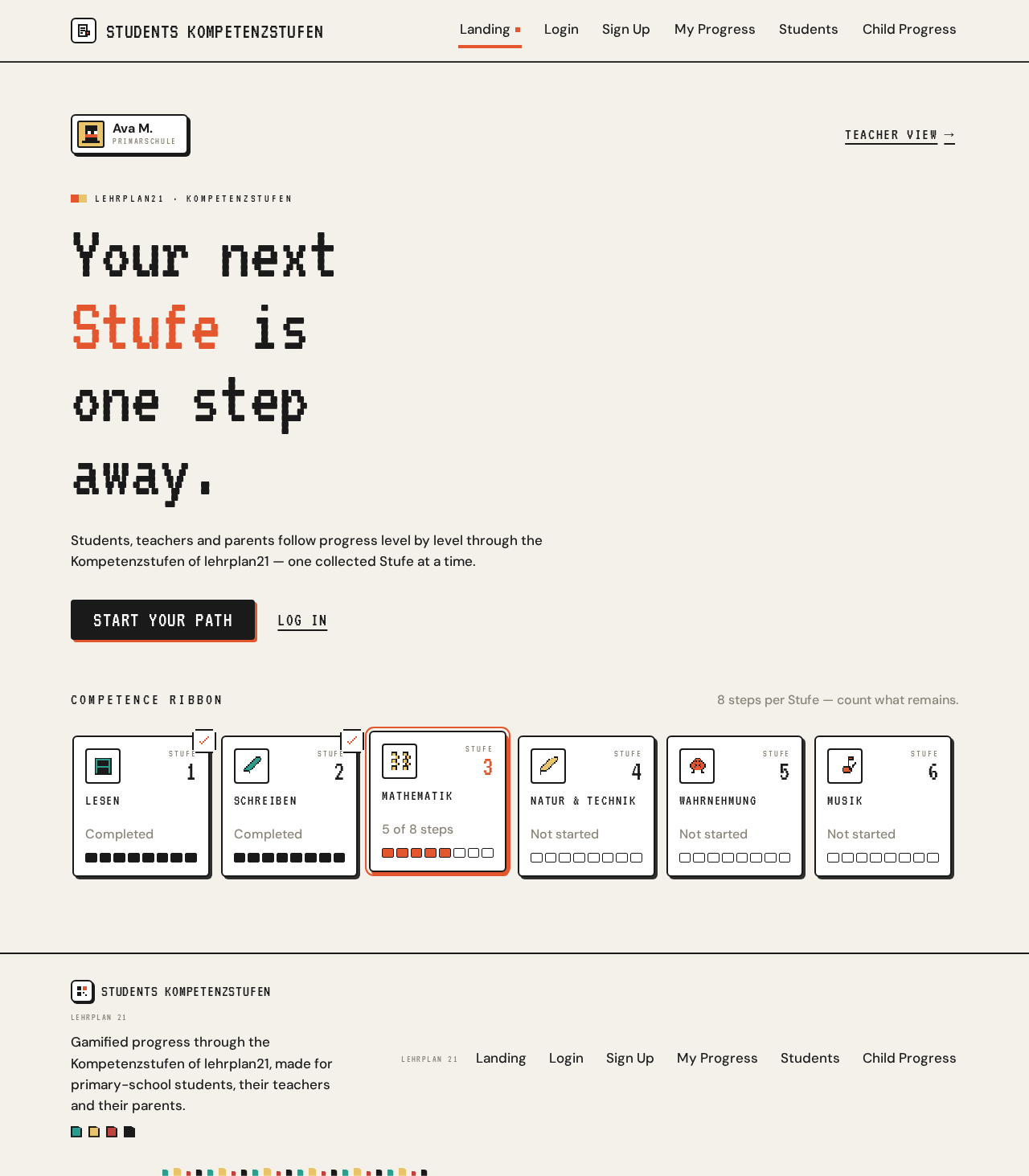
Your next Stufe is one step away.
Students, teachers and parents follow progress level by level through the Kompetenzstufen of lehrplan21 — one collected Stufe at a time.
Competence ribbon
8 steps per Stufe — count what remains.
- Stufe1LesenCompleted
- Stufe2SchreibenCompleted
- Stufe3Mathematik5 of 8 steps
- Stufe4Natur & TechnikNot started
- Stufe5WahrnehmungNot started
- Stufe6MusikNot started
Your next Stufe is one step away.
Students, teachers and parents follow progress level by level through the Kompetenzstufen of lehrplan21 — one collected Stufe at a time.
Competence ribbon
8 steps per Stufe — count what remains.
- Stufe1LesenCompleted
- Stufe2SchreibenCompleted
- Stufe3Mathematik5 of 8 steps
- Stufe4Natur & TechnikNot started
- Stufe5WahrnehmungNot started
- Stufe6MusikNot started
No comments yet. Be the first!