student-attendence
 Anil Loni
Make an student attendence management system


Comments (0)
Sign in to leave a comment
System Requirements
System Requirements Document for Student Attendence Management System
1. Introduction
The Student Attendence Management System is a web application for a school to keep one clear, daily record of who was in class. Teachers mark attendance for a class on a given date, correct mistakes in records they have already made, and review who was absent. Students check their own attendance history and absence totals so they can confirm the school recorded them correctly. School administrators set up the classes and student lists that attendance work depends on, and read attendance reports for a class or a date range.
The product is deliberately narrow: it is a register and a reporting surface, not a school management suite. Its audience is the three people who touch a register every day — the teacher at the front of the room, the student who wants to know their record is right, and the administrator who needs the school-wide picture.
Success Criteria
- A teacher can open a class for a date, mark every student present, late or absent, and save the register in a single pass without leaving the Attendance page.
- A teacher can find and correct an earlier record for the same class and date, and the corrected state is what students and administrators subsequently see.
- A student can see their own attendance history and their absence total, and can tell at a glance which days they were marked absent.
- An administrator can set up a class with its student list before any attendance is taken, and can read attendance for a class or a date range.
- Every protected record is reachable only after the person has verified their identity, and each person sees only the records their role covers.
2. System Overview
2a. Product Interpretation and Delivery Boundary
The system is delivered as a first-party web application: a React front end, a shared FastAPI backend that owns all attendance APIs and domain logic, and a MariaDB database for application-owned persistent data. All three run as the provisioned services frontend, backend and database; the backend is a single process serving every domain module rather than one service per feature.
Access is application-owned. The public entry surface (Landing) and the identity surface (Login) are reachable anonymously; everything that touches a student's record is protected. Identity is established by self-service enrollment on Login and verified on return visits, because attendance records are durable, person-specific state: a teacher's marks must stay bound to the class and date they were made for, a student's history must stay bound to that student, and an administrator's setup must stay bound to the school's classes. The three roles see different working surfaces — Attendance for teachers, My Attendance for students, Reports and Classes for administrators — and that separation is part of the accepted access contract, not an optional convenience.
Nothing in this document is deferred: every requirement below is current. There is no provider-owned or external surface; the school's own deployment owns the data.
2c. Page Content and Component Coverage
Landing
- Information and state: the product's purpose in one line, the three audiences it serves, and the daily rhythm of marking, checking and reporting. Anonymous; no record data is shown.
- Primary action: "Open the register" — the red solid bar under the headline, leading to Login.
- Supporting actions: a secondary text link to Login for returning users ("Already have a record? Sign in").
- Domain entities: none persisted; the page presents the concepts of class, date and attendance status.
- Component responsibilities:
- Transit-map hero band: full-width, colour lines running left to right, one line per class, with station dots for dates.
- Headline block: 96px desktop / 44px mobile Fira Sans Heavy, flush left on the paper ground.
- Subline: one sentence naming teachers, students and administrators.
- Call-to-action bar: solid signal-red rectangle, hard corners, no shadow.
- Numbered rail section titles for the three audience sections below the hero.
- States: loading not applicable (static content); empty not applicable; success = hero and CTA render whole at 375/768/1280px; error = if the CTA target is unreachable, the link remains visible and the browser's own navigation error is shown; recovery = retry the link.
Login
- Information and state: two modes on one surface — enroll (first use) and sign in (returning). Fields: name, email, password, and role selection (Teacher, School administrator, Student). For a Student, the enrollment form also asks for the class they belong to so their record can be linked to the administrator's student list.
- Primary action: "Create account" in enroll mode; "Sign in" in sign-in mode.
- Supporting actions: switch between enroll and sign in; return to Landing.
- Domain entities: person identity (name, email, credential, role), and for students the link to a class roster entry.
- Component responsibilities:
- Mode switch (two hard-edged tabs, no rounding).
- Field group with small-caps labels above each value.
- Role selector as three square pictogram options.
- Inline validation messages in signal red beneath the offending field.
- Submit bar in signal red.
- States: loading = submit bar shows a progress state and fields are disabled; empty = blank form with labels only; success = redirect to the role's home surface (Teacher → Attendance, School administrator → Classes, Student → My Attendance); error = duplicate email, wrong credentials, or a student class that does not exist, each stated in plain words with the field preserved; recovery = correct the field and resubmit without losing the other entries.
Attendance
- Information and state: the selected class and date, the roster for that class, and each student's current status for that date (Present, Late, Absent, or unmarked). If a record already exists for that class and date, it loads in its saved state for correction.
- Primary action: "Save register" — commits the marks for the class and date.
- Supporting actions: choose class; choose date; set each student's status via the three-state chip; "Mark all present" as a single pass; reopen a previously saved date to correct it.
- Domain entities: class, student, attendance record (student + class + date + status), teacher.
- Component responsibilities:
- Class selector and date picker in a hard-ruled header strip.
- Roster rows: student name, and a three-state chip group — red P, yellow L, green A, each a letter plus a small square.
- Row-level unsaved indicator (a thin rule, not a shadow).
- Save bar pinned at the end of the roster.
- Absence summary line for the selected date ("4 absent, 2 late").
- States: loading = roster skeleton rows with labels visible; empty = "No students in this class yet" with a pointer to the administrator; success = saved confirmation strip and chips settle into their saved state; error = save failure keeps every mark on screen and offers retry; recovery = retry, or change the date/class and return — unsaved marks are warned about before leaving.
My Attendance
- Information and state: the signed-in student's own record only — a 30-day horizontal strip of day cells coloured by status, the list of dated entries with status, and the absence total.
- Primary action: none that changes data; the page is a read surface.
- Supporting actions: move back and forward through time windows; open a single day's entry to see its status and class.
- Domain entities: the student's own attendance records and derived absence total.
- Component responsibilities:
- 30-day strip: square cells, red/yellow/green by status, unmarked days in muted grey, with a legend in small caps.
- Entry list: date, class, status chip.
- Absence total as a large numeral with a small-caps label above it.
- Window navigation controls.
- States: loading = strip and list placeholders at final dimensions; empty = "No attendance recorded yet" with the legend still visible; success = strip and totals match the saved records; error = load failure shows a retry control and keeps the last loaded window; recovery = retry.
Reports
- Information and state: attendance for a chosen class or a chosen date range, aggregated per student (present/late/absent counts) and per date, with the filter values echoed in the header.
- Primary action: "Run report" after choosing class and/or date range.
- Supporting actions: switch between class view and date-range view; clear filters; read per-student totals.
- Domain entities: classes, students, attendance records, derived counts.
- Component responsibilities:
- Filter strip: class selector, start date, end date, run bar.
- Result table with hard 2px rules, small-caps column headers, status chips in cells.
- Per-student total row and a class-level summary line.
- Empty-result message naming the filters that produced it.
- States: loading = table header with placeholder rows; empty = "No attendance in this range"; success = table and totals render; error = report failure keeps filters and offers retry; recovery = retry or widen the range.
Classes
- Information and state: the school's classes and, for the selected class, its student list. Each class has a name and a roster of students (name and a roster identifier).
- Primary action: "Create class"; "Add student" to the selected class's roster.
- Supporting actions: select a class to view its roster; edit a class name; remove a student from a roster before attendance exists for them.
- Domain entities: class, student, roster membership.
- Component responsibilities:
- Class list rail with numbered entries.
- Class detail panel with name field and save control.
- Roster table with add-student row at the end.
- Confirmation strip after each successful change.
- States: loading = rail and table placeholders; empty = "No classes yet — create the first one"; success = new class or student appears immediately in the list; error = duplicate class name or blank student name stated inline; recovery = correct and resubmit; removal of a student who already has attendance is refused with an explanation.
3. Functional Requirements
FR-1 — Record attendance for a class and date (explicit) As a Teacher, I should select a class and a date, see that class's roster, and set each student's status to Present, Late or Absent, so that the day's register is captured.
- Trigger/input: class selection, date selection, per-student status choice.
- Observable result: the roster shows each student's chosen status; saving commits the register for that class and date.
- Access: role-restricted to a signed-in Teacher.
- Failure/recovery: if saving fails, all marks remain on screen with a retry control; leaving with unsaved marks warns first.
- Continuation: after saving, the teacher can move to another date or class, or reopen the same date to correct it.
FR-2 — Correct or update an existing attendance record (explicit) As a Teacher, I should reopen a class and date that already has a saved register and change a student's status, so that mistakes are fixed.
- Trigger/input: selecting a class and date with an existing record; changing one or more statuses.
- Observable result: the saved state is replaced by the corrected state, and the corrected state is what students and administrators subsequently see.
- Access: role-restricted to a signed-in Teacher.
- Failure/recovery: a failed save leaves the previous saved state intact and the corrections on screen for retry.
- Continuation: the teacher can continue correcting other students or move to another date.
FR-3 — Review absence for a class and date (explicit) As a Teacher, I should see which students are absent for the selected class and date, so that I can follow up.
- Trigger/input: selecting a class and date.
- Observable result: absent students are visually distinct (green A chip) and an absence count is shown for that date.
- Access: role-restricted to a signed-in Teacher.
- Failure/recovery: if the roster fails to load, a retry control is shown and the selected class and date are preserved.
FR-4 — View own attendance history and absence totals (explicit) As a Student, I should see my own attendance records and my absence total, so that I can check the school recorded me correctly.
- Trigger/input: opening My Attendance while signed in.
- Observable result: a 30-day status strip, a dated entry list, and an absence total, all scoped to the signed-in student only.
- Access: role-restricted to a signed-in Student; no other student's records are reachable from this surface.
- Failure/recovery: a load failure shows a retry control and keeps the last loaded window visible.
- Continuation: the student can move to earlier or later windows.
FR-5 — View attendance reports for a class or date range (explicit) As a School administrator, I should run a report for a class or a date range and read per-student and per-date attendance, so that I can review the school's attendance.
- Trigger/input: class selection and/or start and end dates, then running the report.
- Observable result: a table of attendance with present/late/absent counts per student and a class-level summary.
- Access: role-restricted to a signed-in School administrator.
- Failure/recovery: a failed report keeps the chosen filters and offers retry; an empty result names the filters that produced it.
- Continuation: the administrator can change filters and run again.
FR-6 — Set up classes and student lists (required_inference) As a School administrator, I should create classes and add students to each class's roster, so that teachers have a roster to mark and students have a record to check.
- Trigger/input: class name entry; student name entry against a selected class.
- Observable result: the class appears in the class list and in the teacher's class selector; the student appears on the roster and, once enrolled, can see their own record.
- Access: role-restricted to a signed-in School administrator.
- Failure/recovery: duplicate class names and blank student names are refused inline; removing a student who already has attendance is refused with an explanation.
- Continuation: the administrator can add further students or create another class.
FR-7 — Self-service enrollment (required_inference) As a Teacher, School administrator or Student, I should create my own account on Login by giving my name, email, password and role, so that I can reach the surfaces my role covers.
- Trigger/input: enroll mode on Login; name, email, password, role; for a Student, the class they belong to.
- Observable result: the account is created and the person is taken to their role's home surface.
- Access: anonymous entry on Login.
- Failure/recovery: a duplicate email, a weak or missing field, or a student class that does not exist is stated inline with the entered values preserved.
- Continuation: the person lands on Attendance (Teacher), Classes (School administrator) or My Attendance (Student).
FR-8 — Verify identity before protected work (required_inference) As a Teacher, School administrator or Student, I should sign in with my email and password on Login, so that protected records are reachable only by the right person.
- Trigger/input: sign-in mode on Login; email and password.
- Observable result: a verified session that routes to the role's home surface; protected surfaces refuse access without it.
- Access: anonymous entry on Login; protected surfaces require the verified session.
- Failure/recovery: wrong credentials are stated in plain words without revealing which field was wrong; the email is preserved for retry.
- Continuation: the person can sign out and return later; the session resumes their role's surface.
4. User Personas
Teacher
The teacher is at the front of the room at the start of a class, with a roster in front of them and a date that must be recorded before the next period. Their work is a single pass: pick the class, pick today's date, and mark each student. Most students are present, so the fastest path is to mark all present and then change the few who are late or absent. Their second job is correction: a mark made in haste is wrong, and they need to reopen the same class and date and change it without disturbing anything else. Their third job is follow-up: seeing who is absent today so the absence can be acted on.
- Primary goal: a complete, correct register for each class, each day, in as few actions as possible.
- Distinct responsibilities: recording attendance (FR-1), correcting existing records (FR-2), reviewing absence for a class and date (FR-3).
- Inputs and decisions: class, date, and a per-student status decision among Present, Late and Absent.
- Interactions with others: depends on the School administrator having created the class and roster (FR-6); the marks they save become what the Student sees (FR-4) and what the School administrator reports on (FR-5).
- Observable success: the saved register shows the intended statuses, the absence count matches, and a reopened date shows the corrected state.
School administrator
The administrator owns the structure the register runs on. Before any teacher can mark a class, the class must exist and its students must be on the roster; the administrator creates both. Their second responsibility is oversight: reading attendance for a class or a date range to see patterns of absence and lateness across the school. They do not mark attendance themselves and do not edit a teacher's marks.
- Primary goal: a correct class and student structure, and a readable picture of attendance across the school.
- Distinct responsibilities: setting up classes and student lists (FR-6), running attendance reports for a class or date range (FR-5).
- Inputs and decisions: class names, student names, and report filters (class, start date, end date).
- Interactions with others: their setup enables the Teacher's register (FR-1) and the Student's record (FR-4); their reports read the marks teachers saved.
- Observable success: a newly created class appears in the teacher's class selector, and a report returns per-student counts that match the saved registers.
Student
The student is the subject of the record and its most interested reader. They want to know that the school recorded them correctly — that a day they attended is not marked absent, and that their absence total is what they expect. Their work is read-only and personal: a strip of recent days, a list of dated entries, and a total. They cannot see any other student's record and cannot change their own.
- Primary goal: confidence that their own attendance record is accurate.
- Distinct responsibilities: viewing their own attendance history and absence totals (FR-4).
- Inputs and decisions: which time window to look at; whether a marked day matches what they remember.
- Interactions with others: their record is produced by the Teacher's marks (FR-1, FR-2) against the roster the School administrator created (FR-6); a discrepancy is something they raise with the school, not something they fix in the product.
- Observable success: the 30-day strip, the entry list and the absence total agree with each other and with the days they attended.
5. Core User Flows
Flow A — Administrator sets up a class and roster (FR-6)
- The administrator opens Landing and chooses "Open the register".
- On Login they sign in, or enroll on first use with name, email, password and the School administrator role (FR-7, FR-8).
- They land on Classes. With no classes yet, the page shows "No classes yet — create the first one".
- They enter a class name and choose "Create class". The class appears in the class list rail with a confirmation strip.
- They select the new class and add students one at a time with "Add student". Each name appears in the roster table immediately.
- If a name is blank or a class name duplicates an existing one, the form states the problem inline and keeps the entry for correction.
- Result: the class and its roster exist. Continuation: the class now appears in the teacher's class selector, and an enrolled student in that class can see their own record.
Flow B — Teacher marks a class register (FR-1, FR-3)
- The teacher signs in on Login and lands on Attendance.
- They choose a class from the class selector and a date from the date picker. The roster loads with each student unmarked.
- They choose "Mark all present" to set the whole roster in one pass.
- They change the few students who were late or absent using the three-state chip — yellow L or green A.
- The absence summary line updates to show the count for that date, and absent students are visually distinct (FR-3).
- They choose "Save register". A confirmation strip appears and the chips settle into their saved state.
- Failure/recovery: if the save fails, every mark stays on screen with a retry control; retrying saves the same marks. If they try to leave with unsaved marks, they are warned first.
- Continuation: they select the next class or date and repeat.
Flow C — Teacher corrects an existing record (FR-2)
- The teacher opens Attendance and selects the class and the date that was marked incorrectly.
- The saved register loads in its stored state rather than blank.
- They change the affected student's status — for example from Absent to Present.
- They choose "Save register". The corrected state replaces the previous one.
- Result: the corrected state is what the student sees on My Attendance and what the administrator's report counts.
- Failure/recovery: a failed save leaves the previous saved state intact and the correction on screen for retry.
Flow D — Student checks their own record (FR-4)
- The student opens Landing, chooses "Open the register", and on Login enrolls on first use with name, email, password, the Student role and their class (FR-7), or signs in on return (FR-8).
- They land on My Attendance. The 30-day strip shows square cells coloured by status, with unmarked days in muted grey and a legend in small caps.
- They read the dated entry list and the absence total shown as a large numeral under a small-caps label.
- They move back through earlier windows to check a specific day.
- Result: they can confirm whether a day they attended is marked correctly. Continuation: if a day is wrong, they raise it with the school; the product does not let them change it.
- Failure/recovery: if the record fails to load, a retry control appears and the last loaded window stays visible.
Flow E — Administrator reads attendance reports (FR-5)
- The administrator signs in and opens Reports.
- They choose a class, or a start and end date, and choose "Run report".
- The result table shows per-student present/late/absent counts with status chips, and a class-level summary line; the chosen filters are echoed in the header.
- If no attendance exists for those filters, the page states "No attendance in this range" and names the filters used.
- Failure/recovery: a failed report keeps the filters and offers retry.
- Continuation: they change the class or widen the date range and run again.
6. Visuals Colors and Theme
The visual system follows the supplied creative direction: typographic infrastructure for the school day, after Erik Spiekermann — orderly, fast and trustworthy, like a transit system that never misses a stop.
Colour tokens (light mode)
| Role | Hex | Use |
|---|---|---|
| Background | #F4F1EA | Warm paper ground covering most of every page |
| Surface | #FFFFFF | Tables, roster rows, form fields |
| Text | #1C1B19 | Ink for all body and heading text |
| Primary | #D7261E | Signal red: Present status, primary actions, CTA bar |
| Accent | #F2B300 | Signal yellow: Late status, warnings |
| Absent rule | #1F7A4D | Green, used only as a thin rule and the A chip |
| Muted | #6E6A63 | Secondary text, unmarked day cells, legends |
Typography
- Headings: Fira Sans, Heavy 800, tight tracking, flush left, sentence case. Small caps for labels.
- Body: Fira Sans.
- Modular scale at 1.333: 96 / 72 / 48 / 32 / 22 / 17 / 15 px. Headline is 96px on desktop and 44px on mobile, implemented with
clamp()so it never overflows its container at 375px, 768px or 1280px.
Shape and layout
- Hard rectangles and 2px rules. Numbered line chips and small square pictograms. No soft shadows, no rounded cards.
- A 12-column grid with a visible left rail of numbered route lines. Each section is a station stop with a 2px rule above its title.
- Small-caps labels with wide tracking sit above every value, as on a station sign.
Imagery
- Schematic line diagrams and pictograms only. A timetable drawn as a transit map with coloured class lines. No stock photography.
Motion
- Short and functional: lines draw in over 180ms; status chips change state at once with no bounce.
7. Signature Design Concept
The public entry is a transit map of the school day. A full-width band fills the hero: colour lines run left to right across it, each line a class, each station dot a date on that class's route. The band is drawn in flat vector strokes on the paper ground, with the line colours drawn from the status palette so the map reads as attendance itself — red for present, yellow for late, green as a thin rule for absent.
Below the band, flush left on #F4F1EA, sits the 96px Fira Sans Heavy headline "Every class. Every day. One clear record." Under it, the subline "Teachers mark attendance, students check their record, and administrators read the reports." Under that, the call to action is a solid signal-red bar — hard corners, no shadow — reading "Open the register".
The signature moves carry through the product: section titles sit on a numbered rail with a 2px rule above each title; attendance rows use the three-state chip (red P, yellow L, green A, each a letter and a small square); the student record is a horizontal strip of 30 day cells coloured by status, like a line diagram; and every value sits under a small-caps label with wide tracking. Nothing is rounded, nothing glows, nothing bounces.
8. Interaction Model & Motion Direction
Interaction Model: Static Motion Tempo: restrained Hero Dimensionality: flat
Landing Hero Motion Brief
- Focal subject: the transit-map band — colour class lines running left to right with station dots for dates.
- Thesis: on load, the class lines draw in from left to right over 180ms, each station dot appearing as its line reaches it; the outcome is a complete timetable map that reads as the school's daily route, with the headline, subline and red CTA bar already in place below it.
- Motion vocabulary: short line-draw strokes, instant state changes, no bounce, no parallax, no scroll-linked depth.
- Composed first frame: paper ground, the band occupying the full width at the top, the 96px headline flush left beneath it, the subline, then the solid red bar. Every element whole at 375px, 768px and 1280px.
- Reduced-motion state: with
prefers-reduced-motion, the band renders fully drawn in its final state with no line-draw animation; the headline, subline and CTA are unchanged and fully readable.
9. Non-Functional Requirements
- Persistence (required_inference): attendance records, classes, rosters and identities are durable in MariaDB; a saved register survives a restart and is the state students and administrators subsequently see.
- Access control (explicit via planning scope): Landing and Login are anonymously reachable; Attendance is restricted to Teachers, My Attendance to Students, and Reports and Classes to School administrators. A protected surface refuses access without a verified session and routes to Login.
- Record integrity (required_inference): an attendance record is unique per student, class and date; saving a register for a class and date replaces that date's marks rather than duplicating them.
- Readability at every viewport (explicit design constraint): headlines, labels, numbers, table text and controls stay entirely inside the viewport and their container at 375px, 768px and 1280px, wrapping or scaling to fit; no element covers readable text or a control.
- Performance (basic_default): a class roster and a 30-day student strip load within a normal page interaction; the register save confirms promptly.
- Accessibility (basic_default): status is never conveyed by colour alone — each chip carries its letter (P, L, A) and a square, and the day strip has a legend.
- Reduced motion (explicit design constraint): with
prefers-reduced-motion, the hero renders in its final static arrangement and no decorative animation runs.
10. Tech Stack
- Frontend: React application UI, served as the
frontendservice. - Backend: a single shared FastAPI process, served as the
backendservice, owning all attendance, class, roster, identity and report APIs as domain modules within that one process and port. - Database: MariaDB, served as the
databaseservice, for application-owned persistent data. - Orchestration: docker-compose with the three services above; no additional service is required for the accepted workflows.
11. Assumptions and Constraints
- A-1 (required_inference): The school is a single institution; classes and rosters are school-wide and visible to the administrator who set them up.
- A-2 (required_inference): A student enrolls against an existing class created by the administrator; enrollment does not create classes.
- A-3 (required_inference): A teacher may mark any class in the school's class list; the source does not establish per-teacher class assignment, so none is added.
- A-4 (required_inference): Attendance status is exactly one of Present, Late or Absent per student per class per date; an unmarked student has no record for that date.
- A-5 (required_inference): Students cannot edit their own attendance; corrections are made by a teacher.
- A-6 (basic_default): Dates are school-local calendar dates; no time-zone conversion is applied to a register.
- A-7 (explicit design constraint): The palette, Fira Sans typography, hard-rectangle shape language, numbered rail layout and restrained motion are fixed; the generic indigo/blue-on-white SaaS template is forbidden.
12. Glossary
- Register: the set of attendance marks for one class on one date.
- Mark / status: a student's state for a class and date — Present (P), Late (L) or Absent (A).
- Roster: the list of students belonging to a class.
- Class: a named group of students that a teacher marks and an administrator reports on.
- Absence total: the count of a student's Absent marks over the period shown.
- Day strip: the 30-cell horizontal diagram on My Attendance, one cell per day, coloured by status.
- Station dot: a date marker on a class line in the transit-map hero.
- Rail: the numbered left-hand column of section titles, each with a 2px rule above it.
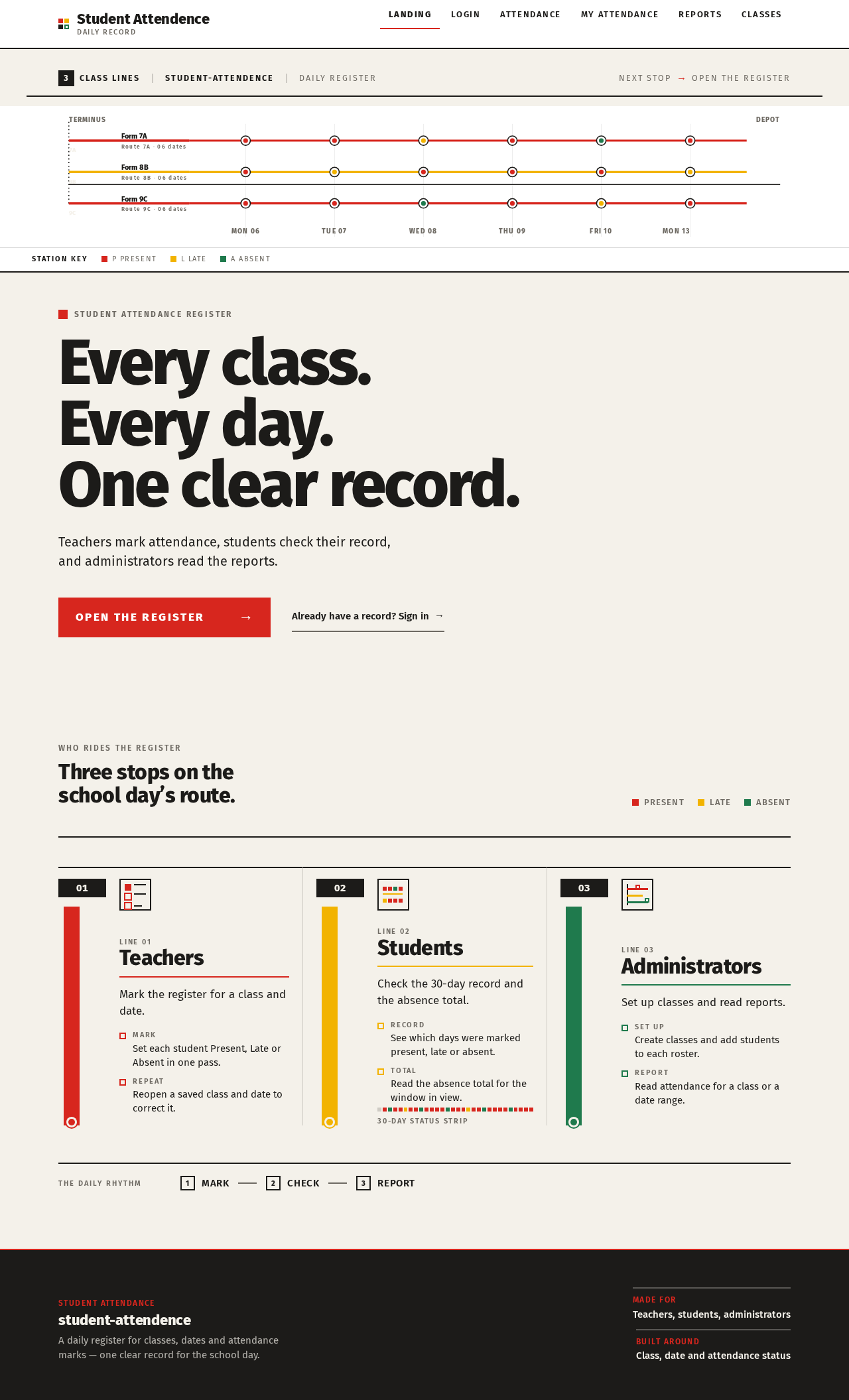
Student attendance register
Every class. Every day. One clear record.
Teachers mark attendance, students check their record, and administrators read the reports.
Who rides the register
Three stops on the school day’s route.
Line 01Teachers
Mark the register for a class and date.
- MarkSet each student Present, Late or Absent in one pass.
- RepeatReopen a saved class and date to correct it.
Line 02Students
Check the 30-day record and the absence total.
- RecordSee which days were marked present, late or absent.
- TotalRead the absence total for the window in view.
Line 03Administrators
Set up classes and read reports.
- Set upCreate classes and add students to each roster.
- ReportRead attendance for a class or a date range.
The daily rhythm
- Mark
- Check
- Report
Student attendance register
Every class. Every day. One clear record.
Teachers mark attendance, students check their record, and administrators read the reports.
Who rides the register
Three stops on the school day’s route.
Line 01Teachers
Mark the register for a class and date.
- MarkSet each student Present, Late or Absent in one pass.
- RepeatReopen a saved class and date to correct it.
Line 02Students
Check the 30-day record and the absence total.
- RecordSee which days were marked present, late or absent.
- TotalRead the absence total for the window in view.
Line 03Administrators
Set up classes and read reports.
- Set upCreate classes and add students to each roster.
- ReportRead attendance for a class or a date range.
The daily rhythm
- Mark
- Check
- Report
No comments yet. Be the first!