01Access
Login Module
Admin and teacher log in with a username and password, and each role is sent to the dashboard it is allowed to use.
 sarvesh gadage
MINI PROJECT DEVELOPMENT PROMPT Build a complete, beginner-friendly mini project called Student Attendance Management System based on the 10 weekly mini-project reports I have provided. Project Objective Create a web-based application to digitally manage student attendance, maintain student records, calculate attendance percentages, and generate attendance reports. Technology Stack - Frontend: HTML5, CSS3, Bootstrap - Backend: Python Flask - Database: MySQL - IDE: Visual Studio Code Required Modules 1. Login Module - Admin login - Teacher login - Username and password authentication - Role-based dashboard access - Logout functionality 2. Student Registration Module - Add student - Roll number - Student name - Class - Department - Semester - Edit student details - Delete student details - Validate inputs 3. Admin Dashboard - Total students - Total teachers - Total subjects - Total attendance records - Clean dashboard with statistic cards 4. Attendance Management - Select class - Select subject - Select attendance date - Display students - Mark students as Present or Absent - Save attendance in the database - Prevent duplicate attendance records for the same student, subject and date 5. Attendance Records - View attendance history - Search using roll number - Filter by date - Filter by subject - Display records in a table 6. Attendance Percentage Calculate the attendance percentage using: Attendance Percentage = (Total Present Classes / Total Conducted Classes) × 100 Display each student's attendance percentage. 7. Low Attendance Alert - Identify students having attendance below 75% - Display a warning message - Show the students in a low-attendance list 8. Attendance Reports - Student-wise attendance report - Subject-wise attendance report - Total present and absent count - Attendance percentage - Print report option 9. Teacher and Subject Management - Add teachers - Add subjects - Assign subjects to teachers - Manage basic teacher details Database Create MySQL database "attendance_db" with appropriate tables such as: - users - students - teachers - subjects - attendance Use proper primary keys, foreign keys and relationships. UI Design Create a modern, professional college project dashboard. Design requirements: - Sidebar navigation - Top navigation bar - Dashboard statistic cards - Clean tables - Search box - Responsive design - Attractive blue and white color theme - Professional login page - Easy navigation between modules Development Requirements 1. Generate a complete working project, not just sample code. 2. Create all required Python, HTML, CSS and SQL files. 3. Use Flask for backend development. 4. Connect the application to MySQL. 5. Include sample students, teachers and subjects. 6. Create a default admin account for demonstration. 7. Make all buttons and forms functional. 8. Handle errors and invalid inputs. 9. Keep the code simple enough for a second-year engineering student to understand and explain. 10. Do not use unnecessary advanced technologies. Deliverables Provide: - Complete project folder structure - All source code files - MySQL database setup script - requirements.txt - README.md - Installation instructions - How to run the project in VS Code - Sample login credentials - Test cases - Project abstract - Future scope - Conclusion IMPORTANT I have very little time to complete this mini project. Prioritize a fully functional, simple project that can run locally. Build the core modules first and avoid complicated features. Provide every file with complete code and exact setup steps. Do not leave unfinished placeholders or missing functions.


Sign in to leave a comment
This document specifies the Student Attendance Management System, a beginner-friendly, locally run web application built as a college mini project. Its purpose is to digitally manage student attendance, maintain student records, calculate attendance percentages, and generate attendance reports for a college department.
The product is delivered as a complete, working Flask + MySQL + Bootstrap project that a second-year engineering student can read, run in Visual Studio Code, and explain. The audience is the project author (sarvesh gadage) and the college evaluators who will review the running application, its source code, its database script, and its documentation.
The application serves two authenticated roles — Admin and Teacher — through a shared blue-and-white dashboard with sidebar navigation, a top navigation bar, statistic cards, clean tables, a search box, and a professional login page. It runs locally against a MySQL database named attendance_db.
The Student Attendance Management System is a single locally hosted web application. A Flask backend serves HTML pages rendered with Jinja templates, styled with HTML5, CSS3 and Bootstrap, and persists all data in a MySQL database named attendance_db. Users authenticate with a username and password; the system then routes each user to a role-appropriate dashboard and exposes only the modules their role permits.
Actors. Two human personas use the product: the Admin and the Teacher. The Admin owns institutional setup — student records, teacher records, subjects, subject-to-teacher assignment, and the totals dashboard. The Teacher owns day-to-day attendance marking and the reading of attendance records, percentages, low-attendance lists, and reports. Both roles can mark attendance, view records, view percentages, view low-attendance alerts, and generate and print reports; only the Admin can reach the Admin Dashboard, Student Registration Module, and Teacher and Subject Management.
Current delivery. The application is delivered as a complete local project: all Python, HTML, CSS and SQL files; a MySQL setup script that creates attendance_db with the users, students, teachers, subjects and attendance tables with primary keys, foreign keys and relationships; a requirements.txt; a README.md; installation instructions; VS Code run steps; sample login credentials; test cases; a project abstract; future scope; and a conclusion. Sample students, teachers and subjects and a default admin account are seeded so the project can be demonstrated immediately.
Ownership. All product behavior is owned by the first-party application. There are no provider surfaces, external destinations, or third-party integrations in the current scope. The database is application-owned persistent storage.
Exclusions. The project deliberately avoids unnecessary advanced technologies and complicated features. It runs locally only; it is not deployed to a public host. It does not include student self-service login, biometric or device-based attendance capture, SMS or email notification, timetable scheduling, fee management, or any module not listed in the required modules.
Removed from scope
The product is a self-contained, locally run college mini project. Everything the user sees and does — logging in, managing students, teachers and subjects, marking attendance, browsing records, reading percentages and low-attendance warnings, and generating and printing reports — is owned and rendered by the first-party Flask application. There is no external service, provider surface, or third-party destination in the current scope.
Access is application-owned. The system maintains its own users table with username, password and role. The Login Module is anonymously reachable so that a user can authenticate; every other module requires an authenticated session. The Admin Dashboard, Student Registration Module, and Teacher and Subject Management are restricted to the Admin role. Attendance Management, Attendance Records, Attendance Percentage, Low Attendance Alert, and Attendance Reports require a logged-in user and are available to both Admin and Teacher. The Landing page is anonymously reachable and explains the product before login.
Teacher accounts are created by the Admin through Teacher and Subject Management before a teacher can log in; there is no teacher self-registration. The default admin account is seeded by the database setup script so the project can be demonstrated on first run.
The current delivery horizon covers only the modules listed above. Future scope items — such as student self-service access, notifications, and richer analytics — are documented as future work and are not part of the current pages, requirements, or acceptance.
The authoritative source does not include a content_source reference directive, so no source content inventory is provided.
users (username, password, role).students, teachers, subjects, attendance.students (roll number, name, class, department, semester).teachers, subjects, and the assignment relationship between them; users for the teacher's login account.students, subjects, attendance (student, subject, date, status).attendance joined with students and subjects.attendance aggregated per student.attendance aggregated per student, filtered to percentage below 75%.attendance aggregated by student and by subject.FR-1 — Admin and teacher login. As an Admin or Teacher, I should log in with my username and password so that I reach my role-appropriate dashboard. Provenance: explicit. Trigger: the user submits username, password and role on the Login Module. Observable result: on valid credentials the session is established and the user is routed to the Admin Dashboard (Admin) or the teacher's default module (Teacher). Access: anonymous entry. Failure/recovery: invalid credentials or missing fields show an inline error and the user retries. Continuation: the user proceeds to their dashboard.
FR-2 — Role-based dashboard access. As an Admin or Teacher, I should see only the modules my role permits so that institutional setup stays with the Admin. Provenance: explicit. Trigger: the user navigates via the sidebar. Observable result: Admin sees Admin Dashboard, Student Registration Module, Teacher and Subject Management, and the shared attendance modules; Teacher sees the shared attendance modules only. Access: authenticated session. Failure/recovery: a Teacher attempting an admin-only URL is redirected to their dashboard with a message. Continuation: the user continues in an allowed module.
FR-3 — Logout. As an Admin or Teacher, I should log out so that my session ends. Provenance: explicit. Trigger: the user selects Logout in the top navigation bar. Observable result: the session is cleared and the user returns to the Login Module. Access: authenticated session. Failure/recovery: if the session has already expired, the user is taken to the Login Module. Continuation: the user can log in again.
FR-4 — Add student. As an Admin, I should add a student with roll number, name, class, department and semester so that the student appears in attendance rosters. Provenance: explicit. Trigger: the Admin submits the add-student form. Observable result: the student is saved and appears in the student table. Access: Admin, authenticated. Failure/recovery: missing or invalid fields show inline validation errors; a duplicate roll number is rejected with a clear message. Continuation: the Admin adds another student or moves on.
FR-5 — Edit student details. As an Admin, I should edit a student's details so that records stay correct. Provenance: explicit. Trigger: the Admin opens a student row and submits changes. Observable result: the updated details appear in the table. Access: Admin, authenticated. Failure/recovery: invalid fields show inline errors and the record is unchanged. Continuation: the Admin reviews the updated row.
FR-6 — Delete student details. As an Admin, I should delete a student so that removed students no longer appear. Provenance: explicit. Trigger: the Admin confirms deletion. Observable result: the student is removed from the table. Access: Admin, authenticated. Failure/recovery: a failed delete leaves the record intact and shows an error. Continuation: the Admin continues managing students.
FR-7 — Validate student inputs. As an Admin, I should have student inputs validated so that bad data is rejected. Provenance: explicit. Trigger: the Admin submits a student form. Observable result: invalid inputs are rejected with inline messages. Access: Admin, authenticated. Failure/recovery: the form stays populated for correction. Continuation: the Admin corrects and resubmits.
FR-8 — Admin dashboard totals. As an Admin, I should see total students, total teachers, total subjects and total attendance records in statistic cards so that I understand the institution at a glance. Provenance: explicit. Trigger: the Admin opens the Admin Dashboard. Observable result: four statistic cards render with the current totals. Access: Admin, authenticated. Failure/recovery: a load failure shows a banner with retry. Continuation: the Admin navigates onward.
FR-9 — Select class, subject and date to display students. As an Admin or Teacher, I should select class, subject and attendance date so that the matching students are displayed. Provenance: explicit. Trigger: the user changes the class, subject or date on Attendance Management. Observable result: the roster for the selected class is displayed. Access: authenticated. Failure/recovery: an incomplete selection shows a prompt to complete it. Continuation: the user marks attendance.
FR-10 — Mark Present or Absent and save. As an Admin or Teacher, I should mark students Present or Absent and save so that attendance is recorded. Provenance: explicit. Trigger: the user sets each student's status and selects Save. Observable result: attendance rows are written to the database and a confirmation reports the count saved. Access: authenticated. Failure/recovery: a save failure shows an error and no partial records are committed. Continuation: the user reviews the saved records in Attendance Records.
FR-11 — Prevent duplicate attendance. As an Admin or Teacher, I should be prevented from creating duplicate attendance for the same student, subject and date so that records stay accurate. Provenance: explicit. Trigger: the user attempts to save attendance that already exists for a (student, subject, date). Observable result: the duplicate is rejected with a clear message identifying the conflict. Access: authenticated. Failure/recovery: the user changes the date or subject and saves again. Continuation: the user reviews existing records.
FR-12 — View attendance history. As an Admin or Teacher, I should view attendance history in a table so that I can audit past records. Provenance: explicit. Trigger: the user opens Attendance Records. Observable result: a table of attendance rows renders. Access: authenticated. Failure/recovery: a load failure shows a banner with retry. Continuation: the user searches or filters.
FR-13 — Search by roll number. As an Admin or Teacher, I should search attendance records by roll number so that I can find a student's history. Provenance: explicit. Trigger: the user enters a roll number in the search box. Observable result: the table shows only matching rows. Access: authenticated. Failure/recovery: no matches show an empty-state message with a clear-search action. Continuation: the user clears or refines the search.
FR-14 — Filter by date and subject. As an Admin or Teacher, I should filter attendance records by date and by subject so that I can narrow the history. Provenance: explicit. Trigger: the user sets a date filter or a subject filter. Observable result: the table shows only matching rows. Access: authenticated. Failure/recovery: an invalid filter shows an inline message. Continuation: the user clears or adjusts the filter.
FR-15 — Attendance percentage. As an Admin or Teacher, I should see each student's attendance percentage computed as (Total Present Classes / Total Conducted Classes) × 100 so that I can judge attendance. Provenance: explicit. Trigger: the user opens Attendance Percentage. Observable result: a table shows each student's present count, conducted count and percentage. Access: authenticated. Failure/recovery: a student with zero conducted classes shows a dash rather than an error. Continuation: the user navigates to Low Attendance Alert or Attendance Reports.
FR-16 — Low attendance alert. As an Admin or Teacher, I should see a warning message and a list of students below 75% attendance so that I can act on low attendance. Provenance: explicit. Trigger: the user opens Low Attendance Alert. Observable result: a warning banner and a low-attendance list render. Access: authenticated. Failure/recovery: when no student is below 75%, a positive empty state is shown. Continuation: the user navigates to reports for detail.
FR-17 — Student-wise and subject-wise reports. As an Admin or Teacher, I should generate a student-wise report and a subject-wise report with total present and absent counts and attendance percentage so that I can review attendance formally. Provenance: explicit. Trigger: the user selects a report type on Attendance Reports. Observable result: the report renders with totals and percentage. Access: authenticated. Failure/recovery: a generation failure shows a banner with retry. Continuation: the user prints the report.
FR-18 — Print reports. As an Admin or Teacher, I should print a report so that I have a physical copy. Provenance: explicit. Trigger: the user selects Print on Attendance Reports. Observable result: the browser print dialog opens with the print stylesheet applied (sidebar and top bar hidden). Access: authenticated. Failure/recovery: if printing is cancelled, the report remains on screen. Continuation: the user returns to the report.
FR-19 — Add teachers. As an Admin, I should add teachers so that they can be assigned subjects and log in. Provenance: explicit. Trigger: the Admin submits the add-teacher form. Observable result: the teacher is saved and appears in the teacher table. Access: Admin, authenticated. Failure/recovery: invalid fields show inline errors. Continuation: the Admin assigns subjects.
FR-20 — Add subjects. As an Admin, I should add subjects so that attendance can be recorded against them. Provenance: explicit. Trigger: the Admin submits the add-subject form. Observable result: the subject is saved and appears in the subject table. Access: Admin, authenticated. Failure/recovery: invalid fields show inline errors. Continuation: the Admin assigns subjects to teachers.
FR-21 — Assign subjects to teachers. As an Admin, I should assign subjects to teachers so that teaching responsibility is recorded. Provenance: explicit. Trigger: the Admin selects a teacher and a subject and confirms assignment. Observable result: the assignment appears against the teacher. Access: Admin, authenticated. Failure/recovery: a duplicate assignment is rejected with a clear message. Continuation: the Admin reviews assignments.
FR-22 — Manage basic teacher details. As an Admin, I should edit and delete basic teacher details so that teacher records stay correct. Provenance: explicit. Trigger: the Admin edits or deletes a teacher. Observable result: the teacher table reflects the change. Access: Admin, authenticated. Failure/recovery: invalid edits show inline errors; failed deletes leave the record intact. Continuation: the Admin continues managing teachers.
FR-23 — Database schema. As the project author, I should have a MySQL setup script that creates attendance_db with users, students, teachers, subjects and attendance tables with primary keys, foreign keys and relationships so that the application runs against a correct schema. Provenance: explicit. Trigger: the author runs the setup script. Observable result: the database and tables exist. Access: local database administrator. Failure/recovery: the script reports errors if the database already exists or credentials are wrong. Continuation: the author starts the Flask app.
FR-24 — Sample data and default admin. As the project author, I should have sample students, teachers and subjects and a default admin account so that the project can be demonstrated immediately. Provenance: explicit (sample data, default admin) and required_inference (default admin credentials documented for demonstration). Trigger: the author runs the setup script. Observable result: sample rows and the default admin account exist. Access: local database administrator. Failure/recovery: the script reports errors. Continuation: the author logs in with the sample credentials.
FR-25 — Teacher accounts created by Admin. As an Admin, I should create teacher accounts so that a teacher can log in. Provenance: required_inference. Trigger: the Admin adds a teacher with login credentials. Observable result: the teacher can authenticate on the Login Module. Access: Admin, authenticated. Failure/recovery: a duplicate username is rejected. Continuation: the teacher logs in.
FR-26 — Functional buttons and forms with error handling. As an Admin or Teacher, I should have every button and form work and errors handled so that the application is usable end to end. Provenance: explicit. Trigger: any user interaction. Observable result: the action completes or shows a clear error. Access: per module. Failure/recovery: errors are shown inline or in a banner with a recovery action. Continuation: the user retries or moves on.
FR-27 — Local run with the specified stack. As the project author, I should run the project locally with Flask, MySQL, HTML5, CSS3 and Bootstrap so that it works in VS Code. Provenance: explicit. Trigger: the author follows the README and installation instructions. Observable result: the app runs locally and connects to attendance_db. Access: local. Failure/recovery: the README documents common setup errors. Continuation: the author demonstrates the project.
FR-28 — Deliverables. As the project author, I should receive the folder structure, all source files, the MySQL setup script, requirements.txt, README.md, installation instructions, VS Code run steps, sample login credentials, test cases, project abstract, future scope and conclusion so that the mini project is complete. Provenance: explicit. Trigger: the author reviews the delivered project. Observable result: every deliverable is present and complete with no placeholders. Access: local. Failure/recovery: missing items are added. Continuation: the author submits the project.
The Admin is the institutional owner of the system. They log in with a username and password and land on the Admin Dashboard, which shows total students, total teachers, total subjects and total attendance records in statistic cards. Their primary goal is to keep the institution's records correct and complete so that attendance can be marked and reported accurately.
The Admin's distinct responsibilities are: adding, editing and deleting student records with roll number, name, class, department and semester; adding teachers and subjects; assigning subjects to teachers; managing basic teacher details; and creating teacher login accounts so teachers can sign in. The Admin also shares the attendance modules with the Teacher — marking attendance, viewing records, reading percentages and low-attendance alerts, and generating and printing reports — but the setup work is uniquely theirs.
The Admin's inputs are student details, teacher details, subject details, and subject-to-teacher assignments. Their decisions include which subjects a teacher owns and whether a student record should be corrected or removed. They interact with the Teacher indirectly by creating the teacher's account and assigning subjects; the Teacher then marks attendance against those subjects. Observable success for the Admin is a dashboard with accurate totals, clean student and teacher tables, and reports that reflect the records they set up.
The Teacher is the day-to-day user of attendance. They log in with credentials the Admin created and land on their role-based dashboard, which exposes the attendance modules but not the admin-only setup modules. Their primary goal is to record attendance accurately for their classes and to review attendance outcomes.
The Teacher's distinct responsibilities are: selecting a class, subject and attendance date; marking each student Present or Absent; saving attendance while being prevented from creating duplicates for the same student, subject and date; viewing attendance history in a table; searching by roll number; filtering by date and subject; reading each student's attendance percentage; seeing the low-attendance warning and list below 75%; and generating and printing student-wise and subject-wise reports.
The Teacher's inputs are the class, subject, date and per-student Present/Absent decisions. Their decisions include which students are present and which are absent on a given day. They interact with the Admin by relying on the subjects and accounts the Admin set up, and with students indirectly through the records they create. Observable success for the Teacher is a saved attendance session with a confirmation, a searchable history, accurate percentages, a clear low-attendance warning, and a printable report.
The creative direction is authoritative for this section. The muse is Adham Dannaway: design craft joined with code clarity, expressed as a dual-nature split between the data side and the record side.
Mode. Light mode.
Colour tokens (exact hex by role).
#F4F7FC#FFFFFF#0B1B33#0A4FD8 (sidebar fill, top bar, primary buttons)#F2A007 (low-attendance warnings, active tab, active sidebar bar)#5B6B85#0B1B33#D6DEEA (1px)#16A34A#F2A007#DC2626Blue and white are the main colours, as the request asks. Amber marks low-attendance warnings and the active tab. Dark ink panels use #0B1B33.
Typography.
Shape language. Two halves meet at a hard split line. Cards use 8px corners and 1px hairline borders. The code panel has sharp corners and a dark ground. No rounded pill buttons.
Layout. A fixed 240px sidebar on the left and a top bar across the content. Statistic cards sit in a 4-column row that becomes 2 columns at 768px and 1 column at 375px. Tables have sticky headers and hairline row rules.
Spacing rhythm. 8px base unit; 16px card padding; 24px section gaps; 32px page margins on desktop, 16px on mobile.
Imagery style. Interface diagrams, schematic table previews and small code samples. No stock photography.
Motion. Fast 150ms transitions on hover and focus. The login split panel slides 8px toward the cursor. No bounce and no particles. No animation longer than 200ms. No card hover-lift effects.
Accessibility. Readable text and controls stay whole at 375px, 768px and 1280px, wrapping or scaling with clamp(...) to fit; no other element covers them. Contrast meets WCAG AA for body text and controls.
The signature concept is the login split screen: a full-height two-panel composition where the left half is a dark ink panel (#0B1B33) carrying the headline "Attendance records, clear at a glance" at 44px to 56px in Space Grotesk, a small code sample of the attendance query in monospace, and the subline "Mark present or absent, find low attendance and print reports from one simple dashboard." The right half is a white card (#FFFFFF) holding the login form with username, password, role selection and the "Log in" call to action. The split line between the halves is a 1px blue rule (#0A4FD8).
The concept recomposes only accepted content and controls: the product name, the headline, the subline, the login form, and the call to action. It introduces no new behavior, page, or destination. The dual-nature split — data on the left, record on the right — carries through the dashboard: statistic cards show a monospace number and an uppercase label with a hairline top rule, the active sidebar item uses a 3px amber bar on the left edge, and low-attendance rows get an amber left border and a warning tag.
Interaction Model: Animated Motion Tempo: restrained Hero Dimensionality: layered_2d
Landing Hero Motion Brief. The focal subject is the login split screen: the dark ink code panel on the left and the white form card on the right, divided by a 1px blue rule. The input→transformation→outcome thesis: as the cursor moves across the split, the panel slides 8px toward the cursor (150ms ease-out), revealing the depth of the two layers; the outcome is a composed, trustworthy first frame that invites the "Log in" action. The motion vocabulary is fast 150ms transitions on hover and focus, an 8px cursor-following slide on the split panel, and no bounce or particles. The composed first frame shows the headline at 44px to 56px, the code sample, the subline, and the login form card at rest. The reduced-motion state removes the cursor-following slide and keeps the split static, with the same readable headline, subline, form and call to action.
NFR-1 — Local operation. The application runs locally on the author's machine. Provenance: explicit. Rationale: the project is a college mini project prioritized for a fully functional local run.
NFR-2 — Technology stack. The stack is HTML5, CSS3, Bootstrap, Python Flask and MySQL. Provenance: explicit. Rationale: the user specified the stack exactly; no substitution is permitted.
NFR-3 — Database name. The MySQL database is named attendance_db. Provenance: explicit. Rationale: the user specified the database name.
NFR-4 — Simplicity. The code stays simple enough for a second-year engineering student to understand and explain. Provenance: explicit. Rationale: the project is a mini project for a second-year student.
NFR-5 — No unnecessary advanced technologies. The project avoids unnecessary advanced technologies. Provenance: explicit. Rationale: the user asked to avoid complicated features.
NFR-6 — Core modules first. The project builds the core modules first and avoids complicated features. Provenance: explicit. Rationale: the user has very little time and prioritized a functional core.
NFR-7 — No placeholders. The project leaves no unfinished placeholders or missing functions. Provenance: explicit. Rationale: the user required every file with complete code and exact setup steps.
NFR-8 — Low-attendance threshold. The low-attendance threshold is 75%. Provenance: explicit. Rationale: the user specified the threshold.
NFR-9 — Blue and white theme. The UI theme is blue and white. Provenance: explicit. Rationale: the user specified the theme.
NFR-10 — Responsive design. The UI is responsive, with the sidebar and tables adapting to mobile widths. Provenance: explicit. Rationale: the user required responsive design.
NFR-11 — Error handling. The system handles errors and invalid inputs with clear messages and recovery actions. Provenance: explicit. Rationale: the user required error handling.
NFR-12 — Print stylesheet. Report pages use a print stylesheet that hides the sidebar and top bar. Provenance: explicit (print option) and required_inference (print stylesheet). Rationale: the user required a print report option; the stylesheet makes the printed output usable.
NFR-13 — Data integrity. Primary keys, foreign keys and relationships enforce referential integrity in attendance_db. Provenance: explicit. Rationale: the user required proper keys and relationships.
NFR-14 — Duplicate prevention. A unique constraint on (student, subject, date) in the attendance table prevents duplicate attendance records. Provenance: explicit. Rationale: the user required duplicate prevention.
attendance_db (explicit user choice).requirements.txt listing Flask and the MySQL connector, kept minimal for a second-year student.Assumptions.
Constraints.
attendance_db.attendance table binding a student, a subject, a date and a Present/Absent status.attendance_db — the MySQL database holding users, students, teachers, subjects and attendance.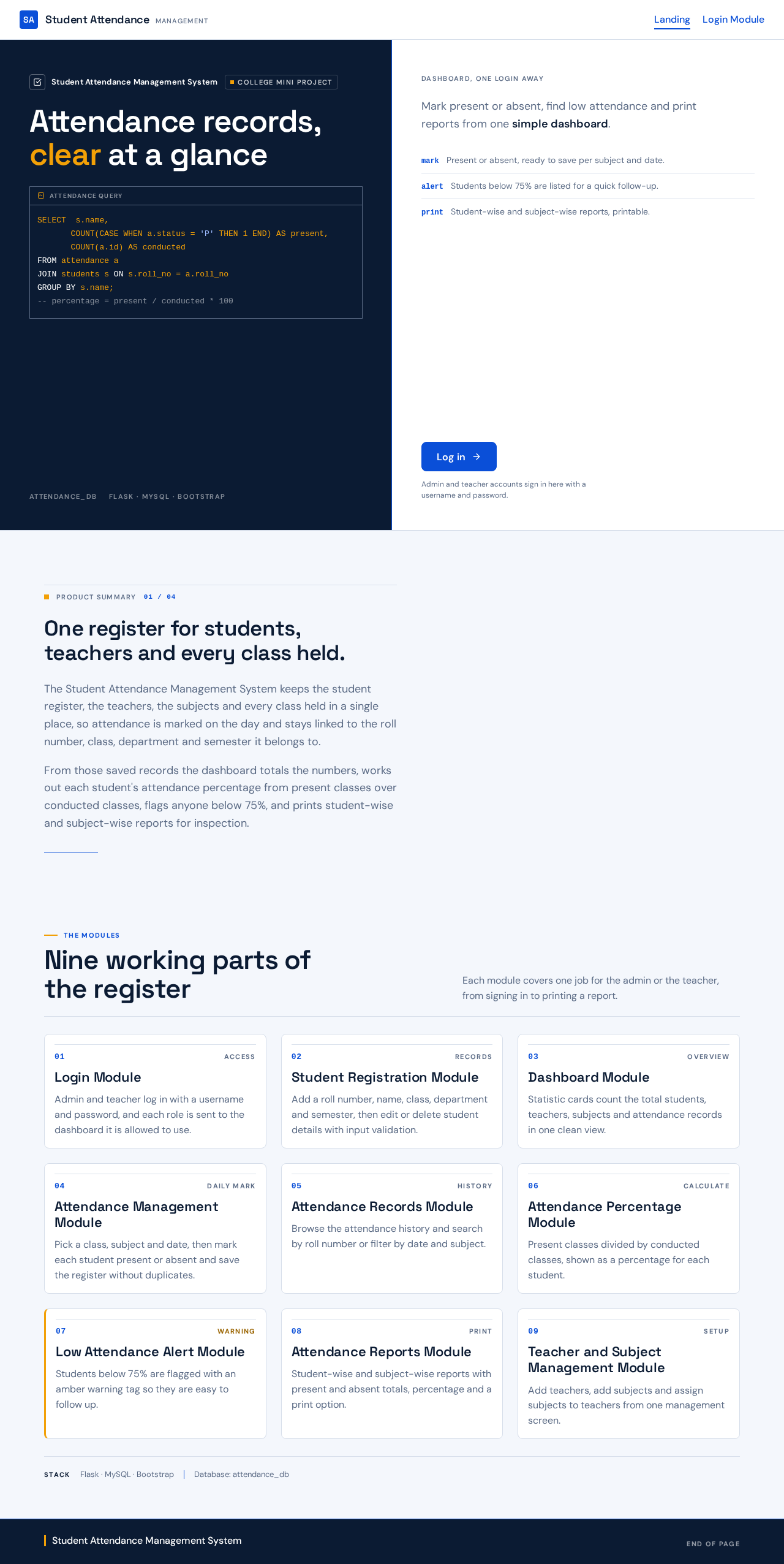
SELECT s.name, COUNT(CASE WHEN a.status = 'P' THEN 1 END) AS present, COUNT(a.id) AS conductedFROM attendance aJOIN students s ON s.roll_no = a.roll_noGROUP BY s.name;-- percentage = present / conducted * 100Mark present or absent, find low attendance and print reports from one simple dashboard.
Admin and teacher accounts sign in here with a username and password.
Product summary
The Student Attendance Management System keeps the student register, the teachers, the subjects and every class held in a single place, so attendance is marked on the day and stays linked to the roll number, class, department and semester it belongs to.
From those saved records the dashboard totals the numbers, works out each student's attendance percentage from present classes over conducted classes, flags anyone below 75%, and prints student-wise and subject-wise reports for inspection.
The modules
Each module covers one job for the admin or the teacher, from signing in to printing a report.
Admin and teacher log in with a username and password, and each role is sent to the dashboard it is allowed to use.
Add a roll number, name, class, department and semester, then edit or delete student details with input validation.
Statistic cards count the total students, teachers, subjects and attendance records in one clean view.
Pick a class, subject and date, then mark each student present or absent and save the register without duplicates.
Browse the attendance history and search by roll number or filter by date and subject.
Present classes divided by conducted classes, shown as a percentage for each student.
Students below 75% are flagged with an amber warning tag so they are easy to follow up.
Student-wise and subject-wise reports with present and absent totals, percentage and a print option.
Add teachers, add subjects and assign subjects to teachers from one management screen.
SELECT s.name, COUNT(CASE WHEN a.status = 'P' THEN 1 END) AS present, COUNT(a.id) AS conductedFROM attendance aJOIN students s ON s.roll_no = a.roll_noGROUP BY s.name;-- percentage = present / conducted * 100Mark present or absent, find low attendance and print reports from one simple dashboard.
Admin and teacher accounts sign in here with a username and password.
Product summary
The Student Attendance Management System keeps the student register, the teachers, the subjects and every class held in a single place, so attendance is marked on the day and stays linked to the roll number, class, department and semester it belongs to.
From those saved records the dashboard totals the numbers, works out each student's attendance percentage from present classes over conducted classes, flags anyone below 75%, and prints student-wise and subject-wise reports for inspection.
The modules
Each module covers one job for the admin or the teacher, from signing in to printing a report.
Admin and teacher log in with a username and password, and each role is sent to the dashboard it is allowed to use.
Add a roll number, name, class, department and semester, then edit or delete student details with input validation.
Statistic cards count the total students, teachers, subjects and attendance records in one clean view.
Pick a class, subject and date, then mark each student present or absent and save the register without duplicates.
Browse the attendance history and search by roll number or filter by date and subject.
Present classes divided by conducted classes, shown as a percentage for each student.
Students below 75% are flagged with an amber warning tag so they are easy to follow up.
Student-wise and subject-wise reports with present and absent totals, percentage and a print option.
Add teachers, add subjects and assign subjects to teachers from one management screen.
No comments yet. Be the first!