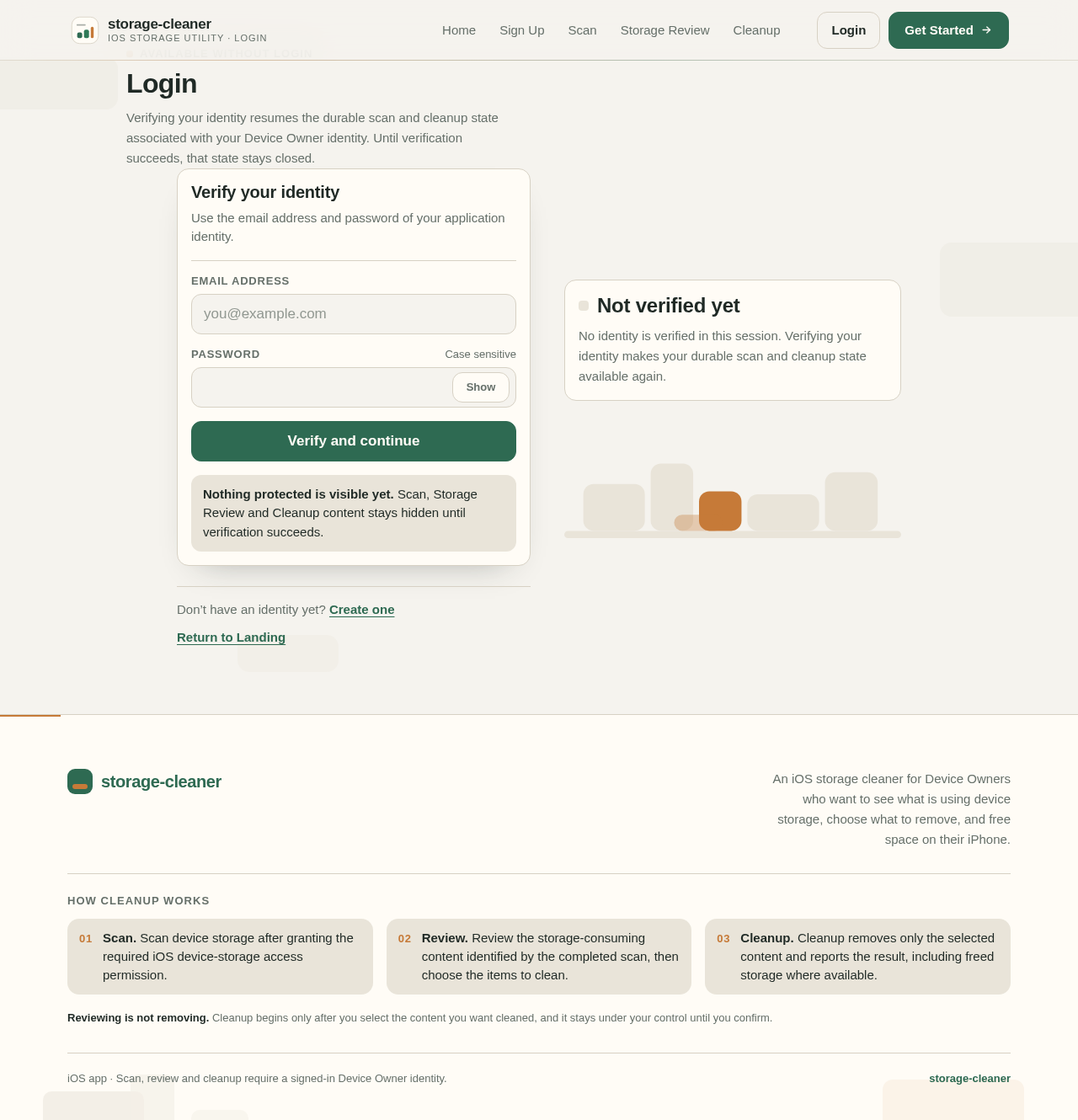
Verifying your identity resumes the durable scan and cleanup state associated with your Device Owner identity. Until verification succeeds, that state stays closed.
Verify your identity
Use the email address and password of your application identity.
Nothing protected is visible yet. Scan, Storage Review and Cleanup content stays hidden until verification succeeds.
No identity is verified in this session. Verifying your identity makes your durable scan and cleanup state available again.
Preview data'Changes will reset when this preview closes.'
iOS storage cleaner
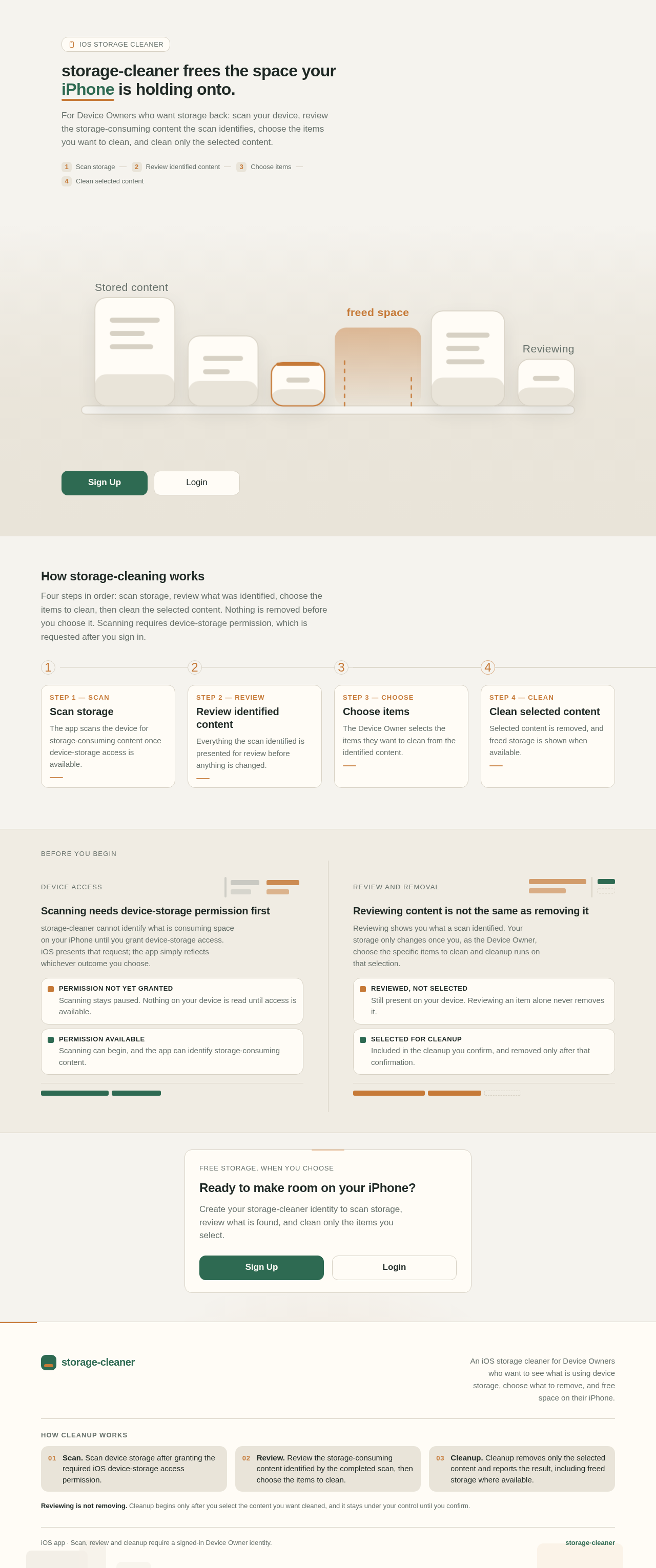
storage-cleaner frees the space your iPhone is holding onto.
For Device Owners who want storage back: scan your device, review the storage-consuming content the scan identifies, choose the items you want to clean, and clean only the selected content.
Four steps in order: scan storage, review what was identified, choose the items to clean, then clean the selected content. Nothing is removed before you choose it. Scanning requires device-storage permission, which is requested after you sign in.
1
Step 1 — Scan
Scan storage
The app scans the device for storage-consuming content once device-storage access is available.
Step 1 of 4
2
Step 2 — Review
Review identified content
Everything the scan identified is presented for review before anything is changed.
Step 2 of 4
3
Step 3 — Choose
Choose items
The Device Owner selects the items they want to clean from the identified content.
Step 3 of 4
4
Step 4 — Clean
Clean selected content
Selected content is removed, and freed storage is shown when available.
Step 4 of 4
Before you begin
Device access
Scanning needs device-storage permission first
storage-cleaner cannot identify what is consuming space on your iPhone until you grant device-storage access. iOS presents that request; the app simply reflects whichever outcome you choose.
Permission not yet grantedScanning stays paused. Nothing on your device is read until access is available.
Permission availableScanning can begin, and the app can identify storage-consuming content.
Review and removal
Reviewing content is not the same as removing it
Reviewing shows you what a scan identified. Your storage only changes once you, as the Device Owner, choose the specific items to clean and cleanup runs on that selection.
Reviewed, not selectedStill present on your device. Reviewing an item alone never removes it.
Selected for cleanupIncluded in the cleanup you confirm, and removed only after that confirmation.
Free storage, when you choose
Ready to make room on your iPhone?
Create your storage-cleaner identity to scan storage, review what is found, and clean only the items you select.



No comments yet. Be the first!