Page 1 of 9
System Requirements Document for stone-8080
1. Introduction
stone-8080 is a publishable, professional website for a Student Expense Tracker. It is built for university-age students who want to know where their money goes each month without feeling audited or judged. The product lets a student record everyday spending across categories such as food, travel, and shopping, set a monthly budget, see charts of their spending, and read AI-generated suggestions for saving.
The intent is a friendly money companion rather than a finance tool: a cute, warm, illustrated surface in pink and baby blue, with a scattered background of cute food characters (croissants, cupcakes, noodles, coffee, chocolate, hot chocolate) drawn from the referenced design pictures — while remaining polished and professional enough to publish publicly.
The audience is students who are mobile-first, budget-conscious, and not finance-literate. The emotional register is encouraging and factual, never guilt-toned.
Page 2 of 9
2. System Overview
stone-8080 is delivered as a website (explicitly not a full native app), with a responsive layout: a mobile-first single column that widens into a 12-column desktop grid. It is a first-party application with its own custom UI and its own application-owned identity, so a student's expenses, budget, charts, and saving suggestions persist and remain bound to that student across visits.
Current delivery covers:
- Anonymous public entry — a Landing page that explains the Student Expense Tracker, its student audience, expense tracking, monthly budgeting, spending charts, and saving suggestions.
- Identity access — a Sign Up page where a student independently begins using the tracker, and a Login page where a returning student verifies identity to reach saved data.
- Protected working surfaces — Dashboard (overview of budget status, spending, charts, and saving guidance), Expenses (revisitable categorized expense history and management), Add Expense (focused entry of an amount and category), Budget (monthly budget setting and remaining amount), Spending Charts (spending by category and over time), and Saving Tips (AI-generated saving suggestions derived from recorded spending).
Actors: the two accepted human personas — Student Budgeter and Savings Seeker — plus the application's own backend and the AI suggestion service that produces saving advice from recorded spending.
Narrow exclusions: this is a website, not a full application; no adjacent finance capabilities (bank syncing, payments, transfers, investment tracking, multi-user sharing, or account-management modules beyond the identity establishment and verification needed for the accepted journeys) are in scope.
Page 3 of 9
2a. Product Interpretation and Delivery Boundary
stone-8080 is delivered as a public website. The Landing page is anonymously reachable and is the first impression for any visitor. Because a student's expenses, monthly budget, charts, and saving suggestions are durable, student-specific records that must remain bound to the correct person and be resumable on return, the application owns identity: a student establishes access through self-service Sign Up, and a returning student verifies through Login. The protected surfaces — Dashboard, Expenses, Add Expense, Budget, Spending Charts, and Saving Tips — are reachable only after that identity is established; the anonymous entry interaction itself lives on Landing, Sign Up, and Login, which are not protected.
Current horizon: everything described in this document. No future-horizon features are accepted; nothing beyond the accepted expense tracking, monthly budget, spending charts, and AI saving suggestions is in scope.
2b. Source Content Inventory
The single reference directive for https://8080.ai/design/776c8818-b55c-4fbf-abda-5e4b4b4f60ef/3c426bf9-67c5-4a9f-9b88-e29e93d8555f?device=desktop declares uses: ["visual_inspiration"] with authority: inspiration_only. It is not a content_source, so no factual content inventory is produced. The referenced page could not be retrieved, so no verified visual facts were extracted from it; the user's own written description of the desired background (cute food: croissants, cupcakes, noodles, coffee, chocolate, hot chocolate) is the authoritative description of that imagery, and the CREATIVE DIRECTION supplies the concrete illustration register.
2c. Page Content and Component Coverage
Page 4 of 9
Landing
- Information/state: Anonymous public entry. Explains the Student Expense Tracker, its student audience, expense tracking across food/travel/shopping, the monthly budget, spending charts, and AI saving suggestions. No student data is shown.
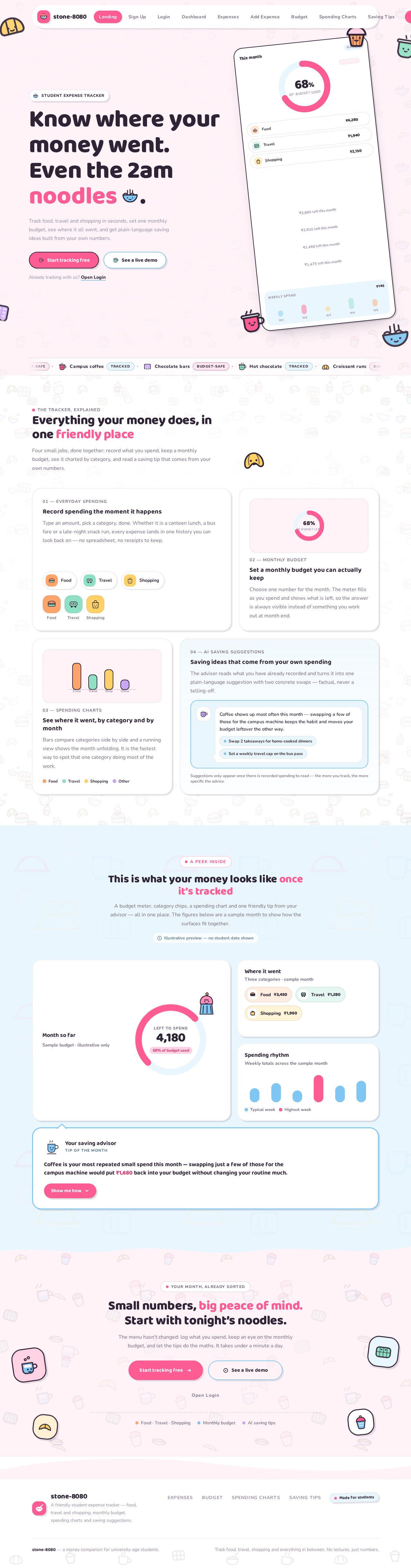
- Primary actions: "Start tracking free" (pink pill) → Sign Up; "See a live demo" (outlined blue pill) → illustrative preview of the tracker's surfaces.
- Supporting actions: Navigate to Login for returning students.
- Domain entities: Product explanation content; illustrative (non-personal) preview of budget meter, category chips, and mini bar chart.
- Component responsibilities: Hero band with scattered low-opacity food-character pattern; 72px Baloo 2 headline with "noodles" in hot pink and a small ramen character on the baseline; one-line subhead; two pill CTAs; tilted phone-shaped card at -6deg showing a live-looking mini dashboard (circular pink budget meter at 68%, three category chips with amounts, tiny bar chart) with a cupcake character peeking over the top edge and a coffee cup leaning on the bottom corner; thin marquee strip of rotating food emoji and "budget-safe" badges along the bottom of the hero band; alternating full-width colour bands (pink ground → white → baby-blue ground) with content in a 1080px max measure.
- States: Loading — hero illustration pattern and mini dashboard render progressively. Empty — not applicable (no student data). Success — page fully rendered with both CTAs available. Error — if the illustrative preview cannot render, the hero copy and both CTAs remain usable. Recovery — retry the preview render; the Sign Up path is never blocked by preview failure.
Sign Up
- Information/state: Anonymous identity-establishment surface. Collects the minimum needed to create a student's own tracker account.
- Primary actions: Submit enrollment to create the account and continue into the protected tracker.
- Supporting actions: Navigate to Login if the student already has an account; return to Landing.
- Domain entities: Student account identity; the durable ownership link that will bind expenses, budget, charts, and suggestions to this student.
- Component responsibilities: Enrollment form with labeled fields in Nunito 700 small caps; pink pill submit button with press-squish; inline validation messaging; link to Login.
- States: Loading — submit button shows in-progress state and prevents duplicate submission. Empty — pristine form with helper copy. Success — account created and the student continues to the protected tracker. Error — invalid or incomplete input is shown inline next to the offending field; a failed submission preserves entered values. Recovery — correct the flagged field and resubmit; no partial account is left behind.
Login
- Information/state: Anonymous returning-verification surface. Verifies a returning student so their saved expenses, budget, charts, and saving suggestions become available again.
- Primary actions: Submit credentials to verify identity and continue to the protected tracker.
- Supporting actions: Navigate to Sign Up for a student without an account; return to Landing.
- Domain entities: Student account identity; verification of the existing ownership link.
- Component responsibilities: Credential form with labeled fields; pink pill submit button; inline error region; link to Sign Up.
- States: Loading — submit button shows in-progress state. Empty — pristine form. Success — verified and routed to the protected tracker. Error — incorrect credentials show a friendly, factual inline message without revealing which part was wrong. Recovery — retry; the form retains the entered identifier so the student does not retype everything.
Page 5 of 9
Dashboard
- Information/state: Protected overview summarizing budget status, spending, charts, and saving guidance for the signed-in student, and routing them to focused work.
- Primary actions: Open Add Expense; open Budget; open Spending Charts; open Saving Tips; open Expenses.
- Supporting actions: Read the AI saving tip card; read the budget-remaining meter.
- Domain entities: Monthly budget and remaining amount; recorded expenses; category totals; AI saving suggestions.
- Component responsibilities: Persistent left rail on desktop (icon + label pills) collapsing to a bottom tab bar on mobile; asymmetric card layout — one wide hero-stat card next to two stacked smaller cards; circular budget meter (thick pink arc on baby-blue track, remaining amount in 40px Baloo 2 at center, tiny cupcake character perched on the arc's end, spring count-up on load); category chips as little characters in their own pastel fills; AI saving tip card with baby-blue frame, chat-bubble tail, coffee-cup advisor character, one plain-language tip in bold, and a pink "Show me how" pill that expands into two concrete swaps.
- States: Loading — cards enter with 40ms-staggered fade + 12px rise; budget meter fills with a spring and its number counts up. Empty — no expenses or budget yet: one big friendly character with a speech bubble inviting the student to set a budget and add a first expense, with direct actions to Budget and Add Expense. Success — budget status, spending, chart preview, and saving guidance all populated. Error — if a summary section fails to load, the remaining sections stay usable and the failed section shows a retry. Recovery — retry the failed section; navigation to focused pages is never blocked.
Expenses
- Information/state: Protected, revisitable expense history and management area listing categorized spending records for the signed-in student.
- Primary actions: Open Add Expense; select a record to view or edit its amount and category; delete a record.
- Supporting actions: Filter or scan by category (Food, Travel, Shopping, Other); return to Dashboard.
- Domain entities: Expense records with amount, category, and date; category set Food/Travel/Shopping/Other.
- Component responsibilities: List rows with 40ms-staggered fade + 12px rise entry; category chips as character pills with hover wobble and tap squish; sticker-shadow cards with 4px offset ink-plum shadow; empty-state character with speech bubble.
- States: Loading — rows stagger in. Empty — no expenses recorded: friendly character with a speech bubble and a direct action to Add Expense. Success — records listed with amounts and category chips. Error — a failed load shows a retry while keeping navigation available; a failed edit or delete leaves the record unchanged and reports the failure inline. Recovery — retry the load, or re-attempt the edit/delete; the list re-reads authoritative state.
Add Expense
- Information/state: Protected focused entry surface for recording one expense: an amount and an assigned category.
- Primary actions: Enter the amount; choose a category (Food, Travel, Shopping, Other); save the expense.
- Supporting actions: Cancel and return to Expenses or Dashboard.
- Domain entities: A new expense record with amount, category, and date.
- Component responsibilities: Amount field using Baloo 2 at 800 so the figure reads like a sticker; category chips as character pills in pastel fills (mint travel, butter shopping, lilac other, tangerine food); pink pill save button with press-squish; inline validation.
- States: Loading — save button shows in-progress state and prevents duplicate submission. Empty — pristine form with the category chips unselected. Success — the expense is recorded and the student is returned to the expense history or dashboard with the new record visible. Error — a missing or invalid amount, or an unselected category, is flagged inline; a failed save preserves entered values. Recovery — correct the flagged input and resubmit; no partial record is created.
Page 6 of 9
Budget
- Information/state: Protected focused monthly budget area showing the set budget and the amount remaining for the month.
- Primary actions: Set or update the monthly budget amount.
- Supporting actions: Read the remaining amount against the circular budget meter; return to Dashboard.
- Domain entities: Monthly budget amount; remaining amount for the current month.
- Component responsibilities: Circular budget meter as the hero object (thick pink arc on baby-blue track, remaining amount in 40px Baloo 2 at center, cupcake character perched on the arc's end, spring count-up); budget amount field in Baloo 2 at 800; pink pill save button.
- States: Loading — meter fills with a spring and the number counts up. Empty — no budget set yet: friendly character with a speech bubble prompting the student to set a monthly budget. Success — budget and remaining amount displayed and consistent with recorded expenses. Error — an invalid budget amount is flagged inline; a failed save leaves the previous budget intact. Recovery — correct the amount and resubmit; the meter re-reads authoritative state.
Spending Charts
- Information/state: Protected focused visualization area for reviewing spending by category and over time.
- Primary actions: Switch between spending-by-category and spending-over-time views.
- Supporting actions: Read the coloured legend chip row above the chart; return to Dashboard.
- Domain entities: Category totals (Food, Travel, Shopping, Other); spending over time.
- Component responsibilities: Charts inside rounded white cards with a coloured legend chip row above them; palette series (pink #FF5C93 series 1, baby blue #7FC7F2 series 2, plus mint/butter/lilac/tangerine category colours); rounded caps; character legend chips; arcs/bars draw on scroll-in over 700ms.
- States: Loading — chart draws its arcs/bars on scroll-in over 700ms. Empty — no spending to chart yet: one big friendly character with a speech bubble and a direct action to Add Expense. Success — charts render with the palette, rounded caps, and character legend chips. Error — a failed chart load shows a retry while the other view remains selectable. Recovery — retry the failed view; charts re-read authoritative state.
Saving Tips
- Information/state: Protected focused area for viewing AI-generated saving suggestions derived from the student's recorded spending.
- Primary actions: Read a saving suggestion; expand a suggestion via the pink "Show me how" pill into two concrete swaps.
- Supporting actions: Return to Dashboard or Spending Charts to see the spending behind a suggestion.
- Domain entities: AI saving suggestions derived from recorded spending; the concrete swaps attached to a suggestion.
- Component responsibilities: AI saving tip card with baby-blue frame, chat-bubble tail, coffee-cup advisor character, one plain-language tip in bold (for example, a coffee-spend observation with a concrete saving figure), and a pink "Show me how" pill that expands into two concrete swaps.
- States: Loading — suggestion cards enter with 40ms-staggered fade + 12px rise. Empty — not enough recorded spending to derive suggestions: friendly character with a speech bubble inviting the student to record expenses first, with a direct action to Add Expense. Success — suggestions shown in plain language with expandable concrete swaps. Error — if suggestion generation fails, the page shows a friendly retry and does not block the rest of the tracker. Recovery — retry generation; suggestions re-derive from the current recorded spending.
Page 7 of 9
3. Functional Requirements
FR-1 — Publishable Student Expense Tracker website (explicit)
As a Student Budgeter, I should use stone-8080 as a website (not a full app) that is professional and publishable, so that I can rely on it as a real public destination for my student money tracking.
- Trigger/input: I open the site in a browser.
- Observable result: A responsive website renders — mobile-first single column widening to a 12-column desktop grid — with the pink/baby-blue illustrated theme and no placeholder or unfinished content.
- Access state: Anonymous on Landing; protected surfaces require established identity.
- Failure/recovery: If a section fails to render, the rest of the site remains usable and the failed section offers a retry.
- Continuation: I can move from Landing into Sign Up or Login and then into the tracker.
- Acceptance: The site is publicly reachable and every accepted surface is complete and consistent.
FR-2 — Track expenses across categories (explicit)
As a Student Budgeter, I should record my everyday spending across categories including food, travel, and shopping, so that I know where my money went.
- Trigger/input: I open Add Expense and enter an amount and choose a category (Food, Travel, Shopping, Other).
- Observable result: The expense is saved as a record with its amount, category, and date, and appears in my expense history.
- Access state: Requires established identity (Login or Sign Up).
- Failure/recovery: A missing or invalid amount, or an unselected category, is flagged inline and entered values are preserved; no partial record is created.
- Continuation: I return to my expense history or Dashboard with the new record visible.
- Acceptance: A saved expense is visible in Expenses with the correct amount and category.
FR-3 — Revisitable expense history and management (required_inference)
As a Student Budgeter, I should revisit my expense history and manage records, so that I can correct or remove entries and trust the totals.
- Trigger/input: I open Expenses and select a record to view, edit, or delete.
- Observable result: The list shows my categorized records; an edit updates the record and a delete removes it, and dependent totals, charts, and budget remaining reflect the change.
- Access state: Requires established identity.
- Failure/recovery: A failed edit or delete leaves the record unchanged and reports the failure inline; a failed load shows a retry.
- Continuation: I can add another expense or return to Dashboard.
- Acceptance: After an edit or delete, the record list and dependent figures are consistent.
FR-4 — Monthly budget (explicit)
As a Student Budgeter, I should set a monthly budget and see how much remains, so that I can stay within it.
- Trigger/input: I open Budget and set or update my monthly budget amount.
- Observable result: The budget is saved and the amount remaining for the month is shown against my recorded spending.
- Access state: Requires established identity.
- Failure/recovery: An invalid budget amount is flagged inline and the previous budget stays intact.
- Continuation: I return to Dashboard where the budget meter reflects the new budget.
- Acceptance: The displayed remaining amount equals the budget minus recorded spending for the month.
FR-5 — Charts showing spending (explicit)
As a Student Budgeter, I should see charts of my spending, so that I can see where my money goes by category and over time.
- Trigger/input: I open Spending Charts and switch between the by-category and over-time views.
- Observable result: Charts render inside rounded white cards with a coloured legend chip row, using the project palette with rounded caps and character legend chips.
- Access state: Requires established identity.
- Failure/recovery: A failed chart load shows a retry while the other view remains selectable.
- Continuation: I can return to Dashboard or open Saving Tips.
- Acceptance: Chart values match my recorded expenses for the selected view.
FR-6 — AI suggestions for saving (explicit)
As a Savings Seeker, I should read AI-generated saving suggestions derived from my own recorded spending, so that I can act on concrete advice to spend less.
- Trigger/input: I open Saving Tips; the suggestions are derived from my recorded spending.
- Observable result: A baby-blue framed tip card with a chat-bubble tail and a coffee-cup advisor character shows one plain-language tip in bold, and the pink "Show me how" pill expands it into two concrete swaps.
- Access state: Requires established identity.
- Failure/recovery: If suggestion generation fails, the page shows a friendly retry and does not block the rest of the tracker.
- Continuation: I can return to Spending Charts or Dashboard to see the spending behind a suggestion.
- Acceptance: Each suggestion references my own recorded spending and expands into two concrete swaps.
FR-7 — Cute pink and baby-blue visual style (explicit)
As a Student Budgeter, I should see a cute interface in pink and baby blue, so that tracking money feels friendly rather than like an audit.
- Trigger/input: I view any page.
- Observable result: The pink/cream ground, white cards, baby-blue accents, and hot-pink signal colour are applied consistently, with ink-plum text and sticker-shadow cards.
- Access state: Applies on all pages, anonymous and protected.
- Failure/recovery: Not applicable — this is a presentation requirement.
- Continuation: Consistent across every page I visit.
- Acceptance: The palette is applied as specified and pink remains the accent rather than a full-bleed flood.
FR-8 — Cute food background imagery (explicit)
As a Student Budgeter, I should see cute food illustrations in the background, so that the site feels warm and on-theme.
- Trigger/input: I view any page.
- Observable result: A tiled SVG pattern of hand-drawn croissant, cupcake, ramen, coffee, chocolate, and hot chocolate characters at 8–14% opacity, rotated at varied angles, denser at band edges and masked away behind text, appears as the brand's signature ground.
- Access state: Applies on all pages, anonymous and protected.
- Failure/recovery: If the pattern fails to load, text and controls remain fully legible and usable.
- Continuation: Present on every page.
- Acceptance: All six named foods appear in the pattern and text legibility is preserved.
FR-9 — Self-service enrollment (required_inference)
As a Student Budgeter, I should create my own tracker account, so that my expenses, budget, charts, and suggestions are preserved and bound to me.
- Trigger/input: From Landing I choose "Start tracking free" and submit the Sign Up form.
- Observable result: My account is created and I continue into the protected tracker.
- Access state: Sign Up is anonymously reachable; the protected tracker is not.
- Failure/recovery: Invalid or incomplete input is flagged inline, entered values are preserved, and no partial account is left behind.
- Continuation: I land in the protected tracker and can set a budget and add my first expense.
- Acceptance: After enrollment, my records persist and remain mine on return.
FR-10 — Returning verification (required_inference)
As a Student Budgeter, I should verify my identity when I return, so that I can reach my saved expenses, budget, charts, and saving suggestions.
- Trigger/input: From Landing I open Login and submit my credentials.
- Observable result: I am verified and routed to the protected tracker with my saved data available.
- Access state: Login is anonymously reachable; the protected surfaces require verification.
- Failure/recovery: Incorrect credentials show a friendly, factual inline message that does not reveal which part was wrong, and my entered identifier is retained.
- Continuation: I continue into Dashboard and my focused pages.
- Acceptance: After verification, my previously saved data is present and correct.
FR-11 — Protected overview and routing (required_inference)
As a Student Budgeter, I should see an overview of my budget status, spending, charts, and saving guidance, so that I can decide what to do next.
- Trigger/input: I open Dashboard after establishing identity.
- Observable result: The budget meter, spending summary, chart preview, and AI saving tip card are shown, with routes to Add Expense, Budget, Spending Charts, Saving Tips, and Expenses.
- Access state: Requires established identity.
- Failure/recovery: If a summary section fails, the remaining sections stay usable and the failed section shows a retry.
- Continuation: I open the focused page for whatever needs attention.
- Acceptance: Every routed destination is reachable from Dashboard and the summary matches my recorded data.
Page 8 of 9
4. User Personas
Student Budgeter
- Product context: A university-age student who is mobile-first and budget-conscious but not finance-literate. They open the tracker on a phone between classes and on a laptop in the evening, and they want a quick, honest read on their month without a spreadsheet.
- Primary goal: Know how much they have spent and how much budget remains for the month.
- Distinct accepted responsibilities: Recording everyday expenses across food, travel, and shopping (and other categories); revisiting and managing that expense history; setting and updating the monthly budget; and reviewing spending charts by category and over time.
- Relevant inputs or decisions: The amount and category of each expense; whether an existing record needs correcting or removing; the monthly budget figure; which chart view answers their current question.
- Interactions with other accepted participants: Their recorded spending is the input that the AI suggestion service turns into saving advice, which the Savings Seeker persona reads; the application's backend persists and returns their records.
- Observable success: The Dashboard shows a budget meter with the correct remaining amount, the expense history matches what they actually spent, and the charts agree with both.
Savings Seeker
- Product context: A student using the same tracker who has decided they want to spend less and save more. They are motivated but need concrete, non-judgmental direction rather than a lecture, and they want advice grounded in their own numbers rather than generic tips.
- Primary goal: Act on concrete saving advice derived from their own recorded spending.
- Distinct accepted responsibilities: Reading AI-generated saving suggestions, expanding a suggestion into its two concrete swaps, and cross-checking a suggestion against their spending charts and budget status before adjusting their habits.
- Relevant inputs or decisions: Which suggestion to act on; whether the two concrete swaps are realistic for them; how the suggested change would move their budget remaining.
- Interactions with other accepted participants: They depend on the Student Budgeter's recorded expenses, since suggestions are derived from that spending; the AI suggestion service produces the advice they read.
- Observable success: They can point to a specific suggestion tied to their own spending, see its two concrete swaps, and see the corresponding spending in their charts.
5. Core User Flows
Page 9 of 9
Flow 1 — First-time student starts tracking (Student Budgeter)
- The student opens stone-8080 and lands on Landing anonymously. The hero explains the Student Expense Tracker, its student audience, expense tracking across food/travel/shopping, the monthly budget, spending charts, and AI saving suggestions, with the scattered food-character pattern behind it.
- The student reads the headline and subhead and chooses the pink pill "Start tracking free".
- Sign Up opens. The student fills the enrollment form and submits.
- If input is invalid or incomplete, the offending field is flagged inline, the entered values are preserved, and no partial account is created; the student corrects the field and resubmits.
- On success, the account is created and the student continues into the protected tracker at Dashboard.
- Dashboard shows the empty state: one big friendly character with a speech bubble inviting them to set a budget and add a first expense, with direct actions to Budget and Add Expense.
- The student opens Budget, enters a monthly budget amount, and saves. The circular budget meter fills with a spring and its number counts up.
- The student opens Add Expense, enters an amount, chooses a category chip (Food, Travel, Shopping, or Other), and saves.
- The expense is recorded and the student returns to their expense history or Dashboard with the new record visible.
- Next step: the student continues adding expenses as they spend, and the Dashboard budget meter and spending summary update accordingly.
Flow 2 — Recording an everyday expense (Student Budgeter)
- The student is signed in and on Dashboard or Expenses.
- They open Add Expense.
- They type the


No comments yet. Be the first!