steel-monitoring
 Chirag Chaudhary
**Trial Portal Version 2.0 is ready** ## **SAG In-Scheme Monitoring Portal** Responsive HTML prototype – compatible with laptop, desktop and mobile browser. **Download and open the trial portal** **SAG_InScheme_Monitoring_Portal_Trial_v2.html** Standalone HTML file Download Trial Portal v2.0 **How to test** 1. Download the HTML file on your laptop. 2. Open it in Google Chrome or Microsoft Edge. 3. Change Login Role from the left-side dropdown. 4. Try each module and enter sample data. 5. Generate reports and download CSV files in Excel-compatible format. 6. For mobile, transfer the same file to your phone and open it in Chrome. **Included in this version:** - Unique Trainer Name Count. - Project Manager and Assistant Manager roles. - Junior/Senior MIS, Sports Analyst, Team Manager and Trainer. - Trainer daily attendance. - School PE and After-School reports. - Individual player attendance. - KMK, SGFI, Association and Federation medal records. - Daily Overall and Monthly Report Generation. - CSV export and print/PDF option. **Important limitations:** This is a working front-end trial, not a live production portal. Sample entries are saved in the same browser using local storage. Actual GPS verification, live selfie capture, secure login, server database, and real photo uploads still need backend development. Role switching is for interface testing, not production security. **My suggestion:** First test this version on your laptop and phone. Note any changes you want in the screens, reporting fields or dashboard. We can then finalize Version 3 for actual software development.


Comments (0)
Sign in to leave a comment
System Requirements
System Requirements Document for SAG In-Scheme Monitoring Portal
1. Introduction
The SAG In-Scheme Monitoring Portal is a working front-end trial (Version 2.0) of a monitoring tool for a government sports scheme. It is delivered as a standalone HTML file (SAG_InScheme_Monitoring_Portal_Trial_v2.html) that Chirag Chaudhary and his reviewers download and open directly in Google Chrome or Microsoft Edge on a laptop, desktop, or mobile browser. The trial exists so that stakeholders can test the screens, roles, data-entry modules, reporting fields, and dashboard before the product is finalized as Version 3 for actual software development.
The audience is the scheme's operating staff: Project Managers and Assistant Managers who monitor trainers, attendance and medals; Junior/Senior MIS staff who enter data and produce reports; Sports Analysts who review attendance and medal records; Team Managers who review trainer and player attendance; and Trainers who record their own daily attendance, school PE and after-school reports, individual player attendance, and medal records.
The trial is explicitly not a live production portal. Sample entries are saved in the same browser using local storage. GPS verification, live selfie capture, secure login, a server database, and real photo uploads are not part of this version and remain backend work for Version 3. Role switching is for interface testing only and is not production security.
2. System Overview
The current product is a single standalone HTML trial portal with four first-party surfaces: an anonymous Landing entry that explains the trial and offers the download, a Dashboard that shows the unique trainer name count and hosts the left-side Login Role dropdown, a Data Entry area where sample data is entered across the trainer, attendance, school PE, after-school, player and medal modules, and a Reports area where daily overall and monthly reports are generated and exported as Excel-compatible CSV or printed/saved as PDF.
All six accepted roles — Project Manager, Assistant Manager, Junior/Senior MIS, Sports Analyst, Team Manager and Trainer — operate the same trial file. The Login Role dropdown in the left rail switches the interface context for testing; it does not authenticate or restrict access. Sample entries persist in the browser's local storage so a reviewer can enter data, switch roles, and see the same records reflected in the dashboard and reports on the same device.
The provisioned scaffold (a shared FastAPI backend, a MariaDB database, and a React frontend) is infrastructure inventory only. It does not add product behavior, authentication, or domain persistence to this trial; the accepted trial behavior is the standalone HTML file with browser local storage.
Removed from scope
- GPS verification (also: actual GPS verification)
- Live selfie capture (also: selfie capture)
- Secure login (also: production security)
- Server database (also: server-side database persistence for the trial)
- Real photo uploads (also: photo uploads)
2a. Product Interpretation and Delivery Boundary
The trial is a downloadable, self-contained front-end artifact. There is no hosted application, no account, and no server round-trip: the reviewer downloads the HTML file, opens it locally in Chrome or Edge, and works entirely within that browser. Data entered during a review session is stored in that browser's local storage on that device, so it survives a page reload in the same browser but is not shared across devices or browsers.
Access is therefore anonymous and local by design. The Landing surface is the public entry that explains the trial and provides the download; the Dashboard, Data Entry and Reports surfaces are reached inside the opened file. The Login Role dropdown is an interface-testing control, not an access control — every role sees the same trial modules, and no role-based permission or visibility restriction is part of this version.
The boundary between current and future is explicit. Everything in this document describes the Version 2.0 trial. GPS verification, live selfie capture, secure login, a server database, and real photo uploads are future backend work for Version 3 and are not current requirements, pages, or acceptance criteria. The provisioned FastAPI/MariaDB/React scaffold is available for that future development but is not exercised by the trial's accepted behavior.
2c. Page Content and Component Coverage
Landing
- Information/state: Trial identity ("SAG In-Scheme Monitoring Portal", Trial Portal Version 2.0), a statement that it is a responsive HTML prototype compatible with laptop, desktop and mobile browsers, the standalone file name
SAG_InScheme_Monitoring_Portal_Trial_v2.html, and a plain statement of the trial limitations (front-end only, local-storage sample entries, backend items pending). - Primary action: Download Trial Portal v2.0 (the standalone HTML file).
- Supporting actions: Read the "How to test" steps (download on laptop; open in Chrome or Edge; change Login Role from the left-side dropdown; try each module and enter sample data; generate reports and download CSV in Excel-compatible format; transfer the same file to a phone and open in Chrome).
- Domain entities: Trial build (version 2.0), standalone HTML file, test steps.
- Component responsibilities: Hero headline and subline; download control; ruled "How to test" step list; limitations notice; included-features list (unique trainer name count; Project Manager and Assistant Manager roles; Junior/Senior MIS, Sports Analyst, Team Manager and Trainer; trainer daily attendance; school PE and after-school reports; individual player attendance; KMK, SGFI, Association and Federation medal records; daily overall and monthly report generation; CSV export and print/PDF option).
- States: Loading — static content, no loading state. Empty — not applicable. Success — download begins and the file is saved. Error/recovery — if the browser blocks or cannot save the download, the reviewer retries the download control or saves the file manually and opens it in Chrome or Edge.
Dashboard
- Information/state: Unique Trainer Name Count as a headline metric; the current Login Role shown in the left rail; the module navigation into Data Entry and Reports.
- Primary action: Change Login Role from the left-side dropdown.
- Supporting actions: Read the unique trainer name count; open a module (Data Entry, Reports).
- Domain entities: Trainer (name, counted uniquely), Login Role (Project Manager, Assistant Manager, Junior/Senior MIS, Sports Analyst, Team Manager, Trainer).
- Component responsibilities: Left rail with fixed Login Role dropdown and active role indicator; unique trainer name count panel; module navigation; local-storage-backed record summary.
- States: Loading — counts read from local storage on open. Empty — zero unique trainer names shown when no trainer records exist, with a prompt to enter sample data in Data Entry. Success — count reflects the distinct trainer names currently stored. Error/recovery — if local storage is unavailable or cleared, the count resets to zero and the reviewer re-enters sample data.
Data Entry
- Information/state: Module forms for trainer records, trainer daily attendance, school PE reports, after-school reports, individual player attendance, and KMK/SGFI/Association/Federation medal records; the active Login Role from the left rail.
- Primary action: Enter and save sample data in a module.
- Supporting actions: Switch modules; switch Login Role to test each module's interface; review previously saved sample entries.
- Domain entities: Trainer; trainer daily attendance record; school PE report; after-school report; player; individual player attendance record; medal record with medal body (KMK, SGFI, Association, Federation).
- Component responsibilities: Module selector; per-module entry forms; save action writing to browser local storage; saved-entry list per module; role-context indicator.
- States: Loading — forms render immediately from the static file. Empty — each module shows an empty saved-entry list with an entry prompt. Success — saved entry appears in the module list and is reflected in the Dashboard count and Reports. Error/recovery — invalid or incomplete entries are rejected with a visible message and the form retains input for correction; if local storage is full or unavailable, the save failure is shown and the reviewer frees space or re-enters after reload.
Reports
- Information/state: Report type selection (Daily Overall, Monthly), the report output built from stored sample data, and export controls.
- Primary action: Generate a Daily Overall or Monthly report.
- Supporting actions: Download the report as an Excel-compatible CSV; use the print/PDF option.
- Domain entities: Daily overall report; monthly report; CSV export file; print/PDF output.
- Component responsibilities: Report type and period selection; generated report view; CSV export control; print/PDF control.
- States: Loading — generation indicator while the report is assembled from local storage. Empty — a notice when no sample data exists for the selected report and period, with a prompt to enter data in Data Entry. Success — report renders and CSV downloads in Excel-compatible format or the print/PDF dialog opens. Error/recovery — if generation or export fails, an error message is shown and the reviewer regenerates or retries the export.
3. Functional Requirements
FR-1 — Responsive standalone trial file. As a reviewer, I should open the trial portal as a standalone HTML file in Chrome or Edge on laptop, desktop or mobile, so that I can evaluate it on the devices I use. (explicit) The file SAG_InScheme_Monitoring_Portal_Trial_v2.html is downloaded and opened directly; the layout adapts to laptop, desktop and mobile browser widths. Observable acceptance: the file opens and every module is usable at laptop, desktop and phone widths. Failure/recovery: if the file does not open, the reviewer re-downloads it and opens it in Chrome or Edge.
FR-2 — Download the trial from the Landing surface. As a reviewer, I should download Trial Portal v2.0 from the Landing surface, so that I have the file to open locally. (explicit) The Landing surface presents the download control and the "How to test" steps. Observable acceptance: activating the download saves the standalone HTML file. Failure/recovery: a blocked or failed download is retried from the same control.
FR-3 — Change Login Role from the left-side dropdown. As a reviewer, I should change the Login Role from the left-side dropdown, so that I can test each role's interface. (explicit) The dropdown lists Project Manager, Assistant Manager, Junior/Senior MIS, Sports Analyst, Team Manager and Trainer. Observable acceptance: selecting a role updates the active role shown in the left rail and the module interface context. This is interface testing only and grants no security or permission behavior.
FR-4 — Unique Trainer Name Count. As a Project Manager, I should see the unique trainer name count on the Dashboard, so that I know how many distinct trainers are recorded. (explicit) The count reflects distinct trainer names in stored sample data. Observable acceptance: adding a trainer with a new name increments the count; a duplicate name does not. Empty state: zero with a prompt to enter data.
FR-5 — Project Manager and Assistant Manager roles. As a Project Manager or Assistant Manager, I should operate the portal under my role, so that I can monitor trainers, attendance and medal records and produce reports. (explicit) Both roles are selectable in the Login Role dropdown and can reach the Dashboard, Data Entry and Reports surfaces. Observable acceptance: the role appears in the dropdown and the active role is shown.
FR-6 — Junior/Senior MIS, Sports Analyst, Team Manager and Trainer roles. As a Junior/Senior MIS, Sports Analyst, Team Manager or Trainer, I should operate the portal under my role, so that I can perform my part of the monitoring work. (explicit) All four are selectable in the Login Role dropdown. Observable acceptance: each role appears in the dropdown and the active role is shown.
FR-7 — Trainer daily attendance. As a Trainer, I should record my daily attendance, so that the day's attendance is captured in the portal. (explicit) The Trainer enters a daily attendance entry in Data Entry. Observable acceptance: the saved entry appears in the trainer attendance records and is available to reports. Failure/recovery: an incomplete entry is rejected with a visible message and the input is retained.
FR-8 — School PE and After-School reports. As a Trainer, I should record school PE and after-school reports, so that session activity is captured. (explicit) The Trainer enters school PE report entries and after-school report entries in Data Entry. Observable acceptance: saved entries appear in their respective module lists and are available to reports.
FR-9 — Individual player attendance. As a Trainer, I should record individual player attendance, so that each player's attendance is tracked. (explicit) The Trainer enters per-player attendance in Data Entry. Observable acceptance: saved entries appear in the player attendance records and are available to reports.
FR-10 — KMK, SGFI, Association and Federation medal records. As a Trainer, I should record KMK, SGFI, Association and Federation medal records, so that medal outcomes are captured against the correct medal body. (explicit) Each medal record is associated with one of the four medal bodies. Observable acceptance: the saved record shows its medal body and appears in the medal records available to reports.
FR-11 — Daily Overall and Monthly report generation. As a Project Manager, Assistant Manager, Junior/Senior MIS, Sports Analyst, Team Manager or Trainer, I should generate a Daily Overall report and a Monthly report, so that I can review the recorded data for the day or month. (explicit) The Reports surface offers both report types and builds output from stored sample data. Observable acceptance: the selected report renders for the selected period. Empty state: a notice when no data exists for the period.
FR-12 — CSV export in Excel-compatible format. As a reviewer, I should download report data as a CSV file in Excel-compatible format, so that I can open it in Excel. (explicit) The Reports surface provides a CSV export control. Observable acceptance: the downloaded file opens in Excel with the report data. Failure/recovery: a failed export shows an error and can be retried.
FR-13 — Print/PDF option. As a reviewer, I should use a print/PDF option on a report, so that I can produce a printable or PDF copy. (explicit) The Reports surface provides a print/PDF control. Observable acceptance: the browser print dialog opens with the report and can produce a PDF.
FR-14 — Sample entries saved in the same browser using local storage. As a reviewer, I should have my sample entries saved in the same browser, so that my test data persists across reloads on that device. (explicit) Entries are written to browser local storage. Observable acceptance: after a reload in the same browser, saved entries remain. Failure/recovery: if local storage is unavailable or full, the failure is shown and the reviewer frees space or re-enters after reload.
FR-15 — Front-end-only trial boundary. As a stakeholder, I should understand that this is a working front-end trial and not a live production portal, so that I evaluate it as an interface test. (explicit) The Landing surface states the limitations. Observable acceptance: the limitations are visible on the Landing surface.
FR-16 — Role switching is interface testing only. As a reviewer, I should understand that role switching is for interface testing, so that I do not treat it as production security. (explicit) The Login Role dropdown changes interface context only. Observable acceptance: switching roles changes the active role display without any authentication step or access restriction.
FR-17 — Open the downloaded file in Chrome or Edge. As a reviewer, I should open the downloaded file in Google Chrome or Microsoft Edge, so that the trial runs in a supported browser. (required_inference) Observable acceptance: the trial loads and all modules function in either browser.
FR-18 — Test each module with sample data. As a reviewer, I should try each module and enter sample data, so that I can evaluate the screens and reporting fields. (required_inference) Observable acceptance: each module accepts and saves sample entries that flow into the Dashboard and Reports.
4. User Personas
Project Manager
The Project Manager oversees the in-scheme programme and uses the trial to judge whether the dashboard and reports give a trustworthy overview. Primary goal: monitor trainers, attendance and medal records and produce daily overall and monthly reports. Distinct responsibilities: reading the unique trainer name count, reviewing attendance and medal data across modules, generating Daily Overall and Monthly reports, and downloading CSV files. Inputs/decisions: decides whether the reporting fields and dashboard counts are sufficient before Version 3 is finalized. Interactions: relies on data entered by Junior/Senior MIS staff and Trainers; shares the review with the Assistant Manager. Observable success: the dashboard count and generated reports match the sample data entered.
Assistant Manager
The Assistant Manager supports programme oversight with the same monitoring and reporting scope as the Project Manager. Primary goal: monitor trainers, attendance and medal records and produce reports. Distinct responsibilities: reviewing module data, generating Daily Overall and Monthly reports, and downloading CSV files. Inputs/decisions: notes changes wanted in screens, reporting fields or the dashboard. Interactions: works alongside the Project Manager and depends on MIS and Trainer entries. Observable success: reports generate correctly and exports open in Excel.
Junior/Senior MIS
The MIS user is the primary data-entry operator. Primary goal: enter sample data in the portal modules and produce reports. Distinct responsibilities: entering trainer, attendance, school PE, after-school, player attendance and medal records; generating reports; downloading CSV files in Excel-compatible format. Inputs/decisions: decides what sample records to enter to exercise each module. Interactions: supplies the data that Project Managers, Assistant Managers, Sports Analysts and Team Managers review. Observable success: every module accepts entries and the reports reflect them.
Sports Analyst
The Sports Analyst reviews attendance and medal records. Primary goal: examine attendance and medal data and produce reports. Distinct responsibilities: reviewing trainer attendance, player attendance and KMK/SGFI/Association/Federation medal records; generating reports; downloading CSV files. Inputs/decisions: assesses whether the recorded fields capture what analysis needs. Interactions: depends on Trainer and MIS entries. Observable success: medal records show the correct medal body and reports export cleanly.
Team Manager
The Team Manager reviews trainer attendance and player attendance records. Primary goal: check attendance records and produce reports. Distinct responsibilities: reviewing trainer daily attendance and individual player attendance; generating reports; downloading CSV files. Inputs/decisions: judges whether attendance capture is complete enough for team oversight. Interactions: depends on Trainer attendance entries. Observable success: attendance records are visible and reports reflect them.
Trainer
The Trainer is the field recorder. Primary goal: record daily attendance and session reports. Distinct responsibilities: recording trainer daily attendance, school PE reports, after-school reports, individual player attendance, and KMK/SGFI/Association/Federation medal records. Inputs/decisions: enters the day's attendance and session and medal details. Interactions: supplies records reviewed by Team Managers, Sports Analysts, MIS staff and Managers. Observable success: entries save in the browser and appear in reports.
5. Core User Flows
Flow A — Reviewer downloads and opens the trial (all roles)
- The reviewer opens the Landing surface and reads the trial description, the included features, and the limitations notice.
- The reviewer activates Download Trial Portal v2.0; the standalone HTML file
SAG_InScheme_Monitoring_Portal_Trial_v2.htmlis saved. - The reviewer opens the file in Google Chrome or Microsoft Edge on a laptop or desktop.
- The Dashboard opens with the unique trainer name count and the left-side Login Role dropdown.
- Failure/recovery: if the download is blocked or the file does not open, the reviewer retries the download and reopens it in Chrome or Edge.
- Continuation: for mobile testing, the reviewer transfers the same file to a phone and opens it in Chrome (Flow B).
Flow B — Reviewer tests on a phone
- The reviewer transfers the downloaded HTML file to the phone.
- The reviewer opens it in Chrome; the layout adapts to the phone width.
- The reviewer changes the Login Role and tries modules as in Flow C.
- Failure/recovery: if the phone browser cannot open the file, the reviewer re-transfers it and opens it in Chrome.
Flow C — Reviewer switches roles and tests each module
- On the Dashboard, the reviewer opens the left-side Login Role dropdown and selects a role (Project Manager, Assistant Manager, Junior/Senior MIS, Sports Analyst, Team Manager or Trainer).
- The active role is shown in the left rail; the module interface context updates. No authentication occurs — this is interface testing only.
- The reviewer opens Data Entry and selects a module.
- The reviewer enters sample data and saves; the entry is written to browser local storage and appears in the module's saved-entry list.
- The reviewer repeats for other modules and other roles.
- Failure/recovery: an incomplete entry is rejected with a visible message and the input is retained; a local-storage failure is shown and the reviewer frees space or re-enters after reload.
- Continuation: the reviewer proceeds to Flow D to check the dashboard and Flow E to generate reports.
Flow D — Project Manager / Assistant Manager monitors the dashboard
- The Project Manager or Assistant Manager selects their role from the Login Role dropdown on the Dashboard.
- They read the unique trainer name count; adding a trainer with a new name increments it, a duplicate does not.
- They open Data Entry to review attendance and medal records entered by MIS staff and Trainers.
- Empty state: with no trainer records, the count shows zero with a prompt to enter data.
- Continuation: they move to Reports (Flow E).
Flow E — Generating and exporting reports (all roles)
- The reviewer opens Reports and selects Daily Overall or Monthly and the period.
- The reviewer activates generate; the report is assembled from stored sample data and renders.
- The reviewer activates CSV export; an Excel-compatible CSV file downloads and opens in Excel.
- The reviewer activates print/PDF; the browser print dialog opens with the report and can produce a PDF.
- Empty state: with no data for the period, a notice prompts entry in Data Entry.
- Failure/recovery: a failed generation or export shows an error and can be retried.
- Continuation: the reviewer notes changes wanted in screens, reporting fields or the dashboard for Version 3.
Flow F — Trainer records daily attendance and session reports
- The Trainer selects the Trainer role from the Login Role dropdown.
- In Data Entry, the Trainer opens the trainer daily attendance module and saves the day's attendance.
- The Trainer opens the school PE report module and saves the session report, then the after-school report module and saves that report.
- The Trainer opens the individual player attendance module and records each player's attendance.
- The Trainer opens the medal records module and records a KMK, SGFI, Association or Federation medal against the correct medal body.
- Each saved entry appears in its module list and is available to Reports.
- Failure/recovery: an incomplete entry is rejected with a visible message and the input is retained for correction.
- Continuation: the Team Manager, Sports Analyst, MIS staff and Managers review these records in Flows D and E.
Flow G — Team Manager reviews attendance
- The Team Manager selects their role from the Login Role dropdown.
- They open Data Entry and review trainer daily attendance and individual player attendance records.
- They open Reports and generate a Daily Overall or Monthly report covering attendance (Flow E).
- Observable result: attendance records are visible and reflected in the generated report.
Flow H — Sports Analyst reviews attendance and medals
- The Sports Analyst selects their role from the Login Role dropdown.
- They open Data Entry and review attendance and KMK/SGFI/Association/Federation medal records.
- They open Reports, generate a report, and download the CSV (Flow E).
- Observable result: medal records show the correct medal body and the export opens in Excel.
6. Visuals Colors and Theme
The design follows the supplied creative direction: functional clarity after Dieter Rams, for a government sports-scheme monitoring tool that must give order, trust and fast reading of attendance and medal data.
Palette (light mode)
- Background:
#E8E4DC(warm off-white ground) - Surface:
#F4F1EA(light panels) - Text:
#1C1B19(near-black) - Primary:
#2E2C29(near-black controls) - Accent:
#E4570F(Braun orange — active role, key counts, report actions only) - Muted:
#6F6A61(secondary labels)
Typography
- Headings: Archivo, Medium weight, tight tracking, flush left; small caps for labels and role names.
- Body: Fira Sans.
- Scale: 1.25 modular — 64 / 48 / 32 / 20 / 16 px; labels at 12 px with 0.08em tracking.
Shape and layout
- Rounded-rectangle controls at 6 px radius; hard 1 px rules divide panels; no shadows, no decoration.
- Modular 12-column grid; the left rail holds the Login Role dropdown; label and value pairs align in ruled rows.
Motion
- Instant state changes at 120 ms; counts step up once on load; no bounce, no parallax.
Imagery
- Diagrammatic line art and simple pictograms for trainers, schools, players and medals; no stock photos.
Avoid: no blue or indigo accents; no gradient blobs or glass panels; no hover-lift cards; no centred marketing hero; no playful illustration; no decorative motion.
Readable text and controls stay whole at 375 px, 768 px and 1280 px, wrapping or scaling (for example clamp()) to fit inside the viewport and their container.
7. Signature Design Concept
The public entry (Landing) is a full-width warm grey field (#E8E4DC) with a 9-column Archivo headline at 64 px on the left: "Monitor every trainer, school and medal", with the subline "Test the SAG in-scheme portal on your laptop and phone." Under the headline sits a solid near-black bar (#2E2C29) carrying the call to action "Download trial v2.0".
Below the hero, a ruled data strip presents four counts in orange tabular numerals with small-caps labels, separated by 1 px rules — a Braun-style control panel that previews the dashboard's reading rhythm. The "How to test" steps and the limitations notice sit on light panels (#F4F1EA) divided by hairline rules. The concept recomposes only accepted content: the download control, the test steps, the included-features list and the limitations.
8. Interaction Model & Motion Direction
Interaction Model: Static Motion Tempo: restrained Hero Dimensionality: flat
Landing Hero Motion Brief
- Focal subject: the Archivo headline and the ruled data strip of four orange counts.
- Thesis: the reviewer reads the headline and counts (input), activates the near-black download bar (transformation), and receives the standalone HTML file (outcome).
- Motion vocabulary: instant state changes at 120 ms; counts step up once on load; no bounce, no parallax, no decorative motion.
- Composed first frame: warm grey field, left-aligned 64 px headline, subline, solid near-black download bar, ruled strip of four orange numerals beneath.
- Reduced-motion state: identical static arrangement; the count step-up is omitted and all values render immediately.
9. Non-Functional Requirements
- NFR-1 — Delivery form. The trial is a standalone HTML file opened locally; no server, account, or network dependency is required to use it. (explicit)
- NFR-2 — Browser support. The trial runs in Google Chrome and Microsoft Edge on laptop, desktop and mobile. (explicit)
- NFR-3 — Responsiveness. The layout is usable at laptop, desktop and mobile browser widths, with readable text and controls whole at 375 px, 768 px and 1280 px. (explicit)
- NFR-4 — Persistence. Sample entries persist in the same browser via local storage; they are not shared across browsers or devices. (explicit)
- NFR-5 — Export compatibility. CSV exports are Excel-compatible. (explicit)
- NFR-6 — Security boundary. Role switching is interface testing only and provides no production security; secure login is out of scope for this version. (explicit)
- NFR-7 — Accessibility of motion. With
prefers-reduced-motion, the interface presents a usable static arrangement. (required_inference)
10. Tech Stack
- Trial artifact: a single standalone HTML file (
SAG_InScheme_Monitoring_Portal_Trial_v2.html) with client-side scripting and browser local storage. (explicit) - Provisioned scaffold (inventory, not exercised by trial behavior): shared FastAPI backend process for application APIs and domain modules; MariaDB database for application-owned persistent data; React frontend application UI. These are reserved for Version 3 backend development and do not add current product behavior.
11. Assumptions and Constraints
- The trial is a working front-end only and is not a live production portal. (explicit)
- GPS verification, live selfie capture, secure login, a server database, and real photo uploads are future backend work for Version 3 and are not current requirements. (explicit)
- Role switching is for interface testing, not production security. (explicit)
- Sample entries are saved in the same browser using local storage. (explicit)
- Reviewers have Google Chrome or Microsoft Edge available on their laptop, desktop or phone. (required_inference)
- The provisioned FastAPI/MariaDB/React scaffold is infrastructure inventory only and does not change the trial's access or persistence behavior. (required_inference)
12. Glossary
- Trial Portal v2.0 — the current standalone HTML front-end build under review.
- Standalone HTML file — the single downloadable file
SAG_InScheme_Monitoring_Portal_Trial_v2.htmlopened locally in a browser. - Login Role — the left-side dropdown used to switch interface context for testing; not an authentication control.
- Unique Trainer Name Count — the dashboard metric counting distinct trainer names in stored sample data.
- School PE report — a session report recorded by a Trainer for school physical-education activity.
- After-School report — a session report recorded by a Trainer for after-school activity.
- Individual player attendance — per-player attendance recorded by a Trainer.
- Medal bodies — KMK, SGFI, Association and Federation, the four bodies against which medal records are recorded.
- Daily Overall report — a report generated for a single day across recorded data.
- Monthly report — a report generated for a month across recorded data.
- CSV export — an Excel-compatible comma-separated file downloaded from a report.
- Print/PDF option — the browser print path used to produce a printable or PDF copy of a report.
- Local storage — the browser mechanism in which sample entries are saved on the same device.
- Version 3 — the future software development phase that will add the pending backend capabilities.
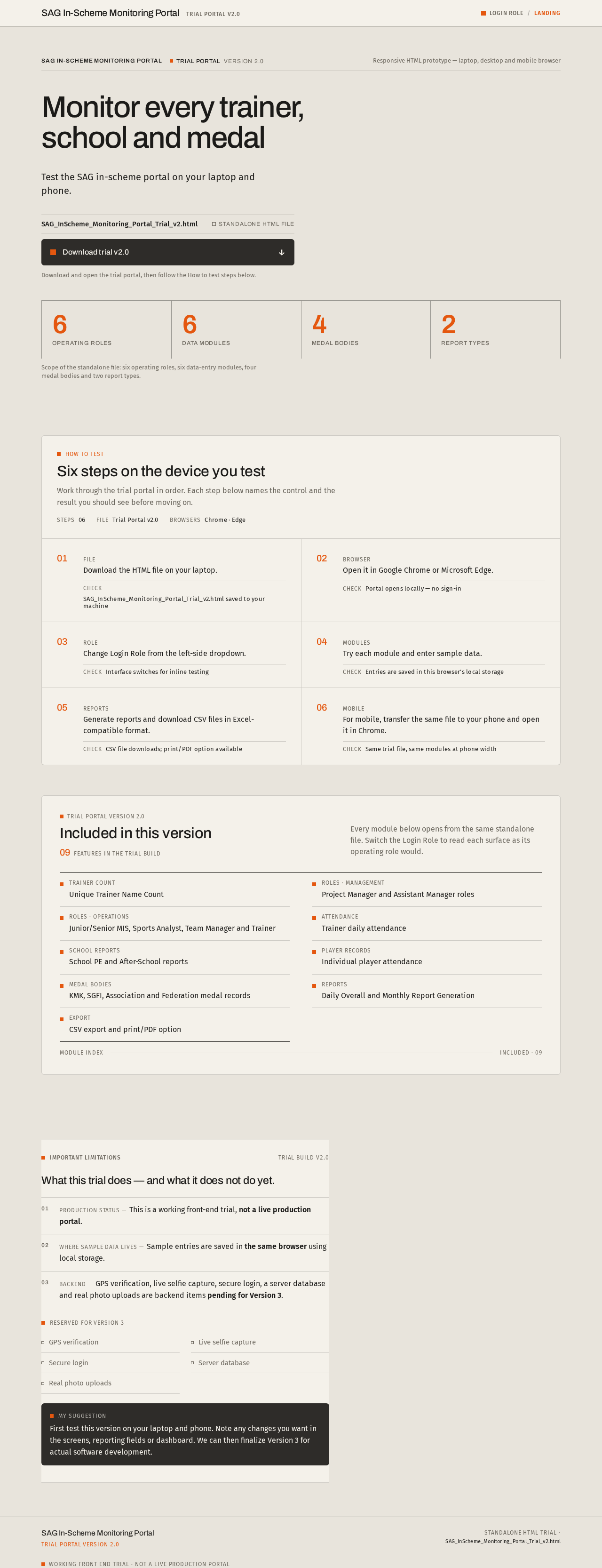
Monitor every trainer, school and medal
Test the SAG in-scheme portal on your laptop and phone.
- 6Operating roles
- 6Data modules
- 4Medal bodies
- 2Report types
Scope of the standalone file: six operating roles, six data-entry modules, four medal bodies and two report types.
How to test
Six steps on the device you test
Work through the trial portal in order. Each step below names the control and the result you should see before moving on.
- Step 01File
Download the HTML file on your laptop.
Check SAG_InScheme_Monitoring_Portal_Trial_v2.html saved to your machine
- Step 02Browser
Open it in Google Chrome or Microsoft Edge.
Check Portal opens locally — no sign-in
- Step 03Role
Change Login Role from the left-side dropdown.
Check Interface switches for inline testing
- Step 04Modules
Try each module and enter sample data.
Check Entries are saved in this browser’s local storage
- Step 05Reports
Generate reports and download CSV files in Excel-compatible format.
Check CSV file downloads; print/PDF option available
- Step 06Mobile
For mobile, transfer the same file to your phone and open it in Chrome.
Check Same trial file, same modules at phone width
Trial Portal Version 2.0
Included in this version
09features in the trial build
Every module below opens from the same standalone file. Switch the Login Role to read each surface as its operating role would.
- Trainer countUnique Trainer Name Count
- Roles · managementProject Manager and Assistant Manager roles
- Roles · operationsJunior/Senior MIS, Sports Analyst, Team Manager and Trainer
- AttendanceTrainer daily attendance
- School reportsSchool PE and After-School reports
- Player recordsIndividual player attendance
- Medal bodiesKMK, SGFI, Association and Federation medal records
- ReportsDaily Overall and Monthly Report Generation
- ExportCSV export and print/PDF option
What this trial does — and what it does not do yet.
Production status — This is a working front-end trial, not a live production portal.
Where sample data lives — Sample entries are saved in the same browser using local storage.
Backend — GPS verification, live selfie capture, secure login, a server database and real photo uploads are backend items pending for Version 3.
- GPS verification
- Live selfie capture
- Secure login
- Server database
- Real photo uploads
First test this version on your laptop and phone. Note any changes you want in the screens, reporting fields or dashboard. We can then finalize Version 3 for actual software development.
Monitor every trainer, school and medal
Test the SAG in-scheme portal on your laptop and phone.
- 6Operating roles
- 6Data modules
- 4Medal bodies
- 2Report types
Scope of the standalone file: six operating roles, six data-entry modules, four medal bodies and two report types.
How to test
Six steps on the device you test
Work through the trial portal in order. Each step below names the control and the result you should see before moving on.
- Step 01File
Download the HTML file on your laptop.
Check SAG_InScheme_Monitoring_Portal_Trial_v2.html saved to your machine
- Step 02Browser
Open it in Google Chrome or Microsoft Edge.
Check Portal opens locally — no sign-in
- Step 03Role
Change Login Role from the left-side dropdown.
Check Interface switches for inline testing
- Step 04Modules
Try each module and enter sample data.
Check Entries are saved in this browser’s local storage
- Step 05Reports
Generate reports and download CSV files in Excel-compatible format.
Check CSV file downloads; print/PDF option available
- Step 06Mobile
For mobile, transfer the same file to your phone and open it in Chrome.
Check Same trial file, same modules at phone width
Trial Portal Version 2.0
Included in this version
09features in the trial build
Every module below opens from the same standalone file. Switch the Login Role to read each surface as its operating role would.
- Trainer countUnique Trainer Name Count
- Roles · managementProject Manager and Assistant Manager roles
- Roles · operationsJunior/Senior MIS, Sports Analyst, Team Manager and Trainer
- AttendanceTrainer daily attendance
- School reportsSchool PE and After-School reports
- Player recordsIndividual player attendance
- Medal bodiesKMK, SGFI, Association and Federation medal records
- ReportsDaily Overall and Monthly Report Generation
- ExportCSV export and print/PDF option
What this trial does — and what it does not do yet.
Production status — This is a working front-end trial, not a live production portal.
Where sample data lives — Sample entries are saved in the same browser using local storage.
Backend — GPS verification, live selfie capture, secure login, a server database and real photo uploads are backend items pending for Version 3.
- GPS verification
- Live selfie capture
- Secure login
- Server database
- Real photo uploads
First test this version on your laptop and phone. Note any changes you want in the screens, reporting fields or dashboard. We can then finalize Version 3 for actual software development.
No comments yet. Be the first!