starry-start
 Diya Trivedi
start a project to build a simple single page design of todo

Comments (0)
Sign in to leave a comment
System Requirements
System Requirements Document for starry-start
1. Introduction
The project "starry-start" aims to create a simple, single-page design for a to-do application. The primary audience is individual users who need an intuitive and efficient tool to manage their tasks. The design focuses on clarity, simplicity, and a warm, inviting user experience.
2. System Overview
The "starry-start" project delivers a single-page to-do application that allows users to view and manage their tasks. The application is designed to be simple and user-friendly, with a focus on providing a cohesive workspace for task management. The system includes functionalities such as adding, editing, completing, and removing tasks, all within a single page. The design is inspired by Frank Chimero's warm editorial style, emphasizing clarity and human-centric design.
2a. Product Interpretation and Delivery Boundary
The product is delivered as a single-page application, ensuring that all interactions occur within one cohesive interface. This design choice aligns with the project's goal of simplicity and ease of use. The application does not require user authentication, allowing for immediate access and interaction. The project scope explicitly excludes multi-page navigation and complex user management features.
2b. Source Content Inventory
Not applicable as no content source directive was provided.
2c. Page Content and Component Coverage
Landing
-
Todo List Display
- Displays current tasks with options to mark as complete or edit.
- Tasks are listed in a single-column layout with generous margins.
-
Add Task
- Input field for new tasks.
- Button to add tasks, styled with primary chocolate color.
-
Edit Task
- Inline editing capability for existing tasks.
- Save changes with a subtle hover effect on the save button.
-
Complete Task
- Checkbox or similar control to mark tasks as complete.
- Completed tasks visually distinguished by muted styling.
-
Remove Task
- Option to delete tasks, with a confirmation prompt to prevent accidental deletion.
-
Illustrated Section Openers
- Hand-drawn illustrations to enhance the user interface.
-
Error Handling
- User-friendly error messages for invalid inputs or actions.
-
State Persistence
- Local storage to maintain task state across sessions.
3. Functional Requirements
- As a Todo user, I should be able to view my list of tasks on a single page to manage them efficiently. (explicit)
- As a Todo user, I should be able to add new tasks to my list to keep track of what I need to do. (explicit)
- As a Todo user, I should be able to edit existing tasks to update or correct information. (explicit)
- As a Todo user, I should be able to mark tasks as complete to track my progress. (explicit)
- As a Todo user, I should be able to remove tasks that are no longer needed to keep my list organized. (explicit)
- As a Todo user, I should be able to undo the last action to correct mistakes easily. (explicit)
4. User Personas
Todo User
- Context: Uses the application to manage personal tasks in a simple and efficient manner.
- Primary Goal: To maintain an organized list of tasks and track completion.
- Responsibilities: Adding, editing, completing, and removing tasks.
- Interactions: Engages with the single-page interface to manage tasks without navigating away.
- Success: A clear and manageable list of tasks that reflects current priorities and completed items.
5. Core User Flows
5.1 Adding a Task
- Start: User opens the application.
- Action: User enters a new task in the input field.
- Action: User clicks the "Add" button.
- Result: The task appears in the list.
- Continuation: User can add more tasks or manage existing ones.
5.2 Editing a Task
- Start: User identifies a task that needs editing.
- Action: User clicks on the task to enable editing.
- Action: User modifies the task details.
- Action: User saves the changes.
- Result: The task is updated in the list.
- Continuation: User can continue editing other tasks or perform other actions.
5.3 Completing a Task
- Start: User views the list of tasks.
- Action: User marks a task as complete.
- Result: The task is visually updated to indicate completion.
- Continuation: User can continue managing other tasks.
5.4 Removing a Task
- Start: User decides to remove a task.
- Action: User selects the remove option for the task.
- Action: User confirms the removal.
- Result: The task is removed from the list.
- Continuation: User can continue managing remaining tasks.
5.5 Undoing an Action
- Start: User performs an action they wish to undo.
- Action: User selects the undo option.
- Result: The last action is reversed.
- Continuation: User can continue with other actions or undo further if needed.
6. Visuals Colors and Theme
- Muse: Frank Chimero
- Palette:
- Background: #fffaf0 (warm cream)
- Surface: #ffffff (white)
- Text: #333333 (dark gray)
- Primary: #d2691e (chocolate)
- Accent: #4682b4 (steel blue)
- Muted: #d3d3d3 (light gray)
- Typography:
- Headings: Source Serif Pro — Bold
- Body: Karla
- Scale: 1.25 modular (48/36/24/18/14)
- Shape Language: Friendly rounded edges, card layouts, soft shadows
- Layout: Single-column with generous margins, centered content
- Imagery: Warm flat illustrations, hand-drawn diagrams
7. Signature Design Concept
The landing page features a full-viewport hero with a hand-drawn illustration of a workspace. The design uses a warm cream background with chocolate and steel blue accents. Large, bold headings stand out against the background, and gentle hover effects subtly change button colors to chocolate. The single-column layout emphasizes a clean and focused task list, with warm flat illustrations integrated into the task management interface.
8. Interaction Model & Motion Direction
- Interaction Model: Static
- Motion Tempo: Still
- Hero Dimensionality: Flat
- Landing Hero Motion Brief: The hero features a hand-drawn illustration of a workspace. The transformation involves subtle hover effects on actionable elements, maintaining a composed and inviting atmosphere. In reduced-motion settings, hover effects are minimized to color changes only.
9. Non-Functional Requirements
- The application must load quickly and perform efficiently on standard web browsers.
- The design must be responsive and accessible, ensuring usability across different devices and screen sizes.
10. Tech Stack
- Frontend: React
- Styling: CSS with styled-components or similar for theming
- State Management: Local state management with React hooks
- Build Tool: Webpack or similar
11. Assumptions and Constraints
- The application is designed for individual users and does not support multi-user collaboration.
- The single-page design constraint is strictly adhered to, with no additional pages or navigation.
12. Glossary
- Todo User: An individual using the application to manage personal tasks.
- Task: An item on the user's to-do list, which can be added, edited, completed, or removed.
- Single-page Application: A web application that interacts with the user by dynamically rewriting the current page, rather than loading entire new pages from a server.
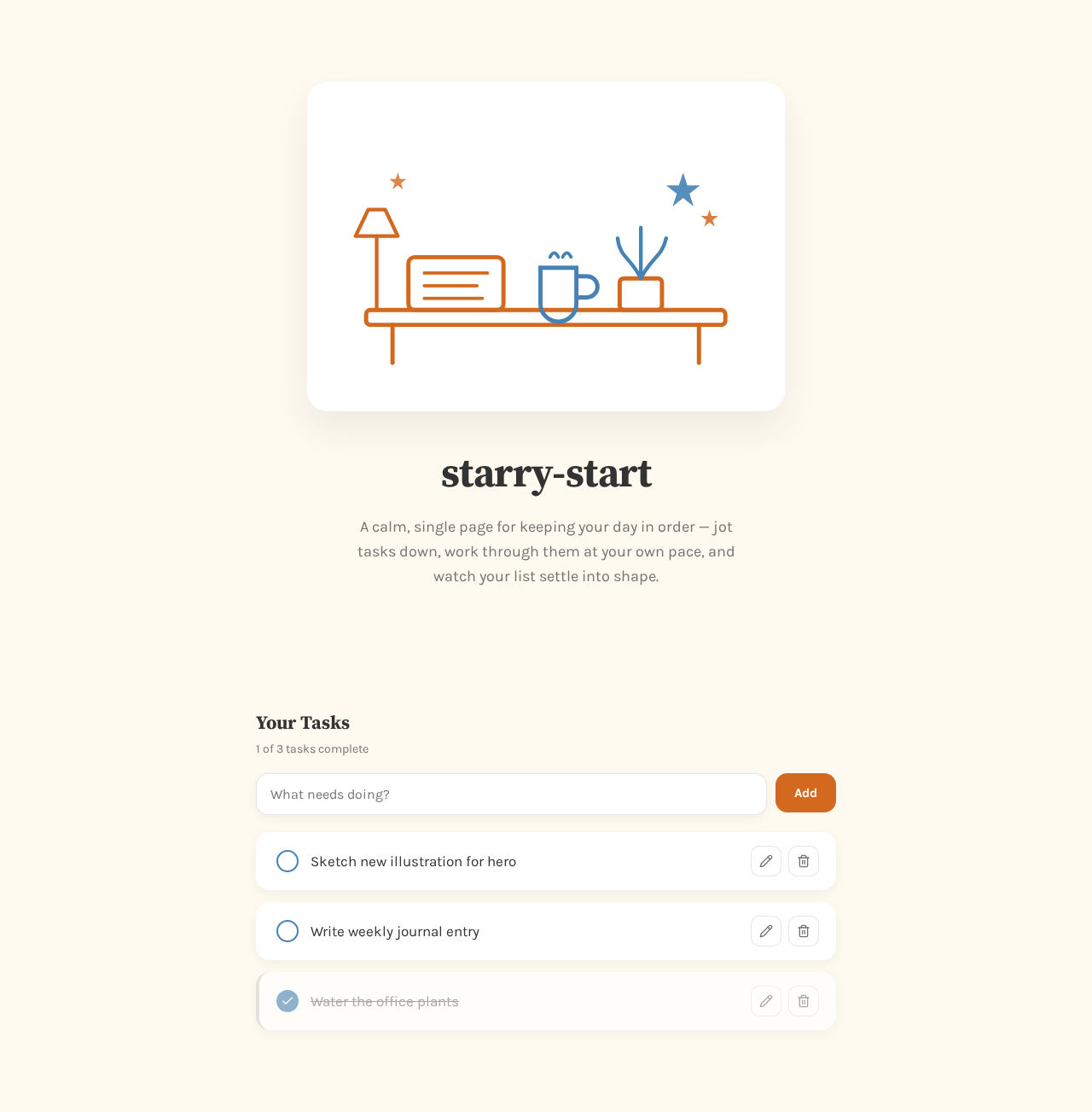
starry-start
A calm, single page for keeping your day in order — jot tasks down, work through them at your own pace, and watch your list settle into shape.
Your Tasks
1 of 3 tasks complete
- Sketch new illustration for hero
- Write weekly journal entry
- Water the office plants
starry-start
A calm, single page for keeping your day in order — jot tasks down, work through them at your own pace, and watch your list settle into shape.
Your Tasks
1 of 3 tasks complete
- Sketch new illustration for hero
- Write weekly journal entry
- Water the office plants
No comments yet. Be the first!