space-calculator
 Diya Trivedi
create a simple single page design of calculator

Comments (0)
Sign in to leave a comment
System Requirements
System Requirements Document for space-calculator
1. Introduction
Product intent. space-calculator is a simple calculator delivered as a single page. A visitor opens the page, enters numbers and operators, and reads the computed result on the same screen. The product has no content beyond its own interaction: no accounts, no saved history, no navigation, no marketing copy. Its purpose is to make a ten-second arithmetic task feel tactile and worth looking at, without ever making the arithmetic harder to read.
Audience. The single active human role is the Calculator User — anyone who opens the page to perform basic arithmetic and read the result immediately. The design is deliberately sparse so the numbers stay legible and the interaction stays the artifact.
2. System Overview
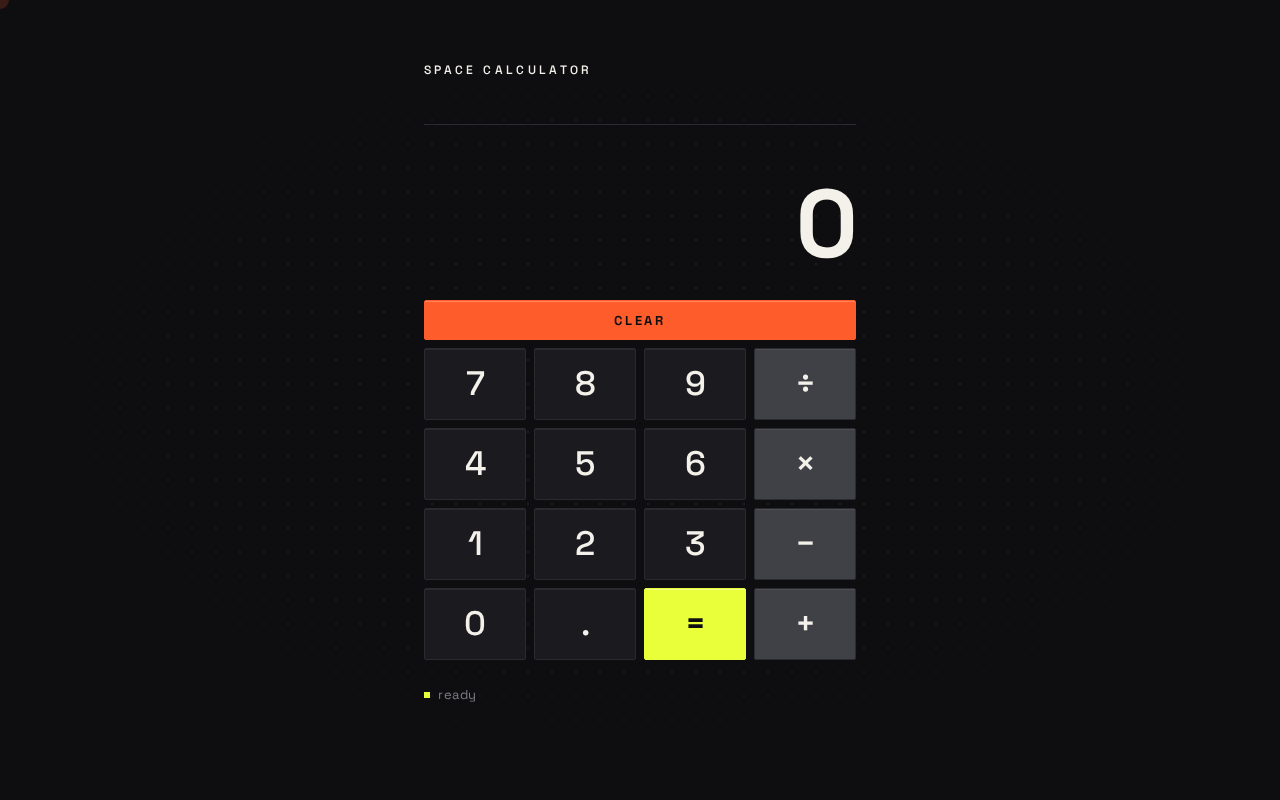
space-calculator is a single-page, client-side calculator. The page presents a wordmark, a large right-aligned readout, a full-width Clear bar, and a strict 4×5 keypad of hardware-like keycaps. All arithmetic is performed in the browser; there is no server-side computation, no persistence, and no identity.
Actors.
- Calculator User (active human persona) — enters numbers and operators, reads the result.
- No other human personas, systems, providers, or external destinations participate in current scope.
Accepted behavior. Number and operator entry, a displayed result, Clear, and the stateful operator indication, all on one page, with the visual and motion language defined by the creative direction.
Narrow exclusions. No multi-page navigation, no saved calculation history, no accounts or sign-in, no scientific functions beyond what the keypad shows, no sharing or export, no server backend.
2a. Product Interpretation and Delivery Boundary
The entire product is one anonymously reachable page. There is no application-owned identity, no session continuity requirement, and no protected state: a Calculator User needs no account, invitation, or provisioning to use the calculator, and nothing they do is bound to a durable identity. The page is public and ephemeral by design — open it, calculate, close it.
Current scope is exactly the single-page calculator described here. Anything beyond basic arithmetic on one screen (history, memory registers, scientific modes, accounts, sharing) is outside current delivery and is not implied by this document.
2b. Source Content Inventory
Not applicable — no reference directive supplies a content_source.
2c. Page Content and Component Coverage
Calculator
The single page of the product, owning the entire calculator lifecycle: entry, arithmetic, displayed result, Clear, and operator state. Publicly reachable with no identity requirement.
Information and state
- Wordmark — "space calculator" set at 12px uppercase with +0.28em letterspacing, pinned top-left of the narrow centered column.
- Readout — a wide inset panel occupying the top third of the column, right-aligned, with tabular numerals at
clamp(44px, 9vw, 96px), a hairline 1px#2A2A31top border, and no rounding. Shows the current entry or result, starting at0. - Status line — 13px, pinned bottom-left of the column, showing
readyorerror. - Operator state — the active operator key face is solid acid lime
#E8FF3A; all other operator faces drop to muted grey#6E6E78.
Primary actions
- Press digit keys
0–9and.to build the current number. - Press operator keys
÷,×,−,+to select an operation; the pressed operator becomes the active (lime) operator. - Press
=to compute and display the result. - Press the full-width Clear bar (vermilion
#FF5C2B) to reset the readout to0and clear operator state.
Supporting actions and behavior
- Keycaps depress 3px on pointer-down (90ms ease-out) and spring back with slight overshoot.
- Readout digits roll vertically on each change (140ms per digit column), so
199 → 200visibly carries. - A thin vermilion cursor trail follows the pointer across the dark ground with a 200ms lag, fading after 600ms, briefly lighting the faint 1px dotted
#1F1F26grid at 24px pitch.
Domain entities
- Entry — the number currently being typed.
- Pending operation — the selected operator and its left operand, if any.
- Result — the computed value shown in the readout.
- Status —
readyorerror.
Component responsibilities
- Readout panel — renders the current value with rolling digit animation; right-aligned; never smaller than the key glyphs.
- Keypad grid — strict 4-column layout:
7 8 9 ÷/4 5 6 ×/1 2 3 −/0 . = +, with 8px gutters and 2px key radius; minimum 56px touch target at 375px. - Clear bar — full-width above the keypad; vermilion; resets state.
- Operator state controller — ensures exactly one operator is lime at a time and all others are muted.
- Cursor trail layer — decorative only; never covers readable text or controls.
States
- Loading — not applicable; the page is static and computes locally.
- Empty / initial — readout shows
0, statusready, no operator active. - Success — result displayed in the readout; status
ready. - Error — an invalid operation (for example division by zero) shows an error indication in the readout and sets the status line to
error; Clear returns the page to the initial state. - Recovery — Clear always restores
0,ready, and no active operator.
3. Functional Requirements
FR-1 — Single-page calculator delivery (explicit) As a Calculator User I should get the calculator as one simple page so that I can do arithmetic without navigating anywhere.
- Trigger: opening the page.
- Observable result: wordmark, readout, Clear bar, and keypad all present on one page.
- Access: public, no identity.
- Failure/recovery: not applicable.
- Continuation: begin entering numbers.
FR-2 — Number entry (explicit) As a Calculator User I should press digit keys and a decimal point to build a number so that I can enter the operands I want to calculate.
- Trigger: pressing
0–9or.. - Observable result: the readout updates with rolling digits; the status line stays
ready. - Failure/recovery: Clear resets the entry to
0. - Continuation: select an operator.
FR-3 — Operator selection with stateful indication (explicit) As a Calculator User I should press an operator key and see it become the active operator so that I can tell at a glance which operation is pending.
- Trigger: pressing
÷,×,−, or+. - Observable result: the pressed key face flips to solid acid lime; every other operator face drops to muted grey.
- Failure/recovery: pressing a different operator replaces the active one; Clear removes all operator state.
- Continuation: enter the second operand or press
=.
FR-4 — Compute and display result (explicit)
As a Calculator User I should press = and see the computed result so that I get my answer immediately.
- Trigger: pressing
=. - Observable result: the readout shows the result with rolling digit animation; status
ready. - Failure/recovery: an invalid operation (for example division by zero) shows an error in the readout and sets status to
error; Clear recovers to the initial state. - Continuation: continue calculating from the result or press Clear.
FR-5 — Clear (explicit) As a Calculator User I should press the full-width Clear bar to reset the calculator so that I can start a fresh calculation.
- Trigger: pressing Clear.
- Observable result: readout returns to
0, status returns toready, no operator is active. - Failure/recovery: Clear is always available and always succeeds.
- Continuation: begin a new entry.
FR-6 — Tactile key and readout motion (explicit, from creative direction) As a Calculator User I should feel each key press physically and see the readout roll so that using the calculator feels like playing an instrument rather than filling a form.
- Trigger: pointer-down and release on any key; any readout change.
- Observable result: 3px depression with 90ms ease-out and spring-back overshoot; readout digits roll vertically at 140ms per change.
- Failure/recovery: with
prefers-reduced-motion, motion is reduced to a usable static arrangement while all values remain readable. - Continuation: keep calculating.
FR-7 — Cursor trail (explicit, from creative direction) As a Calculator User I should see a thin vermilion trail follow my pointer so that the dark ground feels alive without distracting from the numbers.
- Trigger: pointer movement across the page.
- Observable result: a vermilion trail with 200ms lag that fades after 600ms and briefly lights the dotted background grid.
- Failure/recovery: the trail is decorative and never covers readable text or controls; it is suppressed under reduced motion.
- Continuation: none required.
4. User Personas
Calculator User
Product context. A person who opens space-calculator for a short, everyday arithmetic task — a quick sum, a split bill, a unit price — and closes it seconds later. They have no account, no history, and no expectation of one.
Primary goal. Enter numbers and operators and read a correct result immediately, on one screen, without friction.
Distinct accepted responsibilities.
- Enter digits and a decimal point to build operands.
- Select an operator and read the active-operator state at a glance.
- Press
=to compute and read the result. - Press Clear to reset and start again.
Relevant inputs and decisions. Which digits to enter, which operator to apply, when to press = versus continue entering, and when to Clear.
Interactions with other participants. None — the Calculator User is the only active human participant; there is no counterparty, recipient, or provider in current scope.
Observable success. A correct result appears in the large readout, the active operator is unmistakable in lime, and the interaction feels tactile and immediate.
What makes this role distinct. The role's entire work is a single short arithmetic loop on one page; there is no persistence, no collaboration, and no identity. Its success criterion is speed and legibility of the numbers, not breadth of features.
5. Core User Flows
Flow A — Perform a basic calculation
- The Calculator User opens the Calculator page. The readout shows
0, the status line readsready, and no operator is active. - The user presses digit keys to enter the first operand. Each press depresses the keycap 3px and springs back; the readout digits roll vertically as they change.
- The user presses an operator key (for example
÷). That key face flips to solid acid lime and every other operator face drops to muted grey, so the pending operation is readable at a glance. - The user presses digit keys to enter the second operand; the readout continues to roll.
- The user presses
=. The result appears in the readout with rolling digits and the status line staysready. - Continuation: the user may continue calculating from the result, or press the full-width Clear bar to reset the readout to
0, clear operator state, and return the status line toready.
Flow B — Recover from an invalid operation
- The user enters an operation that cannot be computed (for example division by zero) and presses
=. - The readout shows an error indication and the status line changes to
error. - The user presses the full-width Clear bar. The readout returns to
0, the status line returns toready, and no operator is active. - The user begins a new calculation as in Flow A.
Flow C — Change the selected operator
- The user has entered a first operand and pressed an operator; that operator is lime and the others are muted.
- The user presses a different operator key. The new key face flips to lime and the previously active operator drops to muted grey, so exactly one operator is active at a time.
- The user continues entering the second operand and presses
=as in Flow A.
Flow D — Reduced-motion use
- The user's system requests reduced motion.
- The page presents a usable static arrangement: key depression and readout rolling are reduced, the cursor trail is suppressed, and all values and controls remain fully readable and operable.
- The user completes calculations exactly as in Flow A.
6. Visuals, Colors and Theme
Muse and headline. Interaction as delight — a calculator that answers your cursor. After Yugo Nakamura: the interaction itself is the artifact, so a two-row utility becomes worth screenshotting without adding a single feature.
Mode. Dark mode only.
Color tokens (exact hex by role)
- Background ground:
#0E0E10(near-black graphite; ~70% of the surface). - Surface / key faces:
#1A1A1F(~25%). - Text / numerals:
#F4F1EA(warm paper-white; maximum contrast on keys). - Primary signal:
#E8FF3A(acid lime — reserved exclusively for the active operator and the equals key). - Accent signal:
#FF5C2B(hot vermilion — used only for Clear and the live cursor trail). - Muted:
#6E6E78(secondary labels, keypad well, and inactive operator faces only — never a digit). - Hairline borders:
#2A2A31(display top border, keycap edges). - Background grid:
#1F1F26(1px dotted grid at 24px pitch).
Signal colors are lime and vermilion only; no blue or indigo anywhere.
Typography. Single family: Space Grotesk throughout. Display readout at 700 with tabular numerals and -0.02em tracking, clamp(44px, 9vw, 96px). Key glyphs at 500, clamp(22px, 4.5vw, 34px). Wordmark at 500, 12px uppercase, +0.28em letterspacing. Helper/status line 13px. Body copy never exceeds 15px. No Inter, Roboto, Poppins, or system-ui.
Type scale. 1.5 modular for the display.
Shape language. Squared-off keys with a single 2px corner radius — hardware keycaps, never pills. 4×5 grid with 8px gutters. Display is a wide inset panel with a hairline 1px #2A2A31 top border and no rounding. Everything orthogonal; the only curves come from the cursor trail and the spring physics of a returning key.
Layout. Single centered column, max-width 420px on mobile and 480px on desktop, vertically centered in the viewport. Wordmark pinned top-left of the column; 13px status line pinned bottom-left. Readout occupies the top third, right-aligned; keypad occupies the lower two-thirds in a strict 4-column grid: 7 8 9 ÷ / 4 5 6 × / 1 2 3 − / 0 . = +, with a full-width Clear bar above it. At 375px the column bleeds to 16px side margins and keys shrink to a 56px minimum touch target; at 768px and 1280px the column stays narrow and centered with generous dark space around it — the emptiness is the composition.
Imagery. No photography and no illustration. The visual interest is the interface itself: the keypad grid, the rolling numerals, the cursor trail. The only decorative element permitted is the faint 1px dotted grid at 24px pitch, which the cursor trail briefly lights as it passes.
Readability constraint. Headlines, wordmarks, labels, numbers, and controls stay entirely inside the viewport and their container at 375px, 768px, and 1280px, wrapping or scaling to fit; no other element covers any part of them. Decoration and motion may be cropped or bled, but never over readable text or controls.
7. Signature Design Concept
The instrument panel. The public entry is a dark, near-empty viewport with a single narrow column at center. At the top-left of the column, the wordmark "space calculator" sits in tiny tracked caps — a whisper against an oversized numeral. Below it, a huge right-aligned readout (up to 96px) shows 0 in warm paper-white, floating in black space at roughly eight times the size of any key glyph. Beneath the readout, a full-width vermilion Clear bar, then a 4×5 grid of graphite keycaps with hairline edges and 2px radii. Acid lime appears on exactly two keys — the active operator and equals — and a vermilion cursor trail is the only thing moving on an otherwise still screen. No headline, no subtext, no button, no gradient: this reads as an instrument panel, not a SaaS hero. The concept recomposes only accepted content, states, and controls.
8. Interaction Model & Motion Direction
Interaction Model: Animated Motion Tempo: expressive Hero Dimensionality: layered_2d
Landing Hero Motion Brief
- Focal subject. The oversized readout numeral at center, with the keypad grid beneath it and the vermilion cursor trail as the sole moving element on the dark ground.
- Input → transformation → outcome thesis. Pointer movement draws a lagging vermilion trail that briefly lights the dotted background grid; pressing a key depresses it 3px and springs it back while the readout digits roll vertically to the new value; pressing an operator flips that keycap to lime and dims the others. The outcome is a legible, tactile arithmetic instrument.
- Motion vocabulary. 90ms ease-out depression with spring-back overshoot; 140ms per-digit vertical roll; 200ms cursor-trail lag fading after 600ms; operator face color flip. No entrance choreography, no particles, no scroll effects, no continuous ambient animation.
- Composed first frame. Near-black
#0E0E10ground with the faint dotted grid; wordmark top-left in tracked caps;0in warm white at the top third, right-aligned; vermilion Clear bar; graphite keycaps in a strict 4-column grid; status linereadybottom-left. - Reduced-motion state. A usable static arrangement: key depression and readout rolling are reduced or removed, the cursor trail is suppressed, and every value and control remains fully readable and operable.
9. Non-Functional Requirements
- Simplicity (explicit) — the design must be simple; no element beyond the wordmark, readout, status line, Clear bar, and keypad is required.
- Single page (explicit) — the calculator must be contained in a single page; no navigation, routing, or additional destinations.
- Legibility (explicit, from creative direction) — the display text is never smaller than the key glyphs; the number is the hero. Readable text and controls stay whole and uncovered at 375px, 768px, and 1280px.
- Touch targets (explicit, from creative direction) — keys shrink to a 56px minimum touch target at 375px.
- Reduced motion (explicit, from creative direction) —
prefers-reduced-motionyields a usable static arrangement with all values and controls readable and operable. - Client-side computation (required_inference) — arithmetic is performed locally in the browser; no server round-trip is needed for a result.
- No persistence or identity (explicit boundary) — no accounts, sessions, or saved history.
10. Tech Stack
- Frontend: React (single-page application), styled to the tokens in Section 6.
- Computation: client-side JavaScript arithmetic; no backend service is required for current scope.
- Storage: none.
- Deployment: static hosting of the built single-page frontend; no Docker services, database, or Kubernetes are required for current scope.
11. Assumptions and Constraints
- Assumption (required_inference) — the calculator supports the four basic operations shown on the keypad (
÷,×,−,+), decimal entry,=, and Clear; no additional functions are implied. - Assumption (required_inference) — an invalid operation such as division by zero surfaces an error in the readout and status line, recoverable via Clear.
- Constraint (explicit) — the product is exactly one page.
- Constraint (explicit) — the design must be simple.
- Constraint (explicit) — the palette, fonts, surfaces, tone, and layout in Sections 6–8 are preserved as specified; the generic indigo/blue-on-white SaaS template is forbidden.
- Constraint (explicit) — no accounts, history, sharing, export, or scientific modes in current scope.
12. Glossary
- Calculator User — the single active human persona; enters numbers and operators and reads results.
- Readout — the large right-aligned display panel showing the current entry or result.
- Keycap — a squared-off, 2px-radius key in the 4×5 keypad grid.
- Active operator — the currently selected operator key, rendered in solid acid lime while all other operator keys are muted.
- Clear bar — the full-width vermilion control above the keypad that resets the calculator.
- Cursor trail — the decorative vermilion trail that follows the pointer with a 200ms lag and fades after 600ms.
- Status line — the 13px line pinned bottom-left showing
readyorerror.
space calculator
space calculator
No comments yet. Be the first!