smart-calculator
 Diya Trivedi
start a project to build a simple single page design of calculator

Comments (0)
Sign in to leave a comment
System Requirements
System Requirements Document for smart-calculator
1. Introduction
smart-calculator is a simple calculator delivered as a single-page design. The product intent is narrow and complete: a person arrives at one page, performs quick arithmetic, reads the result, and can clear the entry to begin again — without navigating away, without an account, and without any surrounding application weight.
The audience is anyone who needs quick arithmetic in a browser: a casual visitor who wants a light, immediate, slightly joyful utility rather than a spreadsheet widget or an enterprise dashboard. The interaction itself is the product. The page is the anonymous public entry that both presents the calculator and provides it.
2. System Overview
smart-calculator is a single-page web calculator. The page is publicly reachable with no sign-in, no account creation, and no stored profile. A visitor enters numbers and operators, sees the running result, presses equals to commit a calculation, and can clear the entry to start a new calculation.
Actors
- Calculator user (active human persona): enters numbers and operators, reads the running result, commits a calculation, and clears the entry.
- Frontend application (system actor): renders the single Calculator page, holds the in-page entry state, and displays results.
- Shared backend (system actor): the provisioned FastAPI process that hosts application APIs and domain modules. For the current accepted behavior, the calculator's arithmetic and entry state are handled in the page itself; the backend remains available as the shared application API process and is not required to carry calculator state for the accepted single-page behavior.
- Database (system actor): the provisioned MariaDB instance for application-owned persistent data. The accepted calculator behavior creates no durable user-owned records, so no calculator domain entities are defined against it.
Accepted behavior
- A simple calculator (explicit).
- Delivered as a single-page design (explicit).
- The design must be simple (explicit hard constraint).
- The calculator must be a single page (explicit hard constraint, exact page count of one).
Ownership
The one page, Calculator, owns the entire accepted lifecycle: entry of numbers and operators, the running result, the equals commitment, the clear action, and the recovery from an invalid entry. Because the page-count constraint is exact at one, entry, result, and clear interactions are embedded in that page rather than given separate destinations.
Narrow exclusions
No scientific function rows, no dense history panel, no accounts, no multi-page navigation, and no dashboard density. The page is a calculator, not a workspace.
Removed from scope
- Scientific calculator functions (also: scientific function rows, trigonometry, logarithms, memory registers as a feature surface)
- Calculation history panel (also: HIST as a browsable history surface)
- Multi-page calculator application (also: separate settings, help, or results pages)
- User accounts and sign-in for the calculator
- Dashboard tiles and card grids
2a. Product Interpretation and Delivery Boundary
smart-calculator is delivered as one first-party web page. That page is the anonymous public entry: a visitor can open it and immediately use the calculator with no identity establishment, no invitation, no provisioning step, and no provider-owned surface in the path. Access is public and ephemeral by design; nothing about the accepted behavior requires the application to know who the visitor is, to resume their work later, or to bind a result to a participant.
The calculator's working state — the current entry, the running result, and the committed result — lives for the duration of the visit on the page. It is not persisted as a user-owned record, and the provisioned database is not used to store calculator entries or results. The shared backend remains the application's API process and is available for application APIs and domain modules, but the accepted single-page calculator behavior does not depend on a server round trip to produce a result.
The current horizon contains exactly the one page and the behavior described in this document. Anything beyond simple arithmetic on a single page — scientific functions, browsable history, accounts, additional pages — is outside the current delivery boundary and is not built.
2c. Page Content and Component Coverage
Calculator
Purpose and access. The anonymous public entry and the only page. No sign-in, no account, no gate. A visitor lands directly on a usable calculator.
Information and state
- Page title: "Smart Calculator", set in Comfortaa 700, sentence case, flush-left above the device.
- Subtitle: one quiet line beneath the title describing the page as a simple calculator.
- Current entry: the sequence of numbers and operators the user has entered since the last clear or the last committed calculation.
- Running result: the result of the current entry as it stands, shown in the display.
- Committed result: the result produced when equals is pressed, shown in the display and marked by the lime liquid-morph underline.
- Error state: shown in the display when the current entry cannot be evaluated (for example, division by zero or a malformed operator sequence).
- Micro-label strip: a slim vertical strip of rotated uppercase micro-labels (MEM, HIST, DEG) along the left edge of the calculator capsule, at 12px with 0.12em tracking, in muted lavender-grey. These are secondary labels only; they do not open history, memory, or angle-mode surfaces.
Primary actions
- Digit keys (0–9): append a digit to the current entry. The zero key spans two columns as a capsule.
- Decimal point key: append a decimal point to the current number in the entry.
- Operator keys (+, −, ×, ÷): set the pending operation for the current entry. Rendered in bubblegum pink as the primary operator colour.
- Equals key: evaluate the current entry and commit the result. Rendered in bubblegum pink. Triggers the liquid-morph underline on the result line.
- AC (clear) key: clear the current entry and the displayed result, returning the calculator to its starting state. Rendered in lime as the single hot accent in the keypad, positioned at the bottom-left of the operator stack.
Supporting actions and controls
- Key press feedback: each key depresses with a soft 90ms scale-to-0.94 and a moving gloss highlight.
- Helper copy: a single line of plain-talk helper copy in Quicksand 16px, sitting on the curved cream-to-white section edge at the bottom of the page.
Domain entities
- Entry: the ordered sequence of digits, decimal points, and operators currently being composed. Page-scoped, not persisted.
- Result: the numeric outcome of evaluating an entry, either running or committed. Page-scoped, not persisted.
Component responsibilities
- Page shell: cream (#F7EFE6) ground, flush-left title block, faint lime organic blob bleeding off the top-right corner as decoration only, curved cream-to-white section edge at the bottom.
- Calculator capsule: glossy white (#FFFFFF) body with a continuous 48px radius, a diffused pink underglow beneath it, offset slightly right of centre on desktop at max-width 420px, and a 6s ambient glow loop.
- Display: result numerals in Quicksand 600 at clamp(56px, 9vw, 128px) with tabular figures and tight tracking, in plum-ink (#1D1730), with a thin lime underline that liquid-morphs when equals is pressed.
- Keypad: a 4-column grid of pill keys with equal 12px gaps; key labels at clamp(20px, 2.4vw, 28px); the zero key spans two columns.
- Micro-label strip: rotated micro-labels along the capsule's left edge.
States
- Loading: none required; the page renders its calculator immediately with no data fetch.
- Empty / starting: display shows the initial zero state with no pending operation; the lime underline sits at rest.
- In progress: display shows the current entry and running result as digits and operators are added.
- Success: equals produces a committed result, the underline ripples, and the result remains visible for the next entry.
- Error: an unevaluable entry shows an error in the display instead of a result; the user recovers by pressing AC and entering a new calculation.
- Recovery: AC always returns the page to the empty starting state from any state, including the error state.
Responsive behavior
- Desktop (1280px): single centred column with an asymmetric offset — title flush-left, capsule nudged right of centre, micro-label strip along the capsule's left edge.
- Tablet (768px): the same single-column arrangement with the capsule scaled to fit.
- Mobile (375px): everything stacks to one full-width column with 20px gutters; the capsule fills the column width; title, subtitle, display numerals, key labels, and helper copy all remain entirely inside the viewport and their containers, wrapping or scaling via clamp() as needed.
3. Functional Requirements
FR-1 — Simple calculator on a single page (explicit) As a Calculator user I should get a simple calculator delivered as a single page so that I can do quick arithmetic without navigating anywhere.
- Trigger: the visitor opens the page.
- Observable result: a usable calculator is present on the one page, with a display and a keypad.
- Access state: anonymous public entry; no sign-in.
- Failure/recovery: if the page fails to render, reloading returns the same single page; there is no alternate destination.
- Continuation: the user proceeds to enter a calculation (FR-2 through FR-6).
FR-2 — Enter numbers (explicit) As a Calculator user I should press digit keys to enter numbers so that I can build the operands of my calculation.
- Trigger: the user presses a digit key (0–9).
- Observable result: the digit is appended to the current entry and appears in the display.
- Access state: anonymous public entry.
- Failure/recovery: none material; a mistaken digit is corrected by clearing (FR-6).
- Continuation: the user adds more digits, a decimal point, or an operator.
FR-3 — Enter a decimal point (explicit) As a Calculator user I should press the decimal point key to enter fractional numbers so that I can calculate with non-integers.
- Trigger: the user presses the decimal point key.
- Observable result: a decimal point is appended to the current number in the entry and appears in the display.
- Access state: anonymous public entry.
- Failure/recovery: a mistaken decimal point is corrected by clearing (FR-6).
- Continuation: the user continues entering digits or an operator.
FR-4 — Choose an operator (explicit) As a Calculator user I should press an operator key to choose an operation so that I can combine two numbers.
- Trigger: the user presses one of +, −, ×, ÷.
- Observable result: the chosen operator is recorded as the pending operation for the current entry and is reflected in the display.
- Access state: anonymous public entry.
- Failure/recovery: a mistaken operator is corrected by clearing (FR-6) and re-entering.
- Continuation: the user enters the next operand and presses equals (FR-5).
FR-5 — See the result (explicit) As a Calculator user I should see the running result and press equals to commit a calculation so that I get the correct answer on the page.
- Trigger: the user enters an operand and presses the equals key, or the display updates as the entry changes.
- Observable result: the display shows the numeric result of the current entry; pressing equals commits the result and the lime underline performs its liquid-morph ripple.
- Access state: anonymous public entry.
- Failure/recovery: if the entry cannot be evaluated (for example, division by zero or a malformed operator sequence), the display shows an error instead of a result; the user recovers by pressing AC (FR-6) and entering a new calculation.
- Continuation: the committed result remains visible and the user can start a new calculation or continue from it.
FR-6 — Clear the entry (explicit) As a Calculator user I should press the AC key to clear the entry so that I can start a new calculation.
- Trigger: the user presses the lime AC key.
- Observable result: the current entry and displayed result are cleared and the calculator returns to its empty starting state.
- Access state: anonymous public entry.
- Failure/recovery: AC works from any state, including the error state, and is the recovery path for invalid entries.
- Continuation: the user begins a new calculation from the empty state.
FR-7 — Key press feedback (explicit, from creative direction) As a Calculator user I should feel each key respond when I press it so that the calculator feels like a physical device I can trust.
- Trigger: the user presses any key.
- Observable result: the key depresses with a soft 90ms scale-to-0.94 and a moving gloss highlight.
- Access state: anonymous public entry.
- Failure/recovery: with reduced motion, key feedback is instant and the ambient glow is frozen.
- Continuation: the entry updates as normal.
FR-8 — Readable at every viewport (explicit, from creative direction) As a Calculator user I should be able to read the title, display numerals, key labels, and helper copy at 375px, 768px, and 1280px so that I can use the calculator on any device.
- Trigger: the page is viewed at any of those widths.
- Observable result: all readable text and controls stay entirely inside the viewport and their containers, wrapping or scaling to fit, with no element covering them.
- Access state: anonymous public entry.
- Failure/recovery: none material; the layout is responsive by construction.
- Continuation: the user uses the calculator as normal.
4. User Personas
Calculator user
Product context. A visitor who needs quick arithmetic and has landed on the single Calculator page. They may be on a phone, a tablet, or a desktop, and they expect the calculator to be immediately usable — no sign-in, no setup, no tour.
Primary goal. Get the correct result of a simple arithmetic calculation without navigating away from the page.
Distinct accepted responsibilities.
- Enter numbers using the digit keys, including multi-digit numbers and the zero key that spans two columns.
- Enter fractional numbers using the decimal point key.
- Choose an operation using the pink operator keys.
- Read the running result in the display and press equals to commit a calculation.
- Press the lime AC key to clear the entry and start a new calculation.
- Recover from an invalid entry by clearing and re-entering.
Relevant inputs and decisions. Which digits and decimal point to enter; which operator to apply; when to press equals; when to clear. The user decides when a calculation is finished and when to start over.
Interactions with other accepted participants. None. The calculator user is the only active human participant; the frontend application renders the page and holds the entry state, and the shared backend and database are provisioned infrastructure that the accepted calculator behavior does not require the user to interact with.
Observable success. The display shows the correct result, the lime underline ripples on equals, and the user can clear and start again — all without leaving the page.
What makes this role distinct. The Calculator user's entire work is the arithmetic interaction itself. There is no account, no saved history, no settings, and no second participant; the role's value is speed and clarity on one page.
5. Core User Flows
Flow 1 — Perform a simple calculation
- The Calculator user opens the Calculator page. The page renders immediately with the title "Smart Calculator" flush-left, the glossy white capsule offset right of centre, the display at its empty starting state, and the keypad below.
- The user presses digit keys to enter the first operand. Each digit appears in the display; each key depresses with a soft 90ms scale-to-0.94 and a moving gloss highlight.
- The user presses an operator key (+, −, ×, ÷). The chosen operator is recorded as the pending operation and reflected in the display.
- The user presses digit keys (and the decimal point key if needed) to enter the second operand. The display updates with the running result.
- The user presses the equals key. The display shows the committed result, and the lime underline performs its liquid-morph ripple.
- Continuation: the committed result remains visible. The user can start a new calculation by pressing AC (Flow 3) or continue from the result.
Flow 2 — Recover from an invalid entry
- The Calculator user has entered an expression that cannot be evaluated (for example, division by zero or a malformed operator sequence).
- The user presses equals. The display shows an error instead of a result.
- The user presses the lime AC key. The entry and the error are cleared and the calculator returns to its empty starting state.
- The user re-enters the calculation from step 2 of Flow 1.
Flow 3 — Clear and start a new calculation
- The Calculator user has a result or a partial entry on screen.
- The user presses the lime AC key at the bottom-left of the operator stack.
- The display clears to the empty starting state and the calculator is ready for a new calculation.
- The user begins a new calculation from step 2 of Flow 1.
Flow 4 — Use the calculator on a small screen
- The Calculator user opens the page on a 375px-wide viewport.
- The layout stacks to one full-width column with 20px gutters; the title, subtitle, display numerals, key labels, and helper copy all remain entirely inside the viewport and their containers.
- The user performs a calculation exactly as in Flow 1, with the capsule filling the column width.
6. Visuals Colors and Theme
Muse and headline. Karim Rashid — sensual pop minimalism for a calculator that feels like a toy you trust. The calculator is the hero; the interaction itself is the product.
Mode. Light mode only.
Colour tokens (exact hex by role)
| Role | Hex | Use |
|---|---|---|
| Background | #F7EFE6 | Warm oat-cream page ground |
| Surface | #FFFFFF | Glossy white calculator capsule |
| Text | #1D1730 | Deep plum-ink for all text and numerals |
| Primary | #F0397E | Bubblegum pink operator and equals keys (~15% of keypad), diffused underglow |
| Accent | #B8E62E | Lime AC key and result underline; faint organic blob at 8% opacity |
| Muted | #8C7FA6 | Muted lavender-grey for secondary micro-labels only |
Typography
- Headings: Comfortaa 700 for the wordmark and page title, rounded terminals, letter-spacing 0.02em, sentence case.
- Body: Quicksand.
- Numerals: Quicksand 600 at very large size with tabular figures and tight tracking.
- Scale (1.333 modular): display result
clamp(56px, 9vw, 128px); page titleclamp(28px, 4.5vw, 56px); key labelclamp(20px, 2.4vw, 28px); body 16px; micro-label 12px uppercase with 0.12em tracking. - Inter, Roboto, Arial, Helvetica, and system-ui are forbidden for any text.
Shape language. Capsule and blob geometry everywhere: pill-shaped keys, a calculator body with a continuous 48px radius, soft organic highlight arcs, and a curved cream section edge at the bottom of the page. No sharp corners; no drop-shadow boxes — only diffused glossy glows beneath the device.
Spacing rhythm. Single centred column with an asymmetric offset; calculator capsule max-width 420px nudged slightly right of centre on desktop; 4-column keypad grid with equal 12px gaps; 20px gutters on mobile.
Imagery style. No photography. The visual interest is the device itself: a glossy white capsule with a pink underglow, a lime clear key, and a faint large-scale organic blob shape in lime at 8% opacity bleeding off the top-right corner as page decoration only.
Avoid. Grey keypad with a blue equals button; grids of identical hover-lift cards or dashboard tiles; sharp right-angle corners or hard box shadows; gradient-blob hero backgrounds or glassmorphism panels; photography or stock imagery of people; dense history panels or scientific function rows; neon or acid colour on large surfaces (lime stays an accent); the generic indigo/blue-on-white SaaS template.
7. Signature Design Concept
The first screen is the calculator itself. A cream (#F7EFE6) viewport holds a single glossy white capsule device, offset right of centre, with the oversized page title "Smart Calculator" set in Comfortaa flush-left at clamp(28px, 4.5vw, 56px) and a one-line quiet subtitle beneath it. A faint lime organic blob bleeds off the top-right corner behind the device as decoration only.
Inside the capsule, the result numerals dominate at up to 128px in plum-ink with a thin lime underline. The keypad sits below in pill keys: pink operators on the right column, the lime AC key at the bottom-left of the operator stack as the only hot accent in the keypad, and the zero key spanning two columns as a capsule. A slim vertical strip of rotated micro-labels (MEM, HIST, DEG) runs along the left edge of the capsule, uppercase 12px with 0.12em tracking, in muted lavender-grey.
The page closes with a curved cream-to-white section edge echoing the capsule radius, carrying a single line of plain-talk helper copy in Quicksand 16px. There is no centred headline-plus-button stack, no gradient blob backdrop, and no blue anywhere.
8. Interaction Model & Motion Direction
Interaction Model: Animated Motion Tempo: expressive Hero Dimensionality: layered_2d
Landing Hero Motion Brief
- Focal subject: the glossy white capsule calculator with its diffused pink underglow, floating on the cream ground, offset right of centre with the title flush-left.
- Input → transformation → outcome thesis: a key press (input) depresses the key with a soft 90ms scale-to-0.94 and a moving gloss highlight (transformation), and the display updates with the entered digit or running result (outcome); pressing equals (input) triggers the lime liquid-morph underline ripple (transformation) and commits the result in the display (outcome).
- Motion vocabulary: expressive but brief — 90ms key depression with moving gloss highlight; liquid-morph underline on equals; 6s ambient glow loop on the capsule.
- Composed first frame: cream viewport, title flush-left, capsule offset right of centre with the display at its empty starting state, the lime underline at rest, the faint lime blob bleeding off the top-right corner, and the ambient glow at the start of its 6s loop.
- Reduced-motion state: the ambient glow is frozen and key feedback is instant; the layout is otherwise unchanged and fully usable.
9. Non-Functional Requirements
- Simplicity (explicit): the design must be simple. The page contains one calculator, one display, one keypad, and one line of helper copy; no scientific function rows, no dense history panel, no dashboard tiles.
- Single page (explicit): the calculator must be a single page, with an exact page count of one. Entry, result, and clear interactions are embedded in that page.
- Readability at every viewport (explicit): headlines, wordmarks, labels, numbers, and controls stay entirely inside the viewport and their containers at 375px, 768px, and 1280px, wrapping or scaling via
clamp()as needed, with no other element covering them. Decoration may bleed off edges; readable text and controls may not. - Reduced motion (explicit): with
prefers-reduced-motion, the ambient glow is frozen and key feedback is instant, while the page remains fully usable. - Accessibility of contrast (required_inference): plum-ink (#1D1730) text on white (#FFFFFF) and cream (#F7EFE6) grounds provides high contrast for all numerals and labels; lime is reserved for the AC key and underline accent and is not used for large text surfaces.
- No identity or persistence requirement (explicit): the page is anonymous and public; no account, sign-in, or stored user record is required for the accepted behavior.
10. Tech Stack
- Frontend: React application UI, rendering the single Calculator page.
- Backend: shared FastAPI process for application APIs and domain modules (provisioned; the accepted calculator behavior does not require a server round trip).
- Database: MariaDB for application-owned persistent data (provisioned; no calculator domain entities are defined against it for the accepted behavior).
- Containerization: Docker / docker-compose, with the provisioned services
backend,database, andfrontend. - Fonts: Comfortaa (headings) and Quicksand (body and numerals), loaded as web fonts.
11. Assumptions and Constraints
- Assumption (required_inference): the calculator performs the four basic arithmetic operations (+, −, ×, ÷) with decimal numbers, which is the minimum needed to satisfy "a simple calculator."
- Assumption (required_inference): the calculator's entry and result state is held in the page for the duration of the visit and is not persisted; the accepted behavior creates no durable user-owned record.
- Assumption (required_inference): the page is publicly reachable with no identity establishment, because the accepted behavior requires no continuity, commitment, or value transfer bound to a participant.
- Constraint (explicit): the design must be simple.
- Constraint (explicit): the calculator must be a single page, with an exact page count of one.
- Constraint (explicit): the palette, fonts, surfaces, tone, and layout from the creative direction are preserved; the generic indigo/blue-on-white SaaS template is forbidden.
- Constraint (explicit): Inter, Roboto, Arial, Helvetica, and system-ui are forbidden for any text.
- Constraint (explicit): no photography or stock imagery of people; no dense history panel or scientific function rows.
12. Glossary
- Calculator page: the single, anonymous public page that presents and provides the calculator.
- Entry: the ordered sequence of digits, decimal points, and operators currently being composed on the page.
- Running result: the result of the current entry as it stands, shown in the display before equals is pressed.
- Committed result: the result produced when the equals key is pressed, marked by the lime liquid-morph underline.
- AC key: the lime clear key at the bottom-left of the operator stack that clears the entry and returns the calculator to its empty starting state.
- Capsule: the glossy white calculator body with a continuous 48px radius and a diffused pink underglow.
- Micro-label strip: the slim vertical strip of rotated uppercase labels (MEM, HIST, DEG) along the left edge of the capsule, secondary labels only.
- Liquid-morph underline: the thin lime underline beneath the result numerals that ripples when equals is pressed.
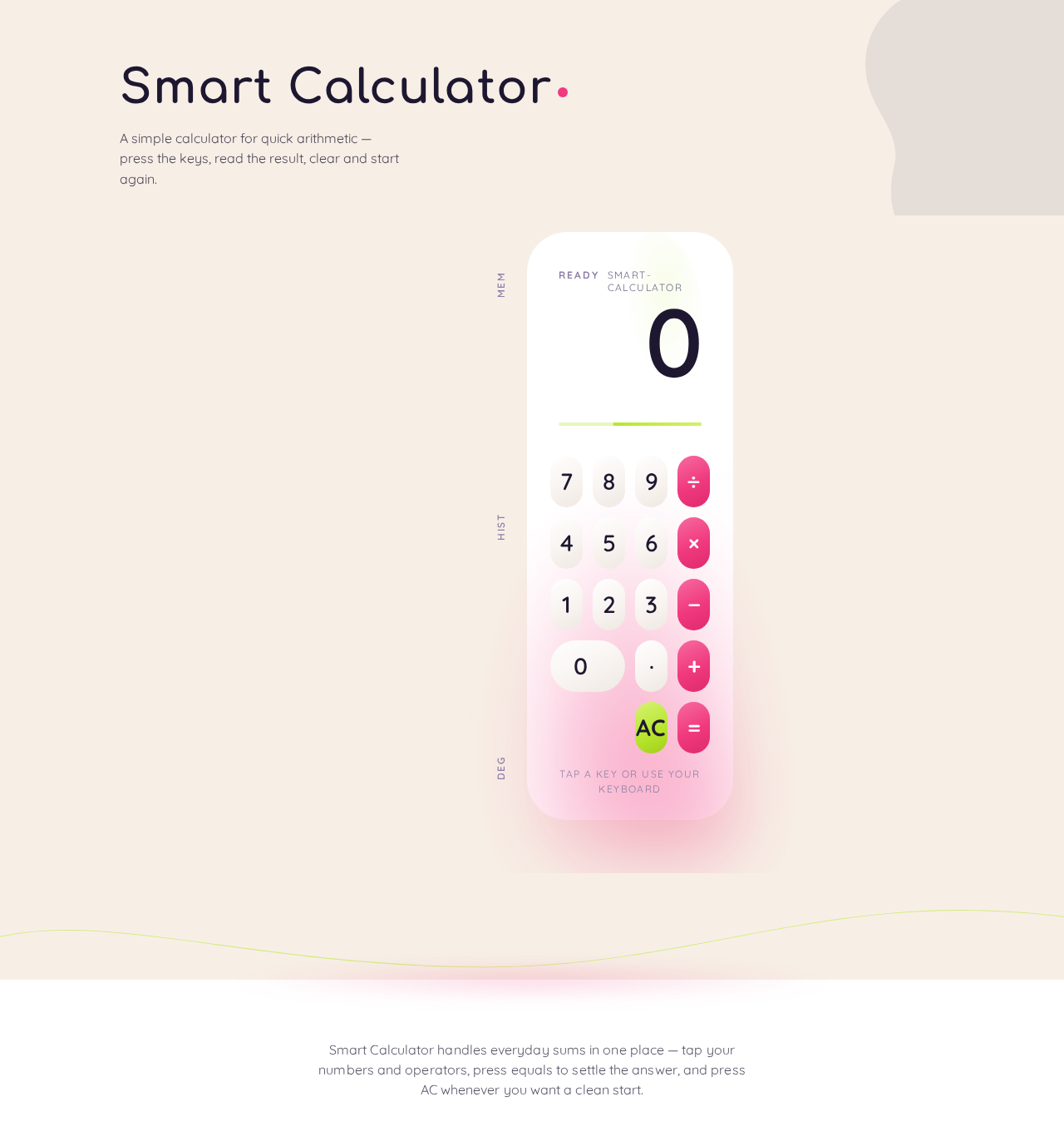
Smart Calculator
A simple calculator for quick arithmetic — press the keys, read the result, clear and start again.
Tap a key or use your keyboard
Smart Calculator handles everyday sums in one place — tap your numbers and operators, press equals to settle the answer, and press AC whenever you want a clean start.
Smart Calculator
A simple calculator for quick arithmetic — press the keys, read the result, clear and start again.
Tap a key or use your keyboard
Smart Calculator handles everyday sums in one place — tap your numbers and operators, press equals to settle the answer, and press AC whenever you want a clean start.
No comments yet. Be the first!