shiny-page
 Diya Trivedi
build a simple single page design of calculator

Comments (0)
Sign in to leave a comment
System Requirements
System Requirements Document for shiny-page
1. Introduction
shiny-page is a simple calculator delivered as a single page. The product intent is narrow and complete: a person opens the page, enters numbers and arithmetic operators, sees the current input and the computed result on the page, and can clear the calculator to start a new calculation. There is no account, no saved history, and no second screen — the calculator is the page.
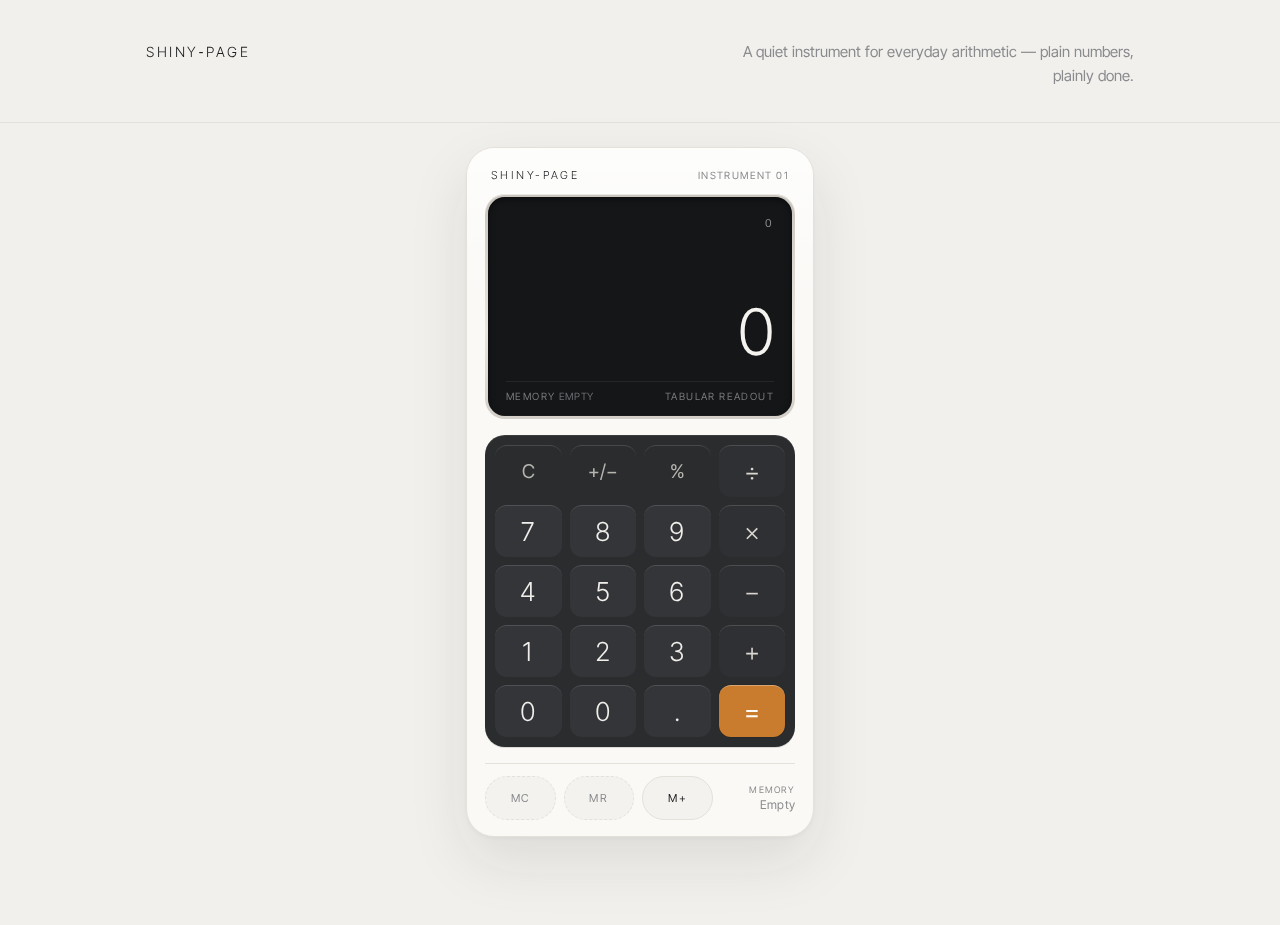
The audience is anyone who needs fast, unambiguous everyday arithmetic in a browser. The design language is a quiet precision instrument: a single graphite-and-aluminium calculator body floating on a warm near-white ground, with oversized light-weight tabular numerals, hairline dividers, and one restrained amber accent reserved for the equals key and the active operator. The interface is calm and trustworthy rather than playful; the numbers, not decoration, are the subject.
2. System Overview
2a. Product Interpretation and Delivery Boundary
The product is one anonymous, publicly reachable page that contains the entire calculator. A visitor arrives with no identity, no prior state, and no setup step; the calculator is immediately usable. All arithmetic entry, evaluation, result display, and clearing happen on that single page.
The page is a first-party React surface served by the application. Because the calculator's working state is ephemeral — a current expression and a current result — no application-owned identity, sign-in, session continuity, or persistent storage is required or introduced. The provisioned backend and database exist as shared infrastructure but carry no calculator domain requirement: the arithmetic lifecycle is owned entirely by the page.
Current scope is exactly the single calculator page and its arithmetic behavior. Nothing beyond it — history, accounts, sharing, scientific functions, unit conversion — is part of this delivery. No future requirements have been stated.
2b. Source Content Inventory
Not applicable — no reference directive with content_source was supplied.
2c. Page Content and Component Coverage
Calculator
The single page of the product, anonymously reachable, owning the complete arithmetic lifecycle: expression entry, evaluation, result display, and clearing.
Information and state
- Display well — a recessed area with a hairline aluminium frame. It shows two stacked readouts:
- the pending expression in small muted uppercase type (11px, 0.14em tracking) above the result, reflecting the numbers and operators entered so far;
- the current result as an oversized, right-aligned, light-weight tabular numeral (
clamp(56px, 12vw, 128px)), tracking −0.02em.
- Initial state — on first load the result reads
0and the pending expression line is empty or shows0. - Entry state — as digits and operators are entered, the pending expression updates to show the input; the result area shows the running/computed value.
- Computed state — after evaluation, the result area shows the computed value and the pending expression reflects the completed expression.
- Cleared state — after clearing, the page returns to the initial state (
0, empty expression). - Error state — when an entry cannot be evaluated (for example a malformed expression such as a trailing operator followed by equals, or division by zero), the result area shows an unambiguous error indication instead of a number; the next digit entry or a clear returns the calculator to a usable state.
Primary actions
- Digit keys (0–9) — append digits to the current number entry.
- Decimal point — begins or extends a fractional entry.
- Operator keys (+, −, ×, ÷) — set the pending arithmetic operation; the active operator is indicated with the amber accent.
- Equals key — the only amber surface on the page; evaluates the entered expression and shows the result.
- Clear key — resets the calculator to its initial state so a new calculation can begin.
Supporting actions and controls
- Memory row — a compact row of three memory keys (MC / MR / M+) beneath a hairline rule under the keypad, presented as the page's only secondary control strip.
- Wordmark — a small light-weight product wordmark at the top-left of the page.
- Quiet copy line — a single short line of supporting copy at the top-right, framing the instrument.
Domain entities
- Expression — the ordered sequence of entered numbers and operators currently pending evaluation.
- Result — the numeric outcome of evaluating the expression, or an error indication when evaluation is not possible.
- Memory value — a single stored number held for the memory row's recall and accumulation.
Component responsibilities
- Calculator body — the centred graphite instrument surface (≈380px wide on desktop, full width minus 32px on mobile) that contains the display well and keypad; carries one soft ambient shadow.
- Display well — renders the pending expression and the oversized result; owns the error indication.
- Keypad — a strict 4×5 grid of flat graphite keys with 1px lighter top-edge highlights; routes digit, decimal, operator, equals, and clear input.
- Memory row — renders MC / MR / M+ and reflects the current memory value.
- Page frame — wordmark, quiet copy line, and the warm ground that positions the instrument.
States
- Loading — the page is a static client surface; no data fetch is required, so the calculator renders in its initial state immediately.
- Empty — the initial state (
0, empty expression) is the empty state. - Success — a valid expression evaluates and the result is displayed with a 160ms crossfade of the digits.
- Error — an unevaluable expression shows an error indication in the result area; recovery is a digit entry or clear.
- Recovery — clear always returns the page to the initial state; no error state is sticky.
3. Functional Requirements
FR-1 — Single-page calculator (explicit) As a Calculator User, I should find the entire calculator on one page, so that I can do arithmetic without navigating anywhere.
- Trigger: opening the page.
- Observable result: the calculator body, display well, keypad, and memory row are all present on the single page.
- Access: anonymous, no identity required.
- Failure/recovery: not applicable.
- Continuation: the user proceeds directly to entry.
FR-2 — Enter numbers and operators (explicit) As a Calculator User, I should enter numbers and arithmetic operators, so that I can build the calculation I want.
- Trigger: pressing digit keys, the decimal point, and operator keys.
- Observable result: the pending expression line updates to reflect the entered numbers and operators; the active operator is indicated with the amber accent.
- Access: anonymous.
- Failure/recovery: an invalid key sequence (for example two operators in a row) is resolved by the calculator accepting the latest operator as the pending operation; the expression line reflects the accepted input.
- Continuation: the user presses equals to evaluate.
FR-3 — See current input and computed result (explicit) As a Calculator User, I should see the current input and the computed result on the page, so that I always know what I have entered and what it evaluates to.
- Trigger: any entry or evaluation.
- Observable result: the pending expression appears in small muted type above the oversized result numeral; the result updates as the expression is evaluated.
- Access: anonymous.
- Failure/recovery: when the expression cannot be evaluated, the result area shows an error indication rather than a stale or misleading number.
- Continuation: the user corrects the entry or clears.
FR-4 — Evaluate with equals (explicit) As a Calculator User, I should press the equals key to compute the result of my expression.
- Trigger: pressing the amber equals key.
- Observable result: the result area shows the computed value, with the digits changing via a 160ms crossfade.
- Access: anonymous.
- Failure/recovery: a malformed expression or division by zero produces an error indication; the next digit entry or clear restores usability.
- Continuation: the user may continue calculating from the result or clear.
FR-5 — Clear to start a new calculation (explicit) As a Calculator User, I should clear the calculator, so that I can start a fresh calculation.
- Trigger: pressing the clear key.
- Observable result: the display returns to the initial state (
0, empty expression) and any error indication is removed. - Access: anonymous.
- Failure/recovery: clear is always available and always succeeds.
- Continuation: the user begins a new entry.
FR-6 — Memory row controls (required_inference) As a Calculator User, I should use the memory keys (MC / MR / M+) beneath the keypad, so that I can store, recall, and accumulate a single value while calculating.
- Trigger: pressing M+ (add the current result to memory), MR (recall the memory value into the entry), or MC (clear the memory value).
- Observable result: the memory row reflects the stored value; MR places the memory value into the current entry.
- Access: anonymous.
- Failure/recovery: MC clears memory to empty; MR with empty memory leaves the entry unchanged.
- Continuation: the user continues the calculation with the recalled or accumulated value.
4. User Personas
Calculator User
Product context. The Calculator User arrives at shiny-page with a small, concrete arithmetic task — a sum, a difference, a product, a quotient — and wants the answer quickly and without ceremony. They are anonymous: no account, no profile, no saved history. The page is the whole product, and the calculator is the whole page.
Primary goal. Enter numbers and operators, see the running input and the computed result, and clear the calculator to start again — all on one page, with no ambiguity about what has been entered or what it evaluates to.
Distinct accepted responsibilities.
- Entering digits, a decimal point, and arithmetic operators to build an expression.
- Reading the pending expression and the oversized result to confirm the input and its value.
- Pressing equals to evaluate the expression.
- Pressing clear to reset to a fresh calculation.
- Using the memory keys to store, recall, and accumulate a single value.
Relevant inputs and decisions. Which numbers and operators to enter; when the expression is complete enough to evaluate; whether to continue from a result or clear; whether to store or recall a value in memory.
Interactions with other participants. None. The Calculator User is the only active human actor; there is no counterparty, recipient, or approver. The calculator's evaluation is a system response to the user's own action, not a separate participant.
Observable success. The result area shows the correct computed value for the entered expression; the pending expression line matches what was entered; clear returns the page to 0 with an empty expression; an invalid expression produces a clear error indication that the user can recover from.
5. Core User Flows
Flow 1 — Perform a calculation
- The Calculator User opens the Calculator page. The page renders immediately in its initial state: the result reads
0, the pending expression line is empty, and the keypad and memory row are visible. - The user presses digit keys to enter the first number. The pending expression line updates to show the entered digits.
- The user presses an operator key (+, −, ×, or ÷). The operator is accepted as the pending operation and is indicated with the amber accent.
- The user presses digit keys to enter the second number. The pending expression line shows the full expression so far.
- The user presses the amber equals key. The calculator evaluates the expression; the result area shows the computed value with a 160ms crossfade of the digits, and the pending expression reflects the completed expression.
- Continuation: the user may press an operator to continue calculating from the result, or press clear to start a new calculation.
Flow 2 — Clear and start a new calculation
- From any state — initial, mid-entry, computed, or error — the Calculator User presses the clear key.
- The display returns to the initial state: the result reads
0, the pending expression line is empty, and any error indication is removed. - The user begins a new entry as in Flow 1, step 2.
Flow 3 — Recover from an invalid expression
- The Calculator User enters an expression that cannot be evaluated (for example a trailing operator followed by equals, or division by zero) and presses equals.
- The result area shows an unambiguous error indication instead of a number; the pending expression remains visible so the user can see what was entered.
- Recovery: the user presses a digit key to begin a corrected entry, or presses clear to reset to the initial state.
- The calculator returns to a usable state and the user continues as in Flow 1.
Flow 4 — Use the memory row
- The Calculator User computes a result as in Flow 1.
- The user presses M+ to add the current result to memory. The memory row reflects the stored value.
- The user presses clear, then presses MR to recall the memory value into the current entry. The recalled value appears in the pending expression.
- The user continues calculating with the recalled value, or presses MC to clear the memory value; the memory row reflects the empty state.
6. Visuals Colors and Theme
The creative direction is authoritative for this section.
Muse and headline. Quiet precision after Jony Ive: one perfectly lit calculator. The emotional register is calm, trustworthy, and tactile — a precision instrument on a desk, not a colourful consumer toy.
Mode. Light mode only.
Colour tokens (exact hex, by role)
| Role | Hex | Usage |
|---|---|---|
| Background | #F2F0EC | Warm aluminium off-white page ground (~70% of the composition) |
| Surface | #FAF9F6 | Calculator body surface |
| Text | #1C1D1F | Body text and numerals |
| Primary | #2B2C2E | Graphite keypad shell (~25% of the composition) |
| Accent | #C97B2E | Restrained amber — equals key, active operator, thin focus rule only (~5%) |
| Muted | #8A8B8E | Secondary labels and hairline dividers |
| Divider | #E4E1DB | Hairline 1px dividers |
The accent is never used as a decorative wash. No colour outside the warm-neutral-plus-amber system is permitted; blue and indigo are forbidden.
Typography
- Headings and body: Inter Tight.
- Wordmark: Inter Tight Light 300, small, wide tracking.
- Display result: tabular numerals, weight 200–300, tracking −0.02em,
clamp(56px, 12vw, 128px). - Operator line:
clamp(22px, 4vw, 32px). - Keypad numerals:
clamp(20px, 3.2vw, 28px). - Section labels: 11px uppercase, 0.14em tracking, muted.
- Supporting copy: 15px / 1.6.
- Scale: 1.333 modular. No bold headlines — hierarchy comes from scale and whitespace, not weight.
Shape language
- Soft continuous-curve radii: 12px on keys, 28px on the calculator body, 999px on the memory pill.
- Hairline 1px dividers in
#E4E1DB. - No shadows except one very soft ambient drop beneath the calculator body.
- Keys are flat graphite with a 1px lighter top edge to suggest machined aluminium; the equals key is the only amber surface.
- Nothing decorative that is not also functional.
Layout and spacing rhythm
- Single-column, product-first: the calculator body is centred and floating at roughly 380px wide on desktop, full width minus 32px on mobile.
- Above the body: one small wordmark and a single line of quiet copy. Below the keypad: a hairline rule and a compact row of three memory keys (MC / MR / M+).
- A 12-column grid with 96px side margins at 1280px, collapsing to 16px gutters at 375px.
- No cards, no sidebar, no marketing sections.
Imagery style. No photography or illustration. The calculator itself is the subject; texture comes from 1px top-edge highlights and the soft ambient shadow.
Readability constraint. Headlines, wordmarks, labels, numbers, and controls stay entirely inside the viewport and their container at 375px, 768px, and 1280px, wrapping or scaling with clamp(...) to fit; no element covers any part of them.
7. Signature Design Concept
The first screen is not a marketing hero — it is the instrument. A warm aluminium-white ground (#F2F0EC) fills the viewport. Dead centre, a single graphite calculator body (#2B2C2E shell on #FAF9F6 surface, 28px radius) floats with one soft ambient shadow beneath it.
Its display well is recessed with a hairline aluminium frame, holding a huge light-weight tabular numeral (clamp(56px, 12vw, 128px), right-aligned, #1C1D1F) with the pending expression in 11px uppercase muted type above it. The keypad is a strict 4×5 grid of flat graphite keys with 1px lighter top-edge highlights; the equals key is the only amber surface (#C97B2E) in the frame. A tiny light-weight wordmark sits top-left, a single quiet line of copy top-right, and a hairline rule with three memory keys (MC / MR / M+) anchors the bottom — turning a functional divider into the page's only secondary navigation.
The composition is framed like a product plate, not a hero headline: no gradient, no blob, no centred headline-plus-button stack, no cards. Dominant element: the oversized result numeral inside the recessed display.
8. Interaction Model & Motion Direction
Interaction Model: Animated Motion Tempo: restrained Hero Dimensionality: layered_2d
Landing Hero Motion Brief
- Focal subject. The calculator body itself — a machined graphite instrument with a recessed display well holding the oversized tabular result numeral, and one amber equals key.
- Input → transformation → outcome thesis. On load, the calculator body reveals with a single 400ms ease-out; thereafter every input is a physical key press — a 90ms
scale(0.98)with a brief amber flash on the active operator — and every result change is a 160ms crossfade of the digits. The outcome is always the same: the instrument responds to the hand and the number changes. - Motion vocabulary. One 400ms ease-out reveal; 90ms key-press scale; amber flash on the active operator; 160ms digit crossfade. No bounce, no particles, no parallax.
- Composed first frame. The warm ground fills the viewport; the calculator body is centred and fully composed at rest — wordmark top-left, quiet copy top-right, display well with
0, 4×5 keypad with the amber equals key, hairline rule and memory row at the bottom. - Reduced-motion state. With
prefers-reduced-motion, all transitions collapse to instant state changes: the body appears without the reveal, key presses change state without scale, and result digits swap without crossfade.
9. Non-Functional Requirements
- Single-page constraint (explicit): the product is delivered as exactly one page; no additional routes, screens, or navigation are introduced.
- Anonymous access (explicit via planning scope): the page is publicly reachable with no identity, sign-in, or session continuity; no account-management capability is introduced.
- Ephemeral state (required_inference): the calculator's expression, result, and memory value live only in the page session; no persistent storage, history, or server-side domain record is required.
- Readability across viewports (explicit): readable text and controls remain whole and inside the viewport and their container at 375px, 768px, and 1280px.
- Accessible motion (explicit):
prefers-reduced-motioncollapses all transitions to instant state changes while preserving full usability. - Error clarity (required_inference): an unevaluable expression produces an unambiguous error indication and a recoverable state; the calculator never displays a misleading stale result.
- Performance (basic_default): the page is a static client surface that renders its initial state immediately without a data fetch.
10. Tech Stack
- Frontend: React application UI — the single Calculator page, built with the Inter Tight typeface and the token system in Section 6.
- Backend: shared FastAPI process for application APIs and domain modules. The calculator requires no backend endpoint; the process is provisioned infrastructure and is not extended for calculator behavior.
- Database: MariaDB for application-owned persistent data. No calculator domain entity is persisted; the provisioned database carries no calculator requirement.
- Deployment: docker-compose with the
frontend,backend, anddatabaseservices as provisioned.
11. Assumptions and Constraints
- Assumption (basic_default): arithmetic follows standard operator precedence for the entered expression; the pending expression line makes the entered sequence visible so the user can confirm it.
- Assumption (basic_default): the memory row holds a single value; M+ adds the current result to it, MR recalls it into the entry, and MC clears it.
- Assumption (basic_default): the calculator supports the four basic operations (+, −, ×, ÷), digits, and a decimal point; no scientific functions, history, or unit conversion are included.
- Constraint (explicit): the design is a single page.
- Constraint (explicit): the product is a simple calculator.
- Constraint (explicit): no identity, account, or persistence is introduced for the calculator.
12. Glossary
- Expression — the ordered sequence of numbers and operators currently entered and pending evaluation.
- Result — the numeric outcome of evaluating the expression, displayed as the oversized tabular numeral.
- Display well — the recessed, hairline-framed area holding the pending expression and the result.
- Memory value — the single number stored via the memory row (MC / MR / M+).
- Keypad — the strict 4×5 grid of flat graphite keys, including the amber equals key.
- Instrument — the calculator body as a whole: the graphite shell, display well, keypad, and memory row.
A quiet instrument for everyday arithmetic — plain numbers, plainly done.
A quiet instrument for everyday arithmetic — plain numbers, plainly done.
No comments yet. Be the first!