sharp-start
 Diya Trivedi
start a project to build a simple single page design of calculator

Comments (0)
Sign in to leave a comment
System Requirements
System Requirements Document for sharp-start
1. Introduction
sharp-start is a simple calculator delivered as a single page. The product intent is narrow and complete: one anonymous visitor opens one page, enters numbers and operators, sees the computed result, and can clear the entry — all without navigating away, signing in, or leaving the screen. The design is deliberately a single page, and the calculator itself is the entire product surface.
The audience is the Calculator User: a single visitor performing basic arithmetic who wants the number, not the brand. The experience is calm, tactile, and engineered — a precise instrument rather than a decorated app.
2. System Overview
sharp-start is a single-page web calculator. The page is anonymously reachable and requires no account, no sign-in, and no persisted identity. The Calculator User enters digits and operators, the calculator computes and displays the result, and the user can clear the current entry or backspace a digit. All arithmetic interaction happens on one screen.
Current delivery consists of:
- frontend — a React application that renders the single Calculator page and its keypad, readout, and controls.
- backend — a shared FastAPI process for application APIs and domain modules, available for any server-side behavior the calculator requires.
- database — MariaDB for application-owned persistent data, provisioned as infrastructure. The accepted calculator behavior does not require durable storage, so no domain entities, authentication, or persistence are introduced by its presence.
Actors:
- Calculator User (active human persona) — the single visitor who enters numbers and operators and reads the computed result.
- frontend and backend (non-persona system actors) — render the page and execute any server-side computation the implementation chooses to delegate.
Accepted behavior: entering numbers and operators, computing and viewing results, and clearing entries, all on the single Calculator page.
Narrow exclusions: no additional pages, no navigation, no accounts or sign-in, no history or memory features beyond what the accepted behavior requires, and no adjacent calculator capabilities (scientific functions, unit conversion, graphing, currency) are introduced.
Removed from scope
- None — no concepts were explicitly removed by the user.
2a. Product Interpretation and Delivery Boundary
sharp-start is delivered as one first-party page, the Calculator, which is anonymously reachable and owns the entire accepted lifecycle: entering numbers and operators, computing and viewing the result, and clearing entries. There is no pre-identity lifecycle, because no accepted behavior requires private, resumable, or actor-bound state; the calculator is public-ephemeral by nature. There is no provider-owned or external surface in the accepted scope.
The backend and database are provisioned infrastructure. They may support the frontend (for example, serving the application or hosting any computation the implementation delegates), but they do not create additional product surfaces, identity, or persistence requirements. Everything the Calculator User does and sees happens on the single Calculator page.
2c. Page Content and Component Coverage
Calculator
The single page of the product, anonymously reachable, owning all accepted calculator behavior.
- Information and state
- Current entry / expression being built (the digits and operators the user has entered so far).
- The displayed result or current value in the readout.
- Active operator state (which operator is currently selected, if any).
- Error state when an expression cannot be evaluated (for example, division by zero or a malformed expression).
- Primary actions
- Enter digits 0–9 to build a number.
- Select an operator (÷, ×, −, +).
- Commit the expression with the equals key to compute and display the result.
- Clear the current entry with the C key.
- Backspace the last entered digit with the\x20\xe2\x8c\xab key.
- Supporting actions
- Continue calculating from the displayed result by entering a new operator and operand.
- Domain entities
- Entry (the in-progress sequence of operands and operators).
- Result (the computed value shown in the readout).
- Operator (one of ÷, ×, −, +).
- No persisted entities; state is ephemeral to the page session.
- Component responsibilities
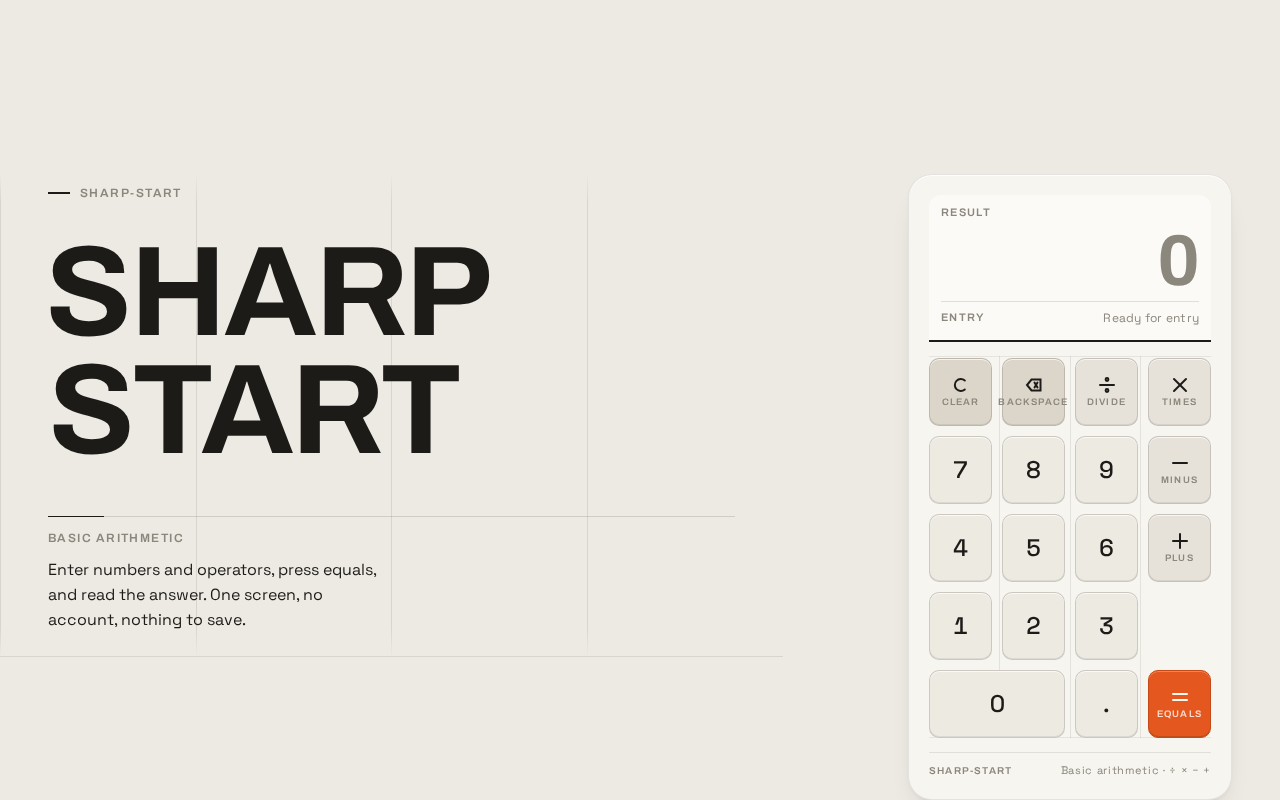
- Readout band — full-width band at the top of the calculator body; right-aligned tabular numerals; a small-caps
RESULTlabel pinned left; closed by a 2px ink rule beneath.
- Readout band — full-width band at the top of the calculator body; right-aligned tabular numerals; a small-caps
- Keypad — strict 4×5 modular grid of rounded-rectangle keys; digits, operators, C,\x20\xe2\x8c\xab, and the equals key; function keys carry equal-weight 2px pictogram strokes with small-caps legends beneath.
- Equals key — the single Braun-orange saturated surface; flashes on commit.
- Left rail (desktop) — oversized stacked
SHARP / STARTwordmark, small-caps legend, and one plain sentence; stacks above the body at 768px and the body goes full-width at 375px. - States
- Loading — the calculator body performs one fade-and-lift reveal on load; the page is usable immediately after.
- Empty — readout shows a neutral zero/placeholder before any entry; no error, no prompt.
- Success — the computed result appears in the readout on equals; digits swap without transition.
- Error — an unevaluable expression shows an error indication in the readout; the user recovers by pressing C to clear and starting a new entry.
- Recovery — C clears the current entry and returns the readout to its neutral state;\x20\xe2\x8c\xab removes the last digit so the user can correct a mistyped number.
3. Functional Requirements
-
FR-1 — Enter numbers. As a Calculator User I should enter digits 0–9 on the keypad so that I can build the number I want to calculate with. (explicit)
- Trigger/input: the user presses a digit key.
- Observable result: the digit is appended to the current entry and shown in the readout.
- Access state: anonymous; no sign-in required.
- Failure/recovery: none specific; the user can backspace or clear.
- Continuation: the user may enter more digits, select an operator, or commit with equals.
-
FR-2 — Select an operator. As a Calculator User I should select an operator (÷, ×, −, +) so that I can specify the arithmetic operation to perform. (explicit)
- Trigger/input: the user presses an operator key.
- Observable result: the operator is recorded in the current expression and shown as the active operator state.
- Access state: anonymous.
- Failure/recovery: the user can select a different operator before committing.
- Continuation: the user enters the next operand and commits with equals.
-
FR-3 — Compute and view the result. As a Calculator User I should press the equals key so that the calculator computes the expression and displays the result in the readout. (explicit)
- Trigger/input: the user presses the equals key with a complete expression.
- Observable result: the computed result appears in the readout; the equals key flashes Braun orange for 120ms on commit.
- Access state: anonymous.
- Failure/recovery: if the expression cannot be evaluated (for example, division by zero), the readout shows an error indication and the user recovers by clearing.
- Continuation: the user may continue calculating from the displayed result.
-
FR-4 — Clear the entry. As a Calculator User I should press the C key so that I can clear the current entry and start over. (explicit)
- Trigger/input: the user presses the C key.
- Observable result: the current entry is cleared and the readout returns to its neutral state.
- Access state: anonymous.
- Failure/recovery: none; clearing is always available.
- Continuation: the user begins a new entry.
-
FR-5 — Backspace a digit. As a Calculator User I should press the\x20\xe2\x8c\xab key so that I can remove the last entered digit and correct a mistake. (required_inference — indispensable correction mechanic for the accepted entry lifecycle)
- Trigger/input: the user presses the\x20\xe2\x8c\xab key.
- Observable result: the last entered digit is removed from the current entry and the readout updates.
- Access state: anonymous.
- Failure/recovery: pressing\x20\xe2\x8c\xab on an empty entry leaves the readout in its neutral state.
- Continuation: the user continues entering digits or selects an operator.
-
FR-6 — Continue from a result. As a Calculator User I should be able to enter a new operator and operand after a result is shown so that I can chain calculations without clearing. (required_inference — indispensable continuation of the accepted compute lifecycle)
- Trigger/input: the user presses an operator key while a result is displayed.
- Observable result: the displayed result becomes the first operand of the new expression and the operator is recorded.
- Access state: anonymous.
- Failure/recovery: the user can clear with C to start fresh.
- Continuation: the user enters the next operand and commits with equals.
4. User Personas
Calculator User
- Product context: A single visitor who opens the sharp-start page to perform basic arithmetic. They arrive with a number in mind and want the answer quickly, on one screen, with no account and no navigation.
- Primary goal: Enter numbers and operators, compute a result, and read it — all without leaving the page.
- Distinct accepted responsibilities: Entering digits, selecting operators, committing with equals, clearing entries, and correcting mistakes with backspace. This role is the sole human actor; its work is the entire product.
- Relevant inputs or decisions: Which digits to enter, which operator to apply, when to commit, and whether to clear or correct.
- Interactions with other accepted participants: None beyond the calculator itself; there is no counterparty, recipient, or other human participant in the accepted scope.
- Observable success: The correct result appears in the readout after pressing equals, and the user can continue or clear without navigating away.
- Provenance: required_inference from the single-page calculator scope; the role is the anonymous visitor to the Calculator page.
5. Core User Flows
Flow 1 — Perform a basic calculation
- The Calculator User opens the sharp-start page. The Calculator page loads anonymously; the calculator body performs its single fade-and-lift reveal.
- The user presses digit keys to enter the first operand. The digits appear in the readout.
- The user presses an operator key (÷, ×, −, or +). The operator is recorded and shown as the active operator state.
- The user presses digit keys to enter the second operand. The digits appear in the readout.
- The user presses the equals key. The calculator computes the expression, the result appears in the readout, and the equals key flashes Braun orange for 120ms.
- Continuation: the user may press an operator key to continue calculating from the displayed result (Flow 3), or press C to clear and start a new calculation (Flow 2).
Flow 2 — Clear and start over
- The Calculator User is on the Calculator page with an entry in progress or a result displayed.
- The user presses the C key. The current entry is cleared and the readout returns to its neutral state.
- The user begins a new entry by pressing digit keys.
Flow 3 — Continue from a result
- The Calculator User has a result displayed in the readout after pressing equals.
- The user presses an operator key. The displayed result becomes the first operand of the new expression and the operator is recorded.
- The user enters the next operand and presses equals. The new result appears in the readout.
Flow 4 — Correct a mistyped digit
- The Calculator User is entering a number and notices a wrong digit.
- The user presses the\x20\xe2\x8c\xab key. The last entered digit is removed and the readout updates.
- The user continues entering the correct digits, then selects an operator or commits with equals.
Flow 5 — Recover from an unevaluable expression
- The Calculator User presses equals on an expression that cannot be evaluated (for example, division by zero).
- The readout shows an error indication.
- The user presses the C key to clear the entry. The readout returns to its neutral state.
- The user begins a new, valid entry.
6. Visuals Colors and Theme
The creative direction is authoritative: Less, but better — a calculator as honest instrument, after Dieter Rams.
Palette (light mode)
| Role | Hex | Use |
|---|---|---|
| Background | #EDEAE3 | Warm off-white page ground |
| Surface | #F7F5F0 | Slightly brighter calculator body panel |
| Text | #1C1B18 | Ink near-black, full contrast |
| Primary | #E4571E | Braun orange — equals key, active operator, readout rule; under 8% of surface |
| Accent | #F2B705 | Amber — secondary signal for operator state only |
| Muted | #8C877C | Warm grey — labels, small caps, secondary key faces |
No blue anywhere. Only one saturated colour appears on screen at a time.
Typography
- Headings: Archivo, 600–700, tight tracking (−0.02em), sentence case for the page title; small-caps tracked labels (+0.12em) for key legends such as
RESULTandMEMORY. - Body: Space Grotesk.
- Numerals are the star: tabular, large, high contrast.
- Scale: 1.25 modular. Display numerals 56px mobile → 128px desktop via
clamp. Page title 28/40. Labels 12/13 small caps. Key labels 20/24. Body 15/16.
Shape language
- Rounded-rectangle keys with a 10px radius and a 1px inset hairline.
- Calculator body with a 24px continuous radius and a soft top-edge highlight.
- Hard 2px rule under the readout.
- Strictly aligned label/value pairs.
- No blobs, no pills, no shadows beyond a single low ambient lift under the body.
Layout
- Strict 4×5 modular grid on the right holding the keypad, with the readout spanning all four columns above it.
- Desktop: two-column asymmetric split — narrow left rail (page title, small-caps legend, one line of plain talk) and the calculator body on the right at 420px wide.
- At 768px the rail stacks above the body; at 375px the body goes full-width with 16px gutters and the keypad keeps its 4-column grid so every key stays whole and tappable.
Imagery
- No photography. Diagrammatic line art only: a thin schematic rule system behind the left rail, small pictogram glyphs on the function keys (÷ × − + = C\x20\xe2\x8c\xab) drawn as equal-weight 2px strokes, and a faint grid hairline marking the keypad's 4 columns.
7. Signature Design Concept
The first screen is the instrument. The left third of the viewport carries an oversized Archivo title set flush-left and stacked in two lines — SHARP over START, 56px mobile → 128px desktop — with a small-caps legend and a single plain sentence beneath it. Visible column hairlines run the full page height behind the wordmark.
The right two-thirds holds the calculator body: a warm off-white panel (#F7F5F0) on the warmer page ground (#EDEAE3), with a full-width readout band at top — right-aligned tabular numerals, a small-caps RESULT label pinned left, closed by a 2px ink rule beneath — and a 4×5 keypad of rounded-rect keys in warm grey with one Braun-orange equals key, the only saturated surface on the page.
The composition is asymmetric and grid-locked, with visible column hairlines; no centred stack, no gradient, no floating card. The concept recomposes only accepted content and controls: the readout, the keypad, the operator state, and the equals commit.
8. Interaction Model & Motion Direction
Interaction Model: Animated Motion Tempo: restrained Hero Dimensionality: flat
Landing Hero Motion Brief
- Focal subject: the calculator body — the readout band and the 4×5 keypad — as the first screen's instrument.
- Input → transformation → outcome thesis: a key press depresses the key 1px and darkens it with a 90ms ease-out; the readout digits swap without transition; on commit the equals key flashes Braun orange for 120ms. The outcome is the computed result appearing in the readout.
- Motion vocabulary: instant, mechanical feedback; no bounce, no particles, no idle animation.
- Composed first frame: the calculator body fades and lifts 8px once on load; the readout shows its neutral state; the keypad is fully visible and tappable.
- Reduced-motion state: with
prefers-reduced-motion, the load reveal is suppressed and the calculator body appears in its final position; key press feedback remains a static darken with no transition; the equals flash is omitted or reduced to a static state change.
9. Non-Functional Requirements
- Single page (explicit): the product must be delivered as exactly one page; no additional routes, navigation, or destinations.
- Simple design (explicit): the design must remain a simple single-page calculator; no adjacent calculator capabilities are added.
- Anonymous access (required_inference): the Calculator page is reachable without sign-in; no account, identity, or session continuity is required by the accepted behavior.
- Responsive readability (creative direction): headlines, wordmarks, labels, numbers, and controls stay entirely inside the viewport and their container at 375px, 768px, and 1280px, wrapping or scaling to fit; no element covers any part of them.
- Accessibility (creative direction): readable text and controls remain whole at every viewport; with
prefers-reduced-motion, a usable static arrangement is provided. - No blue (creative direction): blue or indigo accents of any kind are forbidden.
- Performance (required_inference): the page is usable immediately after load; the single reveal does not block interaction.
10. Tech Stack
- frontend: React application UI rendering the single Calculator page.
- backend: shared FastAPI process for application APIs and domain modules; reused for any server-side computation the calculator requires.
- database: MariaDB, provisioned as infrastructure for application-owned persistent data. The accepted calculator behavior does not require durable storage; no domain entities or authentication are introduced by its presence.
- Containerization: Docker / docker-compose for the provisioned services (backend, database, frontend).
11. Assumptions and Constraints
- A-1 (explicit): The product is a simple calculator delivered as a single page.
- A-2 (explicit): The design must be a single page; the page count is exactly one.
- A-3 (required_inference): The Calculator User is anonymous; no identity, account, or persistence is required by the accepted behavior.
- A-4 (required_inference): Calculator state is ephemeral to the page session; the provisioned database does not imply domain entities or persistence.
- A-5 (creative direction): The visual direction is authoritative for palette, typography, shape, layout, and motion; the generic indigo/blue-on-white SaaS template is forbidden.
- A-6 (required_inference): Backspace (\xe2\x8c\xab) and continue-from-result are indispensable correction and continuation mechanics for the accepted entry and compute lifecycles.
12. Glossary
- Calculator User — the single anonymous visitor who enters numbers and operators and reads the computed result.
- Readout — the full-width band at the top of the calculator body displaying the current entry or result.
- Keypad — the 4×5 modular grid of keys for digits, operators, C,\x20\xe2\x8c\xab, and equals.
- Entry — the in-progress sequence of operands and operators the user is building.
- Result — the computed value shown in the readout after pressing equals.
- Operator — one of ÷, ×, −, +.
- Commit — pressing the equals key to compute and display the result.
- Braun orange — the primary signal colour
#E4571E, used on the equals key, active operator, and readout rule.
sharp-start
SharpStart
sharp-start
No comments yet. Be the first!