shadow-web
 Bhanu Bisht
web app , calculator

Comments (0)
Sign in to leave a comment
System Requirements
System Requirements Document for shadow-web
1. Introduction
shadow-web is a web application calculator. Its product intent is narrow and complete: a person opens the app, enters numbers and arithmetic operations, and sees the computed result. The audience is anyone who needs a quick, correct answer — students, shoppers, freelancers, people splitting a bill — and the product is a single instrument rather than a suite of tools.
The experience is delivered as a custom first-party web UI with two surfaces: a public Landing page that explains what the calculator is and does before any calculation work, and a Calculator page that owns entering numbers and operations, computing and viewing the result, and clearing the entry for a new calculation. Neither surface requires an account; the calculator is usable anonymously and immediately.
The visual and tonal direction is a remix of a familiar industrial object — keys, labels, a display — rendered with quoted labels, hazard stripes, an exposed grid, and hard-edged tag motifs. Character is added without slowing down the arithmetic or compromising the legibility of digits and keys.
2. System Overview
shadow-web is a single-purpose web calculator. A visitor arrives at the Landing page, learns in one screen what the calculator does, and opens the Calculator. On the Calculator they build an arithmetic expression from a keypad, see the running expression and the computed result on a display plate, and clear the entry to start a new calculation. There is no account, no saved history across sessions, and no adjacent product surface.
Current delivery comprises three provisioned services:
- frontend — a React application UI that renders the Landing and Calculator pages and handles keypad interaction and display state.
- backend — a shared FastAPI process for application APIs and domain modules, including the arithmetic evaluation endpoint used by the Calculator.
- database — MariaDB for application-owned persistent data. No domain entity is required by the accepted calculator behavior; the database is provisioned infrastructure and is not used to store calculations, users, or history.
Actors:
- Calculator User (active human persona) — opens the web calculator, enters numbers and operations, and reads the computed result.
- frontend, backend, database — typed non-persona system actors that render, evaluate, and host the application.
Accepted behavior is limited to: presenting the calculator, accepting numeric and operator input, computing the result of the entered expression, displaying the running expression and result, and clearing the entry. Explicitly out of scope: accounts, sign-in, saved calculation history, sharing, unit conversion, scientific or programmer modes, and any capability not listed above.
Removed from scope
- User accounts and sign-in (also: authentication, login, registration)
- Saved or persistent calculation history (also: calculation log, memory store)
- Scientific, programmer, or unit-conversion calculator modes
- Sharing, exporting, or collaboration on calculations
2a. Product Interpretation and Delivery Boundary
shadow-web is delivered entirely as a first-party web application. Both accepted pages — Landing and Calculator — are application-owned custom pages with no access requirement: a visitor can reach and use them anonymously, with no identity establishment, session continuity, or permission model. Because no accepted capability creates a durable relationship, obligation, entitlement, or value transfer bound to a specific person, no application-owned identity is introduced.
The Landing page is a public entry surface: it explains the calculator and provides the single path into the Calculator. The Calculator page owns the entire calculation lifecycle — input, computation, result display, and clearing. Arithmetic evaluation is performed by the shared backend so the result is authoritative and consistent; the frontend owns input capture and display state.
There is no future-horizon functionality in the accepted requirements. Anything not described in this document — history, accounts, additional modes — is outside the current delivery boundary and is not implied by the provisioned database or by the calculator's product category.
2c. Page Content and Component Coverage
Landing
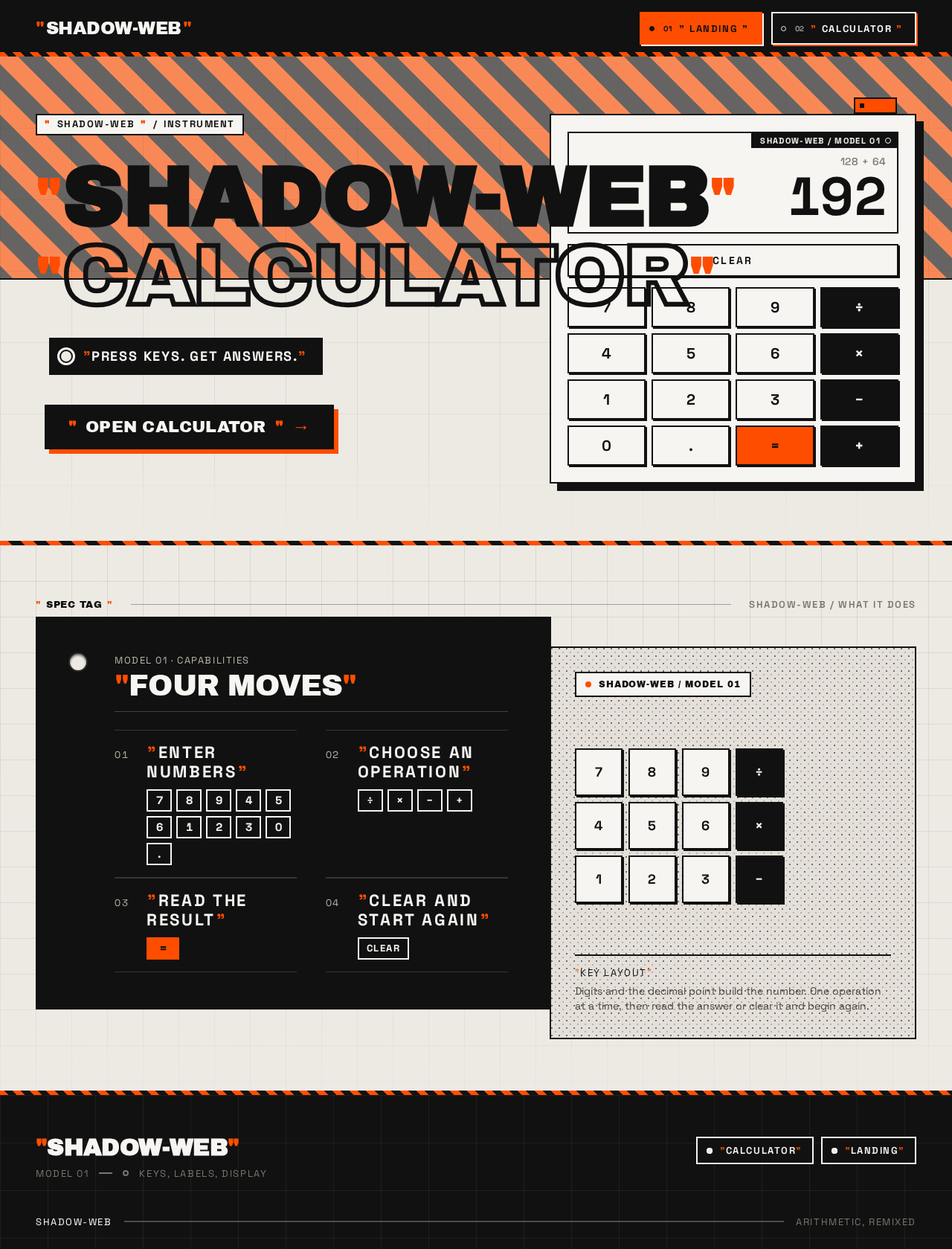
- Information and state: product name "SHADOW-WEB" and the word "CALCULATOR" presented as a poster headline; a short statement of what the calculator does ("PRESS KEYS. GET ANSWERS."); a spec-tag block listing the calculator's capabilities (enter numbers, choose an operation, read the result, clear and start again). Static content; no data loading.
- Primary action: "OPEN CALCULATOR" key-shaped button that navigates to the Calculator page.
- Supporting actions: none beyond navigation into the Calculator.
- Domain entities: none.
- Component responsibilities:
- Hero headline block — oversized quoted headline, second line in outlined ink stroke, each word wrapped in oversized orange quotation marks.
- Hazard-stripe band — full-bleed 45° orange/black band behind the top third; slow drift, paused under
prefers-reduced-motion. - Spec-tag block — solid black tag-shaped block with punched hole reading "PRESS KEYS. GET ANSWERS." in off-white caps.
- Instrument illustration — hard-edged vector illustration of the calculator with its display showing a live example sum; cropped off the right edge by 15% at 1280px, dropped below the headline at 375px.
- CTA key — black key-shaped button with orange offset shadow, pinned bottom-left of the headline block.
- States: loading — not applicable (static content); empty — not applicable; success — page renders with all labels, headline, and CTA fully inside the viewport at 375px, 768px, and 1280px; error — not applicable; recovery — not applicable.
Calculator
- Information and state: the current running expression (muted grey, above the result), the current result or entry (heavy tabular digits on the display plate), the active operator state, and a small "SHADOW-WEB / MODEL 01" tag in the display's top-right corner. On desktop, a ruled ledger of the current session's completed operations in the left columns.
- Primary actions: press digit keys 0–9 and the decimal point to enter numbers; press operator keys ÷, ×, −, + to choose an operation; press "=" to compute and display the result; press "CLEAR" to reset the entry for a new calculation.
- Supporting actions: none beyond the keypad and clear.
- Domain entities: expression (the sequence of entered operands and operators), result (the computed numeric value), operation record (an entry in the current-session ledger: expression and its result).
- Component responsibilities:
- Display plate — bordered off-white plate at the top of the instrument; running expression above, result digits below; punched tag in the top-right corner.
- CLEAR key — full-width key above the 4-column grid; resets expression, result, and active operator.
- Key grid — 4 columns in the order 7-8-9-÷ / 4-5-6-× / 1-2-3-− / 0-.-=-+; hard-cornered off-white tiles with 2px ink border and 2px black offset shadow that collapses on press; equals key is the only fully orange key; active operator key inverts to orange fill with black glyph.
- Operation ledger (desktop) — ruled ledger in the left 5 columns listing completed operations for the current session.
- Instrument frame — single centred panel, max-width 420px on mobile and 440px on desktop, with a zip-tie-like orange tab.
- States: loading — display shows an empty entry state while the page initializes; empty — display shows
0with no running expression and no ledger entries; success — result digits replace the entry and the completed operation appears in the ledger; error — an invalid expression (for example a trailing operator or division by zero) shows an error state on the display plate with the entered expression preserved; recovery — pressing CLEAR or entering a valid digit/operator returns the display to a usable entry state.
3. Functional Requirements
FR-1 — Open the web calculator (explicit) As a Calculator User, I should open the shadow-web web application and reach the calculator so that I can perform arithmetic.
- Trigger: the user navigates to the application.
- Observable result: the Landing page renders with the product headline, a statement of what the calculator does, and an "OPEN CALCULATOR" action.
- Access state: anonymous; no account required.
- Failure/recovery: if the page fails to load, the user reloads the application; no partial state is retained.
- Continuation: the user activates "OPEN CALCULATOR" to reach the Calculator page.
FR-2 — Enter numbers (explicit) As a Calculator User, I should enter numbers using the keypad so that I can build the operands of my calculation.
- Trigger: the user presses digit keys 0–9 and the decimal point on the Calculator keypad.
- Observable result: the entered digits appear on the display plate as the current entry, and the running expression reflects the operand being built.
- Access state: anonymous.
- Failure/recovery: a second decimal point in the same operand is rejected and the entry is unchanged.
- Continuation: the user presses an operator key to continue the expression, or "=" to compute.
FR-3 — Choose arithmetic operations (explicit) As a Calculator User, I should choose an arithmetic operation so that the entered numbers are combined as I intend.
- Trigger: the user presses one of the operator keys ÷, ×, −, +.
- Observable result: the chosen operator is appended to the running expression and its key inverts to the active orange state; the previous operator key returns to its default state.
- Access state: anonymous.
- Failure/recovery: pressing an operator with no entered operand leaves the expression unchanged.
- Continuation: the user enters the next operand and presses "=" or another operator.
FR-4 — See the computed result (explicit) As a Calculator User, I should see the computed result of my entered expression so that I get the answer I came for.
- Trigger: the user presses the equals key "=".
- Observable result: the backend evaluates the entered expression and the result digits replace the entry on the display plate; the completed expression and its result are added to the current-session operation ledger.
- Access state: anonymous.
- Failure/recovery: if the expression is invalid (for example a trailing operator) or the operation is undefined (for example division by zero), the display plate shows an error state and preserves the entered expression so the user can correct it.
- Continuation: the user presses CLEAR to start a new calculation, or continues entering digits to begin a new expression from the result.
FR-5 — Clear the entry for a new calculation (explicit) As a Calculator User, I should clear the current entry so that I can start a fresh calculation without leftover state.
- Trigger: the user presses the full-width "CLEAR" key.
- Observable result: the running expression is emptied, the display returns to
0, and the active operator state is released. - Access state: anonymous.
- Failure/recovery: not applicable; CLEAR always returns the display to the empty entry state.
- Continuation: the user enters a new expression.
FR-6 — Review completed operations in the current session (required_inference) As a Calculator User, I should see the operations I have completed in this session so that I can check my recent answers without re-entering them.
- Trigger: the user completes a calculation with "=".
- Observable result: on desktop, the completed expression and its result appear as a ruled entry in the operation ledger beside the instrument; the ledger is scoped to the current session only.
- Access state: anonymous; the ledger is not persisted across sessions or devices.
- Failure/recovery: if the ledger is unavailable (for example on a narrow viewport where it is not shown), the result remains visible on the display plate.
- Continuation: the user continues calculating or clears the entry.
4. User Personas
Calculator User
Product context. The Calculator User arrives at shadow-web with a specific sum in mind — a bill to split, a price to check, a homework answer to verify — and wants the answer in seconds. They are not looking for a workspace, an account, or a record of their work; they want one instrument that responds immediately and reads clearly.
Primary goal. Get a correct result from the numbers and operations they enter, and be able to start a fresh calculation cleanly.
Distinct accepted responsibilities.
- Entering numbers and arithmetic operations on the keypad.
- Reading the computed result from the display plate.
- Clearing the entry to begin a new calculation.
- Reviewing completed operations within the current session on desktop.
Relevant inputs and decisions. Which digits and decimal point to enter; which operator (÷, ×, −, +) to apply; when to press "=" to compute; when to press "CLEAR" to reset. The user decides when an expression is complete and when a result is acceptable.
Interactions with other accepted participants. The Calculator User is the only active human persona. Their input is evaluated by the backend and rendered by the frontend; no other human participant is involved, and no result is handed to another person.
Observable success. The display plate shows the correct result for the entered expression, the running expression matches what they intended, and CLEAR returns the instrument to a clean 0 state for the next calculation.
5. Core User Flows
Flow A — First visit and opening the calculator
- The Calculator User navigates to shadow-web in a browser. No sign-in is required.
- The Landing page renders: the quoted "SHADOW-WEB" / "CALCULATOR" headline, the hazard-stripe band, the "PRESS KEYS. GET ANSWERS." tag, the spec-tag block describing what the calculator does, and the instrument illustration with a live example sum.
- The user reads what the calculator does and activates the "OPEN CALCULATOR" key-shaped button.
- The Calculator page opens with the display showing
0, no running expression, and an empty operation ledger. - Continuation: the user proceeds to Flow B.
Flow B — Performing a calculation
- On the Calculator page, the Calculator User presses digit keys to enter the first operand; the digits appear on the display plate and the running expression updates.
- The user presses an operator key (÷, ×, −, or +); the operator is appended to the running expression and its key inverts to the active orange state.
- The user presses digit keys to enter the second operand; the display reflects the entry.
- The user presses the equals key "=". The backend evaluates the expression and the result digits replace the entry on the display plate.
- On desktop, the completed expression and its result appear as a ruled entry in the operation ledger beside the instrument.
- Continuation: the user presses "CLEAR" to start a new calculation (Flow C), or continues entering digits to begin a new expression from the result.
Flow C — Clearing and starting again
- On the Calculator page, the Calculator User presses the full-width "CLEAR" key.
- The running expression empties, the display returns to
0, and the active operator state is released. - The user enters a new expression following Flow B.
Flow D — Recovering from an invalid expression
- The Calculator User presses "=" on an expression that cannot be evaluated — for example a trailing operator, or a division by zero.
- The display plate shows an error state and preserves the entered expression so the user can see what went wrong.
- The user corrects the expression by entering the missing operand or pressing an operator, or presses "CLEAR" to reset.
- The display returns to a usable entry state and the user continues with Flow B.
Flow E — Reviewing recent operations in the session
- After completing one or more calculations, the Calculator User looks at the operation ledger on the left columns of the Calculator page (desktop).
- Each completed expression and its result is listed as a ruled entry, scoped to the current session.
- The user uses a recent result to inform the next calculation, or presses "CLEAR" to start fresh.
6. Visuals Colors and Theme
The visual language is a remix of a familiar industrial object — keys, labels, a display — in the spirit of Virgil Abloh: quoted labels, hazard stripes, an exposed grid, and tag motifs. It is quick, confident, and a little streetwise, never corporate or calming.
Palette (light mode)
| Role | Token | Hex |
|---|---|---|
| Background (concrete-grey paper ground) | --bg | #EDEAE4 |
| Surface (keys, display plate) | --surface | #F7F5F1 |
| Text / ink (type, display digits, operator keys) | --ink | #111111 |
| Primary (buttons, key borders) | --primary | #111111 |
| Accent (equals key, quotation marks, hazard stripe, active operator) | --accent | #FF4D00 |
| Muted (metadata, secondary labels, running expression) | --muted | #7A756C |
Safety orange #FF4D00 is the single hot accent: the equals key, the quotation marks around labels, the hazard stripe, and the active-operator state — never more than one orange element per cluster. Orange is used for large type and key fills with black text on top, never for small body copy on light ground. Body text #111111 on #EDEAE4 and #F7F5F1 clears contrast comfortably.
Typography
- Headings: Archivo Black, all-caps, tight tracking (-0.02em), at poster scale for the landing headline and section labels. Every label is wrapped in literal straight quotation marks — "ADD", "CLEAR", "RESULT" — with the quotes in safety orange and the words in ink.
- Display digits: Space Grotesk at heavy weight with tabular numerals.
- Body: Space Grotesk.
- Scale: 1.5 modular — 96 / 64 / 40 / 24 / 16 / 14. Landing headline
clamp(40px, 9vw, 128px); calculator display digitsclamp(40px, 8vw, 72px); key labels 18–22px; metadata 13px uppercase with 0.12em tracking.
Shape language
- Hard 90-degree corners on keys and panels; 2px ink borders; exposed hairline grid lines.
- Hazard-stripe bands at 45° in orange and black.
- Tag-and-label rectangles with a punched hole; a single zip-tie-like orange tab on the calculator frame.
- No rounded cards, no soft shadows — depth comes from offset solid blocks (2px black offset under keys).
Layout
- Landing: asymmetric 12-column grid with an oversized quoted headline bleeding left, a full-bleed hazard-stripe band, and a framed spec-tag block listing what the calculator does.
- Calculator: a single centred instrument panel on the concrete ground, max-width 420px on mobile and 440px on desktop, with a 4-column key grid (7-8-9-÷ / 4-5-6-× / 1-2-3-− / 0-.-=-+), a full-width CLEAR key above the grid, and the display as a bordered off-white plate at the top with a small "SHADOW-WEB / MODEL 01" tag in the corner. On desktop the instrument sits in the right 6 columns with the quoted operation history in the left 5 columns as a ruled ledger.
Imagery. No photography. The imagery is the object itself: thick-line vector key glyphs, hazard stripes, punched tag labels, exposed grid lines, and a halftone-dot texture on the landing's secondary panel. The calculator panel is treated as a product shot — a flat, hard-edged illustration of an instrument.
Readability constraint. Headlines, wordmarks, labels, numbers, and controls stay entirely inside the viewport and their container at 375px, 768px, and 1280px, wrapping or scaling to fit. Decoration and imagery may be cropped or bled off an edge, but never cover readable text or controls.
7. Signature Design Concept
The public entry is a poster, not a SaaS hero. A full-bleed concrete-grey ground (#EDEAE4) carries a hazard-stripe band in orange #FF4D00 and ink #111111 at 45°, running edge to edge behind the top third of the screen.
The dominant element is the headline "SHADOW-WEB" set in Archivo Black at clamp(40px, 9vw, 128px), flush left, stacked in two lines, with the second line "CALCULATOR" in outlined ink stroke rather than fill. Each word is wrapped in oversized literal quotation marks in orange. Beneath the headline, a solid black tag-shaped block with a punched hole reads "PRESS KEYS. GET ANSWERS." in off-white Space Grotesk caps.
The CTA is a single black key-shaped button labelled "OPEN CALCULATOR" with an orange offset shadow, pinned bottom-left of the headline block — not centred. On the right side at 1280px, a hard-edged illustration of the calculator instrument itself is cropped off the right edge by 15%, its display showing a live example sum. At 375px the instrument illustration drops below the headline and the hazard band runs behind the type.
The signature moves that carry through both pages: every label is wrapped in literal straight quotation marks with the quotes in safety orange; the hazard-stripe band reappears as a 6px rule dividing calculator sections; keys are hard-cornered off-white tiles with a 2px ink border and a solid 2px black offset shadow that collapses on press; the display is a bordered off-white plate with a punched "SHADOW-WEB / MODEL 01" tag and the running expression in muted grey above the result; the equals key is the only fully orange key, and the active operator key inverts to orange fill with a black glyph.
8. Interaction Model & Motion Direction
Interaction Model: Animated Motion Tempo: restrained Hero Dimensionality: flat
Landing Hero Motion Brief
- Focal subject: the calculator instrument illustration on the right of the hero, cropped off the right edge by 15%, with its display showing a live example sum.
- Input → transformation → outcome thesis: as the page settles, the hazard-stripe band drifts slowly behind the headline while the quoted headline and tag block hold still; the instrument illustration remains a flat, hard-edged product shot. The outcome is a composed poster in which the object and the type are both fully legible and the only movement is the slow drift of the stripe.
- Motion vocabulary: snappy and mechanical — keys depress 2px with a 90ms ease-out and a hard black offset shadow collapsing; display digits swap without fade; the hazard stripe drifts slowly on the landing band; label tags flip in on hover. No bounces, no easing theatrics.
- Composed first frame: concrete-grey ground, hazard band behind the top third, "SHADOW-WEB" in Archivo Black with "CALCULATOR" in outlined stroke, both wrapped in orange quotation marks, the black tag block reading "PRESS KEYS. GET ANSWERS.", the "OPEN CALCULATOR" key pinned bottom-left, and the instrument illustration cropped at the right edge.
- Reduced-motion state: under
prefers-reduced-motion, the hazard stripe drift is paused and the page renders as a static poster; label tags do not flip on hover; all content remains fully readable and the CTA remains operable.
9. Non-Functional Requirements
- NFR-1 — Anonymous access (explicit): Both Landing and Calculator are reachable without an account, sign-in, or session continuity. No identity establishment is introduced.
- NFR-2 — Legibility (explicit): Digits, key labels, headlines, and controls remain fully inside the viewport and their container at 375px, 768px, and 1280px. Decoration may be cropped; readable text and controls may not.
- NFR-3 — Contrast (explicit): Body text
#111111on#EDEAE4and#F7F5F1clears contrast comfortably; orange is used for large type and key fills with black text on top, never for small body copy on light ground. - NFR-4 — Reduced motion (explicit): Under
prefers-reduced-motion, the hazard-stripe drift is paused and the page provides a usable static arrangement. - NFR-5 — Responsive instrument (explicit): The calculator panel is max-width 420px on mobile and 440px on desktop; on desktop the instrument sits in the right 6 columns with the operation ledger in the left 5 columns.
- NFR-6 — Authoritative evaluation (required_inference): Arithmetic evaluation is performed by the shared backend so results are consistent and authoritative; the frontend owns input capture and display state.
- NFR-7 — No persistence of calculations (explicit): The operation ledger is scoped to the current session only; calculations are not stored in the database or persisted across sessions or devices.
10. Tech Stack
- Frontend: React application UI rendering the Landing and Calculator pages, keypad interaction, display state, and the operation ledger.
- Backend: shared FastAPI process for application APIs and domain modules, including the arithmetic evaluation endpoint used by the Calculator.
- Database: MariaDB, provisioned as application-owned persistent infrastructure. No domain entity is required by the accepted calculator behavior; the database is not used to store calculations, users, or history.
- Deployment:
docker-compose.ymlwith the three provisioned services —frontend,backend,database— connected through the shared backend for feature APIs.
11. Assumptions and Constraints
- A-1 (assumption): The calculator supports the four basic arithmetic operations (÷, ×, −, +), decimal input, and a single running expression evaluated on "=". No scientific functions, parentheses, or memory keys are included.
- A-2 (assumption): The operation ledger is a current-session, in-memory view on desktop; it is not persisted and is not shown on narrow viewports where the instrument occupies the full width.
- A-3 (constraint): No accounts, sign-in, saved history, sharing, or additional calculator modes are in scope.
- A-4 (constraint): The provisioned MariaDB database does not justify domain entities, authentication, or an ER model for this product.
- A-5 (constraint): The generic indigo/blue-on-white SaaS template is forbidden; the palette, fonts, surfaces, tone, and layout follow the creative direction in Sections 6–8.
12. Glossary
- Calculator User — the active human persona who opens shadow-web, enters numbers and operations, and reads the computed result.
- Expression — the sequence of entered operands and operators shown in the running expression above the result.
- Result — the numeric value computed by the backend when the user presses "=".
- Operation ledger — the ruled, current-session list of completed expressions and their results shown on desktop.
- Instrument — the calculator panel: display plate, CLEAR key, and 4-column key grid.
- Hazard stripe — the 45° orange-and-black band used on the Landing hero and as a 6px rule on the Calculator.
- Spec tag — the black tag-shaped block with a punched hole reading "PRESS KEYS. GET ANSWERS." on the Landing page.
FOUR MOVES
- ENTER NUMBERS
- CHOOSE AN OPERATION
- READ THE RESULT
- CLEAR AND START AGAIN
FOUR MOVES
- ENTER NUMBERS
- CHOOSE AN OPERATION
- READ THE RESULT
- CLEAR AND START AGAIN
No comments yet. Be the first!