shadow-start
 Diya Trivedi
start a project to build a simple single page design of clulcator

Comments (0)
Sign in to leave a comment
System Requirements
System Requirements Document for shadow-start
1. Introduction
shadow-start is a simple calculator delivered as a single-page design. The product intent is a self-contained, anonymous utility: a person opens one page, enters numbers and operations, and reads the computed result — no setup, no accounts, no navigation beyond that one screen. The design must be simple and must remain a single page.
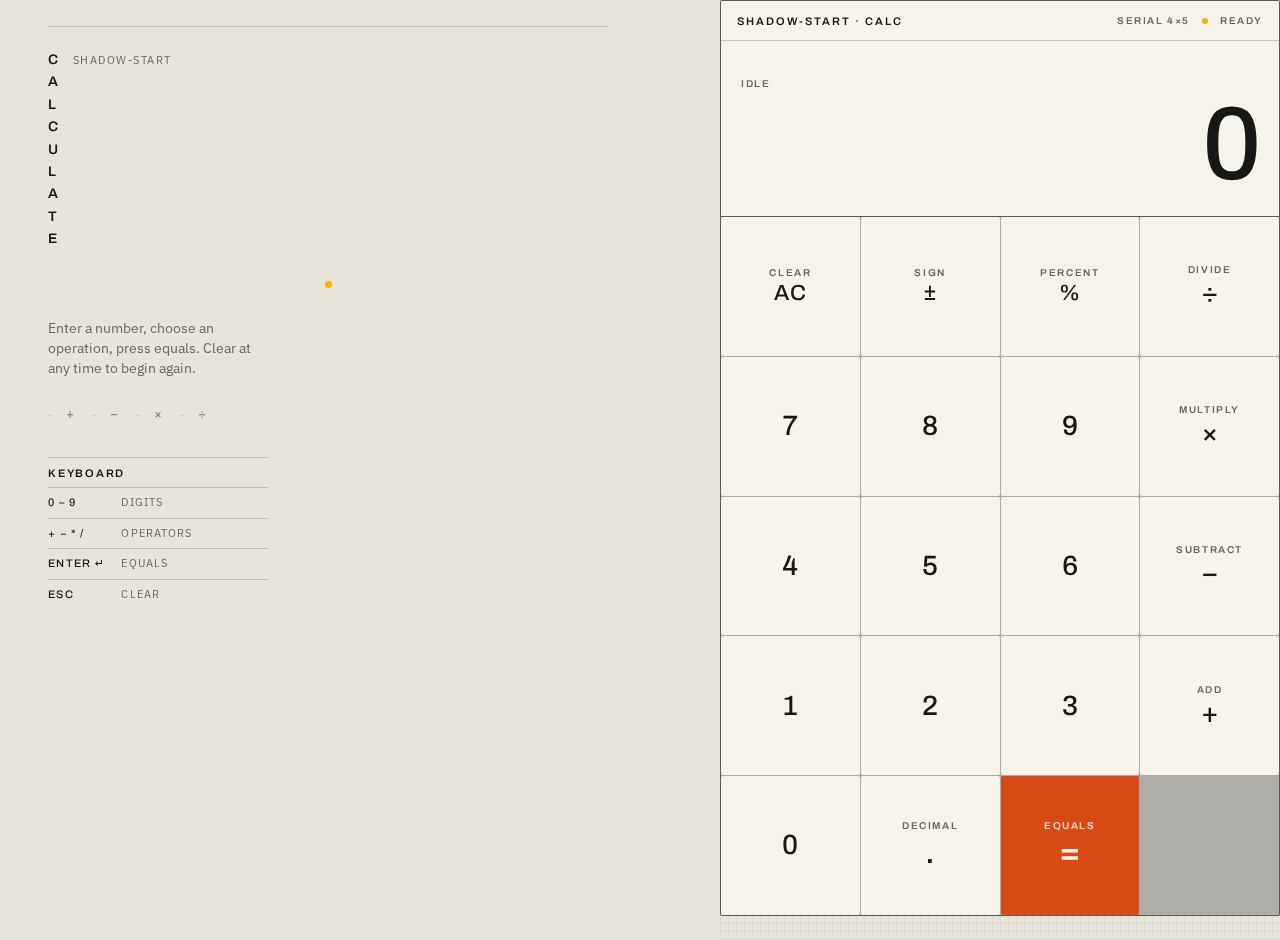
The audience is any anonymous visitor who needs a quick calculation and wants to trust the result immediately. The interface is treated as a single engineered instrument rather than a marketing experience: a top identification rail, an oversized right-aligned numeric display, and a fixed four-column keypad with a single saturated equals key.
2. System Overview
shadow-start is delivered as a React frontend served alongside a shared FastAPI backend process and a MariaDB database, provisioned via docker-compose. The calculator itself is a client-side, single-page instrument: number entry, operation selection, and result computation happen on the one Calculator page. The backend and database are provisioned infrastructure available to the application; the accepted calculator behavior does not require server-side persistence, accounts, or stored history, so no domain entities, authentication, or data model are introduced by this document.
Actors:
- Calculator User (active human persona) — the anonymous visitor who enters numbers and operations and reads the result.
- Frontend application (system) — renders the single Calculator page and computes the displayed result.
- Shared backend (system) — provisioned FastAPI process; available for application APIs but not required by the accepted calculator behavior.
- Database (system) — provisioned MariaDB instance; not required by the accepted calculator behavior.
Accepted behavior: a single anonymous Calculator page hosting number entry, operation selection, an equals action, a clear action, and a live numeric display of the current entry and computed result.
Narrow exclusions: no multi-page navigation, no accounts or sign-in, no saved calculation history, no scientific or programmer modes, no unit conversion, no sharing or export.
Removed from scope
- None (no concepts were removed by the user).
2a. Product Interpretation and Delivery Boundary
The product is one page. Everything the Calculator User needs — the display, the digits, the four operations, equals, and clear — lives inside a single calculator frame on that page. Access is anonymous and public: there is no identity establishment, no session continuity, and no protected state, because the accepted behavior creates no durable actor-specific state, commitment, or value transfer. The backend and database are provisioned and available, but the current accepted scope does not require them to store or serve calculator state; they remain part of the delivery platform without adding product behavior.
Current horizon: the single-page calculator as described. No future features are accepted in this document.
2c. Page Content and Component Coverage
Calculator
The single, anonymously reachable page. It is the complete product surface.
Information and state
- Current numeric entry (the number being typed or the last result), right-aligned, rendered in tabular figures at a display size of
clamp(52px, 10vw, 104px). - Active operation state: which of the four operations (+, −, ×, ÷) is currently selected, shown by an orange fill on that operator key.
- A small yellow status dot in the top identification rail as a status signal only.
- A short instruction line and a keyboard shortcut legend (desktop left rail; horizontal identification strip on mobile).
Primary actions
- Digit keys 0–9: append to the current entry.
- Decimal point key: begin or extend a fractional entry.
- Operator keys +, −, ×, ÷: select the active operation (immediate orange fill).
- Equals key: compute and display the result; the only saturated control surface, anchored lower-right.
- Clear key: reset the current entry and active operation to the initial state.
Supporting actions
- Keyboard input mirroring the on-screen keys (digits, operators, Enter for equals, Escape or a clear shortcut for clear), with the shortcut legend documenting them.
Domain entities
- Current entry value (numeric string being composed).
- Pending operand and active operation.
- Displayed result.
Component responsibilities
- Identification rail: top serial-style strip carrying the product label and the yellow status dot.
- Display: right-aligned numeric readout with tabular figures; shows entry and result.
- Keypad: exact 4-column × 5-row matrix of equal square keys; operator keys show a small uppercase operation name above the mathematical glyph; equals key occupies the lower-right position with orange fill.
- Left rail (≥768px): stacked uppercase "CALCULATE" wordmark, short instruction, keyboard shortcut legend. Collapses to a horizontal strip above the calculator below 768px.
- Background grid: faint 8px technical baseline grid in empty background space only, aligned to keypad seams.
States
- Initial/empty: display shows
0; no operator active. - Entry: digits append; display updates instantly without easing.
- Operator selected: active operator key filled orange.
- Success: equals computes and the result replaces the display instantly.
- Error: division by zero or an invalid operation shows a clear error indication in the display (e.g., "Cannot divide by zero") and the next digit or clear action returns to normal entry.
- Recovery: clear resets to the initial state at any time.
- Loading: not applicable — the page is static and computes locally.
3. Functional Requirements
FR-1 — Single-page calculator delivery (explicit) As a Calculator User, I should reach the complete calculator on one page, so that I can calculate without navigating anywhere else.
- Trigger: opening the product.
- Observable result: the Calculator page renders the display and full keypad; no other page or route is required.
- Access: anonymous, public.
- Failure/recovery: not applicable.
- Continuation: the user proceeds to enter a calculation.
FR-2 — Number entry (explicit) As a Calculator User, I should enter numbers using the digit keys, so that I can compose the values I want to calculate.
- Trigger: pressing a digit key (or typing a digit).
- Observable result: the digit appends to the current entry and the display updates instantly.
- Access: anonymous.
- Failure/recovery: clear resets the entry.
- Continuation: the user selects an operation or presses equals.
FR-3 — Operation selection (explicit) As a Calculator User, I should select an operation (+, −, ×, ÷), so that I can specify what to do with my numbers.
- Trigger: pressing an operator key.
- Observable result: that operator key receives an immediate orange fill, marking it active.
- Access: anonymous.
- Failure/recovery: selecting a different operator moves the active state; clear removes it.
- Continuation: the user enters the second operand and presses equals.
FR-4 — Compute result (explicit) As a Calculator User, I should press equals to compute the result, so that I can read the answer.
- Trigger: pressing the equals key (or Enter).
- Observable result: the display shows the computed result instantly, without easing.
- Access: anonymous.
- Failure/recovery: division by zero shows a clear error in the display; the next digit or clear returns to normal entry.
- Continuation: the user may continue calculating from the result or clear.
FR-5 — Clear (explicit) As a Calculator User, I should clear the calculator, so that I can start a fresh calculation.
- Trigger: pressing the clear key (or the clear shortcut).
- Observable result: the display returns to
0and no operator is active. - Access: anonymous.
- Failure/recovery: not applicable.
- Continuation: the user begins a new entry.
FR-6 — Keyboard input (required_inference) As a Calculator User, I should use my keyboard for digits, operators, equals, and clear, so that I can calculate quickly without reaching for the pointer.
- Trigger: typing a digit, operator, Enter, or the clear shortcut.
- Observable result: the same display and operator-state changes as the corresponding on-screen keys.
- Access: anonymous.
- Failure/recovery: unrecognized keys are ignored.
- Continuation: the user continues entry or presses Enter.
4. User Personas
Calculator User
Product context. An anonymous visitor who arrives at shadow-start needing a quick arithmetic answer. They have no account, no prior state, and no expectation of a multi-step product experience — the page is the tool.
Primary goal. Get a correct result from one self-contained screen as fast as possible, and trust it.
Distinct accepted responsibilities.
- Compose a number using the digit keys.
- Select one of the four operations, reading the active state from the orange operator fill.
- Press equals and read the result from the oversized display.
- Clear and start again when needed.
- Optionally drive the same actions from the keyboard.
Relevant inputs or decisions. Which digits to enter, which operation to apply, when to press equals, and when to clear. The user decides when a calculation is complete.
Interactions with other accepted participants. None beyond the calculator itself; there is no counterparty, recipient, or other human participant in the accepted behavior.
Observable success. The display shows the correct computed value immediately after equals, with the active operation clearly indicated beforehand and a clean reset available afterward.
5. Core User Flows
Flow A — Perform a basic calculation
- The Calculator User opens shadow-start. The Calculator page renders anonymously with the display showing
0and no operator active. - The user presses digit keys to enter the first number. Each digit appends and the display updates instantly.
- The user presses an operator key (e.g., +). That key fills orange immediately, marking the active operation.
- The user enters the second number; the display updates with each digit.
- The user presses equals. The display instantly shows the computed result.
- The user reads the result. They may continue calculating from it or press clear to start over.
Failure/recovery. If the user divides by zero, the display shows a clear error; pressing a digit or clear returns to normal entry.
Flow B — Correct a mistake with clear
- Mid-entry, the user notices an incorrect number.
- The user presses the clear key (or the clear shortcut).
- The display returns to
0and any active operator fill is removed. - The user begins the calculation again from step 2 of Flow A.
Flow C — Calculate by keyboard
- The user types digits; the display updates exactly as with on-screen keys.
- The user types an operator; the corresponding operator key fills orange.
- The user types the second number and presses Enter.
- The display shows the result instantly.
- The user presses the clear shortcut to reset, or continues typing.
6. Visuals Colors and Theme
The creative direction is authoritative: Dieter Rams functional clarity for instant arithmetic.
Palette (light mode)
- Background (full-page ground):
#E9E4DA— warm mineral off-white. - Surface (calculator body):
#F7F3EB— pale paper. - Text (numerals and labels):
#171715— near-black. - Primary (active operation and equals key):
#D94A16— orange, reserved for the active operator and the equals key. - Accent (status signal only):
#F2B705— yellow, used only for the small status dot. - Muted (helper text, rules):
#77736C. - Rules: 1px graphite lines.
- Blue and indigo are forbidden.
Typography
- Headings: Archivo SemiBold, tight tracking, uppercase micro-labels.
- Numeric display: Archivo Medium with tabular figures, compact instrument rhythm.
- Body: IBM Plex Sans.
- Scale: display
clamp(52px, 10vw, 104px)(52px minimum on mobile); page title 14px; labels 11px; key legends 22px mobile to 28px desktop; helper text 14px.
Shape language. Strict rectangular modules with 2px corner radii, 1px graphite rules, circular signal indicators, and physical-looking depressed key states. No soft glass, blobs, floating cards, or decorative shadows.
Layout. One centered instrument column usable at 375px: narrow top identification rail, large right-aligned display, then a 4-column keypad of equal square keys. At 768px and above, the calculator remains a deliberate central object (560px-wide pale-paper device offset slightly right at 1280px) while a slim left rail carries the title, short instruction, and keyboard shortcut legend. All controls remain within the primary calculator frame.
Imagery. No stock imagery, no decorative illustration. The calculator interface is the hero; a faint technical baseline grid and tiny schematic operator marks provide functional ornament.
7. Signature Design Concept
The first screen is a full-height warm-grey instrument field, not a marketing hero. At 375px, a complete calculator occupies the safe central column with a 52px-to-104px right-aligned number display. At 1280px, it expands to a 560px-wide pale-paper device offset slightly right, while a narrow black typographic rail on the left reads "CALCULATE" in stacked uppercase letters. A single orange equals key anchors the lower-right corner of the keypad, with one small yellow status dot in the top rail. All readable type and controls stay inside the device and viewport; only the faint construction grid may bleed outward.
Signature moves:
- A full-page calculator treated as one engineered instrument: a top serial rail, oversized tabular display, and an exact 4-by-5 key matrix.
- The orange equals key spans the visual weight of the keypad's lower-right quadrant and is the only saturated control surface.
- A left-side vertical label rail at desktop, collapsing to a horizontal identification strip above the calculator on mobile.
- Operator buttons show aligned label/value logic: small uppercase operation names above their mathematical glyphs rather than anonymous icon-only controls.
- A faint 8px technical baseline grid appears only in empty background space and aligns exactly with keypad seams.
8. Interaction Model & Motion Direction
Interaction Model: Animated Motion Tempo: restrained Hero Dimensionality: flat
Landing Hero Motion Brief
- Focal subject: the calculator instrument itself — display and keypad — as the hero of the single page.
- Input → transformation → outcome thesis: a key press darkens and shifts down 1px; an operator press fills orange immediately; equals replaces the display with the result without easing. The instrument responds mechanically and instantly.
- Motion vocabulary: instant mechanical feedback only — 1px depressed key states, immediate orange operator fill, no easing on result change.
- Composed first frame: warm-grey field, pale-paper device centered (offset right at desktop), display showing
0, no operator active, yellow status dot in the top rail. - Reduced-motion state: identical static state changes — keys still darken and operators still fill orange, with no transition timing.
9. Non-Functional Requirements
- Single page (explicit). The design must be a single page; no additional routes or pages are part of the current product.
- Simplicity (explicit). The design must be simple: one display, one keypad, no explanatory crowding of the keypad.
- Readability at every viewport (explicit). Headlines, labels, numbers, and controls stay entirely inside the viewport and their container at 375px, 768px, and 1280px, wrapping or scaling (e.g.,
clamp(...)with its mobile size) to fit; no element covers readable text or controls. - Contrast (explicit). Strong body-text contrast on the warm off-white ground; blue and indigo accents are avoided.
- Reduced motion (explicit). With
prefers-reduced-motion, provide a usable static arrangement with identical static state changes. - Instant feedback (explicit). Result changes occur without easing; key feedback is immediate.
10. Tech Stack
- Frontend: React application UI (single Calculator page).
- Backend: shared FastAPI process for application APIs and domain modules (provisioned; not required by the accepted calculator behavior).
- Database: MariaDB for application-owned persistent data (provisioned; no calculator domain entities are introduced).
- Orchestration: docker-compose with the
frontend,backend, anddatabaseservices.
11. Assumptions and Constraints
- The calculator computes locally in the frontend; the backend and database are provisioned infrastructure and are not required to store or serve calculator state for the accepted behavior.
- Access is anonymous and public; no identity, session, or account management is introduced.
- The keypad is a fixed 4-column × 5-row matrix of equal square keys, with the equals key at the lower-right.
- Division by zero is handled with a clear in-display error and recovery via digit entry or clear.
- No future features are accepted; the current horizon is the single-page calculator only.
12. Glossary
- Calculator page — the single, anonymously reachable page that is the entire product surface.
- Display — the right-aligned numeric readout showing the current entry or computed result.
- Keypad — the 4-column × 5-row matrix of equal square keys.
- Active operation — the currently selected operator (+, −, ×, ÷), indicated by an orange fill.
- Equals key — the single saturated orange control that computes and shows the result.
- Identification rail — the top serial-style strip carrying the product label and yellow status dot.
- Instrument field — the full-height warm-grey background on which the calculator sits.
No comments yet. Be the first!