Page 1 of 23
System Requirements Document for school-management
1. Introduction
This document specifies a complete school management system for Dar-e-Arqam School, an Islamic-values K-12 institution. The product gives the school a single, coherent digital home for its daily operations, and it does so through three separate dashboards — one for the School Administrator, one for the Teacher, and one for the Student — each reached only after the correct person signs in.
The intent is institutional warmth with real order: a system that holds timetables, rosters, records and settings rigorously, while feeling like a place people belong to rather than a portal they are processed through. The audience is the school's own community — an administrator who thinks in spreadsheets and enrolment counts, a teacher checking a class between lessons on a phone, and a student looking up what is due tomorrow.
The system is delivered as a first-party web application with application-owned identity: accounts are provisioned or invited by the school before first use, and every person verifies themselves through a shared Login before entering the dashboard that belongs to their role.
Page 2 of 23
2. System Overview
Dar-e-Arqam School's management system is a single web application with a public entry surface, a shared identity-access surface, and three role-restricted dashboards that are kept strictly separate from one another.
Current delivery. The application is delivered as a custom first-party web UI backed by a first-party API and durable storage. It owns its own identity: the School Administrator, Teacher, and Student accounts are provisioned or invited before first use, and returning users verify through Login. Role-based authorization restricts each dashboard to its corresponding persona and to the durable school information that persona is permitted to see.
Actors. Three active human personas use the product: the School Administrator, who administers the institution-wide records and settings that everyone else depends on; the Teacher, who manages the classes and students assigned to them; and the Student, who views their own school information. The application itself, its API, and its datastore are non-persona system actors that execute and persist the accepted work.
Accepted behavior. The Landing surface introduces the school and its three separate experiences to anonymous visitors. Login verifies returning Administrator, Teacher, and Student accounts. Each dashboard then presents its own working context: the admin dashboard for school-wide records and settings, the teacher dashboard for assigned classes and students, and the student dashboard for the student's own school information.
Ownership and boundaries. All five surfaces are application-owned custom pages. The three dashboards are role-restricted; Landing and Login are anonymously reachable. The dashboards are separate from one another as a hard constraint — no dashboard is reachable from, or merged into, another. Nothing in this document extends the product into admissions, fee collection, transport, payroll, or any other adjacent school function; those are outside the accepted scope.
Page 3 of 23
2a. Product Interpretation and Delivery Boundary
The product is a first-party, application-owned web system. Dar-e-Arqam School's administrators, teachers, and students reach it through a browser; there is no provider-owned or external-only surface carrying accepted work, and no headless-only delivery.
Access is deliberately two-tiered. Landing is public and anonymous: it explains what the system is and that the school runs three separate experiences, and it offers the way in. Login is also anonymously reachable — it is the shared returning-verification entry for all three roles, and it cannot itself require the access it grants. The three dashboards are protected and role-restricted: the admin dashboard is for the School Administrator, the teacher dashboard for the Teacher, and the student dashboard for the Student. A signed-in person reaches only the dashboard that matches their role.
Identity is application-owned and established by the school, not self-registered: accounts are provisioned or invited before first use, and returning verification happens through Login. This is the minimum continuity needed for durable, role-bound school records to stay attached to the right person. It does not introduce any adjacent account-management capability — no self-service signup, no profile marketplace, no permission editor beyond the role separation the school already requires.
Everything described in this document is current. No future-horizon requirements were accepted, and none are specified here.
2c. Page Content and Component Coverage
The page inventory is the closed, ordered contract: Landing, Login, admin dashboard, teacher dashboard, student dashboard. Each appears exactly once below.
Page 4 of 23
Landing
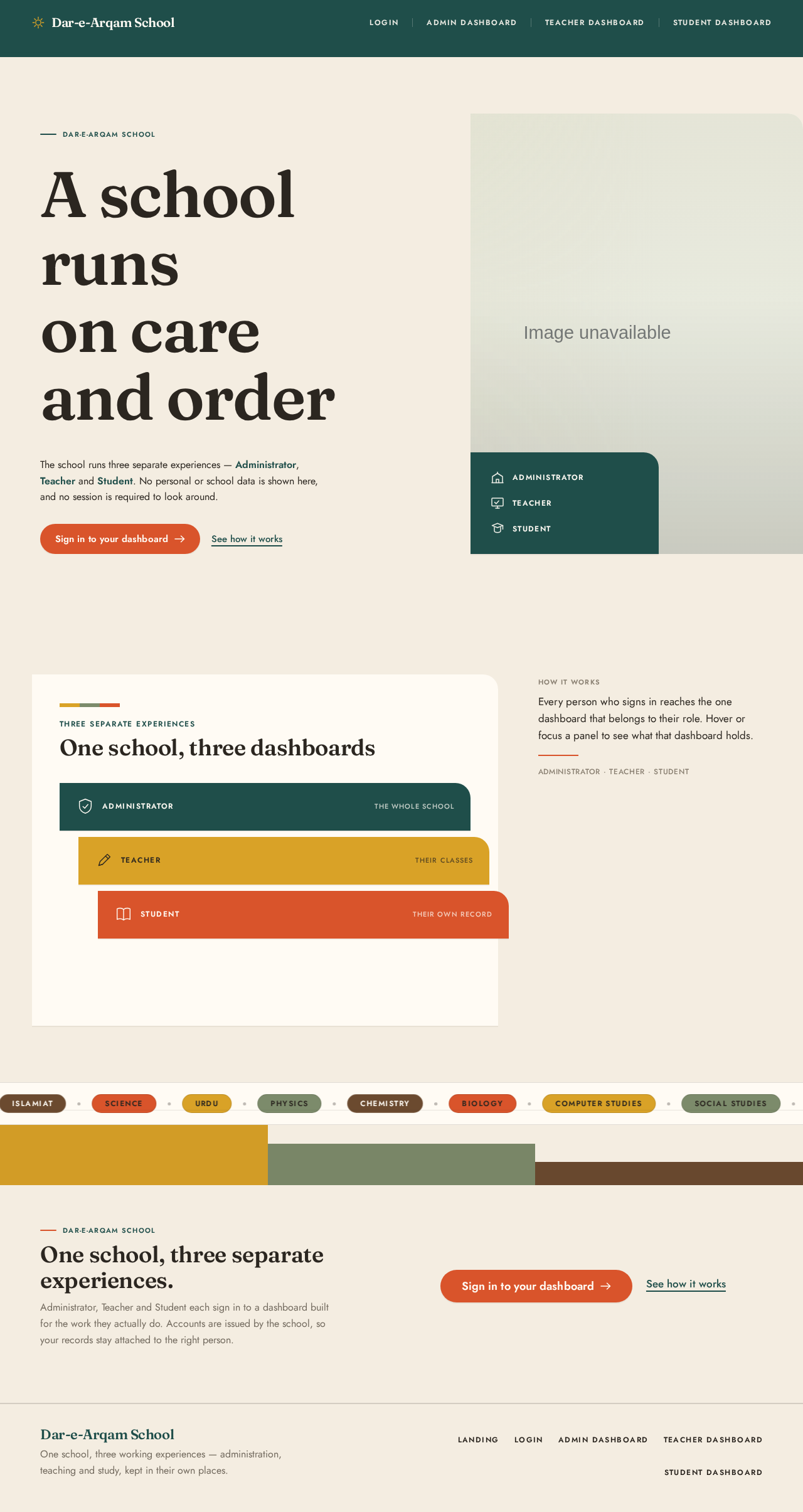
- Information and state. Anonymous public entry. Presents the Dar-e-Arqam School name and the system's purpose, and makes clear that the school runs three separate experiences — Administrator, Teacher, and Student. No personal or school data is shown; no session is required.
- Primary action. A single prominent call to action, "Sign in to your dashboard," leading to Login.
- Supporting actions. A quiet secondary link, "See how it works," which explains the three separate dashboards in place on the page; a role switcher presenting the three roles as three overlapping colour panels that fan apart on hover to reveal each dashboard's top three features.
- Domain entities. Role (Administrator, Teacher, Student); the school identity itself.
- Component responsibilities. Hero composition (headline block, colour-blocked panel, role panels); subject-colour chip band; role switcher; entry CTA. The page carries no data-fetching responsibility beyond static content.
- States. Loading: static content renders immediately; no skeleton needed. Empty: not applicable — the page has no data-dependent collections. Success: the visitor understands the three separate experiences and can reach Login. Error: if the entry CTA cannot navigate, the page states that sign-in is temporarily unavailable and offers retry. Recovery: retry the navigation; the page remains fully readable and usable throughout.
Login
- Information and state. Anonymous, shared returning-verification surface for the School Administrator, Teacher, and Student. Collects the credentials of an already-provisioned or invited account. States plainly that accounts are issued by the school and that each role has its own dashboard.
- Primary action. Verify and continue to the dashboard belonging to the verified role.
- Supporting actions. Return to Landing; reveal/hide the entered secret; retry after a failed attempt.
- Domain entities. Account (provisioned or invited); Role (Administrator, Teacher, Student); Session.
- Component responsibilities. Credential form with inline field validation; submit control with in-flight state; error region; role-aware redirect after successful verification.
- States. Loading: submit control shows an in-flight state and is not double-submittable. Empty: the form starts empty with no error shown. Success: the session is established and the person is taken to their own dashboard — admin dashboard, teacher dashboard, or student dashboard according to role. Error: invalid credentials, an unverified or not-yet-provisioned account, or a network failure each produce a specific, non-revealing message; the entered identifier is preserved and the secret is cleared. Recovery: correct and resubmit, or retry after a network failure; repeated failures do not lock the person out of the page itself.
admin dashboard
- Information and state. Role-restricted working context for the School Administrator. Opens with a wall of oversized stat panels summarizing school-wide state, followed by alternating full-width and two-thirds/one-third bands. Shows the institution-wide records and settings that teachers and students depend on.
- Primary actions. Create, view, update, and remove school-wide records; maintain the settings that govern how the school operates in the system; provision or invite Teacher and Student accounts.
- Supporting actions. Navigate between record sections via the persistent left rail; filter and search within a record set; open a record's detail; confirm or cancel a destructive change.
- Domain entities. School-wide records; school settings; Teacher accounts; Student accounts; classes and their assignments.
- Component responsibilities. Stat wall; record tables with a fixed left column and ruled rows; record detail and edit panels; settings forms; account provisioning and invitation controls; confirmation dialogs for destructive actions.
- States. Loading: stat panels and tables show skeletons in their final layout. Empty: a record set with no entries shows a clear empty state naming the set and offering the create action; the stat wall shows zero values rather than blanks. Success: the change is persisted and the affected table, stat panel, and dependent views reflect it. Error: a failed save or delete leaves the previous state intact and shows an actionable message with retry; validation errors are attached to the specific field. Recovery: retry the failed operation, or discard the edit and return to the unchanged record.
Page 5 of 23
teacher dashboard
- Information and state. Role-restricted working context for the Teacher. Opens with its own stat wall — deliberately different in panel count and widths from the admin wall — followed by gallery-sequence bands. Shows only the classes and students assigned to this teacher.
- Primary actions. View assigned classes and their rosters; record and update the class and student information the teacher is responsible for; mark attendance-style per-student state for a class session.
- Supporting actions. Switch between assigned classes; open a student's record within an assigned class; navigate sections via the left rail; filter the roster.
- Domain entities. Assigned classes; assigned students; class sessions; per-student records within the teacher's scope.
- Component responsibilities. Stat wall; class switcher; ruled roster table with a fixed name column and the current period highlighted; per-student record panel; session entry controls.
- States. Loading: stat panels and roster tables show skeletons in their final layout. Empty: a teacher with no assigned classes sees an empty state explaining that classes appear once the school assigns them, with no create action offered; an assigned class with no students shows an empty roster. Success: the recorded state is persisted and immediately visible in the roster and stat panels. Error: a failed save preserves the prior value and shows a retryable message; a class that is no longer assigned returns the teacher to their class list with an explanation. Recovery: retry the save, or re-select the class and re-enter the value.
student dashboard
- Information and state. Role-restricted working context for the Student. Opens with its own stat wall — again distinct in panel count and widths — followed by gallery-sequence bands. Shows only this student's own school information: their class, their timetable, and the academic details the school publishes to them.
- Primary actions. View their own school information; open a detail view of a published item.
- Supporting actions. Navigate sections via the left rail; move between published items.
- Domain entities. The student's own enrolment and class; the student's timetable; academic details published to the student.
- Component responsibilities. Stat wall; ruled timetable with a fixed left column and the current period highlighted; published-detail panels.
- States. Loading: stat panels and the timetable show skeletons in their final layout. Empty: a student with nothing published yet sees a clear empty state rather than blank panels. Success: the student reads their own current information. Error: if the student's information cannot be loaded, the page states that it is temporarily unavailable and offers retry, without exposing any other student's data. Recovery: retry the load; the rest of the dashboard remains navigable.
Page 6 of 23
3. Functional Requirements
FR-1 — Anonymous introduction to the school and its three experiences (explicit)
As a visitor to Dar-e-Arqam School's system, I should see a public Landing surface that names the school and explains that it runs three separate experiences — Administrator, Teacher, and Student — so that I understand what the system is before signing in.
- Trigger/input: the visitor opens the application without a session.
- Observable result: the Landing surface renders with the school name, the system's purpose, and the three role experiences.
- Access state: anonymous; no session required.
- Failure/recovery: if the entry control cannot navigate, the page says sign-in is temporarily unavailable and offers retry.
- Continuation: the visitor proceeds to Login, or reads how it works in place.
FR-2 — Entry to sign-in from the public surface (explicit)
As a visitor, I should be able to start sign-in from the Landing surface so that I can reach my own dashboard.
- Trigger/input: the visitor activates "Sign in to your dashboard."
- Observable result: the Login surface is presented.
- Access state: anonymous.
- Failure/recovery: if navigation fails, the visitor is told and can retry.
- Continuation: the visitor verifies on Login.
FR-3 — Provisioning or invitation of accounts before first use (required_inference)
As a School Administrator, I should provision or invite Teacher and Student accounts before those people first use the system, so that every account that can sign in belongs to a real member of the school.
- Trigger/input: the administrator creates a Teacher or Student account, or issues an invitation for one.
- Observable result: the account exists in a provisioned or invited state and is bound to its role.
- Access state: role-restricted to the School Administrator on the admin dashboard.
- Failure/recovery: a rejected or failed provisioning attempt leaves no partial account and reports the reason with retry.
- Continuation: the provisioned or invited person verifies through Login.
FR-4 — Returning verification through Login (required_inference)
As a School Administrator, Teacher, or Student, I should verify my existing account through Login so that I can enter the dashboard that belongs to my role.
- Trigger/input: the person submits their account credentials on Login.
- Observable result: a session is established and the person is taken to their own dashboard.
- Access state: Login is anonymously reachable; the resulting dashboard is role-restricted.
- Failure/recovery: invalid credentials, an unverified or not-yet-provisioned account, or a network failure each produce a specific, non-revealing message; the identifier is preserved and the secret cleared so the person can correct and resubmit.
- Continuation: the person works in their dashboard, or returns to Landing.
FR-5 — Role-based restriction of each dashboard (required_inference)
As the system, I should restrict each dashboard to its corresponding persona and to the durable school information that persona is permitted to see, so that the three dashboards stay separate and each person sees only what belongs to them.
- Trigger/input: a verified session requests a dashboard.
- Observable result: the matching dashboard is served; a request for a dashboard outside the session's role is refused and the person is returned to their own dashboard.
- Access state: role-restricted.
- Failure/recovery: a refused request explains that the dashboard is not available for this role and offers the person's own dashboard.
- Continuation: the person continues in their own dashboard.
FR-6 — Administration of school-wide records and settings (explicit)
As a School Administrator, I should manage the institution-wide records and settings that teachers and students depend on, through the admin dashboard, so that the school is fully administered in one place.
- Trigger/input: the administrator creates, views, updates, or removes a school-wide record, or changes a school setting.
- Observable result: the change is persisted and reflected in the admin dashboard's tables and stat panels, and in the dependent teacher and student views.
- Access state: role-restricted to the School Administrator.
- Failure/recovery: a failed save or delete leaves the previous state intact and reports the reason with retry; field-level validation errors are attached to the offending field.
- Continuation: the administrator continues with the next record or section.
FR-7 — Management of assigned classes and students (explicit)
As a Teacher, I should manage the classes and students assigned to me through the teacher dashboard, so that my day-to-day classroom responsibilities are carried out in the system.
- Trigger/input: the teacher selects one of their assigned classes and records or updates information for that class or for a student in it.
- Observable result: the recorded state is persisted and immediately visible in the roster and the teacher's stat panels.
- Access state: role-restricted to the Teacher, and scoped to that teacher's own assigned classes and students.
- Failure/recovery: a failed save preserves the prior value and offers retry; a class that is no longer assigned returns the teacher to their class list with an explanation.
- Continuation: the teacher moves to the next student or class.
FR-8 — Viewing one's own school information (explicit)
As a Student, I should view my own school information through the student dashboard, so that I can see the academic details the school publishes to me.
- Trigger/input: the student opens the student dashboard or one of its published items.
- Observable result: the student's own class, timetable, and published academic details are shown.
- Access state: role-restricted to the Student, and scoped to that student's own information only.
- Failure/recovery: if the information cannot be loaded, the dashboard says it is temporarily unavailable and offers retry, without exposing any other student's data.
- Continuation: the student moves to another published item or section.
FR-9 — Separation of the three dashboards (explicit)
As the system, I should keep the admin, teacher, and student dashboards separate from one another, so that no role's working context is merged into or reachable from another's.
- Trigger/input: any navigation or request within the application.
- Observable result: each dashboard is reached only through Login by the matching role; no dashboard embeds or links into another dashboard's working context.
- Access state: role-restricted per dashboard.
- Failure/recovery: an attempt to cross between dashboards is refused and the person is returned to their own dashboard.
- Continuation: the person continues in their own dashboard.
Page 7 of 23
4. User Personas
Page 8 of 23
School Administrator
The School Administrator is the person accountable for the school as a whole. Their context is institution-wide: enrolment, classes, the roster of teachers and students, and the settings that determine how the school operates in the system. They think in complete sets and counts, and they are the origin of the records everyone else depends on — a class exists because the administrator created it, and a teacher or student can sign in because the administrator provisioned or invited them.
Primary goal. A fully administered school management system: every school-wide record and setting correct, and every teacher and student account in place.
Distinct responsibilities. Maintaining institution-wide records and settings (FR-6); provisioning or inviting Teacher and Student accounts before first use (FR-3); verifying their own account through Login (FR-4); working within the admin dashboard, which is restricted to them (FR-5, FR-9).
Inputs and decisions. Which records and settings the school needs; which teachers and students should be provisioned or invited and under which role; when a record should be changed or removed, including confirming destructive changes.
Interactions with other participants. The administrator's work is upstream of everyone else's. Provisioning or inviting an account is what makes a Teacher's or Student's Login possible, and the records and settings they maintain are what the teacher dashboard and student dashboard present. The administrator does not act inside the teacher or student dashboards.
Observable success. The admin dashboard reflects the school's current records and settings, the stat wall shows accurate school-wide counts, and provisioned or invited teachers and students can verify through Login and reach their own dashboards.
Page 9 of 23
Teacher
The Teacher is a member of the school's teaching staff, working inside the scope the school has assigned to them. Their context is a small set of classes and the students in them — not the whole school. They are often between lessons, frequently on a phone, and they need to record and read class and student information quickly without navigating an institution-wide system.
Primary goal. Their assigned classes and students managed correctly within the system.
Distinct responsibilities. Viewing assigned classes and their rosters; recording and updating the class and student information they are responsible for; marking per-student state for a class session (FR-7); verifying their own account through Login (FR-4); working within the teacher dashboard, which is restricted to them (FR-5, FR-9).
Inputs and decisions. Which assigned class they are working in; which student's record they are updating; what value to record for a session.
Interactions with other participants. The Teacher depends on the School Administrator having provisioned their account and assigned their classes; a class that is not assigned to them is not theirs to act on. Their recorded class and student information is durable school information that the administrator's school-wide view depends on. They do not act inside the admin or student dashboards.
Observable success. Their assigned classes and rosters are current, recorded values persist and appear immediately in the roster and stat panels, and they never see a class or student outside their assignment.
Page 10 of 23
Student
The Student is a member of the school community whose relationship to the system is read-only and personal. Their context is themselves: their own class, their own timetable, and the academic details the school publishes to them. They check in briefly, often to find out what is coming next.
Primary goal. Their own school information viewed accurately.
Distinct responsibilities. Viewing their own school information through the student dashboard (FR-8); verifying their own account through Login (FR-4); working within the student dashboard, which is restricted to them (FR-5, FR-9).
Inputs and decisions. Which published item or section to open.
Interactions with other participants. The Student depends on the School Administrator having provisioned or invited their account and on the school's records being maintained; the information they see is what the school publishes to them. They do not act inside the admin or teacher dashboards, and they never see another student's information.
Observable success. Their own class, timetable, and published academic details are shown correctly and only to them, and the dashboard remains usable when nothing has been published yet.
5. Core User Flows
Page 11 of 23
Flow A — A visitor understands the system and reaches sign-in (anonymous)
- A visitor opens the Dar-e-Arqam School management system with no session. The Landing surface renders: the school name, the system's purpose, and the three separate experiences — Administrator, Teacher, and Student.
- The visitor reads the hero and, if curious, follows the quiet "See how it works" link, which explains the three separate dashboards in place on the page.
- The visitor hovers the role switcher — three overlapping colour panels that fan apart to reveal each dashboard's top three features — and understands which experience is theirs.
- The visitor activates "Sign in to your dashboard." The Login surface is presented.
- Failure/recovery: if the entry control cannot navigate, the page states that sign-in is temporarily unavailable and offers retry; the visitor retries and continues.
- Continuation: the visitor proceeds to Flow B.
Flow B — A School Administrator signs in and administers the school
- The School Administrator opens Login and enters the credentials of their provisioned account.
- They submit. The submit control shows an in-flight state and cannot be double-submitted.
- Failure/recovery: if the credentials are wrong, or the account is not yet provisioned, a specific non-revealing message appears; the identifier is preserved and the secret cleared. The administrator corrects the entry and resubmits. A network failure offers retry without losing the identifier.
- On success, a session is established and the administrator is taken to the admin dashboard — the dashboard matching their role.
- The admin dashboard opens with its stat wall of oversized panels showing school-wide state, followed by alternating full-width and two-thirds/one-third bands.
- The administrator navigates via the persistent left rail to a record set and reviews the ruled table with its fixed left column.
- The administrator creates, updates, or removes a school-wide record, or changes a school setting. On save, the change is persisted and the affected table, stat panel, and dependent views reflect it.
- Failure/recovery: if the save or delete fails, the previous state remains intact and an actionable message with retry is shown; field-level validation errors attach to the specific field. The administrator retries or discards the edit and returns to the unchanged record.
- The administrator provisions or invites a Teacher or Student account. The account exists in a provisioned or invited state bound to its role.
- Failure/recovery: a rejected provisioning attempt leaves no partial account and reports the reason with retry.
- Continuation: the administrator continues with the next record or section. The provisioned or invited person can now complete Flow C or Flow D.
Page 12 of 23
Flow C — A Teacher signs in and manages assigned classes and students
- The Teacher opens Login on a phone between lessons and enters the credentials of their provisioned account.
- They submit; the control shows an in-flight state.
- Failure/recovery: invalid credentials, an unverified account, or a network failure each produce a specific message; the identifier is preserved and the secret cleared so the teacher can correct and resubmit.
- On success, the teacher is taken to the teacher dashboard — their own dashboard, distinct from the admin and student dashboards.
- The teacher dashboard opens with its own stat wall, deliberately different in panel count and widths from the admin wall, followed by gallery-sequence bands.
- The teacher selects one of their assigned classes from the class switcher. The roster renders as a ruled table with a fixed name column and the current period highlighted.
- Empty state: if the teacher has no assigned classes, an empty state explains that classes appear once the school assigns them, and no create action is offered. If an assigned class has no students, the roster shows an empty state.
- The teacher records or updates information for the class or for a student in it. On save, the value is persisted and immediately visible in the roster and the teacher's stat panels.
- Failure/recovery: a failed save preserves the prior value and offers retry. If the class is no longer assigned to the teacher, they are returned to their class list with an explanation.
- Continuation: the teacher moves to the next student or class, or leaves the dashboard. Their recorded information remains durable school information that the administrator's school-wide view depends on.
Flow D — A Student signs in and views their own school information
- The Student opens Login and enters the credentials of their provisioned or invited account.
- They submit; the control shows an in-flight state.
- Failure/recovery: invalid credentials, a not-yet-provisioned account, or a network failure each produce a specific message; the identifier is preserved and the secret cleared so the student can correct and resubmit.
- On success, the student is taken to the student dashboard — their own dashboard, distinct from the admin and teacher dashboards.
- The student dashboard opens with its own stat wall, again distinct in panel count and widths, followed by gallery-sequence bands.
- The student reads their own class, timetable, and the academic details the school publishes to them. The timetable renders as a ruled table with a fixed left column and the current period highlighted.
- The student opens a published item to see its detail.
- Empty state: if nothing has been published to the student yet, a clear empty state is shown rather than blank panels.
- Failure/recovery: if the student's information cannot be loaded, the dashboard states that it is temporarily unavailable and offers retry, without exposing any other student's data. The rest of the dashboard remains navigable.
- Continuation: the student moves to another published item or section, or leaves the dashboard.
Page 13 of 23
Flow E — A role attempts to reach a dashboard that is not theirs
- A verified person requests a dashboard outside their role — for example, a signed-in Student requesting the admin dashboard.
- The system refuses the request and returns the person to their own dashboard with an explanation that the dashboard is not available for their role.
- Continuation: the person continues in their own dashboard. No dashboard's working context is ever merged into or reachable from another's.
6. Visuals, Colors and Theme
The visual system is warm modernism for a school that feels like a place, not a portal. The muse is Charles & Ray Eames: honest materials, joyful colour held inside rigorous order, modular panels, gallery-like sequencing. The headline idea is "A school runs on care and order." This is a deliberate rejection of the blue-on-white SaaS dashboard — no indigo or SaaS blue appears anywhere in the system.
Page 14 of 23
Colour tokens — light mode
| Role | Token | Hex |
|---|
| Background (cream ground) | --bg | #F4EDE1 |
| Surface (paper panel) | --surface | #FFFBF4 |
| Text (warm ink) | --text | #2B2620 |
| Primary (mid-century teal) | --primary | #1F4E4A |
| Accent (tomato red) | --accent | #D9542B |
| Accent, small-text variant | --accent-ink | #B03A18 |
| Muted | --muted | #8A8072 |
| Secondary — mustard | --mustard | #D9A227 |
| Secondary — walnut | --walnut | #6B4A2F |
| Secondary — sage | --sage | #7C8B6B |
Distribution. Roughly 60% cream ground, 25% paper panels, 10% teal, 5% accent and secondaries. Never pure white #FFFFFF and never pure black #000000 — the warmth of the cream and ink is the whole point.
Contrast rules. Body text on cream holds at least 7:1. Teal on cream holds 6.2:1. Accent red on cream is used for large text and icons only; #B03A18 is the small-text variant. Supporting secondaries — mustard, walnut, sage — appear only in data visualisation, subject colour-coding, and section openers, never as UI chrome.
Page 15 of 23
Typography
- Headings: Fraunces, at a soft optical size, weight 600–700, with a slight wonk — a warm, almost letterpress serif that gives the school a voice with a point of view.
- Body: Jost.
- Labels and table headers: Jost 600 at 11–12px with +0.12em tracking, all caps.
- Numerals: Jost with tabular figures in tables and stat tiles.
Scale — 1.333 modular.
| Style | Mobile | Tablet | Desktop |
|---|
| Display | 44px | 72px | 112px |
| H1 | 32px | 44px | 56px |
| H2 | 24px | 30px | 36px |
| H3 | 18px | 22px | 26px |
| Body | 16px | 17px | 18px |
| Label | 11px | 12px | 12px |
Display sizes are set tight at −0.02em tracking with 1.05 leading so big headlines read as blocks, not lines. Headings use 1.15 leading; body uses 1.6.
Page 16 of 23
Shape language
Organic-modern and mid-century. Cards and panels are rectangles with a single asymmetric corner — a 24px radius on the top-right only, echoing an Eames moulded shell, so every panel reads as a designed object rather than a generic tile. Buttons are full pills (999px). Section boundaries are not straight rules but a shallow 2px arc or a stepped modular edge, so pages flow like an exhibition sequence. Iconography is hand-drawn single-weight line at 1.5px with rounded caps. No drop shadow heavier than 0 2px 0 rgba(43,38,32,0.06) — depth comes from panel offset and colour, not blur.
Layout
A visible 12-column modular grid with a 24px gutter and a persistent left rail — 240px on desktop, icon-only 64px on tablet, a bottom bar on mobile — carrying role-switched navigation. Dashboards are gallery sequences: a wide wall of 2–4 stat panels at the top, then alternating full-width and two-thirds/one-third bands, so no two consecutive sections share a shape. Timetables and gradebooks are true tabular layouts with ruled rows and a fixed left column of names — the grid is meant to be seen. The landing page is asymmetric editorial: an oversized headline occupying columns 1–8, a colour-blocked panel in 9–12, and a full-width band of subject-colour chips beneath.
Page 17 of 23
Imagery
No stock photography of smiling students, teachers, or classrooms. Imagery is warm documentary: soft natural-light photographs of school objects — a chalk tray, a stack of exercise books, a geometry set, a school bell, a courtyard tree — cropped hard to the grid and treated with a warm cream duotone. Alongside these, hand-drawn mid-century spot illustrations (a sun, a pencil, a globe, a leaf) in the secondary palette open each dashboard section. Data visualisation uses flat mid-century colour blocks, never gradients.
Page 18 of 23
7. Signature Design Concept
The Eames exhibition wall. The public entry is composed as a gallery wall rather than a landing page.
On the cream ground, the composition is split asymmetrically. Left, columns 1–7: the school name set small in teal caps, above a Fraunces display headline — "A school runs on care and order" — flush-left, three lines deep, scaling from 44px on mobile to 112px on desktop. Beneath it sits a single tomato-red pill CTA, "Sign in to your dashboard," and beside it a quiet text link, "See how it works."
Right, columns 8–12: a full-bleed warm duotone photograph of a school courtyard, cropped to bleed off the right viewport edge. A solid teal #1F4E4A block overlaps its bottom-left corner, carrying three stacked role labels — Administrator, Teacher, Student — each with a small hand-drawn icon.
Beneath the whole hero: a full-width horizontal band of subject-colour chips in mustard, sage, walnut, and tomato, scrolling as a slow marquee.
The signature gesture is the role switcher: three overlapping colour panels — teal, mustard, tomato — that fan apart on hover to reveal each dashboard's top three features. It is a physical, Eames-like object rather than a tab bar, and it is how a visitor discovers that the school runs three separate experiences.
There is no centred headline, no gradient, no floating UI mockup. Every readable element — headline, wordmark, labels, CTA, link, role labels — stays whole inside the viewport and its container at 375px, 768px, and 1280px, wrapping or scaling with clamp() to fit; the photograph and colour blocks carry the bleeding and cropping instead.
Page 19 of 23
8. Interaction Model & Motion Direction
Interaction Model: Animated
Motion Tempo: restrained
Hero Dimensionality: layered_2d
Landing Hero Motion Brief
- Focal subject. The warm duotone courtyard photograph bleeding off the right edge, with the teal role-label block overlapping its bottom-left corner — the hero's single dimensional object.
- Input → transformation → outcome thesis. As the visitor moves the pointer across the role switcher, the three overlapping colour panels (teal, mustard, tomato) fan apart over 220ms to reveal each dashboard's top three features; the courtyard photograph holds its crop while the teal block settles 12px upward into place on entry. The outcome is comprehension — the visitor sees that the school runs three separate experiences — not decoration.
- Motion vocabulary. Restrained and film-like. Page transitions are a 240ms crossfade with a 12px upward drift. Stat numbers count up once on entry over 600ms with ease-out. Hovering a student row slides a teal 3px left rule in over 160ms and reveals row actions. Tab changes in a dashboard wipe a colour block across the panel over 220ms. Nothing bounces, nothing loops.
- Composed first frame. The headline block, the courtyard photograph at its crop, the teal role-label block, the tomato CTA, and the chip band all present and legible before any motion begins.
- Reduced-motion state. Under
prefers-reduced-motion, all of this collapses to instant state changes with no drift. The chip marquee stops and wraps into rows so every chip is fully readable; the role panels present their revealed features without fanning.
Page 20 of 23
9. Non-Functional Requirements
NFR-1 — Role separation is enforced, not merely presented (explicit)
The admin, teacher, and student dashboards must be separate from one another. Separation is enforced by role-based authorization on every request, not only by which navigation a person is shown. Rationale: the source states the separation as a hard constraint.
NFR-2 — Role-scoped data visibility (required_inference)
A Teacher sees only their assigned classes and students; a Student sees only their own information; the School Administrator sees school-wide records. Rationale: required for the accepted journeys to be truthful and for durable school information to stay bound to the correct participant.
NFR-3 — Durable, consistent school records (required_inference)
Record changes made by the administrator or a teacher must persist and be reflected consistently in the views that depend on them, including the stat panels. Rationale: the accepted dashboards present durable school information that other roles depend on.
NFR-4 — Non-revealing authentication errors (required_inference)
Login failures must not disclose whether an account exists, and must preserve the entered identifier while clearing the secret. Rationale: required for the accepted verification lifecycle to be safe.
NFR-5 — Legibility and contrast (explicit, from the creative direction)
Body text on the cream ground holds at least 7:1 contrast; teal on cream holds 6.2:1; accent red is used for large text and icons only, with #B03A18 as the small-text variant. Rationale: the direction sets these as hard legibility rules.
NFR-6 — Readable text and controls stay whole at every viewport (explicit, from the creative direction)
Headlines, wordmarks, labels, numbers, card text, and controls stay entirely inside the viewport and their container at 375px, 768px, and 1280px, wrapping or scaling to fit, with no other element covering any part of them. Imagery, decoration, and motion may be cropped, bled, rotated, or overlapped as the direction asks, provided they cover no readable text or control. Rationale: the direction states this rule takes precedence for readable text and controls.
NFR-7 — Reduced-motion support (explicit, from the creative direction)
Under prefers-reduced-motion, all motion collapses to instant state changes with no drift, and moving or scrollable content stops and shows whole items — wrapping into rows or sitting in a horizontally scrollable row. Rationale: the direction requires it.
NFR-8 — Responsive rail behaviour (explicit, from the creative direction)
The persistent left rail is 240px on desktop, icon-only 64px on tablet, and a bottom bar on mobile. Rationale: the direction specifies the layout.
NFR-9 — No SaaS blue, no pure white or black (explicit, from the creative direction)
No #2563EB, #4F46E5, or any SaaS blue appears anywhere in the system; no pure white #FFFFFF grounds and no pure black #000000 type. Rationale: the direction forbids them.
Page 21 of 23
10. Tech Stack
- Frontend: React (web), built as a custom first-party UI. [Default — not specified by user]
- Backend: Python with FastAPI, serving the application's API. [Default — not specified by user]
- Storage: A relational datastore appropriate to durable school records — accounts, roles, classes, rosters, and settings. [Default — not specified by user]
- Containerization: Docker with docker-compose for local and single-host deployment. [Default — not specified by user]
- Orchestration: Kubernetes is not required by any accepted requirement and is omitted. [Default — not specified by user]
No technology choice was specified by the user; the above are labeled defaults and carry no product behavior.
Page 22 of 23
11. Assumptions and Constraints
Constraints (binding).
- The admin, teacher, and student dashboards must be separate from one another. (explicit)
- Accounts for the School Administrator, Teacher, and Student are provisioned or invited before first use; there is no self-service signup. (required_inference)
- Returning verification happens through Login before any dashboard is entered. (required_inference)
- Each dashboard is restricted to its corresponding persona and to the durable school information that persona is permitted to see. (required_inference)
- The page inventory is closed and ordered: Landing, Login, admin dashboard, teacher dashboard, student dashboard. (page contract)
- No SaaS blue, no pure white grounds, no pure black type. (creative direction)
Assumptions (narrow, labeled).
- The school's records — classes, rosters, and settings — are maintained by the School Administrator; the system does not import them from an external student-information system. [Assumption]
- A Teacher's assignment to classes is established by the School Administrator and is the boundary of what that teacher can see and act on. [Assumption]
- A Student's published information is produced by the school's own record-keeping within this system. [Assumption]
- The system is used in a browser on desktop and mobile; no native application is required. [Assumption]
Explicitly out of scope. Admissions, fee collection, transport, payroll, library management, and any other adjacent school function are not part of the accepted requirements and are not specified here. No future-horizon requirements were accepted.
Page 23 of 23
12. Glossary
- Dar-e-Arqam School — the Islamic-values K-12 institution this system serves.
- School Administrator — the persona accountable for the school as a whole; the only role that reaches the admin dashboard.
- Teacher — the persona who manages the classes and students assigned to them; the only role that reaches the teacher dashboard.
- Student — the persona who views their own school information; the only role that reaches the student dashboard.
- admin dashboard — the role-restricted working context for the School Administrator, holding school-wide records and settings.
- teacher dashboard — the role-restricted working context for the Teacher, holding that teacher's assigned classes and students.
- student dashboard — the role-restricted working context for the Student, holding that student's own school information.
- Landing — the anonymous public entry surface that introduces the school and its three separate experiences.
- Login — the anonymously reachable, shared returning-verification surface for all three roles.
- Provisioned or invited account — an account created or issued by the School Administrator before its owner first uses the system.
- Role-restricted — reachable only by the persona the surface belongs to, enforced by role-based authorization.
- Stat wall — the opening band of 2–4 oversized stat panels on each dashboard, whose panel count and widths differ per role.
- Left rail — the persistent role-switched navigation: 240px desktop, icon-only 64px tablet, bottom bar mobile.
- Subject-colour chip — a small colour-coded marker in mustard, sage, walnut, or tomato used for subject coding and section openers.
 lucifer khan



No comments yet. Be the first!