sage-pewbeam
 Victor O Agwuye
from kivy.app import App from kivy.uix.boxlayout import BoxLayout from kivy.uix.gridlayout import GridLayout from kivy.uix.label import Label from kivy.uix.textinput import TextInput from kivy.uix.button import Button from kivy.uix.scrollview import ScrollView from kivy.core.window import Window from kivy.utils import get_color_from_hex # Set mobile background emulation color to rich charcoal dark Window.clearcolor = get_color_from_hex("#121212") class PewbeamMobile(App): def build(self): # Local mock scripture index database for parsing self.bible_db = { "psalm 32:1": "Blessed is he whose transgression is forgiven, Whose sin is covered.", "psalm 32:2": "Blessed is the man to whom the Lord does not impute iniquity.", "joshua 1:8": "This Book of the Law shall not depart from your mouth, but you shall meditate in it day and night.", "romans 8:28": "And we know that all things work together for good to those who love God." } # Root Layout Layout Container (Vertical) root = BoxLayout(orientation='vertical', padding=10, spacing=10) # ---------------- TOP NAVIGATION BAR ---------------- top_bar = BoxLayout(orientation='horizontal', size_hint_y=None, height=40) logo = Label(text="[b][color=FF6B35]ψ Pewbeam AI[/color][/b]", markup=True, font_size='18sp', halign='left', size_hint_x=0.5) status = Label(text="[color=888888]LIVE ●[/color]", markup=True, font_size='12sp', halign='right', size_hint_x=0.5) top_bar.add_widget(logo) top_bar.add_widget(status) root.add_widget(top_bar) # ---------------- MAIN CONTENT AREA ---------------- # Live Projection Presentation Box (Glowing deep blue card representation) self.slide_panel = BoxLayout(orientation='vertical', size_hint_y=0.3, padding=15, spacing=5) # Apply visual blueprint coloring via canvas instruction sets with self.slide_panel.canvas.before: from kivy.graphics import Color, Rectangle Color(*get_color_from_hex("#0A192F")) self.rect1 = Rectangle(size=self.slide_panel.size, pos=self.slide_panel.pos) self.slide_panel.bind(size=self._update_rect, pos=self._update_rect) self.slide_title = Label(text="Psalm 32:1 (NKJV)", font_size='14sp', color=get_color_from_hex("#00A8FF"), size_hint_y=0.2) self.slide_text = Label(text='"Blessed is he whose transgression is forgiven,\nWhose sin is covered."', font_size='16sp', halign='center', color=(1,1,1,1), size_hint_y=0.8) self.slide_panel.add_widget(self.slide_title) self.slide_panel.add_widget(self.slide_text) root.add_widget(self.slide_panel) # Split Mid Section for Logs and Streams mid_layout = GridLayout(cols=2, size_hint_y=0.4, spacing=10) # Transcript Stream Box Panel trans_box = BoxLayout(orientation='vertical', padding=5) trans_box.add_widget(Label(text="[color=A0A0A0]Live Transcript[/color]", markup=True, font_size='12sp', size_hint_y=0.2)) self.trans_input = TextInput(text='[AI Listening...]\nPastor: "Open to Psalm 32:1..."', readonly=True, background_color=get_color_from_hex("#151515"), foreground_color=(1,1,1,1), font_size='11sp', size_hint_y=0.8) trans_box.add_widget(self.trans_input) mid_layout.add_widget(trans_box) # Console Activity Log Screen Queue queue_box = BoxLayout(orientation='vertical', padding=5) queue_box.add_widget(Label(text="[color=A0A0A0]Production Queue[/color]", markup=True, font_size='12sp', size_hint_y=0.2)) self.queue_log = TextInput(text="■ Psalm 32:1 -> Active\n■ Joshua 1:8 -> Ready", readonly=True, background_color=get_color_from_hex("#151515"), foreground_color=get_color_from_hex("#888888"), font_size='11sp', size_hint_y=0.8) queue_box.add_widget(self.queue_log) mid_layout.add_widget(queue_box) root.add_widget(mid_layout) # ---------------- BOTTOM CONTROLS & INTERFACE INPUTS ---------------- bottom_controls = BoxLayout(orientation='vertical', size_hint_y=0.2, spacing=5) self.search_bar = TextInput(text='', placeholder_text='Enter verse address or phrase...', multiline=False, background_color=get_color_from_hex("#151515"), foreground_color=(1,1,1,1), padding=10) self.search_bar.bind(on_text_validate=self.trigger_search) # Handles mobile keyboard 'Enter/Done' button execution action_btn = Button(text="DISPATCH TO SCREEN", background_color=get_color_from_hex("#FF6B35"), background_normal='', color=(1,1,1,1), font_size='14sp') action_btn.bind(on_press=self.trigger_search) bottom_controls.add_widget(self.search_bar) bottom_controls.add_widget(action_btn) root.add_widget(bottom_controls) return root def _update_rect(self, instance, value): """Maintains structural size bounding boxes dynamic updates on mobile rotations.""" self.rect1.pos = instance.pos self.rect1.size = instance.size def trigger_search(self, instance): """Processes AI parsing logic for matching strings inside mobile app container.""" query = self.search_bar.text.strip().lower() if not query: return if query in self.bible_db: res = self.bible_db[query] self.slide_title.text = f"{query.upper()} (AI Exact)" self.slide_text.text = f'"{res}"' self.queue_log.text = f"▶ [Match] {query.upper()} Live\n" + self.queue_log.text self.trans_input.text += f"\n[Matched Address: {query.upper()}]" else: # Context loop semantic fall-through index verification check found = False for reference, context in self.bible_db.items(): if query in context.lower() or query in reference: self.slide_title.text = f"{reference.upper()} (Context Match)" self.slide_text.text = f'"{context}"' self.queue_log.text = f"▶ [Context] {reference.upper()} Live\n" + self.queue_log.text found = True break if not found: self.queue_log.text = f"⚠ Clear mismatch for '{query}'\n" + self.queue_log.text self.search_bar.text = '' # Flush text layout bar array clear if __name__ == '__main__': PewbeamMobile().run()

Comments (0)
Sign in to leave a comment
System Requirements
System Requirements Document for sage-pewbeam
1. Introduction
sage-pewbeam is a mobile live-service console for scripture projection, delivered as the Pewbeam AI application. It is built for a single operator working a live service from a dim sanctuary booth: the app listens to spoken ministry, resolves the spoken or typed reference against a bundled local scripture index, and dispatches the matched verse to the projection screen so the congregation sees the correct scripture at the right moment.
The product intent is a calibrated instrument, not a consumer app. The console presents three live readouts — the projection plate, the live transcript stream, and the production queue — plus a single dispatch control that turns a query into a projected verse. Everything the operator needs to confirm "the right verse is on screen" is glanceable from three feet away in low light.
The audience is the Operator: the AV/media volunteer or tech director running the console mid-service. There is no congregation-facing account, no multi-user collaboration, and no external scripture service in the current scope.
2. System Overview
Pewbeam AI is a mobile application built with Kivy. It runs as a local app on the operator's device; the operator launches it to reach the live console. All scripture resolution happens against a local mock scripture index database bundled in the app — no external scripture service is contacted.
Current accepted behavior:
- A top navigation bar carries the ψ Pewbeam AI wordmark and a LIVE ● status indicator.
- A Live Projection plate shows the current slide title (for example
Psalm 32:1 (NKJV)) and the scripture text being projected. - A Live Transcript panel displays AI-listening transcript content (for example pastor speech) as it is captured. It is read-only.
- A Production Queue panel lists queued and active scripture items with status markers (for example
Active,Ready). It is read-only. - A search bar accepts a verse address or phrase, submitted either by the mobile keyboard Enter/Done action or by the DISPATCH TO SCREEN button.
- Dispatch processing matches the query against the local scripture index: an exact address match first, otherwise a context/semantic fall-through match against verse text or reference.
- On a match, the projection plate updates with the matched reference and verse text, the production queue logs the match as Live, and the transcript stream appends the matched address.
- On no match, the production queue logs a clear mismatch warning for the query.
- After dispatch, the search bar is cleared.
Narrow exclusions and boundaries:
- Scripture matching is performed only against the bundled local mock scripture index; no external scripture service is specified or used.
- The live transcript panel is read-only display content; the operator does not edit transcript text.
- The production queue log is read-only display content; the operator does not edit queue entries directly.
- No account, sign-in, or identity system is part of the current scope. Every destination is reachable without establishing identity.
2a. Product Interpretation and Delivery Boundary
Delivery ownership. Pewbeam AI is a first-party mobile application owned and rendered by the application itself. The operator launches the app locally on their device; there is no provider-hosted surface, no external destination, and no headless delivery in the current scope. The bundled local scripture index is application-owned data shipped with the app.
Access ownership. All current destinations are reachable without establishing identity. The operator opens the app and works directly in the console. No destination is protected, and no first-use identity establishment or returning verification is required by any accepted journey. This is a deliberate boundary, not an omission: the accepted behavior is a single-operator local console with no durable actor-specific state that must be privately owned or resumed across sessions.
Current vs. future boundary. Everything described in this document is current. No future-horizon requirements were accepted in the authoritative thread; nothing in this document should be read as a roadmap commitment.
2b. Source Content Inventory
The bundled local scripture index is authoritative content supplied by the user. It contains exactly four entries:
| Reference | Verse text |
|---|---|
psalm 32:1 | Blessed is he whose transgression is forgiven, Whose sin is covered. |
psalm 32:2 | Blessed is the man to whom the Lord does not impute iniquity. |
joshua 1:8 | This Book of the Law shall not depart from your mouth, but you shall meditate in it day and night. |
romans 8:28 | And we know that all things work together for good to those who love God. |
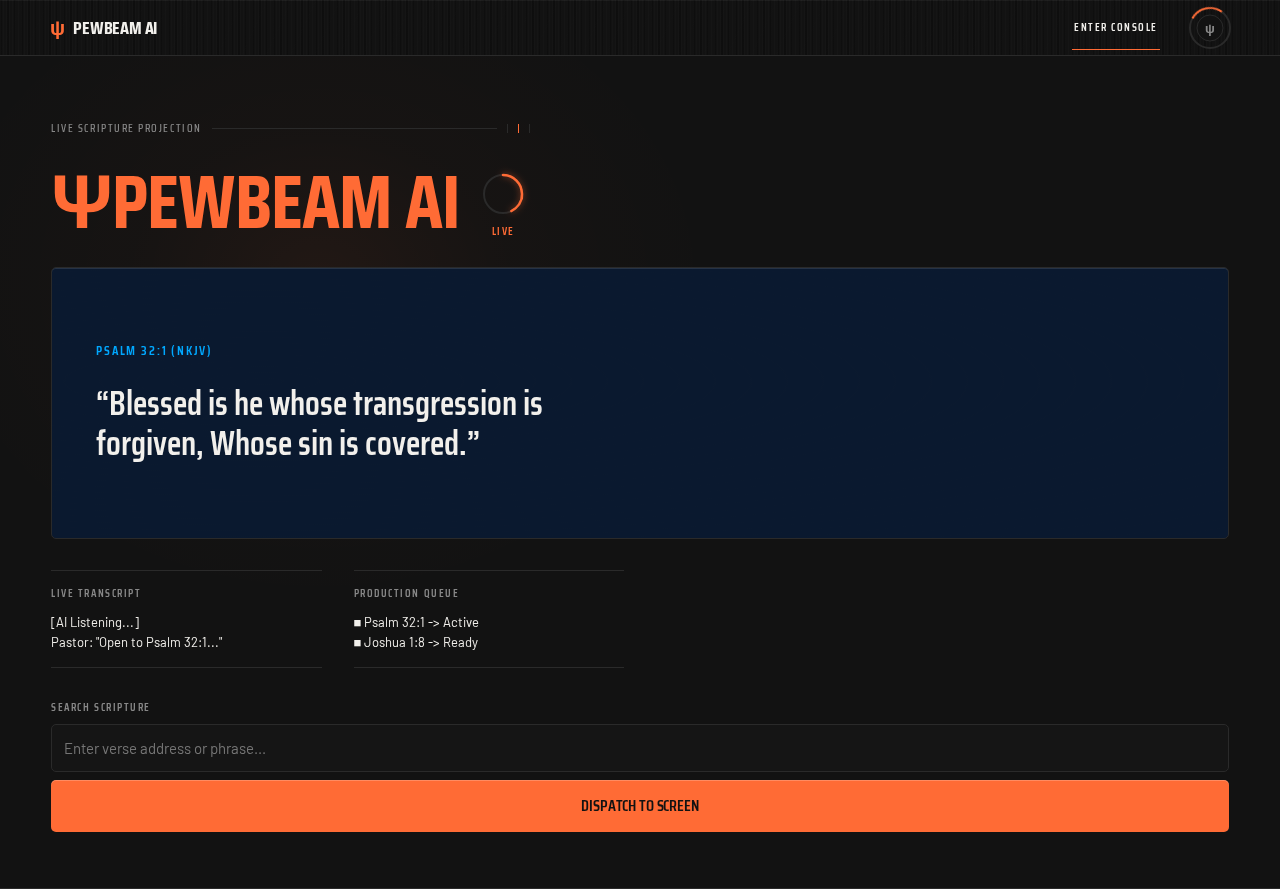
The console's initial display state uses Psalm 32:1 (NKJV) as the slide title with the psalm 32:1 verse text, and the production queue's initial state reads ■ Psalm 32:1 -> Active and ■ Joshua 1:8 -> Ready. The transcript stream's initial state reads [AI Listening...] followed by Pastor: "Open to Psalm 32:1...".
2c. Page Content and Component Coverage
Landing
- Information and state. Anonymous first impression introducing Pewbeam AI as a mobile live scripture projection and operator console. Full-bleed charcoal ground with a faint topographic contour texture. An oversized condensed wordmark
ψ PEWBEAM AIsits over the texture, with the ψ glyph in signal orange. A single macro shot of a sanctuary projection screen (dim room, warm screen glow) may be used as a 30%-opacity underlay — never as a cheerful hero photo. - Primary action. Enter the console.
- Supporting actions. None beyond entry.
- Domain entities. Product identity (Pewbeam AI), the console concept (live scripture projection + operator console).
- Component responsibilities. Wordmark block; contour texture layer; optional screen-glow underlay; entry control into the Live Console.
- States. Loading: static plate, no spinner required. Empty: not applicable — the plate is always composed. Success: operator enters the console. Error: not applicable at this surface. Recovery: not applicable.
Live Console
- Information and state. The mobile operating workspace. Combines the Pewbeam AI navigation/status context, the live projection plate, the live transcript stream, the production queue, and the dispatch workflow into one machined faceplate. On mobile (375px) it is a single-column instrument stack: nav rail (logo + LIVE dial) → projection plate (~34% of viewport height) → transcript/queue pair stacked to one column below 640px → dispatch bar pinned at the bottom. At 768px the transcript/queue pair sits side by side at 1fr/1fr. At 1280px the console widens to a 12-column ruled grid with the projection plate spanning 8 columns and a persistent 4-column queue rail on the right, transcript below the plate.
- Primary action. Dispatch a verse query to the projection screen.
- Supporting actions. Enter a query in the search bar; submit via keyboard Enter/Done or the DISPATCH TO SCREEN control; read the projection plate; read the live transcript; read the production queue.
- Domain entities. Scripture reference, verse text, transcript line, queue entry, queue status (
Active,Ready), match event, mismatch warning. - Component responsibilities. Nav rail:
ψ PEWBEAM AIwordmark (ψ glyph in signal orange) and the 44px circular LIVE dial with a sweeping amber arc. Projection plate: sapphire dial face carrying the slide title and verse text, with a 1px signal-orange hairline across its top edge. Live Transcript panel: read-only telemetry feed of AI-listening content and appended matched addresses. Production Queue panel: ruled instrument readout of queued/active items, match events, and mismatch warnings. Dispatch bar: search field plus the full-width signal-orange DISPATCH TO SCREEN control.
- States. Loading: console renders with the initial projection state (
Psalm 32:1 (NKJV)and its verse text), the initial transcript state ([AI Listening...]/Pastor: "Open to Psalm 32:1..."), and the initial queue state (■ Psalm 32:1 -> Active,■ Joshua 1:8 -> Ready). Empty: an empty query is ignored — no dispatch occurs and no state changes. Success: projection plate updates with the matched reference and verse text, queue logs the match as Live, transcript appends the matched address, search bar clears. Error: no match — queue logs a clear mismatch warning for the query, search bar clears, projection plate retains its previous content. Recovery: the operator re-enters a corrected address or phrase and dispatches again.
Search
- Information and state. Focused query-entry destination for entering a verse address or phrase. The search field is a single-line input on a
#151515surface with a 1px titanium border, placeholder textEnter verse address or phrase.... - Primary action. Submit the query by the mobile keyboard Enter/Done action or by the DISPATCH TO SCREEN control.
- Supporting actions. Clear or edit the query before submitting.
- Domain entities. Query string (verse address or phrase).
- Component responsibilities. Search field: accepts the query, single-line, submits on keyboard Enter/Done. Dispatch control: full-width signal-orange control that submits the same query.
- States. Loading: not applicable. Empty: an empty or whitespace-only query is ignored — no dispatch, no state change. Success: query is handed to dispatch processing and the field is cleared. Error: not applicable at this surface; mismatch is reported in the Production Queue. Recovery: the operator re-enters a corrected query.
Projection
- Information and state. Live presentation destination showing the currently matched scripture reference and verse text. The plate is the one large
#0A192Fdeep-blue field in the app — a sapphire dial face — with a faint topographic contour texture at 2% opacity behind the verse. The reference is set in instrument cyan at small scale, uppercase, tracked; the verse is the largest, calmest object on the screen in high-contrast off-white. - Primary action. Read the currently projected reference and verse.
- Supporting actions. None — the plate is driven by dispatch.
- Domain entities. Slide title (reference plus match qualifier), verse text.
- Component responsibilities. Reference line: displays the matched reference with its match qualifier —
(AI Exact)for an exact address match,(Context Match)for a context/semantic fall-through match. Verse body: displays the matched verse text. Top hairline: 1px signal-orange edge that performs a 200ms left-to-right wipe when a dispatch resolves. - States. Loading: initial state shows
Psalm 32:1 (NKJV)with thepsalm 32:1verse text. Empty: not applicable — the plate always carries a reference and verse. Success: plate updates with the matched reference and verse text on a resolved dispatch. Error: on no match the plate retains its previous content; the mismatch is reported in the Production Queue. Recovery: the operator dispatches a corrected query and the plate updates.
Live Transcript
- Information and state. Read-only destination for viewing AI-listening transcript content and appended matched addresses. The feed is a
#151515telemetry surface with off-white text at small scale. It is a read-only telemetry feed and must not perform animation. - Primary action. Read the transcript stream.
- Supporting actions. None — the feed is read-only; the operator does not edit transcript text.
- Domain entities. Transcript line, AI-listening marker, matched-address annotation.
- Component responsibilities. Transcript feed: displays AI-listening content (for example
[AI Listening...]andPastor: "Open to Psalm 32:1...") and appends a matched-address annotation (for example[Matched Address: PSALM 32:1]) when a dispatch resolves. - States. Loading: initial state shows
[AI Listening...]followed byPastor: "Open to Psalm 32:1...". Empty: not applicable — the feed always carries the AI-listening marker. Success: a matched-address annotation is appended to the feed. Error: no match appends nothing to the transcript; the mismatch is reported in the Production Queue. Recovery: not applicable — the feed is append-only and read-only.
Production Queue
- Information and state. Read-only destination for viewing queued or active scripture items, match events, and mismatch warnings. The queue is a ruled instrument readout, not a list: each row is a hairline-separated line with a tabular match count and a status needle that snaps between
ACTIVE(signal orange) andREADY(muted). It is read-only display content; the operator does not edit queue entries directly. - Primary action. Read the queue state.
- Supporting actions. None — the queue is read-only.
- Domain entities. Queue entry, queue status (
Active,Ready), match event, mismatch warning, match count. - Component responsibilities. Queue readout: displays queued and active items with status markers, prepends a new row when a dispatch resolves, and logs mismatch warnings. Status needle: snaps to
ACTIVEon a resolved match. - States. Loading: initial state reads
■ Psalm 32:1 -> Activeand■ Joshua 1:8 -> Ready. Empty: not applicable — the queue always carries its initial entries. Success: a new row is prepended logging the match as Live —▶ [Match] <REFERENCE> Livefor an exact match,▶ [Context] <REFERENCE> Livefor a context match. Error: a mismatch logs⚠ Clear mismatch for '<query>'. Recovery: the operator dispatches a corrected query and a new row is prepended.
3. Functional Requirements
FR-1 — Pewbeam AI navigation and live status (explicit) As an Operator, I should see a top navigation bar carrying the Pewbeam AI logo and a LIVE status indicator, so that I can confirm at a glance that the console is live.
- Trigger/input: the console is open.
- Observable result: the nav rail shows
ψ PEWBEAM AIwith the ψ glyph in signal orange, and a LIVE status indicator. - Access state: no identity required.
- Failure/recovery: not applicable — the nav rail is always present.
- Continuation: the operator proceeds to read the console panels or dispatch a query.
FR-2 — Live Projection presentation panel (explicit) As an Operator, I should see a Live Projection presentation panel showing the current slide title and the scripture text being projected, so that I can confirm the congregation is seeing the correct verse.
- Trigger/input: the console is open, or a dispatch has resolved.
- Observable result: the projection plate shows the slide title (for example
Psalm 32:1 (NKJV)) and the scripture text being projected. - Access state: no identity required.
- Failure/recovery: on a no-match dispatch the plate retains its previous content; the mismatch is reported in the Production Queue.
- Continuation: the operator reads the plate and, if needed, dispatches a corrected query.
FR-3 — Live Transcript stream panel (explicit) As an Operator, I should see a Live Transcript stream panel displaying AI-listening transcript content as it is captured, so that I can follow what is being spoken in the service.
- Trigger/input: the console is open; transcript content is captured.
- Observable result: the transcript panel displays AI-listening content (for example
[AI Listening...]andPastor: "Open to Psalm 32:1..."). - Access state: no identity required.
- Constraint: the panel is read-only display content; the operator does not edit transcript text.
- Failure/recovery: not applicable — the feed is append-only and read-only.
- Continuation: the operator continues reading the feed or dispatches a query.
FR-4 — Production Queue panel (explicit) As an Operator, I should see a Production Queue panel listing queued and active scripture items with status markers, so that I can see what is active and what is ready.
- Trigger/input: the console is open.
- Observable result: the queue lists items with status markers (for example
Active,Ready). - Access state: no identity required.
- Constraint: the queue log is read-only display content; the operator does not edit queue entries directly.
- Failure/recovery: not applicable — the queue is read-only.
- Continuation: the operator reads the queue and dispatches a query.
FR-5 — Search bar query entry (explicit) As an Operator, I should be able to enter a verse address or phrase in the search bar and submit it either with the mobile keyboard Enter/Done action or with the DISPATCH TO SCREEN button, so that I can trigger a scripture lookup without leaving the console.
- Trigger/input: the operator types a verse address or phrase into the search bar.
- Observable result: the query is submitted to dispatch processing by either submission path.
- Access state: no identity required.
- Failure/recovery: an empty or whitespace-only query is ignored — no dispatch occurs and no state changes.
- Continuation: dispatch processing runs against the local scripture index.
FR-6 — Dispatch matching against the local scripture index (explicit) As an Operator, I should have my dispatched query matched against the local scripture index — an exact address match first, otherwise a context/semantic fall-through match against verse text or reference — so that the correct verse is resolved from what I typed or what was spoken.
- Trigger/input: a submitted query.
- Observable result: either an exact address match, a context/semantic fall-through match, or no match.
- Access state: no identity required.
- Constraint: matching is performed against the bundled local mock scripture index; no external scripture service is used.
- Failure/recovery: when neither an exact nor a context match is found, the dispatch resolves as a mismatch.
- Continuation: a match proceeds to projection, queue, and transcript updates; a mismatch proceeds to the queue warning.
FR-7 — Match resolution updates projection, queue, and transcript (explicit) As an Operator, I should see the projection panel update with the matched reference and verse text, the production queue log the match as Live, and the transcript stream append the matched address when a dispatch resolves, so that every readout agrees on what is now on screen.
- Trigger/input: a resolved match from dispatch processing.
- Observable result: the projection plate shows the matched reference and verse text; the queue logs the match as Live; the transcript appends the matched address.
- Access state: no identity required.
- Failure/recovery: not applicable on a resolved match.
- Continuation: the operator reads the updated console and continues the service.
FR-8 — Mismatch warning (explicit) As an Operator, I should see the production queue log a clear mismatch warning for my query when no match is found, so that I know the dispatch did not resolve and can correct it.
- Trigger/input: a submitted query that matches neither an exact address nor a context/semantic fall-through.
- Observable result: the production queue logs a clear mismatch warning for the query.
- Access state: no identity required.
- Failure/recovery: the projection plate retains its previous content; the operator re-enters a corrected address or phrase.
- Continuation: the operator dispatches a corrected query.
FR-9 — Search bar cleared after dispatch (explicit) As an Operator, I should have the search bar cleared after a dispatch, so that the field is ready for my next query.
- Trigger/input: a completed dispatch, whether it resolved as a match or a mismatch.
- Observable result: the search bar is empty.
- Access state: no identity required.
- Failure/recovery: not applicable.
- Continuation: the operator types the next query.
FR-10 — Dark charcoal mobile UI theme (explicit) As an Operator, I should see a dark charcoal mobile UI theme with a deep blue projection card and orange accent controls, so that the console is readable and calm in a dim sanctuary booth.
- Trigger/input: the console is open.
- Observable result: the app ground is charcoal
#121212, the projection card is deep blue#0A192F, and the accent controls are orange#FF6B35. - Access state: no identity required.
- Failure/recovery: not applicable.
- Continuation: the operator works in the themed console.
FR-11 — Bundled local scripture index availability (required_inference) As an Operator, I should have the bundled local scripture index available to resolve exact and context matches, so that dispatch works without contacting any external service.
- Trigger/input: a submitted query.
- Observable result: the index is available to resolve exact address matches and context/semantic fall-through matches.
- Access state: no identity required.
- Failure/recovery: not applicable — the index ships with the app.
- Continuation: dispatch processing resolves the query against the index.
FR-12 — Launching the local Pewbeam AI mobile app (required_inference) As an Operator, I should be able to launch the local Pewbeam AI mobile app to reach the live console, so that I can begin operating the service.
- Trigger/input: the operator launches the app on their device.
- Observable result: the live console is reachable.
- Access state: no identity required — the console is reachable without establishing identity.
- Failure/recovery: not applicable.
- Continuation: the operator works in the live console.
4. User Personas
Operator
Product context. The Operator is the single in-product human role. They run the live service console from a dim sanctuary booth, mid-service, under pressure. The console is their instrument: they watch the live transcript stream and the production queue, enter a verse address or phrase in the search bar, and dispatch the matched scripture to the projection screen so the congregation sees the correct verse.
Primary goal. Keep the correct scripture on the projection screen at the moment it is needed, without breaking the flow of the service.
Distinct accepted responsibilities.
- Reading the live transcript stream to follow what is being spoken.
- Reading the production queue to see what is active and what is ready.
- Entering a verse address or phrase in the search bar.
- Submitting the query by the mobile keyboard Enter/Done action or by the DISPATCH TO SCREEN button.
- Reading the projection plate to confirm the correct reference and verse are on screen.
- Reading the mismatch warning when a dispatch does not resolve, and correcting the query.
Relevant inputs and decisions. The Operator's inputs are the query string (a verse address or a phrase) and the choice of submission path. Their decisions are which reference to dispatch and, on a mismatch, what corrected query to enter.
Interactions with other accepted participants. There is no other accepted human participant in the current scope. The Operator is the sole human actor; the transcript stream carries spoken content from the service, and the projection plate is the congregation-facing output, but neither is an accepted in-product persona.
Observable success. The projection plate shows the matched reference and verse text; the production queue logs the match as Live; the transcript stream appends the matched address; the search bar is cleared and ready for the next query.
What makes this role distinct. The Operator's work is a live, glanceable control loop under time pressure: read the room's spoken content, resolve a reference, and put it on screen. It is not authoring, editing, or administration — the transcript and queue are read-only to this role, and the only write action is dispatch.
5. Core User Flows
Flow 1 — Operator launches the console and reads the live state
- The Operator launches the local Pewbeam AI mobile app on their device. (Owner: the app itself; no identity is required.)
- The Landing surface presents the Pewbeam AI wordmark over the charcoal ground with the contour texture.
- The Operator enters the Live Console.
- The console renders its initial state: the nav rail shows
ψ PEWBEAM AIand the LIVE indicator; the Projection plate showsPsalm 32:1 (NKJV)with thepsalm 32:1verse text; the Live Transcript feed shows[AI Listening...]andPastor: "Open to Psalm 32:1..."; the Production Queue readout shows■ Psalm 32:1 -> Activeand■ Joshua 1:8 -> Ready. - The Operator reads the console and is ready to dispatch. Next step: Flow 2.
Flow 2 — Operator dispatches an exact verse address
- Starting from the Live Console, the Operator moves to the Search field and types a verse address, for example
psalm 32:1. - The Operator submits the query by pressing the mobile keyboard Enter/Done action, or by pressing the full-width DISPATCH TO SCREEN control. (Both paths submit the same query.)
- Dispatch processing matches the query against the bundled local scripture index. The query matches the index key exactly, so it resolves as an exact address match.
- The Projection plate updates: the reference line shows
PSALM 32:1 (AI EXACT)and the verse body shows"Blessed is he whose transgression is forgiven, Whose sin is covered."The plate's top hairline performs its 200ms signal-orange wipe as the dispatch resolves. - The Production Queue prepends a new row logging the match as Live:
▶ [Match] PSALM 32:1 Live, and the row's status needle snaps toACTIVE. - The Live Transcript feed appends the matched address:
[Matched Address: PSALM 32:1]. - The Search field is cleared.
- Observable result: the projection plate, the queue, and the transcript all agree that
PSALM 32:1is now live. Next step: the Operator continues the service, returning to Flow 2 for the next reference.
Flow 3 — Operator dispatches a phrase that resolves by context
- Starting from the Live Console, the Operator types a phrase rather than an exact address, for example
transgression is forgiven. - The Operator submits the query by keyboard Enter/Done or by DISPATCH TO SCREEN.
- Dispatch processing finds no exact address match, so it falls through to the context/semantic check: it scans the index for a verse whose text contains the phrase, or whose reference contains the query.
- The first matching entry resolves as a context match.
- The Projection plate updates: the reference line shows the matched reference with the
(CONTEXT MATCH)qualifier and the verse body shows the matched verse text. The plate's top hairline performs its 200ms signal-orange wipe. - The Production Queue prepends a new row:
▶ [Context] <REFERENCE> Live, and the row's status needle snaps toACTIVE. - The Live Transcript feed appends the matched address.
- The Search field is cleared.
- Observable result: the context-matched verse is live on the projection plate. Next step: the Operator continues the service.
Flow 4 — Operator recovers from a mismatch
- Starting from the Live Console, the Operator types a query that matches neither an index key nor any verse text or reference, for example
philippians 4:13. - The Operator submits the query by keyboard Enter/Done or by DISPATCH TO SCREEN.
- Dispatch processing finds no exact address match and no context/semantic fall-through match.
- The Production Queue prepends a mismatch warning:
⚠ Clear mismatch for 'philippians 4:13'. - The Projection plate retains its previous content — the congregation is not shown a blank or wrong verse.
- The Live Transcript feed is unchanged; no matched-address annotation is appended.
- The Search field is cleared.
- Observable result: the Operator sees the mismatch warning in the queue and knows the dispatch did not resolve. Recovery and continuation: the Operator re-enters a corrected address or phrase and dispatches again, returning to Flow 2 or Flow 3.
Flow 5 — Operator submits an empty query
- Starting from the Live Console, the Operator submits the search bar with no text, or with whitespace only.
- Dispatch processing ignores the submission: no match is attempted, no mismatch warning is logged, and no panel changes.
- Observable result: the console state is unchanged. Next step: the Operator types a real query and returns to Flow 2, Flow 3, or Flow 4.
Flow 6 — Operator reads the live transcript and production queue during the service
- Starting from the Live Console, the Operator reads the Live Transcript feed to follow what is being spoken, and reads the Production Queue readout to see which item is
ACTIVEand which isREADY. - Both surfaces are read-only: the Operator does not edit transcript text and does not edit queue entries directly.
- When the Operator identifies a reference to project, they move to the Search field and continue with Flow 2 or Flow 3.
- Observable result: the Operator has the service context needed to choose the next reference. Next step: dispatch.
6. Visuals Colors and Theme
The creative direction is authoritative for this section: Precision instrument for the pulpit — titanium dark, orange signal, live dial data, with MARQ by Garmin as the muse. The console must read as a calibrated instrument panel — trustworthy, glanceable, unflappable — not a cheerful consumer app or a generic dark SaaS dashboard.
Colour tokens (dark mode).
| Role | Hex | Usage |
|---|---|---|
| Background | #121212 | Page ground; the mandated charcoal. |
| Surface | #151515 | Panels, search field, transcript and queue surfaces. |
| Hairline | #2A2A2A | 1px titanium hairline on every panel; contour texture at 2% opacity. |
| Text (primary) | #F2F0EC | Projection verse text — the highest-contrast object in the room. |
| Text (muted) | #888888 | Secondary readouts, labels, inactive queue rows, READY needle. |
| Primary (plate) | #0A192F | The one large deep-blue field: the projection plate only. |
| Accent (signal) | #FF6B35 | The single instrument signal: DISPATCH control, LIVE dot, active-queue needle, matched-reference tick, plate top hairline. Never a background wash. |
| Instrument cyan | #00A8FF | Projection slide title and live-match annotations only, at small scale. Never a surface. |
Typography.
- Headings: Saira Condensed — condensed technical grotesque, uppercase, tight tracking (-0.01em), weights 500–700. Headings behave like instrument labels and dial numerals:
PEWBEAM AI,LIVE PROJECTION,PRODUCTION QUEUE. - Body: Barlow, with tabular figures for queue numerals and match counts.
- Projection verse: Saira Condensed 600 at display scale — the largest, calmest object on screen.
- Scale: 1.25 modular on mobile, 1.333 on desktop — 44/34/24/18/15/13/11px with
clamp()on display sizes. Mobile projection verseclamp(22px, 7vw, 34px); desktop projection verseclamp(34px, 4.2vw, 64px). Section labels 11px uppercase with +0.14em tracking.
Shape language. Machined rectangles with 4–6px radii (never pill), 1px titanium hairlines on every panel, and one recurring circular element — the 44px LIVE dial with a sweeping amber arc — as the app's only round form. Ruled data rows with hairline separators. A chamfered 1px inset highlight on the top edge of the projection plate suggests brushed metal catching light. No blobs, no soft shadows, no rounded-24 cards.
Spacing rhythm. Ruled instrument grid: consistent hairline-separated modules with even gutters; the projection plate is the dominant module at roughly 34% of viewport height on mobile.
Imagery style. No stock photography, no illustration. The imagery is the console itself plus engineered texture: a faint topographic contour line pattern (2% opacity, #2A2A2A) behind the projection plate, macro-scale brushed-metal grain in the nav rail, and a circular dial graphic for live status. On the Landing page, one full-bleed dark plate carries an oversized condensed wordmark over the contour texture; a single macro shot of a sanctuary projection screen (dim room, warm screen glow) may be used as a 30%-opacity underlay — never as a cheerful hero photo.
Avoid. Blue–indigo primary on a white ground; Inter, Roboto, Arial, Helvetica, Open Sans, Lato, Poppins or system-ui for any heading or body text; gradient-blob heroes, frosted-glass cards, and grids of identical hover-lift cards; bouncy or springy micro-interactions; rounded-24 pill buttons and soft drop shadows; cheerful stock photography of congregations, hands raised, or smiling volunteers; purple/violet accents or neon glows; animation on the transcript stream.
7. Signature Design Concept
The faceplate. The first screen is not a marketing hero — it is a machined instrument faceplate.
Full-bleed #121212 ground with a 2% topographic contour texture. Top-left: ψ PEWBEAM AI in Saira Condensed 700 uppercase, 18px, with the ψ glyph in #FF6B35 and a 44px circular LIVE dial to its right, its amber arc mid-sweep. Below, a single full-width #0A192F sapphire plate occupies the dominant 34% of the viewport height, its top edge carrying a 1px #FF6B35 hairline wipe; inside, the reference PSALM 32:1 (NKJV) is set in #00A8FF at 13px uppercase tracked +0.14em, and the verse "Blessed is he whose transgression is forgiven, Whose sin is covered." in #F2F0EC Saira Condensed 600 at clamp(22px, 7vw, 34px) on mobile — the largest object on the screen.
Under it, two ruled instrument rows: LIVE TRANSCRIPT and PRODUCTION QUEUE, each with hairline separators and tabular status markers (■ ACTIVE in #FF6B35, ■ READY in #888888). The bottom bar is a single full-width #FF6B35 DISPATCH TO SCREEN control, 52px tall, uppercase Saira Condensed 600, with the search field above it in #151515 and a 1px titanium border.
Nothing is centred; everything is aligned to a ruled instrument grid, and the only curves on the screen are the LIVE dial and the ψ glyph. This concept recomposes only accepted content, states, and controls — it introduces no new behavior, page, or destination.
8. Interaction Model & Motion Direction
Interaction Model: Animated Motion Tempo: cinematic Hero Dimensionality: dimensional_css
Landing Hero Motion Brief
- Focal subject: the sapphire projection plate as a dial face, carrying the reference and verse as the largest, calmest object on the screen, with the 44px LIVE dial in the nav rail as the only round form.
- Input → transformation → outcome thesis: the operator's dispatch input resolves against the local scripture index; the plate's top hairline runs a 200ms signal-orange wipe left-to-right and the matched reference ticks in with a 120ms number roll, so the plate settles like a gauge rather than announcing itself. The queue prepends a new row with a 160ms clamp-in from the top and the row's status needle snaps to
ACTIVE. - Motion vocabulary: instrument motion only. The LIVE dial's amber arc sweeps once every 4s. The plate's top hairline wipe is 200ms. The matched-reference number roll is 120ms. The queue row clamp-in is 160ms. No bounce, no float, no gradient drift.
- Composed first frame: full-bleed
#121212ground with contour texture;ψ PEWBEAM AItop-left with the ψ glyph in#FF6B35; the 44px LIVE dial mid-sweep; the#0A192Fsapphire plate at 34% viewport height with its 1px#FF6B35top hairline;PSALM 32:1 (NKJV)in#00A8FF; the verse in#F2F0ECat display scale; two ruled rows forLIVE TRANSCRIPTandPRODUCTION QUEUE; the full-width#FF6B35DISPATCH TO SCREEN control at the bottom. - Reduced-motion state: the LIVE dial's arc holds static, the plate's hairline wipe becomes an instant 0ms state change, and queue rows append without animation. The transcript stream never animates in any mode — it is a read-only telemetry feed.
9. Non-Functional Requirements
NFR-1 — Local-only scripture resolution (explicit) Scripture matching must be performed against the bundled local mock scripture index database. No external scripture service may be contacted for matching. Rationale: the authoritative source specifies a local mock index and no external scripture service.
NFR-2 — Read-only telemetry surfaces (explicit) The live transcript panel and the production queue log must be read-only display content. The operator must not be able to edit transcript text or edit queue entries directly. Rationale: explicit hard constraints in the authoritative source.
NFR-3 — Mobile-first layout integrity (explicit, from the creative direction)
Readable text and controls must stay whole at every viewport: headlines, wordmarks, labels, numbers, card text, and controls must stay entirely inside the viewport and their container at 375px, 768px, and 1280px, wrapping or scaling (for example font-size: clamp(...) with its mobile size) to fit, and no other element may cover any part of them. Imagery, decoration, and motion may be cropped, bled off an edge, rotated, overlapped, or cut as the direction asks, as long as they cover no readable text or control. Rationale: the creative direction's readability rule, which takes precedence for readable text and controls.
NFR-4 — Reduced-motion support (explicit, from the creative direction)
Under prefers-reduced-motion, the LIVE dial's arc must hold static, the plate's hairline wipe must become an instant 0ms state change, and queue rows must append without animation. A usable static arrangement must remain available. Rationale: the creative direction's reduced-motion requirement.
NFR-5 — Transcript stream must not animate (explicit, from the creative direction) The transcript stream must not perform animation in any mode. It is a read-only telemetry feed. Rationale: explicit direction constraint.
NFR-6 — Instrument motion discipline (explicit, from the creative direction) Motion must be instrument motion only: no bounce, no float, no gradient drift, no springy micro-interactions. Rationale: the creative direction's motion discipline.
NFR-7 — Palette discipline (explicit)
The app ground must be charcoal #121212; the projection plate must be the only large deep-blue #0A192F field; #FF6B35 must be the single instrument signal and must never be used as a background wash; #00A8FF must be used only for the projection slide title and live-match annotations at small scale, never as a surface. Rationale: explicit user-mandated palette plus the creative direction's signal discipline.
NFR-8 — Typography discipline (explicit, from the creative direction) Headings must use Saira Condensed; body text must use Barlow. Inter, Roboto, Arial, Helvetica, Open Sans, Lato, Poppins, and system-ui must not be used for any heading or body text. Rationale: explicit direction constraint.
NFR-9 — Shape discipline (explicit, from the creative direction) Radii must stay 4–6px; pill buttons and soft drop shadows must not be used; depth must come from hairlines and one inset highlight. The 44px LIVE dial is the app's only round form. Rationale: explicit direction constraint.
10. Tech Stack
- Application framework: Kivy (Python) — the authoritative source is a Kivy mobile application (
kivy.app.App,BoxLayout,GridLayout,Label,TextInput,Button,ScrollView,kivy.core.window.Window,kivy.utils.get_color_from_hex). This is a source-specified technology choice and is preserved exactly. - Language: Python.
- Scripture data: a bundled local mock scripture index database held in the app (the
bible_dbmapping of reference → verse text). No external scripture service. - Window/theme configuration:
Window.clearcolorset to#121212for the charcoal mobile background. - Layout primitives: vertical
BoxLayoutroot with padding and spacing; horizontalBoxLayoutfor the top navigation bar;GridLayout(cols=2)for the split transcript/queue section; verticalBoxLayoutfor the bottom controls;TextInputwithreadonly=Truefor the transcript and queue readouts;TextInputwithmultiline=Falseandon_text_validatefor the search bar;Buttonwithon_pressfor the DISPATCH TO SCREEN control. - Projection plate rendering: Kivy canvas instructions (
Color,Rectangle) bound to the panel'ssizeandposso the deep-blue plate tracks layout changes on mobile rotation.
No backend service, container, or orchestration layer is required by the accepted current scope: the app is a local mobile console with a bundled index.
11. Assumptions and Constraints
Assumptions.
- A-1 (required_inference). The bundled local scripture index is available to the app at runtime so that exact and context matches can resolve. This is required to make the accepted dispatch journey executable.
- A-2 (required_inference). The operator launches the local Pewbeam AI mobile app to reach the live console. This is required to make the accepted console journey executable.
- A-3. The console's initial display state uses
Psalm 32:1 (NKJV)as the slide title with thepsalm 32:1verse text, the transcript feed's initial state reads[AI Listening...]andPastor: "Open to Psalm 32:1...", and the queue's initial state reads■ Psalm 32:1 -> Activeand■ Joshua 1:8 -> Ready. These are the source-supplied initial values. - A-4. The transcript stream carries spoken service content (for example pastor speech) as captured AI-listening content; the app displays it and does not edit it.
Constraints.
- C-1 (explicit). Scripture matching is performed against a local mock scripture index database bundled in the app; no external scripture service is specified.
- C-2 (explicit). The live transcript panel is read-only display content; the operator does not edit transcript text.
- C-3 (explicit). The production queue log is read-only display content; the operator does not edit queue entries directly.
- C-4 (explicit). The app uses a dark charcoal mobile UI theme (
#121212background) with a deep blue projection card (#0A192F) and orange accent controls (#FF6B35). - C-5 (explicit, from the creative direction). The console must read as a calibrated instrument panel; the avoid-list in Section 6 is binding.
- C-6. No account, sign-in, or identity system is part of the current scope. All destinations are reachable without establishing identity, and no destination is protected.
- C-7. No future-horizon requirements were accepted; nothing in this document is a roadmap commitment.
12. Glossary
- Operator — The single in-product human role: the AV/media volunteer or tech director who runs the live service console, reads the transcript and queue, enters a verse address or phrase, and dispatches the matched scripture to the projection screen.
- Pewbeam AI — The product name of the mobile live-service scripture projection console.
- Live Console — The mobile operating workspace combining the nav rail, projection plate, live transcript, production queue, and dispatch workflow.
- Projection plate — The deep-blue
#0A192Fsapphire dial face showing the current slide title and verse text being projected. - Slide title — The reference line on the projection plate, carrying the matched reference and its match qualifier (
(AI Exact)or(Context Match)). - Live Transcript — The read-only telemetry feed of AI-listening transcript content and appended matched addresses.
- Production Queue — The read-only ruled instrument readout of queued and active scripture items, match events, and mismatch warnings.
- Dispatch — The act of submitting a query from the search bar, by keyboard Enter/Done or by the DISPATCH TO SCREEN control, to be matched against the local scripture index.
- Exact address match — A dispatch result where the query matches an index key exactly; the projection plate labels it
(AI Exact). - Context match — A dispatch result where no exact address match exists but the query appears in a verse's text or in a reference; the projection plate labels it
(Context Match). - Mismatch — A dispatch result where neither an exact address match nor a context match is found; the production queue logs a clear mismatch warning for the query.
- Local scripture index — The bundled mock scripture index database (
bible_db) mapping references to verse text, used for all matching. - LIVE dial — The 44px circular status indicator in the nav rail with a sweeping amber arc; the app's only round form and its only continuous motion.
- Signal orange —
#FF6B35, the single instrument accent used for the DISPATCH control, the LIVE dot, the active-queue needle, the matched-reference tick, and the plate's top hairline. - Instrument cyan —
#00A8FF, used only for the projection slide title and live-match annotations at small scale.
Pewbeam AI
Psalm 32:1 (NKJV)
“Blessed is he whose transgression is forgiven, Whose sin is covered.”
Live Transcript
[AI Listening...]
Pastor: "Open to Psalm 32:1..."
Production Queue
■ Psalm 32:1 -> Active
■ Joshua 1:8 -> Ready
Pewbeam AI
Psalm 32:1 (NKJV)
“Blessed is he whose transgression is forgiven, Whose sin is covered.”
Live Transcript
[AI Listening...]
Pastor: "Open to Psalm 32:1..."
Production Queue
■ Psalm 32:1 -> Active
■ Joshua 1:8 -> Ready
No comments yet. Be the first!