quotation-generator
 Abhijeet Talegaonkar
Role: You are a Senior Full-Stack Developer. Task: Build a "Quotation Generator Web App" for an IT agency. Tech Stack: React.js (Frontend), Tailwind CSS (Styling), Node.js/Express (Backend), and MongoDB (Database). For PDF generation, use jspdf and html2canvas. Requirements: 1. Frontend (React): Header: Agency Logo placeholder, App Title ("QuoteGen"). Client Info Section: Inputs for Client Name, Company, Date, and Validity. Module Builder: 4 main sections (Website, Android App, iOS App, Custom Software). Dynamic Line Items: Within each module, allow the user to click "Add Task". Each task has: Task Name, Estimated Hours, and Hourly Rate (or Flat Cost). Allow removing tasks. Financial Summary (Sticky Sidebar or Bottom): Auto-calculate Subtotal, apply an optional "Discount %", calculate GST (18%), and show the Grand Total. Action Buttons: "Save Quote" (to Database) and "Export PDF" (generates a clean, professional PDF). 2. Backend (Node/Express): Create API endpoints: POST /api/quotes (save quote), GET /api/quotes (get all quotes), GET /api/quotes/:id (get specific quote). 3. Database (MongoDB): Design a schema that stores the client info, the array of selected modules, the specific tasks within those modules, the calculated totals, and the date created. 4. PDF Generation: The PDF must look professional. It should have a header with the Agency Logo, Client Info, a Table of Modules/Tasks, and a clear Financial Summary at the bottom. Please provide: The folder structure. The React component code for the main form and the dynamic line items. The Node.js API code. The MongoDB schema. The exact code for the PDF generation function.


Comments (0)
Sign in to leave a comment
System Requirements
System Requirements Document for quotation-generator
1. Introduction
QuoteGen is a quotation generator web app for an IT agency. Agency staff use it to assemble client quotations across four service modules — Website, Android App, iOS App, and Custom Software — by entering client details, adding task line items with estimated hours and an hourly rate (or a flat cost), and watching a financial summary auto-calculate Subtotal, an optional Discount %, GST at 18%, and the Grand Total. Quotes are saved to a MongoDB database through a Node.js/Express API and can be exported as a clean, professional PDF built with jspdf and html2canvas.
The product intent is a precise, trustworthy quoting instrument: the tool that builds a quotation must feel like the document it produces — honest controls, visible structure, and a single signal colour for the one number that matters. The audience is the IT agency's internal staff: developers and account leads who live in numbers, hours, and GST math, and colleagues or managers who review saved quotes before they are shared with a client.
2. System Overview
QuoteGen is delivered as a React.js single-page frontend styled with Tailwind CSS, a Node.js/Express backend exposing the quotation API, and a MongoDB database persisting quotations. PDF export runs in the browser using jspdf and html2canvas.
Current actors (closed active-human catalog):
- Agency Quotation Author — builds quotations: client info, module tasks, financial summary; saves and exports.
- Agency Quote Reviewer — browses saved quotations and opens a specific quote to review client info, module tasks, and financial totals.
Current behavior:
- Anonymous Landing page introducing QuoteGen.
- Self-service Sign Up and returning Login for agency staff (application-owned identity, required to keep saved quotations bound to the correct staff member and resumable).
- Protected New Quote workspace: header with logo placeholder and "QuoteGen" title, Client Info section, Module Builder with four modules and dynamic task rows, sticky Financial Summary, Save Quote, and Export PDF.
- Protected Quotes page: list of all saved quotes and detail view of a specific quote by id.
- Backend endpoints:
POST /api/quotes,GET /api/quotes,GET /api/quotes/:id. - MongoDB schema storing client info, selected modules, tasks within modules, calculated totals, and date created.
- PDF export with agency logo header, client info, module/task table, and financial summary.
Narrow exclusions: No client-facing portal, no e-signature, no invoicing/payment collection, no multi-currency handling, no template gallery, no analytics dashboards, no email delivery of quotes. These are not requested and are out of scope.
2a. Product Interpretation and Delivery Boundary
QuoteGen is a first-party, application-owned web tool. Agency staff establish their own identity through self-service Sign Up and return through Login; the quotation workspace and saved-quote browsing are protected so that saved quotations remain bound to the correct staff member and can be resumed. The Landing page is anonymous and explains what QuoteGen does before sign-in. All quotation authoring, financial calculation, persistence, and PDF export are current, first-party responsibilities. There is no provider-owned or external-destination workflow in the current scope; MongoDB persistence and the Express API are internal system responsibilities supporting the human-facing pages. Future ideas (client portal, e-signature, invoicing) are explicitly out of the current delivery boundary.
2b. Source Content Inventory
Not applicable — no reference directive with content_source was supplied.
2c. Page Content and Component Coverage
Landing
- Information/state: Anonymous public entry. Full-width warm grey field (#EDEAE4). Oversized two-line headline flush-left in Archivo 700: "QUOTE LIKE AN ENGINEER." over "LESS, BUT BETTER." with the second line's period replaced by a 14px orange square. A 3-line paragraph in 16px explaining that QuoteGen is an IT agency quotation generator for building, saving, and exporting client quotations. A schematic diagram panel to the right: four ruled rows labelled WEBSITE / ANDROID / iOS / CUSTOM SOFTWARE with hairline rules and a single orange dot marking the active row. A thin 64px header bar with the 32px black logo square containing an orange dot and "QuoteGen" in Archivo 700.
- Primary action: "Open the desk" — solid black button with an orange 2px left edge, leading to Login (or Sign Up for first-time staff).
- Supporting actions: "Sign Up" and "Log In" links in the header.
- Domain entities: None persisted; presents the four module names as a schematic legend.
- Component responsibilities: Header bar (logo square, title, auth links); hero headline block; intro paragraph; schematic module diagram panel; primary CTA.
- States: Loading — static content, no loading state required. Empty — not applicable. Success — not applicable. Error — not applicable. Recovery — not applicable.
Login
- Information/state: Anonymous identity-access surface. Warm grey ground, off-white panel (#F7F5F1) with 10px radius. All-caps 11px labels with 0.14em letterspacing for field labels. Fields for email and password. Header bar with logo square and "QuoteGen".
- Primary action: "Log In" — verifies returning agency staff identity and routes to New Quote (or Quotes).
- Supporting actions: Link to Sign Up for staff without an account; link back to Landing.
- Domain entities: Staff identity (email, password credential).
- Component responsibilities: Auth form panel; field labels; submit button; inline error region; cross-link to Sign Up.
- States: Loading — submit button shows a mechanical pending state (120ms state change, no easing flourish). Empty — fields blank with labels visible. Success — redirect to New Quote. Error — inline message for invalid credentials with recovery (retry, or go to Sign Up). Recovery — user can correct fields and resubmit.
Sign Up
- Information/state: Anonymous identity-access surface. Same warm grey ground and off-white panel treatment as Login. Fields for name, email, and password. Header bar with logo square and "QuoteGen".
- Primary action: "Create Account" — establishes a new agency staff identity and routes to New Quote.
- Supporting actions: Link to Login for existing staff; link back to Landing.
- Domain entities: Staff identity (name, email, password credential).
- Component responsibilities: Enrollment form panel; field labels; submit button; inline error region; cross-link to Login.
- States: Loading — submit button pending state. Empty — fields blank with labels visible. Success — redirect to New Quote. Error — inline message for duplicate email or invalid input with recovery. Recovery — user can correct fields and resubmit.
New Quote
- Information/state: Protected quotation authoring workspace. Thin 64px header bar with the 32px black logo square containing an orange dot, "QuoteGen" in Archivo 700, and a right-aligned saved-quote count. A schematic "spec strip" under the app title showing the four module names as an all-caps legend separated by hairline verticals, with the currently-edited module marked by an orange dot. Strict 12-column grid on warm grey ground: left 8 columns hold the Client Info panel and Module Builder; right 4 columns hold the sticky Financial Summary.
- Client Info panel: off-white panel with a 4-up label/value row — Client Name, Company, Date, Validity.
- Module Builder: horizontal tab strip of four hard-edged tabs (WEBSITE, ANDROID APP, iOS APP, CUSTOM SOFTWARE) with a 2px orange underline on the active tab and a small orange count badge showing task-row count per module. Active module's task table below in a ruled, tabular layout with column headers in 11px caps: TASK NAME / HOURS / RATE / AMOUNT. Each task row has Task Name, Estimated Hours, and Hourly Rate (or Flat Cost), a right-aligned tabular amount column, a 28px circular orange '+' at the row's end to clone, and a thin '×' remove control that appears on row hover.
- Financial Summary (sticky): reads like a receipt — Subtotal, Discount % input, GST 18%, a heavy 2px rule, then Grand Total in Archivo 700 at 72px in Braun orange with tabular numerals that roll on change. Save Quote and Export PDF stacked beneath. A real rendered miniature PDF preview thumbnail is the only image.
- Primary actions: "Add Task" (adds a task row within the active module); "Save Quote" (persists to database); "Export PDF" (generates professional PDF).
- Supporting actions: Switch module tabs (120ms crossfade of the ruled table below, no page reload); edit task fields; remove task; edit Discount %; edit client info fields.
- Domain entities: Quote (client info, modules array, tasks within modules, calculated totals, date created); Module (Website, Android App, iOS App, Custom Software); Task (Task Name, Estimated Hours, Hourly Rate or Flat Cost, Amount).
- Component responsibilities: Header bar; spec strip; Client Info panel; Module tab strip with count badges; task table with inline inputs (borderless until focused, then 1px orange ring); Add Task control; remove control; sticky Financial Summary with live recalculation; Save Quote button; Export PDF button; PDF preview thumbnail.
- States: Loading — initial workspace renders with empty client fields and empty task tables. Empty — each module shows an empty task table with an "Add Task" affordance. Success — Save Quote shows a "Saved" confirmation in secondary signal green (#2F6B4F); Export PDF triggers download. Error — save failure shows an inline error with retry; PDF generation failure shows an inline error with retry. Recovery — user can correct inputs and resubmit; unsaved changes remain in the workspace.
Quotes
- Information/state: Protected browse-and-review surface. Header bar with logo square, "QuoteGen" title, and saved-quote count. A list of all saved quotes (from
GET /api/quotes) showing client name, company, date, and grand total per row, in a ruled tabular layout with 11px caps column headers. Selecting a quote opens its detail view (fromGET /api/quotes/:id) showing client info, module tasks, and financial totals. - Primary actions: Open a specific quote by id to review its client info, module tasks, and financial totals.
- Supporting actions: Return to the list; navigate to New Quote to author a new quotation.
- Domain entities: Quote (client info, modules array, tasks, calculated totals, date created).
- Component responsibilities: Header bar; quotes list table; quote detail panel with client info, module/task table, and financial summary; navigation back to list and to New Quote.
- States: Loading — list shows a pending state while
GET /api/quotesresolves. Empty — no saved quotes shows an empty state with a link to New Quote. Success — list and detail render. Error — fetch failure shows an inline error with retry. Recovery — user can retry the fetch or navigate to New Quote.
3. Functional Requirements
FR-1 — Build QuoteGen with the fixed stack (explicit) As an Agency Quotation Author, I should use QuoteGen built with React.js frontend, Tailwind CSS styling, Node.js/Express backend, and MongoDB database, so that the app runs on the agency's chosen technology.
- Trigger: App is deployed and opened.
- Observable result: Frontend renders in React with Tailwind styling; backend serves Express routes; data persists in MongoDB.
- Failure/recovery: If the backend is unreachable, the frontend shows an inline error with retry.
- Continuation: User proceeds to author or review quotes.
FR-2 — Header with logo placeholder and title (explicit) As an Agency Quotation Author, I should see a header with an agency logo placeholder and the app title "QuoteGen", so that the app is identifiable and branded.
- Trigger: Any page loads.
- Observable result: 64px header bar with 32px black logo square containing an orange dot and "QuoteGen" in Archivo 700.
- Failure/recovery: Not applicable (static).
- Continuation: User navigates within the app.
FR-3 — Client Info section (explicit) As an Agency Quotation Author, I should enter Client Name, Company, Date, and Validity in a Client Info section, so that the quotation identifies the client and its terms.
- Trigger: User opens New Quote.
- Observable result: Four labeled inputs (Client Name, Company, Date, Validity) in an off-white panel; values persist into the saved quote and PDF.
- Failure/recovery: Empty required fields are flagged inline before save.
- Continuation: User proceeds to add module tasks.
FR-4 — Module Builder with four modules (explicit) As an Agency Quotation Author, I should see four main module sections — Website, Android App, iOS App, Custom Software — so that I can organize tasks by service type.
- Trigger: User opens New Quote.
- Observable result: Horizontal tab strip with four hard-edged tabs, each carrying an orange count badge of its task rows; active tab has a 2px orange underline.
- Failure/recovery: Not applicable.
- Continuation: User selects a module and adds tasks.
FR-5 — Add Task within a module (explicit) As an Agency Quotation Author, I should click "Add Task" within a module to add a task with Task Name, Estimated Hours, and Hourly Rate (or Flat Cost), so that I can itemize the work.
- Trigger: User clicks "Add Task" in the active module.
- Observable result: A new task row slides in from 8px above over 140ms with editable Task Name, Estimated Hours, and Hourly Rate (or Flat Cost) fields; the module's count badge increments.
- Failure/recovery: Invalid numeric input is flagged inline.
- Continuation: User fills the row and may add more tasks.
FR-6 — Remove Task (explicit) As an Agency Quotation Author, I should remove a task from a module, so that I can correct the quotation.
- Trigger: User hovers a task row and clicks the thin '×' remove control.
- Observable result: The row collapses in 120ms; the module's count badge decrements; totals recalculate.
- Failure/recovery: Not applicable.
- Continuation: User continues editing.
FR-7 — Financial Summary auto-calculation (explicit) As an Agency Quotation Author, I should see a sticky Financial Summary that auto-calculates Subtotal, applies an optional Discount %, calculates GST at 18%, and shows the Grand Total, so that I know the quotation value at all times.
- Trigger: Any task, rate, hours, or discount change.
- Observable result: Sticky right-column receipt panel shows Subtotal, Discount % input, GST 18%, a 2px rule, and Grand Total in Archivo 700 at 72px in Braun orange with tabular numerals that roll over 180ms on change.
- Failure/recovery: Invalid discount input is flagged inline; totals fall back to last valid values.
- Continuation: User saves or exports.
FR-8 — Save Quote (explicit) As an Agency Quotation Author, I should click "Save Quote" to persist the quotation to the database, so that it can be retrieved later.
- Trigger: User clicks "Save Quote".
- Observable result:
POST /api/quotespersists client info, modules, tasks, calculated totals, and date created; a "Saved" confirmation appears in secondary signal green (#2F6B4F). - Failure/recovery: Save failure shows an inline error with retry; unsaved changes remain.
- Continuation: User may export PDF or start a new quote.
FR-9 — Export PDF (explicit) As an Agency Quotation Author, I should click "Export PDF" to generate a clean, professional PDF, so that I can deliver the quotation to the client.
- Trigger: User clicks "Export PDF".
- Observable result: jspdf and html2canvas render a PDF with agency logo header, client info, module/task table, and financial summary at the bottom; the file downloads.
- Failure/recovery: PDF generation failure shows an inline error with retry.
- Continuation: User delivers the PDF or continues editing.
FR-10 — POST /api/quotes (explicit)
As the system, I should expose POST /api/quotes to save a quote, so that authored quotations persist.
- Trigger: Frontend Save Quote action.
- Observable result: Quote document created in MongoDB; response confirms creation.
- Failure/recovery: Validation or database error returns an error response; frontend surfaces it.
- Continuation: Quote appears in
GET /api/quotes.
FR-11 — GET /api/quotes (explicit)
As the system, I should expose GET /api/quotes to get all quotes, so that saved quotations can be listed.
- Trigger: Quotes page loads.
- Observable result: Array of saved quotes returned.
- Failure/recovery: Error response surfaces inline with retry.
- Continuation: Reviewer opens a specific quote.
FR-12 — GET /api/quotes/:id (explicit)
As the system, I should expose GET /api/quotes/:id to get a specific quote, so that a saved quotation can be reviewed in detail.
- Trigger: Reviewer selects a quote.
- Observable result: The matching quote document returned.
- Failure/recovery: Not-found or error response surfaces inline with retry.
- Continuation: Reviewer reviews client info, module tasks, and totals.
FR-13 — MongoDB schema (explicit) As the system, I should store client info, the array of selected modules, the specific tasks within those modules, the calculated totals, and the date created in MongoDB, so that quotations are durable and complete.
- Trigger:
POST /api/quotes. - Observable result: Document with client info, modules array (each with tasks), calculated totals, and date created.
- Failure/recovery: Schema validation rejects malformed documents.
- Continuation: Document retrievable via GET endpoints.
FR-14 — PDF content (explicit) As an Agency Quotation Author, I should receive a PDF with a header containing the agency logo, client info, a table of modules/tasks, and a clear financial summary at the bottom, so that the document looks professional.
- Trigger: Export PDF.
- Observable result: PDF rendered with the specified sections in order.
- Failure/recovery: Generation failure surfaces inline with retry.
- Continuation: User delivers the PDF.
FR-15 — Self-service enrollment (required_inference) As an Agency Quotation Author, I should create my own account on Sign Up before first protected use, so that my saved quotations are bound to me and resumable.
- Trigger: First-time staff member opens Sign Up.
- Observable result: Account created; user routed to New Quote.
- Failure/recovery: Duplicate email or invalid input shows inline error with recovery.
- Continuation: User authors a quote.
FR-16 — Returning verification (required_inference) As an Agency Quotation Author or Agency Quote Reviewer, I should log in on Login before accessing saved quotations, so that protected quotation state remains bound to the correct staff member.
- Trigger: Returning staff member opens Login.
- Observable result: Identity verified; user routed to New Quote or Quotes.
- Failure/recovery: Invalid credentials show inline error with retry.
- Continuation: User proceeds to protected work.
FR-17 — Backend persistence of quotations (required_inference) As the system, I should persist quotations in MongoDB via the three endpoints, so that saved quotations survive across sessions and are retrievable by id.
- Trigger: Save Quote or Quotes page load.
- Observable result: Durable quote documents; list and detail retrieval succeed.
- Failure/recovery: Database errors surface inline with retry.
- Continuation: Reviewer or author continues work.
4. User Personas
Agency Quotation Author
Product context: An IT agency staff member — developer or account lead — who assembles client quotations. They live in numbers, hours, and GST math, and they need the tool to feel like an instrument: honest controls, visible structure, and a single signal colour for the one number that matters.
Primary goal: Build a complete, accurate client quotation across the four service modules and deliver it as a professional PDF, while keeping a saved copy in the database.
Distinct accepted responsibilities:
- Enter Client Name, Company, Date, and Validity.
- Select among Website, Android App, iOS App, and Custom Software modules.
- Add tasks with Task Name, Estimated Hours, and Hourly Rate (or Flat Cost); remove tasks.
- Watch the sticky Financial Summary auto-calculate Subtotal, optional Discount %, GST 18%, and Grand Total.
- Save the quote to the database and export a professional PDF.
- Establish their own identity via Sign Up and return via Login.
Relevant inputs or decisions: Client details; module selection; task names, hours, rates or flat costs; discount percentage; when to save vs. export.
Interactions with other accepted participants: Their saved quotes become visible to the Agency Quote Reviewer via the Quotes page. They do not interact with the reviewer directly in the app.
Observable success: A saved quote appears in the Quotes list; an exported PDF contains the agency logo header, client info, module/task table, and financial summary; the Grand Total matches the on-screen calculation.
Agency Quote Reviewer
Product context: An agency colleague or manager who retrieves previously saved quotes to review client info, module tasks, and financial totals before the quote is shared or reused.
Primary goal: Browse all saved quotes and open a specific quote by id to verify its contents and totals.
Distinct accepted responsibilities:
- Log in via Login to reach protected quotation state.
- Browse the Quotes list (from
GET /api/quotes). - Open a specific quote by id (from
GET /api/quotes/:id) and review client info, module tasks, and financial totals.
Relevant inputs or decisions: Which quote to open; whether the quote's contents and totals are correct.
Interactions with other accepted participants: Reviews quotes authored by the Agency Quotation Author; does not author or edit quotes in the current scope.
Observable success: The selected quote's detail view renders client info, module tasks, and financial totals matching the saved document.
5. Core User Flows
Flow A — First-time Agency Quotation Author enrolls and builds a quote
- Staff member opens the anonymous Landing page and reads the headline "QUOTE LIKE AN ENGINEER. / LESS, BUT BETTER." and the intro paragraph explaining QuoteGen.
- They click Sign Up in the header.
- On Sign Up, they enter name, email, and password and click Create Account.
- The account is created; they are routed to the protected New Quote workspace.
- In the Client Info panel they enter Client Name, Company, Date, and Validity.
- In the Module Builder they select the Website tab; the ruled task table below swaps in with a 120ms crossfade.
- They click Add Task; a new row slides in from 8px above over 140ms with Task Name, Estimated Hours, and Hourly Rate (or Flat Cost) fields; the Website tab's orange count badge increments.
- They fill the task fields; the right-aligned AMOUNT column and the sticky Financial Summary recalculate — Subtotal updates, GST 18% is applied, and the Grand Total rolls over 180ms in Braun orange.
- They repeat steps 6–8 for Android App, iOS App, and Custom Software as needed.
- They optionally enter a Discount %; the Financial Summary recalculates Subtotal, discount, GST, and Grand Total.
- They click Save Quote;
POST /api/quotespersists the quote and a "Saved" confirmation appears in secondary signal green. - They click Export PDF; jspdf and html2canvas render a PDF with the agency logo header, client info, module/task table, and financial summary at the bottom, and the file downloads.
- Failure/recovery: If Save Quote fails, an inline error appears with retry and the unsaved changes remain. If Export PDF fails, an inline error appears with retry. If a task row has invalid numeric input, it is flagged inline and totals fall back to last valid values.
- Continuation: They may start another quote or navigate to Quotes to confirm the saved quote appears.
Flow B — Returning Agency Quotation Author logs in and resumes work
- Staff member opens Landing and clicks Log In.
- On Login, they enter email and password and click Log In.
- Identity is verified; they are routed to New Quote.
- They author a new quote following Flow A steps 5–12, or navigate to Quotes to review previously saved quotes.
- Failure/recovery: Invalid credentials show an inline error; they can correct fields and resubmit, or follow the link to Sign Up.
- Continuation: They proceed to protected work.
Flow C — Agency Quote Reviewer browses and reviews a saved quote
- Reviewer opens Landing and clicks Log In.
- On Login, they enter email and password and click Log In.
- Identity is verified; they navigate to Quotes.
- The Quotes page loads the list via
GET /api/quotes, showing client name, company, date, and grand total per row in a ruled tabular layout. - They select a specific quote;
GET /api/quotes/:idreturns the quote and the detail view renders client info, module tasks, and financial totals. - They review the contents and totals.
- Failure/recovery: If the list fetch fails, an inline error appears with retry. If the detail fetch fails or the quote is not found, an inline error appears with retry. If no quotes exist, an empty state links to New Quote.
- Continuation: They return to the list or navigate to New Quote to author a new quotation.
6. Visuals Colors and Theme
Muse: Dieter Rams. Headline: "Less, but better — a quotation desk built like a Braun control panel."
The palette is a warm-grey desk with off-white controls mounted on it, near-black ink for all type and rules, and Braun orange as the only signal colour. The document produced must look like it came from a serious engineering firm, so the tool that builds it must feel like an instrument.
Colour tokens (light mode):
- Background (desk):
#EDEAE4 - Surface (panels):
#F7F5F1 - Text / ink:
#1C1B19 - Primary:
#1C1B19 - Accent (signal):
#E8500F— Grand Total figure, active module tab underline, focus rings, the 'Add Task' plus glyph, the discount input's live value. Never more than ~5% of any screen. - Muted:
#8A857C - Secondary signal green:
#2F6B4F— reserved for the 'Saved' confirmation only. - Hairline rules:
#1C1B19at 1px; inner dividers#C9C4BAat 1px.
Typography:
- Headings: Archivo, 600/700, tight tracking (-0.02em) for module names and section heads; Archivo Expanded-style all-caps 11px labels with 0.14em letterspacing for field labels and column headers ('TASK NAME', 'HOURS', 'RATE').
- Body: Archivo, 16px/1.55.
- Numbers: Archivo tabular-nums, 700 for totals, 400 for line items.
- Grand Total: clamp(44px, 6vw, 72px), weight 700, orange.
- Hero headline: clamp(40px, 7vw, 88px).
- Scale (1.25 modular): 72 / 40 / 28 / 20 / 16 / 14 / 11.
Shape language: Rounded-rectangle controls only — 6px radius on inputs and buttons, 10px on panels, 2px on the module tab strip. No pills, no blobs, no soft shadows; depth comes from a 1px inset top highlight and a 1px bottom rule, like a physical switch. Circular only where it is a control (the 28px orange '+' button, the radio-style module selector dot).
Layout: Strict 12-column grid on the warm grey ground. Left 8 columns: Client Info panel (a 4-up label/value row), then the Module Builder as a horizontal tab strip of the four modules — each tab carries a small orange count badge of its task rows — with the active module's task table below in a ruled, tabular layout. Right 4 columns: a sticky Financial Summary panel that reads like a receipt: Subtotal, Discount % input, GST 18%, then a heavy 2px rule and the Grand Total in orange, with Save Quote and Export PDF stacked beneath. Header is a thin 64px bar with the logo placeholder as a 32px black square containing an orange dot, 'QuoteGen' in Archivo 700, and a right-aligned saved-quote count.
Imagery: No photography, no illustration. The visual content is the interface itself: ruled tables, tabular numerals, the orange signal dot, and one diagrammatic element — a thin horizontal 'spec strip' under the app title showing the four module names as a schematic legend, like a Braun device's function diagram. The PDF preview thumbnail in the summary panel is the only 'image', and it is a real rendered miniature of the quote.
Avoid: Blue or indigo anywhere; gradient blobs, glassmorphism, soft drop shadows, or hover-lift cards; pill buttons, large radii, or rounded-everything 'friendly SaaS' geometry; illustrated people, emoji, or decorative spot art; centred hero stacks with a subhead and a coloured CTA button; more than one saturated colour per screen; bouncy or springy easing; dense unlabelled icon-only controls.
7. Signature Design Concept
The Landing page opens on a full-width warm grey field (#EDEAE4) with a single oversized two-line headline set flush-left in Archivo 700 at clamp(40px, 7vw, 88px): "QUOTE LIKE AN ENGINEER." stacked over "LESS, BUT BETTER." in ink, with the second line's period replaced by a 14px orange square. Beneath it, flush-left, a 3-line paragraph in 16px and one solid black button "Open the desk" with an orange 2px left edge. To the right, a schematic diagram panel — four ruled rows labelled WEBSITE / ANDROID / iOS / CUSTOM SOFTWARE with hairline rules and a single orange dot marking the active row — the only 'graphic'. No centred stack, no gradient, no floating cards.
The signature moves carry through the protected pages: the sticky Financial Summary reads like a Braun receipt with every line a label/value pair aligned to the right edge, a 2px black rule before the Grand Total, and the Grand Total figure in Archivo 700 at 72px in Braun orange with tabular numerals that roll on change. The Module Builder is a physical tab strip with four hard-edged tabs and a 2px orange underline on the active one plus a small orange count badge. Task rows are an instrument table with full-width hairline-ruled rows, 11px caps column headers, inputs that are borderless until focused (then a 1px orange ring), a right-aligned tabular amount column, a 28px circular orange '+' at the row's end to clone, and a thin '×' remove control that only appears on row hover. The 32px black logo square containing a single orange dot appears in the header and is repeated as the PDF header mark — the one brand gesture, used exactly twice and nowhere else. A schematic 'spec strip' under the app title on Landing and New Quote shows the four module names as an all-caps legend separated by hairline verticals, with the currently-edited module marked by an orange dot.
8. Interaction Model & Motion Direction
Interaction Model: Animated Motion Tempo: restrained Hero Dimensionality: flat
Landing Hero Motion Brief
- Focal subject: The oversized two-line headline "QUOTE LIKE AN ENGINEER. / LESS, BUT BETTER." with the orange square period, and the schematic module diagram panel to the right.
- Input → transformation → outcome thesis: On load, the headline and diagram panel settle into place with a single mechanical 120ms state change; as the user hovers the schematic rows, the orange active dot moves between rows with a 120ms mechanical transition, demonstrating the module selection concept without adding behavior. Clicking "Open the desk" transitions to Login.
- Motion vocabulary: Instant, mechanical feedback only — 120ms state changes, no easing flourishes. Hover on a control darkens its border by one step; press gives a 1px downward translate. Nothing floats, nothing bounces.
- Composed first frame: Warm grey field, flush-left headline in ink with the orange square period, 3-line paragraph, solid black "Open the desk" button with orange 2px left edge, and the schematic diagram panel on the right with one orange dot on the active row.
- Reduced-motion state: With
prefers-reduced-motion, the headline and diagram render statically in their final positions; the orange dot remains on the default active row; hover transitions are removed; the "Open the desk" button remains fully usable.
9. Non-Functional Requirements
- NFR-1 — Fixed tech stack (explicit): React.js frontend, Tailwind CSS styling, Node.js/Express backend, MongoDB database. Rationale: explicit user constraint.
- NFR-2 — PDF libraries (explicit): PDF generation must use jspdf and html2canvas. Rationale: explicit user constraint.
- NFR-3 — GST rate (explicit): GST is calculated at 18%. Rationale: explicit user constraint.
- NFR-4 — Exact API surface (explicit): Backend exposes exactly
POST /api/quotes,GET /api/quotes, andGET /api/quotes/:id. Rationale: explicit user constraint. - NFR-5 — Readable text and controls (explicit): Headlines, wordmarks, labels, numbers, cards' text and controls stay entirely inside the viewport and their container at 375px, 768px, and 1280px, wrapping or scaling (e.g.,
font-size: clamp(...)with its mobile size) to fit; no other element covers any part of them. Rationale: explicit design constraint. - NFR-6 — Motion restraint (explicit): All motion is mechanical and under 200ms; no bouncy or springy easing. Rationale: explicit design constraint.
- NFR-7 — Single signal colour (explicit): Braun orange is the only signal colour; never more than ~5% of any screen; no blue or indigo anywhere. Rationale: explicit design constraint.
- NFR-8 — Identity continuity (required_inference): Saved quotations must remain bound to the correct staff member and be resumable, requiring application-owned identity via Sign Up and Login. Rationale: indispensable for the accepted save/retrieve lifecycle.
10. Tech Stack
- Frontend: React.js (single-page app).
- Styling: Tailwind CSS.
- Backend: Node.js with Express.
- Database: MongoDB.
- PDF generation: jspdf and html2canvas (browser-side).
- Fonts: Archivo (headings, body, tabular numerals).
- Deployment: Docker/docker-compose for the frontend, backend, and MongoDB services; Kubernetes only if deployment requires it.
11. Assumptions and Constraints
- A-1 (required_inference): Agency staff establish their own identity via self-service Sign Up; no invitation or provisioning boundary is established in the source.
- A-2 (required_inference): Saved quotations are bound to the authenticated staff member and resumable across sessions.
- A-3 (basic_default): The agency logo is a placeholder (32px black square with an orange dot) until a real logo is supplied.
- A-4 (basic_default): Currency is Indian Rupees (INR), consistent with GST at 18% and the user's country (IN).
- A-5 (basic_default): "Hourly Rate (or Flat Cost)" means each task uses either an hourly rate multiplied by estimated hours, or a flat cost entered directly; the task row supports both.
- A-6 (explicit): The backend exposes exactly the three specified endpoints; no additional endpoints are added.
- A-7 (explicit): No client-facing portal, e-signature, invoicing, payment collection, multi-currency, template gallery, analytics, or email delivery is in scope.
12. Glossary
- QuoteGen: The quotation generator web app for the IT agency.
- Quote: A saved quotation document containing client info, modules, tasks, calculated totals, and date created.
- Module: One of the four service sections — Website, Android App, iOS App, Custom Software.
- Task: A line item within a module with Task Name, Estimated Hours, and Hourly Rate (or Flat Cost), producing an Amount.
- Subtotal: Sum of all task amounts across modules before discount and tax.
- Discount %: Optional percentage reduction applied to the Subtotal.
- GST: Goods and Services Tax, calculated at 18%.
- Grand Total: Final quotation value after discount and GST.
- Agency Quotation Author: Agency staff member who builds, saves, and exports quotations.
- Agency Quote Reviewer: Agency colleague or manager who browses and reviews saved quotations.
- Spec strip: The schematic legend under the app title showing the four module names with the active module marked by an orange dot.
- Financial Summary: The sticky receipt-style panel showing Subtotal, Discount %, GST, and Grand Total.
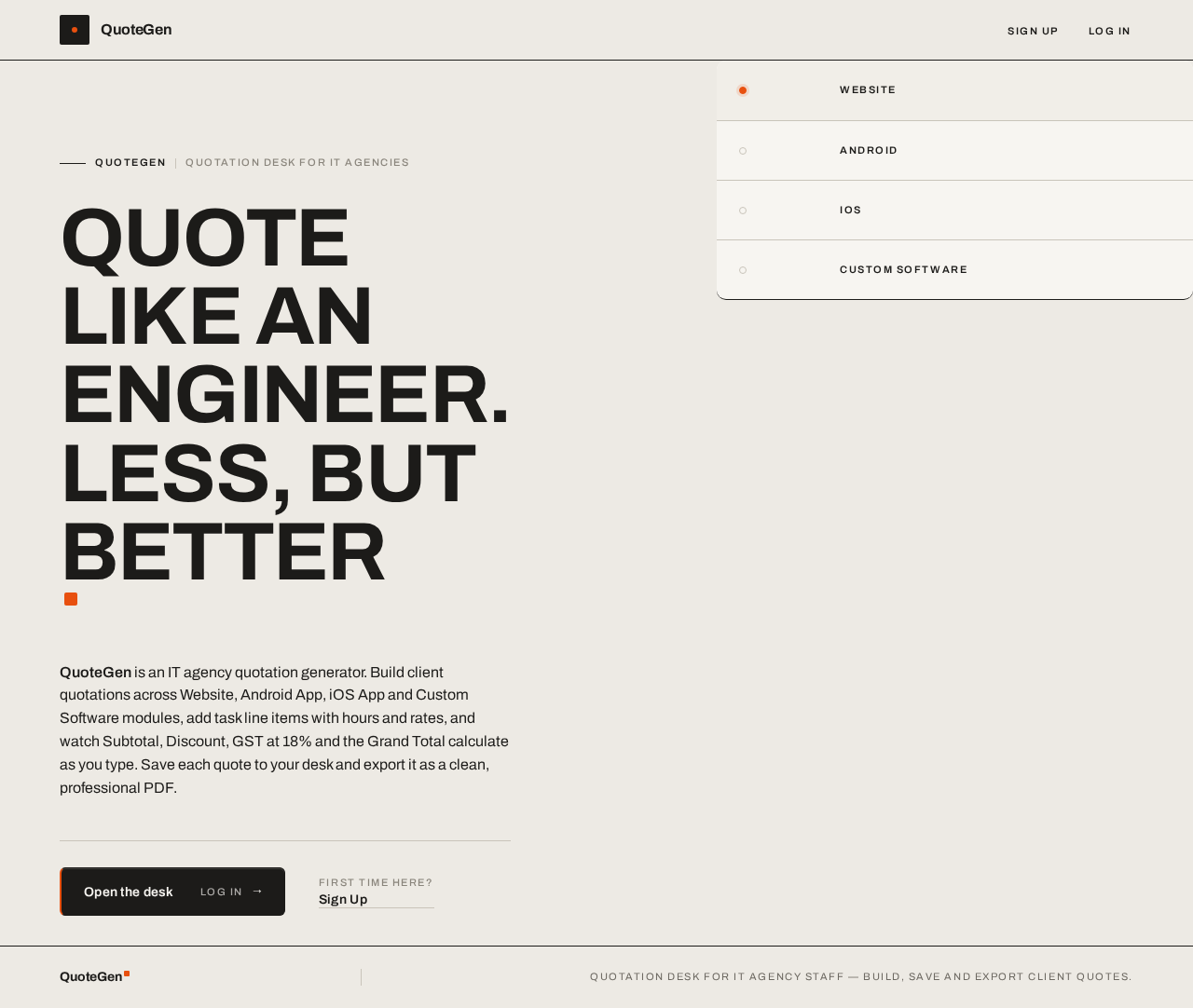
QUOTE LIKE AN ENGINEER.LESS, BUT BETTER
QuoteGen is an IT agency quotation generator. Build client quotations across Website, Android App, iOS App and Custom Software modules, add task line items with hours and rates, and watch Subtotal, Discount, GST at 18% and the Grand Total calculate as you type. Save each quote to your desk and export it as a clean, professional PDF.
- Website
- Android
- iOS
- Custom Software
QUOTE LIKE AN ENGINEER.LESS, BUT BETTER
QuoteGen is an IT agency quotation generator. Build client quotations across Website, Android App, iOS App and Custom Software modules, add task line items with hours and rates, and watch Subtotal, Discount, GST at 18% and the Grand Total calculate as you type. Save each quote to your desk and export it as a clean, professional PDF.
- Website
- Android
- iOS
- Custom Software
No comments yet. Be the first!