phone-screen-developer

byANSH GUPTA

i am building an athpp in which i can transfer phone to phone screen and if we log out from other device it will stiull be have the phone screen and login and can also save it

LandingSign Up
Landing

Comments (0)

No comments yet. Be the first!

System Requirements

System Requirement Document
Page 1 of 8

System Requirements Document for phone-screen-developer

1. Introduction

The "phone-screen-developer" application is designed for personal use, allowing users to transfer their phone screens to another device. The app ensures that the transferred screen remains accessible even after logging out from the originating or other devices. Users can also save the transferred screens for later access. This document outlines the system requirements for the application, focusing on its intended personal use.

2. System Overview

The application facilitates the transfer of phone screens between devices, maintaining the screen's accessibility post-logout and allowing users to save these screens. It is designed for personal use, with self-service enrollment and returning verification processes. The app includes backend persistence for session management and saved screens, ensuring continuity across devices. The playful and interactive design, inspired by Bruno Simon's 3D worlds, enhances user engagement.

2a. Product Interpretation and Delivery Boundary

The application is intended for personal use, with app-owned identity management to ensure continuity of access and saved states. The delivery includes custom UI components, with a focus on interactive and playful design elements. The system supports backend integration for session persistence and screen saving. The app does not include provider or external account management, focusing solely on personal device interactions.

Page 2 of 8

2b. Source Content Inventory

Not applicable as no explicit content source directive is provided.

2c. Page Content and Component Coverage

Landing

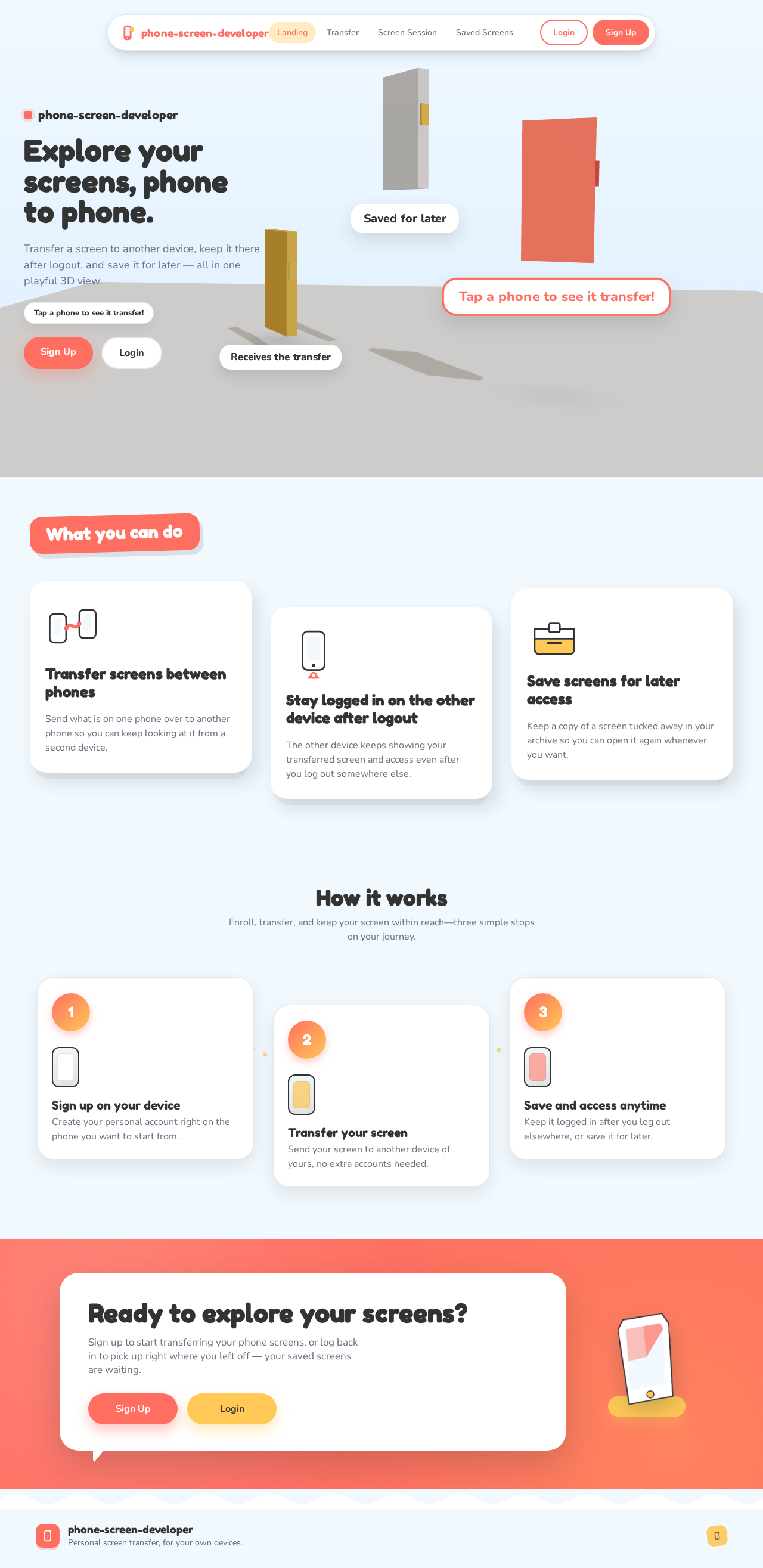
  • Information/State: Introduction to phone-to-phone screen transfer, persistent access, and saving features.
  • Primary Actions: Explore app features, initiate sign-up or login.
  • Components: Interactive 3D scene with floating labels, playful animations.
  • States: Loading, interactive exploration, error handling.

Sign Up

  • Information/State: User enrollment for first-time access.
  • Primary Actions: Enter personal details, submit for account creation.
  • Components: Form fields, submit button, confirmation messages.
  • States: Form validation, success, error handling.

Login

  • Information/State: User authentication for returning access.
  • Primary Actions: Enter credentials, submit for login.
  • Components: Input fields, login button, error messages.
  • States: Authentication success, failure, recovery options.
Page 3 of 8

Transfer

  • Information/State: Initiate and manage phone-to-phone screen transfer.
  • Primary Actions: Select destination device, start transfer.
  • Components: Device selection, transfer initiation button.
  • States: Transfer in progress, success, failure handling.

Screen Session

  • Information/State: Manage active screen sessions, maintain access post-logout.
  • Primary Actions: View active sessions, manage session settings.
  • Components: Session list, control options.
  • States: Active session display, session recovery, error handling.

Saved Screens

  • Information/State: Access and manage saved phone screens.
  • Primary Actions: View saved screens, delete or restore screens.
  • Components: Screen thumbnails, action buttons.
  • States: Display saved screens, success, error handling.
Page 4 of 8

3. Functional Requirements

  • As a Personal device user, I should be able to transfer my phone screen to another device for personal use. (Provenance: explicit)
  • As a Personal device user, I should be able to keep the transferred phone screen available on the other device after logging out from the originating or other device. (Provenance: explicit)
  • As a Personal device user, I should be able to preserve the login state or associated access for the transferred screen after logout. (Provenance: explicit)
  • As a Personal device user, I should be able to save the transferred phone screen for later access. (Provenance: explicit)
  • As a Personal device user, I should be able to enroll myself for first-time use without external assistance. (Provenance: required_inference)
  • As a Personal device user, I should be able to verify my identity on another phone or after logout to recover saved screens and session states. (Provenance: required_inference)
  • As a Personal device user, I should have backend persistence for transferred-screen sessions, associated access state, and saved screens. (Provenance: required_inference)
  • As a Personal device user, I should ensure the destination phone is paired or identified for transfer continuity. (Provenance: required_inference)

4. User Personas

Personal Device User

  • Product Context: Uses the app to transfer phone screens between personal devices.
  • Primary Goal: Seamlessly transfer, access, and save phone screens across devices.
  • Distinct Responsibilities: Initiate screen transfers, manage screen sessions, save screens for later use.
  • Relevant Inputs/Decisions: Device selection for transfer, login credentials for access continuity.
  • Interactions with Other Participants: None, as the app is intended for personal use.
  • Observable Success: Successful screen transfer, persistent access post-logout, and ability to save and retrieve screens.

5. Core User Flows

Page 5 of 8

5.1 Enroll and Set Up

  1. Start: User opens the app on their device (Landing page).
  2. Action: User selects 'Sign Up' to create an account.
  3. Result: User enters personal details and submits the form (Sign Up page).
  4. Continuation: User receives confirmation and proceeds to login.

5.2 Transfer Screen

  1. Start: User logs in to the app (Login page).
  2. Action: User selects 'Transfer' to initiate screen transfer.
  3. Result: User selects the destination device and starts the transfer (Transfer page).
  4. Continuation: Screen is transferred, and user can view it on the destination device.

5.3 Manage Screen Session

  1. Start: User accesses the app post-login (Screen Session page).
  2. Action: User views active screen sessions.
  3. Result: User manages session settings or ends sessions as needed.
  4. Continuation: User logs out, but sessions remain accessible.

5.4 Save and Access Screens

  1. Start: User logs in and navigates to 'Saved Screens' (Saved Screens page).
  2. Action: User views saved screens and selects one to restore or delete.
  3. Result: Screen is restored for viewing or deleted from the list.
  4. Continuation: User can continue managing saved screens or log out.
Page 6 of 8

6. Visuals Colors and Theme

  • Muse: Bruno Simon
  • Palette:
    • Background: #F1F9FF
    • Surface: #FFFFFF
    • Text: #333333
    • Primary: #FF6F61
    • Accent: #FFC857
    • Muted: #E0E0E0
  • Typography:
    • Headings: Fredoka One
    • Body: Nunito
    • Scale: 1.250 modular
  • Shape Language: Rounded shapes, floating labels
  • Layout: Full-viewport 3D scenes
  • Motion: Physics-driven interactions, bouncy easing

7. Signature Design Concept

The public entry features a full-viewport interactive 3D scene with toy-like phone models and floating labels. Users can explore the scene by touch or tilt, with coral accents on interactive elements. The design is playful and engaging, aligning with the personal use case.
Page 7 of 8

8. Interaction Model & Motion Direction

  • Interaction Model: Animated
  • Motion Tempo: Cinematic
  • Hero Dimensionality: WebGL
  • Landing Hero Motion Brief:
    • Focal Subject: Interactive 3D scene with phone models
    • Thesis: User interaction transforms the scene, revealing new elements
    • Motion Vocabulary: Bouncy transitions, dynamic camera follows
    • First Frame: Brightly lit scene with floating labels
    • Reduced-Motion State: Simplified transitions, static camera

9. Non-Functional Requirements

  • Performance: The app should maintain smooth transitions and interactions, leveraging WebGL for 3D rendering.
  • Scalability: Backend should support multiple concurrent sessions and screen saves.
  • Security: Ensure secure login and data persistence mechanisms.

10. Tech Stack

  • Frontend: React, WebGL/R3F for 3D interactions
  • Backend: Python/FastAPI
  • Storage: Appropriate storage solution for session and screen data
  • Deployment: Docker, Kubernetes if necessary
Page 8 of 8

11. Assumptions and Constraints

  • The app is intended solely for personal use.
  • Users must have paired devices for screen transfer.
  • The app does not support external account management.

12. Glossary

  • Phone-to-Phone Screen Transfer: The process of displaying a phone's screen on another device.
  • Session Persistence: Maintaining the state of a transferred screen session across logouts.
  • WebGL/R3F: Technologies used for rendering 3D graphics in the browser.
Preview dataChanges stay in this preview.
Landing design preview
Landing: Explore app features
Sign Up: Enter personal details
Sign Up: Submit account creation
Login: 1. Enter credentials
Login: 2. Recover after failed login
Transfer: Select destination device
Transfer: Start screen transfer
Screen Session: View active sessions
Screen Session: Manage session settings
Screen Session: Log out keep session
Login: Verify identity again
Screen Session: Recover session after logout
Saved Screens: View saved screens
Saved Screens: Restore saved screen
Saved Screens: Delete saved screen
Preview dataChanges stay in this preview.
Landing design preview
Landing: Explore app features
Sign Up: Enter personal details
Sign Up: Submit account creation
Login: 1. Enter credentials
Login: 2. Recover after failed login
Transfer: Select destination device
Transfer: Start screen transfer
Screen Session: View active sessions
Screen Session: Manage session settings
Screen Session: Log out keep session
Login: Verify identity again
Screen Session: Recover session after logout
Saved Screens: View saved screens
Saved Screens: Restore saved screen
Saved Screens: Delete saved screen