pearl-design
 Diya Trivedi
start a project to build a simple single page design of calculator

Comments (0)
Sign in to leave a comment
System Requirements
System Requirements Document for pearl-design
1. Introduction
pearl-design is a simple calculator delivered as a single page. The product intent is narrow and complete: one page where a person can do quick arithmetic — enter numbers and operators, and read the result. There is no account, no navigation, no second screen, and no surrounding application. The page is the product.
The audience is anyone who needs a fast, friendly calculation in a browser. The design brief asks for a light, warm, immediate public utility rather than a corporate tool: a bubblegum-pink field, glossy white capsule keys, hot-pink operator keys, a single lime equals key, and oversized result digits. The calculator must feel optimistic and tactile while remaining a plain, working calculator.
This document is the System Requirements Document for pearl-design. It specifies the single page, its components and states, the one active human persona, the arithmetic lifecycle, the visual system, and the technical delivery boundary.
2. System Overview
2a. Product Interpretation and Delivery Boundary
pearl-design is a first-party, single-page web calculator. The entire product is one anonymously reachable page, Calculator, which holds the wordmark, the result display, and the keypad. A visitor opens the page and immediately has a working calculator; nothing must be established, unlocked, or signed into before arithmetic is possible.
Delivery is a React frontend served to the browser, backed by the shared FastAPI backend and MariaDB service that are provisioned for the project. The calculator's arithmetic and display state are page-local and ephemeral: the page does not require the visitor to have an identity, does not persist a calculation history, and does not create durable records. The backend and database exist as the project's shared application infrastructure and are available for application APIs, but the accepted calculator behavior does not depend on them and does not justify domain entities, accounts, or stored user data.
The current horizon is exactly this one page. There is no second destination, no settings surface, no history view, and no account area. Anything beyond a single working calculator page is outside the current delivery boundary.
2b. Source Content Inventory
Not applicable. No reference directive supplies a content_source; the product content is the calculator itself.
2c. Page Content and Component Coverage
Calculator
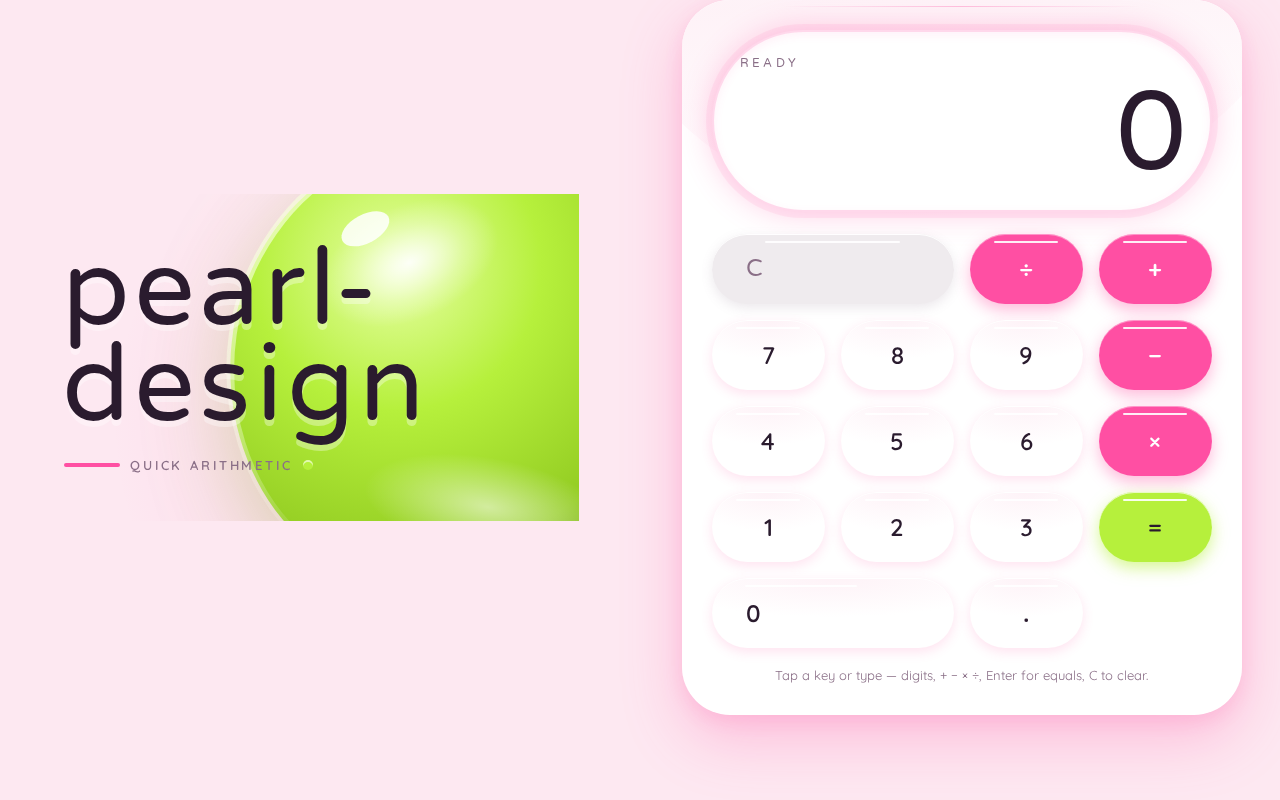
The single page of the product. It is the anonymous public entry and the only destination. It contains the wordmark, the result display, and the keypad, arranged as one centred column on small viewports and as a two-part composition on wide viewports.
Information and state
- The current entry string (the digits and operators the visitor has entered so far).
- The current result value, shown as the largest element on the page once a calculation has been completed.
- The pending operator, if one has been chosen and the second operand is still being entered.
- A cleared/initial state in which the display shows a starting zero and no pending operation.
- An error state when an operation cannot produce a number (for example division by zero), shown in the display area in place of a result.
Primary actions
- Digit keys
0–9append digits to the current entry. - Decimal point key appends a decimal separator to the current entry.
- Operator keys
+,−,×,÷select the pending operation. - Equals key
=evaluates the pending operation and shows the result. - Clear key
Cresets the entry, the pending operator, and the displayed result to the cleared/initial state.
Supporting actions and controls
- Every key is a focusable, keyboard-operable control with an accessible name matching its label, so the calculator is usable without a pointer.
- The result display is a readable text region that announces the current value or error to assistive technology.
Domain entities
- Entry: the in-progress sequence of digits, decimal point, and operator the visitor is building.
- Operation: a pending binary arithmetic operation consisting of a left operand, an operator, and a right operand.
- Result: the numeric outcome of an evaluated operation, or an error marker when evaluation is not possible.
These are page-local display concepts only; none is persisted.
Component responsibilities
- Wordmark: the lowercase
pearl-designwordmark in Varela Round with wide tracking, sized 64px on mobile up to 128px on desktop, positioned top left. It is decorative branding text and never overlaps or covers the display or keys. - Result display: a white capsule surface holding the current entry or result in ink, with the result digits at
clamp(48px, 12vw, 112px)and a pink glow ring. It is the largest element on the page and must keep its digits fully inside its capsule at 375px, 768px, and 1280px. - Keypad: a 4-by-5 grid of full-capsule keys with a wide zero key. Digit and decimal keys are glossy white with a thin white gloss line; operator keys are hot pink; the equals key is the only lime key; the clear key is a muted-surface capsule. Keys scale to 0.94 on press with a 160ms ease-out.
- Calculator body: the white glossy surface with a 48px radius and a sheen band that contains the display and keypad, floating with a soft pink shadow.
- Lime blob: a decorative glossy 3D lime shape bleeding off the top-right edge behind the calculator body. It is decoration only, carries no text or control, and must never cover readable text or a control.
States
- Loading: the page is a static client-rendered surface; there is no data fetch, so no loading indicator is required. The cleared/initial state is shown immediately on first paint.
- Empty / initial: display shows the starting zero, no pending operator, all keys enabled.
- In progress: display shows the entry being built; the pending operator is visibly selected.
- Success: after
=, the display shows the computed result at the large result size with the pink glow ring. - Error: when an operation cannot be evaluated (such as division by zero), the display shows an error message in place of a result; the visitor recovers by pressing
Cto return to the cleared/initial state, or by entering a new digit to begin a fresh entry. - Recovery:
Calways returns the page to the cleared/initial state from any state, including error.
3. Functional Requirements
FR-1 — Open the calculator page As a Calculator User I should open the single Calculator page and immediately see a working calculator, so that I can start arithmetic without any setup. (explicit)
- Trigger: the visitor navigates to the product's single page.
- Access: anonymous; no identity, sign-in, or prior state is required.
- Observable result: the page renders the wordmark, the result display in its cleared/initial state showing a starting zero, and the full keypad.
- Failure/recovery: if the page fails to render, reloading returns the same cleared/initial state; no partial or locked state exists.
- Continuation: the visitor proceeds to enter digits.
FR-2 — Enter digits
As a Calculator User I should press digit keys 0–9 to build a number, so that I can supply the operands of my calculation. (explicit)
- Trigger: the visitor activates a digit key by pointer or keyboard.
- Observable result: the digit is appended to the current entry and the display updates to show the entry.
- Failure/recovery: no failure mode beyond the page not rendering; the entry remains editable by further digits or by
C. - Continuation: the visitor continues entering digits, adds a decimal point, or selects an operator.
FR-3 — Enter a decimal point As a Calculator User I should press the decimal point key to enter fractional numbers, so that I can calculate with non-integers. (explicit)
- Trigger: the visitor activates the decimal point key.
- Observable result: a decimal separator is appended to the current entry and the display updates.
- Failure/recovery: a second decimal point in the same entry is not appended, so the entry stays a valid number; the visitor continues entering digits.
- Continuation: the visitor finishes the number and selects an operator or presses
=.
FR-4 — Select an operator
As a Calculator User I should press +, −, ×, or ÷ to choose the operation, so that I can combine two numbers. (explicit)
- Trigger: the visitor activates an operator key after entering a left operand.
- Observable result: the chosen operator becomes the pending operation and is visibly selected; the display is ready for the right operand.
- Failure/recovery: if the visitor changes their mind, pressing a different operator replaces the pending operator before the right operand is entered.
- Continuation: the visitor enters the right operand.
FR-5 — Evaluate with equals
As a Calculator User I should press = to compute the result, so that I can read the answer to my calculation. (explicit)
- Trigger: the visitor activates the equals key with a left operand, a pending operator, and a right operand.
- Observable result: the operation is evaluated and the result appears in the display as the largest element on the page, in ink on the white capsule with the pink glow ring, popping in at 220ms.
- Failure/recovery: if the operation cannot be evaluated (for example division by zero), the display shows an error instead of a result; the visitor presses
Cto recover to the cleared/initial state or enters a new digit to start a fresh entry. - Continuation: the visitor can start a new calculation from the result or press
Cto reset.
FR-6 — Clear the calculator
As a Calculator User I should press C to reset the calculator, so that I can start over cleanly. (explicit)
- Trigger: the visitor activates the clear key from any state, including the error state.
- Observable result: the entry, the pending operator, and the displayed result are reset and the display returns to the cleared/initial state showing a starting zero.
- Failure/recovery: none;
Cis always available and always succeeds. - Continuation: the visitor begins a new calculation.
FR-7 — Operate the calculator by keyboard As a Calculator User I should reach and activate every key with the keyboard, so that I can calculate without a pointer. (required_inference)
- Trigger: the visitor tabs to a key and activates it with the keyboard.
- Observable result: each key is focusable, has a visible focus state, exposes an accessible name matching its label, and performs the same action as a pointer press; the display region announces the current value or error to assistive technology.
- Failure/recovery: focus is never trapped or lost; the visitor can always reach
Cto reset. - Continuation: the visitor continues calculating by keyboard.
4. User Personas
Calculator User
Product context. The Calculator User arrives at pearl-design with a small piece of arithmetic to do — a sum, a difference, a product, a quotient — and wants the answer in seconds. They may be on a phone at 375px or on a desktop at 1280px. They have no account, no history to consult, and no expectation that the page remembers anything after they leave. The page is a public utility: it is open to anyone, and the same page serves every visitor identically.
Primary goal. Enter two numbers and an operator, press equals, and read a correct result — then either continue calculating or clear and start again.
Distinct accepted responsibilities.
- Entering operands with the digit and decimal keys.
- Choosing the operation with the hot-pink operator keys.
- Committing the calculation with the single lime equals key.
- Reading the result from the oversized display.
- Recovering from an error or an unwanted entry with the clear key.
- Doing all of this by pointer or by keyboard.
Relevant inputs and decisions. Which numbers to enter, which operator to apply, when to press equals, and whether to continue from the result or clear. The visitor also decides how to recover when a result is not what they expected or when the display shows an error.
Interactions with other accepted participants. None. The Calculator User is the only active human persona; the calculator itself is the system that responds. There is no counterparty, recipient, or approver whose state changes.
Observable success. The display shows the correct result at the large result size with the pink glow ring, the visitor can read it at a glance, and they can immediately begin another calculation or clear the page.
What makes this role distinct. The role is defined by a single, self-contained, anonymous arithmetic loop on one page. There is no durable relationship, no shared state with another person, and no identity to establish — the entire value of the product is the speed and clarity of that one loop.
5. Core User Flows
Flow 1 — Perform a calculation
- The Calculator User opens the single Calculator page. The page renders the lowercase wordmark top left, the white glossy calculator body with its result display showing a starting zero, and the full 4-by-5 keypad. No sign-in or setup occurs.
- The visitor presses digit keys to enter the first number. The display updates to show the entry as it is built.
- If the number is fractional, the visitor presses the decimal point key; the separator is appended and further digits continue the number.
- The visitor presses an operator key (
+,−,×, or÷). The hot-pink operator key becomes the visibly selected pending operation, and the display is ready for the second number. - The visitor enters the second number with the digit and decimal keys. The display shows the second operand.
- The visitor presses the lime equals key. The operation is evaluated and the result appears in the display as the largest element on the page, in ink on the white capsule with the pink glow ring, popping in at 220ms.
- The visitor reads the result. They may start a new calculation from the result or press
Cto return to the cleared/initial state.
Failure and recovery. If the visitor presses a different operator before entering the second number, the pending operator is replaced and the flow continues from step 5. If the operation cannot be evaluated (for example division by zero), the display shows an error in place of a result; the visitor presses C to return to the cleared/initial state and begins again, or enters a new digit to start a fresh entry.
Flow 2 — Clear and start over
- From any state — mid-entry, after a result, or in the error state — the Calculator User presses the clear key
C. - The entry, the pending operator, and the displayed result are reset, and the display returns to the cleared/initial state showing a starting zero.
- The visitor begins a new calculation following Flow 1 from step 2.
Flow 3 — Calculate by keyboard
- The Calculator User opens the Calculator page and tabs to the keypad. Each key receives a visible focus state and exposes an accessible name matching its label.
- The visitor activates digit, decimal, operator, equals, and clear keys with the keyboard exactly as in Flow 1; each activation performs the same action as a pointer press.
- The display region announces the current value or error to assistive technology as it changes.
- The visitor completes the calculation and reads the result, or presses
Cto reset, without ever needing a pointer.
6. Visuals Colors and Theme
The visual system follows the supplied creative direction: sensual pop minimalism after Karim Rashid — glossy organic shapes, candy colour, and a warm, optimistic public-utility feel. The muse is named as Karim Rashid, and the headline idea is a bubblegum-pink field holding a glossy white calculator with oversized ink result digits.
Colour tokens (light mode)
- Background / page ground:
#FDE8F1(bubblegum pink), filling most of the page. - Surface:
#FFFFFF(glossy white) for the calculator body, the result display capsule, and the digit keys. - Text:
#2A1B2E(ink) for all text, including the wordmark, digits, and result. - Primary:
#FF4FA3(hot pink) for the operator keys, the result glow ring, and the soft pink shadow under the calculator body. - Accent:
#B6F03C(lime) for the equals key only, and for the decorative 3D blob. - Muted:
#8A6F87for the clear key surface and secondary detail.
Typography
- Headings and wordmark: Varela Round, rounded, soft, medium weight. The wordmark is lowercase with wide tracking.
- Body and key labels: Quicksand.
- Type scale, 1.25 modular: 64 / 48 / 32 / 24 / 18 / 16 px.
- Result digits:
clamp(48px, 12vw, 112px), large and round. - Wordmark size: 64px on mobile up to 128px on desktop.
Shape language. Capsules and blobs. Keys are full capsules with a soft top highlight and a thin white gloss line. The calculator body has a 48px radius and a glossy sheen band.
Layout. One centred column at 375px. At 1280px the calculator sits to the right of a large pink type block. Keys use a 4-by-5 grid with a wide zero key.
Imagery. No photographs. One glossy 3D lime blob sits behind the calculator as decoration only, bleeding off the top-right edge.
Readability rule. Headlines, the wordmark, labels, numbers, and every control stay entirely inside the viewport and their container at 375px, 768px, and 1280px, wrapping or scaling to fit. Decoration — the lime blob, the sheen band, the glow ring — may bleed, overlap, or be cropped, but must never cover readable text or a control.
Avoid. Blue or indigo accents on white; flat square buttons with no radius; gradient-blob hero behind centred marketing copy; Inter, Roboto, or system fonts; photographic stock imagery; the generic indigo/blue-on-white SaaS template.
7. Signature Design Concept
The public entry is a full-bleed bubblegum-pink field. At top left sits the oversized lowercase pearl-design wordmark in Varela Round with wide tracking, scaling from 64px on mobile to 128px on desktop. At centre right floats the white glossy calculator body with its 48px radius, sheen band, and soft pink shadow. A glossy lime 3D blob bleeds off the top-right edge behind the body, cropped by the viewport as decoration only.
Inside the body, the result display is the largest element on the page: a white capsule holding oversized ink digits at clamp(48px, 12vw, 112px) with a pink glow ring. Below it, the 4-by-5 keypad reads as candy: glossy white digit capsules with thin white gloss lines, hot-pink operator capsules, a single lime equals capsule, and a muted clear capsule. The wide zero key anchors the bottom row.
The concept recomposes only accepted content and controls — the wordmark, the display, and the keys — and introduces no new behavior or destination. On narrow viewports the composition collapses to a single centred column with the wordmark above the calculator; on wide viewports the pink type block and the calculator sit side by side.
8. Interaction Model & Motion Direction
Interaction Model: Animated Motion Tempo: expressive Hero Dimensionality: layered_2d
Landing Hero Motion Brief
- Focal subject. The glossy white calculator body with its oversized ink result digits on the white capsule display, floating on the bubblegum-pink field with the lime blob bleeding off the top-right edge.
- Input → transformation → outcome thesis. A key press (input) scales that key to 0.94 with a 160ms ease-out and, on equals, the result digit pops into the display at 220ms (transformation), leaving the answer as the largest, brightest element on the page (outcome). The motion expresses the tactile press-and-answer loop of the calculator itself; it adds no behavior beyond entering, operating, and evaluating.
- Motion vocabulary. Liquid and soft: capsule keys compress and release, the result digit pops in, the pink glow ring settles around the display. No loops, no ambient animation, no scroll-linked effects.
- Composed first frame. The pink field fills the viewport; the wordmark sits top left; the calculator body floats centre right with the lime blob cropped at the top-right edge; the display shows the starting zero; the keypad is fully visible and whole.
- Reduced-motion state. With
prefers-reduced-motion, key presses and the result update occur without scale or pop animation; the page presents the same static arrangement — wordmark, display, and full keypad — with every element fully readable and operable.
9. Non-Functional Requirements
- Single-page constraint. The product is exactly one page, the Calculator page. No additional routes, navigation, or destinations exist. (explicit)
- Simplicity. The design is a simple single-page calculator; no feature beyond entering numbers, choosing an operator, evaluating, and clearing is included. (explicit)
- Anonymous access. The Calculator page is reachable without identity, sign-in, or prior state; no account or session is required to calculate. (required_inference, consistent with the anonymous public entry)
- Ephemeral state. Calculations are page-local and are not persisted; the page does not create durable records, history, or user data. (required_inference, from the simple single-page scope)
- Responsive readability. Headlines, the wordmark, labels, numbers, and controls remain entirely inside the viewport and their container at 375px, 768px, and 1280px; decoration may bleed but never covers readable text or controls. (explicit, from the creative direction's readability rule)
- Accessibility. Every key is keyboard-focusable with a visible focus state and an accessible name; the display announces its value or error to assistive technology; a reduced-motion arrangement is provided. (required_inference)
- Correct arithmetic. Evaluation of
+,−,×, and÷produces correct numeric results, and division by zero surfaces an error state rather than a silent failure. (required_inference, from the calculator's core purpose)
10. Tech Stack
- Frontend: React application UI, rendering the single Calculator page with the Varela Round and Quicksand typography and the specified colour and shape tokens.
- Backend: shared FastAPI process for application APIs and domain modules. The calculator's arithmetic and display state are page-local; the backend is the project's shared application service and is not required for the accepted calculator behavior.
- Database: MariaDB for application-owned persistent data, provisioned as shared project infrastructure. The accepted calculator workflow does not persist calculations and therefore does not define domain entities or stored user data.
- Containerization: Docker and docker-compose, with the provisioned
frontend,backend, anddatabaseservices.
11. Assumptions and Constraints
- Assumption: The calculator supports the four basic binary operations (
+,−,×,÷), a decimal point, equals, and clear, which is the minimal complete set for a "simple calculator." (required_inference) - Assumption: Calculations are ephemeral and are not saved between visits; the page always opens in the cleared/initial state. (required_inference)
- Constraint: The product is a single page; no second destination may be added. (explicit)
- Constraint: The design is simple; no adjacent calculator features (memory, history, scientific functions, unit conversion) are in scope. (explicit)
- Constraint: The visual system follows the supplied creative direction — bubblegum-pink ground, glossy white capsules, hot-pink operators, a single lime equals key, Varela Round and Quicksand, and no blue/indigo-on-white template look. (explicit)
- Constraint: Readable text and controls stay whole at 375px, 768px, and 1280px; decoration may bleed but never covers them. (explicit)
12. Glossary
- Calculator page — the single page of pearl-design, containing the wordmark, result display, and keypad.
- Entry — the in-progress sequence of digits and a decimal point the visitor is building.
- Operation — a pending binary arithmetic operation: a left operand, an operator, and a right operand.
- Result — the numeric outcome of an evaluated operation, or an error marker when evaluation is not possible.
- Cleared/initial state — the page state on first load and after pressing
C, showing a starting zero with no pending operation. - Capsule — the fully rounded key and display shape used throughout the design.
- Lime blob — the decorative glossy 3D lime shape bleeding off the top-right edge behind the calculator body; decoration only.
pearl-design
Quick arithmetic
Tap a key or type — digits, + − × ÷, Enter for equals, C to clear.
pearl-design
Quick arithmetic
Tap a key or type — digits, + − × ÷, Enter for equals, C to clear.
No comments yet. Be the first!