orbit-start
 Diya Trivedi
start a project to build simple single page design of calculstor

Comments (0)
Sign in to leave a comment
System Requirements
System Requirements Document for orbit-start
1. Introduction
orbit-start is a simple calculator delivered as a single page. The product intent is narrow and explicit: give everyday users one page where they can enter numbers, choose an arithmetic operation, and read the result. The design must be simple, and the product must remain a single page — no additional destinations, accounts, or surrounding application shell are part of the current scope.
The audience is the everyday calculator user who wants quick, precise arithmetic without setup, sign-in, or navigation. The page opens directly into the working calculator.
2. System Overview
orbit-start is a single-page web calculator. The page presents a keypad for number entry and operation selection, a live expression display, and a result display. All interaction happens on that one page; there is no navigation, no account, and no persisted history.
Current delivery consists of a React frontend serving the single Calculator page, a shared FastAPI backend process available for application APIs and domain modules, and a MariaDB database provisioned for application-owned persistent data. The calculator's arithmetic is performed in the page itself; the provisioned backend and database do not by themselves introduce stored calculator data, user records, or authentication.
Actors:
- Calculator user (active human persona): opens the Calculator page, enters numbers, selects an operation, and reads the result.
- Frontend application (system): renders the keypad, expression, and result, and evaluates the arithmetic.
- Shared backend (system): provisioned FastAPI process available for application APIs; no calculator-specific endpoint is required by the accepted behavior.
- Database (system): provisioned MariaDB instance for application-owned persistent data; no calculator-specific persistence is required by the accepted behavior.
Narrow exclusions: no multi-page navigation, no user accounts or sign-in, no saved calculation history, no scientific or programmer modes, no unit conversion, and no sharing or export of results.
Removed from scope
- Multi-page navigation (also: routing, page shell)
- User accounts and sign-in (also: authentication, login)
- Saved calculation history (also: memory, history log)
- Scientific and programmer calculator modes (also: advanced functions, trigonometry)
- Unit conversion
- Sharing or exporting results
2a. Product Interpretation and Delivery Boundary
orbit-start is delivered as one first-party page, the Calculator, reachable directly with no access requirement. The page is public and ephemeral: a visitor opens it, performs arithmetic, and reads the result. Nothing about the accepted behavior requires the user to be identified, to resume prior state, or to have a result bound to them across visits, so no identity establishment, session, or account surface exists.
The calculator's working state — the current expression and the displayed result — lives in the page for the duration of the visit. The provisioned FastAPI backend and MariaDB database remain part of the deployment inventory and are available for future application APIs and application-owned data, but the current accepted calculator behavior does not depend on them and does not create stored calculator records.
Everything described in this document is current scope. No future-horizon features are accepted.
2c. Page Content and Component Coverage
Calculator
The single page of the product. It holds number entry, operation selection, the live expression, and the result.
Information and state
- Current expression: the sequence of entered digits, decimal points, and operators, shown as monospace text on the charcoal code panel.
- Current result: the evaluated value, shown large in the code panel; empty until an expression is complete enough to evaluate.
- Entry state: whether the user is entering the first operand, has selected an operator and is entering the second operand, or has produced a result.
- Error state: shown in place of the result when an expression cannot be evaluated (for example, division by zero).
Primary actions
- Press a digit key (0–9) to append that digit to the current operand.
- Press the decimal point key to begin a fractional part of the current operand.
- Press an operator key (+, −, ×, ÷) to record the operation between the current operand and the next.
- Press the equals key (the only accent-orange key) to evaluate the expression and show the result.
- Press the clear key to reset the expression and result to empty.
Supporting actions
- Read the live expression as it builds, key press by key press.
- Read the result after evaluation.
- Continue from a result by pressing an operator to use it as the first operand of a new operation.
Domain entities
- Expression: an ordered sequence of operands and operators entered by the user.
- Operand: a numeric value entered as digits with an optional decimal point.
- Operator: one of addition, subtraction, multiplication, division.
- Result: the numeric outcome of evaluating a complete expression, or an error indication.
Component responsibilities
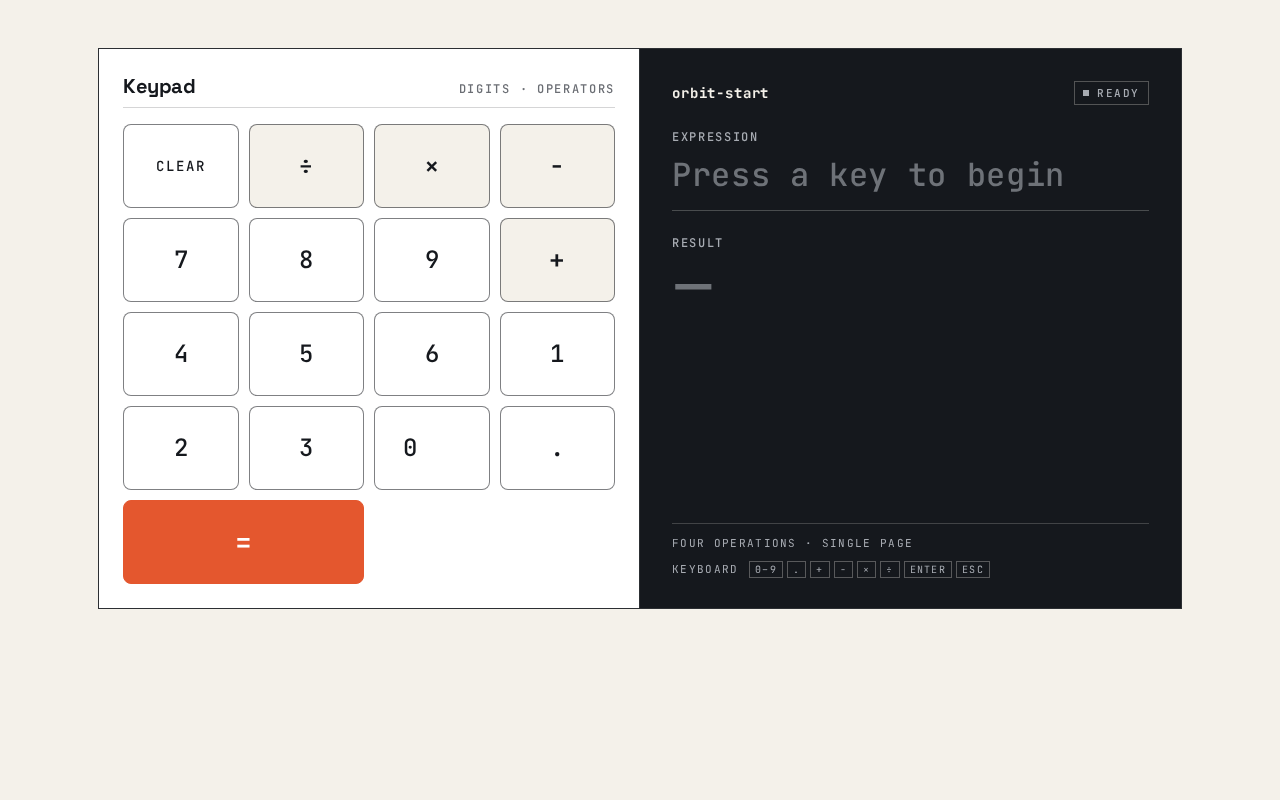
- Keypad panel (left half on desktop, below the result on mobile): white surface, grid of keys with 8px radius and hairline ink borders; renders digit keys, decimal point, operator keys, clear key, and the accent-orange equals key. Each key gives 150ms press feedback.
- Code panel (right half on desktop, above the keypad on mobile): charcoal surface with monospace expression line and large result line; renders the live expression and the result or error.
- Expression line: JetBrains Mono medium, uppercase micro-label context, updates as keys are pressed.
- Result line: Space Grotesk bold, tight tracking, sized with
clamp(40px, 9vw, 96px). - Hairline rules: 1px ink borders separating the two halves and the key rows.
States
- Loading: not applicable; the page renders its keypad and empty expression immediately with no data fetch.
- Empty: expression line empty or showing a placeholder prompt; result line empty.
- In progress: expression line shows entered digits and operators; result line empty until evaluation.
- Success: result line shows the evaluated value in accent orange.
- Error: result line shows an error indication when the expression cannot be evaluated; the expression remains visible so the user can clear or correct it.
- Recovery: pressing clear resets expression and result; pressing an operator after a result continues from that result; pressing a digit after a result starts a new expression.
3. Functional Requirements
FR-1 — Enter digits As a Calculator user, I should press digit keys to enter numbers so that I can build the operands of my calculation.
- Provenance: explicit (simple calculator).
- Trigger/input: press of a digit key 0–9.
- Observable result: the digit appears at the end of the current operand in the expression line.
- Access state: public, no identity required.
- Failure/recovery: none material; pressing clear resets entry.
- Continuation: the user presses further digits, a decimal point, or an operator.
FR-2 — Enter a decimal point As a Calculator user, I should press the decimal point key to enter fractional numbers so that I can calculate with non-integers.
- Provenance: required_inference (indispensable for a usable arithmetic calculator).
- Trigger/input: press of the decimal point key while entering an operand.
- Observable result: a decimal point is appended to the current operand and subsequent digits form its fractional part.
- Access state: public, no identity required.
- Failure/recovery: a second decimal point in the same operand is ignored so the operand stays valid.
- Continuation: the user continues entering digits or selects an operator.
FR-3 — Select an arithmetic operation As a Calculator user, I should press an operator key to choose addition, subtraction, multiplication, or division so that the calculator knows which operation to perform.
- Provenance: explicit (simple calculator; the operation is part of the accepted page rationale).
- Trigger/input: press of one of the operator keys +, −, ×, ÷ after an operand.
- Observable result: the operator appears in the expression line after the first operand, and the user is placed in entry of the second operand.
- Access state: public, no identity required.
- Failure/recovery: pressing an operator with no operand entered does nothing; pressing a different operator before entering the second operand replaces the pending operator.
- Continuation: the user enters the second operand and presses equals.
FR-4 — Evaluate the expression As a Calculator user, I should press the equals key to compute the result so that I can read the answer to my calculation.
- Provenance: explicit (simple calculator; the result is part of the accepted page rationale).
- Trigger/input: press of the accent-orange equals key with a complete expression (operand, operator, operand).
- Observable result: the result line shows the evaluated value in accent orange, and the expression line retains the evaluated expression.
- Access state: public, no identity required.
- Failure/recovery: pressing equals with an incomplete expression does nothing; a division by zero shows an error indication in the result line while the expression remains visible.
- Continuation: the user presses an operator to continue from the result, presses a digit to start a new expression, or presses clear.
FR-5 — Read the live expression As a Calculator user, I should see my expression build up as I press keys so that I can confirm what I have entered before evaluating.
- Provenance: explicit (the page holds number entry, the operation, and the result; the creative direction specifies the live expression).
- Trigger/input: any key press that changes the expression.
- Observable result: the expression line updates immediately to show the current expression in monospace text.
- Access state: public, no identity required.
- Failure/recovery: none material; the expression always reflects the current entry state.
- Continuation: the user continues entering or presses equals.
FR-6 — Clear the calculation As a Calculator user, I should press the clear key to reset the calculator so that I can start a new calculation.
- Provenance: required_inference (indispensable recovery for a usable calculator).
- Trigger/input: press of the clear key.
- Observable result: the expression line and result line are emptied and the entry state returns to the first operand.
- Access state: public, no identity required.
- Failure/recovery: this is the recovery action for any error or mistaken entry.
- Continuation: the user begins a new calculation.
FR-7 — Continue from a result As a Calculator user, I should be able to use a result as the first operand of a new operation so that I can chain calculations.
- Provenance: required_inference (indispensable continuation after evaluation).
- Trigger/input: press of an operator key immediately after a result is shown.
- Observable result: the result becomes the first operand in the expression line and the user is placed in entry of the second operand.
- Access state: public, no identity required.
- Failure/recovery: pressing a digit after a result instead starts a fresh expression.
- Continuation: the user enters the second operand and presses equals.
4. User Personas
Calculator user
Product context. The Calculator user arrives at orbit-start to do a quick piece of everyday arithmetic — a sum, a difference, a product, or a quotient. They have no account, no prior state, and no expectation of anything beyond a working calculator on the page in front of them. The page opens directly into the keypad and the expression panel.
Primary goal. Enter a calculation and read its result quickly and precisely, with confidence that what they typed is what will be evaluated.
Distinct accepted responsibilities.
- Entering operands using digit keys and the decimal point.
- Selecting one of the four arithmetic operations.
- Confirming the expression as it builds in the live expression line.
- Committing the calculation by pressing the equals key.
- Reading the result, or reading an error and recovering by clearing or correcting.
- Continuing from a result into a new operation, or clearing to start fresh.
Relevant inputs and decisions. Which digits and decimal point to enter; which operator to choose; when the expression is complete enough to evaluate; whether to continue from a result or clear and start over.
Interactions with other accepted participants. None. The Calculator user is the only active human participant; the frontend application renders the page and evaluates the arithmetic on the user's behalf, and no other persona receives, approves, or is affected by the calculation.
Observable success. The result line shows the correct evaluated value in accent orange after pressing equals, and the expression line shows exactly the expression the user entered.
5. Core User Flows
Flow 1 — Perform a calculation
- The Calculator user opens orbit-start. The Calculator page renders immediately with the white keypad on the left (below the result on mobile) and the charcoal code panel on the right (above the keypad on mobile). The expression line and result line are empty.
- The user presses digit keys to enter the first operand. Each digit appears at the end of the expression line in monospace text, with 150ms press feedback on the key.
- If the operand needs a fractional part, the user presses the decimal point key and continues entering digits. A second decimal point in the same operand is ignored.
- The user presses an operator key (+, −, ×, ÷). The operator appears in the expression line after the first operand, and the user is placed in entry of the second operand.
- The user enters the second operand with digit keys and, if needed, the decimal point.
- The user presses the accent-orange equals key. The result line shows the evaluated value in large Space Grotesk type in accent orange, and the expression line retains the evaluated expression.
- The user reads the result. To do another calculation, they press clear to reset both lines, or press an operator to continue from the result (Flow 3).
Failure and recovery. If the user presses equals with an incomplete expression, nothing happens and the expression remains visible. If the expression divides by zero, the result line shows an error indication while the expression stays visible; the user presses clear to reset or corrects the entry.
Flow 2 — Correct a mistaken entry
- While entering an expression on the Calculator page, the user notices a wrong digit or operator in the expression line.
- The user presses the clear key. The expression line and result line are emptied and the entry state returns to the first operand.
- The user re-enters the calculation from step 2 of Flow 1.
Continuation. The user completes the corrected calculation and reads the result.
Flow 3 — Continue from a result
- After a result is shown on the Calculator page, the user presses an operator key.
- The result becomes the first operand in the expression line, and the user is placed in entry of the second operand.
- The user enters the second operand and presses equals.
- The result line shows the new evaluated value.
Alternative. If the user presses a digit key after a result instead of an operator, a fresh expression begins with that digit.
6. Visuals Colors and Theme
Muse and headline. Adham Dannaway — dual-nature craft: one half keypad, one half live expression. The feeling is clear, quick, and precise.
Mode. Light mode.
Colour tokens (exact hex by role)
- Background (warm paper ground, 60%):
#F4F1EA - Surface (white keypad panel, 30%):
#FFFFFF - Text and keys (ink):
#15181D - Primary (ink keys and text):
#15181D - Accent (equals key and result, 10%):
#E4572E - Muted (secondary labels):
#6E7278 - Code panel surface (charcoal):
#15181Dwith light text on it.
Typography
- Headings and result: Space Grotesk, bold, tight tracking.
- Keys and labels: JetBrains Mono, medium, uppercase micro-labels.
- Body: JetBrains Mono.
- Scale: 1.25 modular — 72 / 48 / 32 / 20 / 16.
- Result size:
clamp(40px, 9vw, 96px).
Shape language. Sharp corners on the two panels; 8px radius on keys; 8-pt spacing rhythm; hairline 1px ink borders separating the two halves and the key rows.
Layout. Two equal halves on desktop: keypad left, expression and result right. Stacked halves on mobile: keypad below the result. Readable text and controls stay whole inside the viewport and their containers at 375px, 768px, and 1280px, wrapping or scaling to fit.
Imagery style. No photos. The interface is the image: the charcoal code panel shows the live expression as monospace text.
Avoid. Blue or indigo accents on white; gradient blobs or glass panels; rounded pill buttons and soft offset shadows; icon illustrations or stock photos.
7. Signature Design Concept
The public entry is the Calculator page itself, composed as a full-viewport split screen on warm paper (#F4F1EA).
- Left half: a white keypad grid of 8px-radius keys with hairline ink borders — digits, decimal point, operators, and clear in ink on white.
- Right half: a charcoal code panel (
#15181D) with the live expression in JetBrains Mono and the result in large Space Grotesk bold, tight tracking. - The single hot element: the equals key is the only accent-orange (
#E4572E) key in the grid, and the result is the only accent-orange text. - Hairline ink rules separate the two halves and the key rows, reinforcing the dual-nature split.
The concept recomposes only accepted content and controls: the keypad, the expression line, the result line, and the clear and equals keys. It introduces no new behavior or destination.
8. Interaction Model & Motion Direction
Interaction Model: Animated Motion Tempo: restrained Hero Dimensionality: flat
Landing Hero Motion Brief
- Focal subject. The charcoal code panel on the right half, with the live expression in monospace and the result in large Space Grotesk.
- Input → transformation → outcome thesis. Each key press on the white keypad (input) appends its character to the expression line on the code panel (transformation), and pressing equals replaces the pending expression with the evaluated result in accent orange (outcome). The expression types into the code half as the user presses keys.
- Motion vocabulary. Fast 150ms key press feedback; the expression types into the code panel line by line; no decoration.
- Composed first frame. Warm paper ground; white keypad grid on the left with the accent-orange equals key as the only hot element; charcoal code panel on the right with an empty expression line and an empty result line, separated by hairline ink rules.
- Reduced-motion state. With
prefers-reduced-motion, key press feedback and expression typing become instant state changes with no transition; the split layout, keypad, expression line, and result line remain fully usable and readable.
9. Non-Functional Requirements
- Single page. The product must use a single page; no additional routes or destinations are part of current scope. (explicit)
- Simplicity. The design must be simple: one keypad, one expression line, one result line, and no surrounding application shell. (explicit)
- Responsive readability. Readable text and controls stay whole inside the viewport and their containers at 375px, 768px, and 1280px, wrapping or scaling to fit; no other element covers them. (explicit, from the creative direction)
- Reduced motion. With
prefers-reduced-motion, provide a usable static arrangement with instant state changes. (explicit, from the creative direction) - No identity or persistence. The calculator requires no account, session, or stored history; working state lives in the page for the visit. (required_inference from the accepted public-ephemeral behavior)
- Immediate render. The page renders its keypad and empty expression without a data fetch, so there is no loading state. (required_inference)
10. Tech Stack
- Frontend: React application UI rendering the single Calculator page.
- Backend: shared FastAPI process for application APIs and domain modules. The current calculator behavior does not require a calculator-specific endpoint; the process remains available for application APIs.
- Database: MariaDB, provisioned for application-owned persistent data. The current calculator behavior does not require stored calculator records.
- Deployment: docker-compose with the
frontend,backend, anddatabaseservices as provisioned.
11. Assumptions and Constraints
- A-1. The calculator performs the four basic arithmetic operations (addition, subtraction, multiplication, division) on decimal numbers. (required_inference from "simple calculator")
- A-2. The calculator evaluates a single binary operation at a time; chained operations are performed by continuing from a result. (required_inference)
- A-3. The page is public and requires no identity; no account-management capability exists. (required_inference from the accepted public-ephemeral behavior)
- A-4. The provisioned backend and database do not introduce calculator-specific persistence or authentication. (explicit scaffold boundary)
- C-1. The product must use a single page. (explicit)
- C-2. The design must be simple. (explicit)
- C-3. The palette, fonts, surfaces, tone, and layout follow the creative direction; the generic indigo/blue-on-white SaaS template is forbidden. (explicit)
12. Glossary
- Calculator page — the single page of orbit-start, holding the keypad, expression line, and result line.
- Expression — the ordered sequence of operands and operators the user has entered, shown in the expression line.
- Operand — a numeric value entered as digits with an optional decimal point.
- Operator — one of addition, subtraction, multiplication, or division.
- Result — the numeric outcome of evaluating a complete expression, or an error indication when it cannot be evaluated.
- Keypad panel — the white half of the split layout containing the keys.
- Code panel — the charcoal half of the split layout showing the live expression and the result.
- Equals key — the accent-orange key that evaluates the expression.
- Clear key — the key that resets the expression and result.
Expression
Press a key to begin
Result
—
Keypad
Digits · operatorsExpression
Press a key to begin
Result
—
No comments yet. Be the first!