online-banking-account
by Hello Mcdonald
Hello Mcdonaldan online banking system to create account for clients check account balance transfer history


Comments (0)
Sign in to leave a comment
System Requirements
System Requirements Document for online-banking-account
1. Introduction
online-banking-account is an online banking system for retail clients and bank operations staff. The product intent, taken directly from the authoritative requirement thread, is to let clients create an account, check their account balance, transfer funds, and view transfer history, with a bank-side operations role that services those accounts and oversees transfer activity so that client-initiated account creation and transfers are supported and their history remains accurate.
The audience is adults trusting a bank with money. The product is not positioned as a friendly fintech startup; it is positioned as an instrument-grade banking service where money is measured, not marketed. The interface language is precision instrumentation — dark titanium surfaces, dial-like data, ruled ledgers, and needle-sweep motion — so that balances, transfer amounts, and transaction records read as instrument readings.
This document covers the current delivery horizon only. It defines the seven accepted pages, the two accepted personas, the functional requirements, the core user flows, the visual and interaction direction, and the non-functional and technical constraints for the current system.
Page 1 of 32
2. System Overview
The current system is a dark-mode-first, application-owned online banking product with custom UI. It delivers:
- A public Landing entry that explains the online banking product, who it is for, and how to begin.
- Self-service Sign Up enrollment for a client independently beginning to use the system and creating their account.
- Login verification for returning clients and bank operations staff to reach their protected banking destinations.
- A client Dashboard that owns the recurring balance-checking responsibility after signing in.
- A Transfer page that owns the client's fund-transfer initiation responsibility with its own completion and validation context.
- A Transfer History page that owns the client's independently revisitable review of past transfer records.
- An Operations page that owns bank-side servicing of client accounts and oversight of transfer activity.
Actors are the two accepted personas — Bank Client and Bank Operations Staff — plus the application's own backend processes that persist accounts, balances, and transfer records. Bank operations staff access is provisioned or invited rather than self-enrolled. There is a single Admin login, identified by the user-supplied email, and it is the only Admin login in the system; all staff sign in as staff through that shared staff access rather than each holding a separate Admin login.
Page 2 of 32
Narrow exclusions for the current horizon: no adjacent account-management capabilities beyond first-use identity establishment and returning verification; no product capability is added merely because it is conventional for a banking product category. The system does not include lending, cards, statements, bill pay, or investment features, because none were accepted in the authoritative requirement thread.
2a. Product Interpretation and Delivery Boundary
The product is delivered as a first-party web application with application-owned identity. The public Landing page is anonymously reachable and explains the product and how to begin. Sign Up is the anonymous self-service enrollment surface where a client establishes their own identity and creates their account. Login is the anonymous returning-verification surface used by both clients and bank operations staff to reach their protected destinations.
Protected destinations — Dashboard, Transfer, Transfer History, and Operations — require an established identity. Client-facing protected destinations are reachable by the Bank Client; Operations is reachable by Bank Operations Staff, whose access is provisioned or invited rather than self-enrolled. Identity establishment and returning verification are journey prerequisites, not permission for adjacent account-management capabilities.
The current horizon is the complete accepted set of pages and behaviors listed above. Nothing in this document commits the product to future capabilities; any future work would require its own accepted requirements.
2c. Page Content and Component Coverage
Page 3 of 32
Landing
- Information and state: Anonymous public entry. Presents the online banking product, who it is for, and how to begin. No authenticated state is shown.
- Primary actions: "Open an account" (solid amber bar) leading to Sign Up; "Sign in" (hairline-outlined control) leading to Login.
- Supporting actions: None beyond the two entry actions.
- Domain entities: None persisted; the page is informational and navigational.
- Component responsibilities:
- Asymmetric split hero: left 5 columns hold an oversized Saira Condensed uppercase headline "BANKING, MEASURED." at
clamp(40px, 6vw, 88px), with a 12px uppercase amber micro-label above it reading "ONLINE BANKING SYSTEM". - Two actions pinned beneath the headline, both fully inside the column at 375px.
- Right 7 columns bleed a macro photograph of a brushed titanium watch bezel edge-to-edge off the right viewport edge, with a single thin amber arc drawn over it as a graphic overlay.
- Faint topographic contour lines as a background texture.
- Asymmetric split hero: left 5 columns hold an oversized Saira Condensed uppercase headline "BANKING, MEASURED." at
- States:
- Loading: Static composition; no data fetch required. Hero image loads progressively without layout shift.
- Empty: Not applicable — the page has no data-dependent empty state.
- Success: Both entry actions are visible and operable at 375px, 768px, and 1280px.
- Error: If the hero image fails to load, the dark titanium field and the amber arc remain, and the headline and actions stay fully readable.
- Recovery: No recovery action is required; the page remains usable without the image.
Page 4 of 32
Sign Up
- Information and state: Anonymous self-service enrollment surface. Collects the information required to establish a client identity and create their account. Shows inline validation state per field and a submission state.
- Primary actions: Submit enrollment to create the account and establish the client identity.
- Supporting actions: Navigate to Login for clients who already have an account.
- Domain entities: Client identity (credentials), client account record.
- Component responsibilities:
- Machined-rectangle form controls with 6–8px corners, 1px inner highlight, and hairline borders in
rgba(242,239,233,0.10). - 12px uppercase Saira Condensed micro-labels with 0.08em tracking above each field group, used as instrument markings.
- Solid amber primary action bar for submission.
- Inline field-level validation messages in Barlow.
- Machined-rectangle form controls with 6–8px corners, 1px inner highlight, and hairline borders in
- States:
- Loading: Submission state disables the primary action and shows an in-progress indicator without a bounce or spring.
- Empty: All fields render empty with micro-labels and no error styling.
- Success: The account is created and the client identity is established; the client proceeds to their protected banking destinations.
- Error: Field-level validation errors render inline; a submission failure renders a clear message and preserves entered values.
- Recovery: The client can correct fields and resubmit; entered values are not discarded on failure.
Page 5 of 32
Login
- Information and state: Anonymous returning-verification surface for both Bank Client and Bank Operations Staff. Collects credentials and shows verification state. Bank Operations Staff sign in through the single shared staff access; the single Admin login, identified by the user-supplied email, is the only Admin login and all staff can sign in as staff.
- Primary actions: Submit credentials to reach the appropriate protected destination.
- Supporting actions: Navigate to Sign Up for clients who do not yet have an account.
- Domain entities: Client identity (credentials), bank operations staff identity (credentials).
- Component responsibilities:
- Machined-rectangle credential controls with hairline borders and 1px inner highlight.
- 12px uppercase micro-labels above each field.
- Solid amber primary action bar for submission.
- Inline verification error message area.
- States:
- Loading: Submission state disables the primary action and shows an in-progress indicator.
- Empty: Fields render empty with micro-labels and no error styling.
- Success: The actor reaches their protected destination — Bank Client to Dashboard, Bank Operations Staff to Operations.
- Error: Invalid credentials render a clear inline message without revealing which field was wrong.
- Recovery: The actor can correct credentials and resubmit; the form remains usable.
Page 6 of 32
Dashboard
Page 7 of 32
- Information and state: Protected client destination. Owns the recurring balance-checking responsibility after signing in. Shows the client's current account balance as a circular instrument gauge with a tabular-numeral readout, plus a ruled transaction ledger.
- Primary actions: Review balance; navigate to Transfer; navigate to Transfer History.
- Supporting actions: Refresh balance data.
- Domain entities: Client account, account balance, transaction ledger entries.
- Component responsibilities:
- Circular balance gauge occupying the left third at desktop, stacking above the ledger at 768px and 375px.
- Real needle sweep on balance load: a 700ms
cubic-bezier(0.16,1,0.3,1)rotation of the gauge needle, not a count-up alone. - Tabular-numeral readout at
clamp(56px, 9vw, 128px)in Saira Condensed 700 so digits align like a dial. - Ruled transaction ledger filling the rest of the composition: label-left / value-right in tabular numerals, hairline dividers, and a 2px amber rule that slides in from the left on hover.
- 12px uppercase micro-labels above every data block.
- States:
- Loading: Gauge renders at its resting position and the ledger shows a loading state; the needle sweeps to the loaded value.
- Empty: If the account has no ledger entries, the ledger area shows an empty state while the balance gauge still renders the current balance.
- Success: Balance and ledger render with the needle at the correct value and tabular numerals aligned.
- Error: If balance data fails to load, the gauge shows an unavailable state and the ledger shows an error message with a retry action.
- Recovery: Retry reloads balance and ledger data; the page remains navigable to Transfer and Transfer History.
Page 8 of 32
Transfer
- Information and state: Protected client destination. Owns the client's fund-transfer initiation responsibility with its own completion and validation context. Two-column instrument panel — recipient fields on the left, a live "amount dial" preview on the right.
- Primary actions: Confirm the transfer (solid amber bar).
- Supporting actions: Edit recipient and amount fields before confirmation.
- Domain entities: Recipient details, transfer amount, source account, transfer record.
- Component responsibilities:
- Recipient fields on the left as machined rectangles with hairline borders and micro-labels.
- Live amount dial on the right that renders the amount as a needle sweep, rotating as the amount is typed so the number is felt before it is confirmed.
- Solid amber confirm bar as the primary action.
- Inline validation and confirmation messaging.
- States:
- Loading: Submission state disables the confirm bar and shows an in-progress indicator.
- Empty: Fields render empty with the amount dial at rest.
- Success: The transfer is recorded and the client sees a clear completion state; no confetti, particles, or bouncy easing.
- Error: Validation errors (for example, missing recipient or invalid amount) render inline; a submission failure renders a clear message and preserves entered values.
- Recovery: The client can correct fields and resubmit; the amount dial and entered values are preserved.
Page 9 of 32
Transfer History
- Information and state: Protected client destination. Owns the client's independently revisitable review of past transfer records. Presents a ruled ledger of transfer records.
- Primary actions: Review past transfer records.
- Supporting actions: Refresh the history list.
- Domain entities: Transfer records (recipient, amount, date, status).
- Component responsibilities:
- Ruled ledger rows: label-left / value-right in tabular numerals, hairline dividers, and a 2px amber rule that slides in from the left on hover.
- Credit rows marked with teal
#3FB6A8; outgoing debits marked with warm ember#C4622Das a text/rule colour only. - 12px uppercase micro-labels above the ledger.
- States:
- Loading: Ledger shows a loading state.
- Empty: If the client has no transfer records, the ledger shows an empty state explaining that no transfers have been made.
- Success: Transfer records render in ruled rows with correct credit/debit colouring and tabular numerals.
- Error: If history fails to load, the ledger shows an error message with a retry action.
- Recovery: Retry reloads the transfer history; the page remains navigable.
Page 10 of 32
Operations
- Information and state: Protected bank-side destination. Owns bank-side servicing of client accounts and oversight of transfer activity, a materially different responsibility and visibility from client banking. Reachable by Bank Operations Staff, whose access is provisioned or invited rather than self-enrolled.
- Primary actions: Service client accounts; oversee transfer activity.
- Supporting actions: Review client account records and transfer records.
- Domain entities: Client accounts, transfer records, bank operations staff identity.
- Component responsibilities:
- Ruled data rows with label-left / value-right tabular numerals and hairline dividers.
- 12px uppercase micro-labels above each data block.
- Machined-rectangle controls with hairline borders and 1px inner highlight.
- States:
- Loading: Data blocks show a loading state.
- Empty: If there are no client accounts or transfer records to service, the relevant block shows an empty state.
- Success: Client account and transfer data render in ruled rows with tabular numerals.
- Error: If data fails to load, the affected block shows an error message with a retry action.
- Recovery: Retry reloads the affected data; the page remains navigable.
Page 11 of 32
3. Functional Requirements
FR-1 — Online banking system for clients (explicit) As a Bank Client, I should be able to use an online banking system so that I can manage my banking activity from a web application.
- Trigger/input: The client reaches the application.
- Observable result: The client can reach the public Landing page and the banking destinations.
- Access state: Landing is anonymous; protected destinations require an established identity.
- Failure/recovery: If the application is unreachable, the client can retry.
- Continuation: The client proceeds to create an account or sign in.
FR-2 — Create an account (explicit) As a Bank Client, I should be able to create an account so that I can begin using the online banking system.
- Trigger/input: The client selects "Open an account" on Landing and submits enrollment information on Sign Up.
- Observable result: The client's account is created and their identity is established.
- Access state: Sign Up is anonymously reachable; the created account is protected.
- Failure/recovery: Field-level validation errors render inline; a submission failure preserves entered values and allows resubmission.
- Continuation: The client proceeds to their protected banking destinations.
Page 12 of 32
FR-3 — Check account balance (explicit) As a Bank Client, I should be able to check my account balance so that I know how much money I have.
- Trigger/input: The client signs in and opens Dashboard.
- Observable result: The current account balance renders as a circular instrument gauge with a tabular-numeral readout.
- Access state: Dashboard is protected and reachable by the Bank Client.
- Failure/recovery: If balance data fails to load, the gauge shows an unavailable state with a retry action.
- Continuation: The client can navigate to Transfer or Transfer History.
FR-4 — Transfer funds (explicit) As a Bank Client, I should be able to transfer funds so that I can move money to a recipient.
- Trigger/input: The client opens Transfer, enters recipient details and an amount, and confirms.
- Observable result: The transfer is recorded and the client sees a clear completion state.
- Access state: Transfer is protected and reachable by the Bank Client.
- Failure/recovery: Validation errors render inline; a submission failure preserves entered values and allows resubmission.
- Continuation: The client can review the transfer in Transfer History.
Page 13 of 32
FR-5 — View transfer history (explicit) As a Bank Client, I should be able to view transfer history so that I can review my past transfers.
- Trigger/input: The client opens Transfer History.
- Observable result: Past transfer records render in a ruled ledger with credit/debit colouring and tabular numerals.
- Access state: Transfer History is protected and reachable by the Bank Client.
- Failure/recovery: If history fails to load, the ledger shows an error message with a retry action.
- Continuation: The client can return to Dashboard or Transfer.
FR-6 — Client self-service enrollment (required_inference) As a Bank Client, I should be able to enroll myself so that I have a usable account before subsequent banking activity.
- Trigger/input: The client selects "Open an account" on Landing.
- Observable result: The client's identity is established and their account is created.
- Access state: Sign Up is anonymously reachable; the resulting account is protected.
- Failure/recovery: Validation and submission errors render inline and preserve entered values.
- Continuation: The client proceeds to Login or directly to their protected destinations.
Page 14 of 32
FR-7 — Returning verification (required_inference) As a Bank Client or Bank Operations Staff, I should be able to verify my identity so that I can reach my protected banking destinations.
- Trigger/input: The actor submits credentials on Login. Bank Operations Staff sign in through the single shared staff access; the single Admin login, identified by the user-supplied email, is the only Admin login and all staff can sign in as staff.
- Observable result: The actor reaches their protected destination — Bank Client to Dashboard, Bank Operations Staff to Operations.
- Access state: Login is anonymously reachable; the destinations it unlocks are protected.
- Failure/recovery: Invalid credentials render a clear inline message without revealing which field was wrong; the actor can resubmit.
- Continuation: The actor proceeds to their protected destination.
FR-8 — Provisioned bank operations access (required_inference) As a Bank Operations Staff member, I should have access provisioned or invited rather than self-enrolled so that bank-side servicing and oversight remain controlled.
- Trigger/input: The staff member receives provisioned or invited access. There is a single Admin login, identified by the user-supplied email, and it is the only Admin login in the system; all staff can sign in as staff through the shared staff access rather than each holding a separate Admin login.
- Observable result: The staff member can verify their identity on Login and reach Operations.
- Access state: Operations is protected and reachable by Bank Operations Staff.
- Failure/recovery: Invalid credentials render a clear inline message; the staff member can resubmit.
- Continuation: The staff member proceeds to Operations.
Page 15 of 32
FR-9 — Bank-side servicing and oversight (required_inference) As a Bank Operations Staff member, I should be able to service client accounts and oversee transfer activity so that client-initiated account creation and transfers are supported and their history remains accurate.
- Trigger/input: The staff member signs in and opens Operations.
- Observable result: Client account and transfer data render in ruled rows with tabular numerals.
- Access state: Operations is protected and reachable by Bank Operations Staff.
- Failure/recovery: If data fails to load, the affected block shows an error message with a retry action.
- Continuation: The staff member can continue servicing and oversight work.
4. User Personas
Page 16 of 32
Bank Client
- Product context: The client is the end user of the online banking system. They reach the product through the public Landing page, create their own account through self-service enrollment, and then use the protected banking destinations for their recurring banking activity.
- Primary goal: Manage their own banking — open an account, review balance information, initiate transfers, and review transfer history — with the successful outcome of completed transfers and a reliable record of account activity.
- Distinct accepted responsibilities: Creating an account (FR-2, FR-6); checking account balance (FR-3); transferring funds (FR-4); viewing transfer history (FR-5); verifying identity on return (FR-7).
- Relevant inputs or decisions: Enrollment information on Sign Up; credentials on Login; recipient details and transfer amount on Transfer; the decision to confirm a transfer.
- Interactions with other accepted participants: The client's account creation and transfers are serviced by Bank Operations Staff, whose oversight keeps the client's transfer history accurate. The client does not interact with Operations directly.
- Observable success: The account is created and usable; the balance renders correctly on Dashboard; the transfer is recorded and visible in Transfer History; the history ledger accurately reflects past transfers.
Page 17 of 32
Bank Operations Staff
- Product context: An online banking system that lets clients create accounts and move money requires a bank-side role to service those accounts and transfers. The staff member reaches the product through Login using provisioned or invited access, not self-enrollment. There is a single Admin login, identified by the user-supplied email, and it is the only Admin login in the system; all staff can sign in as staff through the shared staff access.
- Primary goal: Service client accounts and oversee transfer activity so that client-initiated account creation and transfers are supported and their history remains accurate.
- Distinct accepted responsibilities: Verifying identity on return (FR-7); using provisioned or invited access (FR-8); servicing client accounts and overseeing transfer activity (FR-9).
- Relevant inputs or decisions: Credentials on Login; client account records and transfer records on Operations.
- Interactions with other accepted participants: The staff member services the accounts and transfers that Bank Clients create and initiate. The staff member does not act on the client's behalf in the client's own destinations.
- Observable success: Client account and transfer data render accurately in Operations; the staff member can service accounts and oversee transfer activity.
5. Core User Flows
Page 18 of 32
Flow 1 — Bank Client creates an account
- The Bank Client arrives at the anonymous Landing page and reads the product explanation and the two entry actions.
- The client selects "Open an account" and reaches the anonymous Sign Up page.
- The client enters the enrollment information required to establish their identity and create their account.
- The client submits the enrollment. The primary action enters its submission state.
- Success: The account is created and the client's identity is established. The client proceeds to their protected banking destinations.
- Failure/recovery: If a field fails validation, an inline error renders and the entered values are preserved. The client corrects the field and resubmits. If submission fails, a clear message renders and the client can resubmit without re-entering values.
- Continuation: The client proceeds to Dashboard to check their balance.
Page 19 of 32
Flow 2 — Bank Client signs in and checks their balance
- The Bank Client arrives at the anonymous Login page.
- The client enters their credentials and submits. The primary action enters its submission state.
- Success: The client reaches the protected Dashboard.
- The balance gauge loads: the needle sweeps over 700ms with
cubic-bezier(0.16,1,0.3,1)to the current balance, and the tabular-numeral readout renders atclamp(56px, 9vw, 128px)in Saira Condensed 700. - The client reads their current balance and the ruled transaction ledger.
- Failure/recovery: If credentials are invalid, a clear inline message renders without revealing which field was wrong, and the client resubmits. If balance data fails to load, the gauge shows an unavailable state with a retry action; the client retries.
- Continuation: The client navigates to Transfer or Transfer History.
Page 20 of 32
Flow 3 — Bank Client transfers funds
- The Bank Client signs in and opens the protected Transfer page.
- The client enters recipient details in the left column.
- The client types the transfer amount. The live amount dial on the right rotates as the amount is typed, so the number is felt before it is confirmed.
- The client reviews the recipient fields and the amount dial, then selects the solid amber confirm bar.
- The confirm bar enters its submission state.
- Success: The transfer is recorded and the client sees a clear completion state. No confetti, particles, or bouncy easing is used.
- Failure/recovery: If a field fails validation (for example, a missing recipient or an invalid amount), an inline error renders and the entered values and amount dial are preserved. The client corrects the field and resubmits. If submission fails, a clear message renders and the client can resubmit without re-entering values.
- Continuation: The client navigates to Transfer History to review the transfer.
Page 21 of 32
Flow 4 — Bank Client views transfer history
- The Bank Client signs in and opens the protected Transfer History page.
- The ruled ledger loads past transfer records: label-left / value-right in tabular numerals, hairline dividers, credit rows marked with teal
#3FB6A8, and outgoing debits marked with warm ember#C4622Das a text/rule colour only. - The client reviews the records. Hovering a row slides a 2px amber rule in from the left.
- Empty: If the client has no transfer records, the ledger shows an empty state explaining that no transfers have been made.
- Failure/recovery: If history fails to load, the ledger shows an error message with a retry action; the client retries.
- Continuation: The client returns to Dashboard or Transfer.
Page 22 of 32
Flow 5 — Bank Operations Staff signs in and services accounts
- The Bank Operations Staff member receives provisioned or invited access.
- The staff member arrives at the anonymous Login page, enters their credentials, and submits. The primary action enters its submission state. There is a single Admin login, identified by the user-supplied email, and it is the only Admin login in the system; all staff can sign in as staff through the shared staff access.
- Success: The staff member reaches the protected Operations page.
- The staff member reviews client account records and transfer records in ruled rows with tabular numerals and hairline dividers.
- The staff member services client accounts and oversees transfer activity so that client-initiated account creation and transfers are supported and their history remains accurate.
- Failure/recovery: If credentials are invalid, a clear inline message renders without revealing which field was wrong, and the staff member resubmits. If data fails to load, the affected block shows an error message with a retry action; the staff member retries.
- Continuation: The staff member continues servicing and oversight work.
6. Visuals Colors and Theme
The creative direction is authoritative for this section. The muse is MARQ by Garmin — a luxury instrument aesthetic. The headline for the visual language is "BANKING, MEASURED." The register is instrument-grade trust: your money is measured, not marketed.
Page 23 of 32
Colour tokens (dark mode)
| Role | Value | Usage |
|---|---|---|
| Background | #101214 | Dark titanium ground carrying the whole app |
| Surface | #1A1D21 | Panels sitting on the background |
| Text | #F2EFE9 | Body and data text on #101214 (~15.5:1 contrast) |
| Primary | #C9A227 | Champagne amber — the single instrument accent, used only for the primary action (transfer confirm), the active gauge needle, and focus rings; never as a flood fill |
| Accent | #3FB6A8 | Teal — secondary instrument colour for positive balance movement and credit rows |
| Muted | #8A8F96 | Secondary text on #101214 (~5.6:1 contrast) |
| Debit | #C4622D | Warm ember — outgoing debits, used as a text/rule colour only |
| Hairline border | rgba(242,239,233,0.10) | 1px panel and row borders |
No blue anywhere in the system. The generic indigo/blue-on-white SaaS template is forbidden for this project. White or near-white ground is avoided; the app is dark-mode first, with light mode only as a documented alternate.
Page 24 of 32
Typography
- Headings: Saira Condensed — condensed technical sans in tight uppercase for data and instrument labels (Saira Condensed 600/700, tracking -0.01em to +0.08em for micro-labels).
- Body: Barlow 400/500 for human copy.
- Balances and amounts: Saira Condensed 700 at oversized scale with tabular numerals so digits align like a dial reading.
- Headings are uppercase for the instrument voice; explanatory copy is sentence case.
- Scale: 1.333 modular — 64/48/32/24/17/14/12.
- Display balance:
clamp(56px, 9vw, 128px). - Page headline:
clamp(40px, 6vw, 88px). - Section heading:
clamp(24px, 3vw, 32px). - Body: 17px/1.6.
- Micro-label: 12px, uppercase, 0.08em tracking.
Inter, Roboto, Arial, Helvetica, Poppins, and system-ui are not used for headings or body.
Shape language
Instrument geometry: circular gauges and bezels, ruled data rows with hairline dividers, chamfered panel corners (6–8px radius, never pill), and thin luminous strokes. Controls are machined rectangles with a 1px inner highlight; the primary action is a solid amber bar, not a rounded button. No blobs, no soft shadows — depth comes from a single hairline border and a 1px top-edge highlight. Pill-shaped buttons and large 20px+ radii are avoided.
Page 25 of 32
Layout
Dashboard is a dial-and-ledger composition: a large circular balance gauge occupies the left third at desktop (stacking above the ledger at 768px and 375px), with a ruled transaction ledger filling the rest. Every row is label-left / value-right in tabular numerals, separated by hairlines. Transfer is a two-column instrument panel — recipient fields on the left, a live "amount dial" preview on the right that renders the amount as a needle sweep. Landing uses an asymmetric split: oversized condensed headline on the left, edge-to-edge macro product photography of a machined titanium surface on the right. Everything sits on a 12-column grid with 24px gutters; no card grid of identical tiles.
Imagery
Macro product photography of machined titanium, brushed steel, and sapphire glass on dark grounds; topographic contour lines as a faint background texture on the landing; engineered textures over people photography. No stock smiling customers, no flat illustration, no gradient blobs. Where a human is needed, use a dark, documentary expedition-style photograph cropped to the grid.
Page 26 of 32
7. Signature Design Concept
The public entry is the Landing page, and its signature concept is an asymmetric split that treats the product as a precision instrument.
- Left 5 columns: An oversized Saira Condensed uppercase headline "BANKING, MEASURED." at
clamp(40px, 6vw, 88px), with a 12px uppercase amber micro-label above it reading "ONLINE BANKING SYSTEM". Two actions are pinned beneath — a solid amber "Open an account" bar and a hairline-outlined "Sign in" — both fully inside the column at 375px. - Right 7 columns: A macro photograph of a brushed titanium watch bezel bleeds edge-to-edge off the right viewport edge, with a single thin amber arc drawn over it as a graphic overlay.
- Background: Faint topographic contour lines as a texture on the dark titanium field.
- Composition rules: No centred headline, no subtext-and-button stack, no gradient blob. The dominant element is the type block against the dark titanium field, with the amber arc as the only luminous gesture.
This concept recomposes only accepted content, states, and controls — the headline, the micro-label, the two entry actions, and the imagery. It introduces no new behavior, page, or destination.
8. Interaction Model & Motion Direction
Interaction Model: Animated Motion Tempo: restrained Hero Dimensionality: dimensional_css
Page 27 of 32
Landing Hero Motion Brief
- Focal subject: The macro titanium bezel photograph bleeding off the right edge, overlaid by a single thin amber arc.
- Input → transformation → outcome thesis: As the page loads, the amber arc draws over the titanium surface and the headline settles into place; the composition resolves into a still, instrument-grade first frame. The motion uses only accepted behavior — the two entry actions and the informational content — and introduces no new capability.
- Motion vocabulary: Precision instrument motion — a slow 8-second product turntable on the landing hero, needle sweeps on balance load and amount entry (a 700ms
cubic-bezier(0.16,1,0.3,1)rotation of the gauge needle, not a count-up alone), counting numerals in tabular figures, and a 2px amber rule that slides in from the left on ledger row hover. No bounce, no particles, no spring. - Composed first frame: The dark titanium field with the oversized condensed headline on the left, the amber micro-label above it, the two actions pinned beneath, and the macro titanium photograph bleeding off the right edge with the amber arc over it.
- Reduced-motion state: Gauges render at final value with no needle sweep, numerals appear instantly, and the hero image is static. The composition remains fully readable and both entry actions remain operable.
Page 28 of 32
9. Non-Functional Requirements
NFR-1 — Dark-mode-first presentation (explicit, from creative direction)
The application is dark-mode first, with light mode only as a documented alternate. The dark titanium ground #101214 carries the whole app.
NFR-2 — Readable text and controls at every viewport (explicit, from creative direction)
Headlines, wordmarks, labels, numbers, cards' text, and controls stay entirely inside the viewport and their container at 375px, 768px, and 1280px, wrapping or scaling (for example, font-size: clamp(...) with its mobile size) to fit. No other element covers any part of them. Imagery, decoration, and motion may be cropped, bled off an edge, rotated, overlapped, or cut exactly as the direction asks, as long as they cover no readable text or control.
NFR-3 — Reduced-motion support (explicit, from creative direction)
With prefers-reduced-motion, gauges render at final value with no needle sweep, numerals appear instantly, and the hero image is static. A usable static arrangement is provided for any moving or scrollable content.
NFR-4 — Accessible contrast (explicit, from creative direction)
Text #F2EFE9 on #101214 gives ~15.5:1 contrast; muted #8A8F96 on #101214 gives ~5.6:1. Both are readable at body size.
NFR-5 — Durable state (required_inference) Client accounts, balances, and transfer records persist durably so that balance checks and transfer history remain accurate across sessions.
Page 29 of 32
NFR-6 — Identity continuity (required_inference) Application-owned identity is required so that a client's account, balance, and transfer history remain bound to the correct participant across sessions, and so that bank operations staff access remains provisioned or invited rather than self-enrolled. There is a single Admin login, identified by the user-supplied email, and it is the only Admin login in the system; all staff can sign in as staff through the shared staff access.
NFR-7 — No blue in the system (explicit, from creative direction)
No blue or indigo primary (#0057FF, #2563EB, #4F46E5 family) is used. The system is amber and teal on titanium only.
10. Tech Stack
- Frontend: React (web application with custom UI).
- Backend: Python / FastAPI, extending a single shared backend process for the banking APIs (accounts, balances, transfers, transfer history, identity).
- Storage: MariaDB as the durable relational store for client accounts, balances, and transfer records.
- Deployment: Docker / docker-compose for the runnable services. Kubernetes is not required for the current delivery shape.
Source-specified technology choices are preserved. No additional services or containers are introduced beyond what the accepted workflows require.
Page 30 of 32
11. Assumptions and Constraints
- A1 (assumption): The current delivery horizon is the complete accepted set of pages and behaviors in this document. No future capabilities are committed.
- A2 (assumption): Application-owned identity is used for clients and bank operations staff, as established by the accepted planning scope.
- A3 (assumption): Bank operations staff access is provisioned or invited rather than self-enrolled. There is a single Admin login, identified by the user-supplied email, and it is the only Admin login in the system; all staff can sign in as staff through the shared staff access.
- A4 (constraint): The creative direction is authoritative for visuals, colors, typography, shape language, layout, motion, and imagery.
- A5 (constraint): No blue or indigo primary is used anywhere in the system.
- A6 (constraint): Readable text and controls stay whole at every viewport; imagery and decoration may be cropped or bled off edges.
- A7 (constraint): No adjacent account-management capabilities are added beyond first-use identity establishment and returning verification.
- A8 (constraint): No lending, cards, statements, bill pay, or investment features are included, because none were accepted in the authoritative requirement thread.
Page 31 of 32
12. Glossary
- Bank Client: The accepted persona who creates an account, checks their balance, transfers funds, and views transfer history.
- Bank Operations Staff: The accepted persona who services client accounts and oversees transfer activity, with access provisioned or invited rather than self-enrolled. All staff sign in as staff through the shared staff access.
- Admin: The single Admin login, identified by the user-supplied email, which is the only Admin login in the system.
- Balance gauge: The circular instrument gauge on Dashboard that renders the client's current account balance with a needle sweep and a tabular-numeral readout.
- Amount dial: The live needle dial on Transfer that rotates as the transfer amount is typed.
- Ruled ledger: A data presentation of label-left / value-right rows in tabular numerals separated by hairline dividers, with a 2px amber rule that slides in from the left on hover.
- Micro-label: A 12px uppercase Saira Condensed label with 0.08em tracking used as an instrument marking above every data block.
- Protected destination: A page reachable only after identity is established — Dashboard, Transfer, Transfer History, and Operations.
- Anonymous entry: A page reachable without an established identity — Landing, Sign Up, and Login.
Page 32 of 32
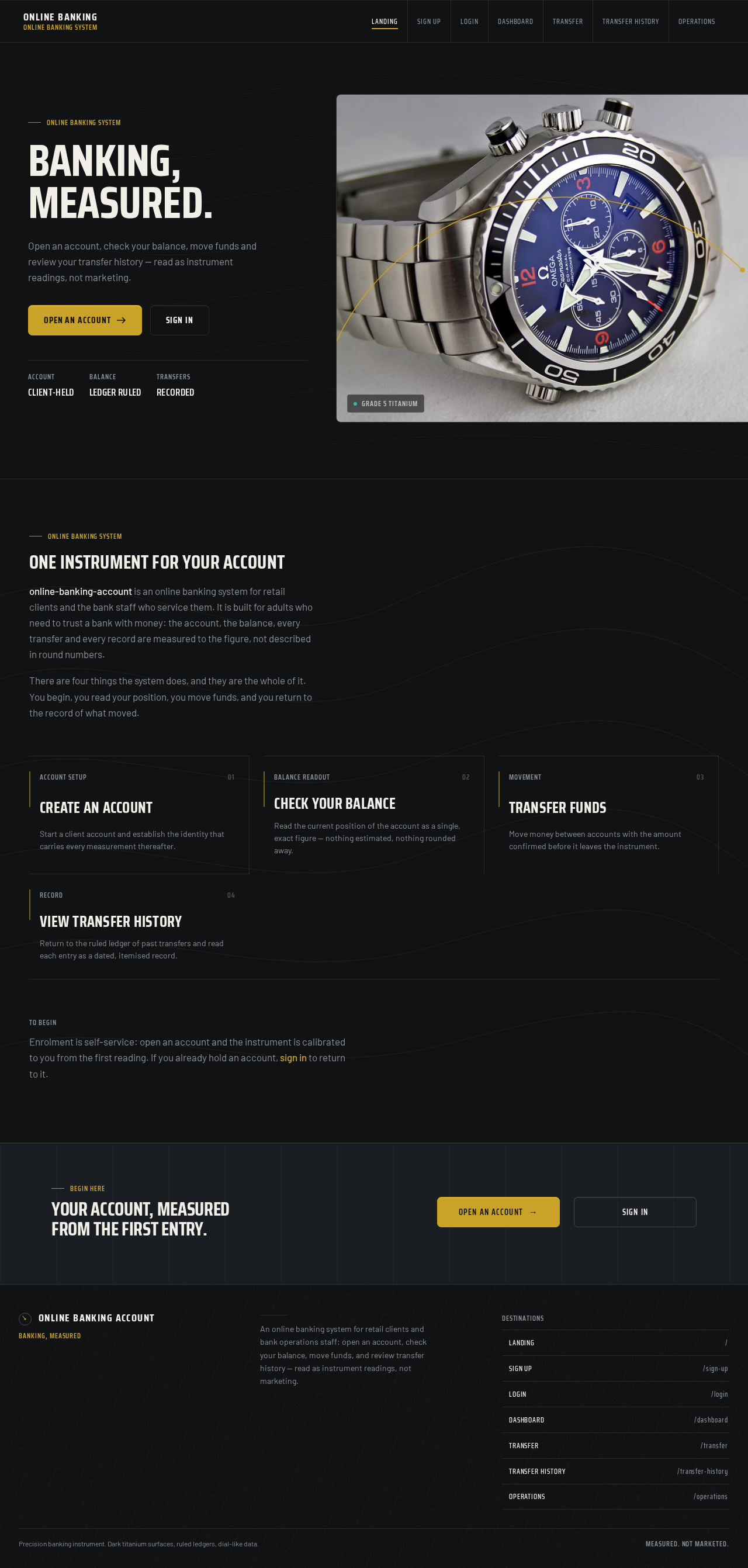
Online Banking System
Banking,Measured.
Open an account, check your balance, move funds and review your transfer history — read as instrument readings, not marketing.
AccountClient-held
BalanceLedger ruled
TransfersRecorded
 Grade 5 Titanium
One instrument for your account
online-banking-account is an online banking system for retail clients and the bank staff who service them. It is built for adults who need to trust a bank with money: the account, the balance, every transfer and every record are measured to the figure, not described in round numbers.
There are four things the system does, and they are the whole of it. You begin, you read your position, you move funds, and you return to the record of what moved.
To begin
Enrolment is self-service: open an account and the instrument is calibrated to you from the first reading. If you already hold an account, sign in to return to it.
Begin here
Your account, measured from the first entry.
Online Banking System
Banking,Measured.
Open an account, check your balance, move funds and review your transfer history — read as instrument readings, not marketing.
AccountClient-held
BalanceLedger ruled
TransfersRecorded
Grade 5 TitaniumOne instrument for your account
online-banking-account is an online banking system for retail clients and the bank staff who service them. It is built for adults who need to trust a bank with money: the account, the balance, every transfer and every record are measured to the figure, not described in round numbers.
There are four things the system does, and they are the whole of it. You begin, you read your position, you move funds, and you return to the record of what moved.
To begin
Enrolment is self-service: open an account and the instrument is calibrated to you from the first reading. If you already hold an account, sign in to return to it.
Begin here
No comments yet. Be the first!