omega-tool
 khushbu sharma
Create a slapmac kind tool for windows
Comments (0)
Sign in to leave a comment
System Requirements
System Requirements Document (SRD)
Omega-Tool
1. Introduction
The Omega-Tool is a productivity application inspired by SlapMac, designed specifically for the Windows operating system. Developed with the goal of enhancing efficiency and streamlining workflows, Omega-Tool empowers users to perform repetitive tasks, manage files, launch applications, and execute system tweaks with ease. This tool is tailored for both casual users and power users, offering customizable workflows, integrations with third-party applications, and a user-friendly interface.
This document outlines the system requirements for Omega-Tool, ensuring a clear understanding of its functionality, design, and technical specifications.
2. System Overview
Omega-Tool is a Windows-based productivity tool that leverages keyboard shortcuts, customizable workflows, and third-party integrations to simplify daily tasks. It is designed to:
- Enhance productivity by reducing repetitive actions.
- Provide a seamless user experience through an intuitive GUI.
- Cater to power users with advanced customization options.
- Integrate with popular third-party applications like Slack, Notion, and others.
The tool will support both novice and advanced users, ensuring accessibility while offering depth for those who require it.
3. Functional Requirements
As a User:
- I should be able to create and assign keyboard shortcuts for specific actions.
- I should be able to launch applications using a customizable shortcut.
- I should be able to manage files (copy, move, delete) using predefined workflows.
- I should be able to integrate with third-party apps like Slack and Notion.
- I should be able to create custom workflows for repetitive tasks.
- I should be able to access a simple GUI for managing shortcuts and workflows.
- I should be able to toggle between light and dark modes for the interface.
As an Admin:
- I should be able to manage user permissions for accessing advanced features.
- I should be able to monitor usage statistics for the tool.
4. User Personas
1. Casual User
- Description: A user who wants to simplify daily tasks without delving into advanced customization.
- Needs: Easy-to-use GUI, predefined shortcuts, and workflows.
2. Power User
- Description: A tech-savvy user who wants to create custom workflows and scripts.
- Needs: Advanced customization options, script editor, and third-party integrations.
3. Admin
- Description: A user responsible for managing tool access and monitoring usage.
- Needs: Permission management, usage analytics, and system settings.
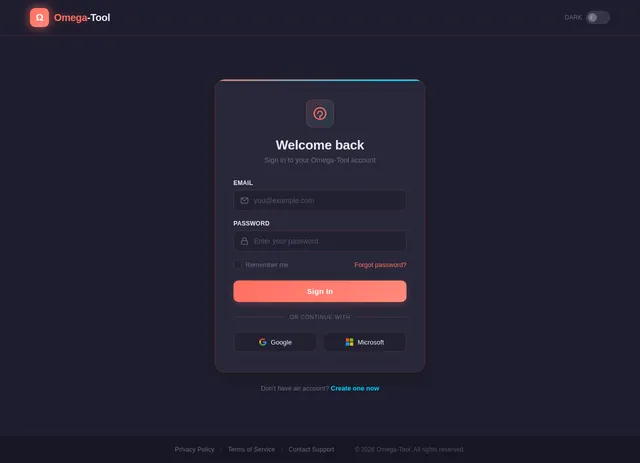
5. Visuals Colors and Theme
Unique Color Palette for Omega-Tool:
- Background:
#1E1E2F(Deep Midnight Blue) - Surface:
#2A2A3C(Charcoal Gray) - Text:
#E8E8F2(Soft White) - Accent:
#FF6F61(Vibrant Coral) - Muted:
#6C6C80(Muted Slate)
This palette is designed to provide a modern, professional look while ensuring readability and reducing eye strain.
6. Signature Design Concept
The Omega-Tool homepage will feature an interactive dashboard designed to captivate users immediately.
Key Features:
- Dynamic Shortcut Map: A central, animated map of keyboard shortcuts that lights up as users hover over different sections. Each shortcut is represented by a glowing key that expands to show its function when clicked.
- Workflow Carousel: A rotating 3D carousel showcasing sample workflows (e.g., file management, app launching). Users can click on a workflow to see a live demo.
- Dark/Light Mode Toggle: A prominent toggle switch in the top-right corner that smoothly transitions the interface between dark and light themes with a fade animation.
- Micro-Interactions: Buttons and icons will have subtle hover effects, such as glowing edges or slight scaling, to enhance interactivity.
This design ensures that the first impression is both visually stunning and functionally informative, encouraging users to explore the tool's capabilities.
7. Non-Functional Requirements
- Performance: The tool must execute shortcuts and workflows with a response time of less than 100ms.
- Scalability: The system should support up to 10,000 users simultaneously.
- Security: All user data must be encrypted using AES-256.
- Usability: The GUI must be intuitive and accessible, adhering to WCAG 2.1 standards.
- Compatibility: The tool must be compatible with Windows 10 and above.
8. Tech Stack
Frontend:
- React for Web
Backend:
- Python
- FastAPI
Database:
- MySQL (with Alembic for migrations)
AI Models:
- GPT 5.4 for user-friendly responses
AI Tools:
- Langchain
Orchestration:
- Docker
- Kubernetes
9. Assumptions and Constraints
Assumptions:
- Users will have basic knowledge of keyboard shortcuts and Windows navigation.
- The tool will primarily be used in English, with potential for localization in the future.
- Users will have administrative privileges to install the tool on their systems.
Constraints:
- The tool must operate within the Windows environment and will not support other operating systems.
- Integration with third-party apps will depend on the availability of their APIs.
10. Glossary
- GUI: Graphical User Interface.
- Shortcut Map: A visual representation of keyboard shortcuts.
- Workflow: A sequence of actions automated by the tool.
- AES-256: Advanced Encryption Standard with a 256-bit key, used for data encryption.
- WCAG 2.1: Web Content Accessibility Guidelines, version 2.1.
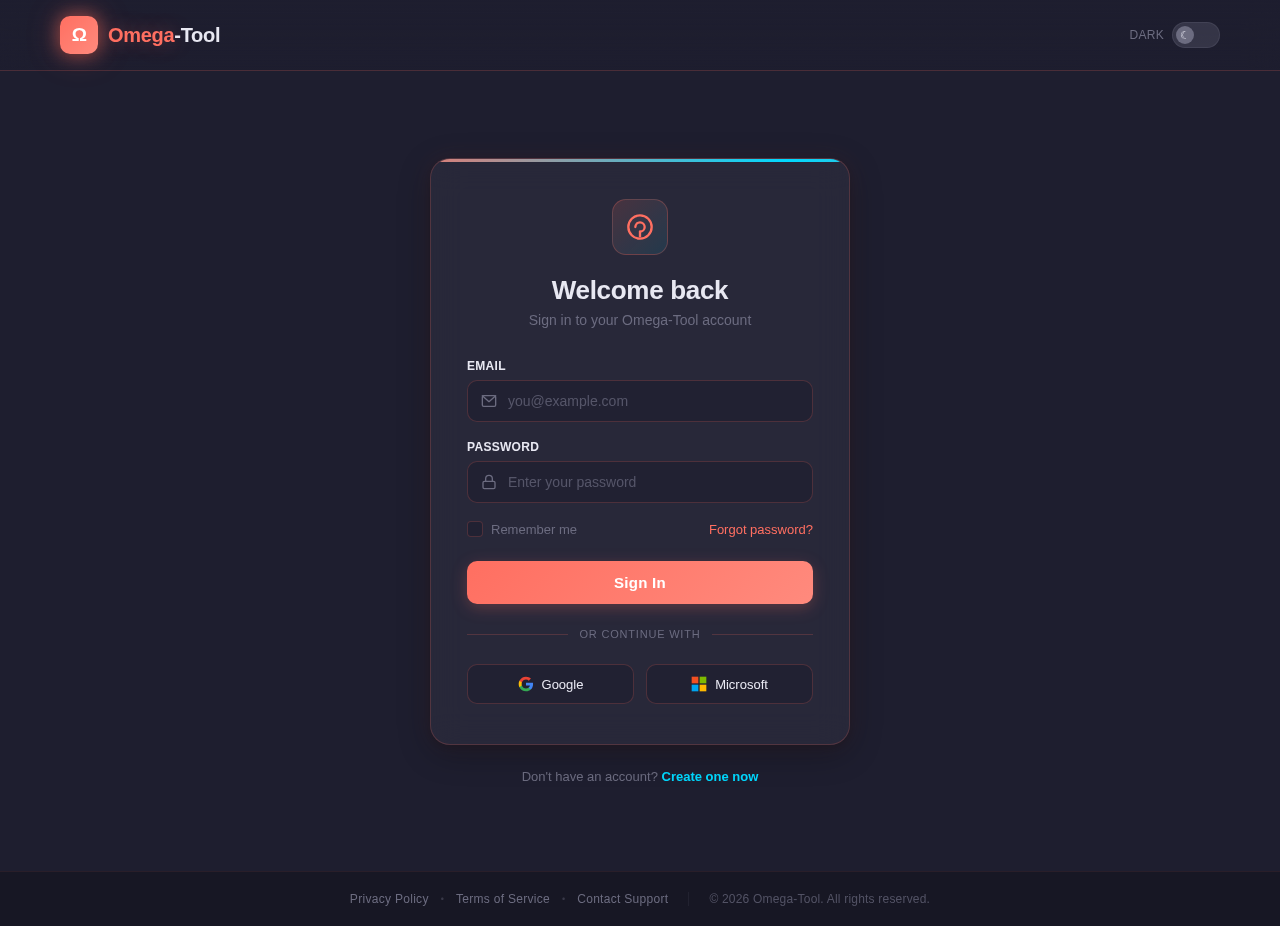
Welcome back
Sign in to your Omega-Tool account
Don't have an account? Create one now
No comments yet. Be the first!