Lahore
The dashboard caught a string drop-off before my monthly bill did. A verified technician arrived with the replacement part already in hand.
Residential homeownerRooftop array
 Farhan Lashari
these are the full instructions of the project . let build this


Sign in to leave a comment
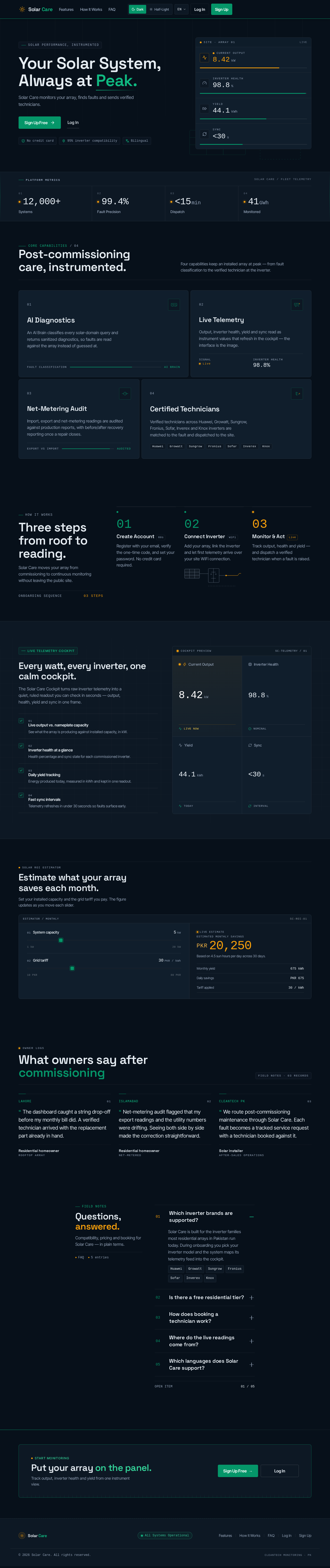
Solar Care monitors your array, finds faults and sends verified technicians.
Core Capabilities/ 04
Four capabilities keep an installed array at peak — from fault classification to the verified technician at the inverter.
An AI Brain classifies every solar-domain query and returns sanitized diagnostics, so faults are read against the array instead of guessed at.
Output, inverter health, yield and sync read as instrument values that refresh in the cockpit — the interface is the image.
Import, export and net-metering readings are audited against production reports, with before/after recovery reporting once a repair closes.
Verified technicians across Huawei, Growatt, Sungrow, Fronius, Sofar, Inverex and Knox inverters are matched to the fault and dispatched to the site.
Solar Care moves your array from commissioning to continuous monitoring without leaving the public site.
Register with your email, verify the one-time code, and set your password. No credit card required.
Add your array, link the inverter and let first telemetry arrive over your site WiFi connection.
Track output, health and yield — and dispatch a verified technician when a fault is raised.
The Solar Care Cockpit turns raw inverter telemetry into a quiet, ruled readout you can check in seconds — output, health, yield and sync in one frame.
See what the array is producing against installed capacity, in kW.
Health percentage and sync state for each commissioned inverter.
Energy produced today, measured in kWh and kept in one readout.
Telemetry refreshes in under 30 seconds so faults surface early.
Set your installed capacity and the grid tariff you pay. The figure updates as you move each slider.
Owner Logs
The dashboard caught a string drop-off before my monthly bill did. A verified technician arrived with the replacement part already in hand.
Net-metering audit flagged that my export readings and the utility numbers were drifting. Seeing both side by side made the correction straightforward.
We route post-commissioning maintenance through Solar Care. Each fault becomes a tracked service request with a technician booked against it.
Compatibility, pricing and booking for Solar Care — in plain terms.
Solar Care is built for the inverter families most residential arrays in Pakistan run today. During onboarding you pick your inverter model and the system maps its telemetry feed into the cockpit.
Yes. Homeowners start on a free residential tier for monitoring a single array, viewing live output and health, and receiving fault alerts in the cockpit.
When a fault is flagged, open the technician directory from your cockpit, compare verified specialists by service area and inverter support, and book a visit. The request then moves through a tracked milestone timeline.
Readings are pulled from your inverter feed and shown as Current Output, Inverter Health, Yield and Sync latency in the cockpit telemetry tiles.
The interface is bilingual: English, native Urdu in Nastaliq script with full right-to-left layout, and Roman Urdu. Switch languages from the header at any time.
No comments yet. Be the first!