omega-calculator

byDiya Trivedi

build a simple singe page design of calculator

Calculator
Calculator

Comments (0)

No comments yet. Be the first!

System Requirements

System Requirements Document for omega-calculator

1. Introduction

omega-calculator is a simple calculator delivered as a single-page design. The product intent is a single-purpose everyday utility: a person opens one page, performs arithmetic by entering numbers and operators, reads the displayed result, and clears or corrects the calculation — with no navigation, onboarding, or secondary surfaces competing with the instrument.

The audience is any anonymous visitor who needs immediate, accurate arithmetic. There is no account, no saved history, and no multi-page application around the calculator; the calculator page is the entire product.

Page 1 of 16

2. System Overview

omega-calculator is a single-page web calculator. The one page, Calculator, is the anonymous public entry and owns all accepted behavior: number and operator entry, expression and result display, and clearing the calculation. A single active human persona, Calculator User, performs all work on that page.

The frontend is a React application rendering the Calculator page. A shared FastAPI backend and a MariaDB database are provisioned infrastructure; the accepted calculator behavior is a self-contained client-side computation on the single page, so no product API, domain entity, or persistence is required by the accepted requirements. The backend and database remain available as the shared application foundation but carry no calculator-specific endpoints or stored data in the current scope.

Removed from scope

  • Multi-page navigation or additional application pages (the calculator is a single page)
  • User accounts, sign-in, or saved calculation history
  • Scientific, programmer, or unit-conversion calculator modes
Page 2 of 16

2a. Product Interpretation and Delivery Boundary

The product is one anonymous, publicly reachable page. A visitor lands directly on the Calculator and can immediately use it — no identity establishment, no gating, and no protected state. Because no calculation state must persist across sessions or be privately owned, the product deliberately has no application identity, no session continuity, and no differentiated permissions.

Everything the Calculator User does — entering operands and operators, reading the expression strip and result, clearing — happens on the single page. The provisioned backend and database are delivery infrastructure only; they do not introduce product behavior, stored records, or additional surfaces. There is no future-horizon functionality in the accepted requirements; the current scope is the complete product.

2c. Page Content and Component Coverage

Page 3 of 16

Calculator

Information and state

  • Current result value, right-aligned, rendered in tabular monospace numerals that scale to stay fully readable.
  • Current expression strip beneath the result, in uppercase operator notation (for example 624 × 2 =), preserving the in-progress calculation.
  • Active operator state, highlighted in orange while an operator is pending.
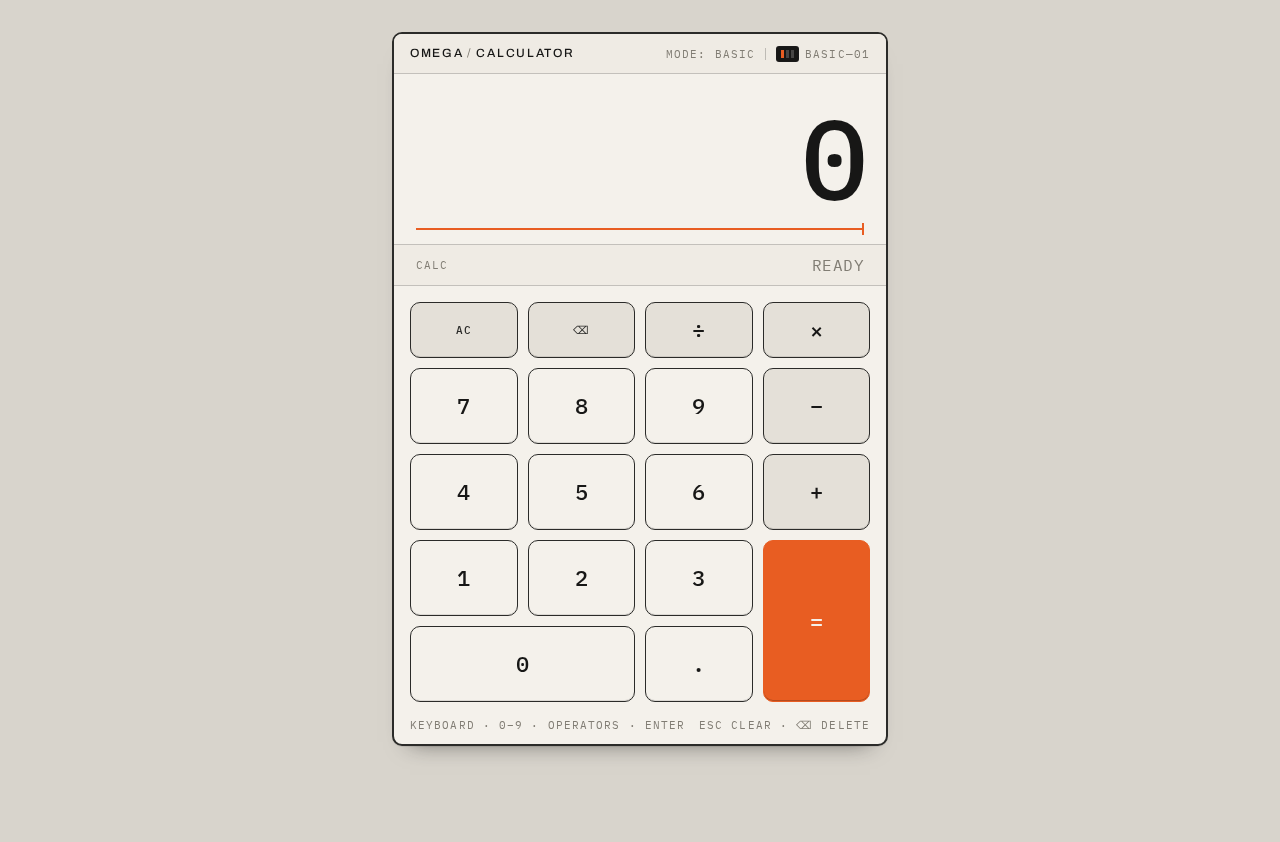
  • Top instrument rail: OMEGA / CALCULATOR wordmark at left, MODE: BASIC / BASIC—01 label at right, and a small live status indicator, separated by a hairline rule continuing into the display frame.
  • No loading state is required (computation is immediate and local); no empty-data state beyond the initial display showing 0.

Primary actions

  • Enter digits 0–9 and a decimal point to build the current operand.
  • Select operators +, −, ×, ÷ to set the pending operation; the selected operator shows the orange active state.
  • Press = (the orange signal key at bottom-right) to evaluate and display the result.
  • Press clear (AC/C) to reset the calculation to 0.
  • Press delete/backspace to remove the last entered digit.

Supporting actions and controls

  • Keyboard input mirrors the on-screen keys (digits, operators, Enter/= to evaluate, Escape/C to clear, Backspace to delete).
  • Keys depress 2px on pointer or keyboard activation as mechanical feedback.
Page 4 of 16

Domain entities

  • Calculation expression (operands, operators, pending operator) and result value — held in page state only; nothing is persisted.

Component responsibilities

  • Instrument housing: off-white surface on warm grey workbench, 2px dark outline, square display corners, 10px key radii, rigid 4-column × 5-row key matrix with fine gutters.
  • Display: oversized right-aligned tabular result with a thin orange calculation cursor/rule beneath; automatic scaling or horizontal-safe handling so the value never clips.
  • Expression strip: ruled, full-width, uppercase operator notation.
  • Key matrix: dark plain numeral keys, subtly warm-grey function keys, compact utility keys (clear, delete) in the upper row, and the orange equals key spanning two standard key heights at bottom-right.

States

  • Success: result updates instantly on =; expression strip reflects the completed calculation.
  • Error/recovery: invalid input sequences (for example a second operator replacing a pending one, or division by zero) are handled on the page — a pending operator is replaced rather than duplicated, and an undefined result is shown in the display with the ability to clear and continue.
  • Reduced motion: no transitions beyond immediate state changes; the orange active-operator transition (140ms) is suppressed.
Page 5 of 16

3. Functional Requirements

FR-1 — Single-page calculator delivery (explicit) As a Calculator User, I should reach the entire calculator on one page, so that I can perform arithmetic without navigation or onboarding.

  • Trigger: opening the product.
  • Observable result: the Calculator page renders as the sole surface, with display, expression strip, and full key matrix visible.
  • Access: anonymous public entry; no identity required.
  • Failure/recovery: if the page fails to render, reloading restores the same single-page calculator; there is no alternate route.
  • Continuation: the user proceeds directly to entry.

FR-2 — Number and decimal entry (explicit) As a Calculator User, I should enter digits and a decimal point, so that I can build the operand I want to calculate.

  • Trigger: pressing digit keys 0–9 or the decimal key, by pointer or keyboard.
  • Observable result: the entered digits appear in the display, right-aligned, fully readable.
  • Failure/recovery: a second decimal point in the same operand is ignored; leading zeros are normalized.
  • Continuation: the user may continue entering digits or select an operator.
Page 6 of 16

FR-3 — Operator selection with active state (explicit) As a Calculator User, I should select an arithmetic operator and see it acknowledged, so that I know which operation is pending.

  • Trigger: pressing +, −, ×, or ÷.
  • Observable result: the chosen operator is recorded in the expression strip and shown with the orange active state (140ms transition).
  • Failure/recovery: selecting a different operator before entering the next operand replaces the pending operator rather than stacking operations.
  • Continuation: the user enters the next operand.

FR-4 — Evaluate and display result (explicit) As a Calculator User, I should press equals and see the computed result, so that I get the answer to my calculation.

  • Trigger: pressing the orange = key (or Enter).
  • Observable result: the result appears instantly in the display, right-aligned in tabular numerals; the expression strip shows the completed calculation (for example 624 × 2 =).
  • Failure/recovery: division by zero or an undefined operation shows an error indication in the display; the user can clear and continue.
  • Continuation: the user may chain a further operation on the result or clear.

FR-5 — Clear the calculation (explicit) As a Calculator User, I should clear the current calculation, so that I can start fresh.

  • Trigger: pressing the clear utility key (or Escape).
  • Observable result: the display resets to 0 and the expression strip empties.
  • Failure/recovery: clearing from any state, including an error state, returns to a usable 0 display.
  • Continuation: the user begins a new calculation.
Page 7 of 16

FR-6 — Delete last digit (explicit) As a Calculator User, I should remove the last entered digit, so that I can correct a mistyped operand without clearing everything.

  • Trigger: pressing the delete/backspace utility key (or Backspace).
  • Observable result: the last digit is removed from the current operand; if the operand becomes empty, the display shows 0.
  • Failure/recovery: delete on an empty operand leaves 0 unchanged.
  • Continuation: the user continues entry.

FR-7 — Keyboard parity and mechanical feedback (explicit) As a Calculator User, I should use the keyboard and feel key activation, so that the instrument responds like a physical tool.

  • Trigger: keyboard input or pointer press on any key.
  • Observable result: the corresponding action executes and the key depresses 2px; with prefers-reduced-motion, state changes are immediate with no transition.
  • Failure/recovery: unrecognized keys are ignored without altering state.
  • Continuation: the user continues the calculation.

4. User Personas

Page 8 of 16

Calculator User

Product context. An anonymous visitor who opens omega-calculator to do everyday arithmetic — a quick sum, a multiplication, a division — and expects the answer immediately on a single, uncluttered screen. They arrive with no account and no prior state; the calculator is a self-contained instrument.

Primary goal. Get an accurate arithmetic result from a simple, self-contained calculator screen with minimal effort.

Distinct accepted responsibilities. Entering numbers and a decimal point; selecting operators and seeing which is pending; pressing equals to evaluate; reading the right-aligned result and the expression strip; clearing the calculation to start over; deleting a mistyped digit; and using the keyboard as an alternative to the on-screen keys.

Relevant inputs and decisions. Which operands and operator to enter, when to evaluate, and whether to correct (delete) or reset (clear). The user decides when a calculation is complete and whether to chain another operation.

Interactions with other participants. None — the Calculator User is the sole active human actor; there is no counterparty, recipient, or approver. Computation is local to the page.

Observable success. The display shows the correct result, the expression strip reflects the calculation, and the user can clear and continue without friction. Failure is visible as an error indication (for example division by zero) that the user can clear.

5. Core User Flows

Page 9 of 16

Flow A — Perform a basic calculation

  1. The Calculator User opens the product and lands directly on the Calculator page (anonymous, no sign-in).
  2. The display shows 0; the expression strip is empty; the key matrix is fully visible.
  3. The user presses digit keys to enter the first operand (for example 6, 2, 4); the digits appear right-aligned in the display.
  4. The user presses an operator (for example ×); the operator appears in the expression strip and shows the orange active state.
  5. The user enters the second operand (2); it appears in the display.
  6. The user presses the orange = key; the result appears instantly in the display and the expression strip reads 624 × 2 =.
  7. Continuation: the user may chain another operator on the result or press clear to start a new calculation.

Flow B — Correct a mistyped entry

  1. On the Calculator page, the user has entered an operand and notices a wrong digit.
  2. The user presses the delete/backspace utility key; the last digit is removed from the display.
  3. The user re-enters the correct digit and continues the calculation.
  4. Recovery: if the operand becomes empty, the display shows 0 and the user can re-enter from scratch.
Page 10 of 16

Flow C — Clear and start over

  1. On the Calculator page, the user has a completed or in-progress calculation.
  2. The user presses the clear utility key (or Escape).
  3. The display resets to 0 and the expression strip empties.
  4. The user begins a new calculation.

Flow D — Encounter and recover from an undefined result

  1. The user enters a division by zero (for example 8 ÷ 0) and presses =.
  2. The display shows an error indication instead of a numeric result.
  3. The user presses clear; the display returns to 0.
  4. The user proceeds with a valid calculation.

Flow E — Keyboard-driven calculation

  1. On the Calculator page, the user types digits and operators on the keyboard.
  2. The corresponding keys depress 2px as feedback and the display updates.
  3. The user presses Enter to evaluate and reads the result.
  4. Reduced motion: with prefers-reduced-motion, all state changes are immediate with no transitions.
Page 11 of 16

6. Visuals Colors and Theme

Muse and headline. Dieter Rams — Functional clarity for everyday arithmetic. A single-purpose instrument: calm, dependable, tactile, decisively functional.

Mode. Light mode only.

Colour tokens (exact hex by role)

  • Background (workbench): #D8D4CC
  • Surface (calculator housing): #F4F1EB
  • Text (numerals, key labels, rules): #171716
  • Primary (structural dark): #2B2B29
  • Accent (equals key, active operator, calculation cursor): #E85D22 — under 8% of screen
  • Muted (secondary labels, function keys): #817D74

Typography

  • Headings/wordmark: Archivo Medium, compact uppercase (OMEGA CALCULATOR).
  • Display numerals: IBM Plex Mono, tabular figures, tight tracking, right-aligned.
  • Body/labels: IBM Plex Mono.
  • Type scale: display clamp(52px, 13vw, 112px) (52px mobile minimum); expression 16/20px; key labels 20/24px; utility labels 11/14px uppercase. All labels wrap or reduce within their controls at 375px.

Shape language. Rigid 4-column key matrix inside a softly rounded, powder-coated instrument housing; 2px dark outlines, 1px hairline dividers, 10px key radii, square display corners. Every control has a physical boundary — no floating pills, glass, or decorative blobs.

Page 12 of 16

Layout. Centred vertical instrument composition: 560px-wide calculator slightly above centre at 1280px; 520px wide with 32px side margins at 768px; full available width with 16px margins at 375px. Slim top rail (wordmark, MODE: BASIC, live status dot), display occupying the top third, one ruled expression strip, then the exact 4×5 key matrix.

Imagery. No photography or decorative illustration; the calculator is the sole visual subject, supported by a tiny seven-segment-inspired status indicator and precise rule lines.

7. Signature Design Concept

The first and only screen is a large physical-instrument calculator, not a SaaS hero. On the warm grey workbench (#D8D4CC), the off-white housing (#F4F1EB) fills roughly 88% of the mobile viewport width and 560px at desktop. Its dominant element is an oversized right-aligned tabular result in near-black across the display, with a thin orange calculation cursor/rule beneath. A narrow ruled calculation strip directly below preserves the current expression in uppercase operator notation (624 × 2 =), like a label on laboratory equipment. The orange equals key anchors the bottom-right corner of the otherwise charcoal, stone, and off-white key matrix, spanning two standard key heights, while clear and delete appear as compact utility keys in the upper row. A top instrument rail reads OMEGA / CALCULATOR at left and BASIC—01 at right, separated by a hairline rule that continues into the display frame. There is no promotional headline, CTA, gradient, or secondary card competing with the tool.

Page 13 of 16

8. Interaction Model & Motion Direction

Interaction Model: Static Motion Tempo: restrained Hero Dimensionality: flat

Landing Hero Motion Brief

  • Focal subject: the calculator housing and its oversized right-aligned tabular result with the orange equals key at bottom-right.
  • Input → transformation → outcome thesis: a key press depresses the key 2px and instantly updates the display value; selecting an operator transitions the active operator to orange over 140ms; pressing equals instantly replaces the display with the computed result and completes the expression strip.
  • Motion vocabulary: restrained mechanical feedback only — 2px key depression, instant display change, 140ms orange active-operator transition.
  • Composed first frame: warm grey workbench, centred off-white instrument, display showing 0 (or a representative value such as 1,248.00), empty expression strip, full key matrix with the orange equals key anchoring the bottom-right.
  • Reduced-motion state: prefers-reduced-motion removes all transitions; state changes are immediate and the layout is fully usable.
Page 14 of 16

9. Non-Functional Requirements

  • Single-page constraint (explicit): the calculator must be delivered as exactly one page; no additional routes or navigation.
  • Readability at every viewport (explicit): at 375px, 768px, and 1280px, all readable text and controls stay entirely inside the viewport and their container, wrapping or scaling (for example clamp(...) with its mobile minimum); no element covers any part of them. The display value scales or handles overflow safely so it never clips.
  • Accessibility of motion (explicit): respect prefers-reduced-motion with no transitions beyond immediate state changes.
  • Contrast and legibility (required_inference): numerals, labels, and controls maintain legible contrast against their surfaces; no tiny low-contrast labels.
  • Immediate computation (required_inference): arithmetic evaluates locally and instantly on the page; no network round-trip is required for a result.
  • Responsive layout (explicit): the instrument composition follows the specified widths and margins at 1280px, 768px, and 375px.

10. Tech Stack

  • Frontend: React application rendering the single Calculator page.
  • Backend: shared FastAPI process (provisioned infrastructure; no calculator-specific endpoints required by current scope).
  • Database: MariaDB (provisioned infrastructure; no calculator data persisted in current scope).
  • Containerization: Docker / docker-compose for the frontend, backend, and database services.
Page 15 of 16

11. Assumptions and Constraints

  • Assumption (required_inference): the calculator performs standard four-function arithmetic (+, −, ×, ÷) with decimal support; no scientific functions are in scope.
  • Assumption (required_inference): calculation state is held in page memory only and is not persisted; refreshing resets to 0.
  • Constraint (explicit): the product is a single page; no additional pages, navigation, or account surfaces.
  • Constraint (explicit): the visual direction (palette, Archivo/IBM Plex Mono typography, instrument layout, restrained motion) is authoritative; the generic indigo/blue-on-white SaaS template is forbidden.
  • Constraint (explicit): the orange accent occupies less than 8% of the screen and is reserved for equals, active operator state, and the calculation cursor.

12. Glossary

  • Calculator page: the single, anonymous public surface that is the entire product.
  • Expression strip: the ruled line beneath the display showing the current calculation in uppercase operator notation.
  • Active operator: the currently selected arithmetic operator, highlighted in orange while pending.
  • Instrument housing: the off-white calculator body containing the display and key matrix.
  • Key matrix: the rigid 4-column × 5-row grid of calculator keys.
  • Tabular numerals: monospaced figures of equal width used in the display for stable alignment.
Page 16 of 16
Live
Calculator design preview
Calculator: Open calculator page
Calculator: 1. Enter first operand
Calculator: 2. Select operator
Calculator: 3. Enter second operand
Calculator: 4. Press equals
Calculator: 5. Read result and expression
Calculator: 6. Chain another operation
Calculator: 7. Delete mistyped digit
Calculator: 8. Re-enter correct digit
Calculator: 9. Clear calculation
Calculator: 10. Start new calculation
Calculator: 11. Press equals on division by zero
Calculator: 12. Read error indication
Calculator: 13. Clear error state
Calculator: Type digits via keyboard
Calculator: Press Enter to evaluate
Calculator: Read keyboard result
Live
Calculator design preview
Calculator: Open calculator page
Calculator: 1. Enter first operand
Calculator: 2. Select operator
Calculator: 3. Enter second operand
Calculator: 4. Press equals
Calculator: 5. Read result and expression
Calculator: 6. Chain another operation
Calculator: 7. Delete mistyped digit
Calculator: 8. Re-enter correct digit
Calculator: 9. Clear calculation
Calculator: 10. Start new calculation
Calculator: 11. Press equals on division by zero
Calculator: 12. Read error indication
Calculator: 13. Clear error state
Calculator: Type digits via keyboard
Calculator: Press Enter to evaluate
Calculator: Read keyboard result