₦50,000
Minimum monthly partnership
Entry-level monthly partnership supporting the mission's ongoing ministry work.
- Monthly partnership welcome
- Partner dashboard access
- Monthly giving summary
 ariyibi ayo
using the md file build the website for my documentation project.


Sign in to leave a comment
The user requested building the website for their documentation project using the md file and the provided HORIM-Partners-PRD.pdf attachment. The chosen project name is misty-documentation.
HORIM Partners — Product Requirements Document
Product: HORIM Partners (House of Revival International Mission Partners)
Organisation: House of Revival International Mission — Spreading the Light
Document type: Product Requirements Document (PRD) / functional specification
Status: Draft v1.1 (adds staff access, scoped admin views, messaging, automatic thank-yous, events and CMS)
1.1 Purpose
HORIM Partners is the official giving and partnership website of House of Revival International Mission. It lets anyone
1.2 Naming
Church: House of Revival International Mission
Website / platform: HORIM Partners (= House of Revival International Mission Partners)
Tagline: Spreading the Light
1.3 Goals
HORIM Partners — PRD v1.1 | Page 1 of 10
Hero section: mission statement and Spreading the Light tagline.
Leadership and contact information.
What HORIM Partners is and why it exists.
HORIM Partners — PRD v1.1 | Page 3 of 10
HORIM Partners — PRD v1.1 | Page 4 of 10
HORIM Partners — PRD v1.1 | Page 5 of 10
HORIM Partners — PRD v1.1 | Page 7 of 10
HORIM Partners — PRD v1.1 | Page 9 of 10
HORIM Partners — PRD v1.1 | Page 10 of 10
2.1 Top navigation (public site)
Menu item
Destination
Home
Landing page
About
About House of Revival International Mission
Projects
The church's current projects (three at launch)
3.1 Home page
A separate, secure area for House of Revival staff, reached from the Staff / Administrators button in the website footer.
My People
HORIM Partners — PRD v1.1 | Page 6 of 10
HORIM Partners — PRD v1.1 | Page 8 of 10
Entity
Key fields
User
id, name, email, phone, password hash, role, status, created_at
Partner
id, user_id, package, monthly_amount, start_date, status, payment_status (Paid / Pledged), date_of_birth, address, country,
contact_preferences, referral_code, referred_by_partner_id, assigned_admin_id
Package
id, name, minimum_amount, description, benefits, active
Donation /
Payment
id, partner_id (nullable), name, email, phone, amount, currency, type, project_id (nullable), method, status, reference,
created_at
Project
id, title, description, target_amount, amount_raised, status
Complaint
(ticket)
id, ticket_number, partner_id, category, subject, body, priority, status, assigned_to, attachment, created_at, updated_at
Complaint
message
id, complaint_id, sender_id, message, created_at
Notification
id, user_id, title, message, read, created_at
Staff
member
id, name, email, role (Super Admin / Admin / Support), status, last_login
Assignment
partner_or_donor_id, assigned_admin_id, assigned_at, assigned_by
Message
template
id, type (Follow-up, Thank you, Invitation, Advice, Others, Automatic thank-you), subject, body, updated_by
Message
log
id, recipient_id, sender_id (or system), type, channel, subject, body, status, sent_at
Follow-up
id, person_id, admin_id, due_date, note, done
Event
id, title, description, date_time, venue_or_link, audience, rsvp_deadline, published
Event
invitation
id, event_id, person_id, status (Invited / Confirmed / Declined / Attended)
Content
item (CMS)
id, type (project, about section, post, announcement, testimony), title, body, media, status (draft / scheduled / published),
author
Audit log
id, staff_id, action, record, timestamp
Bank
account
id, currency, bank_name, account_name, account_number, swift, sort_code, iban, active
Content
page
id, slug, title, body (About, announcements)
6 — Oversight
and content
donate quickly, lets supporters register as partners under a defined package, and gives every registered partner a
personal dashboard to track giving, get support, support church projects, and invite others. Staff manage everything
through an admin dashboard.
Donate
Quick donation page
Partnership
Packages and partner registration
Contact
Contact details and enquiry form
Partner Login
Sign in to the partner dashboard (highlighted button)
2.2 Footer
Quick links, contact details, social media, privacy policy, terms, "Powered securely by Paystack", and a discreet Staff /
Administrators button that leads to the staff login page (§5.1).
Two primary buttons, always prominent:
Donate Now → Donate page
Become a Partner → Partnership page
Short sections: who we are, what partnership achieves, featured projects, impact highlights, call to action.
3.2 About page
Content to include:
About House of Revival International Mission and its vision/mission ("Spreading the Light").
What the church does (ministry functions and outreach).
3.3 Donate page (one-time giving, no account)
Flow: Home → Donate Now → enter details → Paystack → thank-you.
Fields:
Full name (required)
Email (required)
Phone (optional)
Amount in NGN (required; quick-select chips plus custom amount)
Behaviour:
Donate Now opens Paystack Checkout; Paystack presents the available payment methods.
After payment: thank-you message, transaction reference, emailed receipt.
Optional: donor may choose a project to direct the gift to (see §3.5).
Optional Bank Transfer tab showing NGN / USD / GBP account details with a Copy Account Number button beside
each (details editable by admin).
3.4 Partnership page (Become a Partner)
Packages
There are four packages only. There is no "no package" or "choose later" package.
Package
Minimum monthly commitment
Bronze
₦50,000
Silver
₦150,000
Gold
₦500,000
Platinum
₦1,000,000 (and above)
Each package card shows: name, amount, short description, benefits, and a Select button. Platinum accepts amounts
above ₦1,000,000. Amounts and benefits are admin-configurable, not hard-coded.
Note: Silver is set at ₦150,000 per the latest instruction (an earlier draft used ₦250,000).
Registration
After selecting a package the partner completes a short form:
HORIM Partners — PRD v1.1 | Page 2 of 10
Field
Required
Full name
Yes
Yes
Phone / WhatsApp number
Yes (needed for calls, WhatsApp, SMS)
Address
Yes
Date of birth
Yes
Country
Yes
Preferred way to be contacted
Yes (one or more: WhatsApp, Email, Phone call, SMS/Text, Postal mail)
Password (to create account)
Yes
Referral code
Auto-filled if they arrived through a referral link
Payment choice (end of registration)
Two buttons:
Pay Now → Paystack Checkout for the first contribution.
Pay Later → registration completes immediately without payment.
Paying is not required at registration. A partner who chooses Pay Later:
Gets full dashboard access with status Pledged – Payment Pending.
Sees a Pay Now button on the dashboard at any time.
Receives gentle reminders (see §6).
4.1 Overview
Welcome, name, package, monthly commitment, partnership start date.
Status: Active / Pledged – Payment Pending / Inactive / Suspended.
Quick actions: Make a Payment, Support a Project, Get Help, Copy Referral Link.
4.2 Giving summary
Total contributed (all time).
Amount given per month (monthly breakdown chart/table).
Current monthly commitment, last payment, next expected payment.
Number of successful payments.
4.3 Payment history and receipts
Date, amount, project (if any), method, reference, status; downloadable/viewable receipts.
4.4 Support projects
Partners who prefer to give toward a cause can choose a project instead of (or in addition to) their monthly giving.
Three church projects at launch (names, descriptions, targets, progress to be supplied).
Each project card: image, description, funding progress, Support This Project button → Paystack with the project
recorded against the gift.
Admin can add, edit, or close projects.
4.5 Complaints and support
A Get Help section with four ready-made categories. Selecting one opens a message form with a pre-filled subject and
template body that the partner can edit before sending (except where noted).
Category
Subject (pre-filled)
Body
1
Transaction failure
"Transaction failure –
assistance needed"
Template: date, amount, reference, what happened — partner fills in
the blanks and may edit freely.
2
Assistance with
platform guidance
"Help using the HORIM
Partners platform"
Template: what the partner is trying to do and where they are stuck.
3
Inquiries
"General inquiry"
Template: partner's question and preferred response method.
4
Others
Partner-written
Blank — partner writes their own subject and message.
After submitting:
A unique ticket number is generated and a confirmation is shown.
The message is delivered to support (and a copy emailed to the partner).
The partner can track status: Open → Under Review → In Progress → Resolved → Closed, and view replies in a
conversation thread.
Optional attachment (e.g., payment screenshot).
Template wording is a starting point; the partner always sees and can tweak it before sending.
4.6 My Relationship Manager
Shows the staff member assigned to the partner (name, role, preferred contact channel, contact details/button) so the
partner can reach out for follow-up directly. If none is assigned yet, shows "A relationship manager will be assigned
shortly" and offers the Get Help option.
4.7 Referral link and My Partners
Every partner gets a unique referral link (and code) with Copy and Share (WhatsApp, email, etc.) buttons.
Anyone who registers through that link is placed under that partner in the network.
My Partners lists people referred by the partner: name, package, status, date joined. Other partners' financial details
are not shown unless an admin explicitly enables it.
A simple hierarchy view (Partner → their referrals).
Admins can also assign or reassign partners within the network.
4.8 Profile and preferences
Update personal details, contact preferences (WhatsApp, email, calls, text, postal mail), password, and change package.
4.9 Notifications
In-app (and email-ready) notices for: successful/failed payments, registration, package changes, complaint updates,
payment reminders, announcements.
5.1 Staff login (simple, no password to remember)
The footer button opens the Staff Login page.
Staff sign in with their email address only. The Super Admin pre-registers each staff email, so only approved staff
can enter.
Recommended mechanism: after entering their email, the staff member receives a one-time sign-in link or 6-
digit code by email. This keeps the experience password-free and lightweight while still proving the person owns the
email address.
A plain "type any email and enter" login is not recommended: anyone who guessed a staff email could see donor and
partner data. The one-time link/code avoids this without adding password management.
manager)
Only the donors and partners assigned to them, plus their own messages, follow-ups and events. Cannot
open anyone else's records.
Support
Complaints and enquiries only.
Every donor or partner record has an assigned admin. The Super Admin assigns and reassigns; an optional rule can
auto-assign new registrations (for example, by referral or round-robin).
Scope is enforced on the server, not just hidden in the screen.
5.3 Admin dashboard (after login)
Section
What the admin sees and does
My
Overview
Number of assigned partners/donors, total given by them this month, pending follow-ups, pledged-but-unpaid partners,
recent contributions, upcoming events.
Searchable, filterable list of everyone assigned (partners and donors): name, package, status, last contribution, last
contact, next follow-up.
Follow-ups
Tasks and reminders due; mark done; add notes.
Messages
History of messages sent and received.
Events
Upcoming events and invitation tracking (§5.7).
Complaints
Tickets from their assigned people (all tickets for Support and Super Admin).
5.4 Partner / donor profile
Clicking anyone in My People opens their profile:
Contact details, preferred contact method, date of birth, package, status, referral relationships.
Giving history (amounts, dates, projects, receipts) and total contributed.
Interaction history: every message sent, thank-yous, invitations, notes and follow-ups.
Complaint tickets.
Admin notes and next follow-up date.
On the profile, a Send Message drop-down (side placeholder) lets the admin contact the person with a ready-made
template.
5.5 Message actions and templates
Send Message drop-down options:
Option
Purpose
Subject / body
Follow-up
Check in, remind about a pledge, or
continue a conversation
Pre-filled subject and body
Thank you
Appreciate a donor or partner for
giving
Pre-filled subject and body
Invitation
Invite to an event, programme or
meeting
Pre-filled subject and body (event picker fills in details)
Advice /
Encouragement
Share guidance, a word of
encouragement, or helpful
information
Pre-filled subject and body
Others
Any other message
Editable subject that the admin types, plus an editable body that starts with
a short greeting and sign-off (so it is not a blank page)
How it works:
event details).
prepared message or log entry; postal mail logged for the office).
Template management: Super Admin maintains the default templates (with placeholders such as {first_name} ,
{package} , {amount} , {event_name} , {admin_name} ); individual admins can edit the wording each time before sending.
5.6 Super Admin oversight and outreach
The Super Admin can see what every admin is doing and reach out in two directions.
To admins (staff accountability):
Send reminders and motivation messages to one admin, a group, or all admins (for example, "follow-ups due", "thank
your donors this week").
View per-admin activity: assigned people, follow-ups completed vs overdue, messages sent, contributions from their
portfolio.
Reassign people between admins.
To donors and partners (organisation-wide outreach):
Send announcements and event invitations to a segment: everyone, by package, by status (for example Pledged –
Payment Pending), by project supporters, or by assigned admin.
Use the same template system, with preview and edit before sending.
Optionally publish selected events on the public site.
5.8 Content Management System (CMS) — Super Admin
The Super Admin can manage site content without code:
Projects: add, edit, close, set targets, images, descriptions; new projects appear on the Projects page and in partner
dashboards.
About page: edit sections; add activities, news and posts.
Announcements, testimonies and impact stories.
Media library: upload and reuse images.
Publishing control: draft, scheduled and published states.
5.9 Administration and settings
Section
Capabilities
Overview (Super
Admin)
Total partners (active / pending / inactive), total donations, monthly recurring commitments, pledged-but-unpaid
amount, open complaints, new partners, recent donations, trend charts.
Donations
View and filter by date, amount, status, type (One-time, Partnership, Project, Bank Transfer) and currency; CSV
export; record manual bank-transfer receipts.
Partners and
donors
Search, filter, approve, suspend, deactivate, change package, assign admin, manage the referral network.
Packages
Edit package amounts, descriptions, benefits and status without code changes.
Bank details
Edit NGN / USD / GBP account details; changes appear instantly on the Donate page.
Complaints
View, search, filter by status and category; assign; reply; change status; internal notes; history.
Pay-later follow-
up
Pledged partners with an unpaid first contribution, with reminder actions.
Automatic
message
settings
Edit the automatic thank-you message (§6.1).
Staff and roles
Add or remove staff emails, set roles.
6.1 Automatic thank-you message
Every time anyone contributes (one-time donor, partner payment, project gift, confirmed bank transfer) the system
automatically sends a thank-you message appreciating them for supporting the ministry.
Delivery follows the contributor's details and preferences: email (always, where an email exists) and WhatsApp or
SMS to the phone number provided.
The message is personalised (name, amount, project) and includes the receipt reference.
Admins can edit the thank-you wording from their settings; changes apply to future messages. Donors and
partners simply receive the automated message on their devices and cannot edit it.
Failed deliveries are logged and visible to staff.
6.2 Other notifications
Payment success / failure confirmations (with receipt).
Welcome message after registration.
Pay-later reminders for pledged partners (e.g., 3, 7 and 14 days after registration), sent through the partner's
preferred contact method where available.
Monthly payment reminders for active partners.
Complaint status updates.
Admin announcements.
Quick donation
Home → Donate Now → name, email, amount → Paystack → thank-you + reference
Bank transfer
Home → Donate → Bank Transfer → copy account number
Become a partner (pay now)
Home → Become a Partner → choose package → register → Pay Now → dashboard
Become a partner (pay later)
Home → Become a Partner → choose package → register → Pay Later → dashboard
Referral signup
Friend opens referral link → Partnership page → registers → appears under the referrer
Get help
Dashboard → Get Help → pick category → edit template → send → ticket number
Support a project
Dashboard (or Projects page) → pick project → amount → Paystack
Staff sign-in
Footer → Staff / Administrators → enter email → one-time link/code → admin dashboard
Paystack powers all online payments; Paystack presents the available methods.
Payment confirmation relies on server-side verification and verified webhooks, never on the browser's success
message alone.
Duplicate transactions are prevented (idempotent processing by reference).
Recurring monthly giving uses Paystack Plans/Subscriptions where supported.
Partner passwords are hashed. Staff sign in with email plus a one-time link or code (§5.1); admin and partner routes
are protected.
Role-based access and data-scope rules (admins see only their assigned people) are enforced on the server.
Staff actions (logins, views of sensitive records, messages sent, reassignments) are written to an audit log.
Make it easy to give: minimal clicks, minimal forms, Donate always visible.
Support projects, complaints with templates, relationship manager, notifications and reminders
4 — Growth
Referral links and My Partners network
5 — Staff tools
Staff login (email + one-time link), admin dashboard with assigned-people scope, profile view, message drop-down
and templates, follow-ups, automatic thank-you messages
Super Admin full view, staff activity and motivation messages, events and invitations, CMS (projects, About posts),
settings, roles, CSV export
pay each month.
confirm this is acceptable.
referral)?
blank page. Please confirm.
approved message templates; email is the fallback.
provide contact details.
1.4 User groups
User
Description
Visitor / Donor
Anyone who gives once, without registering.
Partner
A registered member committed to a partnership package.
Relationship Manager
Staff member assigned to follow up with partners.
Admin / Support
Staff who manage partners, donations, complaints, content.
5.2 Who sees what (data scope)
Role
Visibility
Super Admin
Everything: all partners, donors, donations, complaints, messages, events, and the activity of every admin.
Admin (relationship
5.10 Roles
Role
Access
Super Admin
Everything, including CMS, settings, templates, staff accounts and all activity.
Admin
Only assigned partners and donors; messaging, follow-ups, events for their people.
Support
Complaints and partner enquiries.
5.7 Events and organisational activities
Create events: title, description, date, time, venue or online link, audience, RSVP deadline.
Invite people individually (admin from a profile) or in bulk (Super Admin by segment).
Track invited / confirmed / declined / attended.
Journey
Steps
Admin follow-up
My People → open profile → Send Message → Follow-up → review and edit template → send → logged
Thank a donor
Automatic message on every contribution; admin can also send a personal Thank you from the profile
Invite to an event
Profile (or Super Admin segment) → Invitation → choose event → edit → send → track RSVP
Super Admin motivates staff
Staff activity → select admin(s) → reminder/motivation message → send
Publish a project
Super Admin → CMS → Projects → add → publish → appears on site and dashboards
Staff screens favour clarity and speed: one-click access to a person's profile, message actions and follow-ups.
[Design proposal; unspecified choices are defaults.]
Muse: Pablo Stanley. Headline: “Spreading the Light.” HORIM Partners uses a warm, human, giving-first visual language for House of Revival International Mission: trustworthy and official, but welcoming rather than fintech-cold or corporate. Light mode uses cream #FFF9F0 as the page background, white #FFFFFF surfaces, warm ink #1F2430, muted text #6E6A63, primary orange-red #E85D2A for Donate Now and primary calls to action, and trust/confirmation green #2FA36B. Package accent tokens are Silver #B9C2CC, Gold #E8B23A, and Platinum #6E7E8F; Bronze #C98B4B may be used only as an illustrative accent, not as an additional package unless later specified. Use Nunito 700–800 for headings and Nunito Sans for body text. Apply the 1.333 type scale: 56/42/32/24/18/16px; hero text uses clamp(40px, 8vw, 72px), section titles use clamp(28px, 5vw, 44px), and body copy is 16–18px with 1.6 line-height. Use 16–24px card radii, pill controls, rounded avatar chips, chunky outlined icon tiles, and soft offset shadows of 0 6px 0 rgba(31,36,48,0.08). Use a mobile-first single-column layout that expands to a 12-column desktop grid. Public pages have generous spacing, illustration-led section openers, and a persistent Donate Now control. Partner and staff dashboards use stacked cards, clear labels, pill tabs, and a friendly desktop rail. The public entry recomposes accepted content into a full-width cream hero: a modular vector scene of congregation members, donors, partners and staff sits beside the mission statement and “Spreading the Light” tagline, with Donate Now and Become a Partner CTAs and the “Powered securely by Paystack” trust line. On mobile, the illustration stacks without covering readable text or controls. Use rounded package tiles with colour-coded bands, descriptions, benefits, amounts and Select controls; Platinum retains its custom amount field. Use diverse modular vector people and hand-drawn accents rather than stock-photography-heavy imagery. Preserve accessible contrast and keep all readable labels, numbers, cards and controls whole at 375px, 768px and 1280px through wrapping, scaling or intended scrolling rather than clipping. Necessary default: no additional imagery, colour or font tokens are introduced beyond this direction and the supplied product requirements.
Modern, polished and well-detailed: clean layouts, generous spacing, strong typography, quality imagery, subtle
motion, and card-based dashboards.
[Design proposal; unspecified choices are defaults.]
Signature Design Concept: a warm illustrated mission doorway into giving. The first frame pairs the “Spreading the Light” message with a friendly modular congregation-and-partner scene, making the primary action immediately understandable: Donate Now stays visually dominant while Become a Partner provides the official relationship path. Below, the same visual grammar turns the accepted Silver, Gold and Platinum partnership choices into approachable, scannable package tiles with their amounts—₦150,000, ₦500,000, and ₦1,000,000 and above—and the Platinum custom amount interaction. Each card accommodates its name, amount, short description, benefits and Select control. Rounded surfaces, sticker-like colour bands and generous breathing room make the experience touchable and human without becoming childish. The visual system carries through the public church site, partner dashboard and staff area: partner greetings, giving summaries, Pay Now when status is Pledged, and staff status chips such as Paid, Pledged, Open and Resolved share the same palette with tighter information density. No blue-indigo gradients, gradient blobs, sharp fintech surfaces, monochrome enterprise tables, stock-heavy heroes or generic SaaS card walls.
[Design proposal; unspecified choices are defaults.]
Interaction Model: Animated Motion Tempo: expressive Hero Dimensionality: layered_2d
Landing Hero Motion Brief Focal subject: the warm modular vector congregation and partner scene representing donors, registered partners and House of Revival staff around the “Spreading the Light” mission. Input → transformation → outcome: as the public entry appears, the illustration gives a small welcoming nod or wave and the primary CTA responds with a gentle spring; selecting Donate Now or Become a Partner gives immediate, clear feedback while preserving the accepted donation or partnership path. Use springy button compression and rebound, subtle card lift, staggered soft-easing section reveals, and a gentle Donate Now pulse. The composed first frame shows the cream hero ground, illustration scene, stacked mission headline, short mission line, two pill CTAs and Paystack trust line, with no motion obscuring text or controls. With prefers-reduced-motion, remove springs, pulses and illustration gestures; show all content in a stable arrangement with simple fades or no transition.
Sessions expire after a period of inactivity; sign-in attempts are rate-limited and logged.
All Paystack operations run server-side; the secret key is never exposed in frontend code and is stored in
environment variables.
Card details are never stored by HORIM Partners.
Automated WhatsApp messages use an approved WhatsApp Business messaging service; SMS and email use an
authorised sending provider.
Input validation on all forms; partners can only access their own data.
Privacy: collect only necessary personal data; clear privacy policy and consent at registration.
Mobile-first, fully responsive (phone, tablet, laptop, desktop).
Professional, trustworthy look appropriate for a church and partnership platform; accessible buttons and contrast.
Paystack powers all online payments and presents the available payment methods. All Paystack operations run server-side; the Paystack secret key must never be exposed in frontend code and must be stored in environment variables.
Automated WhatsApp messages use an approved WhatsApp Business messaging service. SMS and email use an authorised sending provider. Provider-specific products and credentials are not otherwise specified and remain configurable.
The data layer supports the documented User and Partner entities. User fields are: id, name, email, phone, password hash, role, status, and created_at. Partner fields are: id, user_id, package, monthly_amount, start_date, status, payment_status (Paid / Pledged), date_of_birth, address, and country.
No database engine, frontend framework, backend framework, hosting platform, or other delivery-platform choice is specified in the supplied requirements; no default is selected for these layers.
Suggested additions (optional): FAQ, Testimonies/Impact stories, Events.
Content to be supplied by the church; placeholders used until provided.
Phase
Scope
1 — Core giving
Home, About, Donate (Paystack + bank transfer), Contact
2 — Partnership
Packages, registration with Pay Now / Pay Later, login, partner dashboard (giving summary, history)
3 — Engagement
confirm.
Consistent language: "Partner", "Package", "Project".
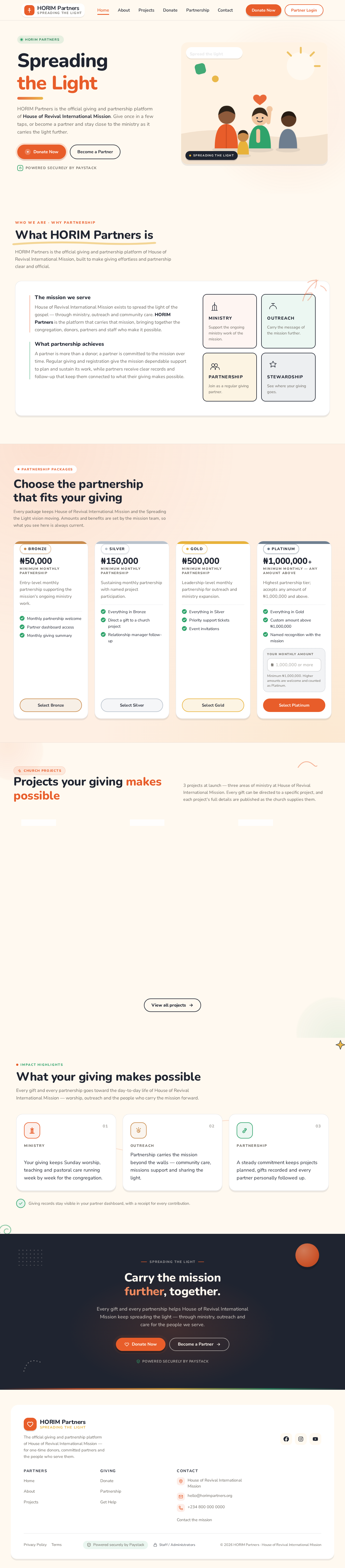
HORIM Partners is the official giving and partnership platform of House of Revival International Mission. Give once in a few taps, or become a partner and stay close to the ministry as it carries the light further.
Powered securely by PaystackHORIM Partners is the official giving and partnership platform of House of Revival International Mission, built to make giving effortless and partnership clear and official.
House of Revival International Mission exists to spread the light of the gospel — through ministry, outreach and community care. HORIM Partners is the platform that carries that mission, bringing together the congregation, donors, partners and staff who make it possible.
A partner is more than a donor; a partner is committed to the mission over time. Regular giving and registration give the mission dependable support to plan and sustain its work, while partners receive clear records and follow-up that keep them connected to what their giving makes possible.
Every package keeps House of Revival International Mission and the Spreading the Light vision moving. Amounts and benefits are set by the mission team, so what you see here is always current.
₦50,000
Minimum monthly partnership
Entry-level monthly partnership supporting the mission's ongoing ministry work.
₦150,000
Minimum monthly partnership
Sustaining monthly partnership with named project participation.
₦500,000
Minimum monthly partnership
Leadership-level monthly partnership for outreach and ministry expansion.
₦1,000,000+
Minimum monthly — any amount above
Highest partnership tier; accepts any amount of ₦1,000,000 and above.
Minimum ₦1,000,000. Higher amounts are welcome and counted as Platinum.
3 projects at launch — three areas of ministry at House of Revival International Mission. Every gift can be directed to a specific project, and each project's full details are published as the church supplies them.
Church project details to be supplied by House of Revival International Mission.
Details to be supplied. Funding targets and progress for this project will be shared by House of Revival International Mission.
Church project details to be supplied by House of Revival International Mission.
Details to be supplied. Funding targets and progress for this project will be shared by House of Revival International Mission.
Church project details to be supplied by House of Revival International Mission.
Details to be supplied. Funding targets and progress for this project will be shared by House of Revival International Mission.
Impact Highlights
Every gift and every partnership goes toward the day-to-day life of House of Revival International Mission — worship, outreach and the people who carry the mission forward.
Ministry
Your giving keeps Sunday worship, teaching and pastoral care running week by week for the congregation.
Outreach
Partnership carries the mission beyond the walls — community care, missions support and sharing the light.
Partnership
A steady commitment keeps projects planned, gifts recorded and every partner personally followed up.
Giving records stay visible in your partner dashboard, with a receipt for every contribution.
Every gift and every partnership helps House of Revival International Mission keep spreading the light — through ministry, outreach and care for the people we serve.
Powered securely by Paystack
HORIM Partners is the official giving and partnership platform of House of Revival International Mission. Give once in a few taps, or become a partner and stay close to the ministry as it carries the light further.
Powered securely by PaystackHORIM Partners is the official giving and partnership platform of House of Revival International Mission, built to make giving effortless and partnership clear and official.
House of Revival International Mission exists to spread the light of the gospel — through ministry, outreach and community care. HORIM Partners is the platform that carries that mission, bringing together the congregation, donors, partners and staff who make it possible.
A partner is more than a donor; a partner is committed to the mission over time. Regular giving and registration give the mission dependable support to plan and sustain its work, while partners receive clear records and follow-up that keep them connected to what their giving makes possible.
Every package keeps House of Revival International Mission and the Spreading the Light vision moving. Amounts and benefits are set by the mission team, so what you see here is always current.
₦50,000
Minimum monthly partnership
Entry-level monthly partnership supporting the mission's ongoing ministry work.
₦150,000
Minimum monthly partnership
Sustaining monthly partnership with named project participation.
₦500,000
Minimum monthly partnership
Leadership-level monthly partnership for outreach and ministry expansion.
₦1,000,000+
Minimum monthly — any amount above
Highest partnership tier; accepts any amount of ₦1,000,000 and above.
Minimum ₦1,000,000. Higher amounts are welcome and counted as Platinum.
3 projects at launch — three areas of ministry at House of Revival International Mission. Every gift can be directed to a specific project, and each project's full details are published as the church supplies them.
Church project details to be supplied by House of Revival International Mission.
Details to be supplied. Funding targets and progress for this project will be shared by House of Revival International Mission.
Church project details to be supplied by House of Revival International Mission.
Details to be supplied. Funding targets and progress for this project will be shared by House of Revival International Mission.
Church project details to be supplied by House of Revival International Mission.
Details to be supplied. Funding targets and progress for this project will be shared by House of Revival International Mission.
Impact Highlights
Every gift and every partnership goes toward the day-to-day life of House of Revival International Mission — worship, outreach and the people who carry the mission forward.
Ministry
Your giving keeps Sunday worship, teaching and pastoral care running week by week for the congregation.
Outreach
Partnership carries the mission beyond the walls — community care, missions support and sharing the light.
Partnership
A steady commitment keeps projects planned, gifts recorded and every partner personally followed up.
Giving records stay visible in your partner dashboard, with a receipt for every contribution.
Every gift and every partnership helps House of Revival International Mission keep spreading the light — through ministry, outreach and care for the people we serve.
Powered securely by Paystack
No comments yet. Be the first!