meta-simple
 Diya Trivedi
i want to build a simple single page design of the calculator

Comments (0)
Sign in to leave a comment
System Requirements
System Requirements Document for meta-simple
1. Introduction
meta-simple is a single-page arithmetic calculator delivered in the browser. The product intent, taken directly from the authoritative user requirement thread, is to build a simple single-page design of the calculator: one page where a person enters numbers and operators, reads the computed result, and clears the calculation to begin a new one.
The audience is anyone who needs to do quick math in a browser — students, shoppers, engineers, and general users. The product is deliberately minimal: the interface is the product, and no capability beyond arithmetic entry, computation, display, and clearing is in scope.
2. System Overview
meta-simple is a client-rendered single-page application. It presents exactly one page — Calculator — which is also the anonymous public entry surface. There is no account, no sign-in, no persistence of calculations, and no server-side computation required for the accepted behavior.
Actors
- Calculator User (human, active): the person performing arithmetic in the browser.
- Browser runtime (non-persona system actor): evaluates the arithmetic expression and renders the page.
Accepted behavior
- Enter numbers and operators.
- See the running/computed result in the display.
- Clear or reset the calculation to start over.
Ownership
- The single page Calculator owns all accepted human interaction: entry, computation display, operator state, and clearing.
- No provider surface, external destination, or separate first-party page is involved.
Narrow exclusions
- No multi-page navigation, no history of past calculations, no memory storage beyond the displayed memory indicator, no accounts, no sharing, no scientific/graphing modes beyond what the single keypad exposes.
2a. Product Interpretation and Delivery Boundary
The user asked for a simple single-page design of the calculator. That is a hard, explicit constraint: the entire product is one page, and it must stay simple. The page is anonymously reachable — there is no identity, no login, and no protected state, because nothing in the accepted behavior requires a durable, actor-bound relationship, commitment, entitlement, or value transfer. A calculator session is ephemeral by nature: the user opens the page, computes, clears, and leaves.
Everything the user does happens on the Calculator page. Computation is performed in the browser; no backend service is required to satisfy the accepted requirements. The delivery boundary is therefore a single static front-end page with client-side arithmetic evaluation.
Nothing in this document extends the product into future horizons. There is no roadmap section with committed future work, because the user stated no future requirements.
2c. Page Content and Component Coverage
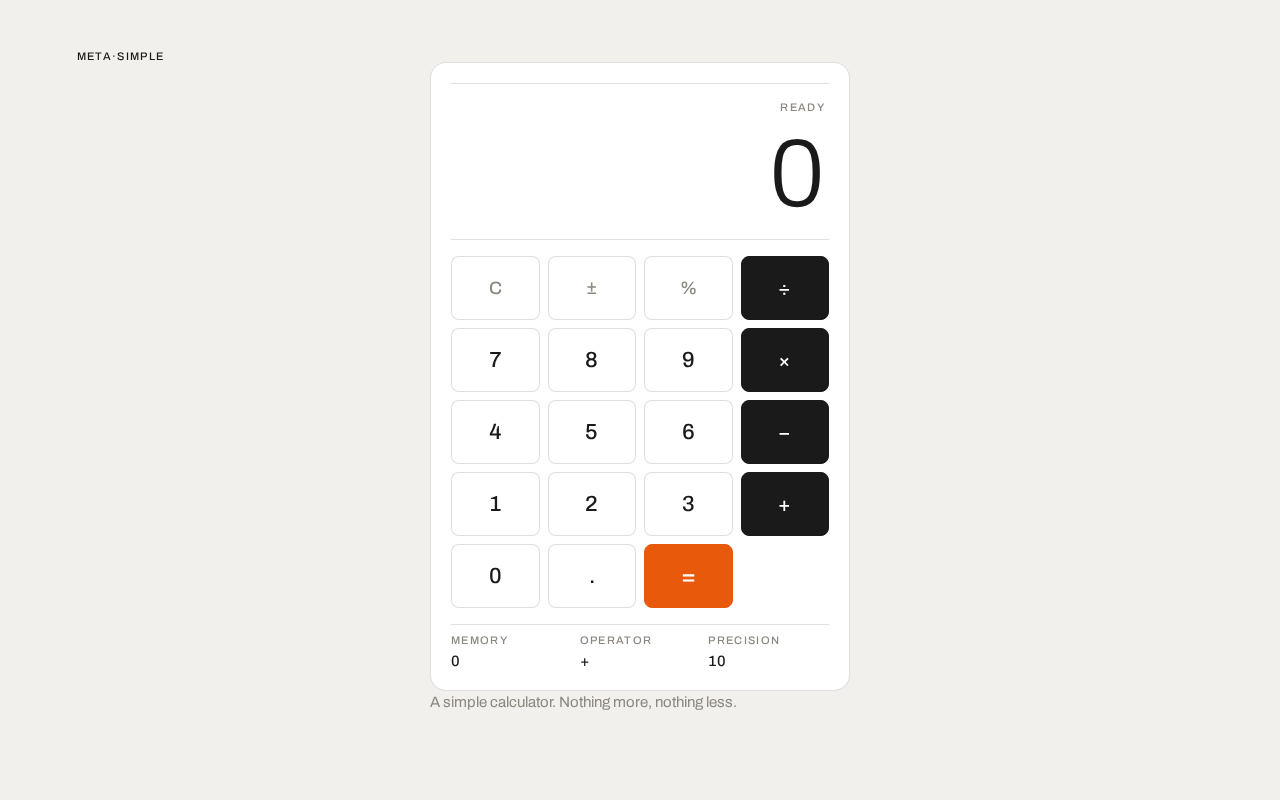
Calculator
The single page of the product, and the anonymous public entry surface. It presents the calculator instrument and nothing else.
Information and state
- Display readout: the current entry or computed result, rendered as large tabular numerals, right-aligned inside a hairline-ruled panel.
- Active-operator indicator: which operator (+, −, ×, ÷) is currently pending, shown as an orange fill on the active operator key.
- Ruled data row beneath the keypad: label/value pairs —
MEMORY 0,OPERATOR +,PRECISION 10. - Wordmark:
META·SIMPLE, uppercase, tracked, set top-left in the page margin. - Functional copy: a single line beneath the calculator slab — "A simple calculator. Nothing more, nothing less."
Primary actions
- Press a digit key (0–9) to append a digit to the current entry.
- Press a decimal key to begin/continue a fractional entry.
- Press an operator key (+, −, ×, ÷) to set the pending operator and mark it active.
- Press the equals key to evaluate the pending expression and show the result.
- Press the clear key to reset the current calculation and begin a new one.
Supporting actions
- Press the sign-toggle key to negate the current entry.
- Press the percent key to convert the current entry to a percentage value.
Domain entities
- Entry: the digit string currently being typed.
- Operand: a numeric value committed by an operator press.
- Operator: the pending arithmetic operation.
- Result: the numeric output of evaluation.
- Memory: a displayed memory value (starts at 0).
Component responsibilities
- Display panel: renders the readout, handles overflow by scaling the numeral size down within its clamp range, and crossfades on value change.
- Keypad grid: a 4-column modular grid of rounded-rectangle keys; operator keys are distinguished by ink-black fill, the equals key by Braun-orange fill.
- Key: a physical-feeling button with a 1px press depression on
:activeand instant mechanical feedback. - Ruled data row: renders the label/value pairs in technical-instrument alignment.
- Wordmark and functional copy: static page furniture in the margin and beneath the slab.
States
- Loading: not applicable — the page is static and renders immediately; no async data is fetched.
- Empty: the initial state shows
0in the display, no active operator, andMEMORY 0 · OPERATOR + · PRECISION 10in the data row. - Success: after equals, the display shows the computed result; the pending operator clears.
- Error: on an invalid expression (for example division by zero), the display shows an error indication rather than a numeric result; the user recovers by pressing clear and starting a new calculation.
- Recovery: the clear key always returns the page to the empty state, from any display state.
3. Functional Requirements
FR-1 — Enter digits and operators As a Calculator User, I should enter numbers and operators on the calculator so that I can build the arithmetic expression I intend to compute.
- Provenance:
explicit - Trigger/input: the user presses digit keys (0–9), the decimal key, and operator keys (+, −, ×, ÷).
- Observable result: the display readout updates to show the digits entered, and the pressed operator key takes the active-operator state (orange fill).
- Access state: anonymous; no identity required.
- Failure/recovery: if the user presses an operator with no entry, the pending operator is set without changing the displayed value; the user continues entering digits.
- Continuation: the user continues entering the second operand or presses equals.
FR-2 — See the computed result As a Calculator User, I should see the computed result of my expression so that I know the answer to the arithmetic I intended.
- Provenance:
explicit - Trigger/input: the user presses the equals key after entering an expression.
- Observable result: the display readout shows the evaluated numeric result; the active-operator indicator clears.
- Access state: anonymous.
- Failure/recovery: on an invalid expression such as division by zero, the display shows an error indication instead of a number; the user presses clear to recover.
- Continuation: the user may continue calculating from the result or press clear to start over.
FR-3 — Clear the calculation As a Calculator User, I should clear the calculation so that I can begin a new one.
- Provenance:
explicit - Trigger/input: the user presses the clear key.
- Observable result: the display returns to
0, the pending operator clears, and the data row returns to its initial values. - Access state: anonymous.
- Failure/recovery: not applicable — clear always succeeds and is available in every display state.
- Continuation: the user begins a new calculation.
FR-4 — Read the instrument state As a Calculator User, I should read the current operator, memory, and precision values so that I can trust what the instrument is doing.
- Provenance:
required_inference(the ruled data row is part of the accepted creative direction's signature moves and reflects the calculator's own state) - Trigger/input: any key press that changes the pending operator or memory value.
- Observable result: the ruled data row beneath the keypad updates its label/value pairs (
MEMORY,OPERATOR,PRECISION). - Access state: anonymous.
- Failure/recovery: not applicable — the row is a read-only reflection of calculator state.
- Continuation: the user continues calculating.
FR-5 — Negate and percent entry As a Calculator User, I should negate the current entry or convert it to a percentage so that I can handle signed and percentage arithmetic.
- Provenance:
required_inference(indispensable supporting entry mechanics for the accepted keypad; no separate user goal is introduced) - Trigger/input: the user presses the sign-toggle key or the percent key.
- Observable result: the display readout reflects the negated or percentage-converted value.
- Access state: anonymous.
- Failure/recovery: pressing either key with no active entry leaves the display at
0. - Continuation: the user continues the expression.
4. User Personas
Calculator User
Product context. The Calculator User opens meta-simple in a browser because they need a quick arithmetic answer. They are not looking for a workspace, an account, or a saved history — they want a precise instrument that responds instantly and gets out of the way. The page is anonymous and ephemeral: they arrive, compute, and leave.
Primary goal. To enter an arithmetic expression and read a correct result, then clear the instrument to begin a new calculation.
Distinct accepted responsibilities.
- Entering digits, decimals, and operators to build an expression.
- Reading the running display and the active-operator indicator to confirm what the instrument will compute.
- Pressing equals to commit the expression and read the result.
- Pressing clear to reset the instrument and start over.
- Using the sign-toggle and percent keys for signed and percentage entries.
- Reading the ruled data row (
MEMORY,OPERATOR,PRECISION) to confirm the instrument's state.
Relevant inputs or decisions. Which operator to apply, when to commit with equals, and when to abandon the current calculation with clear. The user decides when an expression is complete.
Interactions with other accepted participants. None. The Calculator User is the only active human participant; the browser runtime evaluates and renders, but no other persona acts on or awaits the user's work.
Observable success. The displayed result matches the arithmetic the user intended, and the instrument returns cleanly to 0 when cleared.
5. Core User Flows
Flow 1 — Perform a basic calculation
- The Calculator User opens meta-simple in the browser. The Calculator page loads anonymously; the display shows
0, no operator is active, and the ruled data row readsMEMORY 0 · OPERATOR + · PRECISION 10. - The user presses digit keys to enter the first operand. The display readout updates with each press.
- The user presses an operator key (for example
+). The operator key takes the active-operator state (orange fill), and the ruled data row'sOPERATORvalue updates. - The user presses digit keys to enter the second operand. The display readout updates.
- The user presses the equals key. The display crossfades (120ms opacity) to the computed result, and the active-operator indicator clears.
- Result: the display shows the correct sum. The user reads the answer.
- Continuation: the user may press an operator to continue calculating from the result, or press clear to begin a new calculation.
Flow 2 — Clear and start a new calculation
- The Calculator User is on the Calculator page with a value or result in the display.
- The user presses the clear key.
- The display returns to
0, the pending operator clears, and the ruled data row returns toMEMORY 0 · OPERATOR + · PRECISION 10. - Result: the instrument is reset.
- Continuation: the user begins a new calculation from step 2 of Flow 1.
Flow 3 — Recover from an invalid expression
- The Calculator User enters an expression that cannot be evaluated, such as a division by zero.
- The user presses equals.
- The display shows an error indication instead of a numeric result.
- Recovery: the user presses the clear key. The display returns to
0and the instrument is ready. - Continuation: the user re-enters the expression correctly.
Flow 4 — Signed and percentage entry
- The Calculator User has entered a value in the display.
- The user presses the sign-toggle key. The display readout reflects the negated value.
- Alternatively, the user presses the percent key. The display readout reflects the percentage-converted value.
- Result: the display shows the transformed entry.
- Continuation: the user continues the expression with an operator or commits with equals.
6. Visuals, Colors and Theme
The creative direction is authoritative for this section: Less, but better — a calculator as Braun instrument, muse Dieter Rams. The emotional register is functional trust — honest, precise, instantly legible, like a well-made Braun appliance.
Palette (light mode)
| Role | Hex | Usage |
|---|---|---|
| Background | #F2F0ED | Warm off-white ground |
| Surface | #FFFFFF | Pure-white key surfaces |
| Text | #1A1A1A | Ink black for type and primary key faces |
| Primary | #1A1A1A | Ink black for primary key faces |
| Accent | #E8590C | Braun orange — equals key and active-operator indicator only |
| Muted | #8C8880 | Secondary labels and display ghost text |
Proportion: 70% off-white ground, 20% black/white keys, 10% orange signal.
Typography
- Headings: Archivo, Medium (500), tight tracking (−0.02em), uppercase for labels and small caps for section markers.
- Display numerals: Archivo, Light (300), tabular figures, wide tracking.
- Body: Archivo.
- Scale: 1.25 modular — display readout
clamp(48px, 10vw, 96px), key labels 22px, section label 11px uppercase tracked +0.12em, body 15px/1.5.
Shape language
- Rounded-rectangle keys with a consistent 8px radius — the physical affordance of a Braun button. No pills, no blobs.
- The calculator body is a single rounded-rectangle slab (16px radius) with a subtle 1px warm-grey border instead of a shadow.
- Operator keys are visually distinct by fill (ink black), not by decoration.
- Hard-edged display panel inset with a hairline rule above and below.
Layout
- A strict modular grid. The page is a single centred column on the warm ground; the calculator is composed on an 8-pt grid: a full-width display panel at top, then a 4-column keypad below.
- Keys align flush to a visible module; label/value pairs sit in a ruled data row beneath the keypad.
- Generous margins: min 24px at 375px, 80px at 1280px.
- A small uppercase wordmark
META·SIMPLEsits top-left in the margin; a single line of functional copy sits under the calculator. - On desktop the slab is vertically centred with vast breathing room; on mobile it fills the width with 24px gutters.
Imagery
- No photography, no illustration. The visual interest is the instrument itself: a diagrammatic hairline rule system, the ruled data row, and the tabular numerals in the display. If any graphic is needed, a single thin-line pictogram of a calculator in the corner, drawn in the same 1.5px stroke weight as the rules.
7. Signature Design Concept
The public entry is the calculator itself, treated as a precision object.
A composed, near-symmetrical hero: the calculator slab is the dominant element, occupying the centre of the viewport at a generous scale (max-width 420px, with the display readout inside scaling to fill its width). Above it, the wordmark META·SIMPLE in 11px uppercase tracked +0.12em sits top-left in the page margin. A single line of body copy — "A simple calculator. Nothing more, nothing less." — sits directly beneath the slab, flush-left, in muted grey. The background is the warm off-white ground with no gradient, no blob, no image; the drama is the precision of the object and the scale of the numerals.
Signature moves
- A 96px tabular-numeral display readout in light weight, right-aligned inside a hairline-ruled panel — the numbers are treated with the gravity of a measuring instrument.
- A single Braun-orange equals key and orange active-operator fill as the only colour in an otherwise ink-and-paper interface — the signal colour does all the work.
- A ruled data row beneath the keypad (
MEMORY 0 · OPERATOR + · PRECISION 10) that borrows the label/value alignment of a technical instrument panel. - Keys as rounded-rectangle physical buttons with a 1px press depression and instant mechanical feedback — no hover-lift, no shadow, no gradient.
- An uppercase tracked wordmark
META·SIMPLEset in the page margin rather than centred — the page reads as a designed object, not a web page.
8. Interaction Model & Motion Direction
Interaction Model: Static Motion Tempo: restrained Hero Dimensionality: flat
Landing Hero Motion Brief
- Focal subject: the calculator slab — a single rounded-rectangle instrument with a hairline-ruled display panel and a 4-column keypad, centred on the warm off-white ground.
- Input → transformation → outcome thesis: the user presses a key → the key depresses 1px with instant mechanical feedback and the display value crossfades over 120ms → the readout shows the updated entry or computed result. The motion is the instrument responding, nothing more.
- Motion vocabulary: instant, mechanical feedback. Keys depress 1px on
:activewith no easing curve beyond 80ms linear. The display value updates with a single 120ms opacity crossfade — no count-up animation, no bounce. Operator-active state is a colour swap (orange fill), not a scale. - Composed first frame: the calculator slab centred in the viewport, display showing
0, no operator active, the ruled data row readingMEMORY 0 · OPERATOR + · PRECISION 10, the wordmarkMETA·SIMPLEtop-left in the margin, and the functional copy flush-left beneath the slab. - Reduced-motion state:
prefers-reduced-motionremoves the display crossfade entirely; the value updates instantly. The 1px key depression remains as direct state feedback.
No 3D/WebGL scene is required or requested; the hero is flat and composed.
9. Non-Functional Requirements
NFR-1 — Single page (explicit). The product must be a single page. No routing, no additional destinations, no navigation between views.
NFR-2 — Simplicity (explicit). The design must be simple. No capability beyond arithmetic entry, computation, display, and clearing is in scope.
NFR-3 — Anonymous access (explicit via planning scope). The Calculator page is anonymously reachable. No account, sign-in, or identity establishment is required or provided.
NFR-4 — Instant feedback (creative direction). Key presses must produce feedback within 80ms linear; display updates must complete within 120ms. No motion beyond instant 80–120ms state feedback.
NFR-5 — Reduced motion (creative direction). The interface must respect prefers-reduced-motion by removing the display crossfade.
NFR-6 — Readable text and controls (creative direction). Headlines, wordmarks, labels, numbers, and controls must stay entirely inside the viewport and their container at 375px, 768px, and 1280px, wrapping or scaling (for example font-size: clamp(...)) to fit. No other element may cover any part of them.
NFR-7 — No blue/indigo (creative direction). Blue or indigo accents are forbidden anywhere; the accent is Braun orange only.
NFR-8 — No shadows, glows, or gradients (creative direction). Drop shadows, glows, and gradients on keys or the calculator slab are forbidden.
NFR-9 — No pill buttons or oversized radii (creative direction). Rounded pill buttons and oversized border radii are forbidden.
NFR-10 — No hover-lift or scale transforms (creative direction). Hover-lift card animations and scale transforms on keys are forbidden.
NFR-11 — No photography or illustration (creative direction). Photography, illustration, and decorative blobs in the hero are forbidden.
NFR-12 — No centred hero with CTA (creative direction). A centred hero with a subheadline and a coloured CTA button is forbidden.
NFR-13 — Font restriction (creative direction). Inter, Roboto, Arial, and system-ui are forbidden as the heading or body face; Archivo is required.
10. Tech Stack
- Frontend: React (single-page application), rendered client-side.
- Styling: CSS with the Archivo typeface, tabular numerals for the display, and the token palette defined in Section 6.
- Computation: client-side arithmetic evaluation in the browser. No backend service is required for the accepted behavior.
- Storage: none. Calculations are ephemeral and are not persisted.
- Deployment: static hosting of the built single-page application.
No Python/FastAPI backend, database, Docker/docker-compose, or Kubernetes is required, because the accepted behavior is entirely client-side and stateless.
11. Assumptions and Constraints
Assumptions
- The calculator performs standard four-function arithmetic (+, −, ×, ÷) with decimal entry, sign toggle, and percent. This is the minimum keypad implied by "a simple calculator" and the accepted creative direction's keypad grid.
- The display precision is 10 significant digits, as reflected in the ruled data row's
PRECISION 10value. - The memory value starts at
0and is displayed; no memory-store or memory-recall keys are in scope beyond the displayed indicator. - The page is served over HTTP(S) and renders without any network fetch after load.
Constraints
- The design must be a single page (explicit).
- The design must be simple (explicit).
- The page is anonymous; no identity, account, or session continuity is required (explicit via planning scope).
- The creative direction's palette, typography, shape language, layout, motion, and prohibitions are binding (Section 6, Section 8, Section 9).
12. Glossary
- Calculator User — the single active human persona; the person performing arithmetic in the browser.
- Calculator — the single page of the product and the anonymous public entry surface.
- Display readout — the large tabular-numeral panel showing the current entry or computed result.
- Active-operator indicator — the orange fill on the currently pending operator key.
- Ruled data row — the label/value row beneath the keypad showing
MEMORY,OPERATOR, andPRECISION. - Entry — the digit string currently being typed.
- Operand — a numeric value committed by an operator press.
- Operator — the pending arithmetic operation (+, −, ×, ÷).
- Result — the numeric output of evaluating the pending expression.
- Memory — the displayed memory value, starting at
0. - Precision — the number of significant digits used in the display, set to 10.
- Braun orange — the single signal accent
#E8590C, reserved for the equals key and the active-operator indicator.
META·SIMPLE
A simple calculator. Nothing more, nothing less.
No comments yet. Be the first!