mango-simple
 Diya Trivedi
start a project to build simple single page design of calculator

Comments (0)
Sign in to leave a comment
System Requirements
System Requirements Document for mango-simple
1. Introduction
mango-simple is a simple calculator delivered as a single-page design. The product intent is a fast, accurate, anonymous arithmetic tool: a visitor opens the page, enters numbers and operators, reads the result, and clears or corrects the calculation — all without leaving the page, creating an account, or navigating anywhere else.
The audience is anyone who needs everyday arithmetic performed quickly and legibly, with no ceremony: no account, no dashboard, no marketing surface. The page is the tool. The design register is calm competence — the calculator should read like good signage for numbers, instantly legible and quietly trustworthy.
The single page is the entire product surface. There is no multi-page navigation, no saved history, no account, and no adjacent workflow.
2. System Overview
2a. Product Interpretation and Delivery Boundary
mango-simple is a first-party, browser-delivered single-page calculator. The one page, Calculator, is the anonymous public entry: it opens directly into a working calculator with no sign-in, no gate, and no prior state required. All number entry, operator selection, result display, and clearing happen on that page.
The calculator's arithmetic state is ephemeral and page-local. It is not persisted, not tied to an identity, and not shared between visitors. The provisioned backend and database services exist as application infrastructure but carry no calculator domain data: the accepted scope defines no accounts, no saved calculations, no history, and no server-owned records. The frontend is the sole owner of the accepted user-facing behavior.
Nothing beyond the single calculator page is current scope. There is no marketing landing page, no settings, no help center, no history view, and no account management.
2b. Source Content Inventory
Not applicable — no reference directive supplies a content_source.
2c. Page Content and Component Coverage
Calculator
The single page of the product, anonymously reachable, owning the complete arithmetic lifecycle: entry, operator selection, result display, and clearing.
Information and state
- Current result value, displayed as the dominant numeral (40px mobile / 72px desktop, tabular Fira Sans), starting at
0. - Running expression trail in small muted type directly above the result, showing the operands and operator entered so far.
- Active-operator state: the currently selected operator key holds a 2px mustard underline while active.
- Error state: when an operation is invalid (for example division by zero), the display shows an explicit error indication instead of a numeric result, and the user can clear to recover.
- No loading state is required for arithmetic; the page renders ready to use.
Primary actions
- Enter digits
0–9and the decimal point.via the number keys. - Select an operator:
÷,×,−,+. - Evaluate the expression with
=. - Clear the current calculation with the full-width
CLEARkey.
Supporting actions and controls
- Header rail: wordmark
mango-simple(Fira Sans 700 uppercase, small red square bullet) at top-left; right-aligned micro-labelSINGLE PAGE CALCULATORin muted 11px letterspaced caps; hairline rule separating the rail from the calculator. - Micro-labels flush-left above each region:
RESULT,OPERATORS,NUMBERS(uppercase, 11–12px, 700 weight, 0.12em letterspacing). - Keypad in strict 4-column grid order:
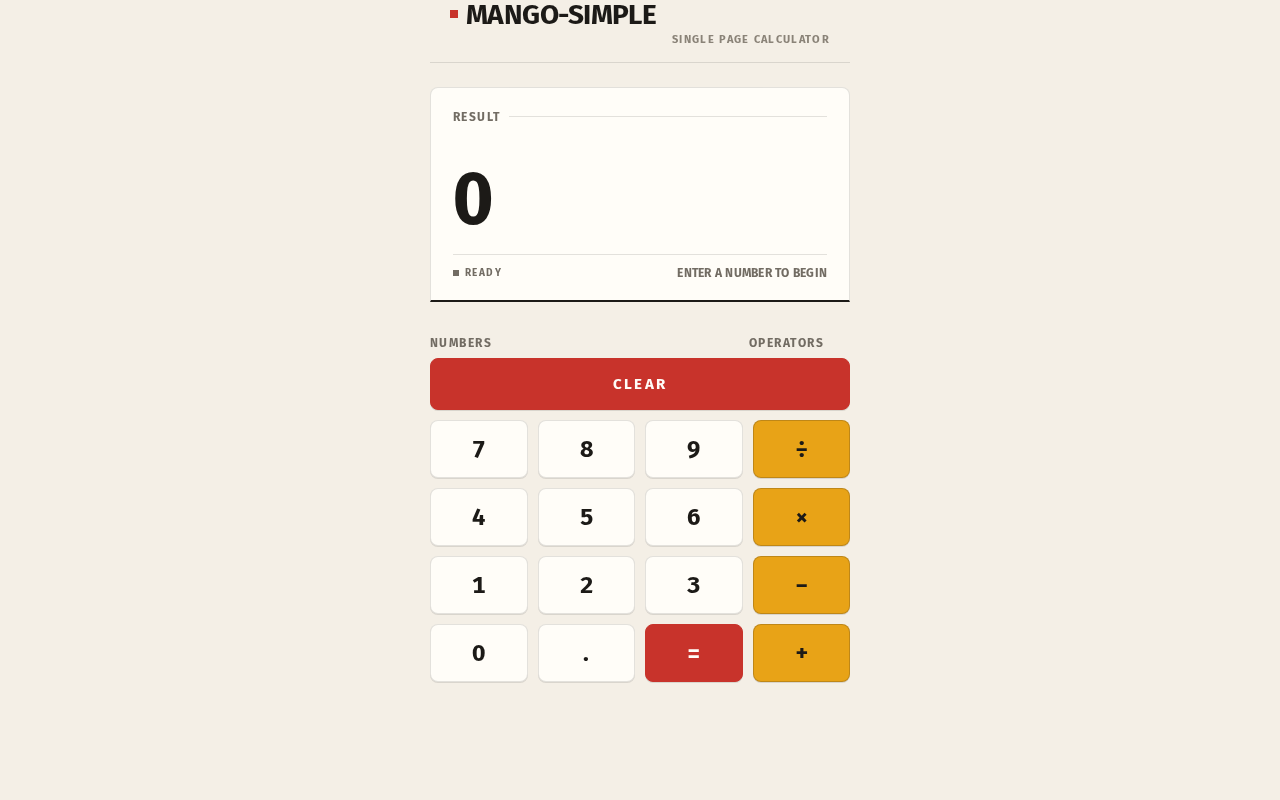
7 8 9 ÷/4 5 6 ×/1 2 3 −/0 . = +, with the full-widthCLEARkey spanning the top row of the keypad. - Operator keys tinted mustard
#E8A317with ink glyphs;CLEARand=in signal red#C8332Bwith cream glyphs.
Domain entities
- Calculation: the in-progress expression (operands, selected operator) and its evaluated result. Page-local and ephemeral; not persisted.
Component responsibilities
- Header rail: identity and context signage only; no navigation.
- Display panel: renders the expression trail and the result numeral; owns the error indication.
- Key group captions: label the number and operator regions.
- Keypad: captures digit, decimal, operator, equals, and clear input; reflects active-operator and key-press states.
States
- Empty/initial: result
0, empty expression trail. - In progress: expression trail populated, active operator underlined.
- Success: evaluated result shown with a 160ms crossfade on
=. - Error: invalid operation indicated in the display;
CLEARreturns the page to the initial state. - Recovery:
CLEARat any time resets expression, result, and active-operator state.
3. Functional Requirements
FR-1 — Single-page calculator delivery (explicit) As a Calculator User I should get the calculator as one single page so that I can perform arithmetic without navigating anywhere else.
- Trigger: opening the product.
- Observable result: the Calculator page loads directly into a usable calculator; no other page or route is part of the product.
- Access: anonymous; no account or sign-in.
- Failure/recovery: if the page fails to load, reloading returns the same single page in its initial state.
- Continuation: the user proceeds directly to entry.
FR-2 — Number entry (required_inference) As a Calculator User I should enter digits and a decimal point so that I can build the numbers I want to calculate.
- Input: presses on
0–9and.. - Observable result: the entered digits appear in the display as the current operand, with tabular numerals so digits do not jitter.
- Failure/recovery: malformed input such as a second decimal point in one operand is not accepted into the operand; the display keeps the last valid value.
- Continuation: the user selects an operator or continues entering digits.
FR-3 — Operator selection (required_inference) As a Calculator User I should choose an arithmetic operator so that I can specify the operation to perform.
- Input: presses on
÷,×,−, or+. - Observable result: the chosen operator is recorded in the expression trail and its key holds a 2px mustard underline while active.
- Failure/recovery: choosing a different operator replaces the active operator rather than stacking operators.
- Continuation: the user enters the next operand.
FR-4 — Evaluate the calculation (required_inference)
As a Calculator User I should press = so that I get the result of my expression.
- Input: press on
=. - Observable result: the result is computed and shown as the dominant numeral with a 160ms crossfade; the expression trail shows the evaluated expression.
- Failure/recovery: an invalid operation (for example division by zero) shows an explicit error indication instead of a numeric result;
CLEARrecovers. - Continuation: the user can clear, or continue calculating from the result.
FR-5 — Clear the calculation (required_inference) As a Calculator User I should clear the current calculation so that I can start over or correct a mistake.
- Input: press on the full-width
CLEARkey. - Observable result: expression trail empties, result returns to
0, and any active-operator underline is released. - Failure/recovery: clearing is always available, including from the error state.
- Continuation: the user begins a new calculation on the same page.
FR-6 — Readable, responsive single-column layout (explicit — design constraint) As a Calculator User I should see the calculator legibly at any viewport so that I can read the result and reach every key.
- Observable result: at 375px the calculator fills the viewport minus 20px gutters; at 1280px it remains a single narrow column (max-width 420px) centred with wide margins. All labels, numerals, and keys stay whole inside the viewport and their containers at 375px, 768px, and 1280px.
- Failure/recovery: text wraps or scales (for example
clamp(...)) rather than clipping or being covered. - Continuation: the user operates the calculator normally at any size.
4. User Personas
Calculator User
Product context. An anonymous visitor who needs everyday arithmetic done quickly. They arrive with a number problem in mind and no interest in setup: no account, no onboarding, no saved workspace. The page is the whole relationship.
Primary goal. Get an accurate arithmetic result on a single page and leave, or clear and start another calculation, without friction.
Distinct accepted responsibilities.
- Entering digits and a decimal point to build operands.
- Selecting one of the four arithmetic operators, with visible confirmation of which operator is active.
- Committing the expression with
=and reading the result. - Clearing the calculation to correct a mistake or start over, including recovering from an invalid operation.
Relevant inputs and decisions. Which numbers to enter, which operator applies, when to evaluate, and when to clear. The user reads the expression trail to confirm what they have entered and the large result numeral to read the outcome.
Interactions with other participants. None. The calculator is a single-participant tool; no other human participant is affected by or responds to the calculation, and no result is sent, shared, or committed to another party.
Observable success. The result appears accurately and legibly in the display; the expression trail matches what was entered; clearing reliably returns the page to 0; the page remains readable and fully operable at mobile and desktop widths.
5. Core User Flows
Flow 1 — Perform a calculation
- Start: The Calculator User opens mango-simple. The Calculator page loads anonymously with the result showing
0and an empty expression trail. - Enter the first operand: The user presses digit keys (and
.if needed). The digits appear in the display as the current operand in tabular numerals. - Select an operator: The user presses
÷,×,−, or+. The operator appears in the expression trail and its key holds a 2px mustard underline while active. - Enter the second operand: The user presses digit keys; the second operand appears in the display.
- Evaluate: The user presses
=. The result is computed and shown as the dominant numeral with a 160ms crossfade, and the expression trail shows the evaluated expression. - Continue or finish: The user either continues calculating from the result or presses
CLEARto reset to0. The page remains the same single page throughout.
Flow 2 — Correct a mistake or recover from an invalid operation
- Start: The user is mid-calculation on the Calculator page, or has triggered an invalid operation such as division by zero.
- Observe the problem: The display shows either the wrong entry in the expression trail or an explicit error indication in place of a numeric result.
- Clear: The user presses the full-width
CLEARkey. The expression trail empties, the result returns to0, and any active-operator underline is released. - Restart: The user re-enters the calculation from step 2 of Flow 1. Recovery is always available on the same page with no reload required.
Flow 3 — Use the calculator on a small screen
- Start: The user opens the Calculator page at 375px width. The calculator fills the viewport minus 20px gutters.
- Read and operate: The result numeral scales down (40px) while remaining whole and uncovered; every key and micro-label stays fully inside the viewport.
- Complete: The user performs Flow 1 or Flow 2 normally. At 1280px the same page presents as a single narrow column with wide breathing room either side.
6. Visuals Colors and Theme
The creative direction is authoritative: Typographic infrastructure for a calculator — Fira Sans numerals as wayfinding, after Erik Spiekermann. The interface is the image: tabular numerals, hairline rules, and transit-line colour coding on operator keys. No photography, no illustration, no gradients.
Colour tokens (light mode)
- Background (warm paper ground):
#F4EFE6 - Surface (calculator panel):
#FFFDF8 - Text / ink:
#1C1A17 - Primary (signal red —
CLEAR/=and active operator line):#C8332B - Accent (mustard — operator keys):
#E8A317 - Muted (secondary labels, expression trail):
#8A8378 - Cream glyphs on red keys:
#FFFDF8 - Hairline borders: ink at 12% opacity; 2px ink rule under the display.
- No blue or indigo anywhere.
Typography
- Headings and numerals: Fira Sans, 600–700 weight; tight tracking (-0.02em) on large figures; flush-left ragged-right.
- Body: Fira Sans.
- Micro-labels: Fira Sans 700, uppercase, 0.12em letterspacing.
- Scale (1.25 modular): display result 40px mobile / 72px desktop (
clamp); wordmark 22/28; key labels 20/24; micro-labels 11/12; body 15/16. - Tabular numerals throughout the keypad and display.
Shape and layout
- Keys: 8px radius rounded rectangles (Braun-era controls, not pills); single
0 1px 0offset shadow under keys; no soft coloured shadows. - Hairline 1px ink-at-12% borders separate rows; 2px ink rule under the display.
- Hard-edged page frame with generous margins; single column, max-width 420px, centred; header rail above the calculator.
Motion
- 120ms key-press depress (translateY 1px, border darkens to ink); 160ms result crossfade on
=; 2px mustard underline holds on the active operator. No bounce, particles, or idle motion.
7. Signature Design Concept
The first screen is the calculator itself — a signage system for arithmetic, not a marketing hero.
A narrow header rail at top-left carries the wordmark mango-simple in Fira Sans 700 uppercase with a small red square bullet; at right, a muted 11px letterspaced micro-label reads SINGLE PAGE CALCULATOR. A hairline rule separates the rail from the calculator.
Beneath it, the calculator panel sits centred on the warm paper ground as a single near-white surface. A 2px ink rule runs under the display. Above the rule, the running expression appears in 13px muted type like a station name; below it, the result 0 is set at 72px tabular Fira Sans (40px mobile), dominating the upper third.
The keypad below uses the panel's full width in a strict 4-column grid. The full-width CLEAR key spans the top row in signal red with cream glyphs — the page's single hot accent, used on roughly 5% of the surface. Operator keys are tinted mustard with ink glyphs and hold a 2px ink underline while active. Uppercase 11px letterspaced micro-labels (RESULT, OPERATORS, NUMBERS) sit flush-left above each region, giving the keypad the logic of a wayfinding legend. The only ornament is the drawn operator glyph set at consistent stroke weight.
There is no centred headline, no subtext paragraph, no blue button, and no gradient.
8. Interaction Model & Motion Direction
Interaction Model: Static Motion Tempo: restrained Hero Dimensionality: flat
Landing Hero Motion Brief
- Focal subject: the calculator panel itself — the large tabular result numeral above the 2px ink rule, with the expression trail above it and the coded keypad below.
- Input → transformation → outcome thesis: a key press depresses the key 1px and darkens its border to ink (120ms); the entered digit or operator appears in the display and expression trail; pressing
=crossfades the result value over 160ms; the active operator key holds a 2px mustard underline until the operation completes or is cleared. Every motion is a direct, functional response to accepted calculator input — nothing moves on its own. - Motion vocabulary: short, functional, restrained — depress, crossfade, held underline. No bounce, no spring, no particles, no idle loops.
- Composed first frame: header rail with wordmark and
SINGLE PAGE CALCULATORmicro-label, hairline rule, then the panel withRESULTmicro-label, empty expression trail,0at 72px tabular Fira Sans, 2px ink rule, and the full keypad with the redCLEARbar on top and mustard operator keys at right. - Reduced-motion state: with
prefers-reduced-motion, the depress translate and result crossfade are removed; state changes (digit entry, operator underline, result update, clear) apply instantly and remain fully legible and operable.
9. Non-Functional Requirements
- Single-page constraint (explicit): the product is exactly one page; no additional routes, navigation, or destinations are part of current scope.
- Anonymous access (explicit via planning scope): the Calculator page requires no account, sign-in, or identity; no authentication or session continuity is implemented.
- Ephemeral state (required_inference): calculation state lives only in the page; it is not persisted to the database or backend, and no calculation history is stored.
- Responsive legibility (explicit — design constraint): readable text and controls stay whole inside the viewport and their containers at 375px, 768px, and 1280px; nothing covers them.
- Accessibility (required_inference): full-contrast ink numerals on the near-white surface; keys operable by pointer and keyboard; reduced-motion support as described in Section 8.
- Performance (required_inference): arithmetic evaluation is immediate and client-side; the page renders ready to use with no loading state.
10. Tech Stack
- Frontend: React application UI — owns the single Calculator page, all arithmetic state, and all interaction behavior.
- Backend: shared FastAPI process for application APIs and domain modules. Provisioned infrastructure; the accepted calculator scope defines no server-side calculator API or domain records.
- Database: MariaDB for application-owned persistent data. Provisioned infrastructure; the calculator stores no data, and no domain entities or schema are defined by this scope.
- Containerization: docker-compose with the
frontend,backend, anddatabaseservices as provisioned.
11. Assumptions and Constraints
- A-1 (assumption): The calculator supports the four basic arithmetic operations (
÷,×,−,+), decimal entry, evaluation with=, and clearing — the minimum set implied by "simple calculator" and the specified keypad grid. - A-2 (assumption): Calculation state is page-local and ephemeral; no history, memory, or persistence is in scope.
- A-3 (assumption): The page is publicly reachable without identity; no accounts exist.
- C-1 (explicit constraint): The design must be a single page.
- C-2 (explicit constraint): The design must be simple.
- C-3 (design constraint): The palette, Fira Sans typography, warm paper ground, 8px key radii, and transit-line colour coding are fixed by the creative direction; no blue or indigo, no gradients, no pill keys, no marketing hero.
- C-4 (design constraint): Readable text and controls remain whole and uncovered at 375px, 768px, and 1280px.
12. Glossary
- Calculator page — the single page of mango-simple; the anonymous public entry owning entry, operator selection, result display, and clearing.
- Expression trail — the small muted line above the result showing the operands and operator entered so far.
- Active operator — the operator key currently selected, marked by a held 2px mustard underline.
- Tabular numerals — fixed-width digits so values do not jitter as the result updates.
- Micro-label — uppercase, letterspaced 11–12px caption (
RESULT,OPERATORS,NUMBERS) acting as wayfinding signage above a region. - Signal red —
#C8332B, reserved forCLEAR/=and the active operator line. - Mustard —
#E8A317, the operator-key tint.
SINGLE PAGE CALCULATOR
Result
SINGLE PAGE CALCULATOR
Result
No comments yet. Be the first!