magic-salonfrontdesk
 David
Salonfrontdesk


Comments (0)
Sign in to leave a comment
System Requirements
System Requirements Document for Salonfrontdesk
1. Introduction
Salonfrontdesk is a salon front desk tool for salon front desk staff. It gives the front desk one clear workspace for the day: a place to open, sign in to, and continue front desk work under time pressure. The product intent is calm control with a friendly tone — fast reading, tidy structure, and a warm, legible interface rather than a dense enterprise console.
The audience is the salon front desk staff role (the user names this role "Salonfrontdesk"). Staff self-enroll before first use, verify their identity to return, and then work from a single Front Desk workspace.
This document is the System Requirements Document requested by David for the Salonfrontdesk project.
1.1 Success Criteria
- A new front desk staff member can complete self-service enrollment and reach the Front Desk workspace without assistance.
- A returning staff member can verify identity and land back in the Front Desk workspace.
- The Front Desk workspace presents the day's front desk context in one cohesive three-panel layout (day list, client card, action bar) that stays fully readable at 375px, 768px, and 1280px.
- The public entry communicates the product and its user role and leads to opening the desk.
2. System Overview
Salonfrontdesk is delivered as a first-party web application with application-owned identity. It consists of a React frontend, a shared FastAPI backend process serving application APIs and domain modules, and a MariaDB database for application-owned persistent data. Durable state is required: enrollment identity and the returning staff member's session continuity must persist.
Current actors:
- Salon front desk staff (active human persona) — self-enrolls, verifies identity to return, and works in the Front Desk workspace.
Current delivery surfaces (closed page contract):
- Landing — public entry, no access requirement.
- Login — identity access surface, no access requirement (anonymous entry).
- Front Desk — protected workspace, requires login.
Narrow exclusions: no booking engine, no client-facing portal, no payments, no inventory, no staff scheduling, no reporting suite, and no differentiated permission roles are established by the source. The Front Desk workspace is the staff member's own working context; the source does not establish shared multi-user state or role-based visibility.
Removed from scope
- None. No concepts were explicitly removed by the user.
2a. Product Interpretation and Delivery Boundary
Salonfrontdesk is a first-party application. The public Landing page explains the salon front desk tool and its user role and offers the entry action. Because the Front Desk workspace must remain bound to the correct staff member across visits, identity is application-owned: staff establish identity once through self-service enrollment, and returning staff verify identity on the Login page before the Front Desk workspace becomes available. The Login page is anonymously reachable; the Front Desk page is not.
All current behavior is delivered now. No future-horizon capabilities are accepted in this document. Provider-owned and external destinations are not used for any accepted behavior; the backend and database support the first-party pages but do not own any human interaction.
2c. Page Content and Component Coverage
Landing
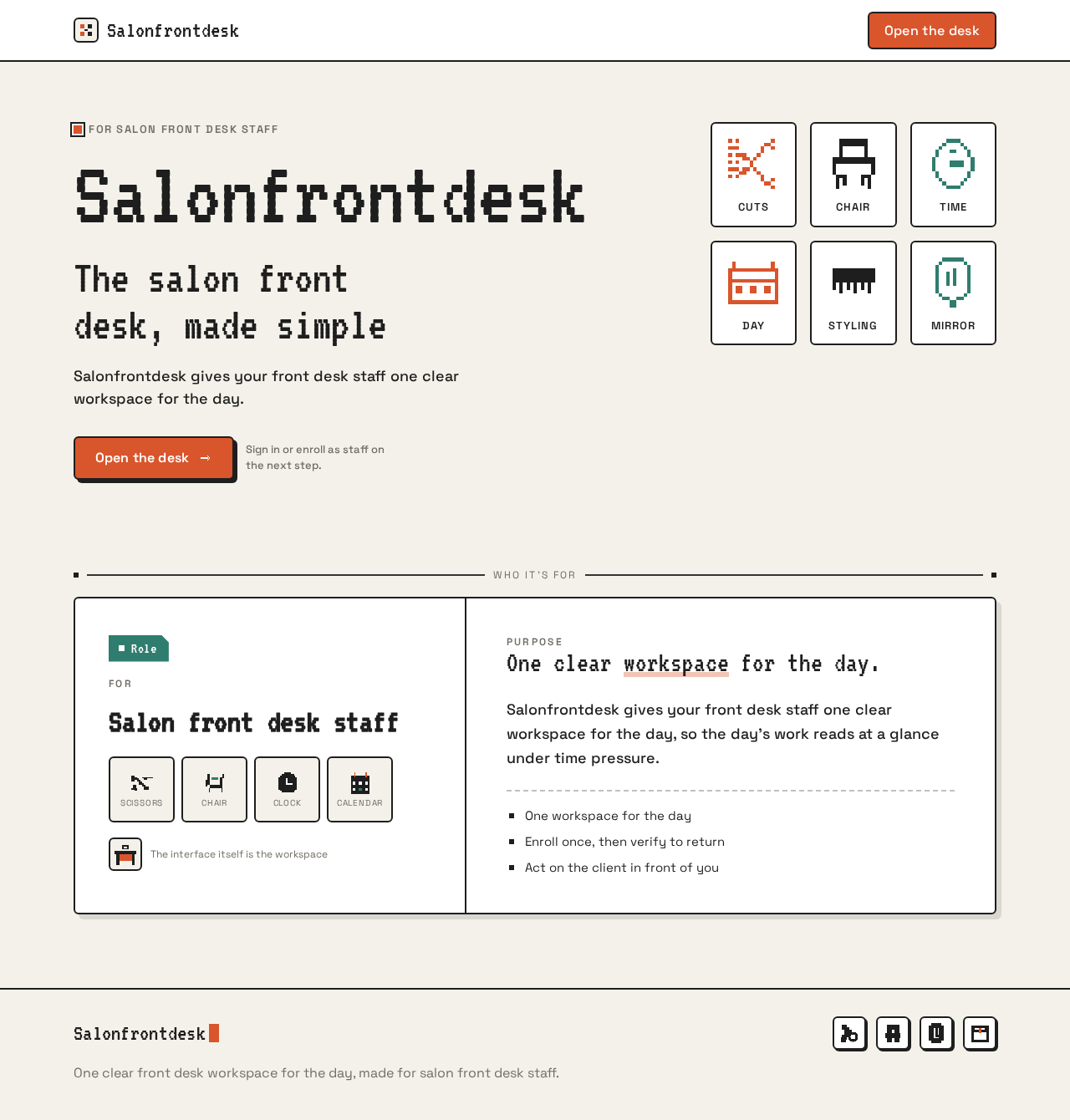
- Information/state: Product name "Salonfrontdesk"; headline "The salon front desk, made simple"; subline "Salonfrontdesk gives your front desk staff one clear workspace for the day."; the user role (salon front desk staff) and the tool's purpose.
- Primary action: "Open the desk" call to action leading to the Login page.
- Supporting actions: None beyond the primary entry action.
- Domain entities: None persisted on this page.
- Component responsibilities:
- Hero block: wide pixel wordmark "Salonfrontdesk" spanning the left 8 columns at up to 112px in VT323.
- Icon tile grid: 3x2 grid of chunky pixel icon tiles (scissors, chair, clock, calendar pictograms) with 2px ink borders on the right.
- Terracotta CTA button beneath the wordmark.
- States:
- Loading: static content; no data fetch required.
- Empty: not applicable.
- Success: page renders fully; CTA navigates to Login.
- Error: not applicable (no data dependency).
- Recovery: not applicable.
Login
- Information/state: Identity access surface. Two modes: first-use self-service enrollment and returning verification.
- Primary actions:
- Enrollment: staff submit the information needed to establish their identity (self-service).
- Verification: returning staff submit their credentials to verify identity.
- Supporting actions: Switch between enrollment and verification modes.
- Domain entities: Staff identity record (application-owned), persisted in MariaDB.
- Component responsibilities:
- Mode toggle between enrollment and verification.
- Enrollment form with labeled fields and a submit control.
- Verification form with labeled fields and a submit control.
- Inline validation and error messaging.
- States:
- Loading: submit control shows a pending state while the backend processes the request.
- Empty: forms render with empty fields and clear labels.
- Success: enrollment completes and the staff member proceeds to the Front Desk workspace; verification succeeds and the staff member is returned to the Front Desk workspace.
- Error: invalid or incomplete input shows an inline message; failed verification shows a clear retry message without revealing which credential was wrong.
- Recovery: staff can correct input and resubmit; a failed verification returns to the verification form with fields editable.
Front Desk
- Information/state: The staff member's front desk workspace for the day, presented as a three-panel layout: day list, client card, action bar. Access requires login.
- Primary actions: Open and continue front desk work within the workspace; use the action bar for the active client card.
- Supporting actions: Select an entry in the day list to load its client card; use the blinking cursor block to mark the active field.
- Domain entities: The staff member's front desk working state (day list entries, active client card, action bar state), persisted in MariaDB and bound to the signed-in staff identity.
- Component responsibilities:
- Day list panel: ordered list of the day's entries; selection highlights the active entry.
- Client card panel: details for the selected entry; active field marked by a blinking cursor block.
- Action bar panel: actions applicable to the active client card.
- Status chips in terracotta and teal with a pixel corner notch.
- States:
- Loading: panels show a pending state while the workspace state is fetched.
- Empty: day list shows an empty state when there are no entries; client card shows a prompt to select an entry.
- Success: workspace renders with the day list, selected client card, and action bar.
- Error: failed load shows a retry message; failed action shows an inline message on the action bar.
- Recovery: staff can retry loading or retry the failed action; session loss redirects to Login and returns to Front Desk after verification.
3. Functional Requirements
FR-1 — Public entry explains the product and role As a salon front desk staff member, I should see a public Landing page that explains the salon front desk tool and its user role, so that I understand what the product does before signing in.
- Provenance: required_inference
- Trigger: staff member visits the application root.
- Observable result: Landing renders the product name, headline, subline, and the "Open the desk" call to action.
- Access state: anonymous (no access requirement).
- Failure/recovery: not applicable (static content).
- Continuation: selecting "Open the desk" navigates to Login.
FR-2 — Self-service enrollment before first use As a salon front desk staff member, I should complete self-service enrollment before first use, so that my identity is established and I can reach the Front Desk workspace.
- Provenance: required_inference
- Trigger: first-time staff member selects enrollment on the Login page.
- Input: the information required to establish the staff identity.
- Observable result: the identity record is created and persisted; the staff member proceeds to the Front Desk workspace.
- Access state: anonymous entry on Login.
- Failure/recovery: invalid or incomplete input shows an inline message and the form remains editable for correction.
- Continuation: on success, the staff member lands in the Front Desk workspace.
FR-3 — Returning identity verification As a salon front desk staff member, I should verify my identity to return to the front desk workspace, so that I can resume my front desk work.
- Provenance: required_inference
- Trigger: returning staff member selects verification on the Login page and submits credentials.
- Observable result: identity is verified and the staff member is returned to the Front Desk workspace.
- Access state: anonymous entry on Login; Front Desk becomes available only after verification.
- Failure/recovery: failed verification shows a clear retry message without revealing which credential was wrong; the form remains editable.
- Continuation: on success, the staff member lands in the Front Desk workspace.
FR-4 — Protected Front Desk workspace As a salon front desk staff member, I should open the Front Desk workspace and continue my front desk work, so that I have one clear place for the day.
- Provenance: required_inference
- Trigger: verified staff member opens the Front Desk page.
- Observable result: the workspace renders the three-panel layout (day list, client card, action bar) bound to the signed-in staff identity.
- Access state: requires login; unauthenticated access redirects to Login.
- Failure/recovery: failed load shows a retry message; session loss redirects to Login and returns to Front Desk after verification.
- Continuation: staff member selects a day list entry, works in the client card, and uses the action bar.
FR-5 — Day list selection As a salon front desk staff member, I should select an entry in the day list, so that the client card shows the entry I am working on.
- Provenance: required_inference
- Trigger: staff member selects an entry in the day list panel.
- Observable result: the selected entry is highlighted and the client card loads its details.
- Access state: requires login.
- Failure/recovery: if the client card fails to load, an inline retry message appears and the selection remains highlighted.
- Continuation: staff member uses the action bar for the active client card.
FR-6 — Action bar for the active client card As a salon front desk staff member, I should use the action bar for the active client card, so that I can act on the entry I am working on.
- Provenance: required_inference
- Trigger: staff member activates an action in the action bar while a client card is active.
- Observable result: the action is applied to the active client card and the workspace state reflects the result.
- Access state: requires login.
- Failure/recovery: a failed action shows an inline message on the action bar and the workspace state is unchanged; the staff member can retry.
- Continuation: staff member continues with the next day list entry or action.
4. User Personas
Salon front desk staff
- Product context: Works the salon front desk under time pressure. The product is their single workspace for the day, and they need fast reading and a warm, legible interface rather than a dense console.
- Primary goal: Open the desk quickly, see the day's context, and act on the client they are working with.
- Distinct accepted responsibilities:
- Complete self-service enrollment before first use.
- Verify identity to return to the front desk workspace.
- Open the Front Desk workspace and continue front desk work.
- Select a day list entry to load its client card.
- Use the action bar for the active client card.
- Relevant inputs or decisions: Enrollment information; verification credentials; which day list entry to work on; which action to apply to the active client card.
- Interactions with other accepted participants: None beyond the staff member's own identity lifecycle; the source does not establish other active human participants.
- Observable success: The staff member reaches the Front Desk workspace after enrollment or verification, sees the day list and client card, and applies actions to the active client card with visible results.
5. Core User Flows
Flow A — First-time staff member enrolls and opens the desk
- Staff member visits the application root and lands on Landing (anonymous).
- Landing shows the product name, headline "The salon front desk, made simple", subline, and the "Open the desk" call to action.
- Staff member selects "Open the desk" and arrives at Login (anonymous).
- Staff member selects enrollment mode and submits the information required to establish their identity.
- If input is invalid or incomplete, Login shows an inline message and the form remains editable; the staff member corrects and resubmits.
- On success, the identity record is created and persisted, and the staff member lands in the Front Desk workspace.
- Staff member sees the three-panel layout (day list, client card, action bar) bound to their identity.
Flow B — Returning staff member verifies identity and resumes work
- Returning staff member arrives at Login (anonymous).
- Staff member selects verification mode and submits credentials.
- If verification fails, Login shows a clear retry message without revealing which credential was wrong; the form remains editable and the staff member retries.
- On success, the staff member is returned to the Front Desk workspace.
- Staff member sees the day list, selects an entry, and the client card loads its details.
- Staff member uses the action bar for the active client card; the workspace state reflects the result.
- If an action fails, the action bar shows an inline message and the workspace state is unchanged; the staff member retries.
- Staff member continues with the next day list entry or action.
Flow C — Session loss during front desk work
- Staff member is working in Front Desk and the session is lost.
- The application redirects to Login.
- Staff member verifies identity (Flow B, steps 2–4).
- On success, the staff member returns to Front Desk and continues.
6. Visuals Colors and Theme
Creative direction: Charming clarity from Susan Kare — clear small symbols, tidy grids, calm control with a friendly tone.
Palette (light mode):
| Role | Hex |
|---|---|
| Background | #F4F1EA |
| Surface | #FFFFFF |
| Text | #1E1E1E |
| Primary | #D9552B |
| Accent | #2F7D6E |
| Muted | #8A8578 |
Warm paper ground #F4F1EA with white tiles. Ink text #1E1E1E and one hot terracotta #D9552B for actions. Teal #2F7D6E marks status only.
Typography:
- Headings: VT323 — pixel display, upper and lower case, large and tight.
- Body: Space Grotesk — clean geometric sans at medium weight.
- Scale: 1.333 modular — 56 / 40 / 28 / 18 / 16.
- Headline:
clamp(40px, 9vw, 112px).
Shape language: Square tiles with 2px ink borders and 6px radii. Chunky outline cards and pixel icon blocks. No soft blobs.
Layout: A 12-column grid of tidy tiles. The hero uses a wide pixel-wordmark block on the left and a stack of icon tiles on the right. The Front Desk page uses a three-panel workspace: day list, client card, action bar.
Imagery: Pixel icons and simple pictograms for scissors, chair, clock, and calendar. No photography. The interface itself is the image.
Avoid: Gradient blobs or glass panels; soft rounded pill buttons with drop shadows; stock photography of people; blue or indigo accents on white.
Readability constraint: Headlines, wordmarks, labels, numbers, cards' text and controls stay entirely inside the viewport and their container at 375px, 768px, and 1280px, wrapping or scaling (for example font-size: clamp(...) with its mobile size) to fit, with no other element covering any part of them. Imagery, decoration, and motion may be cropped, bled, rotated, overlapped, or cut as the direction asks, as long as they cover no readable text or control. With prefers-reduced-motion, provide a usable static arrangement.
7. Signature Design Concept
The public entry is a bold hero on warm paper #F4F1EA. A huge VT323 wordmark "Salonfrontdesk" spans the left 8 columns at up to 112px, with the terracotta "Open the desk" CTA sitting beneath it. A 3x2 grid of chunky pixel icon tiles sits at the right, each with a 2px ink border, showing scissors, chair, clock, and calendar pictograms. The interface itself is the image: no photography, no gradient blobs, no glass panels. The wordmark and CTA stay whole at every viewport; the icon grid may reflow below the wordmark on narrow screens.
8. Interaction Model & Motion Direction
Interaction Model: Animated Motion Tempo: restrained Hero Dimensionality: flat
Landing Hero Motion Brief
- Focal subject: The giant VT323 wordmark "Salonfrontdesk" on the left, with the 3x2 pixel icon tile grid on the right.
- Input → transformation → outcome thesis: On load, the wordmark and icon tiles step into place frame by frame; on hover or focus of the "Open the desk" CTA, the CTA and adjacent icon tile blink once to confirm the entry action. No easing curves — short 120ms steps only.
- Motion vocabulary: Frame-by-frame micro steps; icons blink once on state change; short 120ms steps only.
- Composed first frame: Warm paper ground, wordmark fully legible on the left 8 columns, icon tile grid on the right, terracotta CTA beneath the wordmark.
- Reduced-motion state: Static arrangement with the wordmark, icon grid, and CTA fully visible; no blinking or stepping; the icon grid wraps into rows so every tile is fully visible.
On the Front Desk page, a blinking cursor block marks the active field, and status chips in terracotta and teal carry a pixel corner notch. Icons blink once on state change.
9. Non-Functional Requirements
- NFR-1 — Durable state: Enrollment identity and the staff member's front desk working state must persist across sessions in MariaDB. Provenance: required_inference (durable_state_required).
- NFR-2 — Application-owned identity: Identity is application-owned; the Login page is anonymously reachable and the Front Desk page requires login. Provenance: required_inference (delivery_shape.app_owned_identity).
- NFR-3 — Readability at all viewports: Readable text and controls stay whole at 375px, 768px, and 1280px, wrapping or scaling to fit, with no other element covering them. Provenance: explicit (creative direction).
- NFR-4 — Reduced motion: With
prefers-reduced-motion, provide a usable static arrangement. Provenance: explicit (creative direction). - NFR-5 — No photography: The interface itself is the image; no stock photography of people. Provenance: explicit (creative direction).
- NFR-6 — Palette and typography fidelity: Preserve the requested palette, fonts, surfaces, tone, and layout. Provenance: explicit (user design constraints).
10. Tech Stack
- Frontend: React application UI.
- Backend: Shared FastAPI process for application APIs and domain modules.
- Database: MariaDB for application-owned persistent data.
- Infrastructure: docker-compose with
frontend,backend, anddatabaseservices. The backend is reused for all feature APIs; no additional services are required for the accepted workflows.
11. Assumptions and Constraints
- A-1: The active human persona set is exactly one role: Salon front desk staff. No other human participants are established by the source.
- A-2: The page contract is closed and ordered: Landing, Login, Front Desk. Access: Landing (none), Login (none), Front Desk (login).
- A-3: Identity is application-owned and established through self-service enrollment on the Login page; the Front Desk page cannot establish access to itself.
- A-4: No differentiated permissions, role-based visibility, or shared multi-user state are established by the source.
- A-5: No future-horizon capabilities are accepted; all requirements are current.
- A-6: The Front Desk workspace's day list, client card, and action bar are the staff member's own working context; the source does not specify the exact fields or actions beyond the three-panel layout and the blinking cursor block marking the active field.
- A-7: The creative direction is authoritative for visuals, motion, and layout; the catalogue fills only unspecified details.
12. Glossary
- Salon front desk staff: The active human persona; the user role named "Salonfrontdesk" in the source.
- Front Desk workspace: The protected three-panel workspace (day list, client card, action bar) where staff continue front desk work.
- Day list: The panel listing the day's entries; selecting an entry loads its client card.
- Client card: The panel showing details for the selected day list entry; the active field is marked by a blinking cursor block.
- Action bar: The panel of actions applicable to the active client card.
- Self-service enrollment: The first-use interaction on the Login page that establishes the staff member's application-owned identity.
- Identity verification: The returning interaction on the Login page that verifies the staff member's identity and returns them to the Front Desk workspace.
- Pixel icon tile: A chunky square tile with a 2px ink border containing a simple pictogram (scissors, chair, clock, calendar).
- Status chip: A terracotta or teal chip with a pixel corner notch marking status.
For salon front desk staff
Salonfrontdesk
The salon front desk, made simple
Salonfrontdesk gives your front desk staff one clear workspace for the day.
Salon front desk staff
Purpose
One clear workspace for the day.
Salonfrontdesk gives your front desk staff one clear workspace for the day, so the day’s work reads at a glance under time pressure.
- One workspace for the day
- Enroll once, then verify to return
- Act on the client in front of you
For salon front desk staff
Salonfrontdesk
The salon front desk, made simple
Salonfrontdesk gives your front desk staff one clear workspace for the day.
Salon front desk staff
Purpose
One clear workspace for the day.
Salonfrontdesk gives your front desk staff one clear workspace for the day, so the day’s work reads at a glance under time pressure.
- One workspace for the day
- Enroll once, then verify to return
- Act on the client in front of you
No comments yet. Be the first!