lunar-cafeflow

bySwapnil Swapnil

app.cafeflow.fun

LandingLoginLoyaltyKitchen DisplayPOSSign UpQR OrderAnalyticsInventory
Landing

Comments (0)

No comments yet. Be the first!

System Requirements

System Requirements Document for Cafeflow

1. Introduction

Cafeflow is a browser-based café management application built for a new client, modeled on the feature and structure reference of app.cafeflow.fun. It gives a café one workbench for the daily running of the business: taking orders at the counter, letting customers order from their table by scanning a QR code, sending tickets to the kitchen, tracking stock, running a loyalty program, and reading sales analytics.

The product intent is a sturdy, plain-spoken operations tool for café staff and owners — fast counter tools that feel confident rather than delicate. The audience is the café owner or manager who runs the business, the cashier or front-of-house staff who take orders and handle payment, and the kitchen staff who prepare and complete each order. Customers interact only through the QR ordering surface; they are not staff of the product.

The reference at app.cafeflow.fun establishes the structure and feature shape: an entry that redirects to a login page, a documented sign-up flow, and a live dashboard behind authentication. Cafeflow reproduces that shape for the new client with its own application-owned identity, its own data, and its own visual identity.

2. System Overview

Page 1 of 25

2a. Product Interpretation and Delivery Boundary

Cafeflow is delivered as a first-party web application running in the browser. It is composed of a React frontend, a shared FastAPI backend that serves all application APIs and domain modules, and a MariaDB database for application-owned persistent data. All café records — orders, stock, loyalty members, sales — are owned and persisted by this application.

Identity is application-owned. A new café owner or manager enrolls through self-service sign-up, and staff verify their identity through the login page before any protected café record opens. The public landing page and the QR ordering surface are reachable without signing in; the POS, Kitchen Display, Inventory, Loyalty, and Analytics destinations are role-restricted and require an authenticated session. The owner or manager grants staff access to their role pages.

The QR ordering surface is a public, ephemeral entry: a customer scans a table QR code, browses the menu, and places an order without creating an account. That order then flows into the same order state that the POS and Kitchen Display work from.

Everything described in this document is current scope. No future-horizon features are committed here.

2b. Source Content Inventory

The reference directive for app.cafeflow.fun declares feature_reference and structure_reference uses only, not content_source. No source content inventory is therefore included.

2c. Page Content and Component Coverage

Page 2 of 25

Landing

  • Information and state: Public entry. Presents the café management app before any sign-in: what the workbench does (orders, kitchen tickets, stock, sales), and the entry points to sign up or log in. No café data is shown.
  • Primary action: "Open the till" call to action leading into the app entry (login for returning staff, sign-up for a new owner).
  • Supporting actions: Navigate to Login; navigate to Sign Up.
  • Domain entities: None persisted; presentation only.
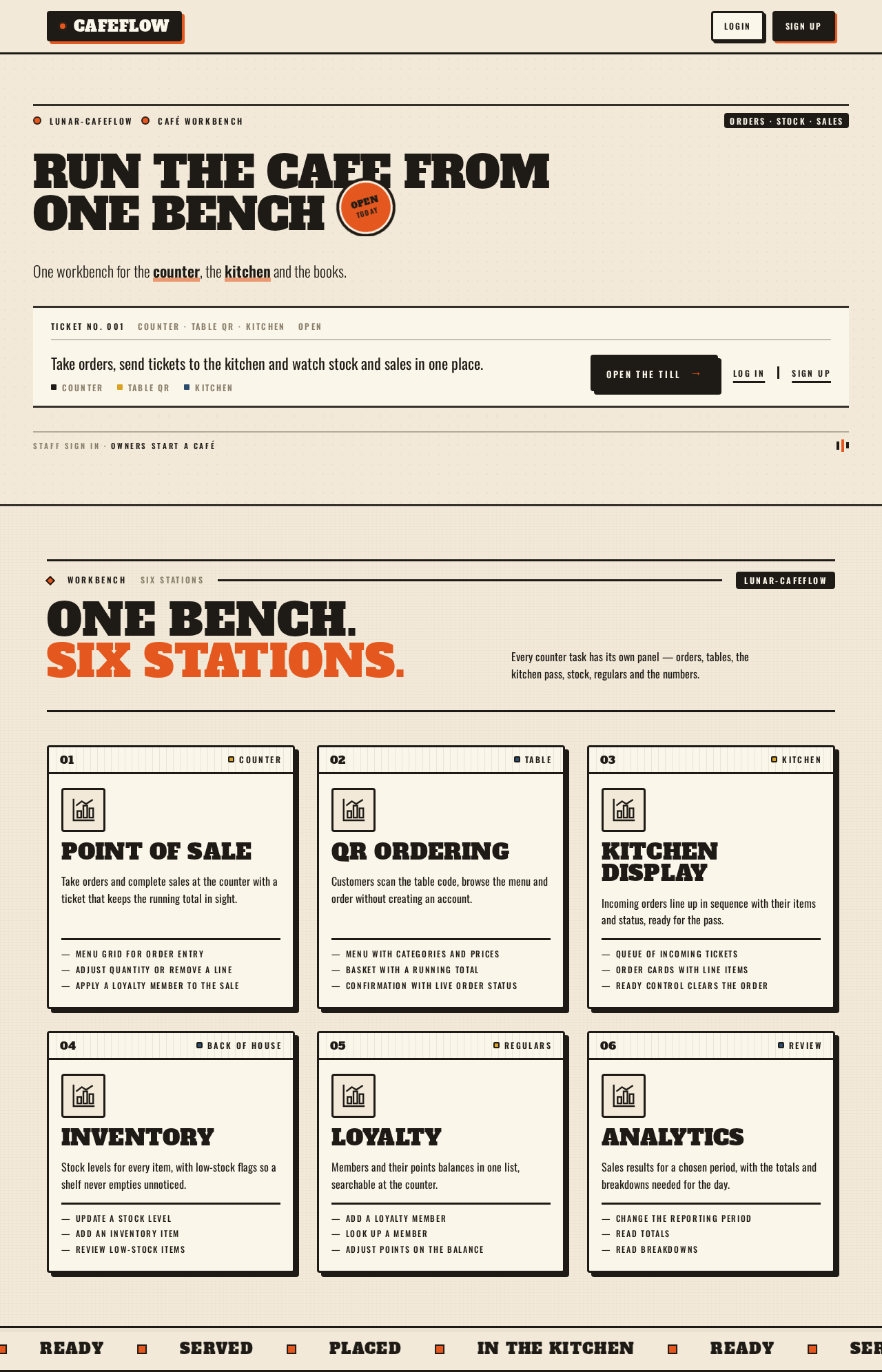
  • Component responsibilities: Hero band with headline, subline, and CTA stamp; ruled ticket strip section openers; feature panels describing POS, QR ordering, kitchen display, inventory, loyalty, and analytics; order-status marquee above the footer.
  • States: Loading (static content, no data fetch); empty (not applicable); success (rendered); error (not applicable); recovery (not applicable).

Login

  • Information and state: Anonymous identity-access surface. Collects staff credentials and establishes an authenticated session. Shows an error state when credentials are rejected.
  • Primary action: Submit credentials to sign in.
  • Supporting actions: Navigate to Sign Up; return to Landing.
  • Domain entities: Staff account (email, credential), session.
  • Component responsibilities: Credential form; validation messages; role-aware redirect after successful sign-in (owner/manager to Analytics, cashier to POS, kitchen staff to Kitchen Display).
  • States: Loading (submitting); empty (blank form); success (session established, redirect to role page); error (invalid credentials, retry); recovery (re-enter credentials, or go to Sign Up).
Page 3 of 25

QR Order

  • Information and state: Public, no-account ordering surface reached by scanning a table QR code. Shows the café menu with categories and prices, a current order basket, and the placed-order confirmation with its status.
  • Primary action: Place an order from the basket.
  • Supporting actions: Browse menu categories; add or remove items and adjust quantity; view order status after placing.
  • Domain entities: Menu item (name, category, price, availability), order, order line, table reference.
  • Component responsibilities: Menu list with category markers; basket panel with running total; place-order control; confirmation and status view.
  • States: Loading (menu fetch); empty (no items in basket, or item unavailable); success (order placed, confirmation shown); error (item unavailable at placement, submission failure); recovery (adjust basket and retry, or choose another item).

Sign Up

  • Information and state: Anonymous self-service enrollment for a new café owner or manager. Collects the café and owner details needed to create the account and the café record.
  • Primary action: Create the café account.
  • Supporting actions: Navigate to Login; return to Landing.
  • Domain entities: Café, owner/manager account.
  • Component responsibilities: Enrollment form; validation; success confirmation leading into the authenticated app.
  • States: Loading (submitting); empty (blank form); success (account and café created, signed in); error (validation failure or duplicate account); recovery (correct fields and resubmit, or go to Login if already enrolled).
Page 4 of 25

POS

  • Information and state: Role-restricted counter workspace for cashier or front-of-house staff. Shows the menu for order entry, the current ticket, and the running total; completed sales are recorded.
  • Primary action: Take an order and complete the sale.
  • Supporting actions: Add items to the ticket; adjust quantity; remove a line; apply a loyalty member to the sale; complete payment.
  • Domain entities: Menu item, order, order line, payment, loyalty member.
  • Component responsibilities: Menu grid; ticket panel; total and payment control; loyalty lookup; confirmation of completed sale.
  • States: Loading (menu fetch); empty (no items on ticket); success (sale completed, ticket cleared); error (payment or submission failure, unavailable item); recovery (retry completion, or amend the ticket).

Kitchen Display

  • Information and state: Role-restricted board for kitchen staff showing incoming orders in sequence with their line items and current status.
  • Primary action: Mark an order ready.
  • Supporting actions: View order detail; advance an order's status as it is prepared.
  • Domain entities: Order, order line, order status.
  • Component responsibilities: Incoming-order queue; order cards with items and status; ready control; status update feedback.
  • States: Loading (queue fetch); empty (no incoming orders); success (order marked ready and removed from the active queue); error (status update failure); recovery (retry the update; the order remains in the queue).
Page 5 of 25

Inventory

  • Information and state: Role-restricted stock workspace for the owner/manager and front-of-house staff. Lists inventory items with current stock levels and flags low stock.
  • Primary action: Update a stock level.
  • Supporting actions: Add an inventory item; adjust quantity up or down; review low-stock items.
  • Domain entities: Inventory item (name, unit, quantity, low-stock threshold).
  • Component responsibilities: Inventory list; quantity controls; low-stock indicators; add-item form.
  • States: Loading (list fetch); empty (no inventory items yet); success (level saved, list refreshed); error (save failure); recovery (retry the save; the prior level is retained).

Loyalty

  • Information and state: Role-restricted loyalty workspace for the owner/manager and front-of-house staff. Lists loyalty members with their points balances.
  • Primary action: Manage a loyalty member and their points.
  • Supporting actions: Add a loyalty member; look up a member; adjust a member's points.
  • Domain entities: Loyalty member (name, contact, points balance), points transaction.
  • Component responsibilities: Member list and search; member detail with balance; points adjustment control; add-member form.
  • States: Loading (member fetch); empty (no members yet); success (member or points saved); error (save failure or member not found); recovery (retry, or search again).
Page 6 of 25

Analytics

  • Information and state: Role-restricted sales analytics for the owner or manager. Presents sales results over a selected period with the totals and breakdowns needed for daily decisions.
  • Primary action: Review sales results for a period.
  • Supporting actions: Change the reporting period; read totals and breakdowns.
  • Domain entities: Completed sale, order, period aggregate.
  • Component responsibilities: Period selector; totals panel; breakdown panels; empty and error messaging.
  • States: Loading (aggregate fetch); empty (no sales in the selected period); success (totals and breakdowns shown); error (fetch failure); recovery (retry or change period).
Page 7 of 25

3. Functional Requirements

FR-1 — Browser delivery (explicit) As a café staff member, I should use Cafeflow entirely in the browser, so that I can work from any browser-equipped counter or kitchen device without installing software.

  • Trigger: opening the application URL.
  • Observable result: the application loads and runs in the browser.
  • Failure/recovery: if the page fails to load, reloading the URL restores the application.
  • Continuation: the user proceeds to Landing, Login, or their role page.

FR-2 — Public landing entry (required_inference) As a visitor, I should see a public landing page that explains the café management app, so that I understand what it does before signing in.

  • Trigger: visiting the application root while unauthenticated.
  • Observable result: the Landing page renders with its headline, subline, and "Open the till" call to action.
  • Access state: anonymous.
  • Continuation: the visitor follows the call to action to Login or Sign Up.
Page 8 of 25

FR-3 — Self-service enrollment (required_inference) As a new café owner or manager, I should complete self-service sign-up, so that my café account exists and I can start using the app.

  • Trigger: submitting the Sign Up form with café and owner details.
  • Observable result: the café record and owner account are created and the owner is signed in.
  • Access state: anonymous entry; protected state becomes available only after enrollment succeeds.
  • Failure/recovery: validation errors are shown inline; a duplicate account directs the user to Login instead.
  • Continuation: the owner lands in the authenticated app.

FR-4 — Staff identity verification (required_inference) As a staff member, I should sign in with my credentials, so that protected café records open only for verified staff.

  • Trigger: submitting credentials on Login.
  • Observable result: an authenticated session is established and the user is routed to their role page.
  • Access state: anonymous entry; protected destinations remain unavailable until the session exists.
  • Failure/recovery: rejected credentials show an error and allow re-entry; an unenrolled user is directed to Sign Up.
  • Continuation: the user works in their role page.
Page 9 of 25

FR-5 — Staff access grant (required_inference) As a café owner or manager, I should give staff access to their role pages, so that each staff member reaches the workspace their job needs.

  • Trigger: the owner or manager grants a staff member access to a role.
  • Observable result: the staff member's account is bound to that role, and after sign-in they reach the corresponding role-restricted page.
  • Failure/recovery: an ungranted account signs in but reaches no role-restricted page; the owner grants access and the staff member signs in again.
  • Continuation: the staff member works in their granted role page.

FR-6 — POS order and sale (explicit) As a cashier or front-of-house staff member, I should take a café order and complete the sale in the POS, so that the customer is served and the sale is recorded.

  • Trigger: the cashier builds a ticket from the menu and completes payment.
  • Observable result: the sale is recorded and the ticket is cleared.
  • Access state: role-restricted to cashier or front-of-house staff.
  • Failure/recovery: a failed completion keeps the ticket intact for retry; an unavailable item is flagged and can be removed.
  • Continuation: the cashier starts the next ticket; the order proceeds to the kitchen.
Page 10 of 25

FR-7 — QR code ordering (explicit) As a customer, I should scan a table QR code and place a café order without an account, so that I can order from my table.

  • Trigger: scanning the QR code and submitting a basket on QR Order.
  • Observable result: the order is placed and a confirmation with its status is shown.
  • Access state: anonymous, no account.
  • Failure/recovery: an unavailable item or a failed submission shows an error and the basket is preserved for adjustment and retry.
  • Continuation: the placed order enters the kitchen queue.

FR-8 — Kitchen display of incoming orders (explicit) As a kitchen staff member, I should see incoming orders on the kitchen display, so that I prepare each order in the correct sequence.

  • Trigger: an order arrives from the POS or QR Order.
  • Observable result: the order appears in the incoming queue with its line items and status.
  • Access state: role-restricted to kitchen staff.
  • Failure/recovery: if the queue fails to load, a retry reloads it; orders remain queued until shown.
  • Continuation: the kitchen staff prepares the order.

FR-9 — Mark order ready (explicit) As a kitchen staff member, I should mark an order ready on the kitchen display, so that front-of-house knows it can be served.

  • Trigger: the kitchen staff selects the ready control on an order.
  • Observable result: the order's status becomes ready and it leaves the active queue.
  • Failure/recovery: a failed status update leaves the order in the queue and can be retried.
  • Continuation: the order is served and the sale stands recorded.
Page 11 of 25

FR-10 — Inventory management (explicit) As a café owner/manager or front-of-house staff member, I should track inventory items and update stock levels, so that the café knows what it has on hand.

  • Trigger: adding an item or adjusting a quantity on Inventory.
  • Observable result: the stock level is saved and the list reflects it, with low stock flagged.
  • Access state: role-restricted to owner/manager and front-of-house staff.
  • Failure/recovery: a failed save retains the prior level and can be retried.
  • Continuation: the updated level informs daily ordering decisions.

FR-11 — Loyalty program (explicit) As a café owner/manager or front-of-house staff member, I should manage loyalty members and their points, so that repeat customers are recognized and rewarded.

  • Trigger: adding a member or adjusting a member's points on Loyalty.
  • Observable result: the member record and points balance are saved and shown.
  • Access state: role-restricted to owner/manager and front-of-house staff.
  • Failure/recovery: a failed save or an unknown member shows an error and can be retried or searched again.
  • Continuation: the member's balance is available at the POS for a later sale.
Page 12 of 25

FR-12 — Sales analytics (explicit) As a café owner or manager, I should view sales analytics, so that I can check sales results and make daily decisions.

  • Trigger: opening Analytics and selecting a period.
  • Observable result: totals and breakdowns for the period are shown.
  • Access state: role-restricted to the owner or manager.
  • Failure/recovery: a failed fetch shows an error with retry; an empty period shows an empty state.
  • Continuation: the owner acts on the results, for example by adjusting stock.

4. User Personas

Page 13 of 25

Café owner or manager

  • Product context: Runs the café and is accountable for its results. Enrolls the café through self-service sign-up and is the person who grants staff access to their role pages.
  • Primary goal: Keep the business under control — know what sold, know what stock remains, and keep the right people working the right stations.
  • Distinct accepted responsibilities: Completes enrollment; grants staff access; reviews sales analytics; manages inventory; manages loyalty members and points.
  • Inputs and decisions: Chooses the reporting period in Analytics; decides stock adjustments in Inventory; decides loyalty point adjustments; decides which staff get which role.
  • Interactions with other participants: Grants access to cashier/front-of-house staff and kitchen staff; shares the inventory and loyalty workspace with front-of-house staff; relies on kitchen staff to complete orders so sales are recorded.
  • Observable success: Sales results are visible for the chosen period, stock levels are current, loyalty balances are correct, and each staff member reaches their role page after signing in.
Page 14 of 25

Cashier or front-of-house staff

  • Product context: Works the counter. Takes orders face to face and completes payment; also handles stock and loyalty tasks alongside the owner.
  • Primary goal: Complete each sale quickly and correctly and serve the customer.
  • Distinct accepted responsibilities: Builds and completes POS tickets; applies loyalty members to a sale; updates inventory levels; manages loyalty members and points.
  • Inputs and decisions: Menu selections and quantities; payment completion; stock quantities; loyalty member lookup and point adjustments.
  • Interactions with other participants: Serves the customer at the counter; hands the order to kitchen staff through the kitchen queue; works the inventory and loyalty pages shared with the owner/manager.
  • Observable success: The sale is recorded and the ticket clears; the order appears for the kitchen; stock and loyalty records reflect the changes made.
Page 15 of 25

Kitchen staff

  • Product context: Works the line. Reads incoming orders and prepares them in sequence.
  • Primary goal: Prepare each order in the correct sequence and signal when it is ready.
  • Distinct accepted responsibilities: Reads the incoming order queue on the Kitchen Display; marks orders ready.
  • Inputs and decisions: The order queue and each order's line items; the decision that an order is prepared.
  • Interactions with other participants: Receives orders originating from the cashier's POS or a customer's QR Order; signals readiness so front-of-house can serve.
  • Observable success: Each order leaves the active queue only when marked ready, and front-of-house sees it as ready.

5. Core User Flows

Page 16 of 25

Flow A — New café owner enrolls and grants staff access

  1. The owner visits the application root and lands on Landing, which explains the workbench and offers "Open the till".
  2. The owner follows the call to action to Sign Up.
  3. On Sign Up, the owner enters the café and owner details and submits.
  4. The system creates the café record and owner account and signs the owner in; the owner lands in the authenticated app.
  5. The owner grants a cashier access to the POS and a kitchen staff member access to the Kitchen Display.
  6. Each staff member signs in on Login and is routed to their granted role page.
  7. Failure/recovery: if enrollment validation fails, the form shows inline errors and the owner corrects and resubmits; if the account already exists, the owner is directed to Login. If a staff member has no grant, they sign in but reach no role page until the owner grants access.

Flow B — Cashier takes an order and completes a sale

  1. The cashier signs in on Login and is routed to POS.
  2. On POS, the cashier selects menu items and quantities to build the ticket.
  3. The cashier optionally looks up a loyalty member and applies them to the sale.
  4. The cashier completes payment; the sale is recorded and the ticket clears.
  5. The order enters the kitchen queue.
  6. Failure/recovery: if completion fails, the ticket stays intact and the cashier retries; if an item is unavailable, it is flagged and the cashier removes it before completing.
  7. Continuation: the cashier starts the next ticket.
Page 17 of 25

Flow C — Customer orders by QR code

  1. The customer scans the table QR code and opens QR Order without an account.
  2. The customer browses the menu by category and adds items to the basket, adjusting quantities.
  3. The customer places the order.
  4. The order is placed and a confirmation with its status is shown.
  5. The order enters the kitchen queue.
  6. Failure/recovery: if an item is unavailable or submission fails, an error is shown and the basket is preserved so the customer can adjust and retry.

Flow D — Kitchen prepares and marks an order ready

  1. The kitchen staff member signs in on Login and is routed to Kitchen Display.
  2. Incoming orders from the POS and QR Order appear in the queue with their line items and status.
  3. The kitchen staff prepares each order in sequence.
  4. The kitchen staff selects the ready control on an order.
  5. The order's status becomes ready and it leaves the active queue; front-of-house can serve it.
  6. Failure/recovery: if the queue fails to load, a retry reloads it; if a status update fails, the order stays in the queue and the update is retried.
Page 18 of 25

Flow E — Owner or front-of-house updates inventory

  1. The staff member signs in on Login and opens Inventory.
  2. The list shows inventory items with current levels and low-stock flags.
  3. The staff member adds an item or adjusts a quantity and saves.
  4. The level is saved and the list reflects it.
  5. Failure/recovery: if the save fails, the prior level is retained and the save is retried.
  6. Continuation: the owner uses the current levels to decide daily ordering.

Flow F — Owner or front-of-house manages loyalty

  1. The staff member signs in on Login and opens Loyalty.
  2. The member list shows members and their points balances.
  3. The staff member adds a member, or looks one up and adjusts their points.
  4. The member record and balance are saved and shown.
  5. Failure/recovery: a failed save or an unknown member shows an error; the staff member retries or searches again.
  6. Continuation: the balance is available at the POS for a later sale.

Flow G — Owner reviews sales analytics

  1. The owner signs in on Login and is routed to Analytics.
  2. The owner selects a reporting period.
  3. Totals and breakdowns for the period are shown.
  4. Failure/recovery: a failed fetch shows an error with retry; a period with no sales shows an empty state.
  5. Continuation: the owner acts on the results, for example by adjusting stock in Inventory.
Page 19 of 25

6. Visuals Colors and Theme

The creative direction is authoritative: bold, honest craft for a café workbench, after Aaron Draplin. Sturdy and clear, not delicate.

Mode: light.

Colour tokens (exact hex by role):

  • Background — kraft cream: #F2E9D8
  • Surface — panel cream: #FBF6EA
  • Text — near-black ink: #1E1B16
  • Primary — near-black ink: #1E1B16
  • Accent — hot orange, the one hot signal: #E4571E
  • Muted — warm grey-brown: #8A7F6B
  • Category marker — mustard: #D9A321
  • Category marker — denim: #2B4B6F

Mustard and denim mark categories only; they are never used as general accents. Orange is reserved as the single hot signal.

Typography:

  • Headings: Alfa Slab One — slab display, all caps, tight tracking, heavy weight.
  • Body: Oswald.
  • Small caps labels: Oswald, wide tracking, 12px.
  • Scale: 1.333 modular — 64 / 48 / 32 / 22 / 16, with 12px caps labels. Headline sizes use clamp() so they fit at 375px, 768px, and 1280px.

Shape language: thick 3px ink borders; chunky badges and stamps; hard corners with 4px radius; ruled panels and stamp rings.

Page 20 of 25

Layout: poster-like bands on a 12-column grid; wide rule lines separate sections; badge clusters sit left, data panels right.

Imagery: thick-line vector icons for coffee, stock, and orders; halftone café photos and kraft paper texture.

Avoid: thin hairlines or soft grey shadows; blue on white; rounded pill buttons; gradient blobs or glass panels; identical hover-lift card grids; the generic indigo/blue-on-white SaaS template.

7. Signature Design Concept

The public entry is a full-width kraft band. A 9-column Alfa Slab One headline in ink — "Run the café from one bench" — spans the viewport, with an orange circular badge stamp overlapping the last word. Under it, a ruled ticket strip carries the subline "Take orders, send tickets to the kitchen and watch stock and sales in one place." and the CTA as a black stamp button reading "Open the till".

The concept recomposes only accepted content: the headline, subline, and CTA, plus the ruled ticket strip and badge stamp as decoration. Feature panels below use thick 3px ink borders with a hard offset shadow, each opened by a ruled ticket strip with all-caps Oswald labels. A slow marquee ticker of order status words runs above the footer. All readable text and controls stay whole inside the viewport and their containers at 375px, 768px, and 1280px; the badge stamp and texture may overlap decoration only.

Page 21 of 25

8. Interaction Model & Motion Direction

Interaction Model: Animated Motion Tempo: restrained Hero Dimensionality: flat

Landing Hero Motion Brief

  • Focal subject: the oversized Alfa Slab One headline on the kraft band, with the orange badge stamp overlapping its last word.
  • Input → transformation → outcome thesis: on load, the headline snaps into place in ink on kraft; the orange badge stamp presses down onto the last word with a hard stamp press; the ruled ticket strip and its black stamp CTA snap in beneath. The outcome is the composed hero at rest, ready for "Open the till".
  • Motion vocabulary: snap-in section reveals and stamp presses; no bounce, no float.
  • Composed first frame: kraft band, ink headline, orange badge stamp seated on the last word, ruled ticket strip with subline and black stamp CTA.
  • Reduced-motion state: the hero renders in its final composed arrangement with no snap or press animation; the order-status marquee becomes a static wrapped row so every status word is fully readable.
Page 22 of 25

9. Non-Functional Requirements

  • Browser delivery (explicit): the application runs in the browser; no native client is required.
  • Readable at every viewport (explicit design constraint): headlines, wordmarks, labels, numbers, card text, and controls stay entirely inside the viewport and their container at 375px, 768px, and 1280px, wrapping or scaling to fit; no other element covers any part of them. Imagery, decoration, and motion may be cropped, bled, rotated, overlapped, or cut as the direction asks, provided they cover no readable text or control.
  • Moving content (explicit design constraint): the order-status marquee may cross the viewport edge by design; every item must become fully readable as it passes, and under prefers-reduced-motion it must present a usable static arrangement (wrapped rows or horizontal scrolling) where each item can be brought fully into view.
  • Persistent café state (required_inference): orders, sales, inventory levels, loyalty members and points, and staff role grants are durable application-owned data, so that a signed-in staff member resumes the café's real state on return.
  • Role-restricted access (required_inference): POS, Kitchen Display, Inventory, Loyalty, and Analytics require an authenticated session and the appropriate role grant; Landing, Login, Sign Up, and QR Order are reachable without signing in.
Page 23 of 25

10. Tech Stack

  • Frontend: React application UI, running in the browser.
  • Backend: shared FastAPI process serving all application APIs and domain modules (orders, menu, inventory, loyalty, analytics, identity).
  • Database: MariaDB for application-owned persistent data.
  • Deployment: docker-compose with the frontend, backend, and database services; the backend is extended with routes and modules rather than split into new services.
11. Assumptions and Constraints

  • Constraint (explicit): the app runs in the browser.
  • Constraint (explicit): the visual direction in Section 6 is authoritative; the generic indigo/blue-on-white SaaS template is forbidden.
  • Assumption: the new client's café uses the same feature shape as the CafeFlow reference — POS, QR ordering, kitchen display, inventory, loyalty, and analytics — with its own branding and data.
  • Assumption: the owner or manager is the person who enrolls the café and grants staff access; staff do not self-enroll into a café.
  • Assumption: customers order through QR Order without an account; no customer account or customer-facing history is in scope.
  • Assumption: payment is completed within the POS flow; no external payment provider integration is specified.
  • Assumption: the reference's unverified internal navigation and dashboard layout are not reproduced literally; Cafeflow's pages follow the accepted feature set and the creative direction.
Page 24 of 25

12. Glossary

  • POS — point-of-sale; the counter workspace where staff take orders and complete sales.
  • QR Order — the public, no-account ordering surface reached by scanning a table QR code.
  • Kitchen Display — the role-restricted board where kitchen staff see incoming orders and mark them ready.
  • Ticket — the in-progress set of order lines a cashier is building in the POS.
  • Order status — the state of an order as it moves from placed to ready.
  • Loyalty member — a repeat customer recorded with a points balance.
  • Role grant — the owner's or manager's assignment of a staff account to a role page.
  • Kraft band — the full-width cream background band used for the hero and section openers.
Page 25 of 25
Live
Landing design preview

Landing: Review workbench overview

Sign Up: 1. Enter café and owner details

Sign Up: 2. Correct validation errors

Sign Up: Create café account

Login: Sign in with existing account

Login: Grant staff role access

Analytics: 1. Select reporting period

Analytics: Review totals and breakdowns

Analytics: 2. Retry failed fetch

Analytics: Change period after empty result

Inventory: Review stock levels

Inventory: Add inventory item

Inventory: 1. Adjust stock quantity

Inventory: 2. Retry failed save

Loyalty: Add loyalty member

Loyalty: 1. Look up member

Loyalty: 2. Adjust member points

Loyalty: 3. Retry failed save