insurance-document-tracking
 SRD
SRD# MASTER PROMPT: InsureTrack India — AI Insurance & Document Tracking Android App Act as a senior Android developer, Python backend engineer, PostgreSQL database architect, AI integration specialist, and software security engineer. Build a complete, production-oriented native Android application named **InsureTrack India**. This application helps Indian individuals and businesses manage insurance policies, securely store documents, track expiry dates, receive renewal reminders, analyze insurance documents using AI, and monitor vendor insurance compliance. **Important:** Build a working application with real frontend-to-backend integration. Do not create only a UI prototype, static dashboard, or pseudocode. Implement the project incrementally, provide complete source files, and clearly distinguish implemented features from unfinished features. ## 1. Technology Stack ### Android - Android Studio and Kotlin - Jetpack Compose and Material 3 - MVVM architecture with clean separation of concerns - Navigation Compose - Retrofit and OkHttp for REST API communication - Kotlin Coroutines and StateFlow - Room for local caching - DataStore for preferences - Firebase Cloud Messaging (FCM) for push notifications - Android Camera and Activity Result APIs for document capture and selection - Android Keystore-backed secure token storage ### Backend - Python 3.12+ - FastAPI and Pydantic - SQLAlchemy 2.x and Alembic - PostgreSQL - JWT access and refresh tokens - Argon2id or bcrypt password hashing - Redis and Celery for background processing and scheduled jobs - Private S3-compatible object storage, with a local development option - PaddleOCR or Tesseract for OCR - LiteLLM for configurable LLM providers - Pytest for backend tests Use Docker and Docker Compose for local development. Keep secrets in environment variables and provide a complete `.env.example`. ## 2. Android Application Screens Implement the following screens with functional navigation, validation, loading states, error handling, and backend integration: 1. Splash screen and onboarding. 2. Registration, login, logout, and password reset. 3. Home dashboard with policy statistics and renewal alerts. 4. Insurance policy list with search, sorting, and filters. 5. Add, edit, view, archive, and delete policy workflows. 6. Document upload using camera, gallery, and PDF picker. 7. Secure document vault with previews, downloads, and version history. 8. OCR extraction review and manual correction. 9. AI document analysis with confidence indicators and evidence. 10. Expiry calendar, reminders, and notification history. 11. AI assistant for questions about authorized documents. 12. Business vendor and subcontractor management. 13. Project compliance dashboard and downloadable reports. 14. User profile, security settings, notification preferences, privacy, and help. Use a bottom navigation bar containing Home, Policies, Documents, AI Assistant, and Profile. Use Material 3 components and adaptive layouts. Support light and dark themes, accessible touch targets, empty states, loading indicators, error messages, confirmation dialogs, and subtle animations. ### UI Theme - Primary teal: `#2A9D8F` - Secondary blue: `#457B9D` - Light teal: `#A8DADC` - Background: `#F1FAEE` - White surfaces: `#FFFFFF` - Text: `#1D3557` - Expiry alerts: `#E63946` - Warnings: `#F4A


Comments (0)
Sign in to leave a comment
System Requirements
System Requirements Document for insurance-document-tracking
1. Introduction
InsureTrack India is a production-oriented native Android application with a real, integrated Python backend. It helps Indian individuals and businesses manage insurance policies, securely store policy and compliance documents, track expiry dates, receive renewal reminders, analyze insurance documents using AI, and monitor vendor insurance compliance.
The product serves two primary working audiences — Indian individuals managing personal insurance, and business operators managing vendor and subcontractor insurance compliance — plus any registered account user who maintains their own account, security, notification, privacy, and help settings. The application must be a working system with real frontend-to-backend integration, not a UI prototype, static dashboard, or pseudocode. Implementation proceeds incrementally, with complete source files, and implemented features are clearly distinguished from unfinished features.
2. System Overview
InsureTrack India is delivered as a native Android client (Kotlin, Jetpack Compose, Material 3, MVVM) communicating over REST with a Python 3.12+ FastAPI backend backed by PostgreSQL, Redis, and Celery, with private S3-compatible object storage for documents and LiteLLM for configurable LLM providers. OCR is performed with PaddleOCR or Tesseract. Push notifications are delivered through Firebase Cloud Messaging. Local development runs under Docker and Docker Compose with secrets in environment variables and a complete .env.example.
Actors. The accepted active human personas are the Individual Policyholder, the Business Compliance Manager, and the Registered Account User. The backend, Celery workers, Redis, PostgreSQL, S3-compatible object storage, the OCR engine, the LiteLLM-configured LLM providers, and Firebase Cloud Messaging are typed non-persona actors and system processes.
Accepted behavior. Policy lifecycle management (add, edit, view, archive, delete) with search, sorting, and filters; document intake via camera, gallery, and PDF picker; a secure document vault with previews, downloads, and version history; OCR extraction review with manual correction; AI document analysis with confidence indicators and evidence; an expiry calendar with reminders and notification history; an AI assistant answering questions only about authorized documents; business vendor and subcontractor management; a project compliance dashboard with downloadable reports; and account, security, notification, privacy, and help settings.
Ownership. All accepted human-facing work is owned by first-party application surfaces. The backend, Celery, Redis, PostgreSQL, object storage, OCR, LLM providers, and FCM perform supporting system work; they never replace a human interaction that the source requires.
Narrow exclusions. No stock photography, no gradient-blob or glassmorphism decoration, no blue-indigo palette family, no non-Fira typefaces, no tiled hover-lift card grids, no red used as a brand or button colour, no decorative looping animation, parallax, or particle fields, and no emoji or playful illustration. These are presentation and register constraints, not product-capability exclusions.
2a. Product Interpretation and Delivery Boundary
InsureTrack India is a first-party Android application with a first-party backend. The application owns identity: a person establishes an account through self-service registration, verifies identity on return, and can restore account continuity through password reset. Protected policy, document, vendor, project, and compliance state is available only after identity is established. The anonymous Landing surface explains the product and its intended individual and business users before any protected state is reachable.
Document storage is private S3-compatible object storage with a local development option; the backend enforces authorized access to every stored document. AI assistant questions are constrained to documents authorized for the requesting user. Renewal reminders and notification history depend on durable scheduled backend processing. Business compliance workflows require authenticated business authorization before vendor, subcontractor, or report data is accessible.
Current delivery covers the full accepted scope above. No future-horizon capabilities are accepted in this document; anything not listed here is out of current scope.
2c. Page Content and Component Coverage
Landing
- Information/state: Anonymous first impression of InsureTrack India; explains the intended individual and business users and the insurance, document, reminder, AI, and compliance capabilities. No protected state is shown.
- Primary actions: Proceed to registration; proceed to login.
- Supporting actions: Read capability explanations; open help/privacy information.
- Domain entities: Product capability descriptions; intended audience descriptions.
- Component responsibilities: Full-bleed cream ground; 4dp teal line-bar header with ALL-CAPS tracked label; capability sections rendered as ruled label/value rows rather than tiles; primary action control to registration; secondary action control to login.
- States: Loading (initial content fetch), empty (not applicable — static explanatory content), success (content rendered), error (content fetch failure with retry), recovery (retry restores content).
Registration, login, logout, and password reset
- Information/state: Account lifecycle state — unregistered, registering, authenticated, logged out, password-reset requested, password-reset completed.
- Primary actions: Self-service registration; login; logout; password reset.
- Supporting actions: Field-level validation feedback; resend/retry on failure.
- Domain entities: Account credentials; session tokens (JWT access and refresh); password-reset request.
- Component responsibilities: Registration form with validation; login form with validation; logout confirmation dialog; password-reset request and completion controls; loading indicators; error messages; secure token storage handoff to Android Keystore-backed storage.
- States: Loading (submission in flight), empty (no prior session), success (session established or reset completed), error (invalid credentials, validation failure, network failure), recovery (retry, corrected input, or reset flow).
Home dashboard
- Information/state: Policy statistics and renewal alerts; days to next expiry; the three nearest renewals with colour-coded status.
- Primary actions: Open a listed renewal; navigate to policies.
- Supporting actions: Refresh statistics; open expiry calendar.
- Domain entities: Policy counts; renewal dates; policy names; insurers; expiry status.
- Component responsibilities: Departure-board hero with oversized tabular day-count numeral, expiry arc pinned right, and ruled renewal list; stat pairs aligned label-left/value-right on hairline rules; coloured line-bar section headers.
- States: Loading (statistics fetch), empty (no upcoming renewal — replaced by a 600-weight "ALL CURRENT" in teal with the same rule structure), success (statistics and renewals rendered), error (fetch failure with retry), recovery (retry restores statistics).
Home
- Information/state: Authenticated home destination within the bottom navigation bar.
- Primary actions: Navigate to Home content.
- Supporting actions: Switch to Policies, Documents, AI Assistant, or Profile.
- Domain entities: Bottom-navigation destination state.
- Component responsibilities: Five-item bottom navigation bar on a single hairline rail; active item marked by a 3dp teal segment above the icon with label weight change from muted to ink at 600 weight.
- States: Loading (destination content fetch), empty (not applicable), success (destination rendered), error (fetch failure with retry), recovery (retry restores destination).
Insurance policy list
- Information/state: Browsable list of insurance policies with search, sorting, and filter state.
- Primary actions: Search policies; sort policies; filter policies; open a policy.
- Supporting actions: Clear search/filters; navigate to add policy.
- Domain entities: Policy records; policy categories (health, motor, life, fire, marine); expiry dates; insurers.
- Component responsibilities: Search field; sort control; filter controls; ruled stacked policy rows with colour-coded status dots; empty-state message; loading indicator.
- States: Loading (list fetch), empty (no policies — empty-state message with add-policy action), success (list rendered), error (fetch failure with retry), recovery (retry or cleared filters restore list).
Policies
- Information/state: Bottom-navigation destination for insurance policy work.
- Primary actions: Navigate to policy list and policy workflows.
- Supporting actions: Switch to Home, Documents, AI Assistant, or Profile.
- Domain entities: Bottom-navigation destination state.
- Component responsibilities: Five-item bottom navigation bar with active-tab teal segment and label weight change.
- States: Loading (destination content fetch), empty (not applicable), success (destination rendered), error (fetch failure with retry), recovery (retry restores destination).
Add, edit, view, archive, and delete policy workflows
- Information/state: Focused policy lifecycle state — creating, editing, viewing, archiving, deleting.
- Primary actions: Add policy; edit policy; view policy; archive policy; delete policy.
- Supporting actions: Validate fields; confirm destructive actions; cancel.
- Domain entities: Policy fields; policy category; insurer; policy number; coverage dates; expiry date.
- Component responsibilities: Policy form with validation; policy detail rendered as ruled label/value rows with keys in 13px caps muted and values in 16px ink; confirmation dialogs for archive and delete; loading indicators; error messages.
- States: Loading (save/delete in flight), empty (no policy selected), success (policy created, updated, archived, or deleted), error (validation failure, save failure, delete failure), recovery (corrected input or retry).
Document upload
- Information/state: Document intake state — source selection, capture/selection in progress, upload in progress, upload complete.
- Primary actions: Capture via camera; select from gallery; select a PDF.
- Supporting actions: Cancel capture/selection; retry failed upload.
- Domain entities: Document file; source type (camera, gallery, PDF); upload status.
- Component responsibilities: Android Camera and Activity Result API integration; gallery picker; PDF picker; upload progress indicator; error messages; on success, the document row slides in and a teal line-bar wipes left-to-right across the card in 240ms to mark "processed".
- States: Loading (upload in progress), empty (no document selected), success (document stored and marked processed), error (capture, selection, or upload failure), recovery (retry upload or reselect source).
Secure document vault
- Information/state: Private document storage state — document list, preview, download, version history.
- Primary actions: Preview a document; download a document; view version history.
- Supporting actions: Open a document's OCR review or AI analysis; navigate to upload.
- Domain entities: Documents; document versions; file names and document IDs (Fira Mono permitted); file types.
- Component responsibilities: Ruled stacked document rows; schematic document thumbnails rendered as ruled page outlines with file type in mono-ish caps; preview surface; download control; version-history list; loading indicator; empty-state message; error messages.
- States: Loading (vault fetch), empty (no documents — empty-state message with upload action), success (documents and versions rendered), error (fetch, preview, or download failure), recovery (retry restores access).
Documents
- Information/state: Bottom-navigation destination for document access.
- Primary actions: Navigate to the secure document vault and document workflows.
- Supporting actions: Switch to Home, Policies, AI Assistant, or Profile.
- Domain entities: Bottom-navigation destination state.
- Component responsibilities: Five-item bottom navigation bar with active-tab teal segment and label weight change.
- States: Loading (destination content fetch), empty (not applicable), success (destination rendered), error (fetch failure with retry), recovery (retry restores destination).
OCR extraction review
- Information/state: Extracted field values with per-field confidence; correction state.
- Primary actions: Review extracted fields; manually correct a field; confirm corrected extraction.
- Supporting actions: Revert a correction; navigate to AI document analysis.
- Domain entities: Extracted fields; confidence levels; corrected values.
- Component responsibilities: Ruled label/value rows for each extracted field; a 3-tick confidence strip under each field (teal/amber/red) that flips live on manual correction; correction input controls; loading indicator; error messages.
- States: Loading (extraction fetch), empty (no extraction available), success (fields and confidence rendered), error (extraction failure), recovery (retry extraction or manual correction).
AI document analysis
- Information/state: Analysis results with confidence indicators and supporting evidence.
- Primary actions: Run analysis on a document; review confidence indicators; review evidence.
- Supporting actions: Navigate to OCR extraction review; navigate to the AI assistant.
- Domain entities: Analysis results; confidence indicators; evidence references.
- Component responsibilities: Analysis result display; confidence indicators; evidence display; loading indicator; error messages.
- States: Loading (analysis in progress), empty (no analysis run), success (results, confidence, and evidence rendered), error (analysis failure), recovery (retry analysis).
Expiry calendar, reminders, and notification history
- Information/state: Expiry calendar state; reminder state; notification history.
- Primary actions: View expiries on the calendar; review reminders; review notification history.
- Supporting actions: Open a policy from a calendar entry or notification; adjust notification preferences.
- Domain entities: Expiry dates; reminders; notifications; policy references.
- Component responsibilities: Expiry timeline drawn as a horizontal line with colour-coded policy ticks; calendar view; reminder list; notification-history list; loading indicator; empty-state message; error messages.
- States: Loading (calendar, reminders, or history fetch), empty (no upcoming expiries or no notifications — empty-state message), success (calendar, reminders, and history rendered), error (fetch failure), recovery (retry restores data).
AI assistant
- Information/state: Question-and-answer state constrained to documents authorized for the requesting user.
- Primary actions: Ask a question about authorized documents; review the answer.
- Supporting actions: Open a referenced authorized document; clear the conversation.
- Domain entities: Questions; answers; authorized document references.
- Component responsibilities: Question input; answer display; authorized-document reference display; loading indicator; error messages.
- States: Loading (answer generation in progress), empty (no question asked), success (answer rendered with authorized references), error (generation failure or unauthorized-document refusal), recovery (rephrase or retry).
Business vendor and subcontractor management
- Information/state: Vendor and subcontractor records and their insurance compliance state.
- Primary actions: Add a vendor or subcontractor; edit a vendor or subcontractor; view a vendor or subcontractor; remove a vendor or subcontractor.
- Supporting actions: Open the project compliance dashboard; attach or review vendor insurance documents.
- Domain entities: Vendors; subcontractors; insurance coverage records; compliance status.
- Component responsibilities: Ruled stacked vendor/subcontractor rows; ruled label/value detail rows; compliance status chips; confirmation dialogs for removal; loading indicator; empty-state message; error messages.
- States: Loading (vendor list fetch), empty (no vendors or subcontractors — empty-state message with add action), success (records rendered), error (fetch or save failure), recovery (retry or corrected input).
Project compliance dashboard
- Information/state: Project insurance compliance monitoring state; downloadable reports.
- Primary actions: Monitor project compliance; download a compliance report.
- Supporting actions: Open a vendor or subcontractor record; refresh compliance state.
- Domain entities: Projects; vendors; subcontractors; compliance status; compliance reports.
- Component responsibilities: Compliance ring gauge (circular gauge permitted only here); ruled label/value compliance rows; report download control; loading indicator; empty-state message; error messages.
- States: Loading (compliance fetch or report generation), empty (no projects or no compliance data — empty-state message), success (compliance rendered and report downloaded), error (fetch or report-generation failure), recovery (retry restores compliance data or report).
User profile, security settings, notification preferences, privacy, and help
- Information/state: Profile state; security settings; notification preferences; privacy information; help content.
- Primary actions: Edit profile; manage security settings; manage notification preferences; read privacy information; read help.
- Supporting actions: Log out; navigate to notification history.
- Domain entities: Profile fields; security settings; notification preferences; privacy content; help content.
- Component responsibilities: Profile form with validation; security settings controls; notification preference controls; privacy content; help content; confirmation dialogs; loading indicator; error messages.
- States: Loading (settings fetch), empty (not applicable), success (settings and content rendered), error (fetch or save failure), recovery (retry or corrected input).
Profile
- Information/state: Bottom-navigation destination for user profile and account settings.
- Primary actions: Navigate to profile, security, notification, privacy, and help settings.
- Supporting actions: Switch to Home, Policies, Documents, or AI Assistant.
- Domain entities: Bottom-navigation destination state.
- Component responsibilities: Five-item bottom navigation bar with active-tab teal segment and label weight change.
- States: Loading (destination content fetch), empty (not applicable), success (destination rendered), error (fetch failure with retry), recovery (retry restores destination).
3. Functional Requirements
FR-1 — Working integrated application (explicit) As a user, I should use a complete, production-oriented native Android application named InsureTrack India with real frontend-to-backend integration, so that the product is a working system rather than a UI prototype, static dashboard, or pseudocode.
- Trigger/input: Application launch and normal use.
- Observable result: Android client performs real REST calls to the FastAPI backend; data persists in PostgreSQL and object storage.
- Access state: Anonymous for Landing; authenticated for protected surfaces.
- Failure/recovery: Network or backend failure surfaces an error message with retry.
- Continuation: User continues in the application after recovery.
- Owner: Landing; Registration, login, logout, and password reset; Home dashboard; Insurance policy list; Add, edit, view, archive, and delete policy workflows; Document upload; Secure document vault; OCR extraction review; AI document analysis; Expiry calendar, reminders, and notification history; AI assistant; Business vendor and subcontractor management; Project compliance dashboard; User profile, security settings, notification preferences, privacy, and help.
FR-2 — Insurance and document management scope (explicit) As an Indian individual or business user, I should manage insurance policies, securely store documents, track expiry dates, receive renewal reminders, analyze insurance documents using AI, and monitor vendor insurance compliance, so that my obligations and coverage are under control.
- Trigger/input: User actions across policy, document, expiry, AI, and compliance surfaces.
- Observable result: Policies, documents, expiry state, reminders, AI analysis, and vendor compliance state are created, updated, and displayed.
- Access state: Authenticated.
- Failure/recovery: Each surface reports its own failure with retry.
- Continuation: User proceeds to the next relevant surface.
- Owner: Home dashboard; Insurance policy list; Add, edit, view, archive, and delete policy workflows; Document upload; Secure document vault; OCR extraction review; AI document analysis; Expiry calendar, reminders, and notification history; AI assistant; Business vendor and subcontractor management; Project compliance dashboard.
FR-3 — Self-service account registration (required_inference) As a Registered Account User, I should register an account through self-service, so that I can independently start using InsureTrack India.
- Trigger/input: Submission of the registration form on the anonymous account access surface.
- Observable result: An account is created and the user gains access to protected surfaces.
- Access state: Anonymous entry; authenticated after registration.
- Failure/recovery: Validation or submission failure shows an error message and preserves entered input for correction.
- Continuation: User proceeds to the Home dashboard.
- Owner: Registration, login, logout, and password reset.
FR-4 — Returning identity verification (required_inference) As a Registered Account User, I should verify my identity on return, so that protected records are available only to me.
- Trigger/input: Submission of login credentials.
- Observable result: A session is established and protected policy, document, vendor, project, and compliance state becomes available.
- Access state: Anonymous entry; authenticated after verification.
- Failure/recovery: Invalid credentials show an error message and allow retry.
- Continuation: User proceeds to the Home dashboard.
- Owner: Registration, login, logout, and password reset.
FR-5 — Logout (explicit) As a Registered Account User, I should log out, so that my session ends and protected state is no longer accessible on the device.
- Trigger/input: Logout action with confirmation.
- Observable result: Session ends; protected surfaces require identity verification again.
- Access state: Authenticated before; anonymous after.
- Failure/recovery: Logout failure shows an error message and allows retry.
- Continuation: User returns to the account access surface.
- Owner: Registration, login, logout, and password reset.
FR-6 — Password reset (required_inference) As a Registered Account User, I should reset my password, so that I can restore account continuity without exposing protected documents or policy data.
- Trigger/input: Password-reset request and completion.
- Observable result: Account access is restored with a new password; no protected document or policy data is exposed during the flow.
- Access state: Anonymous entry; authenticated after completion.
- Failure/recovery: Invalid or expired reset request shows an error message and allows a new request.
- Continuation: User proceeds to login and then the Home dashboard.
- Owner: Registration, login, logout, and password reset.
FR-7 — Home dashboard statistics and renewal alerts (explicit) As an Individual Policyholder, I should see policy statistics and renewal alerts on the Home dashboard, so that I know what is expiring and when.
- Trigger/input: Opening the Home dashboard.
- Observable result: Policy statistics and renewal alerts render, including days to next expiry and the nearest renewals with colour-coded status.
- Access state: Authenticated.
- Failure/recovery: Fetch failure shows an error message with retry.
- Continuation: User opens a listed renewal or navigates to policies.
- Owner: Home dashboard.
FR-8 — Policy list search, sorting, and filters (explicit) As an Individual Policyholder, I should search, sort, and filter my insurance policy list, so that I can find a specific policy quickly.
- Trigger/input: Search text, sort selection, or filter selection.
- Observable result: The policy list updates to match the search, sort, and filter state.
- Access state: Authenticated.
- Failure/recovery: Fetch failure shows an error message with retry; clearing filters restores the full list.
- Continuation: User opens a policy.
- Owner: Insurance policy list.
FR-9 — Add policy (explicit) As an Individual Policyholder, I should add a policy, so that a new insurance obligation is tracked.
- Trigger/input: Submission of the add-policy form.
- Observable result: The policy is created and appears in the policy list and dashboard statistics.
- Access state: Authenticated.
- Failure/recovery: Validation or save failure shows an error message and preserves entered input.
- Continuation: User views the created policy or returns to the policy list.
- Owner: Add, edit, view, archive, and delete policy workflows.
FR-10 — Edit policy (explicit) As an Individual Policyholder, I should edit a policy, so that its details stay accurate.
- Trigger/input: Submission of changes to an existing policy.
- Observable result: The policy record is updated and reflected in the list, dashboard, and expiry tracking.
- Access state: Authenticated.
- Failure/recovery: Validation or save failure shows an error message and preserves entered input.
- Continuation: User views the updated policy.
- Owner: Add, edit, view, archive, and delete policy workflows.
FR-11 — View policy (explicit) As an Individual Policyholder, I should view a policy, so that I can read its full details.
- Trigger/input: Opening a policy.
- Observable result: Policy details render as ruled label/value rows.
- Access state: Authenticated.
- Failure/recovery: Fetch failure shows an error message with retry.
- Continuation: User edits, archives, or deletes the policy, or returns to the list.
- Owner: Add, edit, view, archive, and delete policy workflows.
FR-12 — Archive policy (explicit) As an Individual Policyholder, I should archive a policy, so that inactive policies leave the active working set without being destroyed.
- Trigger/input: Archive action with confirmation.
- Observable result: The policy is archived and removed from the active list and active statistics.
- Access state: Authenticated.
- Failure/recovery: Archive failure shows an error message and allows retry.
- Continuation: User returns to the policy list.
- Owner: Add, edit, view, archive, and delete policy workflows.
FR-13 — Delete policy (explicit) As an Individual Policyholder, I should delete a policy, so that a policy I no longer need is removed.
- Trigger/input: Delete action with confirmation.
- Observable result: The policy is deleted and no longer appears in the list, dashboard, or expiry tracking.
- Access state: Authenticated.
- Failure/recovery: Delete failure shows an error message and allows retry.
- Continuation: User returns to the policy list.
- Owner: Add, edit, view, archive, and delete policy workflows.
FR-14 — Document upload via camera, gallery, and PDF picker (explicit) As an Individual Policyholder, I should upload a document using the camera, the gallery, or a PDF picker, so that my policy documents are stored in the application.
- Trigger/input: Camera capture, gallery selection, or PDF selection.
- Observable result: The document is uploaded to private storage and appears in the vault; its row slides in and a teal line-bar wipes left-to-right across the card in 240ms to mark "processed".
- Access state: Authenticated.
- Failure/recovery: Capture, selection, or upload failure shows an error message and allows retry or reselection.
- Continuation: User opens the document in the vault.
- Owner: Document upload.
FR-15 — Secure document vault with previews, downloads, and version history (explicit) As an Individual Policyholder, I should preview, download, and review the version history of my documents in a secure vault, so that I can retrieve the right document version when I need it.
- Trigger/input: Opening a document, downloading it, or opening its version history.
- Observable result: The document previews, downloads, and its version history renders.
- Access state: Authenticated; access is enforced by the backend for private storage.
- Failure/recovery: Fetch, preview, or download failure shows an error message with retry.
- Continuation: User opens OCR review or AI analysis for the document.
- Owner: Secure document vault.
FR-16 — OCR extraction review and manual correction (explicit) As an Individual Policyholder, I should review OCR extraction and manually correct it, so that extracted policy data is accurate.
- Trigger/input: Opening OCR extraction review and editing a field.
- Observable result: Extracted fields render with per-field confidence as a 3-tick strip (teal/amber/red); manual correction flips the ticks live and the corrected value is saved.
- Access state: Authenticated.
- Failure/recovery: Extraction failure shows an error message with retry; manual correction remains available.
- Continuation: User proceeds to AI document analysis or returns to the vault.
- Owner: OCR extraction review.
FR-17 — AI document analysis with confidence indicators and evidence (explicit) As an Individual Policyholder, I should run AI document analysis and see confidence indicators and evidence, so that I can judge how much to trust the result.
- Trigger/input: Running analysis on a document.
- Observable result: Analysis results render with confidence indicators and supporting evidence.
- Access state: Authenticated.
- Failure/recovery: Analysis failure shows an error message with retry.
- Continuation: User reviews OCR extraction or asks the AI assistant.
- Owner: AI document analysis.
FR-18 — Expiry calendar, reminders, and notification history (explicit) As an Individual Policyholder, I should view an expiry calendar, receive renewal reminders, and review notification history, so that renewals are not missed.
- Trigger/input: Opening the expiry calendar; scheduled backend processing issuing reminders; opening notification history.
- Observable result: Expiries render on the calendar; reminders are delivered as push notifications; notification history lists past notifications.
- Access state: Authenticated.
- Failure/recovery: Fetch failure shows an error message with retry; missed push delivery remains visible in notification history.
- Continuation: User opens the related policy or adjusts notification preferences.
- Owner: Expiry calendar, reminders, and notification history.
FR-19 — AI assistant for authorized documents (explicit) As an Individual Policyholder, I should ask the AI assistant questions about my authorized documents, so that I can get answers grounded in my own records.
- Trigger/input: Submitting a question.
- Observable result: An answer renders with references to authorized documents only; questions about unauthorized documents are refused.
- Access state: Authenticated; answers are constrained to documents authorized for the requesting user.
- Failure/recovery: Generation failure shows an error message with retry; refusal explains the authorization boundary.
- Continuation: User opens a referenced authorized document or rephrases the question.
- Owner: AI assistant.
FR-20 — Business vendor and subcontractor management (explicit) As a Business Compliance Manager, I should manage vendors and subcontractors, so that the business's counterparties and their insurance coverage are recorded.
- Trigger/input: Adding, editing, viewing, or removing a vendor or subcontractor.
- Observable result: Vendor and subcontractor records render with their insurance compliance state.
- Access state: Authenticated with business authorization before vendor, subcontractor, or report data is accessible.
- Failure/recovery: Fetch or save failure shows an error message with retry; removal requires confirmation.
- Continuation: User opens the project compliance dashboard.
- Owner: Business vendor and subcontractor management.
FR-21 — Project compliance dashboard and downloadable reports (explicit) As a Business Compliance Manager, I should monitor project insurance compliance and download compliance reports, so that vendor coverage can be verified and reported.
- Trigger/input: Opening the project compliance dashboard; requesting a report download.
- Observable result: Project compliance state renders, including a compliance ring gauge; the requested report downloads.
- Access state: Authenticated with business authorization before vendor, subcontractor, or report data is accessible.
- Failure/recovery: Fetch or report-generation failure shows an error message with retry.
- Continuation: User opens a vendor or subcontractor record or downloads another report.
- Owner: Project compliance dashboard.
FR-22 — Profile, security settings, notification preferences, privacy, and help (explicit) As a Registered Account User, I should manage my profile, security settings, notification preferences, privacy, and help, so that my account and preferences are maintained securely.
- Trigger/input: Editing profile fields, changing security settings, changing notification preferences, or reading privacy and help content.
- Observable result: Profile and settings changes are saved; privacy and help content renders.
- Access state: Authenticated.
- Failure/recovery: Fetch or save failure shows an error message with retry; validation failure preserves entered input.
- Continuation: User returns to the Home dashboard or logs out.
- Owner: User profile, security settings, notification preferences, privacy, and help.
FR-23 — Bottom navigation bar (explicit) As an authenticated user, I should navigate using a bottom navigation bar containing Home, Policies, Documents, AI Assistant, and Profile, so that the main working areas are always reachable.
- Trigger/input: Tapping a bottom-navigation item.
- Observable result: The selected destination renders; the active item is marked by a 3dp teal segment above the icon with its label switching from muted to ink at 600 weight.
- Access state: Authenticated.
- Failure/recovery: Destination fetch failure shows an error message with retry.
- Continuation: User switches to another destination.
- Owner: Home; Policies; Documents; AI assistant; Profile.
FR-24 — Material 3 components, adaptive layouts, and states (explicit) As a user, I should use Material 3 components and adaptive layouts with light and dark themes, accessible touch targets, empty states, loading indicators, error messages, confirmation dialogs, and subtle animations, so that the application is usable and accessible.
- Trigger/input: Normal use across all surfaces.
- Observable result: Components follow Material 3; layouts adapt; light and dark themes apply; touch targets are accessible; empty, loading, error, and confirmation states render; animations are subtle.
- Access state: All surfaces.
- Failure/recovery: Error states provide retry; confirmation dialogs prevent accidental destructive actions.
- Continuation: User continues in the current surface.
- Owner: All pages.
FR-25 — Incremental implementation with clear feature status (explicit) As a developer or reviewer, I should receive the project implemented incrementally with complete source files and a clear distinction between implemented and unfinished features, so that progress is verifiable.
- Trigger/input: Reviewing the delivered project.
- Observable result: Complete source files are present and implemented features are clearly distinguished from unfinished features.
- Access state: Not applicable.
- Failure/recovery: Not applicable.
- Continuation: Review continues with the next increment.
- Owner: system_process (delivery artifact).
4. User Personas
Individual Policyholder
An Indian individual who manages personal insurance policies. Their working context is personal risk and family security: health, motor, life, fire, and marine policies with real expiry dates that carry financial consequences if missed. They typically work one-handed on a mid-range Android device, often in daylight, checking whether a policy lapses next week.
- Primary goal: Keep personal policies and documents securely stored, know what expires next, and never miss a renewal.
- Distinct accepted responsibilities: Adds, edits, views, archives, and deletes policies; searches, sorts, and filters the policy list; uploads documents via camera, gallery, and PDF picker; previews, downloads, and reviews document version history; reviews OCR extraction and manually corrects it; runs AI document analysis and reads confidence indicators and evidence; tracks expiries on the calendar and reviews reminders and notification history; asks the AI assistant questions about their authorized documents.
- Relevant inputs or decisions: Policy details and category; document source (camera, gallery, PDF); whether an OCR field needs correction; whether to trust an AI analysis result; whether to archive or delete a policy.
- Interactions with other accepted participants: Interacts with the Registered Account User role through the shared account lifecycle (registration, login, logout, password reset) and with the Business Compliance Manager only insofar as both are authenticated users of the same application; their policy and document state is private to them.
- Observable success: Personal policies and documents are securely stored, expiries are tracked, and renewals are not missed.
Business Compliance Manager
A business user responsible for counterparty insurance compliance. Their working context is contractual risk: vendors and subcontractors must carry valid insurance, and the business must be able to demonstrate that coverage.
- Primary goal: Verify vendor insurance coverage and produce reportable compliance status.
- Distinct accepted responsibilities: Adds, edits, views, and removes vendors and subcontractors; records and reviews their insurance coverage; monitors project insurance compliance on the project compliance dashboard; downloads compliance reports.
- Relevant inputs or decisions: Vendor and subcontractor identity and coverage details; which project a counterparty belongs to; whether a compliance gap requires action; which report to download.
- Interactions with other accepted participants: Interacts with the Registered Account User role through the shared account lifecycle; requires authenticated business authorization before vendor, subcontractor, or report data is accessible. Their compliance work is distinct from the Individual Policyholder's personal policy work.
- Observable success: Vendor insurance coverage is verified and compliance status is reportable.
Registered Account User
Any authenticated user of InsureTrack India. Their working context is account continuity and control over how the application behaves for them.
- Primary goal: Maintain secure account access and preferences.
- Distinct accepted responsibilities: Registers, logs in, logs out, and resets a password; manages profile, security settings, notification preferences, privacy, and help; reviews notification history.
- Relevant inputs or decisions: Registration and login credentials; password-reset request; profile fields; security settings; notification preferences.
- Interactions with other accepted participants: This role is the shared account lifecycle that both the Individual Policyholder and the Business Compliance Manager pass through; it does not grant access to another user's policy, document, vendor, project, or compliance state.
- Observable success: Account access and preferences are maintained securely.
5. Core User Flows
Flow 1 — Individual Policyholder: first use and account establishment
- The Individual Policyholder opens InsureTrack India and lands on the anonymous Landing surface, which explains the product, its intended individual and business users, and its insurance, document, reminder, AI, and compliance capabilities.
- They choose to proceed to registration and arrive at Registration, login, logout, and password reset.
- They complete the registration form; validation errors are shown inline and preserve entered input.
- On successful registration, an account is created and a session is established.
- They arrive at the Home dashboard, which shows an empty state because no policies exist yet, with an action to add a policy.
- Failure/recovery: If registration submission fails, an error message is shown and they can correct the input and retry.
- Continuation: They proceed to add their first policy.
Flow 2 — Individual Policyholder: returning login and logout
- The Individual Policyholder opens the application and arrives at Registration, login, logout, and password reset.
- They submit their credentials.
- On success, a session is established and protected state becomes available; they arrive at the Home dashboard.
- Failure/recovery: Invalid credentials show an error message and allow retry. If they cannot recall the password, they request a password reset, complete it, and return to login; no protected document or policy data is exposed during the reset.
- When finished, they open Profile and choose logout; a confirmation dialog is shown.
- On confirmation, the session ends and protected surfaces require identity verification again.
- Continuation: They return to the account access surface.
Flow 3 — Individual Policyholder: add a policy and track its expiry
- From the Home dashboard, the Individual Policyholder opens the Policies destination and then the Insurance policy list.
- They open Add, edit, view, archive, and delete policy workflows and complete the add-policy form with policy details, category, insurer, and coverage and expiry dates.
- On save, the policy is created and appears in the policy list and in dashboard statistics.
- They return to the Home dashboard, where the departure-board hero shows the days to next expiry as an oversized tabular numeral, an expiry arc pinned right, and the nearest renewals as a ruled list with colour-coded status dots.
- Failure/recovery: Validation or save failure shows an error message and preserves entered input for correction.
- Continuation: They open the Expiry calendar, reminders, and notification history to confirm the expiry appears on the calendar.
Flow 4 — Individual Policyholder: find a policy with search, sorting, and filters
- The Individual Policyholder opens Policies and then the Insurance policy list.
- They enter a search term, choose a sort order, and apply filters.
- The list updates to match the search, sort, and filter state.
- Failure/recovery: If the list fetch fails, an error message with retry is shown; clearing filters restores the full list.
- Continuation: They open the matching policy in Add, edit, view, archive, and delete policy workflows and read its details as ruled label/value rows.
Flow 5 — Individual Policyholder: edit, archive, and delete a policy
- From the Insurance policy list, the Individual Policyholder opens a policy in Add, edit, view, archive, and delete policy workflows.
- They edit fields and save; the policy record updates and the change is reflected in the list, dashboard, and expiry tracking.
- To retire an inactive policy, they choose archive and confirm in a confirmation dialog; the policy leaves the active list and active statistics.
- To remove a policy they no longer need, they choose delete and confirm in a confirmation dialog; the policy no longer appears in the list, dashboard, or expiry tracking.
- Failure/recovery: Save, archive, or delete failure shows an error message and allows retry.
- Continuation: They return to the Insurance policy list.
Flow 6 — Individual Policyholder: upload a document and store it in the vault
- The Individual Policyholder opens Documents and then Document upload.
- They choose a source: capture with the camera, select from the gallery, or select a PDF.
- The document uploads to private storage with a progress indicator.
- On success, the document row slides in and a teal line-bar wipes left-to-right across the card in 240ms to mark it "processed".
- They open the Secure document vault, where the document appears among ruled stacked rows with a schematic thumbnail.
- Failure/recovery: Capture, selection, or upload failure shows an error message; they retry the upload or reselect the source.
- Continuation: They preview the document or open its OCR review.
Flow 7 — Individual Policyholder: preview, download, and review document versions
- In the Secure document vault, the Individual Policyholder opens a document.
- They preview it, download it, and open its version history to see prior versions.
- Failure/recovery: Fetch, preview, or download failure shows an error message with retry.
- Continuation: They open OCR extraction review or AI document analysis for the document.
Flow 8 — Individual Policyholder: review and correct OCR extraction
- The Individual Policyholder opens OCR extraction review for an uploaded document.
- Extracted fields render as ruled label/value rows, each with a 3-tick confidence strip (teal/amber/red).
- They correct a field manually; the ticks flip live and the corrected value is saved.
- Failure/recovery: If extraction fails, an error message with retry is shown; manual correction remains available.
- Continuation: They proceed to AI document analysis or return to the Secure document vault.
Flow 9 — Individual Policyholder: run AI document analysis
- The Individual Policyholder opens AI document analysis for a document.
- They run the analysis; a loading indicator is shown while it is in progress.
- Results render with confidence indicators and supporting evidence.
- Failure/recovery: Analysis failure shows an error message with retry.
- Continuation: They review OCR extraction review or ask the AI assistant a question.
Flow 10 — Individual Policyholder: ask the AI assistant about authorized documents
- The Individual Policyholder opens AI assistant from the bottom navigation bar.
- They submit a question about their documents.
- The assistant answers with references to documents authorized for them only; a question about an unauthorized document is refused with an explanation of the authorization boundary.
- Failure/recovery: Generation failure shows an error message with retry.
- Continuation: They open a referenced authorized document in the Secure document vault or rephrase the question.
Flow 11 — Individual Policyholder: track expiries and review reminders
- The Individual Policyholder opens Expiry calendar, reminders, and notification history.
- The expiry timeline renders as a horizontal line with colour-coded policy ticks, alongside the calendar view.
- Scheduled backend processing issues renewal reminders, which arrive as push notifications; the notification history lists past notifications.
- They open a policy from a calendar entry or a notification.
- Failure/recovery: If the calendar, reminders, or history fetch fails, an error message with retry is shown; a missed push remains visible in notification history.
- Continuation: They adjust notification preferences in User profile, security settings, notification preferences, privacy, and help.
Flow 12 — Business Compliance Manager: manage vendors and subcontractors
- The Business Compliance Manager logs in through Registration, login, logout, and password reset and arrives at the Home dashboard.
- They open Business vendor and subcontractor management.
- They add a vendor or subcontractor with its insurance coverage details; the record renders among ruled stacked rows with a compliance status chip.
- They edit or view a record as needed; removal requires confirmation in a confirmation dialog.
- Failure/recovery: Fetch or save failure shows an error message with retry.
- Continuation: They open the Project compliance dashboard.
Flow 13 — Business Compliance Manager: monitor project compliance and download a report
- The Business Compliance Manager opens Project compliance dashboard.
- Project compliance state renders, including the compliance ring gauge and ruled label/value compliance rows.
- They request a compliance report download; the report is generated and downloaded.
- Failure/recovery: Fetch or report-generation failure shows an error message with retry.
- Continuation: They open a vendor or subcontractor record in Business vendor and subcontractor management or download another report.
Flow 14 — Registered Account User: manage profile, security, notifications, privacy, and help
- The Registered Account User opens Profile from the bottom navigation bar and then User profile, security settings, notification preferences, privacy, and help.
- They edit profile fields and save; validation errors are shown inline and preserve entered input.
- They change security settings and notification preferences; changes are saved.
- They read privacy information and help content.
- Failure/recovery: Fetch or save failure shows an error message with retry.
- Continuation: They return to the Home dashboard or log out.
Flow 15 — Registered Account User: review notification history
- The Registered Account User opens Expiry calendar, reminders, and notification history.
- The notification history lists past notifications.
- They open the related policy from a notification.
- Failure/recovery: If the history fetch fails, an error message with retry is shown.
- Continuation: They adjust notification preferences in User profile, security settings, notification preferences, privacy, and help.
6. Visuals Colors and Theme
The creative direction is authoritative for this section: Typographic infrastructure for Indian insurance — wayfinding clarity in teal and ink, after the muse Erik Spiekermann. The headline idea is typography as infrastructure: a transit map for obligations, where colour-coded lines and ruled data rows make policies, vendors, projects, and expiry states legible at a glance on a mid-range Android device in daylight.
Colour tokens (light mode)
| Role | Hex | Usage |
|---|---|---|
| Background | #F1FAEE | Cream ground carrying ~70% of every screen |
| Surface | #FFFFFF | Reserved for document and policy cards so paper-like records sit on the cream field |
| Text | #1D3557 | The only text colour (17.6:1 on cream) |
| Primary | #2A9D8F | The "active/in force" line colour and the primary action fill |
| Secondary | #457B9D | Secondary line colour for vendor/project categories and metadata rules |
| Expiry alert | #E63946 | Used ONLY for expiry and lapse — never for buttons or brand flourish |
| Light teal | #A8DADC | Tint for selected rows and status chips |
| Warning | #F4A261 | Fifth line colour for "expiring soon", used as chip fill with ink text |
Colour tokens (dark mode)
| Role | Hex | Usage |
|---|---|---|
| Background | #0F172A | Dark ground |
| Surface | #1E293B | Card and container surface with #334155 hairline stroke |
| Text | #F8FAFC | Primary text |
| Muted text | #94A3B8 | Secondary and metadata text |
| Primary | #2A9D8F | Active/in-force line colour and primary action fill |
| Secondary | #457B9D | Vendor/project line colour |
| Expiry alert | #E63946 | Expiry and lapse only |
| Warning | #F4A261 | Expiring soon |
Typography
- Headings: Fira Sans — Spiekermann's own humanist sans. Headings at 600–700 weight with slightly negative tracking (-0.01em) for screen titles, and 500 weight with +0.08em letterspacing in ALL CAPS for section labels and data keys.
- Body: Fira Sans. Fira Mono is permitted for file names and document IDs.
- Numbers: The loudest thing on the dashboard — policy counts and day-counts set at 700 weight, tabular figures, larger than their own labels.
- Scale: 1.25 modular on a 4pt baseline. Display 40/32 (mobile 32/26), screen title 24/20, section label 13 caps tracked, body 16/15, data value 28 tabular, metadata 13. Line-height 1.45 for body, 1.15 for display, 1.2 for data rows.
Shape language
Rectilinear and honest. 8dp radius on cards and inputs, 4dp on chips and status tags, 0dp on the coloured line-bars and section rules that run edge to edge. No blobs, no pill buttons except status chips, no floating soft shadows — separation comes from 1dp hairline rules in #1D3557 at 12% opacity and from the cream/white ground change. Circular gauges are permitted only for the compliance ring on the vendor dashboard.
Layout
A strict 4-column mobile grid (8 columns tablet, 12 desktop) with 16dp gutters at 375px, 24dp at 768px, 32dp at 1280px. Every screen opens with a coloured line-bar plus an ALL-CAPS tracked label — the same gesture as a transit line header — then content. Cards are full-width and stacked, never a grid of equal tiles. The dashboard reads top-to-bottom as a departure board. Bottom navigation is a 5-item bar (Home, Policies, Documents, AI Assistant, Profile) where the active item gets a 3dp teal line above the icon and its label switches from muted to ink at 600 weight.
Imagery
No stock photography. Imagery is diagrammatic and informational: a compact expiry timeline drawn as a horizontal line with colour-coded policy ticks, a compliance ring gauge for vendors, schematic document thumbnails rendered as ruled page outlines with the file type set in mono-ish caps. Pictograms for policy categories (health, motor, life, fire, marine) drawn as 24dp single-weight line icons in the line-colour system, never filled illustration.
7. Signature Design Concept
The public entry is the Landing surface, and the signature concept is a transit-map title board for obligations.
- Ground and structure: Full-bleed cream
#F1FAEE. The surface opens with a 4dp teal#2A9D8Fline-bar running 64% of the viewport width, with an ALL-CAPS tracked ink label beneath it — the same gesture used on every screen in the application, so the anonymous entry already teaches the wayfinding grammar. - Headline: The product name set in Fira Sans at 700 weight with -0.01em tracking, sized at the display step (32/26 on mobile, 40/32 on larger viewports), in
#1D3557. - Capability lines: The accepted capabilities — policy management, secure document storage, expiry tracking and renewal reminders, AI document analysis, and vendor insurance compliance — are rendered as a ruled list of label/value rows separated by hairlines, each row prefixed by an 8dp colour-coded square drawn from the five line colours (teal = policies, blue = vendors/projects, red = expiry, amber = expiring soon, light teal = documents). This is the same ruled-row grammar used for policy detail, OCR review, and vendor compliance, so the entry reads as the first page of the same system.
- Audience statement: A short line naming the intended individual and business users, set in 15–16px body ink.
- Actions: A primary action control filled in
#2A9D8Fleading to registration, and a secondary text action leading to login. Red#E63946is not used on this surface, because red means expiry only. - No decoration: No card, no gradient, no image, no stock photography. The whole surface is type, rules, and colour-coded squares on cream.
This concept only recomposes accepted content and controls; it introduces no new behavior, page, or destination.
8. Interaction Model & Motion Direction
Interaction Model: Static Motion Tempo: restrained Hero Dimensionality: flat
Landing Hero Motion Brief
- Focal subject: The transit-map title board on the Landing surface — the 4dp teal line-bar, the ALL-CAPS tracked label, the product name, and the ruled list of capability rows with their colour-coded squares.
- Input → transformation → outcome thesis: On entry, the teal line-bar wipes left-to-right across its 64% width over 240ms, then the capability rows settle into place in sequence; the outcome is a composed, fully legible title board that teaches the application's wayfinding grammar before the user registers or logs in. No accepted behavior is added — the wipe is state feedback marking the surface as ready.
- Motion vocabulary: Functional and short — 120–180ms state transitions, no bounce. The line-bar wipe runs at 240ms, matching the document-processed wipe used in Document upload. Status colour changes cross-fade rather than snap. Nothing loops, nothing parallaxes, nothing decorates.
- Composed first frame: Cream ground; the teal line-bar already at full 64% width; the ALL-CAPS tracked label beneath it; the product name at the display step; the ruled capability rows fully rendered with their colour-coded squares; the primary teal action and secondary text action visible and whole.
- Reduced-motion state: With
prefers-reduced-motion, the line-bar renders at full width immediately, the capability rows render in place with no sequence, and no wipe or count-up occurs. The surface remains fully readable and both actions remain reachable.
Dashboard count-up: The oversized tabular day-count numeral on the Home dashboard counts up once on entry over 400ms with linear easing, then holds. Under reduced motion it renders at its final value immediately.
9. Non-Functional Requirements
- NFR-1 — Real integration (explicit): The application must be a working system with real frontend-to-backend integration, not a UI prototype, static dashboard, or pseudocode. Rationale: the source explicitly requires a working application.
- NFR-2 — Private document storage (explicit): Document storage must be private S3-compatible object storage, with a local development option. Rationale: explicit source constraint.
- NFR-3 — Authorized AI scope (explicit): AI assistant answers questions only about authorized documents. Rationale: explicit source constraint.
- NFR-4 — Secrets handling (explicit): Secrets must be kept in environment variables, and a complete
.env.examplemust be provided. Rationale: explicit source constraint. - NFR-5 — Local development environment (explicit): Docker and Docker Compose must be used for local development. Rationale: explicit source constraint.
- NFR-6 — Bottom navigation contents (explicit): The bottom navigation bar must contain Home, Policies, Documents, AI Assistant, and Profile. Rationale: explicit source constraint.
- NFR-7 — Feature status clarity (explicit): Implemented features must be clearly distinguished from unfinished features. Rationale: explicit source constraint.
- NFR-8 — Password hashing (explicit): Passwords must be hashed with Argon2id or bcrypt. Rationale: explicit source constraint.
- NFR-9 — Token storage (explicit): Tokens must be stored using Android Keystore-backed secure token storage. Rationale: explicit source constraint.
- NFR-10 — Backend tests (explicit): Backend tests must use Pytest. Rationale: explicit source constraint.
- NFR-11 — Authorized access enforcement (required_inference): Private document storage requires authorized access control and backend enforcement. Rationale: required to make private document storage meaningful.
- NFR-12 — Durable scheduled processing (required_inference): Renewal reminders and notification history require durable scheduled backend processing. Rationale: required to make reminders and history reliable.
- NFR-13 — Business authorization (required_inference): Business compliance workflows require authenticated business authorization before vendor, subcontractor, or report data is accessible. Rationale: required to keep business compliance data bound to the correct participant.
- NFR-14 — Accessibility and theming (explicit): Material 3 components and adaptive layouts, light and dark themes, accessible touch targets, empty states, loading indicators, error messages, confirmation dialogs, and subtle animations must be supported. Rationale: explicit source constraint.
- NFR-15 — Readable text and controls (direction): Headlines, wordmarks, labels, numbers, card text, and controls must stay entirely inside the viewport and their container at 375px, 768px, and 1280px, wrapping or scaling to fit, with no other element covering them. Rationale: creative direction constraint.
10. Tech Stack
Android (explicit)
- Android Studio and Kotlin
- Jetpack Compose and Material 3
- MVVM architecture with clean separation of concerns
- Navigation Compose
- Retrofit and OkHttp for REST API communication
- Kotlin Coroutines and StateFlow
- Room for local caching
- DataStore for preferences
- Firebase Cloud Messaging (FCM) for push notifications
- Android Camera and Activity Result APIs for document capture and selection
- Android Keystore-backed secure token storage
Backend (explicit)
- Python 3.12+
- FastAPI and Pydantic
- SQLAlchemy 2.x and Alembic
- PostgreSQL
- JWT access and refresh tokens
- Argon2id or bcrypt password hashing
- Redis and Celery for background processing and scheduled jobs
- Private S3-compatible object storage, with a local development option
- PaddleOCR or Tesseract for OCR
- LiteLLM for configurable LLM providers
- Pytest for backend tests
Development environment (explicit)
- Docker and Docker Compose for local development
- Secrets kept in environment variables with a complete
.env.example
Service boundaries
- The FastAPI backend is the single shared backend process; new APIs and domain modules extend it rather than adding separate containers or ingress routes.
- Celery workers run as a separate process for background processing and scheduled jobs (OCR, AI analysis, reminder scheduling), because that work must run independently of request handling.
- Redis, PostgreSQL, and S3-compatible object storage run as their own services under Docker Compose.
- Firebase Cloud Messaging is an external provider for push delivery.
11. Assumptions and Constraints
- A-1 (assumption): The application is delivered as a native Android client; no web or iOS client is in current scope.
- A-2 (assumption): The backend is a single shared FastAPI service; Celery workers run as a separate process for background and scheduled work.
- A-3 (assumption): A local development option for S3-compatible object storage is used during local development, with private S3-compatible object storage in deployed environments.
- A-4 (assumption): LiteLLM is configured with one or more LLM providers through environment variables; provider selection is configuration, not product behavior.
- A-5 (assumption): OCR is performed by PaddleOCR or Tesseract, selected by configuration.
- C-1 (explicit constraint): Build a working application with real frontend-to-backend integration; do not create only a UI prototype, static dashboard, or pseudocode.
- C-2 (explicit constraint): AI assistant answers questions only about authorized documents.
- C-3 (explicit constraint): Document storage must be private S3-compatible object storage, with a local development option.
- C-4 (explicit constraint): Secrets must be kept in environment variables; provide a complete
.env.example. - C-5 (explicit constraint): Use Docker and Docker Compose for local development.
- C-6 (explicit constraint): Bottom navigation bar must contain Home, Policies, Documents, AI Assistant, and Profile.
- C-7 (explicit constraint): Clearly distinguish implemented features from unfinished features.
- C-8 (explicit constraint): Implement the project incrementally and provide complete source files.
- C-9 (direction constraint): No blue-indigo (
#2563EB/#4F46E5/#6366F1family) anywhere; the only blues are the mandated#457B9Dand#A8DADC. - C-10 (direction constraint): No Inter, Roboto, Poppins, Montserrat, or system-ui — Fira Sans throughout, with Fira Mono permitted for file names and document IDs.
- C-11 (direction constraint): No red used as a brand or button colour — red means expiry or lapse only.
- C-12 (direction constraint): No stock photography of people or handshakes; imagery is diagrams, gauges, and schematic document outlines.
- C-13 (direction constraint): No decorative looping animation, parallax, or particle fields — motion is state feedback only.
- C-14 (direction constraint): No emoji or playful illustration; the register is calm public information, not consumer lifestyle.
- C-15 (direction constraint): No gradient-blob heroes, no soft glow, no glassmorphism panels — separation is hairlines and ground change only.
- C-16 (direction constraint): No grid of identical hover-lift cards; lists are ruled and stacked, never tiled.
12. Glossary
- InsureTrack India — The product name for this application.
- Policy — An insurance policy record with category, insurer, coverage dates, and an expiry date.
- Policy category — One of health, motor, life, fire, or marine.
- Document — A file stored in private object storage, uploaded via camera, gallery, or PDF picker.
- Secure document vault — The private document storage surface with previews, downloads, and version history.
- Version history — The ordered set of prior versions of a stored document.
- OCR — Optical character recognition, performed by PaddleOCR or Tesseract, producing extracted fields with confidence levels.
- Confidence tick strip — The 3-tick indicator (teal/amber/red) under each extracted OCR field showing confidence level.
- AI document analysis — Analysis of a document producing results with confidence indicators and supporting evidence.
- AI assistant — The question-and-answer surface constrained to documents authorized for the requesting user.
- Authorized documents — Documents the requesting user is permitted to access; the boundary enforced for AI assistant answers.
- Expiry calendar — The surface showing expiries as a horizontal timeline with colour-coded policy ticks and a calendar view.
- Renewal reminder — A scheduled push notification about an upcoming policy expiry.
- Notification history — The list of past notifications.
- Vendor — A business counterparty whose insurance coverage is tracked.
- Subcontractor — A business counterparty engaged under a project whose insurance coverage is tracked.
- Project compliance dashboard — The surface monitoring project insurance compliance and offering downloadable reports.
- Compliance ring gauge — The circular gauge used only on the vendor/project compliance surface.
- Line colour — One of the five wayfinding colours: teal (policies), blue (vendors/projects), red (expiry), amber (expiring soon), light teal (documents).
- Line-bar — The 4dp coloured bar that opens every screen and major section alongside an ALL-CAPS tracked label.
- Departure board — The Home dashboard hero: an oversized tabular day-count numeral, an expiry arc, and a ruled list of upcoming renewals.
- FCM — Firebase Cloud Messaging, used for push notifications.
- LiteLLM — The configurable LLM provider layer used for AI document analysis and the AI assistant.
- JWT — JSON Web Token; access and refresh tokens used for authentication.
- Celery — The background processing and scheduled job system, backed by Redis.
.env.example— The complete example environment file documenting required secrets and configuration.
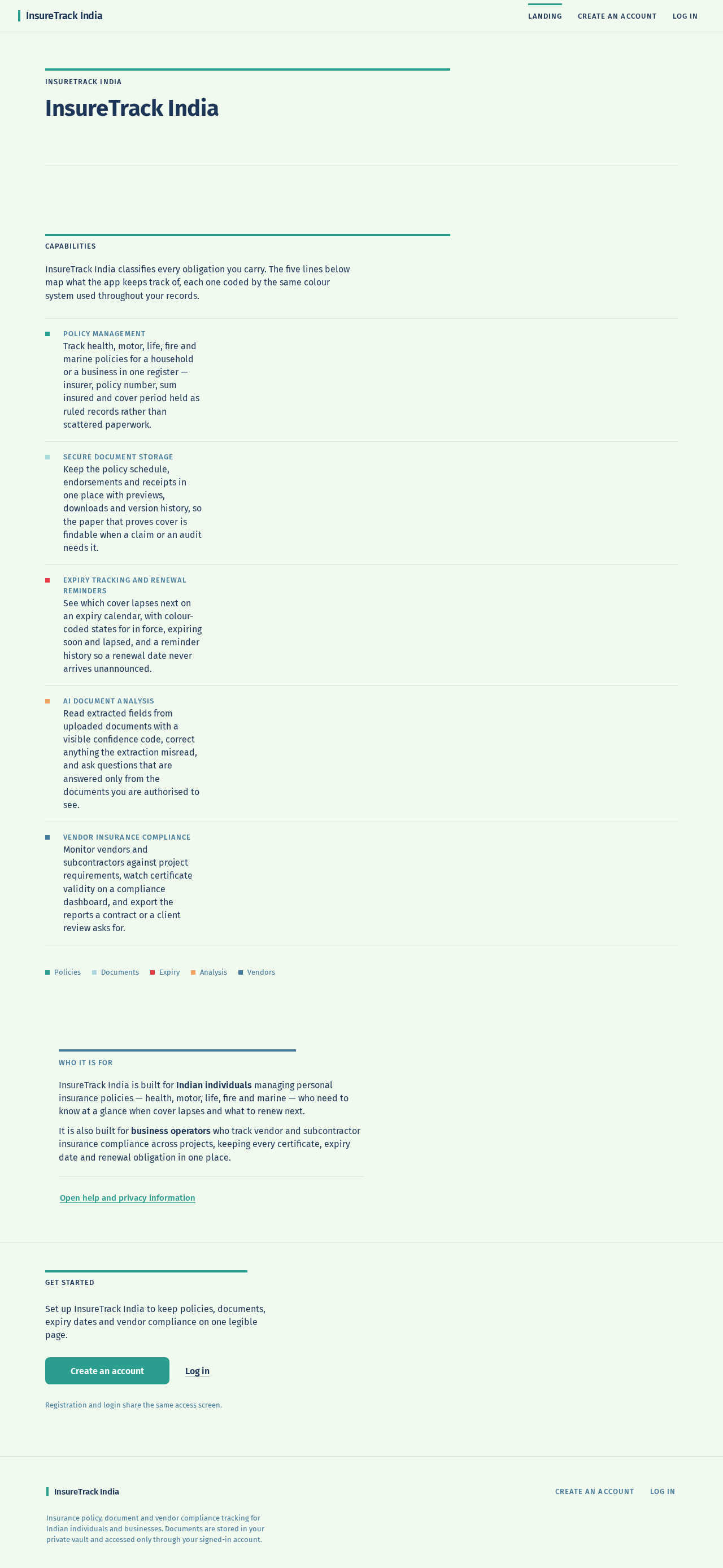
INSURETRACK INDIA
InsureTrack India
InsureTrack India classifies every obligation you carry. The five lines below map what the app keeps track of, each one coded by the same colour system used throughout your records.
- Policy management
Track health, motor, life, fire and marine policies for a household or a business in one register — insurer, policy number, sum insured and cover period held as ruled records rather than scattered paperwork.
- Secure document storage
Keep the policy schedule, endorsements and receipts in one place with previews, downloads and version history, so the paper that proves cover is findable when a claim or an audit needs it.
- Expiry tracking and renewal reminders
See which cover lapses next on an expiry calendar, with colour-coded states for in force, expiring soon and lapsed, and a reminder history so a renewal date never arrives unannounced.
- AI document analysis
Read extracted fields from uploaded documents with a visible confidence code, correct anything the extraction misread, and ask questions that are answered only from the documents you are authorised to see.
- Vendor insurance compliance
Monitor vendors and subcontractors against project requirements, watch certificate validity on a compliance dashboard, and export the reports a contract or a client review asks for.
InsureTrack India is built for Indian individuals managing personal insurance policies — health, motor, life, fire and marine — who need to know at a glance when cover lapses and what to renew next.
It is also built for business operators who track vendor and subcontractor insurance compliance across projects, keeping every certificate, expiry date and renewal obligation in one place.
Get started
Set up InsureTrack India to keep policies, documents, expiry dates and vendor compliance on one legible page.
Registration and login share the same access screen.
INSURETRACK INDIA
InsureTrack India
InsureTrack India classifies every obligation you carry. The five lines below map what the app keeps track of, each one coded by the same colour system used throughout your records.
- Policy management
Track health, motor, life, fire and marine policies for a household or a business in one register — insurer, policy number, sum insured and cover period held as ruled records rather than scattered paperwork.
- Secure document storage
Keep the policy schedule, endorsements and receipts in one place with previews, downloads and version history, so the paper that proves cover is findable when a claim or an audit needs it.
- Expiry tracking and renewal reminders
See which cover lapses next on an expiry calendar, with colour-coded states for in force, expiring soon and lapsed, and a reminder history so a renewal date never arrives unannounced.
- AI document analysis
Read extracted fields from uploaded documents with a visible confidence code, correct anything the extraction misread, and ask questions that are answered only from the documents you are authorised to see.
- Vendor insurance compliance
Monitor vendors and subcontractors against project requirements, watch certificate validity on a compliance dashboard, and export the reports a contract or a client review asks for.
InsureTrack India is built for Indian individuals managing personal insurance policies — health, motor, life, fire and marine — who need to know at a glance when cover lapses and what to renew next.
It is also built for business operators who track vendor and subcontractor insurance compliance across projects, keeping every certificate, expiry date and renewal obligation in one place.
Get started
Set up InsureTrack India to keep policies, documents, expiry dates and vendor compliance on one legible page.
Registration and login share the same access screen.
No comments yet. Be the first!