infini-start
 Diya Trivedi
start a project to build a simple single page design of calculator

Comments (0)
Sign in to leave a comment
System Requirements
System Requirements Document for infini-start
1. Introduction
infini-start is a simple, single-page calculator design. The product intent, taken directly from the authoritative requirement thread, is to present a calculator on exactly one page, in a simple form. The audience is the anonymous everyday visitor — anyone who opens the page and wants to perform basic arithmetic (add, subtract, multiply, divide) without noise, accounts, or surrounding application chrome.
The design register is calm, tactile and unhurried: the numbers and the result are the content, and the page's job is to give them generous paper-white breathing room around one calm object — the keypad.
2. System Overview
infini-start is delivered as a single custom page, Calculator, which is the public entry surface. It hosts number and operation entry and displays computed results. There is no account system, no navigation between destinations, and no persistence requirement stated by the user.
Actors
- Calculator User (active human persona, required inference): a person who opens the single-page calculator and performs arithmetic entry to see computed results.
- The browser/client runtime executes the arithmetic and renders results; it is a supporting system actor, not a persona.
Accepted behavior
- A simple calculator presented on one page.
- Number and operation entry with computed results displayed on that same page.
Narrow exclusions
- No additional pages, routes, dashboards, or multi-panel layouts.
- No user accounts, sign-in, or identity establishment (access requirement for the page is
none). - No history, memory, or saved calculations beyond what is visible in the current session on the page.
- No scientific, programmer, or unit-conversion calculator modes.
2a. Product Interpretation and Delivery Boundary
The entire product is one publicly reachable page. A visitor arrives anonymously, sees the calculator, and uses it immediately; nothing must be established before use. All arithmetic interaction and result display happen within that single page. There is no current or planned second destination, and no provider-owned or external surface participates in the accepted behavior. Future ideas are not part of this delivery; the current boundary is exactly the one-page calculator described here.
2c. Page Content and Component Coverage
Calculator
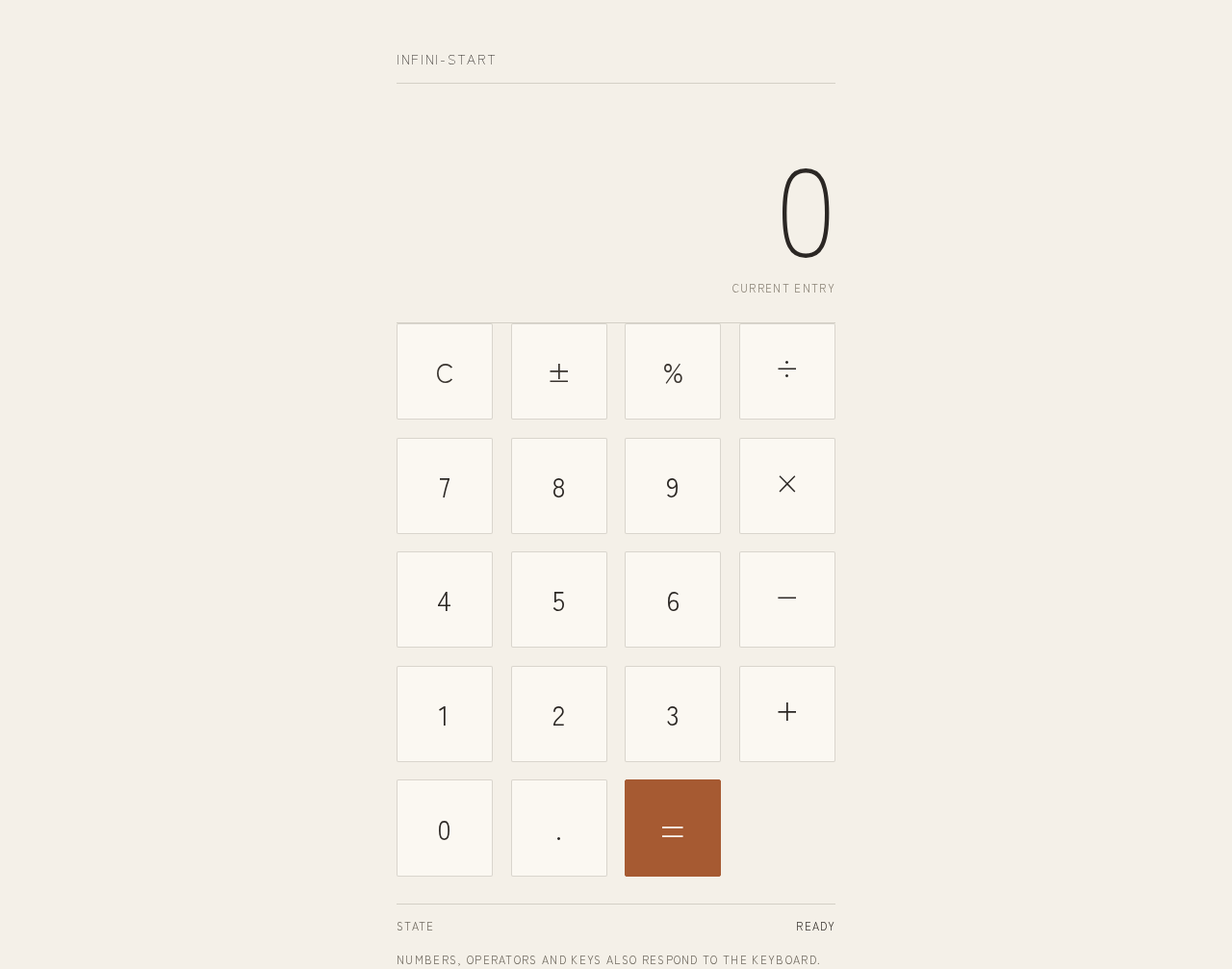
The single page of the product, publicly reachable with no access requirement. It combines a quiet introduction (wordmark and rules) with the working calculator.
Information and state
- Wordmark
infini-start, small, tracked, uppercase-style small caps, top-left of the centered column. - A hairline horizontal rule running the full measure beneath the wordmark.
- The result readout: the current entry or computed result, right-aligned to the column's right edge, set light at
clamp(3.5rem, 11vw, 8rem)with tabular numerals. - A second hairline rule separating the result field from the keypad, like a ledger line.
- The keypad: a 4×5 grid of near-square keys.
- The single active operator, indicated by a terracotta underline (at most one at a time).
Primary actions
- Press digit keys
0–9to build the current number. - Press the decimal point key to enter a fractional part.
- Press an operator key (
+,−,×,÷) to select the pending operation; the selected operator shows the terracotta underline. - Press
=(the single terracotta key) to compute and display the result. - Press
C(clear) to reset the current entry and pending operation to the initial state.
Supporting actions
- Press
±to toggle the sign of the current entry. - Press
%to convert the current entry to a percentage value.
Domain entities
- Current entry: the number being typed, shown in the result readout.
- Pending operation: the selected operator plus the stored left operand.
- Result: the computed value after
=.
Component responsibilities
- Wordmark and rules: identity and editorial framing only; no interaction.
- Result readout: displays current entry or result; crossfades over 200ms when the value changes.
- Keypad: the single solid object on the page; each key is a near-square paper tile with a 1px stone hairline, no shadow, no gradient, no icon or emoji.
- Equals key: the only terracotta-filled key.
- Operator keys: ink on paper, with a terracotta underline when active.
States
- Loading: page content fades in once over 400ms; the readout shows
0as the initial state. - Empty/initial: readout
0, no operator active. - Entry: digits accumulate in the readout; tabular numerals prevent layout shift.
- Operator selected: the chosen operator carries the terracotta underline; the next digit begins a new entry.
- Success: after
=, the computed result replaces the readout with a 200ms crossfade. - Error: division by zero displays a clear error indication in the readout (e.g.
Cannot divide by zero) instead of a numeric result; any digit orCpress recovers to normal entry. - Recovery:
Calways returns the page to the initial state; malformed sequences (e.g. repeated operators) are resolved by replacing the pending operator rather than failing. - Reduced motion: with
prefers-reduced-motion, all fades are removed and state changes are instant.
3. Functional Requirements
FR-1 — Single-page calculator presentation (explicit) As a Calculator User I should see the calculator presented on exactly one page, so that I can use it without navigating anywhere.
- Trigger: opening the page.
- Observable result: the wordmark, result readout and full keypad are all visible on the one page.
- Access: public, no identity required.
- Failure/recovery: not applicable (static presentation).
- Continuation: the user proceeds to enter numbers.
FR-2 — Digit entry (explicit)
As a Calculator User I should press digit keys 0–9 to build a number, so that I can enter the operands of my calculation.
- Trigger: pressing a digit key.
- Observable result: the digit appends to the current entry shown in the result readout; tabular numerals keep the layout stable.
- Access: public.
- Failure/recovery: leading zeros are absorbed into a single
0;Cresets the entry. - Continuation: the user presses an operator or
=.
FR-3 — Decimal entry (required_inference) As a Calculator User I should press the decimal point key to enter a fractional part, so that I can calculate with non-integer values.
- Trigger: pressing
.. - Observable result: a single decimal point appears in the current entry; a second press in the same entry is ignored.
- Access: public.
- Failure/recovery: pressing
.first yields0.. - Continuation: the user continues typing digits or selects an operator.
FR-4 — Operator selection (explicit)
As a Calculator User I should press +, −, × or ÷ to choose an operation, so that the calculator knows which arithmetic to perform.
- Trigger: pressing an operator key.
- Observable result: the pressed operator shows the terracotta underline; the current entry is stored as the left operand and a new entry begins.
- Access: public.
- Failure/recovery: pressing a second operator before entering a right operand replaces the pending operator rather than failing.
- Continuation: the user enters the right operand.
FR-5 — Compute result (explicit)
As a Calculator User I should press = to compute and see the result, so that I obtain the answer to my calculation.
- Trigger: pressing the terracotta
=key with a pending operation and a right operand. - Observable result: the result replaces the readout with a 200ms crossfade; the pending operation clears and the result becomes the current entry for chained calculations.
- Access: public.
- Failure/recovery: division by zero shows a clear error message in the readout; any digit or
Crecovers. - Continuation: the user may chain another operation on the result or clear.
FR-6 — Clear (required_inference)
As a Calculator User I should press C to reset the calculator, so that I can start a fresh calculation.
- Trigger: pressing
C. - Observable result: readout returns to
0, no operator is active, pending operation and stored operand are discarded. - Access: public.
- Failure/recovery: also the universal recovery from any error state.
- Continuation: the user begins a new entry.
FR-7 — Sign toggle (required_inference)
As a Calculator User I should press ± to toggle the sign of the current entry, so that I can enter negative operands.
- Trigger: pressing
±. - Observable result: the readout shows the current entry with its sign inverted.
- Access: public.
- Failure/recovery: pressing
±on0leaves0. - Continuation: the user continues the calculation.
FR-8 — Percentage (required_inference)
As a Calculator User I should press % to convert the current entry to a percentage, so that I can work with percentage values.
- Trigger: pressing
%. - Observable result: the current entry is divided by 100 and shown in the readout.
- Access: public.
- Failure/recovery:
Cresets. - Continuation: the user continues the calculation.
FR-9 — Tactile key feedback (explicit, from creative direction) As a Calculator User I should feel each key respond on press, so that entry feels tactile and certain.
- Trigger: pressing any key.
- Observable result: the key insets by 1px and dips to 85% opacity for 120ms.
- Access: public.
- Failure/recovery: with
prefers-reduced-motion, the state change is instant. - Continuation: normal entry continues.
4. User Personas
Calculator User
Product context. An anonymous everyday visitor who opens infini-start in a quiet moment to do a small piece of arithmetic. They arrive with no account, no history, and no expectation of anything beyond a working calculator on one page.
Primary goal. Enter numbers and an operation, press =, and read a clear, legible result — quickly and without distraction.
Distinct accepted responsibilities.
- Entering operands via digit and decimal keys.
- Selecting one of the four basic operations.
- Committing the calculation with
=. - Reading the result and, if needed, chaining or clearing.
- Recovering from mistakes or errors via
C.
Relevant inputs and decisions. Which numbers to enter, which operator to apply, when to commit with =, and whether to clear or continue.
Interactions with other participants. None beyond the calculator itself; the persona is the sole human actor. The client runtime computes and displays results on their behalf.
Observable success. The result readout shows the correct computed value, legibly, on the same page where entry occurred, with no navigation and no account.
5. Core User Flows
Flow A — Perform a basic calculation
- The Calculator User opens the infini-start page in a browser. The page fades in over 400ms; the wordmark
infini-startsits top-left above a hairline rule, the readout shows0, and the 4×5 keypad is visible below a second hairline. - The user presses digit keys to enter the first operand. Each digit appends to the readout; each key insets 1px and dips to 85% opacity for 120ms.
- The user presses an operator key (e.g.
+). The operator shows the terracotta underline; the first operand is stored and a new entry begins. - The user presses digit keys to enter the second operand.
- The user presses the terracotta
=key. The result replaces the readout with a 200ms crossfade; the pending operation clears and the result becomes the current entry. - The user reads the result. They may chain another operation on it, or press
Cto return to0and start again.
Flow B — Recover from an error or mistake
- The user is mid-calculation and presses
÷then0then=. - The readout shows a clear error message (
Cannot divide by zero) instead of a numeric result. - The user presses
C(or any digit). The readout returns to a normal entry state (0or the new digit) and the calculator is fully usable again. - The user re-enters the intended calculation and continues as in Flow A.
Flow C — Enter a negative or percentage value
- The user enters a number.
- The user presses
±to invert its sign, or%to divide it by 100; the readout updates immediately. - The user selects an operator and completes the calculation with
=as in Flow A.
6. Visuals, Colors and Theme
Muse and headline. Kenya Hara — Emptiness as content: a calculator that whispers.
Mode. Light mode only.
Color tokens (exact hex by role)
- Background:
#F4F0E8(paper-white / unbleached beige) — carries ~85% of the page. - Surface (keypad):
#FBF8F2. - Text (digits, result, labels):
#2B2724(charcoal ink), ~13:1 on background. - Primary:
#3A3530. - Accent:
#A65A32(terracotta-wood) — reserved for the=key and the single active-operator underline; never more than two accents on screen at once. ~4.6:1 on surface, used only for large type and key glyphs. - Muted:
#8C8478(stone) — secondary labels and 1px hairline rules at 30% opacity.
Typography
- Family: Zen Kaku Gothic New for both headings and body. No Inter, Roboto, Arial, Helvetica or system-ui anywhere.
- Wordmark: 14px, tracked caps, weight 300.
- Labels: 11px, uppercase, tracking 0.12em.
- Key glyphs: 20px mobile → 28px desktop, weight 400.
- Result: the only large type on the page, weight 300,
clamp(3.5rem, 11vw, 8rem), tabular numerals, right-aligned. - Scale: 1.5 modular; 1.7 line-height on any prose.
Shape language. Square proportions and soft 2px radii only. Keys are near-square tiles with 1px stone hairline borders — no shadows, no pills, no blobs. Thin 1px rules separate wordmark, result and keypad like ledger lines. Negative space is the primary shape.
Layout. Centered single-column composition on a vast paper field: wordmark top-left, hairline rule, result readout occupying the full measure, second hairline, then the 4×5 keypad with wide gaps. Max-width 420px column at 375px; 520px column centered at 768px and 1280px with margins of 25% of the viewport. The keypad is the one solid object on the page.
Imagery. No photography in the hero — the type and keypad are the image. One optional quiet still-life at the page foot: a single macro of unbleached paper texture or stone-grey surface at low opacity, used as a section divider only, never behind readable text.
Avoid. Gradients, glass blur, shadows, pill buttons, any blue/indigo accent, white-on-blue primaries, Inter/Roboto/Arial/Helvetica/system-ui, centered headline + subtext + CTA hero composition, multiple accent colours or coloured keypad rows, bouncy key animations, decorative illustration/icons/emoji in the keypad, dense dashboard chrome.
7. Signature Design Concept
The number is the hero. The public entry is not a SaaS hero. A vast #F4F0E8 paper field holds a small tracked wordmark infini-start at top-left and a hairline rule running the full measure. Below it, the calculator result is set light in Zen Kaku Gothic New at clamp(3.5rem, 11vw, 8rem), right-aligned to the column's right edge, sitting alone on empty paper with nothing beside it. Under a second hairline sits the 4×5 keypad as the single solid object — near-square paper tiles with 1px stone hairlines — and one terracotta = key as the only warm note on the page. The composition is centered, generous, and unmistakably editorial rather than app-like. This concept recomposes only accepted content (wordmark, readout, keypad, rules) and introduces no new behavior.
8. Interaction Model & Motion Direction
Interaction Model: Static Motion Tempo: still Hero Dimensionality: flat
Landing Hero Motion Brief
- Focal subject: the result number — light-weight Zen Kaku Gothic New at
clamp(3.5rem, 11vw, 8rem), right-aligned on empty paper, with tabular numerals so digits do not shift the layout as they grow. - Input → transformation → outcome thesis: a key press (input) produces an instant 1px inset and a 120ms opacity dip on the key, and the readout value crossfades over 200ms (transformation), leaving the new number resting quietly on the paper field (outcome).
- Motion vocabulary: instant 1px inset; 120ms opacity dip to 85% on press; 200ms crossfade of the result number; a single 400ms fade-in of page content on load. No parallax, no bounce, no particles, no easing theatrics.
- Composed first frame: paper field
#F4F0E8; wordmark top-left; hairline rule; readout showing0right-aligned at hero scale; second hairline; 4×5 keypad with one terracotta=key. - Reduced-motion state: with
prefers-reduced-motion, all fades are removed and every state change is instant; the static arrangement is fully usable.
9. Non-Functional Requirements
- NFR-1 — Single page (explicit): the product is exactly one page; no additional routes or destinations. Rationale: explicit user constraint.
- NFR-2 — Simplicity (explicit): the design remains simple — one readout, one keypad, no surrounding application chrome. Rationale: explicit user constraint.
- NFR-3 — Legibility and contrast (explicit, from creative direction): text
#2B2724on#F4F0E8at ~13:1; accent#A65A32on#FBF8F2at ~4.6:1 used only for large type and key glyphs. - NFR-4 — Responsive integrity (explicit, from creative direction): wordmark, labels, digits, result and all keys stay entirely inside the viewport and their container at 375px, 768px and 1280px, wrapping or scaling (e.g.
clamp(...)) to fit; no element covers readable text or controls. - NFR-5 — Reduced motion (explicit, from creative direction): honor
prefers-reduced-motionby removing all fades and making state changes instant. - NFR-6 — No persistence or identity (required_inference): no accounts, cookies for identity, or stored calculation history are required; the page is publicly usable on first load.
10. Tech Stack
- Frontend: React single-page application rendering the Calculator page; client-side arithmetic and state for entry, pending operation and result.
- Styling: CSS with the exact tokens in Section 6 (Zen Kaku Gothic New loaded as a web font).
- Backend: none required — all accepted behavior is client-side arithmetic and display.
- Deployment: static hosting of the built single-page app; no database, no Docker services, no Kubernetes.
11. Assumptions and Constraints
- A-1 (required_inference): The calculator supports the four basic operations (
+,−,×,÷) plus decimal, sign toggle, percentage and clear, as the minimal complete keypad for a "simple calculator"; no scientific or programmer functions are included. - A-2 (required_inference): Calculations are performed client-side with no server round-trip, since no backend behavior was requested.
- A-3 (explicit): The page is publicly reachable with no access requirement; no identity establishment is part of the product.
- A-4 (explicit): The design is light-mode only, per the creative direction.
- A-5 (explicit): The product name is
infini-startand appears as the tracked wordmark.
12. Glossary
- Calculator User: the sole active human persona; an anonymous visitor performing arithmetic on the single page.
- Result readout: the large right-aligned number field showing the current entry or computed result.
- Pending operation: the selected operator plus the stored left operand awaiting a right operand and
=. - Keypad: the 4×5 grid of near-square paper-tile keys — the single solid object on the page.
- Active operator: the one operator key currently carrying the terracotta underline.
- Paper field: the
#F4F0E8background that carries most of the page.
infini-start
Numbers, operators and keys also respond to the keyboard.
infini-start
Numbers, operators and keys also respond to the keyboard.
No comments yet. Be the first!