icy-calculator
 Diya Trivedi
start a project to build a simple single page design of calculator

Comments (0)
Sign in to leave a comment
System Requirements
System Requirements Document for icy-calculator
1. Introduction
icy-calculator is a simple calculator delivered as a single page. The product intent is narrow and complete: one page where a person enters numbers and operators and reads the arithmetic result. There is no multi-page application, no account, and no surrounding workflow — the calculator is the whole product.
The audience is everyday users who need to perform basic arithmetic in a browser. The design intent, drawn from the project's creative direction, is calm and precise: a small square calculator resting low in a vast paper-white field, with the result number as the largest element on the page and quiet, hairline-bordered keys. The tool should feel like a precise instrument on a sheet of paper rather than a busy application.
This document is the System Requirements Document for icy-calculator, requested by Diya Trivedi.
2. System Overview
2a. Product Interpretation and Delivery Boundary
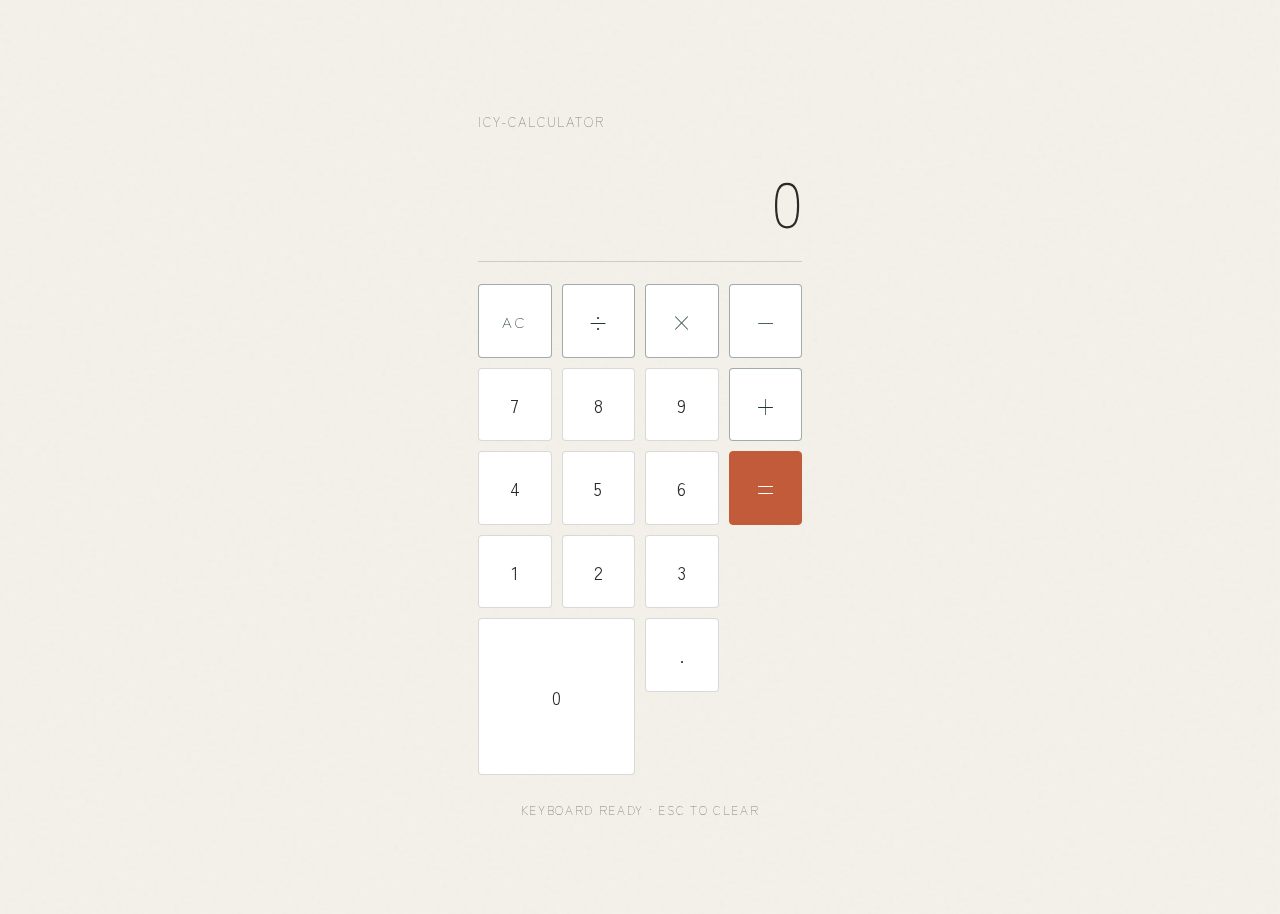
icy-calculator is a first-party, single-page web calculator. The entire product is one page — Calculator — which is both the anonymous first impression and the calculator itself. A visitor opens the page and immediately has a working calculator: a display showing the current entry and result, and a key grid for digits, operators, and control keys.
Access is anonymous and public. No identity, sign-in, account, or session continuity is required, because the calculator holds no durable user-specific state that must be privately owned or resumed. Each visit starts a fresh calculation. There is no provider-owned or external surface; all interaction is first-party custom UI.
The delivery boundary is deliberately minimal. The frontend React application renders the single Calculator page and performs the arithmetic interaction. The shared FastAPI backend and MariaDB database are provisioned infrastructure; the calculator's arithmetic is a client-side interaction and does not require persisted domain data, so no domain entities, authentication, or data model are introduced by this product. The backend remains available as the shared application process but carries no calculator-specific requirement in this scope.
Nothing beyond the single calculator page is current. There are no additional pages, no history, no settings, and no account features.
2c. Page Content and Component Coverage
Calculator
The single page of the product. It is anonymously reachable and is the calculator itself.
- Information and state
- Current numeric entry (the digits the user is composing).
- The pending operation context (the first operand and chosen operator, when an operation is in progress).
- The displayed result, which is the largest element on the page.
- A clear distinction between "composing an entry" and "showing a computed result."
- Primary actions
- Digit keys (0–9) to build a number.
- Operator keys for the four basic arithmetic operations (add, subtract, multiply, divide), marked in deep pine
#1F3A34. - The equals key, marked in clay
#C25B3Aas a full fill, to evaluate the pending operation. - A clear key to reset the calculator to its initial state.
- Supporting actions and states
- A decimal point key to enter fractional numbers.
- Recovery from invalid operations (for example division by zero) by showing an error state in the display that the user can clear.
- Domain entities
- Operand (a number being entered or held).
- Operator (one of add, subtract, multiply, divide).
- Result (the computed value shown in the display).
- Component responsibilities
- Display: shows the current entry or result at 64px on desktop and 44px on mobile, in light weight,
#2A2A28. Fades in each new value over 400ms.
- Display: shows the current entry or result at 64px on desktop and 44px on mobile, in light weight,
- Hairline rule: a single thin rule separating the display from the key grid.
- Key grid: a 4 by 5 grid of square keys, 4px radius, 1px hairline borders, white
#FFFFFFsurfaces with#2A2A28text, no shadows. Operator keys in deep pine; equals key in clay. - Page field: paper-white
#F4F1EAground with a faint paper grain texture; one centred column, maximum width 420px, sitting low on the page with wide margins. - States
- Loading: not applicable — the calculator is available immediately on page load with no asynchronous dependency.
- Empty / initial: display shows
0; no pending operation. - Success: the result of a completed operation is shown in the display.
- Error: an invalid operation (such as division by zero) shows an error indication in the display; the clear key returns the calculator to its initial state.
- Recovery: pressing clear at any time resets entry and pending operation to the initial state.
3. Functional Requirements
FR-1 — Single-page calculator (explicit) As a Calculator user, I should reach a working calculator on a single page so that I can perform basic arithmetic without navigating anywhere else.
- Trigger: the user opens the product.
- Observable result: the Calculator page loads with the display showing
0and the full key grid available. - Access: anonymous; no sign-in.
- Failure/recovery: not applicable — the page is available on load.
- Continuation: the user proceeds to enter a calculation.
FR-2 — Enter numbers (explicit) As a Calculator user, I should press digit keys to build the number I want to calculate with.
- Trigger: the user presses digit keys 0–9.
- Observable result: the display shows the composed number, updating with each key press.
- Failure/recovery: pressing clear resets the entry.
- Continuation: the user selects an operator or presses equals.
FR-3 — Enter a decimal point (required_inference) As a Calculator user, I should be able to enter fractional numbers so that I can calculate with non-integers.
- Trigger: the user presses the decimal point key while composing a number.
- Observable result: the display shows the number with a decimal point.
- Failure/recovery: a second decimal point in the same entry is ignored; clear resets the entry.
- Continuation: the user continues entering digits or selects an operator.
FR-4 — Choose an operator (explicit) As a Calculator user, I should choose an arithmetic operator so that the calculator knows which operation to perform.
- Trigger: the user presses one of the four operator keys (add, subtract, multiply, divide).
- Observable result: the chosen operator is held as the pending operation and the display is ready for the next operand.
- Failure/recovery: choosing a different operator before entering the second operand replaces the pending operator.
- Continuation: the user enters the second operand.
FR-5 — Compute a result (explicit) As a Calculator user, I should press equals to see the result of my calculation.
- Trigger: the user presses the equals key with a pending operation and a second operand.
- Observable result: the display shows the computed result, fading in as the new value.
- Failure/recovery: if no complete operation is pending, equals leaves the display unchanged.
- Continuation: the user can start a new calculation or continue from the result.
FR-6 — Clear and reset (required_inference) As a Calculator user, I should be able to clear the calculator so that I can start over.
- Trigger: the user presses the clear key.
- Observable result: the display returns to
0and any pending operation is discarded. - Failure/recovery: clear is always available, including from an error state.
- Continuation: the user begins a new calculation.
FR-7 — Handle invalid operations (required_inference) As a Calculator user, I should see a clear indication when an operation cannot be computed so that I understand the calculator's state.
- Trigger: the user attempts an invalid operation, such as division by zero.
- Observable result: the display shows an error indication instead of a numeric result.
- Failure/recovery: pressing clear returns the calculator to its initial state.
- Continuation: the user starts a new calculation.
4. User Personas
Calculator user
- Product context: An everyday person who opens icy-calculator in a browser to do a quick piece of basic arithmetic. They arrive with no account and no prior state; the calculator is the entire product and is ready the moment the page loads.
- Primary goal: Enter a calculation — numbers and an operator — and read the correct result with as little friction as possible.
- Distinct accepted responsibilities: Composing numeric entries with the digit and decimal keys; selecting one of the four arithmetic operators; pressing equals to evaluate; clearing to start over; and reading and recovering from an error state.
- Relevant inputs and decisions: Which digits to enter, whether the number is fractional, which operator applies, and when to evaluate versus clear.
- Interactions with other accepted participants: None. The Calculator user is the only human participant; the calculator's arithmetic is performed by the page itself, and no other persona is affected by the outcome.
- Observable success: The display shows the correct result of the entered calculation, presented as the largest, clearest element on the page, and the user can immediately begin another calculation.
5. Core User Flows
Flow 1 — Perform a basic calculation
- The Calculator user opens icy-calculator in a browser. The Calculator page loads anonymously with the display showing
0and the full 4 by 5 key grid visible. - The user presses digit keys to compose the first number. The display updates with each press.
- The user presses an operator key (add, subtract, multiply, or divide). The calculator holds the first number and the chosen operator as the pending operation.
- The user presses digit keys to compose the second number. The display shows this entry.
- The user presses the equals key (clay
#C25B3A). The display fades in the computed result as the new value. - The user reads the result — the largest element on the page — and either starts a new calculation or continues from the result.
Flow 2 — Calculate with a fractional number
- The user opens the Calculator page and presses digit keys for the whole part of the number.
- The user presses the decimal point key, then digit keys for the fractional part. The display shows the decimal number.
- The user selects an operator, enters the second operand, and presses equals.
- The display shows the computed result.
Flow 3 — Recover from an invalid operation
- The user enters a first number, selects the divide operator, and enters
0as the second operand. - The user presses equals. The display shows an error indication instead of a numeric result.
- The user presses the clear key. The display returns to
0and the pending operation is discarded. - The user begins a new calculation.
Flow 4 — Clear and start over
- Midway through entering a number or a pending operation, the user presses the clear key.
- The display returns to
0and any pending operation is discarded. - The user begins a fresh calculation.
6. Visuals Colors and Theme
The visual identity follows the creative direction after Kenya Hara: emptiness as content, a calm paper-like field around a precise tool.
- Mode: light only.
- Palette
- Background (page field):
#F4F1EA— paper white. - Surface (keys):
#FFFFFF. - Text (numbers, key labels):
#2A2A28. - Primary (operator keys):
#1F3A34— deep pine. - Accent (equals key only):
#C25B3A— clay, as a full fill. - Muted (secondary labels, micro-labels):
#8C8880.
- Background (page field):
- Typography
- Family: Zen Kaku Gothic New for both headings and body.
- Headings and micro-labels: Light 300 weight, wide 0.14em tracking, small sizes, uppercase micro-labels.
- Type scale: 1.25 modular — 40 / 32 / 24 / 18 / 15 px.
- Result number: 64px on desktop, 44px on mobile, light weight,
#2A2A28.
- Shape language: square keys with 4px radius and 1px hairline borders. No shadows anywhere. One thin rule divides the display from the keys.
- Spacing rhythm: one centred column, maximum width 420px, wide page margins, the column sitting low on the page. Generous empty space is intentional content.
- Imagery: no photography. One faint paper grain texture on the ground; thin rules and empty space carry the page.
- Motion: slow 400ms fades only; a key press shows a 1px border change; the result fades in on each new value.
- Avoid: no gradients or glass effects; no drop shadows on keys; no blue or indigo accents; no decorative icons or illustrations; no centred marketing headline above the calculator.
7. Signature Design Concept
The public entry is the Calculator page itself: a small square calculator floating low and centred in a vast paper-white field. There is no headline above the tool — the empty field is the composition. The result number is the largest type on the page, set in light weight #2A2A28, separated from the key grid by a single hairline rule. The keys are white squares with 1px hairline borders and no shadows; the operator keys carry deep pine #1F3A34, and the equals key alone is a full clay #C25B3A fill. A faint paper grain texture sits on the ground, and the whole instrument rests low in the viewport, surrounded by quiet space. This concept recomposes only the accepted calculator content and controls.
8. Interaction Model & Motion Direction
Interaction Model: Static (direction) Motion Tempo: still Hero Dimensionality: flat
Landing Hero Motion Brief
- Focal subject: the small square calculator resting low and centred in the paper-white field, with the result number as the largest element.
- Input → transformation → outcome thesis: a key press produces a 1px border change on that key; entering a new value fades the result into the display over 400ms; pressing equals fades in the computed result as the new largest element. The page itself does not move.
- Motion vocabulary: slow 400ms fades and a 1px border change on press only. No parallax, no scroll-linked depth, no ambient animation.
- Composed first frame: paper-white
#F4F1EAfield with faint grain; a 420px-max centred column sitting low; display showing0at 64px light weight; a hairline rule; a 4 by 5 grid of white hairline-bordered keys with pine operators and a clay equals key. - Reduced-motion state: with
prefers-reduced-motion, the 400ms fades are removed and values update instantly; the key-press border change remains as a static state indicator. The layout is unchanged and fully usable.
9. Non-Functional Requirements
- Single page (explicit): the product is exactly one page. No additional routes, pages, or navigation are introduced.
- Simplicity (explicit): the design is a simple single-page calculator; no adjacent features (history, settings, accounts, scientific functions) are added.
- Anonymous access (required_inference): the Calculator page is publicly reachable with no identity, sign-in, or session continuity, because no durable user-specific state exists.
- Responsive readability (explicit, from design constraints): readable text and controls stay whole at 375px, 768px, and 1280px viewports — the result number scales (64px desktop, 44px mobile) and keys wrap or scale to fit without being cropped or covered.
- Accessibility (required_inference): keys are operable by pointer and keyboard, with visible focus states consistent with the hairline border language; the result number maintains readable contrast (
#2A2A28on#F4F1EA). - Reduced motion (explicit, from design constraints): a usable static arrangement is provided under
prefers-reduced-motion.
10. Tech Stack
- Frontend: React application rendering the single Calculator page and performing the arithmetic interaction.
- Backend: shared FastAPI process for application APIs and domain modules (provisioned; no calculator-specific API required in this scope).
- Database: MariaDB for application-owned persistent data (provisioned; no calculator domain entities are persisted in this scope).
- Containerization: Docker / docker-compose for the frontend, backend, and database services.
11. Assumptions and Constraints
- Assumption (required_inference): arithmetic is performed client-side in the React application; the provisioned backend and database carry no calculator-specific requirement.
- Assumption (required_inference): the calculator supports the four basic arithmetic operations, digits 0–9, a decimal point, equals, and clear — the minimum set implied by "a simple calculator."
- Constraint (explicit): the product is a single page; no additional pages or navigation.
- Constraint (explicit): the design is simple; no adjacent features are added.
- Constraint (explicit, design): the visual direction after Kenya Hara is authoritative — paper-white field, hairline keys, no shadows, no gradients, no blue/indigo accents, no headline above the calculator.
12. Glossary
- Calculator page: the single page of the product, containing the display and key grid.
- Display: the area showing the current entry or computed result, the largest element on the page.
- Key grid: the 4 by 5 grid of square keys for digits, operators, decimal point, equals, and clear.
- Pending operation: the held first operand and chosen operator awaiting a second operand and equals.
- Operator keys: the add, subtract, multiply, and divide keys, marked in deep pine
#1F3A34. - Equals key: the key that evaluates the pending operation, marked in clay
#C25B3Aas a full fill. - Paper field: the paper-white
#F4F1EAground with faint grain on which the calculator rests.
Keyboard ready · Esc to clear
Keyboard ready · Esc to clear
No comments yet. Be the first!