honest-calculator
 Diya Trivedi
create simple single page design of the calculator

Comments (0)
Sign in to leave a comment
System Requirements
System Requirements Document for honest-calculator
1. Introduction
honest-calculator is a single-page arithmetic calculator delivered as one web page. The product intent, taken directly from the authoritative requirement thread, is to create a simple single page design of the calculator: a person opens one page, enters numbers and operations, and reads the computed result. There is no second page, no navigation, no marketing surface, and no account.
The audience is broad and anonymous — students, engineers, shoppers, anyone who needs arithmetic done without ceremony. The design register is trust through transparency: the tool should read as a precision instrument rather than a product, with no learning curve and no decoration that implies a brand story.
This document defines the single page, the single active human role, the arithmetic behavior, the visual system, and the delivery boundary for the current release.
2. System Overview
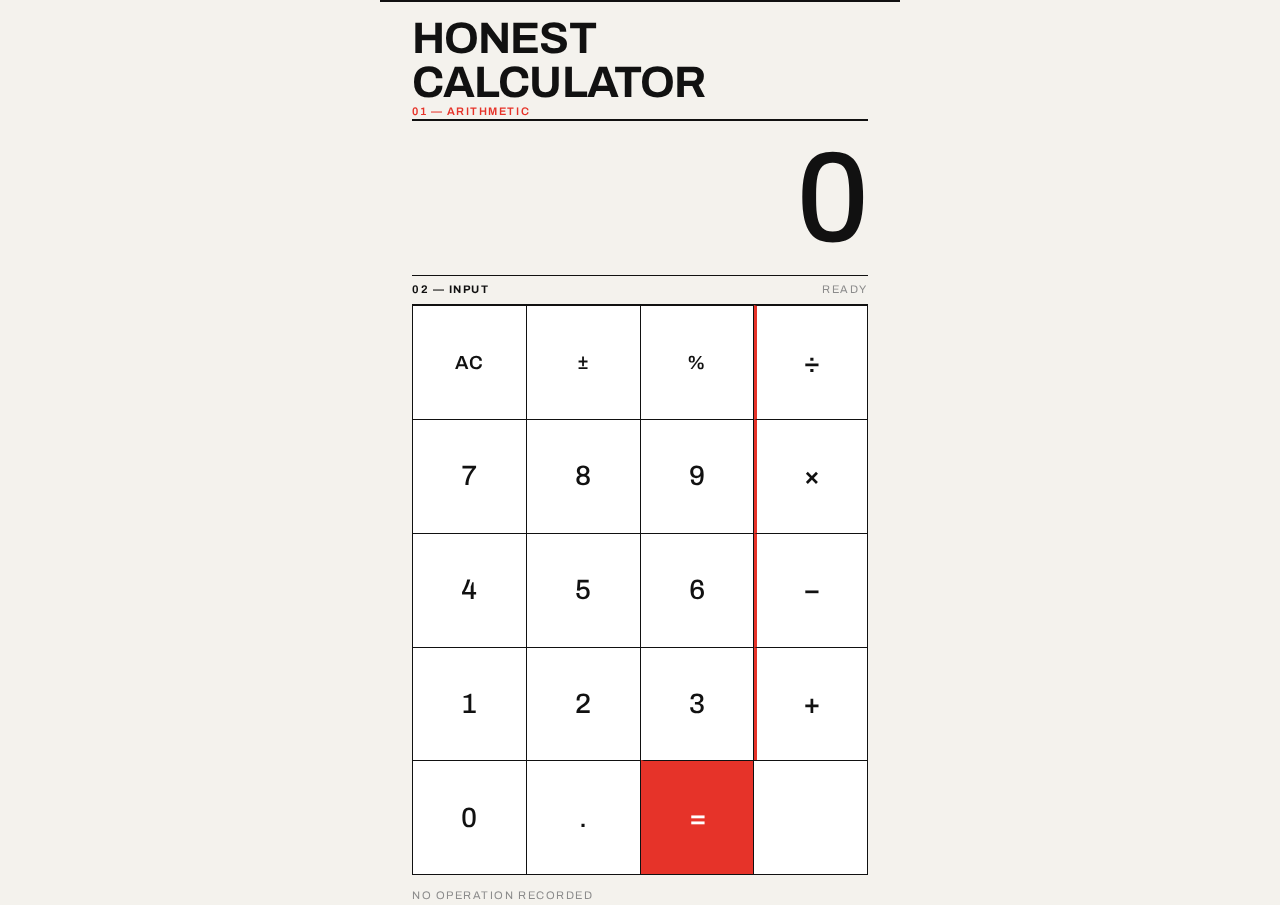
honest-calculator is a browser-delivered, single-page utility. The page is the product: a typographic display band showing the current value, a strict 4-column keypad grid for digits and operators, and a muted operation-history line beneath the keypad. All arithmetic is performed in the browser; there is no server-side computation, no persistence of user data, and no cross-session state.
Actors
- Calculator User (active human, required inference) — the person who opens the page and performs arithmetic.
- Browser runtime (non-persona system actor) — evaluates the arithmetic expression and renders the page.
Accepted behavior
- Entry of digits and a decimal point into the current operand.
- Selection of the four binary operators (÷ × − +).
- Evaluation of the expression via the equals key.
- Clearing of the current entry and of the whole calculation.
- Sign toggle and percent conversion of the current entry.
- Display of the current value or result as the loudest element on the page.
- A muted operation-history line reflecting the last completed operation.
Ownership
The single page, named Calculator, is owned by the application and is anonymously reachable. No identity, session, or account is established or required.
Narrow exclusions
- No second page, route, tab, or navigation surface.
- No footer, no marketing copy, no testimonials, no feature grid.
- No icons, illustrations, emoji, photography, or textures.
- No persistence, history log across sessions, or saved calculations.
- No scientific, programmer, unit-conversion, or graphing functions.
2a. Product Interpretation and Delivery Boundary
The whole product is one anonymously reachable page. A visitor arrives, the calculator is already usable, and nothing stands between arrival and arithmetic. Because the accepted requirement is an exact one-page constraint, the page also serves as the public entry: there is no separate landing surface, no sign-in gate, and no onboarding step. The page explains itself by being the instrument.
Delivery is first-party custom UI rendered in the browser. Arithmetic evaluation happens client-side in the same page; no backend service, queue, or external provider participates in producing a result. Nothing about the accepted behavior requires durable state bound to a person, so no identity establishment, verification, or account management is in scope for the current release.
Future ideas, if any arise, are out of scope for this release and are not represented on the page.
2b. Source Content Inventory
Not applicable. No reference directive in this project declares a content_source, so no source content inventory is produced.
2c. Page Content and Component Coverage
The page inventory is exactly one page, per the explicit one-page constraint.
Calculator
The single page, anonymously reachable, serving as both the public entry and the working instrument.
Information and state
- Current display value: the number being entered, or the result of the last evaluation. Right-aligned, tabular figures, the largest element on the page.
- Pending operator state: which of ÷ × − + is armed, and the operand it will apply to.
- Entry-in-progress state: whether the user is typing a fresh operand or appending digits to an existing one.
- Error state: an invalid expression (for example division by zero) surfaces a clear, non-numeric display message rather than a silent wrong answer.
- Operation-history line: a single muted line beneath the keypad reflecting the last completed operation, or empty on first load.
Primary actions
- Digit keys 0–9 and the decimal point key: append to the current operand.
- Operator keys ÷ × − +: arm a binary operation against the current value.
- Equals key: evaluate the pending expression and replace the display with the result.
- Clear key: reset the current entry; a second clear action resets the whole calculation.
- Sign toggle key: negate the current entry.
- Percent key: convert the current entry to its percentage value.
Supporting actions
- None beyond the keypad. There is no settings control, no theme switch, no share action, and no export.
Domain entities
- Operand — a numeric value entered by the user or produced by evaluation.
- Operator — one of ÷ × − +, armed and awaiting its right-hand operand.
- Expression — the pending left operand, armed operator, and right operand.
- Result — the numeric outcome of evaluating an expression.
- History line — a short textual record of the last completed operation.
Component responsibilities
- Header block — a 2px black rule spanning the full column, the flush-left uppercase wordmark
HONEST CALCULATOR, and a right-aligned uppercase micro-label01 — ARITHMETIC. - Display band — full column width, bounded by a 2px top rule and a 1px bottom rule, right-aligned Archivo numerals with tabular figures, scaling with the viewport.
- Keypad plate — a strict 4-column, 5-row grid of perfect squares, flush to the column edges with no outer margin, divided by 1px hairlines rather than gaps so it reads as one continuous ruled plate. Operator keys carry a 3px red left rule instead of a fill.
- History line — a single 1px rule and a small muted line of text beneath the keypad.
States
- Loading: not applicable in a meaningful sense; the page renders its full instrument immediately. No skeleton, no spinner.
- Empty: first load shows
0in the display band and an empty history line. - Success: the display shows the entered value or the computed result; the history line reflects the completed operation.
- Error: an invalid expression replaces the display with a plain-language error message in the same display band, in the same type treatment, and the next digit or clear key returns the calculator to a usable state.
- Recovery: the clear key always returns the page to the empty state; no error state is terminal.
3. Functional Requirements
Each requirement is a distinct story point with provenance, lifecycle facts, and observable acceptance.
FR-1 — Open the calculator As a Calculator User, I should open a single page that presents a working calculator, so that I can begin arithmetic immediately.
- Provenance: explicit.
- Trigger: navigating to the application URL.
- Observable result: the Calculator page renders with the display band showing
0, the full 4×5 keypad visible, and an empty history line. - Access state: anonymous; no identity, sign-in, or gate.
- Failure/recovery: if the page fails to render, the browser's standard error surface applies; there is no in-product recovery path because there is no other page.
- Continuation: the user may immediately press any key.
FR-2 — Enter a number As a Calculator User, I should enter digits and a decimal point so that I can build the operand I want to compute with.
- Provenance: explicit.
- Trigger: pressing digit keys 0–9 or the decimal point key.
- Observable result: the display band updates with no transition to show the growing operand, right-aligned with tabular figures.
- Access state: anonymous.
- Failure/recovery: a second decimal point in the same operand is ignored rather than producing an invalid number.
- Continuation: the user may continue entering digits, arm an operator, or clear.
FR-3 — Choose an operator As a Calculator User, I should choose one of ÷ × − + so that I can specify the operation to perform.
- Provenance: explicit.
- Trigger: pressing an operator key.
- Observable result: the operator is armed against the current display value; the operator key is visually identified by its 3px red left rule, and the display is ready to accept the right-hand operand.
- Access state: anonymous.
- Failure/recovery: pressing a second operator before entering a right operand replaces the armed operator rather than stacking operations.
- Continuation: the user enters the right-hand operand.
FR-4 — Evaluate the expression As a Calculator User, I should press equals so that I can see the computed result.
- Provenance: explicit.
- Trigger: pressing the equals key with a left operand, an armed operator, and a right operand.
- Observable result: the display band replaces the expression with the computed result, set as the largest element on the page; the history line updates to reflect the completed operation.
- Access state: anonymous.
- Failure/recovery: if the expression is invalid (for example division by zero), the display shows a plain-language error message instead of a numeric result; pressing clear or entering a new digit returns the calculator to a usable state.
- Continuation: the result becomes the left operand for a further operation, or the user clears.
FR-5 — Clear the entry and the calculation As a Calculator User, I should clear my input so that I can start over without reloading the page.
- Provenance: explicit.
- Trigger: pressing the clear key.
- Observable result: the current entry resets to
0; a second clear action resets the whole calculation, including any armed operator and the history line. - Access state: anonymous.
- Failure/recovery: clear always succeeds and is never blocked by an error state.
- Continuation: the user may begin a new calculation immediately.
FR-6 — Toggle sign and convert to percent As a Calculator User, I should negate or percent-convert the current entry so that I can handle common arithmetic forms without retyping.
- Provenance: explicit.
- Trigger: pressing the sign toggle key or the percent key.
- Observable result: the display band updates in place to show the negated or percent-converted value.
- Access state: anonymous.
- Failure/recovery: applying either action to
0leaves the display at0rather than producing an invalid state. - Continuation: the user may continue entering digits, arm an operator, or evaluate.
FR-7 — Read the operation history As a Calculator User, I should see a muted line describing the last completed operation so that I can confirm what was just computed.
- Provenance: explicit.
- Trigger: completion of an evaluation.
- Observable result: a single muted line beneath the keypad shows the last completed operation, fading in over 120ms; it is empty on first load.
- Access state: anonymous.
- Failure/recovery: the history line never blocks input and never becomes the source of truth for the display value.
- Continuation: the line updates on the next completed evaluation.
FR-8 — Press feedback on keys As a Calculator User, I should receive immediate mechanical confirmation when I press a key so that I trust the instrument registered my input.
- Provenance: explicit.
- Trigger: pressing any key.
- Observable result: the key inverts to black fill with a white label in an instant 80ms state change with no easing curve; the display value updates with no transition.
- Access state: anonymous.
- Failure/recovery: not applicable; the state change is purely presentational and cannot fail.
- Continuation: the user continues entering input.
4. User Personas
Calculator User
Product context. The Calculator User arrives at a single page with a task already in mind — a sum, a split, a unit price, a remainder — and no interest in the tool itself. They may be a student checking homework, an engineer sanity-checking a figure, or a shopper working out a total. They are anonymous: the product never learns who they are, and they never expect it to.
Primary goal. Obtain a correct computed result from the single-page calculator interface, quickly, without ceremony.
Distinct accepted responsibilities. This role is the sole active human actor. It enters operands, arms operators, evaluates expressions, clears entries, toggles sign, converts to percent, and reads the result and the history line. It is both the initiator and the sole beneficiary of every accepted capability — no other human participant is affected by the outcome, and no commitment, entitlement, or value transfer is created for anyone else.
Relevant inputs and decisions. The role decides which numbers to enter, which operator to arm, when to evaluate, and when to clear. Its inputs are key presses on the keypad; its decisions are entirely about the arithmetic it wants performed.
Interactions with other accepted participants. None. There is no second human participant, no counterparty, and no recipient. The only other actor is the browser runtime, which evaluates the expression and renders the page — a system actor, not a participant.
Observable success. The display band shows the correct computed result as the largest element on the page, and the history line confirms the operation that produced it. The role can immediately continue with the result or clear and start again.
Constraints carried from source. The role works within an exact one-page product with a simple design; it has no account, no saved state, and no surface other than the Calculator page.
5. Core User Flows
Flow 1 — Perform a basic calculation
- Starting context. The Calculator User has the application URL and no prior session. Nothing is stored about them.
- Entry. The user navigates to the URL. The Calculator page renders: a 2px black rule across the column, the flush-left uppercase wordmark
HONEST CALCULATOR, the right-aligned micro-label01 — ARITHMETIC, the display band showing0, the 4×5 keypad plate, and an empty history line. No sign-in, gate, or onboarding appears. - Input. The user presses digit keys. Each press inverts the key to black fill with a white label for an instant 80ms with no easing, and the display band updates with no transition to show the growing operand, right-aligned in tabular figures.
- Operator selection. The user presses an operator key (÷ × − +). The operator is armed against the current display value. The operator key is identified by its 3px red left rule rather than a fill, so the armed state reads as part of the grid's wayfinding code.
- Right operand. The user presses digit keys again. The display band shows the new operand being entered.
- Commitment. The user presses the equals key. The browser runtime evaluates the expression.
- Observable result. The display band replaces the expression with the computed result — the largest element on the page, right-aligned to the column edge, bounded above by the 2px black rule. The history line beneath the keypad fades in over 120ms with a muted record of the completed operation.
- Continuation. The result is available as the left operand for a further operation, or the user presses clear to reset.
Flow 2 — Correct a mistake mid-entry
- Starting context. The user is mid-entry with an operand or an armed operator on screen.
- Recognition. The user sees the wrong value in the display band.
- Recovery action. The user presses the clear key. The current entry resets to
0; the key inverts for its instant 80ms press state. - Full reset. If the user also wants to discard the armed operator and the history line, they press clear a second time. The whole calculation resets.
- Observable result. The display band shows
0and the history line is empty. - Continuation. The user begins the corrected calculation from step 3 of Flow 1.
Flow 3 — Handle an invalid expression
- Starting context. The user has armed an operator and entered a right operand that makes the expression invalid — for example division by zero.
- Commitment. The user presses the equals key.
- Observable result. The display band shows a plain-language error message in the same type treatment and position as a numeric result, rather than a silent wrong answer. The history line does not claim a completed operation.
- Recovery. The user presses clear, or simply enters a new digit. The calculator returns to a usable state with the display band showing
0or the new operand. - Continuation. The user proceeds with a valid calculation.
Flow 4 — Negate or percent-convert an entry
- Starting context. The user has entered a value and wants its negative or its percentage form.
- Action. The user presses the sign toggle key or the percent key.
- Observable result. The display band updates in place to show the negated or percent-converted value, with no transition.
- Continuation. The user arms an operator, evaluates, or continues entering digits.
6. Visuals, Colors and Theme
The creative direction is authoritative for this section. The muse is Josef Müller-Brockmann, and the headline idea is Swiss geometric honesty — a calculator as a grid-locked instrument. The calculator is literally a grid of keys and a column of numbers; the Swiss grid turns that structure into the identity. The display becomes a typographic composition, the keypad becomes a modular grid, and the operator keys become colour-coded zones.
Colour tokens — light mode
| Role | Hex | Use |
|---|---|---|
| Background | #F4F2ED | Warm off-white paper ground for the whole page |
| Surface | #FFFFFF | Pure white keypad plate so the grid reads as a printed sheet |
| Text | #111111 | Near-black ink for all type and display numerals |
| Primary | #111111 | Rules, wordmark, and the black fill of a pressed key |
| Accent | #E63329 | Swiss poster red: the equals key and the operator zone rules, roughly 5% of the surface, never a background wash |
| Muted | #8C8C8C | Secondary labels and the operation-history line |
No gradients, no shadows, no tints. Blue, indigo, and violet are forbidden anywhere, including focus rings; focus rings use black or red.
Typography
- Headings and body: Archivo.
- Wordmark and section rules: Archivo at weight 600–700, flush-left, ragged-right, tight tracking
-0.02em, uppercase for micro-labels at 11px with0.14emletterspacing. - Display numerals: Archivo at weight 500 with tabular figures, at a very large size so the result is the loudest element on the page.
- Scale: 1.333 modular. Display numerals
clamp(56px, 12vw, 128px); wordmarkclamp(28px, 5vw, 44px); key labelsclamp(20px, 3.2vw, 28px); micro-labels 11px; body 16px. - Inter, Roboto, Helvetica, Arial, and system-ui are forbidden as the heading or body face.
Shape language
Hard edges only. Zero border-radius anywhere. Keys are perfect squares in a strict 4-column grid, separated by 1px hairlines rather than gaps, so the keypad reads as one continuous ruled plate. The display sits in a full-width band bounded by a 2px top rule and a 1px bottom rule. Operator keys are marked by a 3px red left rule, not by fill.
Layout
Single centred column, max-width 520px, vertically centred in the viewport at 1280px and top-aligned with breathing room at 375px. Above the calculator: a 2px black rule spanning the full column, the wordmark HONEST CALCULATOR flush-left in uppercase, and a right-aligned micro-label 01 — ARITHMETIC. The display band sits directly beneath the rule with right-aligned numerals. The 4×5 keypad sits below, flush to the column edges with no outer margin so the grid bleeds to the column boundary. A single 1px rule and a small muted line of operation history sit under the keypad. Nothing else on the page — no footer, no nav, no marketing copy.
Imagery
None. Typography and the grid are the image. The only graphic elements are hairline rules, the red operator rule, and the tabular numerals themselves. No icons, no illustrations, no photography, no textures.
Readable text and controls
Headlines, the wordmark, labels, numbers, and keypad controls stay entirely inside the viewport and their container at 375px, 768px, and 1280px, wrapping or scaling via the clamp() sizes above. No element covers any part of them.
7. Signature Design Concept
The answer as a poster headline.
The first screen is the calculator itself — there is no marketing hero. The dominant element is the result numeral, set in Archivo at up to 128px, right-aligned against the full column width, sitting on the warm off-white ground with a 2px black rule above it. Above the rule, a small uppercase wordmark and a red micro-label. Below, the keypad as a single white ruled plate divided by 1px hairlines, with the equals key marked by a red rule.
The composition reads like a Swiss concert poster that happens to be a working calculator: asymmetric, grid-locked, typographic, with the largest number on the page being the user's own answer. The signature moves that carry the concept are:
- The result is the largest element on the page, bounded by a 2px black rule, so the user's answer is treated as a poster headline.
- The keypad is one continuous white plate divided by 1px hairlines with zero border-radius and zero gaps, reading as a ruled grid rather than a set of floating buttons.
- Operator keys are identified by a 3px red left rule instead of a fill, so Swiss red functions as wayfinding code across the keypad.
- Press feedback is a hard black/white inversion with an 80ms instant state change — no easing, no scale, no shadow — like a physical switch.
- A right-aligned uppercase micro-label in the header and a muted operation-history line beneath the keypad give the page the metadata blocks of a Swiss poster.
This concept recomposes only accepted content, states, and controls. It introduces no new behavior, page, or destination.
8. Interaction Model & Motion Direction
Interaction Model: Static (direction) Motion Tempo: still Hero Dimensionality: flat
Landing Hero Motion Brief
- Focal subject. The result numeral in the display band — Archivo at up to 128px, weight 500, tabular figures, right-aligned to the column edge, bounded above by the 2px black rule.
- Input → transformation → outcome thesis. The user presses a key; the key inverts to black fill with a white label in an instant 80ms state change with no easing curve; the display value updates with no transition to show the new operand or computed result. The transformation is mechanical and immediate — the instrument registers the press and the number changes.
- Motion vocabulary. Still. Hard state inversion on press, instant value replacement in the display, and a single 120ms opacity fade when the operation-history line changes. No hover-lift, no scale, no springs, no ambient motion, no parallax.
- Composed first frame. The warm off-white ground
#F4F2EDfills the viewport. A 2px black rule spans the 520px column. Above it, the flush-left uppercase wordmarkHONEST CALCULATORand the right-aligned red micro-label01 — ARITHMETIC. Below it, the display band showing0in near-black Archivo at the largest size on the page, right-aligned. Beneath the 1px bottom rule, the white keypad plate divided by hairlines, with the red left rules marking the operator column and the equals key. - Reduced-motion state. With
prefers-reduced-motion: reduce, the 120ms history-line fade is removed and the line changes instantly. The 80ms press inversion is retained as an instantaneous state change, since it is a state indicator rather than motion. The layout is otherwise unchanged and fully usable.
9. Non-Functional Requirements
NFR-1 — Single page, exact. The product is exactly one page. No additional route, tab, modal surface, or navigation element may be introduced. Provenance: explicit. Rationale: the authoritative requirement states a simple single-page design and the planning scope fixes an exact page count of one.
NFR-2 — Anonymous access. The Calculator page is reachable without identity, sign-in, or any gate. No account, session, or personal data is established. Provenance: required inference. Rationale: no accepted capability creates durable state bound to a person, and the one-page constraint leaves no room for an access boundary.
NFR-3 — Client-side evaluation. Arithmetic is evaluated in the browser. No server round-trip is required to produce a result, and no user input is transmitted. Provenance: required inference. Rationale: the accepted behavior is a self-contained single-page instrument with no persistence or cross-session state.
NFR-4 — Responsive integrity. The page is fully usable and all readable text and controls remain whole at 375px, 768px, and 1280px. Provenance: explicit. Rationale: the creative direction's readable-text-and-controls rule.
NFR-5 — Accessibility of state. The display value, the armed operator, and the error state are conveyed by text and not by colour alone. Focus indicators use black or red, never blue, indigo, or violet. Provenance: explicit. Rationale: the creative direction's colour restriction and the requirement that the display be readable.
NFR-6 — No decorative motion. Only the 80ms press inversion and the 120ms history-line fade are permitted. Provenance: explicit. Rationale: the creative direction's still tempo.
NFR-7 — No persistence. No calculation, history, or preference is stored beyond the life of the page. Provenance: required inference. Rationale: no accepted capability requires durable state.
10. Tech Stack
- Frontend: React, rendered as a single page. The page is the entire application surface.
- Styling: CSS with the token set in Section 6; Archivo loaded as the heading and body face.
- Arithmetic: evaluated client-side in the browser. No backend service, queue, or external provider participates in producing a result.
- Backend: none required for the current release. The accepted behavior is fully client-side, and no accepted capability needs server-side computation, storage, or coordination.
- Deployment: static hosting of the built single page.
No database, container orchestration, or additional service is introduced, because no accepted requirement calls for one.
11. Assumptions and Constraints
Constraints (explicit, binding)
- The product is exactly one page. No second page, route, or navigation surface may be added.
- The design must be simple.
- The page is the calculator; there is no separate marketing or landing surface.
Assumptions (narrow, labeled)
- Assumption: The four binary operators are ÷ × − +, and the keypad is a 4-column, 5-row grid covering digits 0–9, the decimal point, the four operators, equals, clear, sign toggle, and percent. This is the standard arithmetic keypad implied by "the calculator" and is consistent with the creative direction's 4×5 grid description.
- Assumption: The clear key resets the current entry on first press and the whole calculation on second press. This is the conventional behavior and is consistent with the accepted clear capability.
- Assumption: The history line shows the last completed operation only, not a scrollable log. This is consistent with the creative direction's "a small muted line of operation history."
- Assumption: Division by zero and malformed expressions surface a plain-language error in the display band. This is required for the display to remain honest rather than silently wrong.
Explicit exclusions
- No border-radius, soft shadow, or glass/blur surface.
- No blue, indigo, or violet anywhere, including focus rings.
- No gradients, background washes, or coloured section grounds.
- No centred headline + subtext + CTA hero composition.
- No icons, illustrations, emoji, or decorative glyphs on keys.
- No hover-lift, scale, bounce, or spring easing on keys.
- No Inter, Roboto, Helvetica, Arial, or system-ui as the heading or body face.
- No marketing copy, testimonials, feature grids, or footer on the single page.
- No scientific, programmer, unit-conversion, or graphing functions.
- No persistence, saved calculations, or cross-session history.
12. Glossary
Calculator User — the single active human role: a person who opens the Calculator page and performs arithmetic.
Calculator page — the one and only page of the product, anonymously reachable, serving as both the public entry and the working instrument.
Display band — the full-width region bounded by a 2px top rule and a 1px bottom rule that shows the current value or result in right-aligned Archivo numerals.
Keypad plate — the 4-column, 5-row grid of perfect squares, flush to the column edges and divided by 1px hairlines, that carries all input keys.
Operator key — one of ÷ × − +, identified by a 3px red left rule rather than a fill.
Equals key — the key that evaluates the pending expression; marked by the Swiss poster red #E63329.
Operand — a numeric value entered by the user or produced by evaluation.
Expression — the pending left operand, armed operator, and right operand.
Result — the numeric outcome of evaluating an expression, shown as the largest element on the page.
History line — the single muted line beneath the keypad reflecting the last completed operation, fading in over 120ms.
Armed operator — an operator that has been selected and is awaiting its right-hand operand.
Swiss poster red — the accent colour #E63329, used at roughly 5% of the surface for the equals key and operator zone rules.
Honest Calculator
01 — Arithmetic
Honest Calculator
01 — Arithmetic
No comments yet. Be the first!