heroic-calculator
 Diya Trivedi
start a prject to build a simple single page design of calculator

Comments (0)
Sign in to leave a comment
System Requirements
System Requirements Document for heroic-calculator
1. Introduction
heroic-calculator is a simple calculator delivered as a single-page design. The product intent is narrow and complete: give anyone who needs quick arithmetic a friendly, legible, tactile little machine on one page — enter numbers and operators, see the running expression and the result, and clear or correct input to start a new calculation, all without navigating away.
The audience is broad and anonymous: students, shoppers, desk workers — anyone who needs a fast calculation and nothing more. There is no account, no saved history, and no second page. The design language (a Susan Kare-inspired, pixel-crafted keypad on warm paper) serves that audience by making the numbers crisp and the keys feel physical, so playfulness never costs clarity.
This document is the System Requirements Document for the project; it specifies the single page, its components, the calculator behavior, the visual system, and the delivery boundary.
2. System Overview
2a. Product Interpretation and Delivery Boundary
heroic-calculator is a first-party, browser-delivered, single-page calculator. The entire product is one anonymous page — Calculator — which both introduces the simple calculator (wordmark, one plain sentence, pixel-icon "what it does" tiles) and hosts the working calculator body (expression and result display, 4×5 keypad, clear). There is no navigation chrome, no second route, and no login: the page is reachable by anyone and holds no durable per-user state.
All calculation behavior runs in the page itself as the user types and presses keys; the shared backend and database exist as provisioned infrastructure but carry no calculator domain requirements (no accounts, no saved calculations, no history). Nothing about the calculator is deferred to a future release; the current scope is the whole product.
2b. Source Content Inventory
Not applicable — no reference directive supplies a content_source.
2c. Page Content and Component Coverage
Calculator
The single page. Anonymous, publicly reachable, no identity required. Two-column composition at ≥1024px (editorial left, calculator body right); stacked with the calculator first below 1024px.
Information and state
- Wordmark "HEROIC CALCULATOR" (Silkscreen caps, tracked +0.12em) with a pixel-art calculator badge mark beside it.
- One plain-spoken sentence describing the calculator.
- A tidy horizontal row of pixel-icon "what it does" tiles (e.g., add, subtract, multiply, divide, clear) using the same 16×16 pictogram family as the keypad.
- Calculator body: a near-white slab (#FFFDF6) with a 6px ink double-rule frame and a hard 8px ink shadow, sitting on a faint 8px dot-grid texture.
- Result display: the largest type on the page — tabular Space Grotesk numerals at clamp(36px, 9vw, 72px), 1.1 line-height — showing the current entry or result.
- Expression line: the running expression (operands and operators entered so far) in secondary muted type above or beside the result.
- Keypad: 4×5 grid, 12px gutters, chunky 2px ink-outlined keys with 4px radius and 3px solid offset shadow. Digits 0–9, decimal point, operators ÷ × − +, equals, AC (spanning two columns), and backspace/± as the remaining function keys. Operator and equals keys solid pine (#2E5E4E) with off-white glyphs; AC key outlined in tomato (#E4572E).
Primary actions
- Press digit keys to build the current operand; digits blink in on entry.
- Press an operator key to commit the current operand and select the operation; the active operator is highlighted in tomato.
- Press equals to evaluate the expression; the result line does a single 120ms fade-swap.
- Press AC to clear the expression and result and start a new calculation.
- Press backspace to remove the last entered digit; press ± to toggle the sign of the current operand.
Supporting actions
- Decimal point entry within the current operand.
- Keyboard input mirroring the on-screen keypad (digits, operators, Enter for equals, Escape/Delete for clear).
Domain entities
- Current expression (sequence of operands and operators).
- Current operand being typed.
- Displayed result.
- Active operator selection.
- Error state (e.g., division by zero, malformed expression).
Component responsibilities
- Editorial column: wordmark + badge, sentence, icon tiles.
- Calculator body: frame, display region (expression + result), keypad grid.
- Key component: outline, offset shadow, press state (sinks 2px, shadow collapses, 90ms linear).
- Display component: tabular numerals, blink-in on digit entry, fade-swap on result update.
- Pictogram set: inline SVG 16×16 pixel icons for ÷ × − + ±\x20\xe2\x8c\xab AC, drawn on one grid.
States
- Loading: none required (static page, no data fetch); the one load reveal is the calculator body scaling 0.98→1 with its outline drawing in.
- Empty/initial: display shows 0, expression line empty, no operator active.
- Success: expression and result shown; result is the largest type; active operator highlighted.
- Error: division by zero or invalid expression shows a clear error message in the display (e.g., "Cannot divide by zero") with AC available to recover.
- Recovery: AC clears error and all state; backspace corrects the current operand.
- Reduced motion: load reveal and fade-swap removed; only instant state changes remain.
3. Functional Requirements
FR-1 — Single-page calculator delivery (explicit) As a Calculator User, I should get the whole calculator on one page, so that I can do arithmetic without navigating anywhere.
- Trigger: opening the product.
- Observable result: the Calculator page renders with wordmark, sentence, icon tiles, and the calculator body; no other route or navigation chrome exists.
- Access: anonymous, public.
- Failure/recovery: if the page fails to render, reloading restores the same single page; there is no alternate destination.
FR-2 — Digit and decimal entry (explicit) As a Calculator User, I should press digit keys (and the decimal point) to build the number I want to calculate with, so that I can enter any operand.
- Trigger: pressing a digit or decimal key (on-screen or keyboard).
- Observable result: the digit appears in the display, blinking in on entry; the current operand updates.
- Failure/recovery: a second decimal point in the same operand is ignored; backspace removes the last digit.
FR-3 — Operator selection (explicit) As a Calculator User, I should press an operator key (÷ × − +) to choose the operation, so that I can chain arithmetic.
- Trigger: pressing an operator key.
- Observable result: the current operand is committed to the expression line, the operator is recorded, and the active operator is highlighted in tomato.
- Failure/recovery: pressing a different operator before entering the next operand replaces the pending operator; the expression line reflects the replacement.
FR-4 — Evaluate with equals (explicit) As a Calculator User, I should press equals to see the result of my expression, so that I get the answer.
- Trigger: pressing equals (or Enter).
- Observable result: the expression is evaluated and the result appears in the display as the largest type, with a single 120ms fade-swap; the expression line shows what was evaluated.
- Failure/recovery: an invalid expression leaves the display unchanged and the expression editable; the user can correct with backspace or clear with AC.
FR-5 — Clear with AC (explicit) As a Calculator User, I should press AC to clear everything and start a new calculation, so that I can begin fresh.
- Trigger: pressing AC (or Escape/Delete).
- Observable result: expression line empties, display returns to 0, active operator highlight clears.
- Failure/recovery: AC also clears any error state.
FR-6 — Correct input (explicit) As a Calculator User, I should use backspace to remove the last digit and ± to toggle the sign of the current operand, so that I can fix mistakes without starting over.
- Trigger: pressing\x20\xe2\x8c\xab or ±.
- Observable result: the last digit is removed, or the current operand's sign flips; the display updates instantly.
- Failure/recovery: backspace on an empty operand leaves the display at 0.
FR-7 — Error handling for invalid arithmetic (required_inference) As a Calculator User, I should see a clear message when an operation cannot be computed (such as division by zero), so that I understand why there is no result and can recover.
- Trigger: pressing equals on an expression that cannot be evaluated.
- Observable result: the display shows a plain error message; AC remains available.
- Failure/recovery: AC clears the error and resets to 0.
- Rationale: indispensable for a usable calculator lifecycle; without it the user is stuck with no result and no explanation.
FR-8 — Keyboard input (required_inference) As a Calculator User, I should be able to type digits, operators, Enter, and Escape on my keyboard, so that I can calculate quickly without reaching for the mouse.
- Trigger: keyboard events on the page.
- Observable result: the same display and expression updates as the corresponding on-screen keys.
- Failure/recovery: unrecognized keys are ignored.
- Rationale: indispensable for a desk-worker audience using a calculator page; mirrors accepted on-screen behavior without adding a new goal.
FR-9 — Reduced-motion respect (explicit, from creative direction) As a Calculator User who prefers reduced motion, I should get instant state changes without the load reveal or fade-swap, so that the calculator remains usable and comfortable.
- Trigger:
prefers-reduced-motion: reduce. - Observable result: reveal and fade-swap removed; all other behavior identical.
4. User Personas
Calculator User
Product context. Anyone who needs quick arithmetic — a student checking homework, a shopper totaling a basket, a desk worker splitting a bill — arriving at a single anonymous page with no account and no history to manage.
Primary goal. Get the correct result of an arithmetic expression quickly, on one page, without navigating away.
Distinct accepted responsibilities.
- Enter numbers and operators (digits, decimal point, ÷ × − +) to build an expression.
- Read the running expression and the result, which is the largest type on the page.
- Clear with AC or correct with backspace/± to start a new calculation.
- Recover from errors such as division by zero.
Relevant inputs or decisions. Which operands and operators to enter; when to press equals; whether to correct or clear after a mistake or error.
Interactions with other accepted participants. None — the calculator is a solo, local interaction; no other human participant is affected by the calculation.
Observable success. The correct result appears in the display as the largest type, the expression line shows what was evaluated, and the user can immediately clear and start again — all without leaving the page.
5. Core User Flows
Flow 1 — Perform a calculation
- Start: The Calculator User opens the product. The single Calculator page loads; the calculator body scales in from 0.98 to 1 with its outline drawing in (skipped under reduced motion). The display shows 0 and the expression line is empty.
- Enter first operand: The user presses digit keys (e.g., 1, 2); digits blink into the display. A decimal point may be added.
- Select operator: The user presses an operator key (e.g., +). The operand is committed to the expression line and the operator is highlighted in tomato.
- Enter second operand: The user presses the next digits (e.g., 3, 4); the display updates.
- Evaluate: The user presses equals. The expression is evaluated; the result (46) appears in the display as the largest type with a single 120ms fade-swap; the expression line shows "12 + 34".
- Continue or finish: The user may chain another operator to continue from the result, or press AC to clear and start a new calculation. Observable result: the correct answer is visible on the same page.
Flow 2 — Correct a mistake
- Start: Mid-entry, the user notices a wrong digit in the current operand.
- Correct: The user presses\x20\xe2\x8c\xab to remove the last digit, or ± to flip the sign. The display updates instantly.
- Continue: The user resumes entry or presses an operator/equals as in Flow 1. Observable result: the corrected operand is used in the calculation.
Flow 3 — Recover from an error
- Start: The user presses equals on an expression that cannot be computed (e.g., division by zero).
- Observe error: The display shows a plain error message; no result is produced.
- Recover: The user presses AC. The error clears, the expression line empties, and the display returns to 0.
- Continue: The user starts a new calculation as in Flow 1. Observable result: the calculator is usable again without reloading.
Flow 4 — Keyboard calculation
- Start: The user is on the Calculator page with focus on the page.
- Type: The user types digits and operators on the keyboard; the display and expression line update exactly as with on-screen keys.
- Evaluate: The user presses Enter; the result appears with the same fade-swap.
- Clear: The user presses Escape to clear and start again. Observable result: the same calculation outcome as Flow 1, achieved by keyboard.
6. Visuals Colors and Theme
Muse and headline: Susan Kare — "a calculator drawn one pixel at a time." Friendly competence: a well-loved little machine, tactile and legible; playfulness never costs clarity of numbers.
Palette (light mode)
- Background (paper):
#F3EFE4 - Surface (calculator body):
#FFFDF6 - Text (ink):
#1E1C22 - Primary (pine — operator and equals keys):
#2E5E4E - Accent (tomato — equals outline, active operator, AC key):
#E4572E - Muted (secondary copy, hairline rules):
#7A7468 - Proportion: 70% paper/off-white, 20% pine, 8% ink, 2% tomato. No blue anywhere.
Typography
- Headings/wordmark/labels: Silkscreen (Google pixel font), uppercase, tracked +0.12em, small-to-medium sizes — a stamped label, never body copy.
- Body and result display: Space Grotesk, medium weight, tight tracking; digits use tabular numerals, 1.1 line-height.
- Scale (1.25 modular): wordmark 20px Silkscreen caps; hero headline
clamp(40px, 8vw, 96px)Space Grotesk medium; result displayclamp(36px, 9vw, 72px)tabular; key labels 22–26px; body 16–18px; micro-labels 12px Silkscreen caps.
Shape language
- Chunky 2px ink outlines on every key; 4px radius (near-square, pixel-friendly); 3px solid offset shadow under keys; 6px double-rule frame around the calculator body. No pills, no blurred shadows, no glass.
- Icons: simple 16×16 pixel pictograms (×, ÷, ±,\x20\xe2\x8c\xab) as inline SVG on a grid.
Layout
- Single page, two columns at ≥1024px: left editorial column (oversized wordmark, one plain sentence, row of pixel-icon tiles); right column with the calculator body as the dominant object (~420px wide, taller than wide). Below 1024px the columns stack, calculator first.
- Keys on a 4×5 grid with 12px gutters; AC spans two columns, equals spans two rows. 8-pt spacing scale inside a max-width 1180px container with 24px mobile margins.
Imagery
- No photography. The interface is the imagery: 16×16 and 32×32 pixel pictograms, a pixel-art calculator badge mark in the wordmark, a faint 8px dot-grid texture (CSS radial-gradient) behind the calculator body, and occasional static hand-placed pixel confetti in the accent colour near the wordmark.
Readability rule: headlines, wordmarks, labels, numbers, and controls stay entirely inside the viewport and their container at 375px, 768px, and 1280px, wrapping or scaling via clamp(...); decoration may crop or bleed but never covers readable text or controls.
7. Signature Design Concept
The first screen is an asymmetric two-column composition on warm paper. Left: an oversized Space Grotesk wordmark HEROIC CALCULATOR (clamp 40–96px) stacked over a pixel-badge mark and one plain sentence, with a horizontal row of chunky-outlined icon tiles beneath. Right: the calculator body itself as the dominant object — a near-white slab with a 6px ink double-frame, a large tabular result display at top, and a 4×5 keypad of 2px-outlined keys with 3px offset shadows; the pine equals key and tomato AC key give it two spots of colour. The slab sits unrotated with a hard 8px ink shadow, not a soft glow. No centred headline, no gradient, no blue button.
Signature moves: keys are physical (2px outline, 4px radius, 3px solid offset shadow that collapses on press so the key visibly sinks 2px); the pixel-art badge mark built from a 16×16 inline-SVG grid repeats as an 8px dot texture behind the calculator; the result display is the largest type on the page, tabular numerals that blink in digit by digit; a custom 16×16 pictogram set for ÷ × − + ±\x20\xe2\x8c\xab AC drawn on one grid so the keypad reads as one icon family; operator and equals keys solid pine with off-white glyphs, AC outlined in tomato — colour codes function, never decoration.
8. Interaction Model & Motion Direction
Interaction Model: Animated Motion Tempo: restrained Hero Dimensionality: flat
Landing Hero Motion Brief
- Focal subject: the calculator body slab — near-white, double-framed, with its tabular result display and 4×5 keypad of outlined keys.
- Input → transformation → outcome thesis: on load, the slab scales from 0.98 to 1 while its outline draws in (one purposeful reveal); thereafter every key press is an input that sinks the key 2px with its offset shadow collapsing (90ms linear), digits blink in on entry, and the result line does a single 120ms fade-swap when it updates — the outcome is always the crisp, legible number.
- Motion vocabulary: frame-based and instant — 90ms linear key depression, digit blink-in, 120ms fade-swap, one load reveal. No easing theatrics, no bounce, no elastic.
- Composed first frame: warm paper ground with faint dot-grid; left wordmark, badge, sentence, and icon tiles; right the slab at rest with display showing 0 and keys fully outlined with offset shadows.
- Reduced-motion state: the load reveal and fade-swap are removed; only instant state changes remain (keys still show pressed state, digits appear immediately).
9. Non-Functional Requirements
- Single-page constraint (explicit): the product is exactly one page; no second route, navigation chrome, or additional destination may exist.
- Simplicity (explicit): the design is a simple single-page calculator; no accounts, history, or adjacent features.
- Readability at every viewport (explicit, creative direction): text and controls remain whole and inside their container at 375px, 768px, and 1280px.
- Accessibility of motion (explicit, creative direction):
prefers-reduced-motionremoves the reveal and fade-swap while preserving all functionality. - Contrast and legibility (explicit, creative direction): ink
#1E1C22on#FFFDF6/#F3EFE4at full contrast; Silkscreen never used for body copy or long numerals. - No blue/indigo (explicit, creative direction): no blue or indigo accents of any kind; no white-on-white SaaS surfaces, blurred shadows, glassmorphism, gradients, or pill buttons.
- Performance (required_inference): the page is static and lightweight; calculation results appear immediately on key press with no perceptible delay.
10. Tech Stack
- Frontend: React application UI (single page, client-side calculation state).
- Backend: shared FastAPI process for application APIs and domain modules (provisioned; no calculator domain endpoints required by current scope).
- Database: MariaDB for application-owned persistent data (provisioned; no calculator domain entities or persistence required by current scope).
- Containerization: Docker / docker-compose for the frontend, backend, and database services.
11. Assumptions and Constraints
- Assumption: the calculator performs standard arithmetic (+, −, ×, ÷) with decimal support; no scientific functions, memory, or history are in scope.
- Assumption: the page is anonymous and public; no identity, session, or account is required or provided.
- Assumption: the backend and database are provisioned infrastructure only and carry no calculator requirements; they may remain unused by the current page.
- Constraint: exactly one page (Calculator); no additional routes or navigation.
- Constraint: the visual system follows the supplied creative direction (palette, Silkscreen/Space Grotesk, chunky outlined keys, no blue, no pills/gradients/glass).
- Constraint: readable text and controls stay whole at 375px, 768px, and 1280px.
12. Glossary
- Calculator page: the single, anonymous, publicly reachable page that both introduces and hosts the calculator.
- Expression line: the running record of operands and operators entered so far.
- Result display: the largest-type area showing the current entry or evaluated result in tabular numerals.
- AC: the all-clear key that resets the expression, result, and error state.
- Pine: the primary colour
#2E5E4Eused for operator and equals keys. - Tomato: the accent colour
#E4572Eused for the equals outline, active operator, and AC key. - Pixel pictogram: a 16×16 inline-SVG icon drawn on a grid for ÷ × − + ±\x20\xe2\x8c\xab AC.
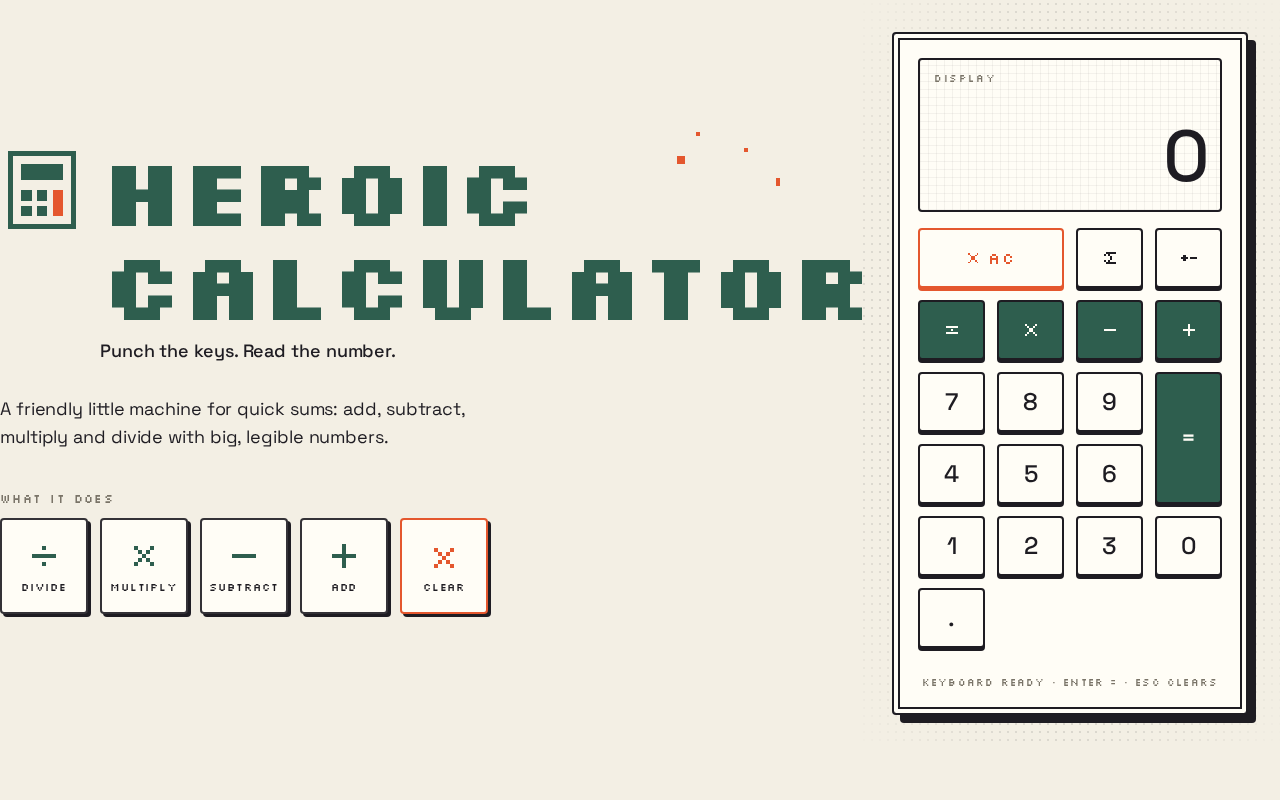
HEROIC CALCULATOR
Punch the keys. Read the number.
A friendly little machine for quick sums: add, subtract, multiply and divide with big, legible numbers.
What it does
- Divide
- Multiply
- Subtract
- Add
- Clear
Keyboard ready · Enter = · Esc clears
HEROIC CALCULATOR
Punch the keys. Read the number.
A friendly little machine for quick sums: add, subtract, multiply and divide with big, legible numbers.
What it does
- Divide
- Multiply
- Subtract
- Add
- Clear
Keyboard ready · Enter = · Esc clears
No comments yet. Be the first!