grocery-prices-stores
 Peipei C. Yu
Make me an app where I can compare grocery prices at stores near me


Comments (0)
Sign in to leave a comment
System Requirements
System Requirements Document for Grocery Price Compare
1. Introduction
Grocery Price Compare is a web application that lets a shopper compare grocery prices at stores near them. The product intent is narrow and concrete: a shopper enters a grocery item, and the app shows what each nearby store charges for that item so the shopper can decide where to buy. The audience is everyday household shoppers in the United States who want a warm, honest, legible view of local grocery pricing rather than a technical price-tracking tool.
The experience is delivered as a first-party React web application backed by a shared FastAPI service and a MariaDB database. The public entry page introduces the product and carries the search that starts a comparison; the Compare page is where the shopper searches an item and reads nearby store prices. No account is required to use either page.
2. System Overview
2a. Product Interpretation and Delivery Boundary
Grocery Price Compare is a single-purpose comparison tool. Its whole job is to take one grocery item from the shopper and return the prices that nearby stores charge for it, presented so the shopper can pick where to buy. The product does not attempt to be a shopping list, a coupon manager, a loyalty program, a delivery service, or a store inventory system.
Delivery is first-party and headless-free: the application owns both the public entry and the comparison experience. The Landing page is the public entry surface that explains the product and hosts the search that begins a comparison. The Compare page is the working surface where the shopper enters a grocery item and sees prices from nearby stores. Both pages are reachable without an account; the accepted journeys do not require durable shopper-specific state, so no sign-in, registration, or profile is part of the current product.
The shared FastAPI backend owns the application APIs and domain logic for item search and nearby-store price lookup. MariaDB holds application-owned persistent data used to serve those lookups. The React frontend renders both pages and calls the backend. Location context ("near me") is used to scope which stores are considered nearby; the product presents nearby store prices for the searched item.
Everything described here is current. No future-horizon features are committed in this document.
2c. Page Content and Component Coverage
Landing
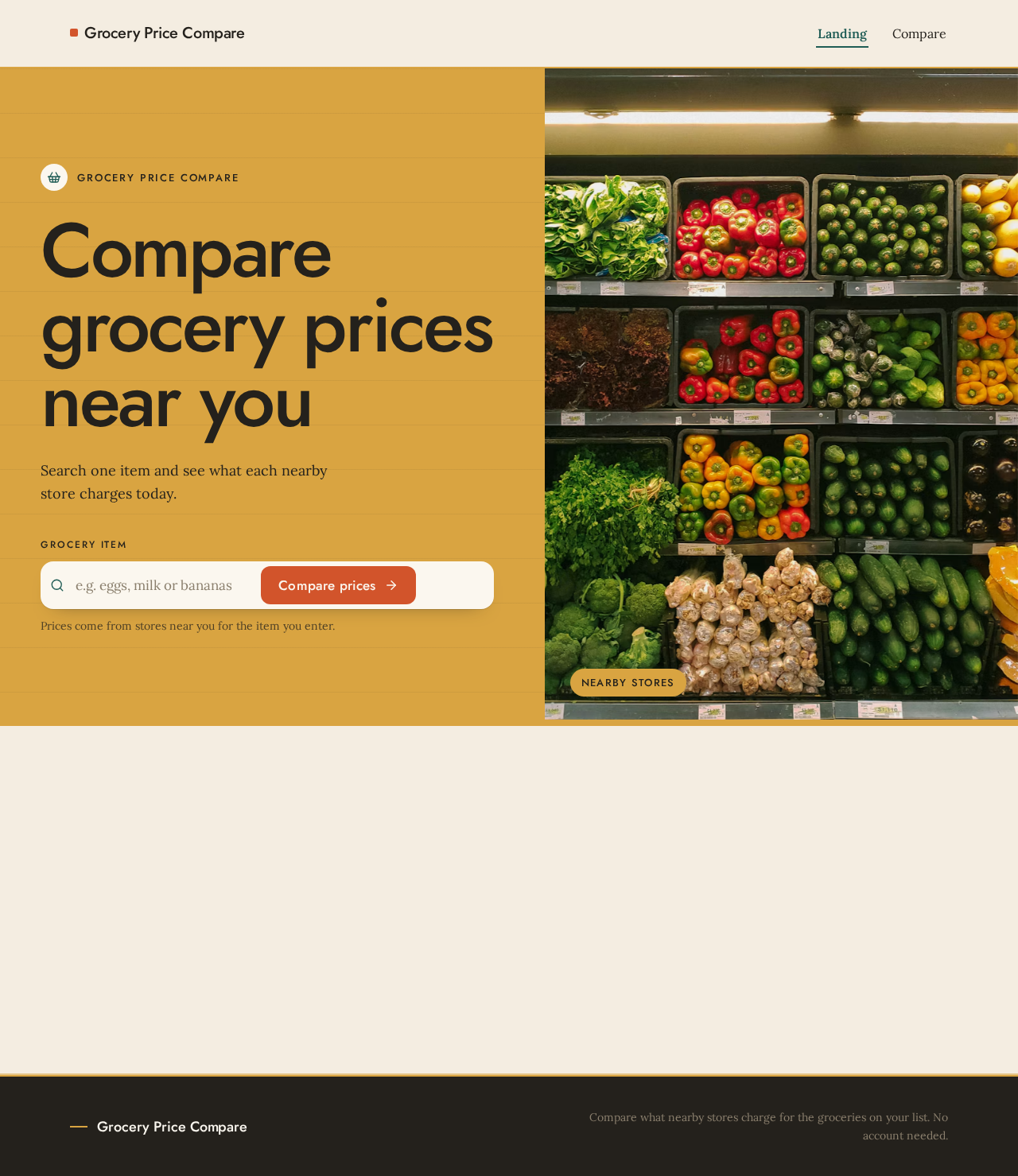
- Information and state: Product name "Grocery Price Compare"; the hero headline "Compare grocery prices near you"; the subline "Search one item and see what each nearby store charges today."; a short explanation of what the app does; the entry search control. States: default (idle, empty search), submitting (search in progress), error (search could not be started, with a retry path).
- Primary action: Enter a grocery item in the cream search bar and activate the tomato-red "Compare prices" button to begin a comparison.
- Supporting actions: Clear or edit the entered item before submitting; follow the transition into the Compare page once a search is submitted.
- Domain entities: Grocery item (the shopper's search term); the search request that carries it forward.
- Component responsibilities:
- Split hero: left tall mustard block holding the oversized Jost headline in walnut ink; right full-bleed warm still-life grocery photograph.
- Cream search bar with tomato-red "Compare prices" button positioned under the headline.
- Subline and brief product explanation in Lora body text.
- Thin full-viewport mustard rule marking the section transition below the hero.
- States: Loading — search submission shows an in-progress indicator on the button/field; Empty — field empty, button prompts entry; Success — item accepted and the shopper is taken to Compare with that item; Error — submission fails, an inline message appears and the entered item is preserved for retry; Recovery — the shopper can resubmit or edit the item.
Compare
- Information and state: The searched grocery item shown as the active query; the list of nearby stores with the price each charges for that item; the lowest price visually marked. States: idle (no item searched yet), loading (prices being fetched), results (one or more nearby store prices), empty (no nearby store prices found for the item), error (lookup failed).
- Primary action: Enter or change the grocery item to compare and run the search.
- Supporting actions: Review each store's price row; identify the lowest price; re-run the search with a different item; retry after a failed lookup.
- Domain entities: Grocery item; store (name and store type); price (amount charged by a store for the item); nearby-store result set.
- Component responsibilities:
- Item search field with a submit control, prefilled from the Landing search when arriving from there.
- Results region: price rows on ruled walnut hairlines with tabular numerals; the lowest price stamped in tomato red.
- Store cards as modular cream and teal panels, each with a small hand-drawn pictogram for its store type.
- Empty and error messaging within the results region, with a retry control.
- States: Loading — results region shows a fetch indicator; Empty — "no nearby store prices found" message with the option to search another item; Success — price rows and store cards rendered, lowest price marked; Error — lookup failure message with retry, the searched item preserved; Recovery — retry the same item or search a new one.
3. Functional Requirements
FR-1 — Compare grocery prices at nearby stores (explicit) As a Shopper, I should compare grocery prices at stores near me, so that I can decide where to buy.
- Trigger/input: the Shopper has a grocery item in mind and a location context for "near me."
- Observable result: the app presents prices from nearby stores for that item, with the lowest price marked.
- Access state: no account required; both pages are publicly reachable.
- Failure/recovery: if nearby prices cannot be retrieved, the Shopper sees an error and can retry.
- Continuation: the Shopper can search another item or revisit the comparison.
- Owner: Compare page (with Landing as the entry point that starts the comparison).
FR-2 — Search for a grocery item to compare (explicit) As a Shopper, I should search for a grocery item, so that the app can find prices for that specific item.
- Trigger/input: the Shopper types a grocery item into the search field and submits.
- Observable result: the searched item becomes the active query and drives the price lookup.
- Access state: no account required.
- Failure/recovery: an empty or failed submission shows an inline message and preserves the entered text.
- Continuation: a successful search proceeds to the price results.
- Owner: Landing page (entry search) and Compare page (search field).
FR-3 — See prices from nearby stores for a grocery item (explicit) As a Shopper, I should see prices from nearby stores for a grocery item, so that I can compare what each store charges.
- Trigger/input: a submitted grocery item.
- Observable result: a list of nearby stores with the price each charges for the item; the lowest price is visually marked in tomato red.
- Access state: no account required.
- Failure/recovery: if no nearby store prices are found, an empty-state message appears; if the lookup fails, an error with retry appears.
- Continuation: the Shopper can search another item or re-run the search.
- Owner: Compare page.
FR-4 — Enter a grocery item to start the comparison (required_inference) As a Shopper, I should enter a grocery item to start the comparison, so that the app has the item it needs to look up nearby prices.
- Trigger/input: the Shopper enters an item on the Landing search bar or the Compare search field.
- Observable result: the item is accepted and carried into the comparison.
- Access state: no account required.
- Failure/recovery: invalid or empty input is rejected with an inline prompt; the entered text is preserved.
- Continuation: the Shopper proceeds to the price results or edits the item.
- Owner: Landing page (entry) and Compare page (working search).
4. User Personas
Shopper
- Product context: An everyday household grocery shopper in the US who wants to know what nearby stores charge for a specific grocery item before deciding where to buy. They arrive at the public Landing page, often on a phone or laptop, with a concrete item in mind.
- Primary goal: Find the nearby store with the best price for the item they need, quickly and without technical friction.
- Distinct accepted responsibilities: Entering the grocery item to compare (FR-4); searching for the item (FR-2); reviewing the prices from nearby stores for that item (FR-3); comparing those prices to choose where to buy (FR-1).
- Relevant inputs or decisions: The grocery item to search; the decision of which nearby store's price to act on, guided by the marked lowest price.
- Interactions with other accepted participants: The Shopper is the sole active human persona. The app's backend and database serve the price lookups on the Shopper's behalf; there is no other human counterparty in the accepted journeys.
- Observable success: The Shopper sees a clear list of nearby store prices for their item, with the lowest price unmistakably marked, and can search another item or revisit the comparison.
5. Core User Flows
Flow A — Compare prices for a grocery item starting from the public entry
- The Shopper opens the Landing page. The split hero shows the headline "Compare grocery prices near you," the subline, and the cream search bar with the tomato-red "Compare prices" button.
- The Shopper types a grocery item (for example, a specific produce or packaged good) into the search bar.
- The Shopper activates "Compare prices." The Landing page shows a submitting state on the control.
- On success, the app transitions to the Compare page with the entered item as the active query. On failure, the Landing page shows an inline error and preserves the entered item so the Shopper can retry.
- The Compare page shows a loading state in the results region while the backend looks up nearby store prices for the item.
- The Compare page renders the results: price rows on ruled walnut hairlines with tabular numerals, store cards as cream and teal panels with hand-drawn store-type pictograms, and the lowest price stamped in tomato red.
- The Shopper reviews the prices and decides where to buy. They may search another item from the Compare search field, which repeats steps 5–6 for the new item.
Flow B — Compare prices directly on the Compare page
- The Shopper opens the Compare page directly (no account needed). The page shows an idle state with the item search field.
- The Shopper enters a grocery item and submits.
- The results region shows a loading state while nearby store prices are fetched.
- If prices are found, the Compare page renders the price rows and store cards with the lowest price marked in tomato red.
- If no nearby store prices are found, the Compare page shows an empty-state message and invites the Shopper to search another item.
- If the lookup fails, the Compare page shows an error message with a retry control and preserves the searched item; the Shopper retries or searches a different item.
Flow C — Recover from a failed or empty lookup
- On the Compare page, the Shopper submits an item and the lookup fails or returns no nearby prices.
- The results region shows the appropriate error or empty message, keeping the searched item visible.
- The Shopper either activates retry (for an error) or edits the item and resubmits.
- On a successful retry or new search, the Compare page renders the price results as in Flow A step 6.
6. Visuals Colors and Theme
The visual system follows the supplied creative direction: warm modernism inspired by Charles & Ray Eames — order with joy, friendly price data for family shoppers, never technical.
- Mode: Light mode only.
- Colour tokens (exact hex by role):
- Background:
#F4EDE1(cream ground, ~60% of the surface) - Surface:
#FBF7EF(panels and cards) - Text:
#24211C(walnut ink) - Primary:
#1F5C55(teal, for controls) - Accent:
#D2542B(tomato red, marks the lowest price and the hero button) - Muted:
#8A7F6D(secondary text and hairlines support) - Support:
#D9A441(mustard, for tags and the hero block)
- Background:
- Typography:
- Headings: Jost, medium weight, geometric mid-century shapes, tight tracking, large sizes, sentence case.
- Body: Lora.
- Scale: 1.25 modular — 56/44/34/24/18/16; display from 40px mobile to 96px desktop.
- Shape language: Organic-modern blocks with 16px radii; modular panels sit on a visible baseline grid; hard edges stay on data rows.
- Layout: Gallery-like sequence — full-width colour panels alternate with a single-column compare measure; asymmetric two-column grids at 1280px.
- Imagery: Warm still-life photography of produce and packaging on plain grounds; hand-drawn pattern accents and simple pictograms for store types.
- Motion: Restrained — slow 400ms film-like fades and gentle pans on imagery; no bounce.
- Avoid: Gradient blobs and glass panels; identical hover-lift card grids; blue or indigo accents on white; playful bouncy motion.
7. Signature Design Concept
The public entry is a split hero built from the direction's hero move. On the left, a tall solid mustard (#D9A441) block bleeds off the left edge and holds the oversized Jost headline "Compare grocery prices near you" in walnut ink (#24211C), sized with clamp() from 40px on mobile to 96px on desktop so it stays whole at 375px, 768px, and 1280px. On the right, a full-bleed warm still-life photograph of groceries on a plain ground. Directly under the headline sits a cream (#FBF7EF) search bar with a tomato-red (#D2542B) "Compare prices" button. A thin full-viewport mustard rule closes the hero and marks the transition into the product explanation below. The gesture of the mustard block bleeding off the edge is carried by the colour block and imagery only — the headline, subline, and controls remain fully inside the viewport and their containers at every breakpoint.
8. Interaction Model & Motion Direction
Interaction Model: Animated Motion Tempo: restrained Hero Dimensionality: layered_2d
Landing Hero Motion Brief
- Focal subject: The warm still-life grocery photograph on the right of the split hero, paired with the oversized Jost headline in the mustard block on the left.
- Input → transformation → outcome thesis: As the page settles on load, the still-life photograph performs a slow, gentle pan while the mustard block and headline fade in over 400ms; the cream search bar and tomato-red button resolve last, inviting the Shopper to enter an item. The motion only composes accepted content — it never introduces new behavior.
- Motion vocabulary: Slow 400ms film-like fades; gentle pans on imagery; no bounce; thin mustard rule as a static section divider.
- Composed first frame: Mustard block bleeding off the left edge with the headline fully visible; still-life photograph full-bleed on the right; cream search bar with tomato-red button beneath the headline; subline in Lora.
- Reduced-motion state: With
prefers-reduced-motion, the hero renders as a static arrangement — photograph and mustard block in place, headline, subline, and search controls fully visible and usable, no pan or fade.
9. Non-Functional Requirements
- Access without account (explicit via planning scope): Both Landing and Compare are reachable without sign-in; no authentication is required for the accepted journeys.
- Readable text and controls at every viewport (explicit design constraint): Headlines, wordmarks, labels, numbers, and card text and controls stay entirely inside the viewport and their containers at 375px, 768px, and 1280px, wrapping or scaling (e.g.,
font-size: clamp(...)) to fit; no element covers any readable text or control. Imagery and decoration may bleed, crop, or overlap as the direction asks, provided they cover no readable text or control. - Reduced-motion support (explicit design constraint): With
prefers-reduced-motion, a usable static arrangement is provided; any moving or scrollable content wraps or scrolls so each item can be brought fully into view. - Warm, honest, non-technical tone (explicit design constraint): The interface follows the Eames warm-modernism direction; the generic indigo/blue-on-white SaaS template is forbidden.
- Responsive layout (explicit design constraint): Gallery-like sequence with full-width colour panels alternating with a single-column compare measure; asymmetric two-column grids at 1280px.
- Performance and reliability (required_inference): Price lookups return promptly with clear loading, empty, and error states so the Shopper always knows the status of a comparison.
10. Tech Stack
- Frontend: React application UI rendering the Landing and Compare pages.
- Backend: Shared FastAPI process hosting the application APIs and domain modules for item search and nearby-store price lookup.
- Database: MariaDB for application-owned persistent data backing the price lookups.
- Deployment: Docker / docker-compose provisioning the frontend, backend, and database services.
11. Assumptions and Constraints
- Assumption — location context (required_inference): "Near me" is resolved to a location context used to scope which stores count as nearby; the accepted journeys do not specify how location is obtained, so this remains an implementation detail of the lookup.
- Assumption — price data source (required_inference): Nearby store prices are served from application-owned data in MariaDB via the FastAPI backend; no external provider is named in the source.
- Constraint — no account (explicit via planning scope): No sign-in, registration, or profile is part of the current product; both pages are public.
- Constraint — single active persona (explicit via planning scope): The Shopper is the only active human persona; no other human roles are introduced.
- Constraint — scope (explicit): The product is limited to comparing grocery prices at nearby stores for a searched item; adjacent capabilities (lists, coupons, delivery, loyalty, inventory) are out of scope.
- Constraint — visual direction (explicit): The supplied palette, fonts, surfaces, tone, and layout are preserved; the indigo/blue-on-white template is forbidden.
12. Glossary
- Shopper: The single active human persona who compares grocery prices at nearby stores.
- Grocery item: The specific product the Shopper searches to compare prices.
- Nearby store: A store considered close to the Shopper's location context, whose price for the searched item is shown.
- Price row: A ruled data row showing a store's price for the item, using tabular numerals.
- Lowest price: The minimum price among nearby stores for the item, stamped in tomato red.
- Store card: A modular cream and teal panel representing a store, with a hand-drawn pictogram for its store type.
- Landing: The public entry page that explains the product and hosts the entry search.
- Compare: The working page where the Shopper searches an item and reads nearby store prices.
Grocery Price Compare
Compare grocery prices near you
Search one item and see what each nearby store charges today.
Prices come from stores near you for the item you enter.

What this is
Grocery Price Compare does one job well: you type a grocery item, and we show what each nearby store charges for it today. No lists to manage, no accounts to create — just the item you came for and the prices around you.
Prices are laid out as plain rows, one store to a line, with the lowest price stamped so you can spot it at a glance and decide where to do your shopping.
Grocery Price Compare
Compare grocery prices near you
Search one item and see what each nearby store charges today.
Prices come from stores near you for the item you enter.
What this is
Grocery Price Compare does one job well: you type a grocery item, and we show what each nearby store charges for it today. No lists to manage, no accounts to create — just the item you came for and the prices around you.
Prices are laid out as plain rows, one store to a line, with the lowest price stamped so you can spot it at a glance and decide where to do your shopping.
No comments yet. Be the first!