grand-calculor
 Diya Trivedi
create a simple single page design of calculor

Comments (0)
Sign in to leave a comment
System Requirements
System Requirements Document for grand-calculor
1. Introduction
grand-calculor is a simple calculator delivered as a single-page design. The product intent comes directly from the authoritative requirement thread: the user asked for "a simple single page design of calculor" and then narrowed it further — "just simple single pagedesign". That refinement is the current commitment: one page, nothing else.
The audience is any person who needs to perform a basic arithmetic calculation and read the answer immediately, without creating an account, navigating between screens, or learning a complex tool. The product does exactly four things — addition, subtraction, multiplication, and division — on the one page it owns.
Scope is deliberately narrow. Scientific functions, percentages, and a history tape are explicitly excluded. There is no second page, no settings screen, no account area, and no reporting surface.
2. System Overview
Current delivery. A single custom page named Calculator renders the entire product. It hosts operand entry, the four basic operations, the computed result, and clear/reset, and it is the anonymous first impression that explains what the product is and does. Everything the Calculator User does happens on that page, and nothing navigates away from it.
Actors. There is exactly one active human actor, the Calculator User, who enters operands and an operation and reads the result. There is no second human role, no administrator, and no reviewer. Calculations are executed by the client-side calculation engine, a supporting system process that has no page and no human interaction of its own — the Calculator User always sees and controls its outcome on the Calculator page.
Accepted behavior. Operand entry, selection of one of the four operations, an observable computed result, clearing an entry, deleting a mistyped character, a division-by-zero error state with recovery, and continuing a calculation from the displayed result.
Exclusions. Scientific functions, percentages, and history tape are out of scope. No scientific keypad, no % key, no stored list of past calculations. No accounts, no sign-in surface, no persistence of prior sessions.
2a. Product Interpretation and Delivery Boundary
The Calculator page is publicly and anonymously reachable: access requirement is none. No identity, sign-in, invitation, or provisioning step exists, is implied, or is required. Nothing in this product binds a calculation to a person, transfers value, or creates a durable obligation, so no application-owned identity is introduced. The Calculator User can open the page and immediately calculate.
There is no backend service of record. Arithmetic is evaluated on the client within the page, so the page is the complete current product. Nothing is deferred to a future phase as an accepted commitment: the single-page basic calculator is the product. Any scientific keypad, percentage handling, or history tape would be a separate future decision and is explicitly not current.
2c. Page Content and Component Coverage
The page inventory below is the versioned final contract, copied exactly and used as-is: one page, no additions, no splits, no merges.
Calculator
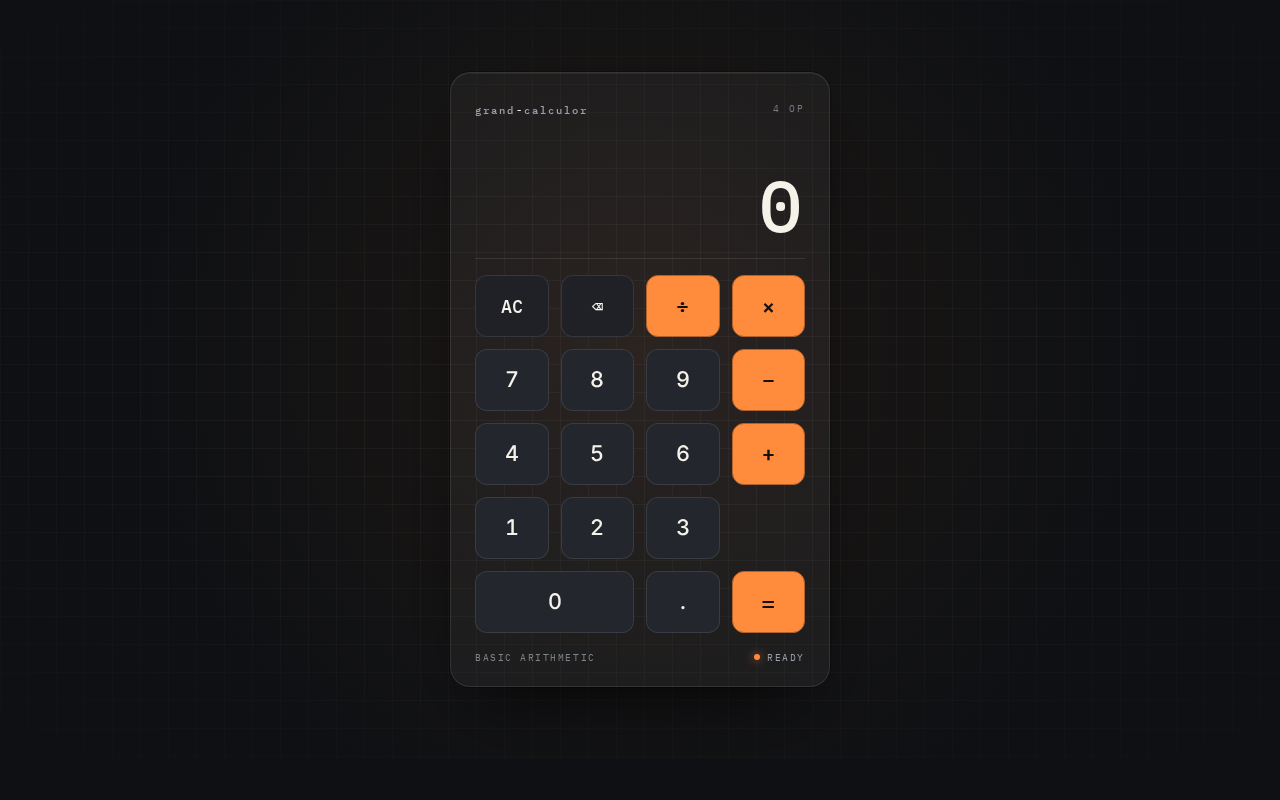
- Purpose and information shown. A single instrument-style panel. It shows (a) the current numeric entry or displayed result as the dominant large readout, (b) the pending expression above the readout — first operand, chosen operator symbol, and second operand as they are entered — so the Calculator User can see what is about to be computed, and (c) a transient error message in the readout area when division by zero is attempted.
- Primary actions. Ten digit keys
0–9; a decimal-point key; four operator keys+,−,×,÷; an equals key that commits the calculation and produces the result. - Supporting actions. A clear key (
AC) that resets operand entry, the chosen operator, and the readout to a neutral starting state; a delete key (\xe2\x8c\xab) that removes the most recently entered character of the current operand before a calculation is committed; using the displayed result as the first operand of a new operation. - Domain entities. Operand (a number typed by the Calculator User, either entered fresh or carried forward from a displayed result), Operator (one of the four accepted operations), Expression (operand, operator, operand), Result (the computed value shown in the readout), Error state (the division-by-zero condition and its message).
- Component responsibilities. Readout — displays the active value, formats it for legibility, and becomes the error surface when a calculation cannot be completed. Expression line — echoes the pending expression so entry is verifiable before commitment. Keypad — a single grid of keys, each dispatching exactly one accepted input; digit keys and the decimal key append to the current operand, operator keys fix the operation, equals commits it,
ACand\xe2\x8c\xabedit or reset entry. Calculation engine — evaluates the committed expression for the four accepted operations and returns either a value or a division-by-zero failure. - Entry and validation. Digit keys append to the current operand. The decimal-point key is accepted at most once per operand and produces a leading
0if pressed first. Operator and equals keys are inert while the error state is showing, so a failed calculation cannot be extended. - States.
- Loading — none in the conventional sense; the page is static markup plus the local calculation engine and renders its keypad immediately on first paint.
- Empty / initial — readout shows
0, the expression line is blank, and no operator is selected. This is the anonymous first impression and states immediately what the product is: a basic calculator. - Success — after equals, the readout shows the computed result and the expression line shows the completed expression, so the Calculator User can confirm what produced the answer.
- Error — on division by zero, the readout shows a plain-language message ("Cannot divide by zero"), the attempted expression remains visible above it, and computation keys are inert.
- Recovery — pressing
ACleaves the error state and returns to the empty state; the Calculator User can immediately enter a new expression. Pressing\xe2\x8c\xabbefore commitment removes a mistyped character and leaves the rest of the entry intact. - Continuation — after a successful result, entering an operator starts a new expression with the displayed result as its first operand.
3. Functional Requirements
FR-1 — Open the calculator page anonymously As a Calculator User I should open the single Calculator page and immediately see a working basic calculator, so that I can calculate without signing in or navigating.
- Provenance: explicit — "create a simple single page design of calculor", "just simple single pagedesign".
- Lifecycle: Trigger — the Calculator User opens the product URL. Access state — anonymous; no identity, account, or session continuity is required. Observable result — the Calculator page renders with readout
0, a blank expression line, and the full keypad. Failure/recovery — if the page fails to render, reloading the page is the recovery. Continuation — the Calculator User begins entering an operand. - Acceptance: the product presents one page; no sign-in, invitation, or provisioning step appears before the calculator is usable.
FR-2 — Enter an operand As a Calculator User I should enter a number using the digit keys, including a decimal point, so that I can calculate with the value I intend.
- Provenance: required_inference — indispensable numeric entry mechanics for any accepted arithmetic operation.
- Lifecycle: Trigger — the Calculator User presses a digit key (
0–9) or the decimal-point key. Access state — anonymous. Observable result — the entered value appears in the readout as it is typed. Failure/recovery — a mistyped character is removed with\xe2\x8c\xabbefore the calculation is committed. Continuation — a second operand can be entered after an operator is selected. - Acceptance: digits append left to right; the decimal point is accepted at most once per operand and produces a leading
0when pressed first.
FR-3 — Select one of the four operations As a Calculator User I should select addition, subtraction, multiplication, or division so that the product knows which operation to perform.
- Provenance: explicit — the accepted scope is "addition, subtraction, multiplication, and division only".
- Lifecycle: Trigger — the Calculator User presses
+,−,×, or÷after entering the first operand. Access state — anonymous. Observable result — the expression line shows the first operand and the chosen operator, confirming the selection before commitment. Failure/recovery — re-pressing a different operator key replaces the pending operator. Continuation — the second operand can now be entered. - Acceptance: exactly four operator keys exist; no other operation can be selected.
FR-4 — Read the pending expression before committing As a Calculator User I should see the operand and operator I have entered so far, so that I can confirm the calculation is what I meant before pressing equals.
- Provenance: required_inference — the observable state needed for the Calculator User to verify a commitment that produces a result.
- Lifecycle: Trigger — any operand or operator key press. Access state — anonymous. Observable result — the expression line reflects operand, operator, and second operand as they are entered. Failure/recovery — the Calculator User corrects the entry with
\xe2\x8c\xaborACbefore committing. Continuation — the Calculator User presses equals. - Acceptance: the expression line always matches the inputs made so far and is cleared or reset with
AC.
FR-5 — Commit the calculation and see the result As a Calculator User I should press equals and see the computed answer in the readout, so that I have the outcome I opened the product for.
- Provenance: required_inference — the observable computed result is the outcome the accepted arithmetic operations exist to produce.
- Lifecycle: Trigger — the Calculator User presses the equals key with a first operand, an operator, and a second operand present. Access state — anonymous. Observable result — the readout shows the computed result, and the completed expression remains visible above it. Failure/recovery — division by zero produces the error state in FR-9. Continuation — the result can be used directly as the first operand of a new operation (FR-10).
- Acceptance: the displayed value equals the correct arithmetic result of the entered expression.
FR-6 — Clear and start over As a Calculator User I should clear the current entry with a single key, so that I can abandon a calculation and begin a new one without reloading.
- Provenance: required_inference — accepted clear/reset behavior on the Calculator page.
- Lifecycle: Trigger — the Calculator User presses
AC. Access state — anonymous. Observable result — the readout returns to0, the expression line clears, and no operator remains selected. Failure/recovery —ACis also the recovery action from the error state and from any unwanted entry. Continuation — the Calculator User enters a new first operand. - Acceptance: after
AC, the page is in the same state as on first load.
FR-7 — Delete a mistyped character As a Calculator User I should remove the last character I typed so that a single mistake does not force me to retype the whole operand.
- Provenance: required_inference — the persona's accepted responsibility includes "clearing or correcting entries".
- Lifecycle: Trigger — the Calculator User presses
\xe2\x8c\xabwhile an operand is being entered. Access state — anonymous. Observable result — the most recently entered character is removed and the readout shows the remaining value. Failure/recovery — if the operand becomes empty, the readout shows0and entry continues normally. Continuation — the Calculator User finishes entering the operand and presses equals. - Acceptance:
\xe2\x8c\xabremoves exactly one character per press and never modifies an already committed result.
FR-8 — Cannot extend a failed calculation As a Calculator User I should be unable to keep pressing operation keys on a failed calculation, so that I am not shown a misleading value.
- Provenance: required_inference — the material failure state must not silently produce a wrong answer.
- Lifecycle: Trigger — the error state is active after a division by zero. Access state — anonymous. Observable result — operator, digit, decimal, and equals keys do not change the readout; the error message stays visible. Failure/recovery — only
ACexits the error state. Continuation — the Calculator User clears and enters a new expression. - Acceptance: no key other than
ACalters the error state.
FR-9 — Division-by-zero error with recovery As a Calculator User I should be told plainly when I try to divide by zero and be able to recover in one step, so that I understand why no result appeared and I am not stuck.
- Provenance: required_inference — the indispensable material failure and recovery path for the accepted division operation.
- Lifecycle: Trigger — the Calculator User presses equals with a second operand of
0and the÷operator selected. Access state — anonymous. Observable result — the readout shows a plain-language message that zero cannot be divided into, and the attempted expression stays visible. Failure/recovery —ACreturns the page to the empty state (FR-6). Continuation — the Calculator User enters a new expression. - Acceptance: a divide-by-zero attempt never shows a numeric result and never leaves the page in a state the Calculator User cannot exit.
FR-10 — Continue from a result As a Calculator User I should be able to start a new operation using the result already on screen, so that I can build on an answer without retyping it.
- Provenance: required_inference — the accepted outcome's continuation, so a finished calculation is usable rather than terminal.
- Lifecycle: Trigger — immediately after a successful result, the Calculator User presses an operator key. Access state — anonymous. Observable result — the displayed result becomes the first operand, the expression line shows it with the chosen operator, and the readout accepts the next operand. Failure/recovery —
ACclears the carried value at any point. Continuation — the Calculator User enters the second operand and presses equals. - Acceptance: the carried value is exactly the previously displayed result.
FR-11 — No functions beyond the four basic operations As a Calculator User I should find only the four basic operations on the page, so that the product stays as simple as I asked for.
- Provenance: explicit — "no scientific functions, percentages, or history tape".
- Lifecycle: Trigger — the Calculator User looks at the keypad. Access state — anonymous. Observable result — the keypad contains only digits, decimal point, the four operators, equals,
AC, and\xe2\x8c\xab. Failure/recovery — not applicable. Continuation — not applicable. - Acceptance: no scientific function, percentage, or history/tape control exists anywhere in the product.
FR-12 — Everything stays on one page As a Calculator User I should complete every calculation on the single page I opened, so that I never lose my entry by navigating.
- Provenance: explicit — "just simple single pagedesign" and the one-page hard constraint.
- Lifecycle: Trigger — any interaction with the product. Access state — anonymous. Observable result — no route change, no second screen, no secondary window is ever required to read a result. Failure/recovery — not applicable. Continuation — the Calculator User keeps calculating on the same page.
- Acceptance: exactly
No comments yet. Be the first!