golden-start
 Diya Trivedi
start a prjetc to build a simple single page design of calculator

Comments (0)
Sign in to leave a comment
System Requirements
System Requirements Document for golden-start
1. Introduction
golden-start is a simple calculator delivered as a single-page design. The product intent is narrow and deliberate: one page, one instrument, immediate arithmetic. A visitor opens the page, enters numbers and operators, sees the running result, and clears or corrects the calculation to start over — all without navigating away.
The audience is a single everyday user performing quick arithmetic who wants an accurate result with no setup, no account, and no surrounding application chrome. The page is the product.
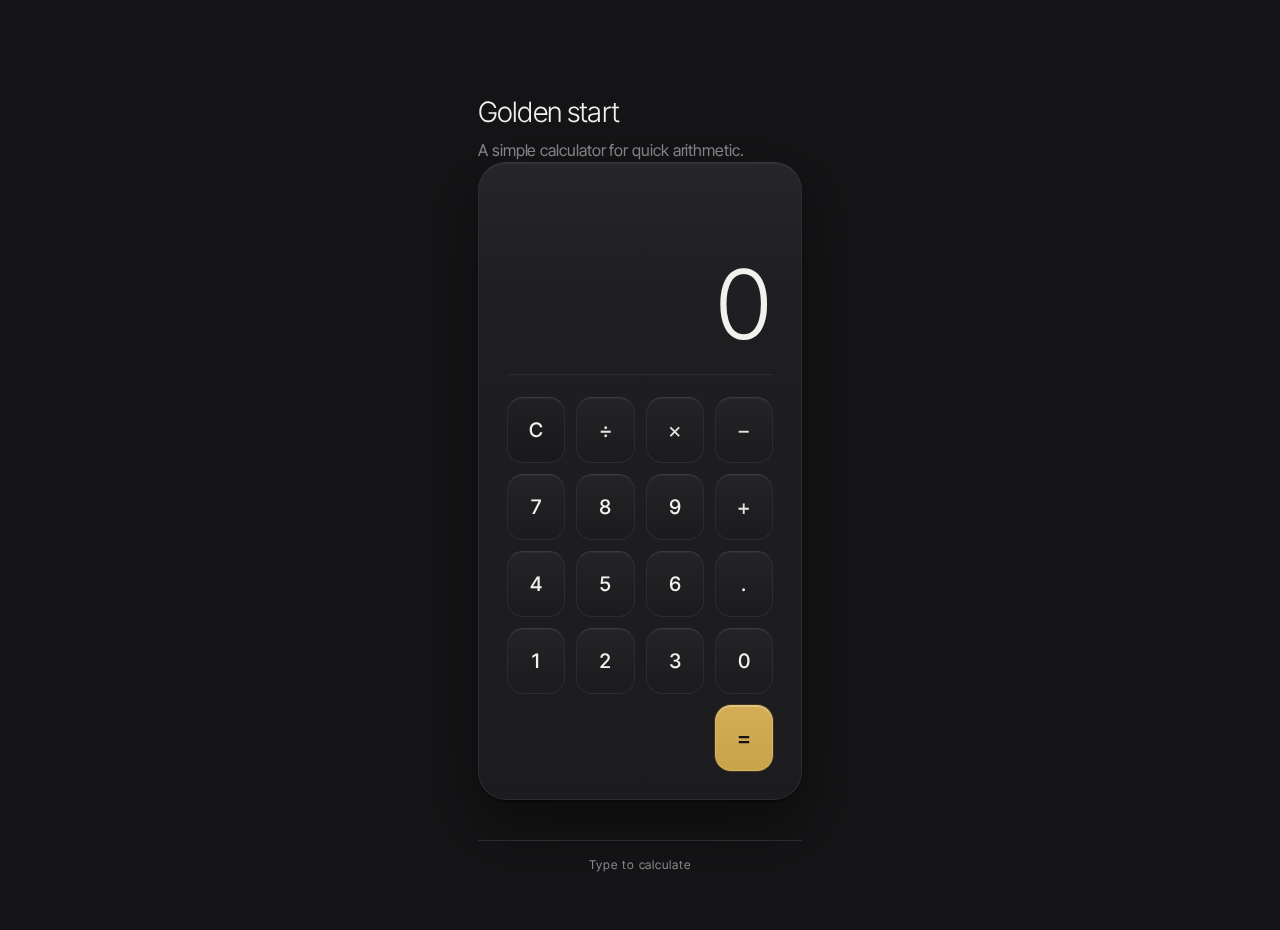
The design register is calm, material precision: a dark graphite field with one perfectly lit calculator object, oversized tabular numerals as the hero, and a single restrained champagne-gold accent reserved for the equals key and the active-operator highlight.
2. System Overview
golden-start is a single-page web calculator. It consists of:
- Frontend (React): renders the one page — the Calculator — including the wordmark, the one-line instruction, the calculator body with display and 4-column keypad, the hairline rule, and the keyboard-input hint.
- Backend (shared FastAPI process): the provisioned application API process. The accepted calculator behavior is client-side arithmetic on a single page; no accepted requirement calls for server-side computation, persistence, or domain data. The backend remains available as the shared application process but carries no calculator-specific endpoints in the current scope.
- Database (MariaDB): provisioned application-owned storage. No accepted requirement establishes durable calculator state, history, or user records, so no domain entities are defined against it in the current scope.
Actors:
- Calculator User (human, active): the sole accepted persona. Anonymous; no identity, account, or session continuity is required to use the calculator.
- Application (system): renders the page and performs the arithmetic the user requests.
Accepted behavior: entering numbers and operators, seeing the running result, and clearing or correcting the calculation to start over, on a single page.
Exclusions: no accounts, no saved history, no sharing, no multi-page navigation, no scientific or programmer modes, no unit conversion, no currency.
Removed from scope
- None — no concept was explicitly removed by the user.
2a. Product Interpretation and Delivery Boundary
golden-start is delivered as a first-party, publicly reachable single page. There is no sign-in, no account creation, and no provider-owned surface: the calculator is anonymous and ephemeral by design, and nothing the user enters is retained after the page is closed or cleared. Because no accepted behavior creates a durable relationship, entitlement, or value transfer bound to a person, no application identity is introduced.
The current delivery horizon contains exactly one page, the Calculator, which is both the public entry and the working surface. There is no separate landing page, no dashboard, and no settings area. Future ideas are not part of this delivery and are not represented in the page or its acceptance.
The provisioned backend and database are infrastructure, not product surface: they do not add endpoints, records, or workflows to the calculator.
2c. Page Content and Component Coverage
Calculator
The single page of the product, and its anonymous public entry. It presents the calculator as one lit object on a dark field.
Information and state
- Wordmark: "Golden start" set light-weight, sentence case, top-left of the page composition.
- Instruction line: a single quiet line above the calculator body explaining what the page does (e.g., a short prompt to calculate).
- Display: the current entry or result, right-aligned, oversized light-weight tabular numerals. States: initial (
0), entry-in-progress (digits accumulating), operator-pending (an operator has been chosen and a second operand is expected), result (computed value shown), error (invalid expression, e.g., division by zero). - Active-operator highlight: the currently selected operator key is highlighted in champagne gold to show pending state.
- Hairline rule: a 1px separator between display and keypad.
- Keypad: 4-column grid of keys — digits 0–9, decimal point, the four operators (+, −, ×, ÷), equals, and clear. Equals is the only saturated element (gold) and anchors the bottom-right.
- Keyboard hint: a micro-label beneath the body ("Type to calculate") with 0.08em tracking, indicating physical keyboard input is supported.
Primary actions
- Press a digit or decimal key to append to the current entry.
- Press an operator key to commit the current operand and select the operation; the key highlights gold.
- Press equals to evaluate the pending expression and show the result in the display.
- Press clear to reset the display to
0and discard any pending operator and operand.
Supporting actions
- Type digits,
.,+,-,*,/,Enter/=,Escape/con a physical keyboard; each press mirrors the on-screen key feedback, including the gold flash on equals.
Domain entities
- Calculation state (in-memory, page-scoped): current entry string, pending operator, stored first operand, and last result. Not persisted; discarded on clear or page close.
Component responsibilities
- Page shell: dark graphite ground, centered single-column composition, generous margin, wordmark and instruction above, hairline rule and keyboard hint below.
- Calculator body: lifted surface with 28px radius, faint top-light gradient, single soft outer shadow, 1px top hairline.
- Display component: renders the current value with tabular numerals at display scale, right-aligned, clamped so it stays whole at 375px, 768px, and 1280px.
- Key component: 16px radius, subtle inner highlight, 1px top hairline, medium-weight label; pressed state scales to 0.97 for 90ms; equals key carries the gold fill and a brief gold flash on activation.
- Keypad grid: fixed 4-column layout with consistent spacing rhythm.
States
- Loading: none required; the page is static content plus client-side arithmetic. The calculator body performs its single reveal (fade and 8px lift, 600ms) on load.
- Empty: the display shows
0on first load; no other empty state exists. - Success: the computed result appears in the display immediately on equals or Enter.
- Error: an invalid operation (such as division by zero) shows an error indication in the display; the user recovers by pressing clear, which returns the display to
0and discards the invalid state. - Recovery: clear at any time resets entry, pending operator, and result to the initial
0state. - Reduced motion: with
prefers-reduced-motion, the reveal is static and the equals flash is suppressed; all keys and the display remain fully usable.
3. Functional Requirements
FR-1 — Single-page calculator presentation (explicit) As a Calculator User, I should see the calculator as a single page, so that I can do arithmetic without navigating anywhere.
- Trigger: opening the page.
- Observable result: the Calculator page renders with wordmark, instruction line, display, keypad, hairline rule, and keyboard hint; no other page or route is part of the product.
- Access: anonymous, no identity required.
- Failure/recovery: if the page fails to render, reloading the page restores the initial
0state. - Continuation: the user proceeds to enter numbers.
FR-2 — Enter numbers (explicit) As a Calculator User, I should enter digits and a decimal point, so that I can build the number I want to calculate with.
- Trigger: pressing a digit key or the decimal key, or typing the corresponding physical key.
- Observable result: the display updates to show the accumulating entry, right-aligned in tabular numerals.
- Access: anonymous.
- Failure/recovery: clear resets the entry to
0. - Continuation: the user selects an operator or presses equals.
FR-3 — Choose an operator (explicit) As a Calculator User, I should choose an operator, so that I can specify the operation to perform.
- Trigger: pressing
+,−,×, or÷, or typing the corresponding physical key. - Observable result: the chosen operator key is highlighted in champagne gold, indicating a pending operation and that a second operand is expected.
- Access: anonymous.
- Failure/recovery: choosing a different operator replaces the pending operator; clear discards it.
- Continuation: the user enters the second operand.
FR-4 — See the running result (explicit) As a Calculator User, I should see the result of my calculation, so that I know the answer.
- Trigger: pressing equals or Enter with a complete expression.
- Observable result: the display shows the computed result in oversized tabular numerals; the equals key gives a brief gold flash.
- Access: anonymous.
- Failure/recovery: an invalid expression (such as division by zero) shows an error in the display; clear returns to
0. - Continuation: the user may continue calculating from the result or clear to start over.
FR-5 — Clear and start over (explicit) As a Calculator User, I should clear the calculation, so that I can start a fresh calculation.
- Trigger: pressing the clear key, or typing
Escape/c. - Observable result: the display returns to
0; pending operator, stored operand, and result are discarded; any active-operator highlight is removed. - Access: anonymous.
- Failure/recovery: clear is always available and always returns to the initial state.
- Continuation: the user begins a new entry.
FR-6 — Keyboard input (required_inference) As a Calculator User, I should use my physical keyboard, so that I can calculate quickly without reaching for the on-screen keys.
- Trigger: typing digits,
.,+,-,*,/,Enter/=, orEscape/cwhile the page is focused. - Observable result: the display and key highlights respond exactly as the corresponding on-screen key press, including the gold flash on equals.
- Access: anonymous.
- Failure/recovery: unrecognized keys are ignored without changing state.
- Continuation: the user continues with either input method interchangeably.
4. User Personas
Calculator User
Product context. An everyday person who needs a quick answer — a sum, a difference, a product, a quotient — and wants it immediately, on whatever device is at hand. They arrive at the page with no account, no prior state, and no expectation of anything being saved. The page is the whole product.
Primary goal. Get an accurate arithmetic result on a single page, quickly, and be able to start over cleanly.
Distinct accepted responsibilities.
- Enters numbers and a decimal point to build operands.
- Chooses an operator, seeing it highlighted so they know an operation is pending.
- Reads the running result in the display.
- Clears or corrects the calculation to start over.
- May use the physical keyboard instead of the on-screen keys.
Relevant inputs and decisions. Which digits to enter, which operator to apply, when to press equals, and when to clear. The user decides when a calculation is complete and when to abandon it.
Interactions with other accepted participants. None. The Calculator User is the only human actor; the application performs the arithmetic and renders the result. There is no counterparty, recipient, or beneficiary whose state changes.
Observable success. The display shows the correct result of the entered expression, the equals key flashes gold on activation, and clear returns the display to 0 — all without leaving the page.
What makes this role distinct. The role is defined by immediacy and ephemerality: no identity, no history, no collaboration. Its entire value is the accuracy and legibility of the numbers on one page.
5. Core User Flows
Flow 1 — Perform a calculation
- The Calculator User opens the Calculator page. The page renders on the dark graphite field; the calculator body fades and lifts into place (or appears statically under reduced motion). The display shows
0, and the wordmark, instruction line, and "Type to calculate" hint are visible. - The user presses digit keys (or types digits) to build the first operand. The display updates with each press, right-aligned in tabular numerals.
- The user presses an operator key. That key highlights in champagne gold, and the display holds the first operand while awaiting the second.
- The user enters the second operand. The display updates with each digit.
- The user presses equals (or Enter). The equals key gives a brief gold flash, and the display shows the computed result.
- Continuation: the user may press an operator to continue calculating from the result, or press clear to start over.
Failure/recovery: if the expression is invalid (for example, division by zero), the display shows an error. The user presses clear, the display returns to 0, and the pending state is discarded; they begin again from step 2.
Flow 2 — Clear and start over
- The user is mid-calculation, with an entry, a pending operator, or a result on screen.
- The user presses the clear key (or types
Escape/c). - The display returns to
0; the pending operator, stored operand, and result are discarded; any gold operator highlight is removed. - Continuation: the user begins a new entry from step 2 of Flow 1.
Flow 3 — Calculate by keyboard
- The user focuses the page and types a digit. The display updates exactly as if the on-screen key were pressed.
- The user types an operator; the corresponding on-screen operator key highlights gold.
- The user types the second operand, then presses
Enteror=. The equals key flashes gold and the result appears in the display. - Failure/recovery: unrecognized keys are ignored and do not alter the display or pending state.
- Continuation: the user may switch freely between keyboard and on-screen keys for the next calculation.
6. Visuals Colors and Theme
The visual direction is Quiet precision after Jony Ive — one perfectly lit instrument on a graphite field. The muse is Jony Ive; the headline is one perfectly lit instrument on a graphite field. The register is calm confidence and material honesty: a tool you trust at a glance, not a toy and not a dashboard.
Color tokens (dark mode)
| Role | Hex | Usage |
|---|---|---|
| Background | #141416 | Page ground (graphite field) |
| Surface | #1E1E21 | Calculator body |
| Text | #F2F1EE | Display numerals, key labels, wordmark, instruction |
| Primary | #C9A24A | Equals key fill; active-operator highlight |
| Accent | #E8C877 | Lit highlight on hover/focus of gold elements |
| Muted | #8A8A8E | Secondary labels, hairlines, keyboard hint |
| Hairline | #2C2C30 | 1px top edge on keys and body |
Balance: roughly 80% dark neutrals, 15% surface, 5% gold. Body text at #F2F1EE on #141416 or #1E1E21 passes contrast comfortably.
Typography
- Family: Inter Tight for both headings and body. No system fonts for headings or body.
- Wordmark: Light (300), sentence case, tight tracking (−0.03em),
clamp(20px, 2.4vw, 28px). - Display numerals: Light (300), tabular numerals,
clamp(48px, 9vw, 96px), right-aligned. - Key labels: Medium (500), 20px.
- Micro-labels: 12px with 0.08em tracking.
- Scale: 1.25 modular — 16 / 20 / 25 / 31 / 39 / 49.
- No all-caps shouting.
Shape language
- Calculator body: 28px continuous-curve radius.
- Keys: 16px radius with a subtle inner highlight and a 1px top hairline (
#2C2C30) to read as a machined surface. - No blobs, no pills, no stacked drop shadows. Depth comes from a single soft outer shadow and a faint top-light gradient on the body.
Spacing rhythm
- Single-column focus with generous margin; the calculator is centered as the one lit subject.
- Desktop: fixed-max-width column (~420px). Mobile: comfortable 24px gutter.
- Hairline rule separates display from keypad; a thin hairline rule and the keyboard hint sit below the body.
Imagery style
- No photography, no illustration. The calculator itself is the object; material is conveyed through hairlines, a single soft shadow, and a faint top-light gradient. A thin hairline grid is the only decoration, and only where it separates display from keypad.
7. Signature Design Concept
The display is the hero. The public entry is a dark graphite field with one perfectly lit object: the calculator body, centered at roughly 420px wide on #141416, its #1E1E21 surface catching a faint top light. The display occupies the top third of the body with oversized light-weight tabular numerals in #F2F1EE, right-aligned — the numbers are the largest thing on the page. A hairline rule separates them from the keypad.
Above the body, a small light-weight sentence-case wordmark and a single quiet line of instruction. Below it, a thin hairline rule and the "Type to calculate" micro-label. The gold equals key (#C9A24A) anchors the bottom-right of a 4-column keypad and is the only saturated element in the frame; every other key is a quiet graphite surface with a 1px top hairline. Composition is centered and still — no gradient blob, no blue button, no floating cards. Generous negative space is part of the composition.
8. Interaction Model & Motion Direction
Interaction Model: Animated Motion Tempo: restrained Hero Dimensionality: layered_2d
Landing Hero Motion Brief
- Focal subject: the calculator body as one lit object on the graphite field, with the oversized display numerals as the visual anchor.
- Input → transformation → outcome thesis: on load, the calculator body fades in and lifts 8px into place with a slow physical ease (
cubic-bezier(0.22, 1, 0.36, 1), 600ms), settling into a still, centered composition; thereafter, each key press gives a 90ms scale-to-0.97, and the equals key gives a brief gold flash — motion only ever confirms input, never decorates. - Motion vocabulary: one purposeful reveal; restrained press feedback; a single gold flash on equals; nothing else moves.
- Composed first frame: dark
#141416field, wordmark and instruction line above, the calculator body centered with its display showing0in oversized tabular numerals, the gold equals key at bottom-right, hairline rule and keyboard hint below. - Reduced-motion state: with
prefers-reduced-motion, the reveal is static (no fade or lift) and the equals flash is suppressed; key presses remain fully usable and the composition is unchanged.
9. Non-Functional Requirements
- Single-page constraint (explicit): the product is exactly one page; no additional routes, pages, or navigation are introduced.
- Simplicity (explicit): the design is a simple single-page calculator; no scientific functions, history, memory keys, or adjacent calculator modes are added.
- Readable text and controls at every viewport (explicit, from design constraints): headlines, wordmark, labels, numbers, and controls stay entirely inside the viewport and their container at 375px, 768px, and 1280px, wrapping or scaling (e.g.,
clamp(...)) to fit; no element covers any part of them. - Accessibility of contrast (explicit, from creative direction): body text at
#F2F1EEon#141416or#1E1E21passes contrast comfortably. - Reduced motion (explicit, from creative direction):
prefers-reduced-motionyields a static reveal and no flash, with full usability. - Keyboard operability (required_inference): the calculator is fully operable from a physical keyboard, mirroring on-screen feedback.
- No persistence (required_inference): calculation state is page-scoped and in-memory; nothing is written to the provisioned database, and no identity or session is required.
10. Tech Stack
- Frontend: React application UI rendering the single Calculator page.
- Backend: shared FastAPI process for application APIs and domain modules (provisioned; no calculator-specific endpoints in current scope).
- Database: MariaDB for application-owned persistent data (provisioned; no calculator domain entities in current scope).
- Styling: Inter Tight typeface; CSS custom properties for the color tokens;
clamp()for responsive type;cubic-bezier(0.22, 1, 0.36, 1)easing;prefers-reduced-motionmedia query.
11. Assumptions and Constraints
- A-1 (assumption): The calculator performs standard four-function arithmetic (addition, subtraction, multiplication, division) with a decimal point and a clear key; this is the minimal reading of "simple calculator."
- A-2 (assumption): Arithmetic is computed client-side on the single page; no server round-trip is required for a result.
- A-3 (assumption): The calculator is anonymous and ephemeral; no account, history, or saved state is expected.
- A-4 (constraint, explicit): The design must be a single page.
- A-5 (constraint, explicit): The design must be a simple single-page calculator.
- A-6 (constraint, explicit): The generic indigo/blue-on-white SaaS template is forbidden for this project.
- A-7 (constraint, explicit): The provisioned backend and database do not add product requirements, endpoints, or domain entities to the calculator.
12. Glossary
- Calculator User: the sole accepted human persona; an anonymous everyday user performing quick arithmetic on the single page.
- Display: the oversized, right-aligned tabular-numeral area at the top of the calculator body showing the current entry or result.
- Keypad: the 4-column grid of digit, decimal, operator, equals, and clear keys.
- Active-operator highlight: the champagne-gold state of the currently selected operator key, indicating a pending operation.
- Equals flash: the brief gold flash on the equals key when a calculation is evaluated.
- Calculation state: the in-memory, page-scoped record of current entry, pending operator, stored operand, and result; discarded on clear or page close.
- Reduced motion: the
prefers-reduced-motionstate in which the reveal is static and the equals flash is suppressed.
Golden start
A simple calculator for quick arithmetic.
Golden start
A simple calculator for quick arithmetic.
No comments yet. Be the first!