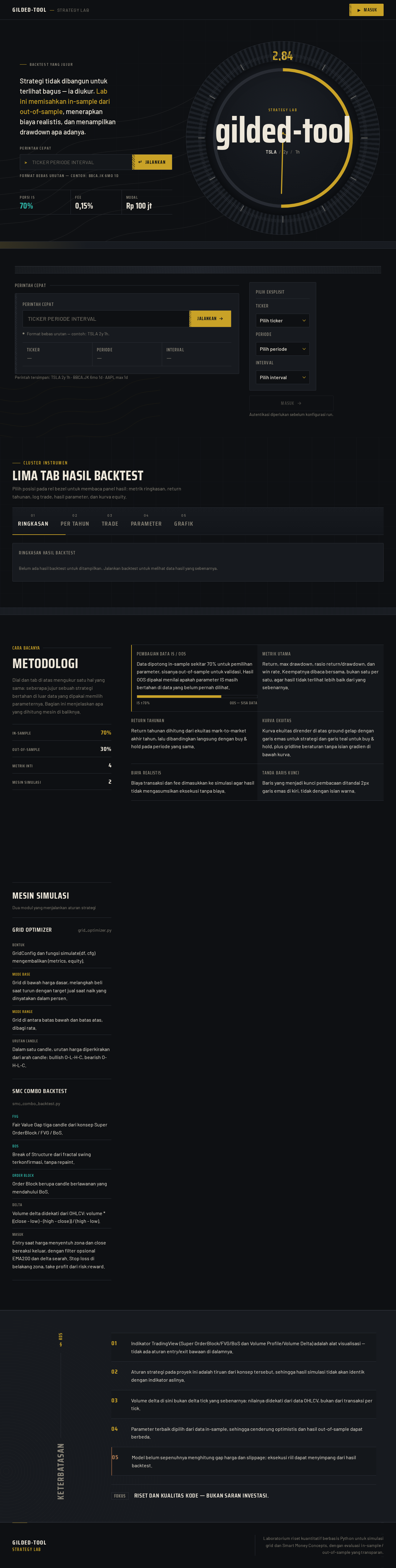
Strategi tidak dibangun untuk terlihat bagus — ia diukur. Lab ini memisahkan in-sample dari out-of-sample, menerapkan biaya realistis, dan menampilkan drawdown apa adanya.
Pilih posisi pada rel bezel untuk membaca panel hasil: metrik ringkasan, return tahunan, log trade, hasil parameter, dan kurva equity.
Ringkasan Hasil Backtest
Belum ada hasil backtest untuk ditampilkan. Jalankan backtest untuk melihat data hasil yang sebenarnya.
Pembagian Data IS / OOSData dipotong in-sample sekitar 70% untuk pemilihan parameter, sisanya out-of-sample untuk validasi. Hasil OOS dipakai menilai apakah parameter IS masih bertahan di data yang belum pernah dilihat.
IS ±70%OOS — sisa data
Metrik UtamaReturn, max drawdown, rasio return/drawdown, dan win rate. Keempatnya dibaca bersama, bukan satu per satu, agar hasil tidak terlihat lebih baik dari yang sebenarnya.
Return TahunanReturn tahunan dihitung dari ekuitas mark-to-market akhir tahun, lalu dibandingkan langsung dengan buy & hold pada periode yang sama.
Kurva EkuitasKurva ekuitas dirender di atas ground gelap dengan garis emas untuk strategi dan garis teal untuk buy & hold, plus gridline beraturan tanpa isian gradien di bawah kurva.
Biaya RealistisBiaya transaksi dan fee dimasukkan ke simulasi agar hasil tidak mengasumsikan eksekusi tanpa biaya.
Tanda Baris KunciBaris yang menjadi kunci pembacaan ditandai 2px garis emas di kiri, tidak dengan isian warna.
Mesin Simulasi
Dua modul yang menjalankan aturan strategi
Grid Optimizer
grid_optimizer.py
BentukGridConfig dan fungsi simulate(df, cfg) mengembalikan (metrics, equity).
Mode baseGrid di bawah harga dasar, melangkah beli saat turun dengan target jual saat naik yang dinyatakan dalam persen.
Mode rangeGrid di antara batas bawah dan batas atas, dibagi rata.
Urutan candleDalam satu candle, urutan harga diperkirakan dari arah candle: bullish O-L-H-C, bearish O-H-L-C.
SMC Combo Backtest
smc_combo_backtest.py
FVGFair Value Gap tiga candle dari konsep Super OrderBlock / FVG / BoS.
BoSBreak of Structure dari fractal swing terkonfirmasi, tanpa repaint.
Order BlockOrder Block berupa candle berlawanan yang mendahului BoS.
MasukEntry saat harga menyentuh zona dan close bereaksi keluar, dengan filter opsional EMA200 dan delta searah. Stop loss di belakang zona, take profit dari risk:reward.
§ K05
Keterbatasan
01
Indikator TradingView (Super OrderBlock/FVG/BoS dan Volume Profile/Volume Delta) adalah alat visualisasi — tidak ada aturan entry/exit bawaan di dalamnya.
02
Aturan strategi pada proyek ini adalah tiruan dari konsep tersebut, sehingga hasil simulasi tidak akan identik dengan indikator aslinya.
03
Volume delta di sini bukan delta tick yang sebenarnya: nilainya didekati dari data OHLCV, bukan dari transaksi per tick.
04
Parameter terbaik dipilih dari data in-sample, sehingga cenderung optimistis dan hasil out-of-sample dapat berbeda.
05
Model belum sepenuhnya menghitung gap harga dan slippage; eksekusi riil dapat menyimpang dari hasil backtest.
Fokus
Riset dan kualitas kode — bukan saran investasi.
Preview data'Changes will reset when this preview closes.'
Strategi tidak dibangun untuk terlihat bagus — ia diukur. Lab ini memisahkan in-sample dari out-of-sample, menerapkan biaya realistis, dan menampilkan drawdown apa adanya.
Pilih posisi pada rel bezel untuk membaca panel hasil: metrik ringkasan, return tahunan, log trade, hasil parameter, dan kurva equity.
Ringkasan Hasil Backtest
Belum ada hasil backtest untuk ditampilkan. Jalankan backtest untuk melihat data hasil yang sebenarnya.
Pembagian Data IS / OOSData dipotong in-sample sekitar 70% untuk pemilihan parameter, sisanya out-of-sample untuk validasi. Hasil OOS dipakai menilai apakah parameter IS masih bertahan di data yang belum pernah dilihat.
IS ±70%OOS — sisa data
Metrik UtamaReturn, max drawdown, rasio return/drawdown, dan win rate. Keempatnya dibaca bersama, bukan satu per satu, agar hasil tidak terlihat lebih baik dari yang sebenarnya.
Return TahunanReturn tahunan dihitung dari ekuitas mark-to-market akhir tahun, lalu dibandingkan langsung dengan buy & hold pada periode yang sama.
Kurva EkuitasKurva ekuitas dirender di atas ground gelap dengan garis emas untuk strategi dan garis teal untuk buy & hold, plus gridline beraturan tanpa isian gradien di bawah kurva.
Biaya RealistisBiaya transaksi dan fee dimasukkan ke simulasi agar hasil tidak mengasumsikan eksekusi tanpa biaya.
Tanda Baris KunciBaris yang menjadi kunci pembacaan ditandai 2px garis emas di kiri, tidak dengan isian warna.
Mesin Simulasi
Dua modul yang menjalankan aturan strategi
Grid Optimizer
grid_optimizer.py
BentukGridConfig dan fungsi simulate(df, cfg) mengembalikan (metrics, equity).
Mode baseGrid di bawah harga dasar, melangkah beli saat turun dengan target jual saat naik yang dinyatakan dalam persen.
Mode rangeGrid di antara batas bawah dan batas atas, dibagi rata.
Urutan candleDalam satu candle, urutan harga diperkirakan dari arah candle: bullish O-L-H-C, bearish O-H-L-C.
SMC Combo Backtest
smc_combo_backtest.py
FVGFair Value Gap tiga candle dari konsep Super OrderBlock / FVG / BoS.
BoSBreak of Structure dari fractal swing terkonfirmasi, tanpa repaint.
Order BlockOrder Block berupa candle berlawanan yang mendahului BoS.
MasukEntry saat harga menyentuh zona dan close bereaksi keluar, dengan filter opsional EMA200 dan delta searah. Stop loss di belakang zona, take profit dari risk:reward.
§ K05
Keterbatasan
01
Indikator TradingView (Super OrderBlock/FVG/BoS dan Volume Profile/Volume Delta) adalah alat visualisasi — tidak ada aturan entry/exit bawaan di dalamnya.
02
Aturan strategi pada proyek ini adalah tiruan dari konsep tersebut, sehingga hasil simulasi tidak akan identik dengan indikator aslinya.
03
Volume delta di sini bukan delta tick yang sebenarnya: nilainya didekati dari data OHLCV, bukan dari transaksi per tick.
04
Parameter terbaik dipilih dari data in-sample, sehingga cenderung optimistis dan hasil out-of-sample dapat berbeda.
05
Model belum sepenuhnya menghitung gap harga dan slippage; eksekusi riil dapat menyimpang dari hasil backtest.


No comments yet. Be the first!