gilded-start
 Diya Trivedi
start a project to build a simple single page design of calculator

Comments (0)
Sign in to leave a comment
System Requirements
System Requirements Document for gilded-start
1. Introduction
gilded-start is a simple calculator delivered as a single-page design. The product intent is narrow and exact: one page on which a person enters numbers and operators, sees the running expression and the result, and clears or corrects input to begin a new calculation. There is no account, no navigation, no secondary screen, and no workflow beyond arithmetic on that one page.
The audience is everyday people who want fast, accurate arithmetic on one screen. The page is anonymous and public: it is the first and only surface a visitor meets, and it is usable immediately without identity, setup, or configuration.
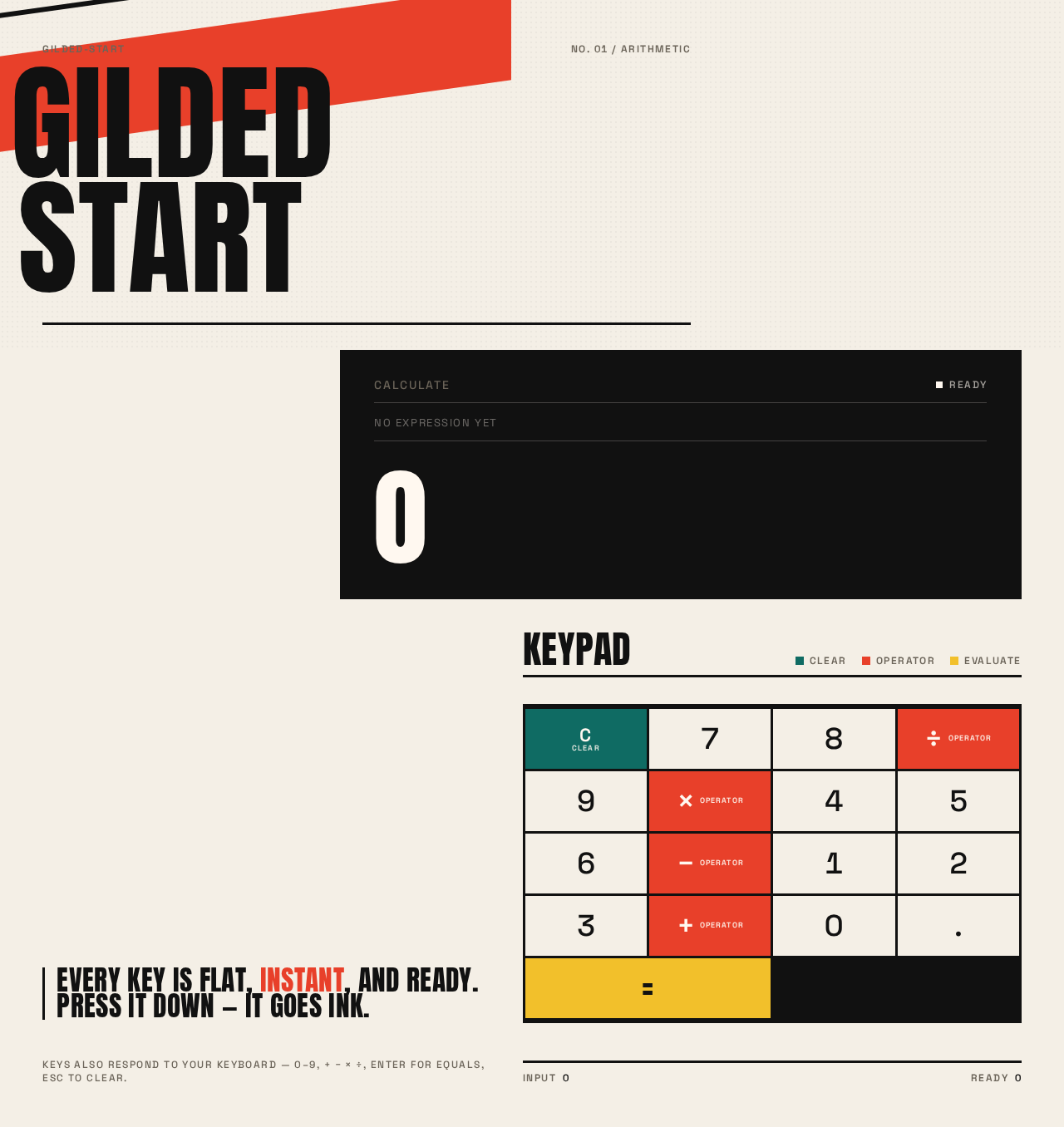
The visual and interaction intent is a full-viewport poster composition in which typography is the architecture — an oversized stacked wordmark, a tall ink display panel as the page's loudest object, and a flat hard-edged keypad of primary colour blocks. The calculator itself is the hero.
2. System Overview
gilded-start is a single-page web calculator. The current delivery consists of:
- frontend — a React application UI that renders the one Calculator page, holds the running expression and result state in the browser, and handles all keypad input.
- backend — a shared FastAPI process for application APIs and domain modules. It is provisioned infrastructure; the accepted calculator scope requires no server-side calculation, persistence, or domain entity, so no calculator API is required for the current behavior.
- database — MariaDB for application-owned persistent data. It is provisioned infrastructure only; the accepted scope creates no durable calculator state, history, or user record, so no schema is required for current behavior.
Actors. The only active human actor is the Calculator User, who opens the page and performs arithmetic. There are no system, provider, or external actors in the accepted behavior.
Accepted behavior. Entering digits and operators, seeing the running expression and the evaluated result, and clearing or correcting input — all on one page, with no navigation away.
Ownership. The single Calculator page is application-owned and anonymously accessible. Calculation state is ephemeral and lives for the duration of the visit; nothing is saved, resumed, or shared.
Exclusions. No accounts, sign-in, profiles, or saved history. No multi-page navigation, menus, or routes. No scientific, programmer, unit-conversion, currency, graphing, or memory functions. No sharing, export, or printing features. No server-side calculation service.
Removed from scope
- Multi-page navigation and application menus
- User accounts, sign-in, and identity establishment
- Saved calculation history and persistence of expressions or results
- Scientific, programmer, unit-conversion, currency, graphing, and memory calculator functions
- Sharing, export, and print features
2a. Product Interpretation and Delivery Boundary
The requester asked for a simple single-page design of a calculator. That is the whole current product: one anonymously reachable page that performs everyday arithmetic and nothing else. The page is the public entry surface and the only surface; there is no protected area, no pre-identity lifecycle, and no post-completion destination.
Delivery is first-party custom UI rendered by the React frontend. Calculation is performed in the browser as part of the page's own interaction; the provisioned FastAPI backend and MariaDB database exist as shared infrastructure but carry no accepted calculator responsibility in the current horizon. No provider-owned or external surface participates.
Everything beyond entering numbers and operators, evaluating, and clearing input is future or out of scope. The single-page constraint is hard: no additional page, route, modal destination, or navigation may be introduced.
2c. Page Content and Component Coverage
Calculator
The one and only page. Anonymous, publicly reachable, no identity required. It is a full-viewport poster composition: wordmark, display panel, and keypad.
Information and state
- Running expression — the sequence of entered operands and operators, shown in small Space Grotesk above the result inside the ink display panel.
- Current result — the evaluated value, shown as a giant Anton numeral in near-white on the ink panel.
- Input state — which operand is being typed, whether an operator is pending, and whether the last action was an evaluation (so the next digit starts fresh).
- Error state — an invalid operation (for example division by zero) surfaces a clear, legible message in the display panel in place of the result, with the expression retained so the user can clear and continue.
- Empty/initial state — on first load the display shows
0as the result with an empty expression line, ready for input.
Primary actions
- Enter digits
0–9and a decimal point. - Enter operators
÷,×,−,+. - Evaluate with
=. - Clear with the teal clear key.
Supporting actions and controls
- Every key is a flat hard-edged rectangle with a minimum 44px touch target, responding instantly with a solid ink flash on press.
- Micro-labels in uppercase with 0.12em tracking (
CALCULATE,CLEAR,OPERATOR) label the zones.
Domain entities
- Expression — the ordered operands and operators currently entered (ephemeral, in-page only).
- Result — the numeric outcome of evaluation (ephemeral, in-page only).
- No persisted entity, no record, no history.
Component responsibilities
- Wordmark block — oversized stacked
GILDED / STARTin Anton, bleeding toward the left viewport edge, with a scarlet diagonal band behind it. Decorative only; carries no control. - Display panel — tall solid-ink block holding the
CALCULATEmicro-label, the running expression line, and the giant result numeral. Owns the error and empty states and the equals colour-block wipe. - Keypad grid — 4×5 poster grid: digits on paper, operators in scarlet, clear in teal, equals spanning two columns in yellow with ink type. Owns all input.
States
- Loading — none required; the page renders its initial
0state immediately. - Empty — initial
0with empty expression line. - Success — result lands in the display panel; equals triggers the scarlet colour-block wipe that settles.
- Error — invalid operation shows a legible message in the display panel; the user clears and continues.
- Recovery — the clear key resets expression and result to the initial
0state at any time. - Overflow — if the running expression exceeds the display width, it scrolls as a marquee-style ticker so every part becomes readable; under reduced motion it wraps or scrolls statically.
3. Functional Requirements
FR-1 — Open the calculator As a Calculator User I should open a single page that presents a working calculator so that I can begin arithmetic immediately.
- Provenance: explicit (single-page calculator).
- Lifecycle: trigger — visiting the page; input — none; observable result — the Calculator page renders with the display showing
0and an empty expression line, and the keypad visible; access — anonymous, no identity; failure/recovery — none applicable; continuation — the user begins entering digits. - Acceptance: exactly one page exists; no navigation, menu, or route leads elsewhere.
FR-2 — Enter digits and a decimal point
As a Calculator User I should press digit keys 0–9 and a decimal point so that I can build the number I want to calculate.
- Provenance: explicit (calculator input).
- Lifecycle: trigger — pressing a digit or decimal key; input — the pressed key; observable result — the digit appends to the current operand and the display updates; access — anonymous; failure/recovery — a second decimal point in the same operand is ignored; continuation — the user presses an operator or
=. - Acceptance: each key press produces an instant flat ink flash and the display reflects the entered value.
FR-3 — Enter operators
As a Calculator User I should press ÷, ×, −, or + so that I can combine operands.
- Provenance: explicit (calculator operators).
- Lifecycle: trigger — pressing an operator key; input — the operator; observable result — the operator is appended to the running expression and a pending operation is set; access — anonymous; failure/recovery — pressing an operator with no operand entered leaves the expression unchanged; continuation — the user enters the next operand.
- Acceptance: the running expression line shows the entered operator.
FR-4 — Evaluate the calculation
As a Calculator User I should press = so that I see the result of my expression.
- Provenance: explicit (calculator evaluation).
- Lifecycle: trigger — pressing
=; input — the completed expression; observable result — the result numeral appears in the display panel and a scarlet colour-block wipe sweeps across the panel and settles; access — anonymous; failure/recovery — an invalid operation (for example division by zero) shows a legible error message in the display panel with the expression retained; continuation — the user enters a new digit to start fresh or clears. - Acceptance: the displayed result is the correct evaluation of the entered expression.
FR-5 — Clear input As a Calculator User I should press the clear key so that I can reset and start a new calculation.
- Provenance: explicit (clear input).
- Lifecycle: trigger — pressing the teal clear key; input — the clear action; observable result — expression and result reset to the initial
0state; access — anonymous; failure/recovery — clear is available at any time, including from an error state; continuation — the user begins a new calculation. - Acceptance: after clear, the display shows
0with an empty expression line.
FR-6 — See the running expression and result As a Calculator User I should see the running expression above the result so that I can track what I am calculating.
- Provenance: required_inference (indispensable observable state for FR-2 through FR-5).
- Lifecycle: trigger — any input or evaluation; input — current expression and result; observable result — the expression line and result numeral update in the display panel; access — anonymous; failure/recovery — if the expression overflows the display width it scrolls as a ticker so every part becomes readable, and under reduced motion it wraps or scrolls statically; continuation — the user continues input.
- Acceptance: the expression and result are always legible and fully readable at 375px, 768px, and 1280px.
4. User Personas
Calculator User
Product context. An everyday person who needs quick, accurate arithmetic and wants it on one screen without setup, sign-in, or navigation. They arrive at the page directly and expect the calculator to be the page.
Primary goal. Get an accurate result for a simple expression without leaving the page.
Distinct accepted responsibilities.
- Entering digits and a decimal point to build operands.
- Entering operators to combine operands.
- Pressing
=to evaluate and reading the result. - Pressing clear to reset and start a new calculation.
- Reading the running expression to track what is being calculated.
Relevant inputs and decisions. Which digits and operators to enter; when to evaluate; whether to clear and start over; how to recover from an invalid operation.
Interactions with other participants. None. The Calculator User is the only active human actor; there is no counterparty, recipient, or beneficiary whose state changes.
Observable success. The correct result appears in the display panel, the expression is legible, and the user can clear and continue — all without leaving the single page.
5. Core User Flows
Flow 1 — Perform a calculation
- The Calculator User opens the Calculator page. The page renders as a full-viewport poster: the stacked
GILDED / STARTwordmark, the ink display panel showing0with an empty expression line, and the keypad. - The user presses digit keys to build the first operand. Each key flashes to solid ink and the digit appears in the display.
- The user presses an operator key (
÷,×,−, or+). The operator appears in the running expression line and a pending operation is set. - The user presses digit keys to build the second operand.
- The user presses
=. A scarlet colour-block wipe sweeps across the display panel and settles, and the result numeral appears in giant Anton type. - The user reads the result. To continue, they press a digit to start a fresh calculation or press clear to reset.
Failure and recovery. If the expression is invalid (for example division by zero), the display panel shows a legible error message with the expression retained. The user presses the teal clear key to reset to 0 and begins again.
Continuation. After a result, the user may chain a new calculation by entering a digit or an operator, or clear to start over.
Flow 2 — Clear and start over
- From any state — initial, mid-entry, after a result, or in an error — the Calculator User presses the teal clear key.
- The expression and result reset to the initial
0state with an empty expression line. - The user begins a new calculation as in Flow 1.
Flow 3 — Read an overflowing expression
- The Calculator User enters an expression longer than the display width.
- The running expression scrolls as a marquee-style ticker so every part becomes readable as it passes.
- Under
prefers-reduced-motion, the expression wraps or scrolls statically so each part can be brought fully into view. - The user continues input or evaluates.
6. Visuals Colors and Theme
The creative direction is authoritative: typography as architecture, in the spirit of Paula Scher — numbers and words as poster-scale structure.
Mode. Light mode only.
Colour tokens (exact hex, by role)
- Background / paper ground:
#F4EFE6 - Surface (display panel, ink blocks):
#111111 - Text (ink):
#111111 - Primary (operators, equals band, largest colour block):
#E8402A - Accent (display strip, secondary highlights, equals key):
#F2C02B - Muted (micro-labels, secondary text):
#6B6459 - Teal (clear key, function column):
#0F6B63 - Text on scarlet and teal:
#FFF8F0 - Text on yellow:
#111111
Colour is used in flat, poster-like blocks with hard edges. No gradients.
Typography
- Headings and display numerals: Anton, all caps, tight leading 0.9–0.95.
- Body and labels: Space Grotesk medium, tabular-feeling numerals, slightly wide tracking on micro-labels.
- Scale: wordmark
clamp(56px, 12vw, 160px); display numeralsclamp(48px, 10vw, 128px)in Anton; keypad digitsclamp(24px, 4vw, 36px); labels 12–14px uppercase with 0.12em tracking; body 16–18px Space Grotesk.
Shape language. Zero border radius on all blocks and keys. Thick 3px ink rules separate zones. Diagonal bands and offset colour blocks cut across the grid. Keys are flat rectangles that shift to a solid ink fill on press. No shadows, no gloss, no rounded pills.
Layout. Full-viewport poster composition on one page. Top-left: oversized stacked GILDED / START wordmark in Anton filling the upper third. Right or lower: a tall ink display panel with the running expression in small Space Grotesk above a huge Anton result. Beneath: a 4×5 keypad grid of flat colour blocks — digits on paper, operators in scarlet, clear in teal, equals spanning two columns in yellow with ink type. At 375px the wordmark stacks and shrinks, the display sits above the keypad, and the grid becomes 4 columns of full-width keys with 44px minimum touch targets. At 768px the wordmark sits left and display right. At 1280px the composition is asymmetric with the wordmark bleeding to the left edge and the keypad anchored right.
Imagery. Typography is the image. No photography, no illustration, no icons beyond simple geometric operator glyphs (÷ × − + =) drawn as type. Optional high-contrast halftone texture on the paper ground at very low opacity.
Readability rule. Headlines, wordmarks, labels, numbers, and controls stay entirely inside the viewport and their container at 375px, 768px, and 1280px, wrapping or scaling to fit. Decoration and motion may bleed or crop; readable text and controls may not.
7. Signature Design Concept
The first screen is a full-bleed printed poster in which the calculator is the hero.
- An oversized Anton wordmark
GILDED / STARTstacked in two lines across the top-left, bleeding toward the viewport edge, set in ink on warm paper#F4EFE6. - A scarlet
#E8402Adiagonal band cuts behind the wordmark, carrying the poster gesture without touching any readable text. - To its right or below, a tall solid-ink
#111111display panel holds a small uppercaseCALCULATEmicro-label, the running expression in small Space Grotesk, and a giant Anton result numeral in near-white#FFF8F0. - Beneath, the flat hard-edged keypad grid: digits on paper, operators in scarlet, clear in teal
#0F6B63, equals spanning two columns in yellow#F2C02Bwith ink type. - Thick 3px ink rules and uppercase 0.12em micro-labels make the page read like a printed poster rather than an app.
No centred headline, no subtext, no call-to-action button — the calculator itself is the composition.
8. Interaction Model & Motion Direction
Interaction Model: Animated Motion Tempo: expressive Hero Dimensionality: flat
Landing Hero Motion Brief
- Focal subject. The ink display panel and its giant Anton result numeral, framed by the bleeding
GILDED / STARTwordmark and the scarlet diagonal band. - Input → transformation → outcome thesis. On load, the wordmark words and keypad keys reveal in a staggered sequence, assembling the poster; when the user presses
=, a scarlet colour-block wipe sweeps across the display panel and settles as the result lands. Input is instant; the transformation is the wipe; the outcome is the settled result. - Motion vocabulary. Staggered word and key reveals on load; a colour-block wipe on equals; a marquee-style ticker of the running expression only when it overflows; keys respond instantly with a flat ink flash, no bounce.
- Composed first frame. Warm paper ground, the stacked wordmark already legible at top-left with the scarlet band behind it, the ink display panel showing
0, and the keypad grid in place — the reveal assembles this frame rather than hiding it. - Reduced-motion state.
prefers-reduced-motionremoves the wipes and reveals, keeping only instant state changes; an overflowing expression wraps or scrolls statically so every part is readable.
9. Non-Functional Requirements
- Single page (explicit, hard). The product is exactly one page. No additional route, page, modal destination, or navigation may be introduced.
- Simplicity (explicit). The design is a simple single-page calculator; no adjacent calculator categories or features are added.
- Anonymous access (required_inference). The page requires no identity, sign-in, or setup; it is usable immediately on visit.
- Ephemeral state (required_inference). Expression and result exist only for the visit; nothing is persisted, resumed, or shared.
- Responsive legibility (explicit via creative direction). Readable text and controls stay whole and inside the viewport and their container at 375px, 768px, and 1280px.
- Touch targets (explicit via creative direction). Keys have a minimum 44px touch target.
- Accessibility (explicit via creative direction). Text on scarlet and teal uses
#FFF8F0; text on yellow uses#111111;prefers-reduced-motionyields a usable static arrangement. - No gradients, shadows, or rounded corners (explicit via creative direction).
10. Tech Stack
- frontend — React application UI rendering the single Calculator page; holds expression and result state in the browser.
- backend — shared FastAPI process for application APIs and domain modules (provisioned; no calculator API required for current behavior).
- database — MariaDB for application-owned persistent data (provisioned; no schema required for current behavior).
- Containerization — Docker / docker-compose for the frontend, backend, and database services.
11. Assumptions and Constraints
- Assumption (narrow). Calculation is performed in the browser as part of the page's own interaction; the provisioned backend and database carry no accepted calculator responsibility in the current horizon.
- Assumption (narrow). The calculator supports the four basic operations (
÷,×,−,+), digits0–9, a decimal point,=, and clear — the minimum implied by "simple calculator." - Constraint (explicit, hard). The design must be a single page.
- Constraint (explicit, hard). The product is a simple calculator.
- Constraint (explicit via creative direction). The generic indigo/blue-on-white SaaS template is forbidden.
- Constraint (explicit via creative direction). No rounded corners, pill buttons, soft shadows, gradients, glassmorphism, decorative illustration or photography, hover-lift card grids, bouncy motion, or low-contrast pastel palettes.
12. Glossary
- Calculator User — the only active human actor; an everyday person performing arithmetic on the single page.
- Expression — the ordered operands and operators currently entered, shown in the display panel; ephemeral.
- Result — the numeric outcome of evaluating the expression, shown as the giant Anton numeral; ephemeral.
- Display panel — the tall solid-ink block holding the
CALCULATEmicro-label, the running expression, and the result. - Keypad grid — the 4×5 poster grid of flat colour-block keys.
- Colour-block wipe — the scarlet rectangle that sweeps across the display panel when
=is pressed and settles as the result lands. - Micro-label — uppercase 12–14px Space Grotesk label with 0.12em tracking (
CALCULATE,CLEAR,OPERATOR).
GildedStart
Every key is flat, instant, and ready. Press it down — it goes ink.
Keypad
GildedStart
Every key is flat, instant, and ready. Press it down — it goes ink.
No comments yet. Be the first!