gilded-calculator
 Diya Trivedi
start a project to build simple single page design of calculator

Comments (0)
Sign in to leave a comment
System Requirements
System Requirements Document for gilded-calculator
1. Introduction
gilded-calculator is a simple, single-page calculator design. Its product intent is narrow and complete: present one page on which a person can perform quick arithmetic and read the resulting value. The page is the product — there is no navigation, no account, no secondary surface, and no workflow beyond entering numbers and operations and seeing the result.
The audience is anyone who needs quick arithmetic: a single-purpose everyday utility, opened, used, and closed. The design register is calm confidence and trust — the numbers must feel exact and the surface considered. "Gilded" is honoured as a material accent (a warm gold reserved for operators and the equals key), not as ornament.
2. System Overview
gilded-calculator is delivered as a single custom page, Calculator, which is the anonymous public entry and owns the entire arithmetic interaction and result display. There is exactly one active human role, Calculator User, who opens the page, enters numbers and operations, and reads the resulting value.
Current accepted behavior is limited to:
- A simple calculator presented as exactly one page.
- Arithmetic entry and result display on that page.
There is no authentication, no persistence of calculations across sessions, no history beyond the on-page expression line, no sharing, no export, and no additional pages. The calculator is a client-side, single-page experience.
2a. Product Interpretation and Delivery Boundary
The delivery boundary is a single first-party page with no identity requirement. The Calculator page is anonymously reachable and fully usable without any account, sign-in, or setup. All arithmetic interaction and result display live on that one page; there is no protected state, no durable actor-specific state, and therefore no application-owned identity is required or introduced.
The current horizon is exactly this one page and its arithmetic behavior. Anything beyond a simple single-page calculator — history persistence, scientific functions, unit conversion, accounts, sharing — is outside the current delivery boundary and is not part of this document's current requirements.
2c. Page Content and Component Coverage
Calculator
The single page of the product. It is the anonymous public entry and owns the arithmetic interaction and result display.
- Information and state
- Current result value (the primary readout), right-aligned, oversized, tabular numerals.
- Expression line beneath the result showing the current expression in muted text.
- Active operator state (which operator key, if any, is currently held/active), indicated by a gold fill with a 1px gold hairline.
- A small letterspaced "MEMORY / CLEAR" label row above the key grid (desktop), aligned to the key grid.
- Primary actions
- Enter digits (0–9) and a decimal point.
- Select one of the four operators (+, −, ×, ÷).
- Evaluate the expression via the equals key.
- Clear the current entry/expression via the clear control.
- Supporting actions
- Read the current result and expression at any time.
- Correct an entry by clearing and re-entering.
- Domain entities
- Expression (the sequence of operands and operators currently entered).
- Result (the computed numeric value).
- Active operator (the operator awaiting its right operand).
- Component responsibilities
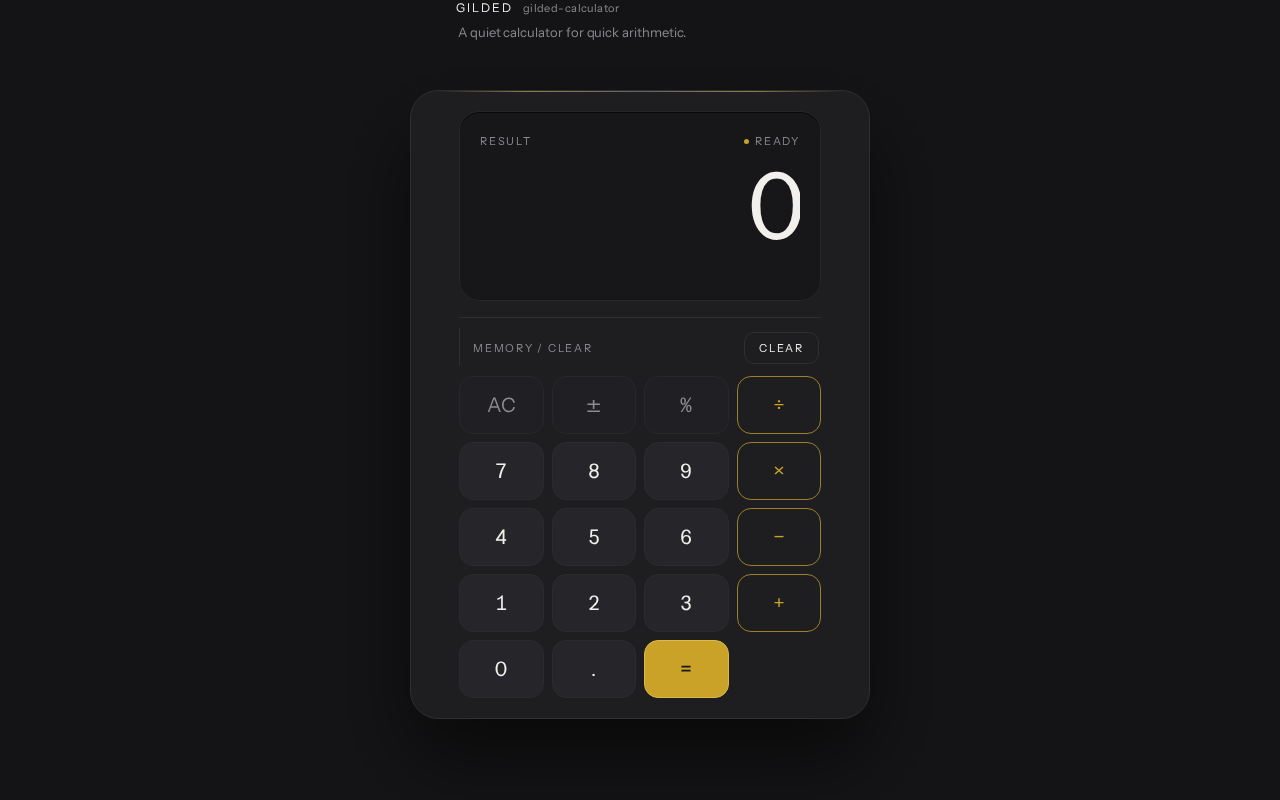
- Wordmark and descriptor: small left-aligned "GILDED" wordmark in letterspaced caps with a one-line muted descriptor, aligned to the slab's left edge, above the slab.
- Calculator slab: a single surface containing the display well and the key grid, with a 1px hairline edge and a soft ambient shadow so it reads as a lit object.
- Display well: inset area at the top of the slab holding the right-aligned result and the muted expression line beneath it.
- Key grid: a 4-column grid of keys with 8px gutters; digit keys in graphite, operator column and equals key in gold.
- Operator column: the four operator keys plus the equals key, carrying the gold accent.
- Clear control: clears the current entry/expression.
- States
- Loading: the slab fades up 12px on load; no spinner or skeleton is required for a client-side calculator.
- Empty / initial: result shows
0, expression line empty, no active operator. - Success: result updates and crossfades over 180ms when it changes; expression line reflects the entered expression.
- Error: an invalid expression (for example, division by zero or a malformed entry) shows an error indication in the display well rather than a stale or misleading number.
- Recovery: the clear control resets the display to the initial empty state so the user can begin a new calculation.
3. Functional Requirements
FR-1 — Single-page calculator presentation (explicit) As a Calculator User, I should see the calculator presented as exactly one page, so that I can use it without navigating anywhere else.
- Trigger: opening the product.
- Observable result: the Calculator page is the only page, containing the display and key grid.
- Access: anonymous public entry; no account required.
- Failure/recovery: not applicable to presentation; if the page fails to load, reloading returns the same single page.
- Continuation: the user proceeds to enter a calculation.
FR-2 — Simple calculator design (explicit) As a Calculator User, I should use a simple calculator design, so that quick arithmetic is straightforward and uncluttered.
- Trigger: the user interacts with the key grid.
- Observable result: digits and operators appear in the display well; the result is shown prominently.
- Access: anonymous.
- Failure/recovery: the clear control resets the display.
- Continuation: the user continues entering or evaluates the expression.
FR-3 — Enter digits and decimal point (required_inference) As a Calculator User, I should enter digits and a decimal point, so that I can build the numbers I want to calculate.
- Trigger: pressing a digit key or the decimal key.
- Observable result: the entered digits appear in the display well as the current operand.
- Access: anonymous.
- Failure/recovery: the clear control removes the current entry.
- Continuation: the user selects an operator or evaluates.
FR-4 — Select an operator (required_inference) As a Calculator User, I should select one of the four operators (+, −, ×, ÷), so that I can specify the operation to perform.
- Trigger: pressing an operator key.
- Observable result: the operator is recorded in the expression line and the operator key shows an active gold state.
- Access: anonymous.
- Failure/recovery: selecting a different operator replaces the pending operator; the clear control resets.
- Continuation: the user enters the right operand.
FR-5 — Evaluate the expression (required_inference) As a Calculator User, I should press the equals key to evaluate the expression, so that I can read the resulting value.
- Trigger: pressing the equals key with a complete expression.
- Observable result: the result value is displayed in the readout and crossfades over 180ms when it changes; the expression line reflects the evaluated expression.
- Access: anonymous.
- Failure/recovery: an invalid expression (for example, division by zero) shows an error indication in the display well; the clear control resets to the initial state.
- Continuation: the user reads the result, then clears or continues with a new calculation.
FR-6 — Clear the current entry (required_inference) As a Calculator User, I should clear the current entry or expression, so that I can correct a mistake or start a new calculation.
- Trigger: pressing the clear control.
- Observable result: the display returns to the initial empty state (result
0, empty expression line, no active operator). - Access: anonymous.
- Failure/recovery: not applicable; clearing always returns to the initial state.
- Continuation: the user begins a new calculation.
4. User Personas
Calculator User
Product context. The Calculator User is anyone who needs quick arithmetic — a single-purpose everyday utility opened, used, and closed. They arrive at the Calculator page directly, with no account, no setup, and no prior state to resume.
Primary goal. Perform a quick calculation and read the resulting value with confidence that the numbers are exact.
Distinct accepted responsibilities.
- Enter digits and a decimal point to build operands.
- Select one of the four operators to specify the operation.
- Press equals to evaluate the expression and read the result.
- Clear the current entry or expression to correct a mistake or start over.
Relevant inputs or decisions. Which digits and operators to enter, when to evaluate, and when to clear. The user decides the expression and reads the result; there is no other participant in the calculation.
Interactions with other accepted participants. None. The Calculator User is the only active human role; the calculator itself is the system that computes and displays the result.
Observable success. The result value appears in the readout, right-aligned and legible, and the expression line reflects what was entered. The user can clear and begin again at any time.
5. Core User Flows
Flow 1 — Perform a calculation
- The Calculator User opens the product and lands on the Calculator page (anonymous public entry; no account required).
- The slab fades up 12px on load; the display well shows the initial state: result
0, empty expression line, no active operator. - The user presses digit keys and, if needed, the decimal key to enter the first operand. The digits appear in the display well.
- The user presses an operator key (+, −, ×, ÷). The operator is recorded in the expression line and the operator key shows its active gold state.
- The user enters the second operand using the digit and decimal keys.
- The user presses the equals key. The result value is displayed in the readout and crossfades over 180ms when it changes; the expression line reflects the evaluated expression.
- The user reads the result. To continue, they clear the display and begin a new calculation (Flow 2), or enter a new expression directly.
Failure/recovery. If the expression is invalid (for example, division by zero), the display well shows an error indication instead of a misleading number. The user presses the clear control to reset to the initial state and begins again.
Flow 2 — Correct an entry or start over
- The Calculator User is on the Calculator page with an entry or result in the display well.
- The user presses the clear control.
- The display returns to the initial empty state: result
0, empty expression line, no active operator. - The user begins a new calculation (Flow 1, step 3).
6. Visuals Colors and Theme
Muse and headline. Jony Ive — Quiet precision, gilded: a calculator as a lit object.
Mode. Dark mode only.
Colour tokens (exact hex by role).
- Background (graphite near-black ground):
#141416 - Surface (calculator slab):
#1E1E21 - Text (result readout and key glyphs):
#F2F0EC - Primary (operator column and equals key):
#C9A227 - Accent (focus ring and active-operator state):
#E8C766 - Muted (labels and expression history line):
#8A8A8F - Hairline edge / dividers:
#2E2E33
Gold is under 10% of the surface — it is the accent, never the ground. Blue, indigo, and violet are forbidden anywhere in the palette.
Typography.
- Headings and wordmark: Instrument Sans — Light 300; small wordmark and section label at 11–12px, all-caps, 0.16em letterspacing, tight -0.02em tracking.
- Readout: Instrument Sans 300 at very large scale with tabular numerals and -0.04em tracking, so digits sit like engraved figures. Display range:
clamp(44px, 9vw, 92px). - Body: Instrument Sans.
- UI scale: 1.25 modular — 11 / 13 / 16 / 20px.
- Page headline:
clamp(28px, 4.4vw, 52px)at weight 300.
Shape language. Soft continuous curves only where a hand would touch: keys at 14px radius, the calculator slab at 28px, the display well inset with a 20px radius. Hairline 1px borders in #2E2E33 instead of shadows; one very soft ambient shadow under the slab (0 40px 80px rgba(0,0,0,0.55)) to make it read as a lit object on a dark table. No gradients on controls, no blobs.
Layout. Single column, centred, maximum 420px for the calculator slab on mobile and 460px on desktop, with generous dark margin around it so the object floats. Above the slab: a small left-aligned wordmark "GILDED" in letterspaced caps and a one-line descriptor. Inside the slab: display well at top (right-aligned result, muted expression line beneath), then a 4-column key grid with 8px gutters. Desktop adds a thin vertical hairline rule and a small "MEMORY / CLEAR" label row above the grid; nothing else on the page.
Imagery. No photography or illustration. The interface is the imagery: the lit slab, the engraved numerals, hairline rules, and a faint 1px top-edge highlight on the calculator body that reads as a machined chamfer catching light.
Readable text and controls. Headlines, wordmarks, labels, numbers, and controls stay entirely inside the viewport and their container at 375px, 768px, and 1280px, wrapping or scaling (for example, font-size: clamp(...) with its mobile size) to fit, and no other element covers any part of them.
7. Signature Design Concept
The first screen is a dark graphite field (#141416) with nothing on it but one softly lit calculator slab, vertically centred and slightly above optical centre. The slab is the dominant element, roughly 420–460px wide, floating on a 0 40px 80px rgba(0,0,0,0.55) shadow with a 1px #2E2E33 edge and a single 1px warm highlight along its top chamfer — the calculator is photographed, not drawn.
Inside the slab, the result readout is oversized (clamp(44px, 9vw, 92px)), right-aligned in off-white #F2F0EC with tabular numerals and -0.04em tracking, sitting in an inset display well above a muted expression line. The operator column is the only gold on screen: the four operator keys and the equals key carry #C9A227 fill or hairline while every digit key stays graphite — colour as function, not decoration.
No headline sits over the object. A small letterspaced "GILDED" wordmark and a muted descriptor sit above the slab, left-aligned to its edge, so the composition reads as a product still life, not a marketing hero. Hairline 1px #2E2E33 rules replace all card shadows and dividers, with a small letterspaced "MEMORY / CLEAR" label row that aligns to the key grid.
8. Interaction Model & Motion Direction
Interaction Model: Animated Motion Tempo: restrained Hero Dimensionality: layered_2d
Landing Hero Motion Brief
- Focal subject. The single softly lit calculator slab floating in the graphite void — the display well and its oversized right-aligned result are the visual centre.
- Input → transformation → outcome thesis. On load, the slab fades up 12px into place (the one purposeful entrance). As the user presses keys, each key depresses exactly 1px with a 240ms physical ease and a brief background lighten; when the result changes, the result value crossfades over 180ms. The outcome is a still, exact readout that feels engraved rather than animated.
- Motion vocabulary. Slow physical easing
cubic-bezier(0.22, 0.61, 0.36, 1), 240–320ms; 1px key depression with brief background lighten; 180ms result crossfade; active operator key holds a gold fill with a 1px gold hairline. No bounce, no particles, no parallax. - Composed first frame. Dark graphite field, the slab centred slightly above optical centre with its top chamfer highlight and ambient shadow, the wordmark and descriptor above it left-aligned to the slab edge, the display well showing
0with an empty expression line, and the operator column in gold. - Reduced-motion state. With
prefers-reduced-motion, the slab appears in place without the fade-up, key presses show their state change without the 1px depression animation, and the result updates without the crossfade. The layout and all readable text and controls remain whole and usable.
9. Non-Functional Requirements
NFR-1 — Single-page constraint (explicit) The product must be presented as exactly one page. No additional pages, routes, or navigation surfaces are part of the current delivery.
NFR-2 — Simplicity (explicit) The design must be simple and contained in a single page; nothing decorative competes with the digits.
NFR-3 — Readable text and controls at all viewports (explicit) Headlines, wordmarks, labels, numbers, and controls must stay entirely inside the viewport and their container at 375px, 768px, and 1280px, wrapping or scaling to fit, with no other element covering any part of them.
NFR-4 — Palette and typography fidelity (explicit) The specified palette, fonts, surfaces, tone, and layout must be preserved. Blue, indigo, and violet are forbidden anywhere in the palette.
NFR-5 — Reduced motion (explicit)
With prefers-reduced-motion, a usable static arrangement must be provided; motion is decorative and must not be required to read or operate the calculator.
NFR-6 — Client-side arithmetic (required_inference) Arithmetic evaluation and result display occur on the page itself; no server round-trip is required for a calculation, so the calculator remains responsive and usable without network dependency after load.
10. Tech Stack
- Frontend: React (single-page application) with the Calculator page as the sole route.
- Styling: CSS with the specified tokens (Instrument Sans, exact hex palette, clamp-based type scale, 1px hairline borders, 14px/28px/20px radii).
- Arithmetic: Client-side evaluation within the page; no backend service is required for the current single-page calculator.
- Deployment: Static hosting of the built single-page frontend.
11. Assumptions and Constraints
- A-1 (explicit) The product is exactly one page; no additional pages, routes, or navigation are in scope.
- A-2 (explicit) The design must be simple and contained in a single page.
- A-3 (explicit) The palette, fonts, surfaces, tone, and layout specified in the creative direction are preserved; blue, indigo, and violet are excluded.
- A-4 (required_inference) The Calculator page is anonymously reachable and requires no account, sign-in, or setup; no application-owned identity is introduced.
- A-5 (required_inference) The four operators are +, −, ×, and ÷; the calculator supports digits, a decimal point, equals, and clear.
- A-6 (required_inference) Calculations are not persisted across sessions; the expression line is the only on-page history.
- A-7 (explicit) Readable text and controls stay whole at 375px, 768px, and 1280px.
12. Glossary
- Calculator page — The single page of the product; the anonymous public entry that owns the arithmetic interaction and result display.
- Calculator User — The single active human role: someone who opens the calculator page and performs arithmetic calculations.
- Display well — The inset area at the top of the slab holding the right-aligned result and the muted expression line beneath it.
- Expression line — The muted line beneath the result showing the current expression.
- Result readout — The oversized, right-aligned numeric value displayed in the display well.
- Operator column — The four operator keys plus the equals key, carrying the gold accent.
- Active operator — The operator currently selected and awaiting its right operand, shown with a gold fill and 1px gold hairline.
- Slab — The single calculator surface containing the display well and key grid, with a 1px hairline edge and soft ambient shadow.
- Clear control — The control that resets the display to the initial empty state.
GILDED
A quiet calculator for quick arithmetic.
GILDED
A quiet calculator for quick arithmetic.
No comments yet. Be the first!