gamma-single
 Diya Trivedi
start a project to build a simple single page design of calcultor

Comments (0)
Sign in to leave a comment
System Requirements
System Requirements Document for gamma-single
1. Introduction
gamma-single is a simple calculator delivered as a single page. The product intent is narrow and explicit: a visitor opens one page, enters numbers and operators, and reads the arithmetic result. The design must stay simple and must remain a single page — no additional destinations, accounts, or adjacent tooling are part of the current product.
The audience is anyone who needs quick arithmetic in a browser: a public utility tool, calm and legible, that reads like a public instrument rather than a toy. The single page is the anonymous public entry; no sign-in, profile, or saved history is required to use it.
This document is the System Requirements Document for gamma-single, written for the requester Diya Trivedi.
2. System Overview
gamma-single is a browser-based calculator consisting of exactly one page, Calculator. The page presents a display panel that shows the current entry and result, and a keypad of digit and operator keys. A visitor enters a calculation and reads the result on the same page. There is no navigation beyond this page, no persistence of calculations, and no user account.
The current delivery is a React frontend served to the browser, backed by a shared FastAPI backend process and a MariaDB database provisioned as part of the project scaffold. The calculator's arithmetic interaction is a client-side, single-page experience; the backend and database are provisioned infrastructure that do not, by themselves, introduce domain entities, authentication, or stored calculation history. No accepted requirement calls for server-side calculation storage, so none is added.
Actors:
- Calculator User — the accepted active human persona; opens the Calculator page, enters numbers and operators, and reads the result.
- Frontend (React application) — renders the Calculator page and handles key entry and display updates.
- Backend (FastAPI) — shared application process available for APIs; not required by the accepted calculator interaction.
- Database (MariaDB) — provisioned storage; not required by the accepted calculator interaction.
Removed from scope
- None. No concept was explicitly removed by the user.
2a. Product Interpretation and Delivery Boundary
The product is a single, self-contained calculator page. Its entire accepted behavior lives on that one page: a display, digit keys, operator keys, an equals key, and a clear/reset control sufficient to begin a new calculation. The page is anonymously reachable — a visitor needs no identity, session, or account to use it, and no durable per-user state is created or resumed.
The calculator's arithmetic is performed and shown within the page interaction. The provisioned FastAPI backend and MariaDB database remain available as shared infrastructure for the project but are not invoked by the accepted calculator workflow; they do not create product requirements, stored history, or authentication. There is no future-horizon feature set defined by the user beyond the current single-page calculator.
2c. Page Content and Component Coverage
Calculator
The single page of the product. It is the anonymous public entry and the only destination.
- Information and state
- Current numeric entry (the digits the user has typed so far).
- Pending operator and the first operand, when a binary operation is in progress.
- The displayed result after equals is pressed.
- An error state when an operation is invalid (for example, division by zero), shown in the display.
- A cleared/initial state showing
0when the page loads or after clear.
- Primary actions
- Press digit keys
0–9to append digits to the current entry. - Press operator keys
+,−,×,÷to select an operation. - Press
=to evaluate the pending operation and show the result. - Press
C(clear) to reset the calculator to its initial state.
- Press digit keys
- Supporting actions
- Press
.(decimal point) to begin a fractional entry. - Press
±(sign toggle) to negate the current entry. - Press
%(percent) to convert the current entry to a percentage.
- Press
- Domain entities
- Calculation — the in-page working state: current entry, pending operator, stored operand, and displayed result. It is transient and not persisted.
- Component responsibilities
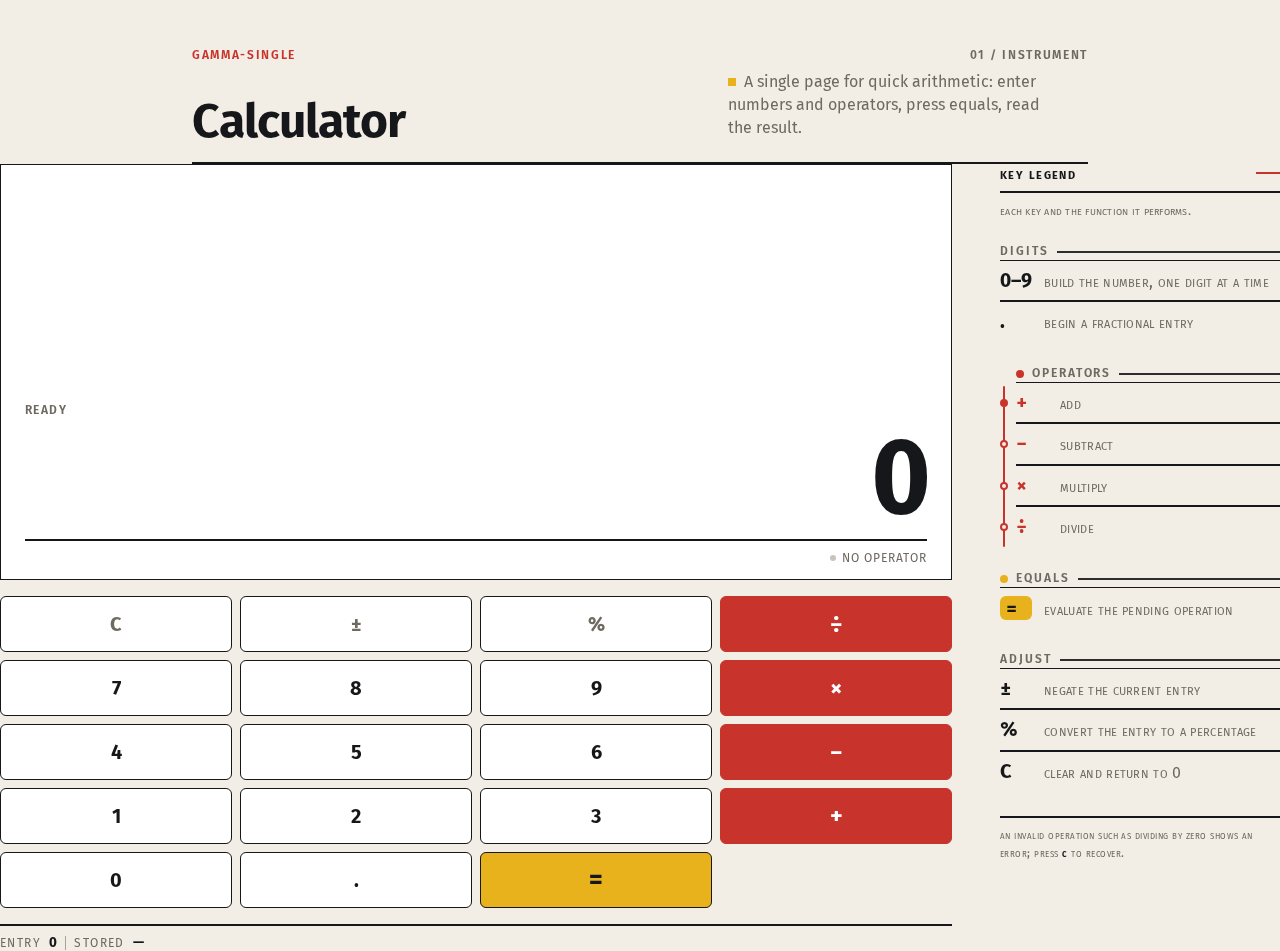
- Display panel — a square white panel with a hard 1px border; shows the current entry or result in large ink digits, right-aligned on a ruled baseline; shows error text when an operation fails.
- Keypad — a grid of keys with 1px ink borders and 6px radii; digit keys, operator keys (red, forming one vertical column), the equals key (yellow), and the clear key.
- Key legend — at 768px and up, a ruled legend at right listing each key and its function in small caps; at 375px it collapses so the single centred column holds display and keypad.
- States
- Loading — the page renders immediately; no asynchronous data is required, so no loading spinner is shown.
- Empty/initial — display shows
0; no pending operator. - Success — after
=, the display shows the computed result; the user may continue with a new operator or clear. - Error — invalid operation (e.g., division by zero) shows an error message in the display; pressing
Crecovers to the initial state. - Recovery —
Cat any time returns the calculator to the initial state; entering a new digit after an error begins a fresh entry.
3. Functional Requirements
FR-1 — Open the calculator page (explicit) As a Calculator User I should open the single Calculator page so that I can perform arithmetic.
- Trigger: the visitor navigates to the application.
- Observable result: the Calculator page renders with the display showing
0and the keypad visible. - Access: anonymous; no identity required.
- Failure/recovery: if the page fails to render, reloading the page restores the initial state.
- Continuation: the user may begin entering digits.
FR-2 — Enter digits (explicit)
As a Calculator User I should press digit keys 0–9 so that I can build the number I want to calculate with.
- Input: digit key presses.
- Observable result: the display shows the digits entered so far, appended in order.
- Failure/recovery: pressing
Cclears the entry back to0. - Continuation: the user may press an operator or continue entering digits.
FR-3 — Enter a decimal point (explicit)
As a Calculator User I should press . so that I can enter a fractional number.
- Observable result: a decimal point is appended to the current entry (only one decimal point per entry).
- Continuation: further digits extend the fractional part.
FR-4 — Select an operator (explicit)
As a Calculator User I should press +, −, ×, or ÷ so that I can choose the operation to apply.
- Observable result: the chosen operator is recorded as pending and the current entry is stored as the first operand.
- Continuation: the user enters the second operand.
FR-5 — Evaluate with equals (explicit)
As a Calculator User I should press = so that I can see the result of the pending operation.
- Observable result: the display shows the computed result of the pending operation on the stored operand and the current entry.
- Failure/recovery: an invalid operation (e.g., division by zero) shows an error in the display;
Crecovers. - Continuation: the user may start a new operation using the result or clear.
FR-6 — Clear the calculator (explicit)
As a Calculator User I should press C so that I can reset the calculator and start over.
- Observable result: the display returns to
0and all pending state is discarded.
FR-7 — Toggle sign (explicit)
As a Calculator User I should press ± so that I can negate the current entry.
- Observable result: the sign of the current entry is flipped in the display.
FR-8 — Percent (explicit)
As a Calculator User I should press % so that I can convert the current entry to a percentage.
- Observable result: the current entry is divided by 100 and shown in the display.
FR-9 — Single-page constraint (explicit) As a Calculator User I should experience the entire calculator on one page so that I never need to navigate elsewhere.
- Observable result: all calculator controls and the display are on the Calculator page; there are no other destinations.
4. User Personas
Calculator User
- Product context: A visitor who needs quick arithmetic in a browser and expects a calm, legible, trustworthy instrument — not a toy and not a full-featured scientific calculator.
- Primary goal: Enter a calculation and read its result on a single page.
- Distinct accepted responsibilities: Opens the Calculator page; enters digits and a decimal point; selects an operator; presses equals to evaluate; uses clear, sign toggle, and percent as needed; reads the result or error.
- Relevant inputs or decisions: Which digits to enter, which operator to apply, when to evaluate, and when to clear.
- Interactions with other accepted participants: None beyond the page itself; the calculator is a single-user, anonymous tool with no counterparty.
- Observable success: The display shows the correct result of the entered calculation, or a clear error that can be recovered with
C.
5. Core User Flows
Flow A — Perform a basic calculation
- The Calculator User opens the application in a browser. The Calculator page renders with the display showing
0and the keypad visible (FR-1). - The user presses digit keys to enter the first number; the display updates to show the entered digits (FR-2). If a fractional value is needed, the user presses
.(FR-3). - The user presses an operator key (
+,−,×,÷); the operator is recorded as pending and the first operand is stored (FR-4). - The user presses digit keys to enter the second number; the display updates (FR-2).
- The user presses
=; the display shows the computed result (FR-5). - Continuation: the user may press an operator to continue calculating with the result, or press
Cto reset to0(FR-6).
Flow B — Recover from an invalid operation
- The user has entered an operation that is invalid (for example, division by zero) and presses
=. - The display shows an error message instead of a result (FR-5).
- The user presses
C; the display returns to0and all pending state is discarded (FR-6). - The user begins a new calculation (Flow A).
Flow C — Use sign toggle and percent
- The user enters a number on the Calculator page (FR-2).
- The user presses
±to negate the entry; the display shows the negated value (FR-7). - The user presses
%to convert the entry to a percentage; the display shows the entry divided by 100 (FR-8). - The user may press an operator and continue (FR-4) or press
=to evaluate (FR-5).
6. Visuals Colors and Theme
The creative direction is authoritative for this section. The muse is Erik Spiekermann; the headline concept is "Typographic infrastructure for a calculator" — a public instrument, calm and legible.
Colour tokens (light mode)
- Background (paper ground):
#F2EEE6 - Surface (keys, display):
#FFFFFF - Text (ink):
#16171A - Primary (operators):
#C8342B - Accent (equals):
#E8B21C - Muted (legend, secondary text):
#6E6A62
Typography
- Headings: Fira Sans, Bold, tight tracking, sentence case for the title; key digits set at heavy weight.
- Body: Fira Sans.
- Type scale (1.25 modular): 64 / 48 / 32 / 20 / 16 px.
- Display digits:
clamp(56px, 14vw, 104px).
Shape language
- Small 6px radii on keys.
- 2px rules as dividers.
- Square display panel with a hard 1px border.
Layout
- One centred column at 375px.
- Two columns at 768px and up: display and keypad on the left, a ruled key legend on the right.
- Strict 8px spacing rhythm.
Imagery
- No photography. The interface, ruled lines, and pictogram-like operator glyphs carry the page.
Avoid
- Gradient backgrounds and glass panels.
- Rounded pill buttons and soft shadows.
- Decorative illustration or stock photography.
- Blue accent colours.
- The generic indigo/blue-on-white SaaS template.
7. Signature Design Concept
The calculator itself is the hero. On the warm paper ground #F2EEE6, a large white panel with a hard 1px border holds the result in ink #16171A at up to 104px, right-aligned on a ruled baseline. Below it, the keypad sits with 1px ink borders and 6px radii; the operator keys in red #C8342B form one visible vertical column that reads like a transit route line, and the equals key in yellow #E8B21C anchors the column. At 768px and up, a ruled legend at right lists each key and its function in small caps in muted #6E6A62. The composition is flat, composed, and typographic — no gradients, no glass, no soft shadows.
8. Interaction Model & Motion Direction
Interaction Model: Static Motion Tempo: restrained Hero Dimensionality: flat
Landing Hero Motion Brief
- Focal subject: the calculator display panel and its keypad, with the red operator column as the visual spine.
- Input → transformation → outcome thesis: a key press (input) shifts the key 1px down and updates the display (transformation), producing the new entry or result on the ruled baseline (outcome).
- Motion vocabulary: instant key press feedback in 90ms; no decorative loops; no scroll-linked motion.
- Composed first frame: paper ground
#F2EEE6, white display panel with 1px ink border showing0at large ink size, keypad below with the red operator column visible, ruled legend at right on wide viewports. - Reduced-motion state: identical static arrangement; key press feedback remains a 1px shift with no transition, and all content is fully visible without motion.
9. Non-Functional Requirements
- Single page (explicit): the product is exactly one page; no additional routes or destinations are introduced.
- Simplicity (explicit): the design and interaction remain simple — a display and keypad, no adjacent features.
- Readability and containment (explicit, from creative direction): readable text and controls stay whole at 375px, 768px, and 1280px, wrapping or scaling (e.g.,
clamp(...)) to fit; no element covers readable text or controls. - Accessibility of motion (explicit, from creative direction): with
prefers-reduced-motion, a usable static arrangement is provided. - Anonymous access (required_inference): the Calculator page is reachable without identity; no account, session, or stored history is required.
10. Tech Stack
- Frontend: React application UI (provisioned scaffold).
- Backend: shared FastAPI process for application APIs and domain modules (provisioned scaffold; not required by the accepted calculator interaction).
- Database: MariaDB for application-owned persistent data (provisioned scaffold; no calculator domain entities are stored).
- Containerization: Docker / docker-compose as the service inventory (
backend,database,frontend).
11. Assumptions and Constraints
- Assumption (required_inference): the calculator performs standard binary arithmetic (
+,−,×,÷) with decimal input, sign toggle, and percent, as implied by a "simple calculator." - Assumption (required_inference): calculations are transient and not persisted; the provisioned database is not used for calculator state.
- Constraint (explicit): the design is a single page and is simple.
- Constraint (explicit): the creative direction's palette, fonts, shape language, layout, and motion tempo are preserved; the indigo/blue-on-white SaaS template is forbidden.
12. Glossary
- Calculator User — the accepted active human persona who uses the single calculator page.
- Calculator page — the single, anonymous public entry destination of the product.
- Display panel — the square white panel showing the current entry, result, or error.
- Keypad — the grid of digit, operator, equals, and clear keys.
- Key legend — the ruled list of keys and their functions shown at 768px and up.
- Pending operator — the operator selected but not yet evaluated with
=. - Paper ground — the warm background colour
#F2EEE6.
Calculator
A single page for quick arithmetic: enter numbers and operators, press equals, read the result.
Calculator
A single page for quick arithmetic: enter numbers and operators, press equals, read the result.
No comments yet. Be the first!