fiery-student
 Khushal Patel
"Build a student task management web application with user authentication, a dashboard, task CRUD operations, MongoDB database, REST API backend, and responsive React frontend."


Comments (0)
Sign in to leave a comment
System Requirements
System Requirements Document for fiery-student
1. Introduction
The fiery-student project is a web application designed to help students manage their tasks efficiently. The application provides a user-friendly interface with features such as user authentication, a dashboard for task overview, and CRUD operations for task management. It is built using a responsive React frontend, a REST API backend, and MongoDB for data storage.
2. System Overview
The fiery-student application is a student task management tool that allows students to authenticate, view a dashboard, and perform CRUD operations on tasks. The application is built as a web application with a responsive React frontend, a REST API backend, and MongoDB for data persistence. The application is designed to be inviting and easy to use, with a warm design language and playful illustrations.
2a. Product Interpretation and Delivery Boundary
The application is a web-based tool specifically designed for students to manage their tasks. It includes user authentication to ensure secure access to personal task data. The frontend is built with React and is responsive to different device sizes. The backend is a REST API that interacts with a MongoDB database to store task data. The application is intended for student use only, with no additional roles or permissions specified.
2b. Source Content Inventory
Not applicable as there is no explicit content_source directive.
2c. Page Content and Component Coverage
Landing
- Information/State: Introduction to the application, benefits of using the app, and a call-to-action to log in or sign up.
- Primary Actions: Navigate to Login page.
- Components: Hero illustration, introductory text, call-to-action button.
- States: Loading, success, error.
Login
- Information/State: User authentication form for students.
- Primary Actions: Log in, navigate to sign-up if new.
- Components: Login form, error messages for failed login attempts.
- States: Loading, success, error.
Dashboard
- Information/State: Overview of tasks, quick access to task management features.
- Primary Actions: View tasks, navigate to New Task or Edit Task pages.
- Components: Task summary, navigation links.
- States: Loading, success, error.
Tasks
- Information/State: List of all tasks with options to view, edit, or delete.
- Primary Actions: View task details, edit task, delete task.
- Components: Task list, action buttons for each task.
- States: Loading, success, error.
New Task
- Information/State: Form to create a new task.
- Primary Actions: Submit new task, cancel creation.
- Components: Task creation form, validation messages.
- States: Loading, success, error.
Edit Task
- Information/State: Form to edit an existing task.
- Primary Actions: Submit changes, cancel editing.
- Components: Task editing form, validation messages.
- States: Loading, success, error.
3. Functional Requirements
- As a Student, I should be able to authenticate myself to access my tasks. (explicit)
- As a Student, I should be able to view a dashboard that provides an overview of my tasks. (explicit)
- As a Student, I should be able to create, read, update, and delete tasks. (explicit)
- As a Student, I should be able to access the application on different devices with a responsive design. (explicit)
- As a Student, I should be able to interact with the application through a REST API backend. (explicit)
- As a Student, I should have my task data stored in a MongoDB database. (explicit)
4. User Personas
- Student: The primary user of the application, responsible for managing their tasks through authenticated access, a dashboard, and task CRUD operations.
5. Core User Flows
-
Student Authentication Flow
- Navigate to the Login page.
- Enter credentials and submit the form.
- On success, redirect to the Dashboard.
- On failure, display error message and allow retry.
-
Dashboard Access Flow
- After successful login, view the Dashboard.
- Access task overview and navigate to task management pages.
-
Task Management Flow
- From the Dashboard, navigate to the Tasks page.
- View list of tasks, select a task to view details.
- Choose to edit or delete a task.
- Navigate to New Task page to create a new task.
-
Task Creation Flow
- Navigate to the New Task page.
- Fill out the task creation form and submit.
- On success, redirect to the Tasks page with the new task listed.
- On failure, display validation errors and allow correction.
-
Task Editing Flow
- From the Tasks page, select a task to edit.
- Navigate to the Edit Task page.
- Modify task details and submit changes.
- On success, redirect to the Tasks page with updated task details.
- On failure, display validation errors and allow correction.
6. Visuals Colors and Theme
- Muse: Pablo Stanley
- Palette (light mode):
- Background: #FFF7E0
- Surface: #FFFFFF
- Text: #333333
- Primary: #F4A259
- Accent: #FFCC69
- Muted: #C1D3FF
- Typography:
- Headings: Nunito — Bold
- Body: Manrope
- Scale: 1.25 modular, 48/32/24/20/16
- Shape Language: Rounded corners, pill-shaped buttons
- Layout: Generous spacing, soft offset shadows
- Motion: Springy micro-interactions, playful hover states
7. Signature Design Concept
The public entry page features a large playful illustration of students managing tasks, with vibrant color blocks forming the background. The headline is friendly and inviting, overlaying the illustration. Rounded pill buttons invite interaction, and cards with soft shadows and rounded corners provide a welcoming interface.
8. Interaction Model & Motion Direction
- Interaction Model: Animated
- Motion Tempo: Expressive
- Hero Dimensionality: Layered_2d
- Landing Hero Motion Brief: The hero features a large playful illustration of students managing tasks. Upon page load, the illustration animates with springy micro-interactions, drawing attention to the interactive elements. The headline text appears with a smooth fade-in, and buttons have playful hover states. In reduced-motion mode, animations are minimized to simple fades and transitions.
9. Non-Functional Requirements
- The application must be responsive and accessible on various devices. (explicit)
- The application must ensure data security and privacy for student information. (required_inference)
- The application must perform efficiently under typical student usage loads. (required_inference)
10. Tech Stack
- Frontend: React (responsive design)
- Backend: REST API
- Database: MongoDB
- Additional: Docker for containerization, Kubernetes for deployment if required
11. Assumptions and Constraints
- The application is exclusively for student use.
- User authentication is required to access task management features.
- The application will not support roles beyond the student persona.
- The frontend must adhere to the specified design language and theme.
12. Glossary
- CRUD: Create, Read, Update, Delete operations.
- REST API: Representational State Transfer Application Programming Interface.
- Responsive Design: Design that adapts to different screen sizes and devices.
- MongoDB: A NoSQL database used for storing task data.
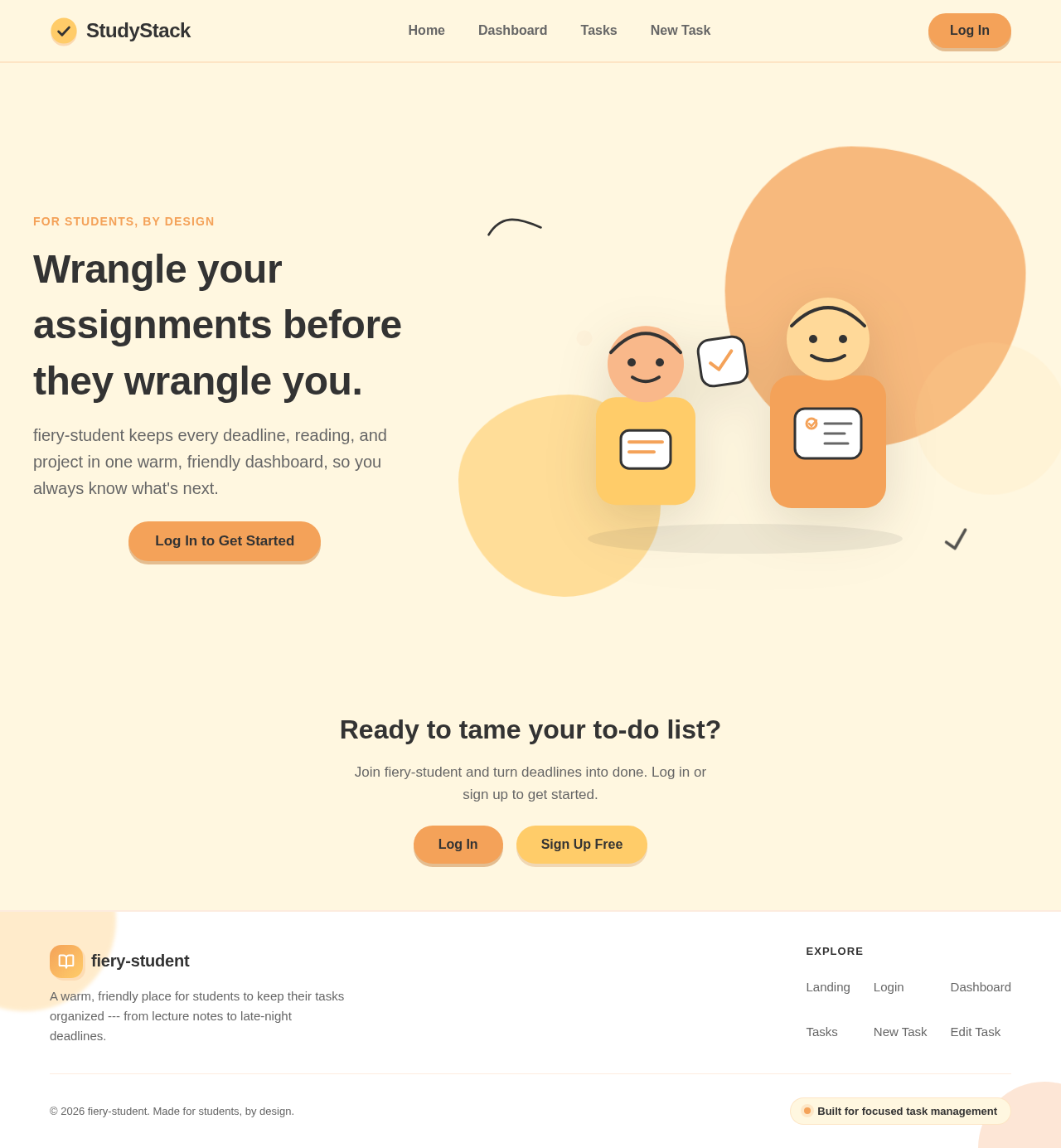
Wrangle your assignments before they wrangle you.
fiery-student keeps every deadline, reading, and project in one warm, friendly dashboard, so you always know what's next.
Log In to Get StartedReady to tame your to-do list?
Join fiery-student and turn deadlines into done. Log in or sign up to get started.
Wrangle your assignments before they wrangle you.
fiery-student keeps every deadline, reading, and project in one warm, friendly dashboard, so you always know what's next.
Log In to Get StartedReady to tame your to-do list?
Join fiery-student and turn deadlines into done. Log in or sign up to get started.
No comments yet. Be the first!