fierce-start
 Diya Trivedi
start a project to build a simple single page of claculator

Comments (0)
Sign in to leave a comment
System Requirements
System Requirements Document for fierce-start
1. Introduction
fierce-start is a single-page calculator: one page, one object, one job. A person opens the page, enters numbers and operations, and reads the computed result. There is no account, no setup, no navigation, and no second screen.
The product intent is deliberately narrow. The authoritative requirement is to "build a simple single page of claculator" — a basic arithmetic calculator delivered as exactly one page. Everything in this document serves that single page and nothing beyond it.
The audience is anyone who needs quick arithmetic: a student checking homework, a shopper totalling a basket, a freelancer estimating an hourly rate, someone working out a tip. The page must work as naturally at 375px in one hand as at 1280px in one glance, and it must feel like a small desirable object rather than a clinical form.
2. System Overview
fierce-start is delivered as a single custom page, Calculator, which is the public entry surface of the product. The page owns number entry, operation entry, computation, and result display. It is reachable directly with no access gate: there is no sign-in, no account, no invitation, and no persisted identity of any kind.
Actors. One accepted human persona exists: the Calculator User. There are no other human roles, no administrators, no reviewers, and no counterparties. No system, provider, or external service is an accepted actor in the current product; computation happens in the page itself.
Accepted behavior. The Calculator User enters digits and operators, clears or corrects the current entry, and reads the result shown in the display. The page computes basic arithmetic and shows the outcome. That is the complete current scope.
Ownership. The Calculator page is application-owned custom UI. No provider surface, no external destination, and no separate system process owns any accepted human-facing behavior.
Exclusions. The product is a single page and simple in scope. There is no multi-page navigation, no account or profile management, no saved or synced history across sessions, no scientific or programmer calculator modes, no unit conversion, no currency conversion, no graphing, and no sharing or export. Calculation history appears only as an in-page record of what has been computed during the current visit, as described in the creative direction; it is not a durable, account-bound, or cross-session feature.
2a. Product Interpretation and Delivery Boundary
fierce-start is a first-party, browser-delivered single page. The Calculator page is public and anonymous: opening it is the entire access story. Because no accepted behavior requires a person to be recognized, to resume private state, or to have a commitment or value transfer bound to them, no identity establishment, verification, or session continuity is introduced. Adding any of that would be adjacent capability the source did not accept.
The current delivery horizon contains exactly one page and the arithmetic behavior on it. Nothing in this document is deferred to a future release; the future section records only ideas that were not accepted and therefore are not built.
2b. Source Content Inventory
Not applicable. No reference directive in this project declares content_source, so no source content inventory is produced.
2c. Page Content and Component Coverage
Calculator
The single page of the product, and its public entry surface. It presents the calculator as a physical object floating on a warm pink field, with the wordmark and calculation history in a right-hand rail at desktop widths.
Information and state
- Current expression: the sequence of entered digits and operators, right-aligned in the display hood.
- Current result: the computed value, set in Comfortaa 700 at up to 76px, right-aligned beneath or beside the expression in the display hood.
- Entry state: whether the user is mid-entry (a number is being typed), immediately after an operator (awaiting the next operand), or immediately after a result (a completed calculation is displayed).
- Error state: an invalid or undefined operation, such as division by zero, surfaced in the display hood in place of a result.
- Calculation history: the ordered list of completed calculations from the current visit, rendered as capsule chips in the right rail at desktop and as a wrapped list at mobile and under reduced motion.
- Wordmark: "FIERCE-START" in hot pink, in the right rail at desktop.
Primary actions
- Enter a digit (0–9) and a decimal point into the current operand.
- Enter an operator (+, −, ×, ÷), which commits the current operand and awaits the next.
- Evaluate the expression with the equals key, producing the result in the display hood.
- Clear the current entry and the working expression with AC.
- Toggle the sign of the current operand with ±.
- Convert the current operand to a percentage with %.
Supporting actions
- Read the expression and result from the display hood at any time.
- Read a previous calculation from the history chips and see its expression and result.
- Continue calculating from a displayed result by entering a new operator or digit.
Domain entities
- Expression — the ordered sequence of operands and operators currently being built.
- Operand — a numeric value entered by the user or produced by a prior evaluation.
- Operator — one of addition, subtraction, multiplication, division.
- Result — the numeric outcome of evaluating an expression, or an error state when evaluation is undefined.
- History entry — a completed expression paired with its result, retained for the current visit.
Component responsibilities
- Display hood — a white panel whose bottom edge sweeps into a 60px concave curve; shows the expression and the large right-aligned result; owns the crossfade-and-slide transition when a new result arrives.
- Key grid — a 4×5 grid of full-capsule keys: digits in white, operators in acid lime, AC/±/% in muted mauve labels, and a wide hot-pink equals capsule spanning two columns. Every key is at least 64px tall at every viewport, and the grid never reflows into two columns.
- Key — a capsule with a 1px inner highlight along its top edge and a 2px darker bottom lip in its own fill shade; compresses to 0.94 scale over 120ms on press with a glossy highlight sweep.
- Calculator body — a 44px-radius white slab with a 24px offset shadow in rgba(255,46,136,0.18), floating on the pink ground.
- Right rail — at desktop, holds the wordmark, a single line of helper text, and the vertical stack of capsule history chips that stagger in on scroll.
- Ground and props — the flat pink field with a faint drifting dot lattice, plus glossy blob props and a lime swoosh that bleed off the right and bottom edges behind the body, never overlapping digits, labels, or controls.
States
- Loading — the calculator body breathes from scale 0.98 to 1 over 600ms on load; the display hood shows an empty expression and a zero result.
- Empty — no expression entered: the display hood shows a zero result and an empty expression, and the history rail shows no chips.
- Success — a valid expression evaluates and the result appears in the display hood with a 180ms crossfade and 2px upward slide; the completed expression and result are appended to the history chips.
- Error — an undefined operation such as division by zero replaces the result in the display hood with a clear error indication; the user recovers by pressing AC or entering a new digit or operator, and the page returns to normal entry state.
- Recovery — AC clears the expression and result and returns the page to the empty state; ± and % correct the current operand without clearing the expression.
- Reduced motion — all transforms resolve instantly, the dot lattice stops drifting, and history renders as a static wrapped list.
3. Functional Requirements
FR-1 — Open the calculator page As a Calculator User, I should open the calculator page directly and immediately see a working calculator, so that I can start arithmetic without any setup.
- Provenance: explicit
- Lifecycle: initiated by the Calculator User; no participant handoff; observable result is the rendered Calculator page with an empty expression and a zero result; no access gate applies; failure is a page that does not render, recovered by reloading; continuation is entering a digit.
- Acceptance: the page loads with the display hood showing a zero result, the full key grid visible, and no sign-in, consent, or configuration step of any kind.
FR-2 — Enter digits and a decimal point As a Calculator User, I should press digit keys and a decimal point to build the number I want to calculate with, so that I can enter any value I need.
- Provenance: explicit
- Lifecycle: initiated by the Calculator User pressing a digit or decimal key; no participant handoff; observable result is the digit appended to the current operand and shown in the display hood; failure is a key press that does not register, recovered by pressing again; continuation is entering an operator or pressing equals.
- Acceptance: each digit press appends exactly one digit to the current operand; the decimal point inserts a single decimal separator and a second press in the same operand does not insert another.
FR-3 — Enter an operator As a Calculator User, I should press an operator key to choose addition, subtraction, multiplication, or division, so that I can build the expression I want evaluated.
- Provenance: explicit
- Lifecycle: initiated by the Calculator User pressing an operator key; no participant handoff; observable result is the operator shown in the expression and the page awaiting the next operand; failure is an operator pressed with no operand available, which leaves the expression unchanged; continuation is entering the next operand.
- Acceptance: pressing +, −, ×, or ÷ commits the current operand and displays the chosen operator in the expression; the operator keys are visually distinct from digit keys as a colour family.
FR-4 — Evaluate the expression As a Calculator User, I should press the equals key to compute the result of my expression, so that I can see the answer.
- Provenance: explicit
- Lifecycle: initiated by the Calculator User pressing equals; no participant handoff; observable result is the computed value shown in the display hood with a crossfade and 2px upward slide; failure is an undefined operation, handled per FR-6; continuation is entering a new operator or digit to keep calculating from the result.
- Acceptance: pressing equals evaluates the entered expression using standard operator precedence and displays the numeric result right-aligned in the display hood.
FR-5 — Clear the current calculation As a Calculator User, I should press AC to clear the expression and result, so that I can start a fresh calculation.
- Provenance: explicit
- Lifecycle: initiated by the Calculator User pressing AC; no participant handoff; observable result is an empty expression and a zero result in the display hood; failure is a key press that does not register, recovered by pressing again; continuation is entering a new digit.
- Acceptance: AC clears the working expression and the displayed result and returns the page to its empty state.
FR-6 — Recover from an undefined operation As a Calculator User, I should see a clear error indication when my expression cannot be evaluated, so that I understand what happened and can continue.
- Provenance: required_inference
- Lifecycle: initiated by the Calculator User pressing equals on an undefined expression such as division by zero; no participant handoff; observable result is an error indication in the display hood in place of a result; recovery is pressing AC or entering a new digit or operator, which returns the page to normal entry state; continuation is a new calculation.
- Acceptance: an undefined operation never displays a numeric result; the error indication is legible in the display hood; the next digit, operator, or AC press restores normal entry.
FR-7 — Adjust the current operand with sign and percent As a Calculator User, I should press ± to change the sign of the current operand and % to convert it to a percentage, so that I can handle negative values and percentage calculations without retyping.
- Provenance: explicit
- Lifecycle: initiated by the Calculator User pressing ± or %; no participant handoff; observable result is the updated operand shown in the display hood; failure is a press with no current operand, which leaves the display unchanged; continuation is entering an operator or pressing equals.
- Acceptance: ± toggles the sign of the current operand; % converts the current operand to its percentage value; neither clears the surrounding expression.
FR-8 — Read the expression and result As a Calculator User, I should read the expression and the large result in the display hood at any time, so that I always know what I have entered and what the answer is.
- Provenance: explicit
- Lifecycle: initiated by the Calculator User glancing at the display hood; no participant handoff; observable result is the current expression and result rendered right-aligned in Comfortaa 700; failure is text that is clipped or covered, which must not occur; continuation is any further key press.
- Acceptance: the expression and result remain fully inside the display hood and the viewport at 375px, 768px, and 1280px, scaling with clamp() rather than being cropped or overlapped.
FR-9 — Review the current visit's calculation history As a Calculator User, I should see the calculations I have completed during this visit as capsule chips, so that I can refer back to a previous expression and its result.
- Provenance: required_inference
- Lifecycle: initiated by the Calculator User completing a calculation; no participant handoff; observable result is a new capsule chip appended to the history stack showing the expression and its result; failure is a chip that cannot be read, which must not occur; continuation is reading a chip or starting a new calculation.
- Acceptance: each completed calculation appends one chip; chips are readable at every viewport; at desktop they stagger in at 40ms intervals on scroll; under reduced motion they render as a static wrapped list; the history is scoped to the current visit and is not persisted or account-bound.
FR-10 — Continue calculating from a result As a Calculator User, I should be able to keep calculating from a displayed result by entering a new operator or digit, so that I can chain calculations without re-entering the answer.
- Provenance: required_inference
- Lifecycle: initiated by the Calculator User pressing an operator or digit while a result is displayed; no participant handoff; observable result is the result carried forward as the first operand of the new expression; failure is a press that does not register, recovered by pressing again; continuation is completing the new expression with equals.
- Acceptance: after a result is displayed, pressing an operator uses that result as the current operand and begins a new expression; pressing a digit begins a fresh operand.
4. User Personas
Calculator User
Product context. The Calculator User is anyone who arrives at fierce-start needing a quick answer: a student checking a homework total, a shopper adding up a basket, a freelancer working out an hourly rate, someone splitting a bill or estimating a tip. They arrive with a number problem already in mind and no patience for anything between them and the answer. They may be holding a phone in one hand at 375px or glancing at a desktop at 1280px.
Primary goal. Enter an arithmetic expression and read the correct result, quickly, on the first attempt, without setup.
Distinct accepted responsibilities. The Calculator User is the sole human actor and carries every human-facing responsibility in the product: opening the page, entering digits and a decimal point, choosing an operator, evaluating with equals, clearing with AC, adjusting the current operand with ± and %, reading the expression and result, reviewing the current visit's history chips, and continuing from a displayed result. No other human role exists, and no responsibility is delegated to a system, provider, or external service.
Relevant inputs and decisions. The user's inputs are key presses: digits, decimal point, operators, equals, AC, ±, and %. Their decisions are which operand to enter, which operator to apply, when to evaluate, and whether to clear and start over or continue from the result.
Interactions with other accepted participants. None. There is no counterparty, approver, recipient, or beneficiary in the accepted product. The only interaction is between the Calculator User and the page itself.
Observable success. The display hood shows the correct result for the entered expression, right-aligned and fully legible; the completed calculation appears as a history chip; and the user can immediately continue with a new operator or digit. Failure is visible as an error indication for an undefined operation, from which AC or a new key press restores normal entry.
Constraints carried from source. The user needs no account, no configuration, and no prior state. The page must remain usable at 375px with one-hand thumb reach and at 1280px with a single glance, and every key must be at least 64px tall.
5. Core User Flows
Flow 1 — Perform a basic calculation
- The Calculator User opens the Calculator page. The page renders with the display hood showing a zero result, an empty expression, and the full key grid visible. No sign-in or setup step occurs.
- The user presses digit keys to enter the first operand. Each digit appears in the display hood as it is entered.
- The user presses an operator key (+, −, ×, or ÷). The operator appears in the expression and the page awaits the next operand.
- The user presses digit keys to enter the second operand.
- The user presses the equals key. The expression is evaluated and the result appears in the display hood with a 180ms crossfade and a 2px upward slide, right-aligned in Comfortaa 700.
- The completed expression and its result are appended as a capsule chip in the history stack.
- Continuation: the user either presses an operator or digit to keep calculating from the result (Flow 4), presses AC to start fresh (Flow 3), or leaves the page.
Flow 2 — Handle an undefined operation
- The Calculator User has entered an expression that cannot be evaluated, such as a division by zero.
- The user presses the equals key.
- The display hood shows a clear error indication in place of a numeric result. No numeric result is displayed.
- Recovery: the user presses AC, which clears the expression and result and returns the page to its empty state, or presses a digit or operator, which begins a new entry.
- Continuation: the user proceeds with a new calculation (Flow 1).
Flow 3 — Clear and start over
- The Calculator User is mid-entry or looking at a result they no longer need.
- The user presses AC.
- The expression and the displayed result are cleared, and the display hood returns to a zero result with an empty expression.
- Continuation: the user begins a new calculation (Flow 1).
Flow 4 — Continue calculating from a result
- The Calculator User has just evaluated an expression and the result is displayed in the display hood.
- The user presses an operator key. The displayed result is carried forward as the first operand of a new expression, and the chosen operator appears in the expression.
- The user enters the next operand with the digit keys.
- The user presses equals. The new result appears in the display hood and a new history chip is appended.
- Continuation: the user repeats from step 2, clears with AC (Flow 3), or leaves the page.
Flow 5 — Adjust an operand with sign or percent
- The Calculator User has entered or is entering an operand.
- The user presses ± to change the operand's sign, or % to convert it to a percentage.
- The updated operand appears in the display hood; the surrounding expression is unchanged.
- Continuation: the user presses an operator or equals to complete the calculation (Flow 1).
Flow 6 — Review a previous calculation from this visit
- The Calculator User has completed one or more calculations during the current visit, and capsule history chips are present in the right rail at desktop or as a wrapped list at mobile.
- The user reads a chip to see a previous expression and its result. At desktop, chips stagger in at 40ms intervals as the user scrolls; under reduced motion they are already rendered as a static wrapped list.
- Continuation: the user starts a new calculation (Flow 1) or continues from the current result (Flow 4). The history is scoped to this visit and is not persisted.
6. Visuals, Colors and Theme
The creative direction is authoritative for this section. The muse is Karim Rashid, and the headline idea is sensual pop minimalism for a calculator that feels like a toy you keep on your desk — a small everyday object that is optimistic, tactile, and a little indulgent, rather than a clinical tool.
Colour tokens
Light mode
| Role | Hex | Usage |
|---|---|---|
| Background | #FFE9F2 | Warm bubblegum-pink ground covering the whole page |
| Surface | #FFFFFF | Glossy white calculator body and display hood |
| Text | #1A0E14 | Ink-plum for all readable text and digits (≈17:1 on white, ≈12:1 on pink ground) |
| Primary | #FF2E88 | Hot pink: equals key, brand mark, display hood, focus rings |
| Accent | #B7FF3C | Acid lime: operator keys (+, −, ×, ÷) and active-state glow only |
| Muted | #8A6E7A | Muted mauve: secondary labels (AC, ±, %, memory) and hairlines |
Proportion: pink ground 55%, white body 30%, pink primary 8%, lime accent 5%, ink 2%.
Prohibited: blue or indigo anywhere — no #0057FF, #2563EB, #6366F1, no bootstrap-blue buttons, no blue focus rings. Focus rings are hot pink. No gradient-blob heroes, no frosted-glass panels, no mesh gradients; the ground is a flat pink field with a dot lattice.
Typography
- Headings: Comfortaa. Comfortaa 700 for the wordmark and the display numerals, with generous rounded terminals and slightly negative tracking (−0.01em) so the curves close up. Display numerals are tabular where possible and right-aligned in the display hood.
- Body: Quicksand. Quicksand 500/600 for key labels and helper text, with positive tracking (+0.02em) on all-caps micro-labels.
- No italics anywhere.
- Scale (1.333 modular): display numerals
clamp(40px, 8vw, 76px); wordmarkclamp(22px, 3vw, 34px); section label 13px; key labelclamp(20px, 4.5vw, 26px); helper 14px; history rows 15px in a mono-ish face. - Prohibited: Inter, Roboto, Arial, Helvetica, Poppins, and system-ui for any heading or body text.
Shape language
Capsule and blob geometry throughout. The calculator body is a 44px-radius white slab with a soft 24px offset shadow in rgba(255,46,136,0.18) sitting on the pink ground. The display hood is a curved lip — a white panel whose bottom edge sweeps into a 60px concave curve, like the underside of a pebble. Every key is a full capsule (border-radius: 999px) with a 1px inner highlight along its top edge and a 2px bottom lip in a darker shade of its own fill, giving the candy-gloss read. The equals key is a wide pink capsule spanning two columns; the operator column is lime. Section boundaries on the page are drawn as large-radius arcs, never straight rules. Straight-edged rectangular keys and hairline grey dividers are prohibited.
Layout
One centred column, 375px to 1280px.
- 375px: the calculator body is edge-to-edge with 16px gutters, and the display hood sits above a 4×5 key grid (digits, operators, AC/±/%).
- 768px: the body becomes a 420px-wide object floating in the pink field with generous air above and below.
- 1280px: the body sits left-of-centre in a 12-column grid (columns 3–7), while a tall right-hand panel (columns 9–12) holds the wordmark, a one-line instruction, and a scrollable calculation history as capsule chips — asymmetric and editorial rather than a centred widget.
All key hit targets are at least 64px tall at every viewport, and the grid never reflows into two columns of keys.
Imagery
No photography and no stock people. The imagery is the calculator itself plus glossy 3D props: three soft-shaded blob shapes in pink, lime, and white floating behind the body at 60% opacity, a curved lime swoosh echoing the display hood's lip, and a chunky 3D percent sign resting near the history panel. Props are cropped and bled off the right and bottom edges of the viewport at desktop; at 375px only the lime swoosh remains, tucked behind the body. All props sit behind the calculator body in z-order and never overlap digits, labels, or controls.
7. Signature Design Concept
The calculator is the composition. The first screen is a flat pink colour field (#FFE9F2) with a faint dot lattice, and the calculator itself is the hero: a glossy white capsule-cornered slab, roughly 420px wide at desktop, floating left-of-centre with a soft pink offset shadow. Above the key grid, a curved white display hood shows a right-aligned expression and a large Comfortaa result at clamp(40px, 76px). To the right, a tall column carries the wordmark FIERCE-START in hot pink at clamp(22px, 34px), a single line of Quicksand helper text, and a vertical stack of capsule history chips in lime and white. Three glossy blobs and a lime swoosh bleed off the right and bottom edges behind the body.
There is no centred headline, no subtext, no blue button, and no gradient blob — the object is the composition. The gesture that carries the concept is the concave display hood sweeping into the key grid, and the candy-capsule keys with their top highlight and bottom lip, which make the grid read as moulded plastic rather than flat rectangles. This concept recomposes only accepted content, states, and controls: the expression, the result, the key grid, the wordmark, and the history chips.
8. Interaction Model & Motion Direction
Interaction Model: Animated Motion Tempo: expressive Hero Dimensionality: layered_2d
Landing Hero Motion Brief
- Focal subject: the calculator body itself — the glossy white capsule slab with its curved display hood and candy-capsule key grid, floating on the pink field.
- Input → transformation → outcome thesis: a key press compresses the capsule to 0.94 scale over 120ms with a
cubic-bezier(0.34, 1.56, 0.64, 1)return, and a glossy highlight sweeps once across the key face; the result in the display hood then morphs with a 180ms crossfade and a 2px upward slide. Digits never scramble or roll. The outcome is that arithmetic feels like pressing a physical object. - Motion vocabulary: liquid and glossy, never bouncy. The calculator body breathes very slightly on load (scale 0.98 → 1 over 600ms). The pink ground's dot lattice drifts 8px on a 20s loop. On scroll at desktop, the history panel chips stagger in at 40ms intervals. No overshoot beyond the 0.94 key-press compression.
- Composed first frame: the pink field with its dot lattice, the white calculator body at rest left-of-centre with its pink offset shadow, the display hood showing a zero result, the full key grid, the hot-pink wordmark and helper line in the right rail, and the glossy blobs and lime swoosh bleeding off the right and bottom edges behind the body.
- Reduced-motion state: all transforms resolve instantly, the lattice stops drifting, and history renders as a static wrapped list. The page remains fully usable and every control remains reachable.
9. Non-Functional Requirements
NFR-1 — Single-page delivery. The product is exactly one page. No routing, navigation, or additional screens are introduced. (Provenance: explicit — "build a simple single page of claculator"; page count constraint of 1.)
NFR-2 — Simple scope. The calculator performs basic arithmetic only. Scientific functions, programmer modes, unit or currency conversion, graphing, and sharing are out of scope. (Provenance: explicit — "the calculator is simple in scope".)
NFR-3 — No access gate. The Calculator page is publicly reachable with no sign-in, account, invitation, or configuration. (Provenance: required_inference — no accepted behavior requires identity continuity.)
NFR-4 — Responsive legibility. Readable text and controls stay whole at 375px, 768px, and 1280px: the wordmark, labels, digits, expression, result, and every key remain entirely inside the viewport and their container, wrapping or scaling with clamp() to fit, and no other element covers any part of them. Imagery, decoration, and motion may be cropped, bled, rotated, or overlapped as the creative direction asks, provided they cover no readable text or control. (Provenance: explicit — creative direction readability rule.)
NFR-5 — Touch target size. Every key is at least 64px tall at every viewport, and the key grid never reflows into two columns. (Provenance: explicit — creative direction layout rule.)
NFR-6 — Reduced motion. With prefers-reduced-motion, all transforms resolve instantly, the dot lattice stops, and history renders as a static wrapped list that remains fully readable. (Provenance: explicit — creative direction motion rule.)
NFR-7 — Colour contrast. Readable text uses ink-plum #1A0E14 on white (≈17:1) and on the pink ground (≈12:1). Focus rings are hot pink, never blue. (Provenance: explicit — creative direction palette rule.)
NFR-8 — No persistence of user data. The calculation history is scoped to the current visit and is not persisted, synced, or bound to any identity. (Provenance: required_inference — no accepted behavior requires durable storage.)
10. Tech Stack
- Frontend: React, delivered as a single-page application. The Calculator page is the only route.
- Styling: CSS with custom properties for the palette tokens,
clamp()for the type scale, andborder-radius: 999pxcapsule geometry. No CSS framework that would impose a blue-on-white default look. - Fonts: Comfortaa (700) for the wordmark and display numerals; Quicksand (500/600) for key labels and helper text.
- Computation: performed in the page itself. No backend service, API, database, or queue is required for the accepted behavior.
- Containerization: a
docker-compose.ymlwith a single frontend service serving the built static assets is sufficient. No additional backend, worker, or ingress service is introduced, because no accepted behavior requires server-side processing or storage.
11. Assumptions and Constraints
Assumptions
- A-1
[Default — not specified by user]The calculator uses standard operator precedence when evaluating an expression containing more than one operator. - A-2
[Default — not specified by user]The decimal point uses the.character. - A-3
[Default — not specified by user]Division by zero and other undefined operations surface as an error indication in the display hood rather than a numeric result. - A-4
[Default — not specified by user]The calculation history is retained for the current visit only and is cleared on reload. - A-5
[Default — not specified by user]The page is delivered as a browser-based single-page application.
Constraints
- C-1 The product is a single page. (explicit)
- C-2 The calculator is simple in scope. (explicit)
- C-3 The page count is exactly 1. (explicit)
- C-4 No blue or indigo appears anywhere in the interface; focus rings are hot pink. (explicit — creative direction)
- C-5 No photography of people, no stock imagery, and no prop overlaps digits, labels, or controls. (explicit — creative direction)
- C-6 No centred headline-plus-subtext-plus-CTA stack above the calculator; the calculator object is the hero and the wordmark lives in the right rail. (explicit — creative direction)
- C-7 No bouncy overshoot beyond the 0.94 key-press compression. (explicit — creative direction)
- C-8 The generic indigo/blue-on-white SaaS template is forbidden for this project. (explicit)
12. Glossary
- Calculator User — the single accepted human persona: a person who opens the Calculator page, enters numbers and operations, and reads the computed result.
- Calculator page — the single page of the product, and its public entry surface; owns number entry, operation entry, computation, and result display.
- Expression — the ordered sequence of operands and operators currently being built by the user.
- Operand — a numeric value entered by the user or produced by a prior evaluation.
- Operator — one of addition, subtraction, multiplication, or division.
- Result — the numeric outcome of evaluating an expression, or an error state when evaluation is undefined.
- Display hood — the curved white panel at the top of the calculator body that shows the expression and the large right-aligned result.
- Key grid — the 4×5 grid of full-capsule keys: digits, operators, AC/±/%, and the wide equals capsule.
- History chip — a capsule in the right rail showing a completed expression and its result from the current visit.
- Capsule — the full-pill key shape (
border-radius: 999px) with a 1px top inner highlight and a 2px darker bottom lip. - Pink ground — the flat
#FFE9F2colour field with a faint dot lattice that covers the whole page. - Reduced motion — the
prefers-reduced-motionstate in which all transforms resolve instantly, the lattice stops, and history renders as a static wrapped list.
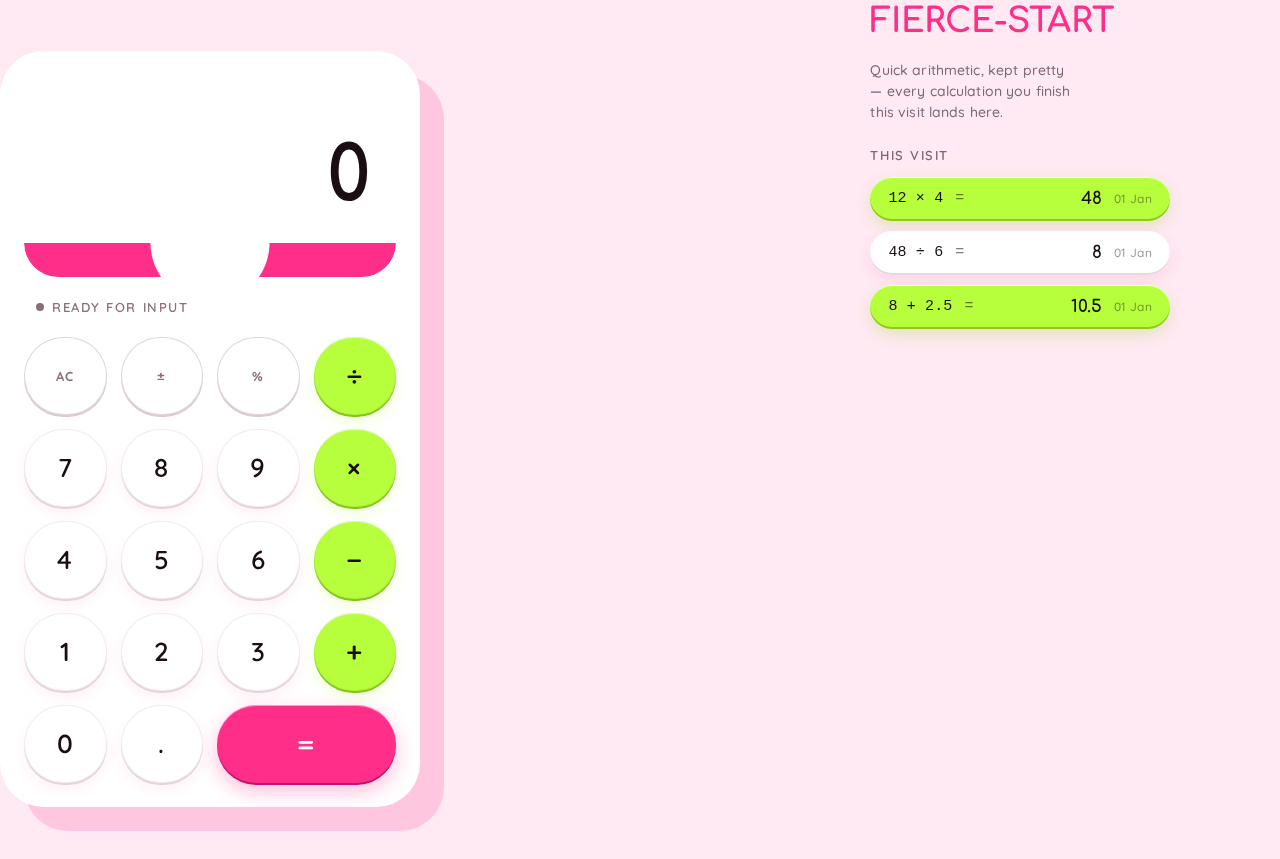
This visit — 3 calculations
- 12 × 448
- 48 ÷ 68
- 8 + 2.510.5
FIERCE-START
Quick arithmetic, kept pretty — every calculation you finish this visit lands here.
This visit
- 12 × 44801 Jan
- 48 ÷ 6801 Jan
- 8 + 2.510.501 Jan
This visit — 3 calculations
- 12 × 448
- 48 ÷ 68
- 8 + 2.510.5
FIERCE-START
Quick arithmetic, kept pretty — every calculation you finish this visit lands here.
This visit
- 12 × 44801 Jan
- 48 ÷ 6801 Jan
- 8 + 2.510.501 Jan
No comments yet. Be the first!