family-os
 Taha Mohammed
والان بما انك تستطيع الوصول الى المشروع قم بفهمه واريدك ان تصمم لي الشعار حقه ونريدك ان تسخدم اقل رصيد ممكن بحيث لا يكمل بسرعه رصيد هذه الحساب


Comments (0)
Sign in to leave a comment
System Requirements
System Requirements Document for family-os
1. Introduction
Family OS is a single shared platform that brings a family's everyday needs together in one place to reduce daily chaos. Instead of scattered notes, group chats, and forgotten appointments, one household gets a unified workspace covering family tasks, family expenses, and a shared calendar with appointments.
The product is built for a household, not an enterprise: parents and children who need a calm, trustworthy, warm place to see what the family has to do, what it has spent, and what is coming up. The platform is delivered as a first-party web application with its own identity and durable shared state, so the same family workspace persists and can be revisited by every family member.
The project's visual identity — its name, colors, and fonts — is designed as part of the product itself, alongside the site pages, rather than as a standalone image deliverable. The brand identity is expressed directly in the interface: the wordmark, the palette, and the typography are the logo.
A hard project constraint applies throughout: the work must use the least possible account credit/balance, so the account balance is not consumed quickly. This shapes delivery toward a small, practical, reused service footprint rather than speculative infrastructure.
2. System Overview
Family OS is a web application with a public entry surface, an identity access boundary, and a protected shared family workspace.
Current delivery
- A public Landing page that explains Family OS, its family audience, and its unified tasks / expenses / calendar / appointments purpose.
- Anonymous Login and Sign Up surfaces that establish and verify application-owned identity.
- A protected Dashboard that summarizes the family's shared state and routes into the work areas.
- Protected, revisitable shared workspaces for Tasks, Expenses, and Calendar, each with a focused Details workspace for creating and editing the corresponding shared item.
- Backend persistence for shared tasks, expenses, calendar entries, and appointments, so the family workspace is durable and shared across members.
Actors
- Family Member — an individual in the family (parent or child) who uses the single shared platform to handle everyday family life.
- Family Administrator — the person who manages the family's affairs on the platform, setting up and overseeing shared family items so the rest of the family can rely on a single organized source.
Ownership
- All current pages are first-party application surfaces owned by Family OS.
- Identity is application-owned: family members self-enroll and return through verified login before protected family work.
- Shared tasks, expenses, calendar entries, and appointments are owned by the application backend and persisted durably.
Narrow exclusions
- No logo is produced as a ready-made image file; the brand identity is delivered as part of the project's visual identity (name, colors, fonts) alongside the site pages.
- No blue or indigo appears anywhere in the system; the generic indigo/blue-on-white SaaS template is explicitly forbidden.
- No adjacent account-management capabilities (billing, subscription management, social login providers, external identity federation) are part of the current scope.
2a. Product Interpretation and Delivery Boundary
Family OS is delivered as a first-party web application. The public entry is anonymous and explains the product; the family workspace behind it is private and durable. Because the family's tasks, money, and schedule must remain bound to the correct household and be resumable by each member, the application owns identity: a family member establishes access on first use and verifies it on return. Protected family work is unavailable until that identity is established.
The current horizon covers the unified family workspace: tasks, expenses, calendar, and appointments, plus the identity boundary that protects them. The brand identity is part of this delivery, expressed through the interface itself rather than as a separate image asset. Anything beyond this — additional household domains, integrations with outside services, or expanded account administration — is outside the current boundary and is not built now.
2b. Source Content Inventory
The reference directive for the project's documentation files declares content_source authority. The documentation files were to be read to understand the essential details of the Family OS project. The verified essential facts carried from that source are:
- Project name: family-os
- Product purpose: a family platform that brings the family's needs together in one place to reduce daily chaos.
- Supported domains: family tasks; family expenses; calendar and appointments.
- Audience: one family — parents and children — with a Family Administrator managing the shared workspace.
- Brand identity: name, colors, and fonts designed alongside the site pages, not as a standalone image deliverable.
- Delivery constraint: use the minimum possible account credit/balance so the account balance is not consumed quickly.
No further verified factual entities, collection items, field values, dates, contacts, links, or media references were available from the documentation source beyond the above; nothing has been invented to fill that gap.
2c. Page Content and Component Coverage
Landing
- Information/state: the product name and wordmark; a statement of what Family OS is and who it is for; the unified purpose covering tasks, expenses, calendar, and appointments; the family audience.
- Primary action: begin using Family OS (routes an anonymous visitor into first-use enrollment).
- Supporting actions: navigate to Login for returning family members.
- Domain entities: none persisted; presentation of the product's purpose only.
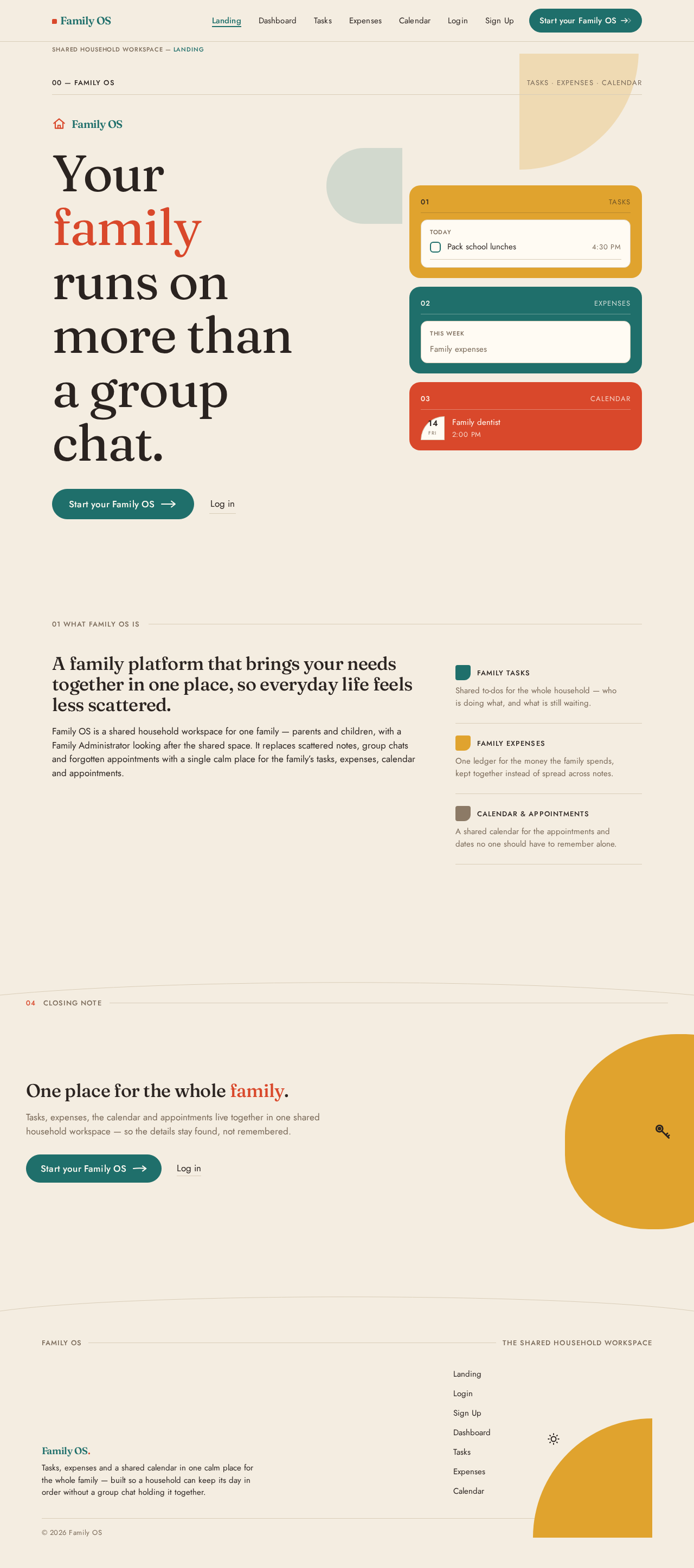
- Component responsibilities: asymmetric hero composition with an oversized stacked headline on the cream ground; a single teal CTA pill; a vertical stack of three flat colour blocks each holding one live-looking micro-panel (a task row, an expense amount, a calendar chip) with hairline rules and tabular numerals; exhibition-caption numbered section labels; one 'pebble' colour block per page with a small illustrated line mark.
- States: loading (initial paint of hero and micro-panels); empty (not applicable — static explanatory content); success (visitor reaches the CTA or Login); error (not applicable); recovery (not applicable).
Login
- Information/state: returning verification form; the family workspace it grants access to.
- Primary action: verify identity and enter the protected family workspace.
- Supporting actions: move to Sign Up when the visitor has no access yet; return to Landing.
- Domain entities: the family member's identity credential.
- Component responsibilities: credential fields; submit control; link to first-use enrollment; inline validation messaging.
- States: loading (submitting credentials); empty (blank form); success (redirect into Dashboard); error (invalid credentials — inline message, form retained, retry allowed); recovery (return to Sign Up or retry).
Sign Up
- Information/state: first-use enrollment form for a self-starting family member.
- Primary action: establish the family member's identity and enter the protected family workspace.
- Supporting actions: move to Login for returning members; return to Landing.
- Domain entities: the new family member's identity record.
- Component responsibilities: enrollment fields; submit control; link to Login; inline validation messaging.
- States: loading (submitting enrollment); empty (blank form); success (identity established, redirect into Dashboard); error (validation or enrollment failure — inline message, entered values retained, retry allowed); recovery (correct and resubmit, or switch to Login).
Dashboard
- Information/state: protected family overview summarizing shared tasks, expenses, and upcoming appointments; the family's current state at a glance.
- Primary action: route into the shared work area the family member needs.
- Supporting actions: open a specific task, expense, or appointment; move between the three work areas.
- Domain entities: shared tasks, shared expenses, calendar entries and appointments.
- Component responsibilities: asymmetric three-up panel wall at 5 / 4 / 3 columns — a task checklist panel, an expense ledger panel with tabular numerals, and a month-strip calendar panel; numbered exhibition-caption labels ('01 TASKS', '02 EXPENSES', '03 CALENDAR') on full-width hairline rules; left rail navigation on desktop collapsing to a bottom tab bar at 375px; one 'pebble' colour block per page.
- States: loading (panels rising and fading in, staggered); empty (a panel with no items shows its empty state and a route to create the first item); success (panels populated with current family state); error (a panel that fails to load shows an inline retry); recovery (retry the failed panel without losing the rest of the overview).
Tasks
- Information/state: the shared, durable list of family tasks with their status.
- Primary action: open a task to work on it.
- Supporting actions: create a new task; move into Task Details for an existing task; return to Dashboard.
- Domain entities: family tasks (title, status, assignment, due information).
- Component responsibilities: task checklist rows separated by 1px walnut hairlines; overdue tasks marked in tomato red; create control; navigation back to the overview.
- States: loading (list fetching); empty (no tasks yet — prompt to create the first task); success (task list rendered); error (list failed to load — inline retry); recovery (retry, or create a task once the list is available).
Task Details
- Information/state: a single family task in focused, single-column reading measure (max 68ch).
- Primary action: create or edit the shared task and save it.
- Supporting actions: return to the Tasks list; discard unsaved changes.
- Domain entities: the family task and its fields.
- Component responsibilities: task fields; save control; validation messaging; back navigation.
- States: loading (task fetching for edit); empty (new task form); success (task saved, return to Tasks with the change visible); error (validation or save failure — inline message, entered values retained); recovery (correct and resubmit, or discard and return).
Expenses
- Information/state: the shared, durable ledger of family expenses with amounts.
- Primary action: open an expense to work on it.
- Supporting actions: create a new expense; move into Expense Details for an existing expense; return to Dashboard.
- Domain entities: family expenses (amount, description, date, category).
- Component responsibilities: ledger rows with tabular numerals and right-aligned amounts set in tomato red Fraunces 500 at 28px against a hairline rule; a total that counts up once when it enters the viewport; create control; navigation back to the overview.
- States: loading (ledger fetching); empty (no expenses yet — prompt to record the first expense); success (ledger rendered with total); error (ledger failed to load — inline retry); recovery (retry, or record an expense once the ledger is available).
Expense Details
- Information/state: a single family expense in focused, single-column reading measure (max 68ch).
- Primary action: create or edit the shared expense and save it.
- Supporting actions: return to the Expenses ledger; discard unsaved changes.
- Domain entities: the family expense and its fields.
- Component responsibilities: expense fields including amount; save control; validation messaging; back navigation.
- States: loading (expense fetching for edit); empty (new expense form); success (expense saved, return to Expenses with the change visible); error (validation or save failure — inline message, entered values retained); recovery (correct and resubmit, or discard and return).
Calendar
- Information/state: the shared family calendar showing appointments across the month.
- Primary action: open an appointment to work on it.
- Supporting actions: create a new appointment; move into Appointment Details for an existing entry; return to Dashboard.
- Domain entities: calendar entries and appointments (title, date, time, category).
- Component responsibilities: month strip of 44px quarter-circle chips — flat teal for family events, mustard for appointments, cream-with-hairline for empty days — where the active day's chip rotates 90° into a full circle on selection; create control; navigation back to the overview.
- States: loading (calendar fetching); empty (no appointments yet — prompt to add the first appointment); success (month rendered with chips); error (calendar failed to load — inline retry); recovery (retry, or add an appointment once the calendar is available).
Appointment Details
- Information/state: a single family appointment in focused, single-column reading measure (max 68ch).
- Primary action: create or edit the shared calendar entry and save it.
- Supporting actions: return to the Calendar; discard unsaved changes.
- Domain entities: the appointment and its fields.
- Component responsibilities: appointment fields including date and time; save control; validation messaging; back navigation.
- States: loading (appointment fetching for edit); empty (new appointment form); success (appointment saved, return to Calendar with the change visible); error (validation or save failure — inline message, entered values retained); recovery (correct and resubmit, or discard and return).
3. Functional Requirements
FR-1 — Unified family platform (explicit) As a Family Member, I should have one shared Family OS platform that brings the family's needs together in one place, so that daily chaos is reduced.
- Trigger/input: the family member opens Family OS.
- Observable result: a single workspace covering the family's tasks, expenses, and calendar/appointments, rather than separate scattered tools.
- Access state: the public entry is anonymous; the shared workspace requires verified identity.
- Failure/recovery: if the workspace cannot be reached, the family member can retry from the entry surface.
- Continuation: from the workspace the family member routes into the area they need.
FR-2 — Family tasks (explicit) As a Family Member, I should view and work with the family's shared tasks, so that what the family needs to do is visible in one place.
- Trigger/input: the family member opens the Tasks workspace.
- Observable result: the durable shared list of family tasks with their status, including overdue tasks marked in tomato red.
- Access state: protected; requires verified identity.
- Failure/recovery: if the list fails to load, an inline retry is offered without losing the rest of the workspace.
- Continuation: the family member opens a task in Task Details to create or edit it.
FR-3 — Create and edit a family task (explicit) As a Family Member, I should create and edit a shared family task, so that the family's work is captured and kept current.
- Trigger/input: the family member opens Task Details for a new or existing task and enters the task fields.
- Observable result: the task is saved to the shared workspace and appears in the Tasks list.
- Access state: protected; requires verified identity.
- Failure/recovery: on validation or save failure, an inline message is shown, entered values are retained, and the family member can correct and resubmit.
- Continuation: the family member returns to the Tasks list and sees the change.
FR-4 — Family expenses (explicit) As a Family Member, I should view and work with the family's shared expenses, so that the family's spending is visible in one place.
- Trigger/input: the family member opens the Expenses workspace.
- Observable result: the durable shared ledger of family expenses with amounts set in tomato red Fraunces 500 at 28px with tabular numerals, right-aligned against a hairline rule, and a total that counts up once when it enters the viewport.
- Access state: protected; requires verified identity.
- Failure/recovery: if the ledger fails to load, an inline retry is offered without losing the rest of the workspace.
- Continuation: the family member opens an expense in Expense Details to create or edit it.
FR-5 — Create and edit a family expense (explicit) As a Family Member, I should create and edit a shared family expense, so that the family's spending record stays accurate.
- Trigger/input: the family member opens Expense Details for a new or existing expense and enters the expense fields including amount.
- Observable result: the expense is saved to the shared workspace and appears in the Expenses ledger.
- Access state: protected; requires verified identity.
- Failure/recovery: on validation or save failure, an inline message is shown, entered values are retained, and the family member can correct and resubmit.
- Continuation: the family member returns to the Expenses ledger and sees the change.
FR-6 — Shared calendar and appointments (explicit) As a Family Member, I should view and manage the family's shared calendar and appointments, so that the family's schedule is visible in one place.
- Trigger/input: the family member opens the Calendar workspace.
- Observable result: the durable shared calendar rendered as a month strip of 44px quarter-circle chips — flat teal for family events, mustard for appointments, cream-with-hairline for empty days — where the active day's chip rotates 90° into a full circle on selection.
- Access state: protected; requires verified identity.
- Failure/recovery: if the calendar fails to load, an inline retry is offered without losing the rest of the workspace.
- Continuation: the family member opens an appointment in Appointment Details to create or edit it.
FR-7 — Create and edit an appointment (explicit) As a Family Member, I should create and edit a shared family calendar entry, so that the family's appointments are captured and kept current.
- Trigger/input: the family member opens Appointment Details for a new or existing entry and enters the appointment fields including date and time.
- Observable result: the appointment is saved to the shared workspace and appears on the Calendar.
- Access state: protected; requires verified identity.
- Failure/recovery: on validation or save failure, an inline message is shown, entered values are retained, and the family member can correct and resubmit.
- Continuation: the family member returns to the Calendar and sees the change.
FR-8 — Brand identity delivered with the product (explicit) As a Family Member, I should experience the Family OS identity — its name, colors, and fonts — as part of the product itself, so that the family workspace feels like a coherent, trustworthy place.
- Trigger/input: the family member views any Family OS surface.
- Observable result: the wordmark, palette, and typography are expressed directly in the interface; no standalone image logo deliverable is produced.
- Access state: applies to all surfaces, public and protected.
- Failure/recovery: not applicable.
- Continuation: the identity is consistent across every surface the family member visits.
FR-9 — Minimum account credit usage (explicit) As the project owner, I should have the work use the least possible account credit/balance, so that the account balance is not consumed quickly.
- Trigger/input: any generation or delivery work on the project.
- Observable result: a small, practical, reused service footprint rather than speculative infrastructure or duplicated services.
- Access state: not applicable.
- Failure/recovery: not applicable.
- Continuation: the constraint holds across the whole project.
FR-10 — Self-service enrollment (required_inference) As a Family Member, I should be able to start using Family OS on my own, so that I can join the shared family workspace without waiting for an invitation.
- Trigger/input: an anonymous visitor on the Landing page chooses to begin and completes the Sign Up form.
- Observable result: the family member's identity is established and they enter the protected family workspace.
- Access state: anonymous entry; the enrollment interaction itself is reachable without identity.
- Failure/recovery: on validation or enrollment failure, an inline message is shown, entered values are retained, and the visitor can correct and resubmit or switch to Login.
- Continuation: the family member lands in the Dashboard and can begin family work.
FR-11 — Returning verification (required_inference) As a Family Member, I should verify my identity on return, so that I can resume the family's shared workspace.
- Trigger/input: a returning family member submits credentials on the Login page.
- Observable result: verified access to the durable shared Family OS workspace.
- Access state: anonymous entry to Login; protected state remains unavailable until identity is verified.
- Failure/recovery: on invalid credentials, an inline message is shown, the form is retained, and the family member can retry or move to Sign Up.
- Continuation: the family member lands in the Dashboard and resumes family work.
FR-12 — Role-aware authorization (required_inference) As a Family Administrator, I should have management of the shared family workspace distinguished from general family access and work, so that the family can rely on a maintained, trustworthy workspace.
- Trigger/input: a family member with administrator responsibility enters the protected workspace.
- Observable result: administrator management of shared family items is distinguished from Family Member access and work.
- Access state: protected; requires verified identity.
- Failure/recovery: if the family member lacks the required role for an action, the action is unavailable and the rest of the workspace remains usable.
- Continuation: the family member continues with the work their role permits.
FR-13 — Durable shared persistence (required_inference) As a Family Member, I should have the family's tasks, expenses, calendar entries, and appointments persisted and shared, so that every family member sees the same current state and can return to it.
- Trigger/input: any create or edit of a shared family item.
- Observable result: the change is stored durably and is visible to the family across sessions and members.
- Access state: protected; requires verified identity.
- Failure/recovery: if persistence fails, the family member is told inline and can retry without losing entered values.
- Continuation: the family member returns to the relevant workspace and sees the persisted state.
FR-14 — Family overview and routing (required_inference) As a Family Member, I should see a protected overview of the family's shared state, so that I know what needs attention and can get to it quickly.
- Trigger/input: the family member enters the protected workspace after verification.
- Observable result: an asymmetric three-up panel wall at 5 / 4 / 3 columns summarizing tasks, expenses, and upcoming appointments, with numbered exhibition-caption labels on full-width hairline rules.
- Access state: protected; requires verified identity.
- Failure/recovery: if a panel fails to load, an inline retry is offered without losing the other panels.
- Continuation: the family member routes into Tasks, Expenses, or Calendar.
4. User Personas
Family Member
Product context. An individual in the family — parent or child — who uses the single shared Family OS platform to handle everyday family life. Their world before Family OS is scattered: notes in different places, group chats that bury decisions, and appointments that get forgotten.
Primary goal. Reduced daily chaos and a clear view of what the family needs to do and when.
Distinct accepted responsibilities. The Family Member views and works with the shared task list, creates and edits family tasks, views and works with the shared expense ledger, creates and edits family expenses, views and manages the shared calendar, and creates and edits appointments. They also establish their own access on first use and verify it on return.
Relevant inputs or decisions. What the family needs to do (task fields and status), what the family has spent (expense amount, description, date, category), and what is coming up (appointment title, date, time, category). They decide which item to open and what to change.
Interactions with other accepted participants. The Family Member shares one workspace with the Family Administrator and with other family members. Everything they create or edit becomes visible to the rest of the family, and everything the Family Administrator maintains is what they rely on. Their work is not private to them — it is the family's shared state.
Observable success. The family's tasks, expenses, and appointments are all visible in one place, current, and consistent for every member; nothing is lost in a group chat.
Family Administrator
Product context. The person who manages the family's affairs on the platform. They are the one who sets up and oversees shared family items so the rest of the family can rely on a single organized source.
Primary goal. A maintained, trustworthy family workspace.
Distinct accepted responsibilities. Beyond the general family work of tasks, expenses, and calendar, the Family Administrator carries management of the shared family workspace: setting up and overseeing shared family items so the workspace stays organized and dependable for everyone else. Their responsibility is distinguished from general Family Member access and work.
Relevant inputs or decisions. What belongs in the shared workspace, how shared family items are organized, and whether the workspace is in a state the rest of the family can trust. They decide what to set up and what to correct.
Interactions with other accepted participants. The Family Administrator maintains the workspace that every Family Member depends on. Their oversight is what makes the shared state trustworthy; the Family Member's work is what keeps it alive.
Observable success. The family workspace is organized, current, and trustworthy, and the rest of the family can rely on it without checking anywhere else.
5. Core User Flows
Flow 1 — A family member starts using Family OS for the first time
- An anonymous visitor arrives on Landing and reads what Family OS is, who it is for, and that it unifies tasks, expenses, calendar, and appointments.
- The visitor selects the teal CTA pill to begin.
- The visitor lands on Sign Up and completes the enrollment form.
- On submit, the application establishes the family member's identity.
- Observable result: the family member enters the protected family workspace and lands on Dashboard.
- Failure/recovery: if enrollment fails validation, an inline message appears, the entered values are retained, and the visitor can correct and resubmit or switch to Login.
- Next step: the family member routes from the Dashboard into Tasks, Expenses, or Calendar.
Flow 2 — A returning family member resumes the family workspace
- A returning family member arrives on Landing and chooses to log in.
- On Login, they submit their credentials.
- The application verifies their identity.
- Observable result: verified access to the durable shared Family OS workspace; they land on Dashboard.
- Failure/recovery: on invalid credentials, an inline message appears, the form is retained, and they can retry or move to Sign Up.
- Next step: they open the work area they need.
Flow 3 — A family member works with the family's tasks
- From Dashboard, the family member opens the Tasks panel.
- On Tasks, they see the shared, durable list of family tasks with their status; overdue tasks are marked in tomato red.
- They select a task to open Task Details.
- On Task Details, they edit the task fields and save.
- Observable result: the task is saved to the shared workspace and the change is visible in the Tasks list.
- Failure/recovery: if the list fails to load, an inline retry is offered; if the save fails validation, an inline message appears, entered values are retained, and they can correct and resubmit.
- Next step: they return to Tasks or back to Dashboard.
Flow 4 — A family member records a family expense
- From Dashboard, the family member opens the Expenses panel.
- On Expenses, they see the shared ledger with amounts set in tomato red Fraunces 500 at 28px with tabular numerals, right-aligned against a hairline rule, and the total counting up once as it enters the viewport.
- They select an expense to open Expense Details, or create a new one.
- On Expense Details, they enter the expense fields including amount and save.
- Observable result: the expense is saved to the shared workspace and appears in the Expenses ledger.
- Failure/recovery: if the ledger fails to load, an inline retry is offered; if the save fails validation, an inline message appears, entered values are retained, and they can correct and resubmit.
- Next step: they return to Expenses or back to Dashboard.
Flow 5 — A family member manages the family calendar
- From Dashboard, the family member opens the Calendar panel.
- On Calendar, they see the month strip of 44px quarter-circle chips — flat teal for family events, mustard for appointments, cream-with-hairline for empty days.
- They select a day; the active day's chip rotates 90° into a full circle.
- They select an appointment to open Appointment Details, or create a new one.
- On Appointment Details, they enter the appointment fields including date and time and save.
- Observable result: the appointment is saved to the shared workspace and appears on the Calendar.
- Failure/recovery: if the calendar fails to load, an inline retry is offered; if the save fails validation, an inline message appears, entered values are retained, and they can correct and resubmit.
- Next step: they return to Calendar or back to Dashboard.
Flow 6 — A family member gets oriented in the shared workspace
- After verification, the family member lands on Dashboard.
- They see the asymmetric three-up panel wall at 5 / 4 / 3 columns — a task checklist panel, an expense ledger panel with tabular numerals, and a month-strip calendar panel — each with a numbered exhibition-caption label on a full-width hairline rule.
- Observable result: the family's current shared state is visible at a glance.
- Failure/recovery: if a panel fails to load, an inline retry is offered without losing the other panels.
- Next step: they route into the area that needs attention.
Flow 7 — The Family Administrator maintains the shared workspace
- The Family Administrator verifies identity and enters the protected workspace on Dashboard.
- They review the shared state across the task, expense, and calendar panels.
- They open the relevant workspace — Tasks, Expenses, or Calendar — and set up or correct the shared family items through the corresponding Details workspace.
- Observable result: the shared family items are organized and current, and the workspace is in a state the rest of the family can rely on.
- Failure/recovery: if a save fails validation, an inline message appears, entered values are retained, and they can correct and resubmit; if a workspace fails to load, an inline retry is offered.
- Next step: the Family Administrator returns to Dashboard and confirms the family's shared state is trustworthy.
6. Visuals Colors and Theme
The visual direction is warm modernism for the family operating system — order you want to live inside, with Charles & Ray Eames as the muse and the headline idea that Family OS is a shared household operating system: orderly enough to hold shared money and schedules, humane enough to feel like a home rather than a workplace.
Palette (light mode) — exact tokens
| Role | Hex | Use |
|---|---|---|
| Background | #F4EDE1 | Warm cream paper ground carrying the whole product |
| Surface | #FFFBF3 | Cards and panels |
| Hairline | #D9CDB8 | 1px walnut hairline separating data rows and panels |
| Text | #2A2320 | Near-black warm ink; contrast comfortably above 7:1 at body size |
| Primary | #1F6F6B | Teal — primary action and identity colour: wordmark, primary buttons, active calendar day |
| Accent | #D9482B | Tomato red — reserved for exactly three jobs: expense amounts, overdue tasks, and the hero CTA |
| Muted | #8C7A66 | Walnut — secondary category colour for calendar/appointment chips and labels |
| Secondary | #E0A32E | Mustard — secondary category colour for calendar/appointment chips and labels |
No blue anywhere in the system. No pure white #FFFFFF page ground, no pure black text, no cold grey UI chrome.
Typography
- Headings: Fraunces at optical size
SOFT 60, WONK 0; weights 500–700 for section titles, 400 for large display. Display headlines tightly tracked at-0.02em, sentence case, leading 1.05–1.15. - Body: Jost.
- Scale: 1.333 modular on a 16px base — display 48px mobile → 96px desktop (
clamp), h1 34/52, h2 26/34, h3 20/24, body 17/18, label 13px uppercase with 0.08em tracking, numerals 15px tabular. Body line-height 1.5.
Shape language
- Organic-modern geometry: 16px radius on cards, 24px on hero panels, 999px on pills and chips.
- A single asymmetric 'pebble' shape (
border-radius: 60% 40% 55% 45% / 55% 45% 60% 40%) used once per page as a colour block. - Hard 1px walnut hairlines separate data rows; section transitions are a straight rule or a shallow arc, never a diagonal.
- Colour blocks are flat rectangles and quarter-circles — geometry with a hand, not a gradient.
Layout
- Gallery-like modular panel sequence on a 12-column grid with a 96px desktop gutter and 24px mobile margin.
- The dashboard is a 3-up panel wall (Tasks / Expenses / Calendar) of unequal widths — 5 / 4 / 3 columns — so it never reads as a grid of identical cards.
- Left rail navigation on desktop collapses to a bottom tab bar at 375px.
- Every panel carries a numbered label (01, 02, 03) in the upper-left, echoing an exhibition caption.
- Detail pages use a single-column reading measure (max 68ch).
Imagery
- Warm domestic photography treated as mid-century panels: natural light, wood, textiles, a kitchen table, hands holding a paper calendar, a bowl of fruit on a walnut surface.
- Photos are cropped to hard rectangles or quarter circles and colour-blocked with a flat mustard or teal field behind them.
- Illustrated accents are hand-drawn line marks (a small sun, a paperclip, a house key, a shopping bag) at 24px, drawn in the same 2px stroke as the rules.
- No stock people smiling at laptops, no 3D renders, no gradient blobs.
Avoid
- Any blue or indigo in the palette — no bootstrap blue, no indigo, no violet gradients, no glassy blue cards.
- Centred hero with a headline, subhead, blue button and gradient blob.
- A uniform grid of identical hover-lift cards for tasks, expenses and calendar.
- Default system fonts, Inter, Roboto, Poppins, or any neutral sans for headings.
- Pure white
#FFFFFFpage ground, pure black text, and cold grey UI chrome. - 3D renders, glossy blobs, particle fields, or futuristic HUD styling.
- Rounded pastel sticker UI, cartoon characters, or emoji-heavy decoration.
- Full-bleed dark mode, neon accents, or any treatment that makes the family workspace feel like a fintech dashboard.
Readable text and controls stay whole at every viewport. Headlines, wordmarks, labels, numbers, cards' text and controls stay entirely inside the viewport and their container at 375px, 768px and 1280px, wrapping or scaling (for example font-size: clamp(...) with its mobile size) to fit, and no other element covers any part of them. Imagery, decoration and motion may be cropped, bled off an edge, rotated, overlapped or cut exactly as the direction asks, as long as they cover no readable text or control. Moving and scrollable content may cross the viewport or container edge by design and is judged by whether every item becomes fully readable as it passes. With prefers-reduced-motion, provide a usable static arrangement: wrap items into rows or allow horizontal scrolling so each item can be brought fully into view.
7. Signature Design Concept
The exhibition wall at home. The public entry is a full-width asymmetric composition, not a centred stack.
- Left two-thirds: an oversized Fraunces headline set in 9 lines of stacked type — "Your family runs on more than a group chat." — clamped 48px mobile → 96px desktop, sitting on the cream ground
#F4EDE1with the word family set in tomato red#D9482B. Directly beneath it, a single teal#1F6F6BCTA pill labelled "Start your Family OS" with a small hand-drawn arrow. - Right third: a vertical stack of three flat colour blocks — mustard
#E0A32E, teal#1F6F6B, tomato#D9482B— each holding one live-looking micro-panel: a task row, an expense amount, a calendar chip, with hairline rules#D9CDB8and tabular numerals. The stack slightly overlaps the headline's right edge on desktop and drops below it at 768px and 375px. - Signature moves carried into the entry: exhibition-caption numbering on hairline rules; the asymmetric panel logic that later becomes the dashboard's 5 / 4 / 3 wall; the single 'pebble' colour block per page with a small illustrated line mark inside it; expense amounts as designed objects in tomato red Fraunces 500 at 28px with tabular numerals; calendar days as 44px quarter-circle chips.
- No gradient, no blob, no centred subhead. The composition recomposes only accepted content, states, and controls — it introduces no new behaviour, page, or destination.
8. Interaction Model & Motion Direction
Interaction Model: Animated Motion Tempo: restrained Hero Dimensionality: layered_2d
Landing Hero Motion Brief
- Focal subject: the asymmetric hero composition — the oversized stacked Fraunces headline on the cream ground with the word family in tomato red, and the right-hand vertical stack of three flat colour blocks each holding one live-looking micro-panel.
- Input → transformation → outcome thesis: as the visitor arrives and scrolls, the hero's layered 2D planes settle into place — the headline resolves first, then the three colour blocks rise and fade in staggered by 80ms per panel, and the micro-panels' tabular numerals count up once as they enter the viewport. The outcome is a composed, orderly first frame that reads as a home rather than a dashboard.
- Motion vocabulary: gentle, film-like. Panels rise 12px and fade over 420ms with
cubic-bezier(0.22, 0.61, 0.36, 1)on scroll into view, staggered by 80ms per panel. Numbers count up once when the expense total enters the viewport. Hover on a panel lifts it 3px and shifts its hairline to teal. No bounce, no particles, no parallax beyond a 6px background drift. - Composed first frame: the headline fully legible on the cream ground with family in tomato red; the three colour blocks in their resting positions with hairline rules and tabular numerals at their final values; the teal CTA pill and its hand-drawn arrow whole and inside the viewport at 375px, 768px and 1280px.
- Reduced-motion state: all entrances resolve instantly to final state, count-ups render at final value, hovers become colour-only. The hero remains a complete, usable static composition.
9. Non-Functional Requirements
NFR-1 — Minimum account credit usage (explicit) The work must use the least possible account credit/balance so the account balance is not consumed quickly. Rationale: explicit hard constraint from the project owner. This drives a small, practical, reused service footprint.
NFR-2 — Brand identity as part of the product (explicit) The logo/brand identity is delivered as part of the project's visual identity — name, colors, fonts — designed alongside the site pages, not as a standalone image deliverable. Rationale: explicit hard constraint from the project owner.
NFR-3 — No blue or indigo (explicit) No blue or indigo appears anywhere in the system; the generic indigo/blue-on-white SaaS template is forbidden. Rationale: explicit creative direction.
NFR-4 — Readable text and controls stay whole (explicit) Headlines, wordmarks, labels, numbers, cards' text and controls stay entirely inside the viewport and their container at 375px, 768px and 1280px, wrapping or scaling to fit, with no other element covering any part of them. Rationale: explicit creative direction; accessibility and legibility.
NFR-5 — Text contrast (explicit)
Text is near-black warm ink #2A2320 on cream #F4EDE1, with a contrast ratio comfortably above 7:1 at body size. Rationale: explicit creative direction.
NFR-6 — Reduced motion support (explicit)
With prefers-reduced-motion, all entrances resolve instantly to final state, count-ups render at final value, hovers become colour-only, and a usable static arrangement is provided for any moving or scrollable content. Rationale: explicit creative direction; accessibility.
NFR-7 — Durable shared state (required_inference) Shared tasks, expenses, calendar entries, and appointments are persisted durably and shared across family members and sessions. Rationale: indispensable for the accepted outcome that the family relies on one organized source.
NFR-8 — Application-owned identity continuity (required_inference) Protected family work requires verified identity, and the family's shared state remains bound to the correct household. Rationale: indispensable for the accepted outcome that the family trusts the workspace with money and time.
10. Tech Stack
- Frontend: React web application rendering the Family OS surfaces (Landing, Login, Sign Up, Dashboard, Tasks, Task Details, Expenses, Expense Details, Calendar, Appointment Details).
- Backend: Python / FastAPI service providing the identity boundary and the persistence APIs for shared tasks, expenses, calendar entries, and appointments.
- Storage: a durable relational store for the shared family workspace (family members, tasks, expenses, calendar entries, appointments).
- Packaging: Docker / docker-compose for the frontend and backend services.
- Kubernetes: not required for the current delivery; the current footprint is a small, practical set of services, consistent with the minimum-credit constraint.
11. Assumptions and Constraints
Assumptions
- [Assumption — required_inference] A family member self-enrolls on first use because no invitation or external identity boundary is established by the source.
- [Assumption — required_inference] A returning family member verifies identity before protected family work, because the shared workspace must remain bound to the correct household.
- [Assumption — required_inference] Role-aware authorization distinguishes Family Administrator management from Family Member access and work, because the Family Administrator's responsibility is to maintain a trustworthy workspace for the rest of the family.
- [Assumption — required_inference] The backend persists shared tasks, expenses, calendar entries, and appointments, because the family relies on one durable organized source.
Constraints
- Use the least possible account credit/balance; the account balance must not be consumed quickly. (explicit)
- The assistant does not produce logos as ready-made images; the logo is delivered as part of the project's visual identity — name, colors, fonts — alongside the site pages. (explicit)
- No blue or indigo anywhere in the system; the generic indigo/blue-on-white SaaS template is forbidden. (explicit)
- Readable text and controls stay whole at 375px, 768px and 1280px. (explicit)
- The current horizon covers the unified family workspace and its identity boundary only; no adjacent account-management capabilities are in scope. (required_inference)
12. Glossary
- Family OS — the shared household platform that brings a family's tasks, expenses, calendar, and appointments together in one place.
- Family Member — an individual in the family (parent or child) who uses the shared platform for everyday family life.
- Family Administrator — the person who manages the family's affairs on the platform, setting up and overseeing shared family items so the rest of the family can rely on one organized source.
- Shared family item — a task, expense, calendar entry, or appointment that belongs to the family workspace and is visible to every family member.
- Family workspace — the durable, protected shared state of the family's tasks, expenses, calendar, and appointments.
- Exhibition-caption numbering — the small uppercase numbered label ('01 TASKS', '02 EXPENSES', '03 CALENDAR') sitting on a full-width hairline rule at the upper-left of each panel.
- Pebble block — the single asymmetric organic colour block used once per page, in mustard or teal, with a small illustrated line mark inside it.
- Hairline — the 1px walnut rule (
#D9CDB8) separating data rows and panels. - Tabular numerals — fixed-width numerals used for money and counts so figures align as designed objects.
- Quarter-circle chip — the 44px calendar day shape; flat teal for family events, mustard for appointments, cream-with-hairline for empty days, rotating 90° into a full circle when its day is active.
A family platform that brings your needs together in one place, so everyday life feels less scattered.
Family OS is a shared household workspace for one family — parents and children, with a Family Administrator looking after the shared space. It replaces scattered notes, group chats and forgotten appointments with a single calm place for the family’s tasks, expenses, calendar and appointments.
- Family tasks
Shared to-dos for the whole household — who is doing what, and what is still waiting.
- Family expenses
One ledger for the money the family spends, kept together instead of spread across notes.
- Calendar & appointments
A shared calendar for the appointments and dates no one should have to remember alone.
04CLOSING NOTE
One place for the whole family.
Tasks, expenses, the calendar and appointments live together in one shared household workspace — so the details stay found, not remembered.
A family platform that brings your needs together in one place, so everyday life feels less scattered.
Family OS is a shared household workspace for one family — parents and children, with a Family Administrator looking after the shared space. It replaces scattered notes, group chats and forgotten appointments with a single calm place for the family’s tasks, expenses, calendar and appointments.
- Family tasks
Shared to-dos for the whole household — who is doing what, and what is still waiting.
- Family expenses
One ledger for the money the family spends, kept together instead of spread across notes.
- Calendar & appointments
A shared calendar for the appointments and dates no one should have to remember alone.
04CLOSING NOTE
One place for the whole family.
Tasks, expenses, the calendar and appointments live together in one shared household workspace — so the details stay found, not remembered.
No comments yet. Be the first!