cosmic-start
 Diya Trivedi
start a project to create a simple single page project of calculator

Comments (0)
Sign in to leave a comment
System Requirements
System Requirements Document for cosmic-start
1. Introduction
cosmic-start is a simple, single-page calculator. The product intent, taken directly from the authoritative requirement thread, is to deliver one page on which a person can perform basic arithmetic: enter numbers, choose an operation, and read the result. The project is explicitly constrained to be a single page and to remain simple.
The audience is a general consumer — students, families, anyone who needs to add up a bill or split a dinner. The emotional register is deliberately warm and approachable: maths anxiety is real, and a calculator that feels friendly, tactile, and slightly funny turns a dry utility into something a person does not mind opening. This is a consumer utility, not enterprise software, so warmth and playfulness are assets rather than liabilities.
2. System Overview
cosmic-start is a client-side, single-page web application. It has exactly one page — Calculator — which is simultaneously the public entry surface and the entire working surface of the product. There is no navigation, no secondary route, no settings panel, and no history drawer.
The single active human actor is the Calculator User, who opens the page, enters operands and an operation, reads the displayed result, and can clear the current entry to begin a new calculation. The successful outcome is a correct result shown on the same page.
The calculator is a self-contained arithmetic tool. All computation happens in the page itself; there is no server-side arithmetic service, no persistence of calculations, and no account or identity requirement. The page is publicly reachable with no sign-in.
2a. Product Interpretation and Delivery Boundary
Delivery. The product is delivered as a single first-party web page. The page is the public entry point and the complete product surface at once — a visitor lands on it and immediately has the calculator in front of them. There is no separate landing page, no marketing surface, and no gated area.
Access ownership. Access to the Calculator page requires no identity. The accepted behavior — entering operands, choosing an operation, reading a result, clearing — is ephemeral and stateless: nothing about a calculation needs to be privately owned, resumed, or bound to a particular person. No account, sign-in, or session continuity is introduced, and no account-management capability exists.
Current vs. future boundary. Everything described in this document is current. There is no accepted future horizon: no additional pages, no history, no memory of past calculations, no settings, and no sharing. The single-page and simplicity constraints are binding, and the creative direction reinforces them by explicitly excluding extra pages, settings panels, and history drawers.
Exclusions. The product does not include: multiple pages or routes; user accounts or authentication; saved or recalled calculation history; unit conversion, scientific functions, graphing, or programming modes; currency or tax logic; sharing or export of results; dark mode; and any server-side persistence.
2b. Source Content Inventory
Not applicable. No reference directive in the supplied material declares a content_source, so no source content inventory is produced.
2c. Page Content and Component Coverage
The page inventory is the single supplied page from the versioned page contract.
Calculator
The one and only page of cosmic-start. It is the public entry surface and the complete working surface: a visitor arrives and the calculator is immediately usable. Access requires no identity.
Information and state
- Expression line — the running expression shown in muted warm grey (#8A7F76) in small DM Sans, sitting above the result. It reflects the operands and the chosen operation as they are entered.
- Result display — the current value or computed result, rendered in Nunito 900 at
clamp(48px, 14vw, 96px). This is the largest element on the page; the number the user cares about is the loudest thing they see. - Current entry state — which operand is being typed, and whether an operation has been chosen and is awaiting its second operand.
- Error state — a clear, human-readable message in place of the result when an operation cannot be completed (for example, division by zero), with the calculator left in a usable state so the user can clear and continue.
- Idle/initial state — the display shows a starting value (0) with an empty expression line, ready for the first keypress.
Primary actions
- Digit keys (0–9) — append a digit to the current operand.
- Decimal point key — begin or extend a fractional operand.
- Operation keys (+, −, ×, ÷) — select the arithmetic operation to apply. These are the coral (#FF6B4A) keys and are the loudest elements on the keypad.
- Equals key (=) — commit the pending operation and display the result. Also coral, and it gives a single soft pulse on commit.
- Clear key (C) — reset the current entry and expression so the user can start a new calculation. This is the green (#2BB673) key.
Supporting actions
- Backspace — remove the last entered digit from the current operand, presented as a pill in the mode/backspace row.
Domain entities
- Operand — a numeric value entered by the user.
- Operation — one of addition, subtraction, multiplication, division.
- Expression — the ordered combination of operands and an operation awaiting evaluation.
- Result — the numeric outcome of evaluating the expression.
Component responsibilities
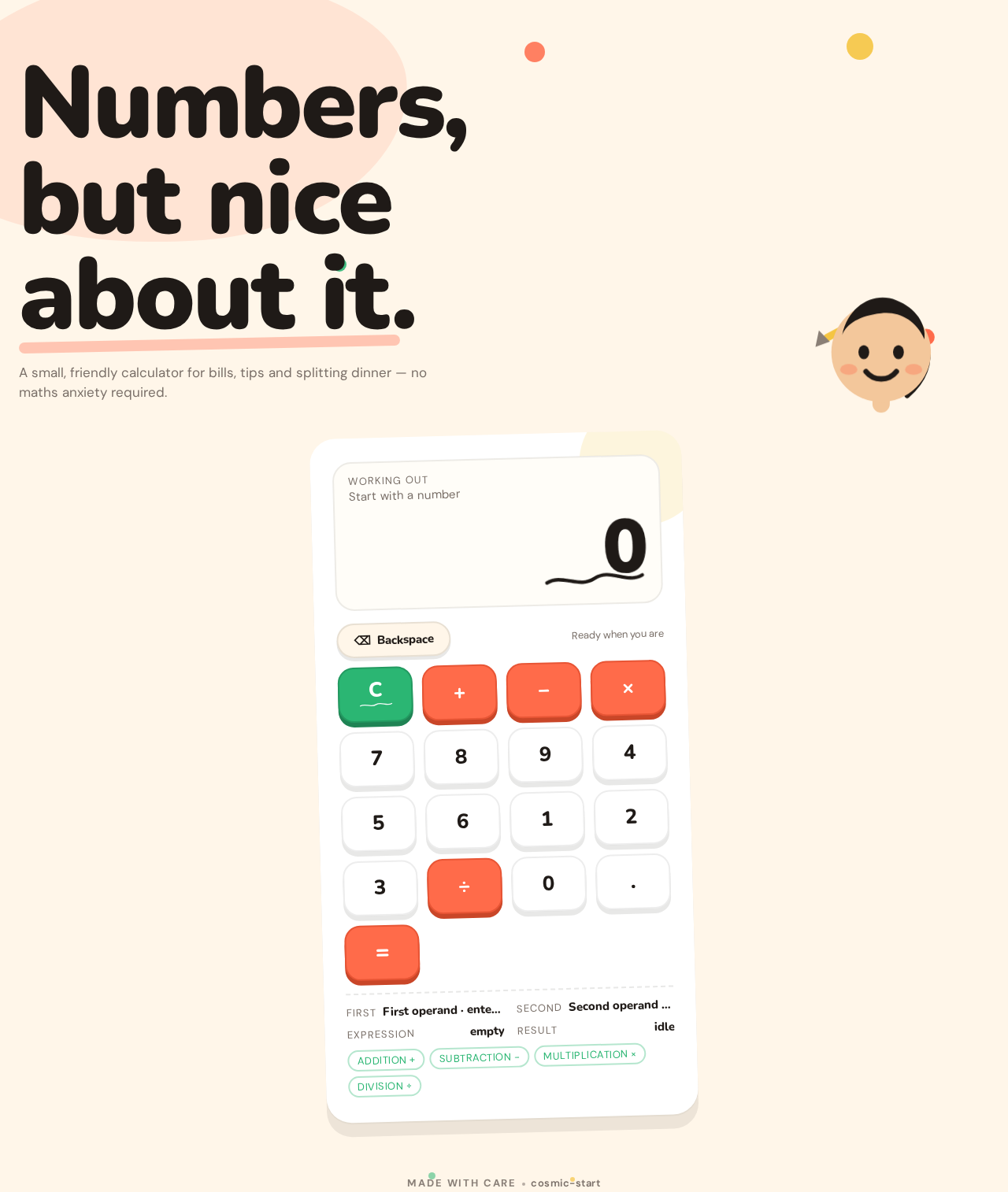
- Page shell — warm cream (#FFF6E9) ground covering the whole page; single centred column, max-width 520px for the calculator, vertically centred on desktop and top-aligned with 24px gutters on mobile.
- Headline block — an oversized friendly headline in Nunito 900 at
clamp(56px, 12vw, 128px), left-aligned, wrapping to three lines on mobile and two on desktop, with a one-line DM Sans subtitle beneath it. - Calculator slab — a pure white (#FFFFFF) rounded shell at 32px radius with a soft offset shadow, slightly rotated −1.5deg on desktop so it feels placed rather than templated.
- Display panel — the split display: expression line above, result below.
- Key grid — a 4×5 grid of keys at 20px radius with generous 12px gaps; each key carries a hard
0 6px 0 rgba(31,26,23,0.10)shadow that compresses on press. - Mode/backspace row — a pill-shaped row above or beside the grid holding the backspace control.
- Vector character — a small round-headed figure with a pencil behind its ear, peeking from behind the top-right corner of the calculator shell, half-cropped by the shell edge. Its eyes blink once on page load; its arm waves when the clear key is pressed.
- Sticker accents — a hand-drawn squiggle beneath the result and beneath the clear key, plus a couple of sticker dots (coral, green, sunny yellow) sitting behind content, never over it.
- Footer — a tiny "made with care" line.
States
- Loading — not applicable in a meaningful sense; the page is a client-side application with no remote data dependency. The first paint is the usable calculator.
- Empty/initial — display shows 0, expression line empty, all keys available.
- Success — the result is displayed in Nunito 900 and does a quick 120ms scale-in when it changes.
- Error — an invalid operation (such as division by zero) shows a clear message in place of the result; the user can press clear to reset and continue.
- Recovery — the clear key always returns the calculator to the initial state; the backspace key removes the last digit so a mistyped operand can be corrected without a full reset.
3. Functional Requirements
Each requirement is a distinct story point with its provenance and observable acceptance.
FR-1 — Open the calculator As a Calculator User, I should be able to open the cosmic-start page and immediately see a working calculator, so that I can start doing arithmetic without any setup.
- Provenance: explicit (the product is a single-page calculator).
- Trigger/input: navigating to the page.
- Observable result: the Calculator page renders with the headline, the calculator slab, the display showing 0, and the full key grid.
- Access state: no identity required; the page is publicly reachable.
- Failure/recovery: if the page fails to render, reloading restores the calculator; no partial state is persisted.
- Continuation: the user can begin entering an operand.
FR-2 — Enter an operand As a Calculator User, I should be able to enter a number using the digit keys, so that I have a value to operate on.
- Provenance: required_inference (indispensable mechanics for the accepted calculator behavior).
- Trigger/input: pressing digit keys 0–9.
- Observable result: the digits appear in the display as the current operand, and the expression line reflects the entry.
- Access state: none.
- Failure/recovery: pressing backspace removes the last digit; pressing clear resets the entry.
- Continuation: the user can enter a decimal point, choose an operation, or continue typing digits.
FR-3 — Enter a fractional operand As a Calculator User, I should be able to enter a decimal point, so that I can calculate with non-whole numbers.
- Provenance: required_inference (indispensable mechanics for arithmetic on real-world amounts such as bills and splits).
- Trigger/input: pressing the decimal point key.
- Observable result: a decimal point is appended to the current operand and shown in the display.
- Access state: none.
- Failure/recovery: a second decimal point in the same operand is not added; backspace removes it.
- Continuation: the user continues typing fractional digits or chooses an operation.
FR-4 — Choose an operation As a Calculator User, I should be able to choose addition, subtraction, multiplication, or division, so that I can tell the calculator what to do with my numbers.
- Provenance: required_inference (indispensable mechanics for the accepted calculator behavior).
- Trigger/input: pressing one of the four coral operation keys (+, −, ×, ÷).
- Observable result: the chosen operation is shown in the expression line, and the calculator awaits the second operand.
- Access state: none.
- Failure/recovery: pressing a different operation key before entering the second operand replaces the pending operation; clear resets everything.
- Continuation: the user enters the second operand.
FR-5 — Compute and display the result As a Calculator User, I should be able to press equals and see the result, so that I get the answer I came for.
- Provenance: required_inference (indispensable mechanics for the accepted calculator behavior).
- Trigger/input: pressing the equals key after entering an operation and a second operand.
- Observable result: the result is displayed in Nunito 900 at the display size, the expression line shows the completed expression, and the result does a quick 120ms scale-in. The equals key gives a single soft pulse on commit.
- Access state: none.
- Failure/recovery: if the operation cannot be evaluated (for example, division by zero), a clear message replaces the result and the user can clear to reset.
- Continuation: the user can clear to start a new calculation, or continue operating on the displayed result.
FR-6 — Clear the current entry As a Calculator User, I should be able to press the clear key to reset, so that I can start a fresh calculation without reloading the page.
- Provenance: required_inference (indispensable mechanics for the accepted calculator behavior; the creative direction names the clear key explicitly).
- Trigger/input: pressing the green clear key.
- Observable result: the display returns to 0, the expression line empties, and the vector character's arm waves.
- Access state: none.
- Failure/recovery: clear is always available and always returns the calculator to its initial state.
- Continuation: the user can begin a new calculation immediately.
FR-7 — Correct a mistyped operand As a Calculator User, I should be able to remove the last digit I typed, so that a small mistake does not force me to start over.
- Provenance: required_inference (indispensable recovery mechanics; the creative direction names the backspace pill).
- Trigger/input: pressing the backspace pill.
- Observable result: the last digit is removed from the current operand and the display updates.
- Access state: none.
- Failure/recovery: backspace on an empty entry leaves the display at 0.
- Continuation: the user continues typing or chooses an operation.
FR-8 — Remain a single page As a Calculator User, I should experience the whole product on one page, so that the tool stays simple and I never have to navigate.
- Provenance: explicit (hard constraint: "a simple single page project of calculator").
- Observable result: there is exactly one page; no navigation, settings panel, or history drawer exists.
- Access state: none.
- Failure/recovery: not applicable.
- Continuation: not applicable.
4. User Personas
Calculator User
Product context. A general consumer — a student checking homework, a family member adding up a bill, a friend splitting a dinner. They arrive at cosmic-start with a small, concrete arithmetic task and no patience for setup. They are not a power user of calculation software, and maths can carry a little anxiety for them.
Primary goal. Get a correct answer to a simple arithmetic problem as quickly and painlessly as possible, on a page that feels friendly rather than clinical.
Distinct accepted responsibilities. The Calculator User is the sole active human actor and performs every human-facing step of the product: entering operands, choosing an operation, committing the calculation, reading the result, correcting a mistyped digit, and clearing to start again. There is no other participant — no approver, no recipient, no counterparty — because a calculation is a private, ephemeral act whose only outcome is a number shown back to the person who asked for it.
Relevant inputs and decisions. The user decides which numbers to enter, which of the four operations to apply, when to commit with equals, and whether to correct or clear. Their inputs are keypresses on the digit, decimal, operation, equals, backspace, and clear controls.
Interactions with other accepted participants. None. The Calculator User is the only accepted human participant; the calculator itself is a system process, not a persona.
Observable success. A correct result appears in the large Nunito 900 display on the same page, with the completed expression visible above it in muted grey. The user can then clear and start a new calculation, or continue operating on the result.
Constraints carried from source. The user's experience is bounded by the single-page and simplicity constraints: everything they need is on one page, and nothing else is offered.
5. Core User Flows
Flow 1 — Perform a basic calculation
- The Calculator User opens the cosmic-start page. No sign-in is required; the Calculator page is the public entry surface.
- The page renders the warm cream field, the oversized friendly headline, and the white calculator slab with the display showing 0.
- The user presses digit keys to enter the first operand. The digits appear in the display and the expression line reflects the entry.
- The user presses one of the four coral operation keys (+, −, ×, ÷). The chosen operation appears in the expression line, and the calculator awaits the second operand.
- The user presses digit keys to enter the second operand. The display shows the second operand as it is typed.
- The user presses the equals key. The equals key gives a single soft pulse, the result appears in Nunito 900 at the display size with a quick 120ms scale-in, and the completed expression is shown above it in muted grey.
- Next step: the user either clears to start a new calculation (Flow 3) or continues operating on the displayed result.
Flow 2 — Calculate with a fractional amount
- The Calculator User opens the page and begins entering an operand.
- The user presses the decimal point key. A decimal point is appended to the current operand and shown in the display.
- The user types the fractional digits.
- The user chooses an operation, enters the second operand, and presses equals.
- The result appears in the large display, correctly reflecting the fractional input.
- Next step: the user clears or continues.
Flow 3 — Correct a mistake and start over
- Midway through entering an operand, the Calculator User notices a wrong digit.
- The user presses the backspace pill. The last digit is removed from the current operand and the display updates.
- The user continues typing the correct digits, or presses the green clear key to reset entirely.
- On clear, the display returns to 0, the expression line empties, and the vector character's arm waves.
- Next step: the user begins a new calculation from the initial state.
Flow 4 — Recover from an invalid operation
- The Calculator User enters an operation that cannot be evaluated — for example, division by zero.
- The user presses equals.
- A clear, human-readable message appears in place of the result, and the calculator remains usable.
- The user presses the green clear key. The display returns to 0 and the expression line empties.
- Next step: the user enters a valid calculation and continues.
6. Visuals, Colors, and Theme
The creative direction is authoritative for this section. The muse is Pablo Stanley, and the headline idea is "Warm, human arithmetic: a calculator with a face and a sense of humour."
Color tokens (light mode)
| Role | Hex | Usage |
|---|---|---|
| Background | #FFF6E9 | Warm cream ground covering the whole page |
| Surface | #FFFFFF | The calculator slab, pure white with a soft offset shadow |
| Text | #1F1A17 | Numerals and headings (ink) |
| Primary | #FF6B4A | Coral — the four operation keys and the equals key; the loudest element on screen |
| Accent | #2BB673 | Green — the clear key and success state |
| Muted | #8A7F76 | Warm grey — labels, secondary copy, and the expression history line |
No blue anywhere. No gradients behind text. No dark mode or neon-on-black treatments — the warmth lives on cream.
Typography
- Headings: Nunito at 800–900 weight, rounded terminals, tight tracking (−0.02em), sentence case.
- Display numerals: Nunito 900 at very large sizes, so the result reads like a friendly scoreboard rather than a spreadsheet cell.
- Body: DM Sans.
- Type scale (1.333 modular): display 56px mobile → 128px desktop (
clamp); h1 32→56px; h2 24→32px; body 17→18px; key labels 22→26px; micro-labels 13px uppercase with 0.08em tracking.
Shape language
Big radii everywhere: calculator shell at 32px, individual keys at 20px (squircle-ish), pills for the mode/backspace row. Soft offset shadows — 0 6px 0 rgba(31,26,23,0.10) — rather than blurry drop shadows, so keys feel like physical toy buttons. Sticker-shaped accents (a rounded blob behind the headline, a small hand-drawn squiggle under the result) sit behind content, never over it.
Layout
Single centred column, max-width 520px for the calculator, vertically centred on desktop and top-aligned with 24px gutters on mobile. Above the calculator: an oversized friendly headline and a one-line subtitle. Inside: a wide display panel (expression line in muted grey above, result in huge Nunito 900 below), then a 4×5 key grid with generous 12px gaps. Below: a tiny "made with care" footer. Nothing else on the page — the calculator is the page.
Imagery
One modular vector character — a small round-headed figure with a pencil behind its ear — peeking out from behind the top-right corner of the calculator shell, half-cropped by the shell edge. A hand-drawn squiggle and a couple of sticker dots (coral, green, sunny yellow) as accents. No photography, no gradients, no 3D renders.
Readability constraint
Headlines, wordmarks, labels, numbers, and controls stay entirely inside the viewport and their container at 375px, 768px, and 1280px, wrapping or scaling (for example font-size: clamp(...) with its mobile size) to fit. No other element covers any part of them. Imagery and decoration may be cropped, bled off an edge, rotated, or overlapped exactly as the direction asks, as long as they cover no readable text or control.
7. Signature Design Concept
The public entry is a warm cream field with a single oversized friendly headline — "Numbers, but nice about it." — set left-aligned in Nunito 900 at clamp(56px, 12vw, 128px), wrapping to three lines on mobile and two on desktop. Beneath it sits a smaller DM Sans subtitle.
The calculator itself is a white rounded slab, slightly rotated −1.5deg on desktop so it feels placed rather than templated, with a soft offset shadow and a coral equals key that is visibly the loudest object on screen. A small vector character peeks from behind the top-right corner of the slab, half-cropped by the shell edge.
There is no centred headline-plus-blue-button composition anywhere. The signature moves are:
- An oversized Nunito 900 headline spanning the viewport width on desktop, sitting above a slightly rotated calculator slab rather than centred above a button.
- Keys as physical toy buttons: 20px radius, a hard
0 6px 0shadow that compresses to0 1px 0on press with a spring-backcubic-bezier(0.34, 1.56, 0.64, 1)— the press is felt, not just seen. - A split display panel: the running expression in small muted DM Sans above, the result in Nunito 900 at
clamp(48px, 14vw, 96px)below, so the number you care about is the largest thing on the page. - A modular vector character half-hidden behind the top-right corner of the calculator shell, whose eyes blink once on page load and whose arm waves when the clear key is pressed.
- A green clear key with a hand-drawn squiggle sticker beneath it, making the most destructive action the most charming one on the keypad.
8. Interaction Model & Motion Direction
Interaction Model: Animated Motion Tempo: expressive Hero Dimensionality: layered_2d
Landing Hero Motion Brief
- Focal subject: the white calculator slab, slightly rotated −1.5deg, with the coral equals key as the loudest object and the vector character peeking from behind its top-right corner.
- Input → transformation → outcome thesis: a keypress is the only input; the pressed key scales to 0.94 and springs back over 180ms with
cubic-bezier(0.34, 1.56, 0.64, 1), and when the result changes the number does a quick 120ms scale-in — so the page's motion is always a felt response to the user's own action, never decoration running on its own. - Motion vocabulary: springy micro-interactions only. Keys scale to 0.94 on press and spring back over 180ms. The result number does a quick 120ms scale-in when it changes. The equals key gives a single soft pulse on commit. The character's eyes blink once on page load and its arm waves when the clear key is pressed.
- Composed first frame: the warm cream field, the oversized left-aligned headline wrapping to two lines on desktop, the subtitle beneath it, and the white slab with its soft offset shadow and coral equals key — the character half-cropped at the slab's top-right corner.
- Reduced-motion state: with
prefers-reduced-motion, all spring, scale-in, pulse, blink, and wave animations are suppressed. The page renders as a fully usable static arrangement: the headline, subtitle, slab, display, and key grid are all present and every control remains operable, with press feedback conveyed by the shadow compression alone.
No looping animation, no parallax, and no decoration that runs on its own.
9. Non-Functional Requirements
NFR-1 — Single-page constraint (explicit). The product must be exactly one page. No additional routes, pages, or navigable destinations may be introduced.
NFR-2 — Simplicity constraint (explicit). The product must remain simple. No settings panels, history drawers, or extra feature surfaces may be added to the page.
NFR-3 — No identity requirement (required_inference). The Calculator page requires no account, sign-in, or session continuity. Calculations are ephemeral and are not persisted or bound to any person.
NFR-4 — Responsive readability (creative direction). Headlines, labels, numbers, and controls stay entirely inside the viewport and their container at 375px, 768px, and 1280px, wrapping or scaling to fit. No element covers any readable text or control.
NFR-5 — Reduced motion (creative direction). With prefers-reduced-motion, the page provides a usable static arrangement with all controls operable and no self-running animation.
NFR-6 — Palette and typography fidelity (creative direction). The specified palette (cream #FFF6E9, white surface, ink #1F1A17, coral #FF6B4A, green #2BB673, muted #8A7F76) and the specified typefaces (Nunito for headings and display numerals, DM Sans for body) are used throughout. No blue or indigo primary, and none of Inter, Roboto, Arial, Helvetica, Open Sans, Lato, Poppins, or system-ui for headings or body.
NFR-7 — Client-side computation (required_inference). Arithmetic is evaluated in the page itself; no server round-trip is required for a calculation, so results appear immediately.
10. Tech Stack
- Frontend: React, delivered as a single-page application. The entire product is one page component tree.
- Styling: CSS with the specified custom properties for the palette, the 1.333 modular type scale, and the
clamp()display sizes. No CSS framework that would impose a template look. - Fonts: Nunito (800–900) and DM Sans, loaded as web fonts.
- Computation: client-side arithmetic in the page; no backend service is required for the accepted behavior.
- Backend: none. The accepted product has no server-side behavior, no persistence, and no API.
11. Assumptions and Constraints
Assumptions
- [Assumption — required_inference] The four basic operations (addition, subtraction, multiplication, division) are the arithmetic the calculator supports, since the source asks for a calculator without naming operations and these are the indispensable minimum for the accepted behavior.
- [Assumption — required_inference] A decimal point key is included, because real-world uses named in the creative direction (adding up a bill, splitting a dinner) involve fractional amounts.
- [Assumption — required_inference] A backspace control is included as the recovery path for a mistyped digit, since the creative direction names a backspace pill in the mode/backspace row.
- [Assumption — required_inference] Division by zero produces a clear message rather than a crash, and the calculator remains usable afterward.
Constraints
- The project must be a single page. (explicit)
- The product must remain simple. (explicit)
- The product is "a simple single page project of calculator." (explicit)
- No blue or indigo primary color anywhere in the palette. (creative direction)
- No photography, no 3D renders, no gradients, no glassmorphism, no dark mode. (creative direction)
- No looping or self-running animation; motion is only a response to a press or a result change. (creative direction)
- No extra pages, settings panels, or history drawers. (creative direction)
12. Glossary
- Calculator page — the single page of cosmic-start; simultaneously the public entry surface and the complete working surface of the product.
- Calculator User — the single active human persona: a person who opens the page to perform arithmetic on numbers.
- Operand — a numeric value entered by the user.
- Operation — one of addition, subtraction, multiplication, or division.
- Expression — the ordered combination of operands and an operation awaiting evaluation, shown in the muted expression line.
- Result — the numeric outcome of evaluating the expression, shown in the large Nunito 900 display.
- Clear key — the green key that resets the current entry and expression to the initial state.
- Backspace pill — the pill-shaped control that removes the last entered digit from the current operand.
- Expression line — the small muted DM Sans line above the result showing the running expression.
- Vector character — the small round-headed figure with a pencil behind its ear that peeks from behind the top-right corner of the calculator shell.
Numbers,but niceabout it.
A small, friendly calculator for bills, tips and splitting dinner — no maths anxiety required.
Result 0.
Numbers,but niceabout it.
A small, friendly calculator for bills, tips and splitting dinner — no maths anxiety required.
Result 0.
No comments yet. Be the first!