cosmic-calculator
 Diya Trivedi
create a simple single page design of the calculator

Comments (0)
Sign in to leave a comment
System Requirements
System Requirements Document for cosmic-calculator
1. Introduction
cosmic-calculator is a simple calculator delivered as a single-page design. The product intent is narrow and explicit: one page, one instrument, arithmetic performed and read on that page. The user asked for a simple single page design of the calculator — no multi-page application, no account system, no navigation, no secondary surfaces.
The audience is anyone who needs to do arithmetic. The name "cosmic-calculator" sets the emotional register: the calculator is presented as a luminous instrument on a dark cosmic stage rather than a beige keypad, with the computation itself driving a generative particle field. Simplicity is delivered as one calm black stage with one luminous subject — not as a stripped neutral panel.
2. System Overview
cosmic-calculator is a single full-viewport page containing a working calculator. The page presents:
- A result readout — the largest element on the page, right-aligned, magenta, tabular numerals.
- An expression line — the current expression in progress, small and muted, in the lower-left of the stage.
- A keypad plate — a full-height graphite plate flush to the right viewport edge, divided by hairlines into a 4-column grid of keys.
- A generative particle field — a WebGL point cloud filling the left two-thirds of the viewport, drifting continuously and reacting to keypresses.
There is exactly one human actor: the Calculator User. There is no sign-in, no account, no saved history across sessions, and no second page, modal, or scrollable section. The page is publicly reachable and stateless between visits.
2a. Product Interpretation and Delivery Boundary
Delivery ownership. The calculator is first-party custom UI, delivered as one page. All arithmetic, keypad interaction, readout, expression line, and the particle field are owned by that single page. There is no backend service, no provider surface, and no external destination involved in the accepted behavior.
Access ownership. The page is public and requires no identity. The accepted workflow — enter numbers and operations, read the result — creates no durable relationship, obligation, entitlement, value transfer, or commitment that must remain bound to a particular person, and no actor-specific state must be privately owned or resumed. Application-owned identity is therefore neither required nor inferred. No sign-in, sign-up, invitation, provisioning, or account-management capability exists.
Current boundary. Current scope is exactly: one page, a working calculator on it, and the visual and motion treatment described in this document.
Future boundary. Nothing beyond the current scope is accepted. No history persistence, no scientific functions, no unit conversion, no sharing, no theming, and no additional pages are part of this generation.
2c. Page Content and Component Coverage
Calculator
The single page of the product. It is the public entry surface and the only destination. It is a full-viewport, non-scrolling layout split into two zones: an open black stage on the left (62%) and a full-height graphite keypad plate on the right (38%), flush to the viewport edge.
Information and state
- Current expression — the sequence of operands and operators entered so far, e.g.
128 × 47. Displayed as a single small muted line in the lower-left of the particle field. - Current entry / result value — the number currently being typed, or the computed result after
=. Displayed at the top of the keypad plate, right-aligned, bleeding left over the particle field. - Result state distinction — input digits render in cyan; a computed result renders in magenta. The answer is visibly a different substance from the inputs.
- Pending operator state — the currently-pressed operator key is highlighted in magenta until the next operand is entered.
- Memory indicator — a micro-label state showing whether a value is held in memory.
- Angle-mode indicator — a micro-label showing
DEGorRAD. - Particle field state — a continuously drifting point cloud whose colour composition reflects the current expression (cyan for digits, magenta for operators).
Primary actions
- Digit keys (0–9) — append a digit to the current entry.
- Decimal point (
.) — begin or extend the fractional part of the current entry. - Operator keys (
+,−,×,÷) — commit the current entry as an operand, set the pending operator, and highlight that operator key in magenta. - Equals (
=) — evaluate the pending expression and replace the readout with the result in magenta. - Clear (
CLEAR) — reset the current entry, pending operator, and expression line to their initial empty state.
Supporting actions
- Sign toggle (
±) — negate the current entry or result. - Memory keys (
MEMORY) — store the current value to memory and recall it into the current entry.
Domain entities
- Expression — an ordered sequence of operands and binary operators, plus an optional pending operator awaiting its right operand.
- Operand — a numeric value entered by the user or produced by a prior evaluation.
- Result — the numeric value produced by evaluating a complete expression.
- Memory slot — a single stored numeric value, held for the duration of the page session.
- Angle mode —
DEGorRAD, a display-level setting for the instrument.
Component responsibilities
- Stage — the left 62% black region hosting the particle field and the expression line.
- Particle field — a WebGL point cloud of 20–40k particles, softly bloomed, drifting in a slow curl-noise flow at ~0.15 speed; injects a small burst on each keypress, cyan for digits and magenta for operators.
- Expression line — a single small muted line in the lower-left of the stage showing the expression in progress.
- Keypad plate — the right 38% full-height graphite surface, divided by 1px luminous hairlines into a 4-column grid, flush to the viewport edge.
- Key — a 1px-hairline rectangle with a 4px radius, never a pill; label at 18px.
- Equals key — a tall cyan rectangle spanning two rows.
- Result readout — Space Grotesk Light at 88–120px, tabular numerals, tracking −0.02em, right-aligned to the keypad's right edge, magenta when showing a computed result.
- Micro-labels —
MEMORY,HISTORY,DEG/RADat Space Grotesk Medium 11px, uppercase, tracking 0.16em, muted grey.
Keypad layout (4-column grid, top to bottom)
- Row 1:
MEMORY/CLEAR/±/÷ - Row 2:
7/8/9/× - Row 3:
4/5/6/− - Row 4:
1/2/3/+ - Row 5: double-width
0/./ tall cyan=spanning two rows
States
- Loading — the page renders its static frame (stage, keypad plate, keys, readout at
0) immediately; the particle field initializes asynchronously and fades in as it becomes ready. The calculator is usable before the field finishes initializing. - Empty — on first load the readout shows
0, the expression line is blank, no operator is highlighted, and the memory indicator is off. - Success — the readout shows the current entry or the computed result; the expression line shows the expression in progress; the particle field reflects the expression's colour composition.
- Error — an invalid operation (for example division by zero, or an expression that cannot be evaluated) replaces the readout with a clear error indication in the readout position, leaves the expression line intact so the user can see what failed, and does not corrupt the pending operator state.
- Recovery — pressing
CLEARreturns the page to the empty state from any state, including error. Pressing a digit after an error begins a fresh entry. No error state is terminal. - Reduced motion — when the user prefers reduced motion, the particle field renders as a static composed frame rather than a drifting field, and keypress bursts and the result digit transition are suppressed. All calculator behavior is unchanged.
3. Functional Requirements
FR-1 — Single-page calculator delivery (explicit) As a Calculator User, I should get the calculator as a single page, so that everything I need is on one screen.
- Trigger: I open the product.
- Observable result: one full-viewport page renders containing the calculator; there is no navigation, no second page, no modal, and no scrollable section.
- Access state: public, no identity required.
- Failure/recovery: not applicable — the page either renders or the product is unavailable.
- Continuation: I begin entering an expression.
FR-2 — Enter digits and decimal values (explicit) As a Calculator User, I should enter digits and a decimal point, so that I can build the numbers I want to compute with.
- Trigger: I press a digit key
0–9or the.key. - Observable result: the digit appends to the current entry and the readout updates immediately; the expression line reflects the entry in progress.
- Access state: public, no identity required.
- Failure/recovery: pressing
.when the current entry already contains a decimal point does not add a second one; the entry is unchanged. - Continuation: I press an operator key or
=.
FR-3 — Select an arithmetic operation (explicit) As a Calculator User, I should choose an arithmetic operation, so that the calculator knows how to combine my numbers.
- Trigger: I press
+,−,×, or÷. - Observable result: the current entry is committed as the left operand, the chosen operator becomes the pending operator, that operator key is highlighted in magenta, and the expression line shows the operand and operator.
- Access state: public, no identity required.
- Failure/recovery: pressing an operator key with no current entry leaves the pending operator unchanged rather than producing an invalid expression.
- Continuation: I enter the right operand.
FR-4 — Compute and display the result (explicit) As a Calculator User, I should press equals and see the computed result, so that I get the answer to my expression.
- Trigger: I press
=. - Observable result: the expression is evaluated and the readout replaces the current entry with the result, rendered in magenta at display size, right-aligned; the expression line retains the evaluated expression.
- Access state: public, no identity required.
- Failure/recovery: if the expression cannot be evaluated (for example division by zero), the readout shows a clear error indication in place of a value, the expression line remains visible so I can see what failed, and the pending operator state is not corrupted.
- Continuation: I press
CLEARto start over, or press a digit to begin a fresh entry, or press an operator to continue computing from the result.
FR-5 — Clear the calculator (explicit) As a Calculator User, I should clear the calculator, so that I can start a new calculation from a known state.
- Trigger: I press
CLEAR. - Observable result: the current entry, pending operator, and expression line reset to the empty state; the readout returns to
0; no operator key remains highlighted. - Access state: public, no identity required.
- Failure/recovery:
CLEARworks identically from the empty state, a mid-expression state, a result state, and an error state. - Continuation: I begin a new expression.
FR-6 — Toggle the sign of the current value (explicit) As a Calculator User, I should toggle the sign of the current value, so that I can enter negative numbers and negate results.
- Trigger: I press
±. - Observable result: the current entry or result is negated and the readout updates immediately.
- Access state: public, no identity required.
- Failure/recovery: pressing
±with no current entry leaves the readout unchanged. - Continuation: I continue the expression or press
=.
FR-7 — Store and recall a value in memory (explicit) As a Calculator User, I should store a value to memory and recall it, so that I can reuse a number without retyping it.
- Trigger: I press a
MEMORYkey. - Observable result: the current value is stored to the memory slot and the memory indicator reflects that a value is held; recalling places the stored value into the current entry and the readout updates.
- Access state: public, no identity required.
- Failure/recovery: recalling when no value is held leaves the current entry unchanged.
- Continuation: I use the recalled value in the expression.
FR-8 — See the expression in progress (explicit) As a Calculator User, I should see the expression I am building, so that I can verify what I am about to compute.
- Trigger: I enter operands and operators.
- Observable result: a single small muted line in the lower-left of the particle field shows the expression in progress, e.g.
128 × 47. - Access state: public, no identity required.
- Failure/recovery: when the expression is empty the line is blank rather than showing stale content.
- Continuation: I press
=and the line retains the evaluated expression.
FR-9 — Distinguish inputs from the answer (explicit) As a Calculator User, I should be able to tell at a glance which number is the answer, so that I read the right value.
- Trigger: any entry or computation.
- Observable result: input digits render in cyan; a computed result renders in magenta at display size; the currently-pressed operator key is highlighted in magenta.
- Access state: public, no identity required.
- Failure/recovery: not applicable.
- Continuation: not applicable.
FR-10 — Live generative particle field (explicit) As a Calculator User, I should see a living particle field that responds to my arithmetic, so that the computation itself is the visual.
- Trigger: the page is open; and each keypress.
- Observable result: a WebGL point cloud of 20–40k particles drifts continuously in a slow curl-noise flow at ~0.15 speed across the left two-thirds of the viewport; each keypress injects a small burst of particles whose hue matches the operation — cyan for digits, magenta for operators — so the field's colour composition visibly encodes the current expression.
- Access state: public, no identity required.
- Failure/recovery: if the field cannot initialize, the calculator remains fully usable and the stage renders as a static dark surface.
- Continuation: the field continues drifting.
FR-11 — Result digit transition (explicit) As a Calculator User, I should see the result change clearly, so that I notice when the answer updates.
- Trigger: the result value changes.
- Observable result: the digits morph with a 240ms upward slide-and-fade.
- Access state: public, no identity required.
- Failure/recovery: under reduced-motion preference the transition is suppressed and the value updates instantly.
- Continuation: not applicable.
FR-12 — Reduced-motion behavior (required_inference) As a Calculator User who prefers reduced motion, I should still be able to use the calculator without continuous animation, so that the instrument does not cause discomfort.
- Trigger: the operating system or browser reports a reduced-motion preference.
- Observable result: the particle field renders as a static composed frame, keypress bursts are suppressed, and the result digit transition is suppressed; all calculator behavior is unchanged.
- Access state: public, no identity required.
- Failure/recovery: not applicable.
- Continuation: I continue computing normally.
4. User Personas
Calculator User
Product context. The Calculator User arrives at cosmic-calculator with a number problem and no interest in setup. There is no onboarding, no account, and no configuration step between opening the page and doing arithmetic. The page is the whole product.
Primary goal. Enter an arithmetic expression and read a correct result, on one screen, without leaving it.
Distinct accepted responsibilities. The Calculator User is the sole human actor and holds every human-facing responsibility in the product: entering digits and decimal values, selecting an arithmetic operation, committing the expression with =, reading the result, clearing the calculator to start over, toggling the sign of a value, and storing and recalling a value in memory. No other human participant exists, and no responsibility is delegated to a second person.
Relevant inputs and decisions. The user decides what to compute and in what order; the inputs are keypresses on the keypad plate. The user's decisions are: which digits to enter, which operator to apply, when to commit with =, and whether to clear, negate, or use memory. The user reads two outputs to verify their work — the expression line showing what they have built, and the readout showing the current entry or the computed answer.
Interactions with other accepted participants. None. The Calculator User is the only accepted human participant; there is no counterparty, recipient, approver, or beneficiary. The particle field is a visual response to the user's own input, not a participant.
Observable success. The readout shows the correct value for the entered expression, in magenta, at display size, right-aligned to the keypad's right edge; the expression line shows the expression that produced it; and the particle field's colour composition reflects the expression that was entered. Success is visible on the same page where the work was done, with no navigation and no confirmation step.
What makes this role's work different. The Calculator User's work is a tight, self-contained loop of input and immediate readback with no handoff, no waiting on another person, and no durable state. The role is defined by the speed and legibility of that loop — the answer must be unmistakable at a glance, and the expression that produced it must remain visible — rather than by any coordination, approval, or record-keeping responsibility.
5. Core User Flows
Flow 1 — Perform a basic calculation
- Starting context. The Calculator User opens cosmic-calculator. The single Calculator page renders full-viewport: the black stage with the particle field drifting on the left, the graphite keypad plate flush to the right edge, the readout showing
0, and the expression line blank. - The user presses the digit keys
1,2,8. Each digit appends to the current entry; the readout shows128in cyan; the expression line shows128; each keypress injects a small cyan particle burst into the field. - The user presses
×. The current entry128is committed as the left operand,×becomes the pending operator and its key highlights in magenta, and the expression line shows128 ×. A magenta particle burst enters the field. - The user presses
4and7. The readout shows47in cyan and the expression line shows128 × 47. - The user presses
=. The expression is evaluated. The readout replaces the entry with6,016, rendered in magenta at display size, right-aligned and bleeding slightly over the particle field. The expression line retains128 × 47. The digits morph with a 240ms upward slide-and-fade. - Observable result. The answer
6,016is visible in magenta, distinct in colour and size from the cyan inputs, with the expression that produced it still readable in the lower-left of the stage. - Next step. The user presses
CLEARto begin a new calculation, or presses an operator key to continue computing from6,016.
Flow 2 — Recover from an invalid operation
- Starting context. The user has entered an expression that cannot be evaluated, for example
8 ÷ 0, and presses=. - The readout shows a clear error indication in place of a value. The expression line still shows
8 ÷ 0, so the user can see exactly what failed. The pending operator state is not corrupted. - Recovery. The user presses
CLEAR. The readout returns to0, the expression line clears, and no operator key remains highlighted. Alternatively, the user presses a digit key, which begins a fresh entry and replaces the error indication. - Continuation. The user enters a corrected expression and presses
=to get a valid result. No error state is terminal and no navigation is required to escape it.
Flow 3 — Use memory to reuse a value
- Starting context. The user has computed a value they want to reuse, for example
6,016, shown in magenta in the readout. - The user presses the
MEMORYkey to store the value. The memory indicator reflects that a value is held. - The user presses
CLEARand begins a new expression, entering a digit and an operator. - The user presses the
MEMORYkey to recall. The stored value6,016is placed into the current entry and the readout updates. - Observable result. The recalled value is visible in the readout and usable in the expression in progress.
- Failure/recovery. If the user recalls when no value is held, the current entry is left unchanged and no error is raised.
- Next step. The user presses
=to complete the new expression.
Flow 4 — Negate a value
- Starting context. The user has entered or computed a value, for example
47, shown in the readout. - The user presses
±. The value is negated and the readout updates immediately to-47. - Observable result. The negated value is visible in the readout and is used as-is in the expression.
- Failure/recovery. If the user presses
±with no current entry, the readout is left unchanged. - Next step. The user presses an operator key or
=to continue.
Flow 5 — Use the calculator with reduced motion enabled
- Starting context. The user's operating system or browser reports a reduced-motion preference. The user opens cosmic-calculator.
- The page renders the same full-viewport layout, but the particle field appears as a static composed frame rather than a drifting field.
- The user enters an expression and presses
=. Keypress particle bursts are suppressed and the result digit transition is suppressed, so the readout updates instantly. - Observable result. The correct result appears in magenta in the readout, and the expression line shows the expression that produced it. All calculator behavior — digits, operators,
=,CLEAR,±, and memory — works exactly as in Flow 1. - Next step. The user continues computing normally.
6. Visuals Colors and Theme
Muse and headline. Refik Anadol — cosmic arithmetic as a data sculpture: a calculator that computes inside a living particle field. The computation is the artwork; the calculator's own arithmetic drives the visual.
Mode. Dark mode only. The page is a dark cosmic stage, never a light utility panel.
Color tokens
| Role | Hex | Usage |
|---|---|---|
| Background | #05060B | Near-black cosmic ground covering the whole page |
| Surface | #0D1018 | Graphite keypad plate |
| Text | #F2F4FA | Cold near-white for all text |
| Primary | #7DE3FF | Cyan — digits, equals key, operators, particle field's dominant hue |
| Accent | #FF6BD6 | Magenta — reserved for the currently-pressed operator and the result value |
| Muted | #6B7488 | Labels, memory keys, expression history line |
| Hairline | rgba(255,255,255,0.12) | 1px luminous dividers between keys and around the keypad plate |
Proportion. 80% black, 12% cyan, 6% graphite, 2% magenta. Restraint makes the magenta land.
Typography
- Headings / display: Space Grotesk. The result readout is the headline: Space Grotesk Light at 88–120px, tabular numerals, tracking −0.02em, right-aligned to the keypad's right edge. It is the largest thing on the page by an order of magnitude.
- Body: Space Grotesk.
- Micro-labels: Space Grotesk Medium 11px, uppercase, tracking 0.16em, in muted grey (
MEMORY,HISTORY,DEG/RAD). - Type scale (1.5 modular): 120 / 80 / 48 / 28 / 18 / 14 / 11 — display numerals at 120px, expression line 28px, key labels 18px, micro-labels 11px uppercase.
Shape language. Rectilinear and instrument-like. Keys are 1px-hairline rectangles with a 4px radius, never pills. The keypad is one continuous bordered plate divided by hairlines rather than a grid of floating buttons. The particle field is the only organic form on the page — everything built by hand is hard-edged so the generative motion reads as the single soft, living element.
Spacing rhythm. The keypad plate is a continuous grid; keys are separated by 1px hairlines rather than gaps, so the plate reads as one instrument face. The readout sits at the top of the keypad plate with generous vertical breathing room above the first key row. The expression line sits in the lower-left corner of the stage, well clear of the readout.
Imagery style. No photography, no illustration, no icons beyond typographic operators. The single image is the generative particle field itself — a WebGL point cloud of 20–40k particles, softly bloomed, drifting in a slow curl-noise flow, tinted cyan with magenta highlights on interaction. It is derived from the calculator's own input stream, so the visual is literally the data.
Explicitly avoided. White or near-white background; blue-indigo primaries (#0057FF, #2563EB, #4F46E5, #6366F1, #7C3AED) anywhere in the UI; Inter, Roboto, Arial, Helvetica, Open Sans, Lato, Poppins, or system-ui for any text; gradient-blob hero or centred headline + subtext + button composition; grids of identical hover-lift cards; rounded pill buttons, drop-shadowed keypad tiles, or skeuomorphic calculator chrome; confetti, bouncy easing, or particle effects that fire on hover rather than on computation; photography, stock people, or decorative illustration; any second page, modal, or scrollable section.
7. Signature Design Concept
The instrument and the nebula.
The first screen is a full-bleed near-black stage (#05060B). There is no centred headline, no subtext, no blue button, no gradient blob. The dominant element is the particle field itself, at viewport scale, drifting like a slow nebula across the left two-thirds of the viewport.
Over it, bottom-left, a single small muted line reads
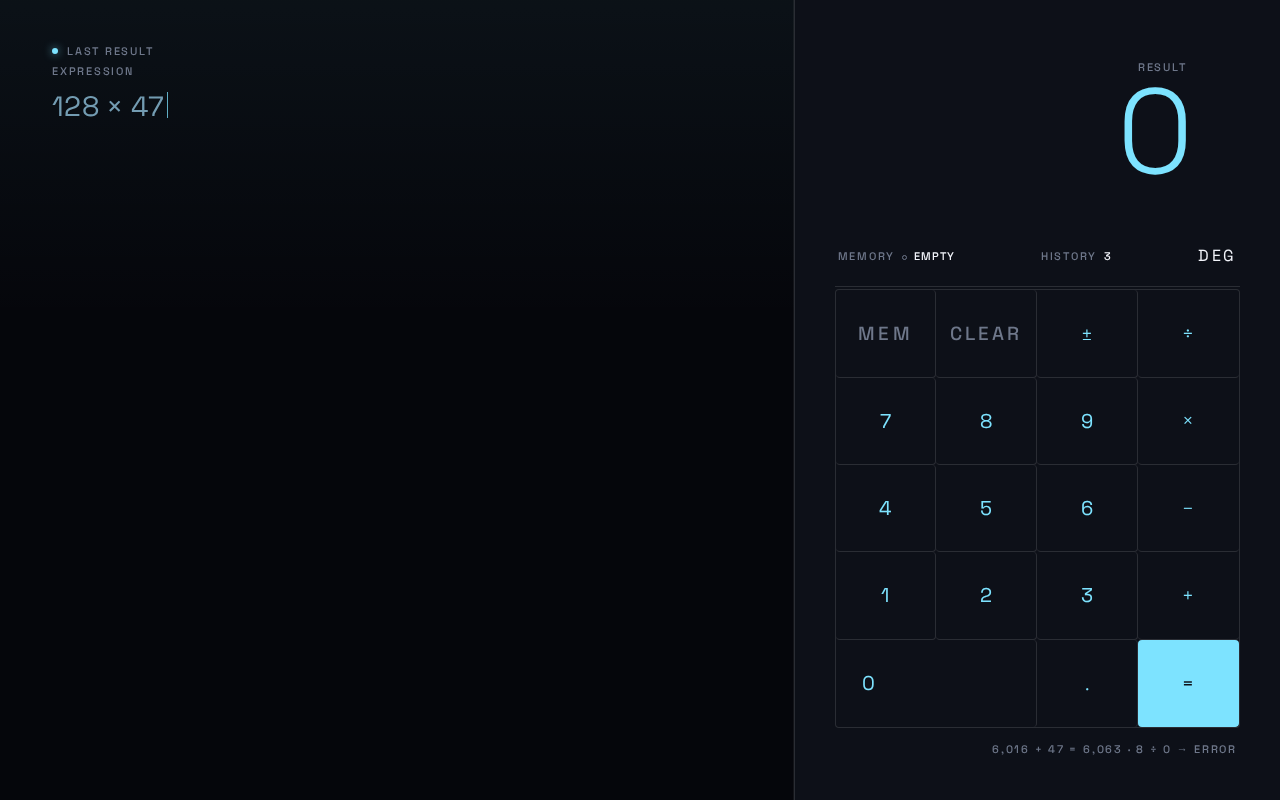
last result
128 × 47
last result
128 × 47
No comments yet. Be the first!