clever-calculator
 Diya Trivedi
start a project to build a simple single page design of calculator

Comments (0)
Sign in to leave a comment
System Requirements
System Requirements Document for clever-calculator
1. Introduction
clever-calculator is a simple calculator delivered as a single-page design. Its product intent is narrow and complete: a person opens one page, enters numbers and operators, sees the computed result, and can clear the entry to start a new calculation. There is no onboarding, no marketing surface, and no second destination — the calculator is the page.
The audience is anyone who needs quick arithmetic: a single human role, the Calculator User, who wants honest, instantly responsive controls rather than a web form. The design intent is a well-made instrument — calm, tactile, precise — in the spirit of Dieter Rams: strict grid, aligned label/value pairs, muted warm surfaces, and one signal colour marking the operation keys.
2. System Overview
clever-calculator is a single-page, anonymous, client-side calculator. The entire product is one destination, Calculator, which is publicly reachable with no account, no sign-in, and no stored identity. All arithmetic entry, operator selection, result display, and clearing happen on that page.
Actors
- Calculator User (human, active): opens the Calculator page, enters numbers and operators, reads the result, and clears to start over.
- No other human personas exist. No system, provider, or external actor participates in the accepted behavior; arithmetic is performed within the page itself.
Accepted behavior
- A simple calculator: entering numbers and operators, seeing the computed result, and clearing the entry to start a new calculation.
- Delivered as a single page with a simple design.
Ownership
- The Calculator page is application-owned custom UI, anonymously accessible (
access_requirement: none). There is no application identity, no session continuity requirement, and no differentiated permissions — every visitor sees the same calculator.
Exclusions
- No additional pages, routes, or navigable destinations.
- No account creation, sign-in, profiles, or saved state across visits.
- No scientific, programmer, or unit-conversion modes; no graphing; no history persistence beyond the on-page display of recent entries described in the design direction.
- No backend service, API, or database is required for the accepted behavior.
Removed from scope
- None. No concept was removed by the user; the request is a single additive commitment.
2a. Product Interpretation and Delivery Boundary
The user asked for a simple single-page calculator design. That is the whole current product: one anonymously reachable page that is immediately usable, with no gate, no account, and no surrounding application shell. The calculator is the hero — it is already usable on first paint.
Delivery is first-party custom UI owned by the application, rendered entirely in the browser. Because no accepted behavior requires durable actor-specific state, commitments, entitlements, or value transfer, no application-owned identity is introduced. Nothing is deferred to a provider or external destination, and nothing is planned for a future horizon beyond the current single page.
2c. Page Content and Component Coverage
Calculator
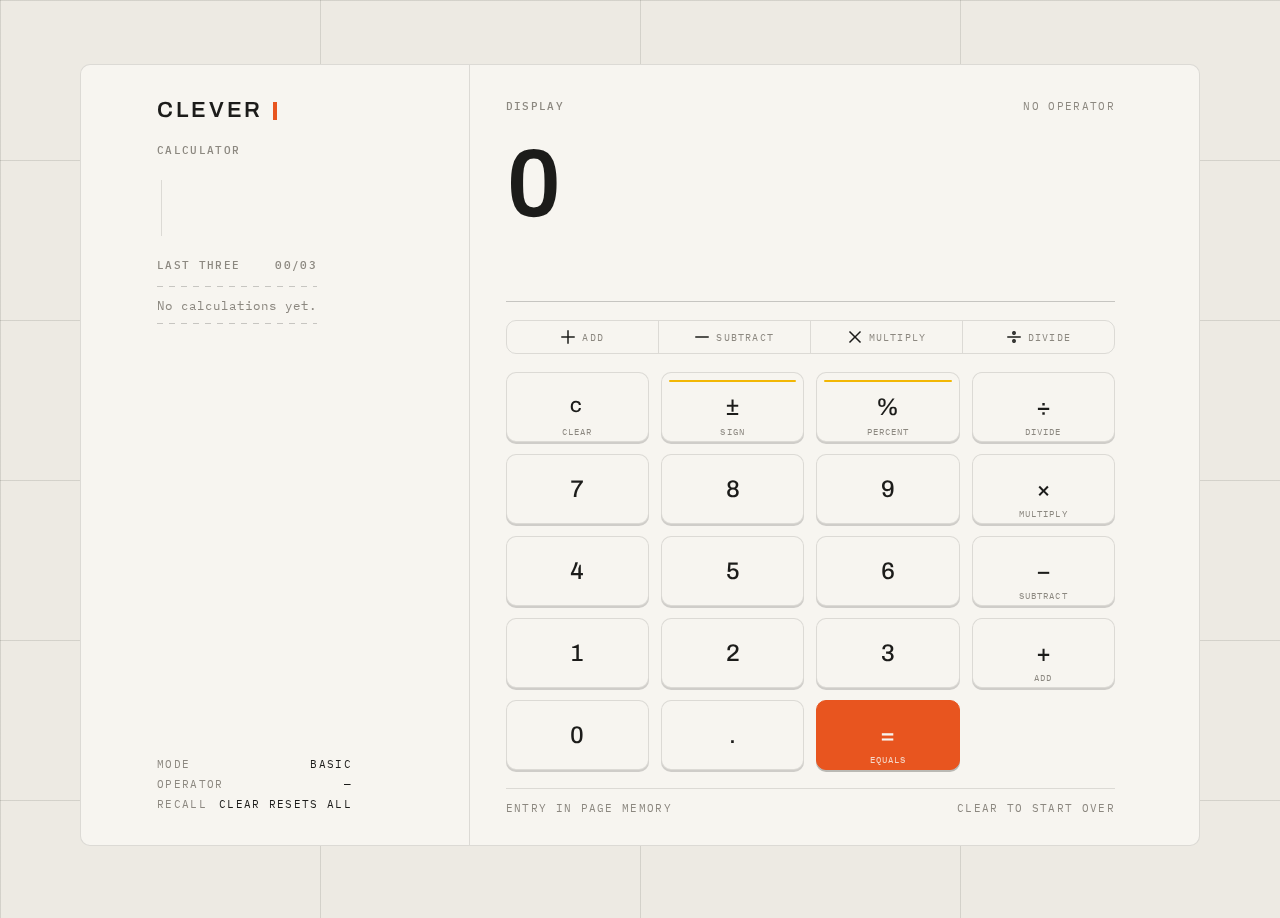
The single page of the product. Anonymous public entry; no identity, no gating. Everything below lives inside one bounded card on a warm off-white field.
Information and state
- Current display value: the number being entered or the computed result, rendered in oversized tabular Archivo figures, flush-left above the keypad, with a hairline rule beneath separating display from keys.
- Active operator state: the currently selected operator key is marked in Braun orange; all other operator keys rest in cream.
- Entry-in-progress state: digits accumulate into the display as the user types or taps.
- Result state: after equals, the display shows the computed result.
- Cleared state: after clear, the display returns to its starting value and no operator is active.
- Recent-entry history: the last three calculations, shown in IBM Plex Mono in the left rail as an instrument readout.
- Wordmark and label: "CLEVER" in small caps at the top of the left rail, with a small-caps "CALCULATOR" label.
Primary actions
- Digit keys (0–9) and decimal point: append to the current entry.
- Operator keys (+, −, ×, ÷): select the operation; the selected operator is marked in orange.
- Equals key: computes and displays the result. This is the single saturated element on the screen (Braun orange).
- Clear key: resets the entry so the user can start a new calculation (amber-marked secondary function key).
Supporting actions and controls
- Sign toggle and percent keys as amber-marked secondary function keys, consistent with the keypad's function-key group.
- Operator pictogram row: thin-stroke line art of the four operators above the keypad, diagrammatic only.
Domain entities
- Entry (the digits and decimal currently being composed).
- Operator (one of +, −, ×, ÷, with a selected/unselected state).
- Result (the computed value shown in the display).
- History entry (a completed calculation recorded for the last-three readout).
Component responsibilities
- Display: renders the current value at 40px mobile → 96px desktop, tabular figures, flush-left; flips value instantly with no easing theatrics.
- Keypad panel: 4×5 grid of flat rounded-rectangle keys (10px radius, 2px bottom edge shadow), each key depressing 1px on press over a 90ms linear transition; no gradients, no hover-lift.
- Left rail: wordmark, hairline vertical rule, small-caps label, and monospace last-three history; stacks above the keypad at 768px and collapses into the single mobile column at 375px.
- Operator pictogram row: thin-stroke line art above the keypad.
- Ruled grid: faint ruled lines marking section divisions.
States
- Loading: none required — the page is static markup and script; the keypad fades in as a single block over 200ms on load.
- Empty: the display shows its starting value with no operator active and an empty history readout.
- Success: the result appears in the display immediately on equals; the completed calculation is added to the last-three history.
- Error: division by zero or an otherwise undefined result is shown truthfully in the display rather than silently producing a number; the user recovers by pressing clear and starting a new calculation.
- Recovery: clear always returns the page to the empty state; no state is persisted, so a reload also returns to the empty state.
3. Functional Requirements
FR-1 — Open the calculator As a Calculator User, I should open the single Calculator page and immediately see a usable calculator, so that I can begin arithmetic without any setup.
- Provenance: explicit (single-page calculator design).
- Trigger: navigating to the page.
- Observable result: the page renders the display, keypad, wordmark, and history rail; the keypad fades in as one block over 200ms.
- Access: anonymous, no identity required.
- Failure/recovery: none applicable; the page is static and client-side.
- Continuation: the user proceeds to enter a number.
FR-2 — Enter numbers As a Calculator User, I should enter digits and a decimal point into the display, so that I can compose the number I want to calculate with.
- Provenance: explicit (entering numbers).
- Trigger: pressing digit keys or the decimal key.
- Observable result: digits accumulate in the oversized tabular display, flush-left above the keypad.
- Access: anonymous.
- Failure/recovery: clear resets the entry.
- Continuation: the user selects an operator.
FR-3 — Select an operator As a Calculator User, I should select an operator (+, −, ×, ÷), so that I can specify the operation to perform.
- Provenance: explicit (entering operators).
- Trigger: pressing an operator key.
- Observable result: the selected operator key is marked in Braun orange; the other operator keys remain cream.
- Access: anonymous.
- Failure/recovery: selecting a different operator replaces the active selection.
- Continuation: the user enters the second number and presses equals.
FR-4 — See the computed result As a Calculator User, I should press equals and see the computed result in the display, so that I get the answer to my calculation.
- Provenance: explicit (seeing the result).
- Trigger: pressing the equals key after entering numbers and an operator.
- Observable result: the display shows the computed result in oversized tabular figures; the equals key is the single saturated element on the screen.
- Access: anonymous.
- Failure/recovery: an undefined result (for example division by zero) is shown truthfully in the display; the user recovers by clearing.
- Continuation: the user may continue calculating from the result or clear to start over.
FR-5 — Clear to start over As a Calculator User, I should clear the entry, so that I can start a new calculation from a clean state.
- Provenance: explicit (clearing to start over).
- Trigger: pressing the clear key (amber-marked secondary function key).
- Observable result: the display returns to its starting value and no operator is active.
- Access: anonymous.
- Failure/recovery: not applicable; clear always succeeds.
- Continuation: the user enters a new number.
FR-6 — Review recent calculations As a Calculator User, I should see the last three calculations in the left rail, so that I can glance back at what I just computed like an instrument readout.
- Provenance: required_inference (the design direction's last-three history readout, made usable as an observable result of completed calculations).
- Trigger: completing a calculation with equals.
- Observable result: the completed calculation appears in the monospace last-three history in the left rail; older entries fall off once three are shown.
- Access: anonymous; history is in-page only and not persisted across reloads.
- Failure/recovery: a reload returns the readout to empty.
- Continuation: the user continues calculating.
FR-7 — Use secondary function keys As a Calculator User, I should use the sign toggle and percent keys, so that I can adjust the current entry without retyping it.
- Provenance: required_inference (the design direction's amber-marked secondary function keys, made usable).
- Trigger: pressing the sign or percent key.
- Observable result: the current entry is negated or converted to a percentage, shown in the display.
- Access: anonymous.
- Failure/recovery: clear resets the entry.
- Continuation: the user proceeds with the operator or equals.
4. User Personas
Calculator User
Product context. A person who needs quick arithmetic and opens clever-calculator directly. They arrive with a number in mind, not a task list. The page is the whole product: there is no account, no dashboard, and no surrounding application. The emotional register the product aims for is calm trust and tactile precision — a well-made object picked up, not a web form.
Primary goal. Get an arithmetic answer quickly and start over cleanly for the next one.
Distinct accepted responsibilities.
- Enters numbers and a decimal point into the display.
- Selects an operator, seeing the active operator marked in orange.
- Presses equals to see the computed result.
- Clears the entry to start a new calculation.
- Glances at the last-three history readout in the left rail.
- Uses the sign and percent secondary function keys to adjust an entry.
Relevant inputs and decisions. Which digits to enter, which operator applies, when to press equals, and when to clear. The user decides when a calculation is finished and when to begin the next.
Interactions with other participants. None. The Calculator User is the only human actor; arithmetic is performed within the page and no other participant is affected by the outcome.
Observable success. The result appears instantly in the oversized display on equals; the selected operator is visibly marked; clear returns the page to a clean starting state; the last three calculations read back in monospace in the rail.
What makes this role distinct. The role is defined by direct, uninterrupted manipulation of a single instrument — every action is a key press with immediate mechanical feedback, and there is no collaboration, no saved state, and no permission boundary to navigate.
5. Core User Flows
Flow 1 — Perform a calculation
- The Calculator User navigates to the Calculator page. The page renders on a warm off-white field: the cream calculator card on the right, the left rail with the "CLEVER" wordmark, hairline rule, "CALCULATOR" label, and empty history readout. The keypad fades in as a single block over 200ms.
- The user presses digit keys; the digits accumulate in the oversized tabular display, flush-left above the keypad.
- The user presses an operator key (+, −, ×, ÷). That key is marked in Braun orange; the others remain cream.
- The user enters the second number; it appears in the display.
- The user presses the equals key — the single saturated element on the screen. The computed result appears immediately in the display with no easing theatrics.
- The completed calculation is added to the last-three history in the left rail in IBM Plex Mono.
- Continuation: the user may continue calculating from the result, or press clear to start over.
Failure/recovery: if the calculation is undefined (for example division by zero), the display shows that truthfully rather than a silent number; the user presses clear and starts a new calculation.
Flow 2 — Clear and start over
- From any state on the Calculator page, the user presses the amber-marked clear key.
- The display returns to its starting value and no operator is active.
- The user enters a new number and proceeds as in Flow 1.
Failure/recovery: not applicable; clear always succeeds. A page reload also returns the page to the empty state, since nothing is persisted.
Flow 3 — Adjust an entry with secondary function keys
- With a number in the display, the user presses the amber-marked sign toggle or percent key.
- The display updates instantly to the negated or percentage value.
- The user proceeds with an operator or equals as in Flow 1.
Failure/recovery: clear resets the entry if the adjustment was unintended.
Flow 4 — Glance at recent calculations
- After completing a calculation, the user looks at the left rail.
- The last three completed calculations are shown in monospace as an instrument readout; older entries fall off once three are shown.
- The user continues calculating.
Failure/recovery: a reload returns the readout to empty; nothing is persisted.
6. Visuals Colors and Theme
Muse and headline. Dieter Rams — Less, but better: a calculator as a Braun instrument.
Mode. Light only.
Colour tokens (exact hex, by role)
| Role | Hex | Use |
|---|---|---|
| Background | #EDEAE3 | Warm off-white page field |
| Surface | #F7F5F0 | Cream calculator card and key faces |
| Text | #1C1C1A | Near-black type, display figures, hairline rules at 12% opacity |
| Primary | #E8551F | Braun orange — equals key and active operator only |
| Accent | #F2B705 | Amber — secondary function keys (clear, sign, percent) |
| Muted | #8C8880 | Labels and small caps |
Colour proportion: ~85% warm neutrals, ~12% orange/amber signals, ~3% black rules. No blue anywhere.
Typography
- Headings and display: Archivo, medium/semibold, tight tracking (−0.02em), sentence case for the page wordmark; the display number uses Archivo at large weight with tabular figures.
- Body and history: IBM Plex Mono.
- Labels and key captions: small caps with wide 0.12em tracking.
- Scale (1.333 modular): display 64–96px desktop, 40px mobile; section heading 28/22/18px; label 12/11px small caps; body 16px; key glyphs 24/20px. Numbers tabular throughout.
Shape language. Rounded-rectangle controls with a consistent 10px radius; hairline 1px dividers (#1C1C1A at 12% opacity); strict modular grid; aligned label/value pairs. Keys are flat with a 2px bottom edge shadow for physical depth — no gradients, no blobs.
Spacing rhythm. Modular grid with aligned label/value pairs; 12px gutters in the mobile 4-column keypad; everything inside one bounded card, no full-bleed sections.
Imagery style. Diagrammatic only: a small pictogram row of the four operators above the keypad rendered as thin-stroke line art, and a faint ruled grid marking section divisions. No photography, no illustration, no 3D.
Layout. Centred two-column composition at 1280px: narrow left rail (wordmark, small-caps "CALCULATOR" label, last-three history in monospace) and a right-hand 4×5 keypad panel on the cream surface. At 768px the rail stacks above the keypad; at 375px it collapses to a single column with the display at top and the keypad filling the width in a 4-column grid with 12px gutters.
Readability constraint. Headlines, wordmarks, labels, numbers, card text, and controls stay entirely inside the viewport and their container at 375px, 768px, and 1280px, wrapping or scaling (for example font-size: clamp(...) with its mobile size) to fit; no other element covers any part of them.
7. Signature Design Concept
The first screen is the instrument itself, not a marketing hero. A full-width warm off-white field (#EDEAE3) holds a single cream calculator card (#F7F5F0) occupying the right two-thirds. Its oversized Archivo display number — 64–96px desktop, 40px mobile, tabular, flush-left — sits above the keypad as the dominant element, with a hairline rule beneath it separating display from keys.
To the left, a narrow vertical rail carries the wordmark "CLEVER" in small caps, a hairline vertical rule, and the last-three history in IBM Plex Mono, reading like an instrument readout. Above the keypad, a thin-stroke pictogram row of the four operators.
A single Braun-orange equals key (#E8551F) anchors the bottom-right of the keypad — the only saturated element on the screen. All other keys are warm cream; the clear, sign, and percent keys are amber-marked (#F2B705). Keys are flat rounded rectangles with a 2px bottom edge shadow that compresses on press — physical, not glowing.
There is no centred headline, no subtext button, no gradient. The calculator is the hero and it is already usable.
8. Interaction Model & Motion Direction
Interaction Model: Animated Motion Tempo: restrained Hero Dimensionality: flat
Landing Hero Motion Brief
- Focal subject: the calculator card itself — the oversized tabular display number above the keypad, with the Braun-orange equals key as the single saturated anchor.
- Input → transformation → outcome thesis: a key press depresses the key 1px (90ms linear) → the display value flips instantly with no easing theatrics and the active operator swaps colour immediately → the user sees the new entry or computed result. The motion is the feedback of a physical instrument, never decoration.
- Motion vocabulary: instant, mechanical feedback; 1px key depression over 90ms linear; immediate display flip; immediate operator colour swap; one purposeful reveal on load — the keypad fades in as a single block over 200ms. No bounce, no particles, no hover-lift.
- Composed first frame: warm off-white field, cream card on the right two-thirds, oversized Archivo display flush-left above a hairline rule, operator pictogram row above the keypad, left rail with wordmark, vertical rule, and empty monospace history, orange equals key at bottom-right.
- Reduced-motion state: with
prefers-reduced-motion, the keypad appears without the 200ms fade and key presses register without the 1px depression transition; the display and operator state still update instantly, and the page remains fully usable.
9. Non-Functional Requirements
- Single page (explicit). The design must be a single page. No additional routes, destinations, or navigable surfaces exist.
- Simplicity (explicit). The design must be simple: no onboarding, no marketing surface, no modes, no settings.
- Anonymous access (explicit via planning scope). The Calculator page is publicly reachable with
access_requirement: none; no account, sign-in, or identity is introduced. - No persistence (required_inference). Because no durable actor-specific state is accepted, nothing is stored across reloads; the history readout is in-page only.
- Readability at every viewport (explicit design constraint). Readable text and controls stay whole and uncovered at 375px, 768px, and 1280px.
- Accessible motion (explicit design constraint). A usable static arrangement is provided under
prefers-reduced-motion. - No blue (explicit design constraint). No blue or indigo appears anywhere in the palette.
10. Tech Stack
- React for the single-page calculator UI, with the display, keypad, left rail, and history as components.
- Client-side arithmetic within the page; no backend service, API, or database is required for the accepted behavior.
- CSS with
clamp()for the responsive type scale andprefers-reduced-motionmedia query for the reduced-motion state. - Fonts: Archivo (headings and display) and IBM Plex Mono (body and history), loaded as web fonts.
- No Docker, Kubernetes, or additional services are needed for this single static page.
11. Assumptions and Constraints
- Assumption (narrow): arithmetic is performed in the browser; no server round-trip is needed for any accepted behavior.
- Assumption (narrow): the last-three history readout is in-page only and resets on reload, since no persistence was accepted.
- Constraint (explicit): exactly one page, named Calculator.
- Constraint (explicit): the design must be simple.
- Constraint (explicit): the palette, fonts, surfaces, tone, and layout of the creative direction are preserved; the generic indigo/blue-on-white SaaS template is forbidden.
- Constraint (explicit): no blue anywhere in the palette.
- Constraint (explicit): readable text and controls stay whole and uncovered at 375px, 768px, and 1280px.
12. Glossary
- Calculator User — the single human persona; a person who opens the Calculator page to perform arithmetic.
- Calculator page — the single, anonymously reachable destination that is the entire product.
- Display — the oversized tabular Archivo number showing the current entry or computed result.
- Keypad — the 4×5 grid of flat rounded-rectangle keys.
- Operator — one of +, −, ×, ÷; the active operator is marked in Braun orange.
- Equals key — the Braun-orange key that computes and displays the result; the single saturated element on the screen.
- Clear key — the amber-marked secondary function key that resets the entry.
- History readout — the monospace last-three calculations shown in the left rail.
- Left rail — the narrow column carrying the wordmark, hairline rule, label, and history readout.
No comments yet. Be the first!