category-tag
 Ankit Kapadiya
Create e to do app with category tag


Comments (0)
Sign in to leave a comment
System Requirements
System Requirements Document for category-tag
1. Introduction
category-tag is a personal to-do application that lets an individual capture tasks and organize them with category tags. The product intent is a warm, encouraging daily companion for task-keeping: a person writes down what they need to do, labels each item with a category tag, and then views their list — grouped or filtered by category — to decide what to work on next.
The audience is the individual task-keeper: a single person who owns their own list, works alone in the app, and wants organizing their day to feel approachable rather than clinical. The product is not an enterprise project-management tool, and it does not coordinate teams, assign work to others, or track shared project state.
The defining capability is the pairing of a to-do item with a category tag. A task is not just a line of text; it carries a category that can be assigned when the task is created or changed afterward, and that category is visible on the task and usable to narrow the list.
2. System Overview
category-tag is delivered as a first-party web application with its own custom interface and its own application-owned identity. A visitor arrives at a public Landing page that explains the to-do application and its categorized task-list outcome. From there the person establishes identity through Sign Up, or returns through Login to resume their durable list. Once identified, the person works in Tasks, the revisitable list of to-do items shown together with their category tags, and in Task Details, the focused workspace where a to-do item is created and where its category tag is assigned or changed.
The single accepted human actor is the Task Owner. There are no other human participants: no collaborators, assignees, reviewers, or administrators. The application itself is the only system actor, and it owns persistence of the Task Owner's tasks and category tags.
Current scope is deliberately narrow: create to-do items, assign and change category tags on those items, and view the list of tasks together with their category tags, including narrowing that list by category. Nothing beyond that is in scope for this generation.
2a. Product Interpretation and Delivery Boundary
The product is a single-person task list with categories. Everything the Task Owner does happens inside this application's own interface, and the durable state — the tasks and the category tags attached to them — belongs to the application and to the Task Owner who created it.
Access is application-owned. Because the Task Owner's to-do items are durable and must be resumable across visits, the application establishes identity itself: a first-time visitor enrolls through self-service Sign Up, and a returning Task Owner verifies through Login. The Landing page, Sign Up, and Login are reachable before identity is established; Tasks and Task Details require the Task Owner to be signed in, because they expose and modify that person's own durable list. Identity here exists only to keep one person's list private and resumable — it does not create roles, tiers, or differentiated visibility, because no accepted behavior distinguishes one Task Owner's control over shared state from another's.
The current delivery horizon covers the to-do application, category tags on to-do items, and the identity needed to keep a personal list durable. Anything outside that — sharing, collaboration, reminders, scheduling, or reporting — is not part of this generation and is not implied by the presence of tasks or categories.
2c. Page Content and Component Coverage
Landing
- Information and state: Anonymous public entry. Explains what category-tag is — a to-do application where tasks carry category tags — and what the visitor ends up with: a maintained, categorized task list. Presents the product's warm, encouraging voice. No personal task data is shown, because none exists for an anonymous visitor.
- Primary action: Proceed to Sign Up to start a categorized task list.
- Supporting actions: Proceed to Login for a returning Task Owner who already has a list.
- Domain entities: None persisted. The page describes the to-do item and category tag concepts only.
- Component responsibilities:
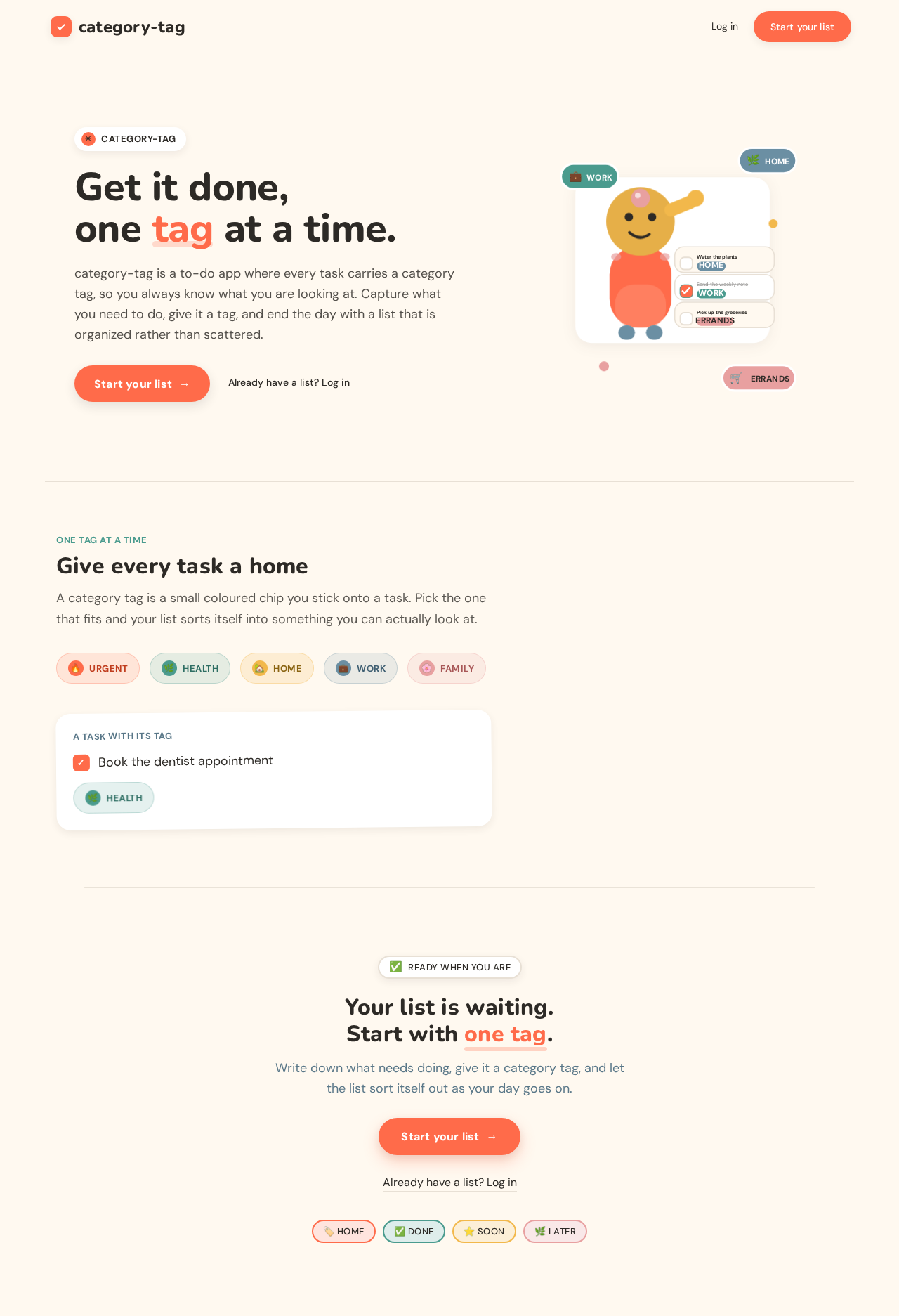
- Hero composition: oversized headline stating the categorized task-list promise, with a coral pill call-to-action beneath it.
- Illustration: a rounded character happily checking off a task list, with floating tag chips in teal, mustard, and soft pink orbiting around them.
- Category-tag preview: pill chips with small icons or emoji, showing what a category tag looks like on a task.
- Entry controls: the sign-up call to action and the returning-login link.
- States:
- Loading: static content; no data fetch is required to render the page.
- Empty: not applicable — the page has no collection.
- Success: the visitor understands the product and chooses an entry path.
- Error: if the visitor follows an entry path and the destination is unavailable, the entry control reports the failure and remains available to retry.
- Recovery: the visitor can remain on Landing and retry the entry action.
Sign Up
- Information and state: Anonymous identity-establishment surface. Collects the credentials needed to create the Task Owner's own account so their categorized task list can be durable and private. States plainly that the account exists to keep the person's own tasks.
- Primary action: Submit enrollment to create the account and begin a categorized task list.
- Supporting actions: Move to Login if the person already has an account; return to Landing.
- Domain entities: Task Owner account (identity only — no task or category data is created here).
- Component responsibilities:
- Enrollment form: the credential fields required to establish identity.
- Validation feedback: inline messages for missing or malformed input and for an identity that already exists.
- Submit control: the coral primary action.
- Alternate-path link: the route to Login.
- States:
- Loading: the submit control shows progress while enrollment is processed and prevents duplicate submission.
- Empty: the form renders with empty fields and no error text.
- Success: the account is created and the Task Owner is taken into Tasks with an empty list.
- Error: invalid or incomplete input, or an identity that already exists, is reported inline without losing what the person typed.
- Recovery: the person corrects the reported field and resubmits, or follows the link to Login if the account already exists.
Login
- Information and state: Anonymous returning-verification surface. Verifies the Task Owner so their existing durable categorized task list can be resumed.
- Primary action: Submit verification to resume the Task Owner's list.
- Supporting actions: Move to Sign Up if the person has no account yet; return to Landing.
- Domain entities: Task Owner account (identity only).
- Component responsibilities:
- Verification form: the credential fields required to verify the returning Task Owner.
- Validation feedback: inline messages for missing input and for credentials that do not verify.
- Submit control: the coral primary action.
- Alternate-path link: the route to Sign Up.
- States:
- Loading: the submit control shows progress while verification is processed and prevents duplicate submission.
- Empty: the form renders with empty fields and no error text.
- Success: the Task Owner is verified and taken into Tasks, where their existing tasks and category tags are shown.
- Error: credentials that do not verify are reported inline without revealing which part was wrong, and without clearing the entered values.
- Recovery: the person retries with corrected credentials, or follows the link to Sign Up.
Tasks
- Information and state: The Task Owner's revisitable list of to-do items, each shown together with its category tag. This is the authoritative view of the person's current categorized list. Requires the Task Owner to be signed in.
- Primary action: Add a new to-do item from the always-visible task input at the top of the list.
- Supporting actions: Open a task to work on it in Task Details; narrow the list by category tag using the category sidebar; clear an active category filter to return to the full list.
- Domain entities: To-do item (its text and its completion state), category tag (its label, its colour, and its small icon or emoji), and the assignment of a category tag to a to-do item.
- Component responsibilities:
- Task input: styled as a friendly prompt with a rounded character avatar beside it rather than a plain form field; always visible at the top of the list.
- Task list: single-column on mobile, two-column on desktop; each entry is a white card with a 20px border-radius and a soft warm offset shadow, carrying its category tag as a coloured pill chip.
- Category sidebar: persistent on the left at desktop widths; lists the Task Owner's category tags and filters the task list when one is chosen.
- Category tag chip: coloured pill with a small custom icon or emoji, bouncing slightly when assigned to a task.
- Checkbox: oversized (24px) with a 6px radius; when checked it animates with a springy scale-down-then-up motion and a coral fill.
- Empty state: a custom vector illustration of a character relaxing or organizing, with a speech bubble carrying an encouraging line.
- States:
- Loading: the list area shows a loading treatment while the Task Owner's tasks and category tags are retrieved.
- Empty: when the Task Owner has no tasks, the list area shows the illustrated empty state with its encouraging speech bubble, and the task input remains available.
- Success: the list renders each task with its category tag; a newly added task appears in the list with its tag chip popping in; a completed task shows the coral-filled checkbox and the completed treatment.
- Error: if the list cannot be retrieved, the page reports the failure and offers a retry rather than showing an empty list as if it were real.
- Recovery: retry reloads the list; if a filter is active and yields no matching tasks, the page shows the empty state for that filter and offers to clear the filter.
Task Details
- Information and state: The focused workspace for a single to-do item. Shows the item's text, its completion state, and its current category tag, and is where the category tag is assigned or changed. Requires the Task Owner to be signed in.
- Primary action: Save the to-do item — creating it when it is new, or applying edits to its text, completion state, and category tag when it already exists.
- Supporting actions: Assign a category tag to the item; change the item's category tag to a different one; remove the item's category tag; return to Tasks.
- Domain entities: To-do item (text and completion state), category tag (label, colour, small icon or emoji), and the assignment linking the two.
- Component responsibilities:
- Task text field: the item's description.
- Completion control: the oversized rounded checkbox with the springy coral check animation.
- Category tag selector: the control that assigns, changes, or removes the item's category tag, presented with the same coloured pill chips used on the task list.
- Save control: the coral primary action.
- Return control: the route back to Tasks.
- States:
- Loading: when opening an existing task, the workspace shows a loading treatment while the item and its category tag are retrieved.
- Empty: when creating a new task, the fields render empty with no category tag assigned, and the category selector shows the available tags to choose from.
- Success: the item is saved with its category tag, and the Task Owner returns to Tasks where the item appears with its tag chip.
- Error: if the item cannot be saved, the workspace reports the failure and keeps the entered text and selected tag so nothing is lost; if the item cannot be retrieved, the workspace reports the failure and offers a retry.
- Recovery: the Task Owner retries the save with the preserved values, or retries the retrieval; a failed save never silently discards the item's text or its category tag.
3. Functional Requirements
FR-1 — Capture a to-do item (explicit) As a Task Owner, I should be able to add a to-do item so that I have a record of something I need to do.
- Trigger/input: The Task Owner enters the item's text in the always-visible task input at the top of Tasks.
- Observable result: The new to-do item appears in the Task Owner's list.
- Access state: Requires the Task Owner to be signed in.
- Failure/recovery: If the item cannot be saved, the failure is reported and the entered text is preserved so the Task Owner can retry.
- Continuation: The Task Owner can immediately add another item, or open the new item in Task Details to give it a category tag.
FR-2 — Assign a category tag to a to-do item (explicit) As a Task Owner, I should be able to assign a category tag to a to-do item so that my tasks are organized by category.
- Trigger/input: The Task Owner selects a category tag for the item in Task Details.
- Observable result: The item carries the selected category tag, shown as a coloured pill chip on the item in Tasks and in the item's workspace in Task Details.
- Access state: Requires the Task Owner to be signed in.
- Failure/recovery: If the assignment cannot be saved, the failure is reported and the selected tag is preserved so the Task Owner can retry.
- Continuation: The Task Owner returns to Tasks, where the item now appears with its tag chip.
FR-3 — Change or remove a to-do item's category tag (explicit) As a Task Owner, I should be able to change or remove the category tag on a to-do item so that my organization stays accurate as my plans change.
- Trigger/input: The Task Owner selects a different category tag, or removes the current one, in Task Details.
- Observable result: The item shows the newly selected category tag, or shows no category tag after removal.
- Access state: Requires the Task Owner to be signed in.
- Failure/recovery: If the change cannot be saved, the failure is reported and the previous tag state is preserved so the Task Owner can retry.
- Continuation: The Task Owner returns to Tasks, where the item reflects the change.
FR-4 — View the task list with category tags (explicit) As a Task Owner, I should be able to view my to-do items together with their category tags so that I can see my categorized list at a glance.
- Trigger/input: The Task Owner opens Tasks.
- Observable result: The Task Owner's to-do items are listed, each showing its category tag as a coloured pill chip.
- Access state: Requires the Task Owner to be signed in; the list shows only that Task Owner's own items.
- Failure/recovery: If the list cannot be retrieved, the failure is reported with a retry rather than an empty list being shown as if it were real.
- Continuation: The Task Owner can open any item in Task Details, add a new item, or narrow the list by category.
FR-5 — Narrow the task list by category tag (explicit) As a Task Owner, I should be able to narrow my list by category tag so that I can decide what to work on next.
- Trigger/input: The Task Owner selects a category tag in the category sidebar on Tasks.
- Observable result: The list shows only the items carrying that category tag; clearing the selection restores the full list.
- Access state: Requires the Task Owner to be signed in.
- Failure/recovery: If no items carry the selected tag, the page shows the empty state for that filter and offers to clear the filter.
- Continuation: The Task Owner clears the filter to return to the full list, or opens a matching item in Task Details.
FR-6 — Mark a to-do item complete (explicit) As a Task Owner, I should be able to mark a to-do item complete so that I can see what I have finished.
- Trigger/input: The Task Owner checks the item's oversized rounded checkbox on Tasks or in Task Details.
- Observable result: The checkbox fills coral with a springy scale-down-then-up animation, and the item shows its completed treatment.
- Access state: Requires the Task Owner to be signed in.
- Failure/recovery: If the completion state cannot be saved, the failure is reported and the item's previous state is restored so the Task Owner can retry.
- Continuation: The Task Owner continues working through the list, or unchecks the item to return it to incomplete.
FR-7 — Self-service enrollment (required_inference) As a Task Owner, I should be able to create my own account so that my categorized task list is durable and private to me.
- Trigger/input: An anonymous visitor chooses to start from Landing and submits the enrollment form on Sign Up.
- Observable result: The Task Owner's account is created and the Task Owner is taken into Tasks with an empty list.
- Access state: Anonymous entry; no identity is required to reach Sign Up.
- Failure/recovery: Invalid or incomplete input, or an identity that already exists, is reported inline without losing what the person typed; the person corrects it and resubmits, or follows the link to Login.
- Continuation: The Task Owner adds their first to-do item and assigns it a category tag.
FR-8 — Returning verification (required_inference) As a Task Owner, I should be able to verify myself when I return so that I can resume my existing categorized task list.
- Trigger/input: A returning Task Owner submits the verification form on Login.
- Observable result: The Task Owner is verified and taken into Tasks, where their existing tasks and category tags are shown.
- Access state: Anonymous entry; no identity is required to reach Login.
- Failure/recovery: Credentials that do not verify are reported inline without revealing which part was wrong and without clearing the entered values; the person retries or follows the link to Sign Up.
- Continuation: The Task Owner resumes working on their list.
FR-9 — Understand the product before committing (required_inference) As a Task Owner, I should be able to understand what the application does before I create an account so that I can decide whether to start.
- Trigger/input: An anonymous visitor opens Landing.
- Observable result: The visitor sees the to-do application explained, including that tasks carry category tags and that the outcome is a maintained, categorized task list.
- Access state: Anonymous; no identity required.
- Failure/recovery: If an entry destination is unavailable, the entry control reports the failure and remains available to retry.
- Continuation: The visitor proceeds to Sign Up, or to Login if they already have a list.
4. User Personas
Task Owner
Product context. The Task Owner is an individual keeping their own personal to-do list. They are the only human actor in category-tag: they are not part of a team inside the product, they do not assign work to anyone else, and no one else sees or acts on their list. Their relationship with the product is personal and daily — they open it to write down what they need to do and to see what is left.
Primary goal. To maintain a categorized task list they can act on: a list where every to-do item is labeled with a category tag, so that they can look at it and decide what to work on next.
Distinct accepted responsibilities.
- Capturing to-do items as they come up, using the always-visible task input at the top of the list.
- Assigning a category tag to each to-do item, and changing or removing that tag when their plans change.
- Viewing their to-do items together with their category tags as a single list.
- Narrowing that list by category tag to focus on one kind of work at a time.
- Marking items complete as they finish them.
- Establishing their own account the first time, and verifying themselves when they return, so their list stays durable and private.
Relevant inputs and decisions. The Task Owner supplies the text of each to-do item, chooses which category tag applies to it, decides when a tag should change or be removed, decides which category to filter by when narrowing the list, and decides when an item is done. Their most consequential recurring decision is the categorization itself: which tag an item belongs to, since that choice is what makes the list navigable.
Interactions with other accepted participants. There are none. The Task Owner is the sole accepted human participant; the application is the only other actor, and it stores and returns the Task Owner's own tasks and category tags. No handoff, approval, or shared state exists between people in this product.
Observable success. The Task Owner opens the app and sees their own list, each item carrying its category tag; they can add an item, tag it, filter the list down to one category, and check items off — and when they come back later, the same categorized list is still there.
Constraints carried from source. The Task Owner works alone and privately; the product is a personal productivity tool, not an enterprise project-management tool. Their list is theirs alone, which is why identity exists in this product at all.
5. Core User Flows
Flow 1 — A first-time visitor becomes a Task Owner and captures a categorized task
- The visitor opens Landing and reads what category-tag does: a to-do application where tasks carry category tags, ending in a maintained, categorized task list.
- The visitor chooses the coral call to action and arrives at Sign Up.
- On Sign Up, the visitor enters the credentials required to establish identity and submits.
- The application creates the Task Owner's account. The Task Owner is taken into Tasks, which shows the illustrated empty state with its encouraging speech bubble because no tasks exist yet.
- The Task Owner types their first to-do item into the always-visible task input at the top of the list and adds it.
- The new item appears in the list. The Task Owner opens it in Task Details.
- In Task Details, the Task Owner selects a category tag for the item. The tag chip pops in with a scale animation.
- The Task Owner saves. The item is stored with its category tag, and the Task Owner returns to Tasks, where the item now appears as a white card with its coloured tag chip.
- Failure and recovery: if enrollment fails because the identity already exists, Sign Up reports it inline and the visitor follows the link to Login instead. If the item cannot be saved, the failure is reported and the entered text is preserved for a retry.
- Continuation: the Task Owner adds further items and tags them, building out the categorized list.
Flow 2 — A returning Task Owner resumes their categorized list
- The Task Owner opens Landing and chooses the returning-login path.
- On Login, the Task Owner submits their credentials.
- The application verifies the Task Owner and takes them into Tasks, where their existing to-do items and category tags are shown.
- Failure and recovery: if the credentials do not verify, Login reports it inline without revealing which part was wrong and without clearing the entered values; the Task Owner retries, or follows the link to Sign Up if they have no account.
- Continuation: the Task Owner works through the list — adding, tagging, filtering, and completing items.
Flow 3 — The Task Owner narrows the list by category to decide what to do next
- From Tasks, the Task Owner looks at the category sidebar on the left.
- The Task Owner selects a category tag. The list narrows to only the items carrying that tag.
- The Task Owner reviews the narrowed list and decides what to work on.
- Failure and recovery: if no items carry the selected tag, the page shows the empty state for that filter and offers to clear the filter; the Task Owner clears it and the full list returns.
- Continuation: the Task Owner opens a matching item in Task Details, or clears the filter to return to the full list.
Flow 4 — The Task Owner changes a task's category tag
- From Tasks, the Task Owner opens an item in Task Details.
- The workspace loads the item's text, its completion state, and its current category tag.
- The Task Owner selects a different category tag — or removes the current one — using the same coloured pill chips used on the task list.
- The Task Owner saves. The item now shows the newly selected tag, or shows no tag after removal.
- Failure and recovery: if the change cannot be saved, the failure is reported and the previous tag state is preserved so the Task Owner can retry.
- Continuation: the Task Owner returns to Tasks, where the item reflects the change, and continues working through the list.
Flow 5 — The Task Owner completes a task
- From Tasks, the Task Owner checks the oversized rounded checkbox on an item.
- The checkbox animates with a springy scale-down-then-up motion and fills coral, and the item shows its completed treatment.
- Failure and recovery: if the completion state cannot be saved, the failure is reported and the item's previous state is restored so the Task Owner can retry.
- Continuation: the Task Owner continues through the list, or unchecks the item to return it to incomplete.
6. Visuals Colors and Theme
Muse and headline. The visual direction follows Pablo Stanley — rounded characters, sunny colour, and copy that talks directly to the person. The headline voice is warm and direct: "Get it done, one tag at a time." This is a friendly daily companion, not a clinical dashboard.
Colour tokens — light mode (authoritative):
| Role | Hex | Use |
|---|---|---|
| Background | #FFF9F0 | Cream ground across the app; keeps the space warm and inviting |
| Surface | #FFFFFF | White cards floating on soft offset shadows |
| Text | #2D2A26 | Warm near-black for all readable text |
| Primary | #FF6B4A | Primary CTAs, active states, and the most urgent category tags |
| Accent | #4A9B8E | Secondary actions, completed states, and secondary category tags |
| Muted | #E8E0D5 | Dividers, disabled states, and background fills for tag chips |
| Tag — mustard | #F2B84B | Category differentiation |
| Tag — dusty blue | #6B8FA3 | Category differentiation |
| Tag — soft pink | #E8A0A0 | Category differentiation |
Typography.
- Headings: Nunito, ExtraBold (800), set large and friendly with slightly loose tracking.
- Body: DM Sans, Regular (400), at comfortable reading sizes with generous line-height.
- Scale: 1.333 modular — 56 / 42 / 32 / 24 / 18 / 16 / 14.
- Mobile headline starts at 36px; desktop at 56px. Body text 16px mobile, 18px desktop.
- Tag labels: 13px uppercase with 0.5px tracking.
Shape language. Generous border radii — 16–24px on cards, 999px on pills and buttons. Soft offset shadows with a slight warm tint: rgba(45, 42, 38, 0.08) 0 4px 12px. Blob and sticker shapes for decorative accents and empty states. Rounded checkboxes and tag chips. Nothing sharp or angular anywhere.
Spacing rhythm. Roomy cards with 20–24px internal padding; generous vertical rhythm between list items so the list reads as a stack of sticky notes rather than a dense table.
Layout. Single-column task list on mobile, becoming a two-column layout on desktop with a persistent category sidebar on the left. The task input is always visible at the top of the list, styled as a friendly prompt rather than a form field. Category tags appear as coloured pill chips on each task card and can be filtered via the sidebar.
Imagery style. Modular vector illustrations in the Pablo Stanley style — simple rounded characters celebrating task completion, organizing, or relaxing. Empty states feature a friendly character illustration with a speech bubble. No photography. Category tags carry small custom icons (emoji or simple vector shapes) that feel hand-drawn and playful.
Explicitly avoided. Blue or indigo primary colours (no #0057FF, #007BFF, #2563EB, etc.); Inter, Roboto, Arial, Helvetica, Open Sans, Lato, Poppins, or system-ui fonts; gradient-blob heroes or glassmorphism panels; grids of identical hover-lift cards with no personality; sharp corners or hard edges; photography-heavy heroes or stock imagery; cold, clinical, or enterprise-feeling UI chrome; neutral or muted palettes with no warmth. The generic indigo/blue-on-white SaaS template is forbidden for this project.
7. Signature Design Concept
"Sticky notes you want to pick up."
The public entry is a warm, asymmetric composition on the cream ground — no gradient, just #FFF9F0 and the illustration's own colour.
- Left, 7 columns: an oversized Nunito ExtraBold headline stack in
#2D2A26reading "Get it done, one tag at a time," with a coral#FF6B4Apill CTA pinned beneath it. The headline is the loudest thing on the page and speaks directly to the visitor. - Right, 5 columns: a rounded character happily checking off a task list, with floating tag chips in teal
#4A9B8E, mustard#F2B84B, and soft pink#E8A0A0orbiting around them. The chips are the product's defining object rendered as decoration — they show what a category tag is before the visitor has one. - At 375px: the illustration stacks below the headline and the headline scales down to 40px, so the composition stays whole and nothing readable is cropped or covered.
The concept carries into the signed-in product through the same signature moves: task cards are white with a 20px border-radius and a soft warm offset shadow, so they feel like sticky notes you want to pick up rather than database rows; category tags render as coloured pill chips with a small custom icon or emoji that bounce slightly when assigned; the task input at the top of the list is a friendly prompt with a rounded character avatar beside it, not a plain form field; empty states show a custom vector character relaxing or organizing with an encouraging speech bubble; and checkboxes are oversized at 24px with a 6px radius, animating with a springy scale-down-then-up motion and a coral fill when checked.
8. Interaction Model & Motion Direction
Interaction Model: Animated Motion Tempo: expressive Hero Dimensionality: layered_2d
Landing Hero Motion Brief
- Focal subject: the rounded character happily checking off a task list, with floating category tag chips orbiting around them.
- Input → transformation → outcome thesis: as the page settles, the orbiting tag chips drift into place around the character and the character's check lands on a list item — the visitor sees a task get organized and completed, which is exactly the outcome the product delivers once they have a list of their own.
- Motion vocabulary: springy micro-interactions on a gentle spring curve (stiffness: 300, damping: 20). Tag chips pop in with a scale animation; the check animates with a springy scale-down-then-up motion and a coral fill; list items slide in from below on page load; hover states lift cards 2px with a slightly deeper shadow.
- Composed first frame: the headline stack and coral CTA are fully legible on the cream ground at rest, with the character and its tag chips composed in the right columns — the page reads completely before any motion begins.
- Reduced-motion state: with
prefers-reduced-motion, the hero renders as a static arrangement — the character, the checked list item, and the tag chips all in their final positions, with no drift, pop, or slide. Every readable element and control stays whole and inside the viewport at 375px, 768px, and 1280px.
9. Non-Functional Requirements
NFR-1 — Readable text and controls stay whole (explicit)
Headlines, wordmarks, labels, numbers, and card text and controls stay entirely inside the viewport and their container at 375px, 768px, and 1280px, wrapping or scaling (for example font-size: clamp(...) with its mobile size) to fit, and no other element covers any part of them. Imagery, decoration, and motion may be cropped, bled off an edge, rotated, overlapped, or cut as the creative direction asks, as long as they cover no readable text or control. Where the direction asks readable text or a control to be cropped, clipped, covered, or run off an edge, the text or control stays whole and the gesture is carried by imagery or decoration instead.
- Rationale: The direction's bold, oversized typography and layered illustration must not compromise legibility at any supported width.
NFR-2 — Reduced-motion usability (explicit)
With prefers-reduced-motion, the interface provides a usable static arrangement: moving and scrollable content wraps into rows or allows horizontal scrolling so each item can be brought fully into view. A scrollable row need not show every item fully at once, including in reduced-motion mode.
- Rationale: The direction's expressive, springy motion must degrade to a fully usable static experience.
NFR-3 — Personal list privacy (required_inference) The Task Owner's to-do items and category tags are retrievable only by that Task Owner. Tasks and Task Details are reachable only after identity is established; Landing, Sign Up, and Login are reachable anonymously.
- Rationale: The list is durable and personal, which is the reason identity exists in this product at all.
NFR-4 — Durable personal state (required_inference) To-do items, their completion state, their category tags, and the assignment between a task and its tag persist across sessions so a returning Task Owner resumes the same categorized list.
- Rationale: The accepted outcome is a maintained categorized task list, which requires persistence.
NFR-5 — No differentiated permissions (explicit boundary) Identity in this product establishes ownership and continuity of one person's own list only. No roles, tiers, or differentiated visibility over shared state are introduced, because no accepted behavior distinguishes one Task Owner's control from another's.
- Rationale: The accepted persona set contains a single human actor with no shared state.
NFR-6 — Warm, non-clinical presentation (explicit) The interface must not present as cold, clinical, or enterprise-feeling chrome, and must not use the forbidden palette, fonts, or template patterns listed in the visual direction.
- Rationale: The direction is authoritative for this project and explicitly forbids the generic indigo/blue-on-white SaaS template.
10. Tech Stack
- Frontend: React — a first-party custom web interface for Landing, Sign Up, Login, Tasks, and Task Details.
- Backend: Python with FastAPI — serves the application's own identity establishment and verification, and the persistence and retrieval of to-do items, category tags, and their assignments.
- Storage: A persistent datastore for Task Owner accounts, to-do items, category tags, and task-to-tag assignments, so the categorized list survives across sessions.
- Containerization: Docker with docker-compose for local development and a reproducible application runtime.
- Kubernetes: Not required by any source-backed constraint for this generation; omit unless deployment demands it.
11. Assumptions and Constraints
- A-1 (assumption) — The Task Owner is a single individual working alone; no collaboration, sharing, assignment to others, or shared project state is in scope for this generation.
- A-2 (assumption) — Category tags are the Task Owner's own labels. The product does not require a fixed, predefined taxonomy of categories; the accepted behavior is assigning, changing, and removing a category tag on a task.
- A-3 (constraint) — The page inventory is fixed: Landing, Sign Up, Login, Tasks, and Task Details. No additional pages are introduced.
- A-4 (constraint) — Landing, Sign Up, and Login are anonymously reachable; Tasks and Task Details require the Task Owner to be signed in.
- A-5 (constraint) — Identity exists solely to keep one person's categorized list durable and private. No role-based or permission-based differentiation is introduced.
- A-6 (constraint) — The visual direction is authoritative: the specified palette, Nunito and DM Sans typography, rounded shape language, warm offset shadows, and Pablo Stanley-style vector illustration are binding, and the listed avoidances are binding.
- A-7 (assumption) — The task input on Tasks is always visible at the top of the list, so capturing a task never requires navigating away from the list.
- A-8 (constraint) — No photography or stock imagery is used; all imagery is modular vector illustration.
- A-9 (assumption) — The application is delivered as a web application with a custom first-party interface; no provider-owned or external surface carries accepted behavior.
12. Glossary
- Task Owner — The single accepted human actor of category-tag: the individual who owns, maintains, and works from their own categorized to-do list.
- To-do item — A single task the Task Owner has captured, carrying its own text and completion state.
- Category tag — A label the Task Owner attaches to a to-do item to organize it; rendered as a coloured pill chip with a small icon or emoji, and usable to narrow the task list.
- Tag assignment — The link between a to-do item and its category tag; created when a tag is assigned and changed or removed when the Task Owner edits the item.
- Task list — The Task Owner's collection of to-do items shown together with their category tags on Tasks.
- Category sidebar — The persistent left-hand list of the Task Owner's category tags on Tasks at desktop widths, used to narrow the task list.
- Task input — The always-visible prompt at the top of Tasks, styled with a rounded character avatar, used to capture a new to-do item.
- Empty state — The illustrated state shown when the Task Owner has no tasks, or when an active category filter matches no tasks, featuring a character illustration with an encouraging speech bubble.
- Task Owner account — The application-owned identity that keeps the Task Owner's categorized list durable and private, established through Sign Up and verified through Login.
category-tag
Get it done,
one tag at a time.
category-tag is a to-do app where every task carries a category tag, so you always know what you are looking at. Capture what you need to do, give it a tag, and end the day with a list that is organized rather than scattered.
One tag at a time
Give every task a home
A category tag is a small coloured chip you stick onto a task. Pick the one that fits and your list sorts itself into something you can actually look at.
- Urgent
- Health
- Home
- Work
- Family
A task with its tag
Book the dentist appointment
Your list is waiting. Start with one tag.
Write down what needs doing, give it a category tag, and let the list sort itself out as your day goes on.
category-tag
Get it done,
one tag at a time.
category-tag is a to-do app where every task carries a category tag, so you always know what you are looking at. Capture what you need to do, give it a tag, and end the day with a list that is organized rather than scattered.
One tag at a time
Give every task a home
A category tag is a small coloured chip you stick onto a task. Pick the one that fits and your list sorts itself into something you can actually look at.
- Urgent
- Health
- Home
- Work
- Family
A task with its tag
Book the dentist appointment
Your list is waiting. Start with one tag.
Write down what needs doing, give it a category tag, and let the list sort itself out as your day goes on.
No comments yet. Be the first!