bronze-simple
 Diya Trivedi
start a project to build a simple single page design of calculator

Comments (0)
Sign in to leave a comment
System Requirements
System Requirements Document for bronze-simple
1. Introduction
bronze-simple is a simple calculator delivered as a single page design. The product intent is narrow and explicit: one page that lets a person perform everyday arithmetic — entering numbers and operators, reading the computed result, and clearing the display to begin again — with no other surfaces, no accounts, and no surrounding application.
The audience is anyone who needs a self-contained arithmetic tool: a single anonymous visitor who opens the page, works a calculation, and leaves. The design must remain simple; simplicity is a hard constraint, not a stylistic preference.
2. System Overview
bronze-simple is a single-page web calculator. The page is the anonymous public entry: it opens directly to a working calculator with no sign-in, no onboarding, and no navigation to any other destination. The Calculator User enters digits and operators, the display shows the current entry and the computed result, and a clear control resets the display for a new calculation.
Current delivery comprises:
- Calculator — the one and only page, owning number entry, operator selection, result display, and clearing input.
- backend — a shared FastAPI process for application APIs and domain modules. It hosts the arithmetic evaluation used by the page; it does not introduce accounts, history, or any additional product capability.
- database — MariaDB, provisioned as application-owned persistent storage. The accepted calculator behavior is stateless per session and requires no stored domain entities; the database remains provisioned infrastructure without a current data model.
- frontend — the React application that renders the single Calculator page.
The only active human actor is the Calculator User. There are no provider-owned or external destinations in the accepted scope, and no system process performs work that a human does not initiate and observe on the page.
Removed from scope
- None. No concept was explicitly removed by the user.
2a. Product Interpretation and Delivery Boundary
The user asked for a simple single page design of a calculator. That request is the whole product: one page, one artefact, arithmetic only. The page is publicly reachable and anonymous — there is no identity establishment, no session continuity requirement, and no protected state, because nothing the Calculator User does needs to be privately owned or resumed. A visitor who reloads the page simply starts with a fresh display.
Everything the Calculator User does happens on the Calculator page itself: entering digits, choosing an operator, reading the result, and clearing. The shared backend supplies arithmetic evaluation behind that page; it is an implementation detail of the same single-page experience, not a second destination. The provisioned database is available infrastructure but carries no current product responsibility, since the accepted calculator keeps no history and stores nothing between visits.
No future capabilities are accepted. Anything beyond simple arithmetic on one page — history, memory keys, unit conversion, accounts — is outside the current boundary and is not planned here.
2c. Page Content and Component Coverage
Calculator
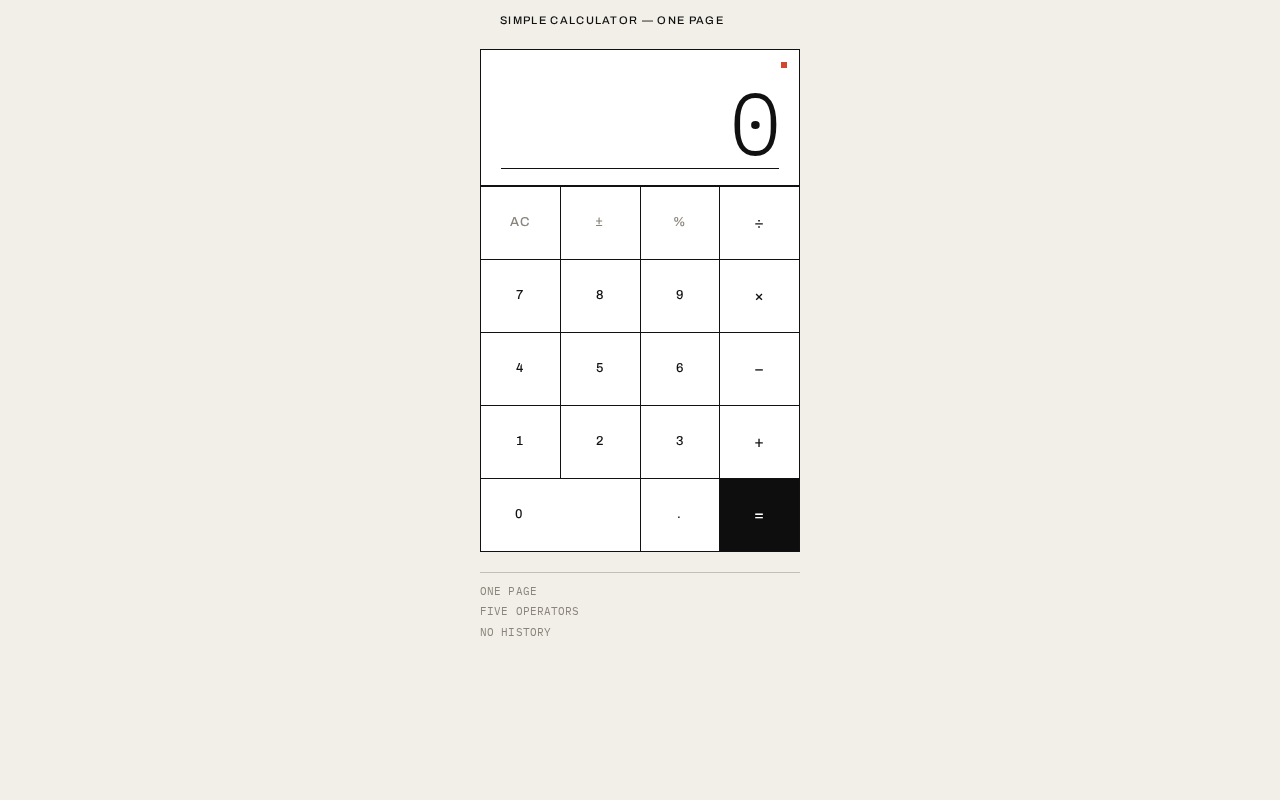
The single page of the product. It is anonymously reachable and renders the calculator artefact centred on a warm paper field, with a quiet page label above it and a muted metadata block beneath it.
Information and state
- Display band — the current entry or computed result, right-aligned, set in large tabular mono numerals. Shows
0on first load and after clearing. - Pending expression state — the stored first operand and the selected operator, held while the user enters the second operand. The active operator key is visually marked.
- Result state — after equals, the display shows the computed result and becomes the starting value for a chained calculation.
- Error state — when an operation cannot produce a number (for example division by zero), the display shows an error indication instead of a numeral, and the next digit entry or clear returns the page to a usable state.
- Page label — a single line of small uppercase tracked text above the artefact identifying the page.
- Metadata block — three short lines of small muted mono text beneath the artefact stating the page's own facts; non-interactive.
Primary actions
- Digit keys (0–9) — append a digit to the current entry; the first digit after a result or after an operator starts a new entry.
- Decimal point — begins a fractional entry; a second decimal point in the same entry is ignored.
- Operator keys (÷, ×, −, +) — record the current entry as the first operand and the pressed operator as pending; the active operator is marked.
- Equals — evaluates the pending expression and displays the result.
- AC — clears the display, the pending expression, and the active operator, returning the page to its initial
0state. - ± — toggles the sign of the current entry.
- % — applies a percentage to the current entry.
Supporting actions and controls
- Every key gives an immediate mechanical acknowledgement on press: its fill flips to ink and back within 80ms, with no easing.
- Keys are reachable and operable by pointer and by keyboard focus, with visible focus indication.
Domain entities
- Entry — the numeral currently being typed, as a string of digits and at most one decimal point.
- Pending expression — the first operand, the selected operator, and the second operand once entered.
- Result — the numeric outcome of evaluating the pending expression, or an error indication.
Component responsibilities
- Display band — renders the current display value, right-aligned, with the spot-colour reference chip pinned at its top-right; swaps digits instantly with no crossfade.
- Keypad grid — a strict four-column grid of square hairline-separated keys in the fixed order: AC, ±, %, ÷ / 7, 8, 9, × / 4, 5, 6, − / 1, 2, 3, + / 0 (double-width), decimal point, equals.
- Key — a square-cornered cell carrying its legend; inverts to ink fill with white label for the active operator and the equals key, and for the 80ms press acknowledgement.
- Page label — static text, flush left above the artefact.
- Metadata block — static three-line text beneath the artefact.
States
- Loading — the artefact fades in over 240ms on first load; no spinner or skeleton is shown.
- Empty — not applicable; the display always shows at least
0. - Success — the computed result appears in the display band immediately on equals.
- Error — an invalid operation shows an error indication in the display; pressing AC or entering a digit recovers to a usable state.
- Recovery — AC always returns the page to its initial state from any state, including error.
3. Functional Requirements
FR-1 — Open the calculator As a Calculator User I should open the single page and immediately see a working calculator, so that I can begin arithmetic without any setup.
- Provenance: explicit (single page design of a calculator).
- Lifecycle: trigger — the user navigates to the page; observable result — the calculator artefact is displayed with
0in the display band; access — anonymous, no identity required; failure/recovery — if the page fails to load, reloading the page restores it; continuation — the user proceeds to enter digits. - Acceptance: the page loads directly to the calculator with no sign-in, onboarding, or intermediate screen.
FR-2 — Enter digits As a Calculator User I should press digit keys to build a number in the display, so that I can supply operands.
- Provenance: required_inference (indispensable mechanics of a calculator page).
- Lifecycle: input — a digit key press; observable result — the digit is appended to the current entry and shown in the display band; failure/recovery — a second decimal point in the same entry is ignored; continuation — the user presses an operator or equals.
- Acceptance: pressing
7then5shows75; the first digit after a result or an operator starts a fresh entry.
FR-3 — Enter a decimal point As a Calculator User I should press the decimal point to begin a fractional entry, so that I can calculate with non-integer values.
- Provenance: required_inference.
- Lifecycle: input — decimal key press; observable result — a decimal point appears in the current entry; failure/recovery — a second decimal point in the same entry is ignored; continuation — further digits append after the point.
- Acceptance:
3.5shows3.5; pressing.twice yields3.5, not3..5.
FR-4 — Select an operator As a Calculator User I should press an operator key to record the current entry and choose the operation, so that the next entry becomes the second operand.
- Provenance: required_inference.
- Lifecycle: input — operator key press; observable result — the current entry is stored as the first operand, the operator becomes pending, and the active operator key is visually marked; failure/recovery — pressing a different operator before entering a second operand replaces the pending operator; continuation — the user enters the second operand and presses equals.
- Acceptance:
8+marks+as active; pressing×instead marks×as active.
FR-5 — Compute a result As a Calculator User I should press equals to evaluate the pending expression and see the result, so that I get the answer to my calculation.
- Provenance: required_inference.
- Lifecycle: input — equals key press with a pending expression; observable result — the computed result replaces the display value and becomes the starting value for a chained calculation; failure/recovery — an operation that cannot produce a number shows an error indication in the display; continuation — the user may chain another operator or clear.
- Acceptance:
8+2=shows10; pressing+3=next shows13.
FR-6 — Clear the calculator As a Calculator User I should press AC to reset the display and pending expression, so that I can start a new calculation.
- Provenance: required_inference.
- Lifecycle: input — AC key press; observable result — the display returns to
0, the pending expression and active operator are cleared; failure/recovery — AC works from any state, including error; continuation — the user begins a new entry. - Acceptance: after any sequence, pressing AC shows
0with no active operator.
FR-7 — Toggle sign As a Calculator User I should press ± to change the sign of the current entry, so that I can enter negative values.
- Provenance: required_inference.
- Lifecycle: input — ± key press; observable result — the current entry's sign flips in the display; failure/recovery — pressing ± twice returns the entry to its prior sign; continuation — the user continues entering or presses an operator.
- Acceptance:
5±shows-5;±again shows5.
FR-8 — Apply a percentage As a Calculator User I should press % to apply a percentage to the current entry, so that I can work with percentage values.
- Provenance: required_inference.
- Lifecycle: input — % key press; observable result — the current entry is converted to its percentage value and shown in the display; failure/recovery — pressing % on
0leaves0; continuation — the user presses an operator or equals. - Acceptance:
50%shows0.5.
FR-9 — Receive key press acknowledgement As a Calculator User I should see each key acknowledge my press, so that I know the input registered.
- Provenance: explicit (creative direction: 80ms ink flip, no easing).
- Lifecycle: input — any key press; observable result — the key's fill flips to ink and back within 80ms; failure/recovery — none required; continuation — the display updates as described in the relevant requirement.
- Acceptance: the acknowledgement is immediate and does not delay the display update.
4. User Personas
Calculator User
Product context. The Calculator User is anyone who opens bronze-simple to do a piece of everyday arithmetic. They arrive at the page anonymously, with no account and no prior state, and they expect a working calculator the moment the page appears. The page is the entire product for them.
Primary goal. Get a correct result from a simple, self-contained page, then either chain another operation or clear and start again.
Distinct responsibilities. The Calculator User is the sole actor. They enter digits and at most one decimal point per entry, choose an operator, supply the second operand, and commit the calculation with equals. They read the result from the display band, and they clear with AC when they want a fresh start. They also use ± and % when their arithmetic calls for a negative value or a percentage.
Inputs and decisions. Their inputs are key presses on the keypad. Their decisions are which operator to apply, when to commit with equals, whether to chain from the result, and when to clear. They read the display to confirm each entry and the final result.
Interactions with other participants. None. There is no counterparty, recipient, or beneficiary; the calculation is entirely the Calculator User's own.
Observable success. The display shows the correct result for the entered expression, the active operator is visibly marked while an operation is pending, and AC reliably returns the page to 0.
5. Core User Flows
Flow 1 — Perform a simple calculation
- The Calculator User opens the Calculator page. The artefact fades in over 240ms and the display band shows
0. - The user presses
8. The8key flips to ink for 80ms and the display shows8. - The user presses
+. The+key is marked as the active operator and the display continues to show8as the stored first operand. - The user presses
2. The display shows2as the second operand. - The user presses
=. The equals key acknowledges the press, and the display immediately shows10with no crossfade. - Continuation: the user presses
×then3then=. The display shows30, chained from the previous result. - Recovery: if the user mistypes, pressing AC returns the display to
0and clears the pending expression, and they begin again at step 2.
Flow 2 — Calculate with a decimal value
- The Calculator User opens the Calculator page; the display shows
0. - The user presses
3,.,5. The display shows3.5. - The user presses
×, then2, then=. The display shows7. - Recovery: if the user presses
.a second time within the same entry, the extra decimal point is ignored and the entry remains valid.
Flow 3 — Enter a negative value
- The Calculator User opens the Calculator page; the display shows
0. - The user presses
5, then±. The display shows-5. - The user presses
+, then10, then=. The display shows5. - Recovery: pressing
±again before committing returns the entry to5.
Flow 4 — Apply a percentage
- The Calculator User opens the Calculator page; the display shows
0. - The user presses
50, then%. The display shows0.5. - The user presses
×, then20, then=. The display shows10.
Flow 5 — Recover from an invalid operation
- The Calculator User has entered
8÷0and presses=. - The display shows an error indication instead of a numeral.
- Recovery: the user presses AC. The display returns to
0and the pending expression is cleared. Alternatively, the user presses a digit key, which starts a fresh entry and returns the page to a usable state.
Flow 6 — Clear and start over
- The Calculator User is mid-calculation with a pending expression and an active operator marked.
- The user presses AC. The display returns to
0, the active operator marking is removed, and the pending expression is discarded. - The user begins a new calculation from step 2 of Flow 1.
6. Visuals Colors and Theme
The visual language is an austere reference after Peter Saville: one exact artefact, one spot colour, and a calculator that behaves like a precision instrument. The page reduces rather than decorates.
Palette (light mode)
| Role | Hex | Use |
|---|---|---|
| Background | #F2EFE8 | Warm paper ground filling the page |
| Surface | #FFFFFF | The calculator artefact |
| Text | #111111 | Type, key labels, display numerals |
| Primary | #0E0E0E | Ink fill for active operator, equals key, and press acknowledgement |
| Accent | #D2462E | Faded Factory-red spot colour: active operator, equals key, and the single hairline reference mark |
| Muted | #8A857C | Metadata labels and secondary key labels |
No gradients. No shadows beyond a 1px hairline.
Typography
- Headings and key legends: Archivo, weight 500, uppercase, tracked +0.12em, at small sizes. Used for the page's one quiet label and key legends.
- Body and display: IBM Plex Mono. Display numerals at light weight, tabular, tracked slightly tight, so the result reads like a printed instrument readout.
- Type scale (1.25 modular): 13 / 16 / 20 / 25 / 31 / 39 px.
- Display numerals:
clamp(44px, 9vw, 88px). - Key legends: 13px. Page label: 11px.
Shape language. Hard edges only. The calculator is a single white rectangle with a 1px ink hairline border and no radius. Keys are square-cornered cells separated by 1px hairlines in a strict four-column grid. The display is a ruled band at the top of the artefact with a thin ink rule beneath it. No pills, no blobs, no soft shadows.
Layout. A single centred column: a small uppercase label at the top-left of the page, the calculator artefact centred at a fixed max-width of 360px, then a muted metadata block beneath it of three short lines of small mono text. Generous negative space around the artefact on desktop; on mobile the artefact fills the width with 20px margins.
Imagery. No photography, no illustration. The calculator itself is the artefact; the only graphic gesture is a 6px square in #D2462E at the top-right of the display band, like a colour-code chip on a Factory sleeve.
Readable text and controls. Headlines, labels, numerals, and controls stay entirely inside the viewport and their container at 375px, 768px, and 1280px, wrapping or scaling to fit. Nothing covers any part of them.
7. Signature Design Concept
The first screen is a warm paper field (#F2EFE8) with the calculator presented as a single centred white artefact, 360px wide, bordered by a 1px ink hairline, floating in generous emptiness. Above it, flush left, a single line of 11px uppercase tracked Archivo reads SIMPLE CALCULATOR — ONE PAGE. The display band at the top of the artefact shows a large IBM Plex Mono numeral in ink, right-aligned, with a 6px spot-red square pinned to its top-right corner. The keypad below is a strict hairline grid of square keys.
There is no headline over the artefact, no secondary call to action, no gradient, and no blue button. The composition is the object and the silence around it. The whole page reads like a record sleeve back cover: one artefact, one spot colour, muted archival metadata beneath.
The signature moves are: the bordered artefact on warm paper with the flush-left tracked label; the ruled display band with its spot-red reference chip as the only saturated colour; square hairline-separated keys rather than rounded buttons, with the active operator and equals key inverting to ink black with white labels as the only filled surfaces; the three-line muted metadata block beneath the artefact; and the 80ms ink flip on key press as a mechanical acknowledgement.
8. Interaction Model & Motion Direction
Interaction Model: Static (direction) Motion Tempo: still Hero Dimensionality: flat
Landing Hero Motion Brief
- Focal subject: the calculator artefact itself — a single white bordered rectangle on a warm paper field, with the ruled display band and its spot-red chip at the top.
- Input → transformation → outcome thesis: a key press flips that key's fill to ink for 80ms and back with no easing, and the display digits swap instantly to the new value — the acknowledgement is mechanical, and the outcome is the updated readout.
- Motion vocabulary: an 80ms instantaneous ink flip on key press; an instant digit swap with no crossfade; a 240ms fade-in of the artefact on first load. Nothing else moves.
- Composed first frame: warm paper ground, the flush-left 11px tracked uppercase label, the centred 360px white artefact with its 1px ink hairline, the display band showing
0in large tabular mono with the 6px spot-red square at its top-right, the hairline keypad grid below, and the three-line muted metadata block beneath. - Reduced-motion state: with
prefers-reduced-motion, the 240ms fade-in is removed and the artefact appears immediately; the 80ms key acknowledgement is retained as an instantaneous state change with no transition, and the display continues to update instantly.
9. Non-Functional Requirements
- Single page (explicit). The product is exactly one page. There is no navigation, no secondary route, and no additional destination.
- Simplicity (explicit). The design reduces rather than decorates: no history, no memory keys, no settings, no accounts, and no secondary call to action.
- Anonymous access (required_inference). The page is publicly reachable with no identity establishment, because no accepted behavior requires privately owned or resumable state.
- Statelessness (required_inference). The calculator keeps no history and stores nothing between visits; a reload starts at
0. - Responsive legibility (explicit). Readable text and controls stay whole at 375px, 768px, and 1280px.
- Accessibility (required_inference). Keys are operable by pointer and keyboard with visible focus indication; the display value is exposed to assistive technology.
- Reduced motion (explicit). A usable static arrangement is provided under
prefers-reduced-motion. - Performance (required_inference). Key press acknowledgement and display updates are immediate, with no perceptible delay.
10. Tech Stack
- Frontend: React application rendering the single Calculator page.
- Backend: shared FastAPI process hosting the arithmetic evaluation API and domain modules.
- Database: MariaDB, provisioned as application-owned persistent storage. No current domain entities are stored, since the accepted calculator is stateless.
- Infrastructure: Docker and docker-compose for the backend, database, and frontend services.
11. Assumptions and Constraints
- Assumption (required_inference): arithmetic evaluation is performed by the shared backend, keeping the frontend a thin renderer of the single page.
- Assumption (required_inference): the calculator supports the four basic operators (÷, ×, −, +) plus ± and %, matching the fixed keypad grid in the creative direction.
- Assumption (required_inference): division by zero and other non-numeric outcomes are surfaced as an error indication in the display, recoverable via AC or a fresh digit entry.
- Constraint (explicit): the product is a single page design; no additional pages may be added.
- Constraint (explicit): the design must be simple.
- Constraint (explicit): the palette, fonts, surfaces, tone, and layout in the creative direction are preserved; the generic indigo/blue-on-white SaaS template is forbidden.
- Constraint (explicit): no rounded buttons, pill shapes, soft drop shadows, gradients, glassmorphism, decorative illustration, icons, photography, hover-lift cards, or animated counters.
12. Glossary
- Artefact — the calculator itself, presented as a single bordered white rectangle on the page.
- Display band — the ruled band at the top of the artefact showing the current entry or result.
- Pending expression — the stored first operand and selected operator, held while the second operand is entered.
- Active operator — the operator key currently marked as selected, shown inverted to ink.
- AC — the all-clear key that resets the display and pending expression to the initial state.
- Spot colour — the single saturated accent,
#D2462E, used only for the active operator, the equals key, and the reference chip. - Reference chip — the 6px spot-red square pinned at the top-right of the display band.
- Calculator User — the sole active human persona; an anonymous visitor performing arithmetic on the page.
SIMPLE CALCULATORONE PAGE
SIMPLE CALCULATORONE PAGE
No comments yet. Be the first!