bright-ticket
 Dev Kalyani
create single page ticket booking app

Comments (0)
Sign in to leave a comment
System Requirements
System Requirements Document for bright-ticket
1. Introduction
bright-ticket is a single-page ticket booking application. A visitor arrives on one page, sees the available ticket options, picks a ticket, completes the booking inline on that same page, and receives a booking confirmation — all without leaving the page or navigating to another destination.
The product intent is deliberately narrow: one page, one scroll, one booking flow. The app exists so that a Ticket Buyer can go from "browsing" to "booked" in a single continuous surface. There is no account system, no multi-page checkout, no separate confirmation screen, and no modal wizard. The booking step unfolds inline beneath the chosen ticket card, and the confirmation replaces that panel in place.
The audience is a broad, young, going-out audience booking live-event tickets. The surface is art-directed like a poster — saturated colour fields, chunky type, sticker-like elements — because a ticket is an object of desire, not a form field. Trust still matters at the booking step, but the page sells the night, not the checkout.
2. System Overview
bright-ticket is delivered as a React frontend backed by a shared FastAPI backend process and a MariaDB database. The frontend renders exactly one page — Ticket Booking — which anonymously presents the product, lists the available ticket options, hosts the inline booking form, and shows the confirmation. The backend exposes the ticket catalog and the booking-creation API; MariaDB persists the ticket options and the created bookings so that a booking reference is durable and can be looked up after creation.
2a. Product Interpretation and Delivery Boundary
The entire product is one page. There is no navigation, no route change, no modal maze, and no second screen. Everything a Ticket Buyer does — reading the page, choosing a ticket, entering their details, confirming, and seeing their confirmation — happens on the single Ticket Booking page.
Access is anonymous. The page is publicly reachable with no sign-in, no account creation, and no identity verification. A booking is a one-shot transaction: the buyer supplies their name and email at the booking step, the backend records the booking against a generated booking reference, and the confirmation is shown inline. There is no returning-user state, no booking history page, and no account to manage — the single-page constraint and the absence of any source-backed identity requirement mean no application-owned login lifecycle is introduced.
The backend and database are delivery infrastructure, not additional product surfaces. They exist so that ticket options are served from a durable catalog and so that a confirmed booking produces a durable, referenceable record. No admin surface, no ticket-management UI, and no reporting destination are in scope.
Removed from scope
- Multi-page checkout or any second route
- User accounts, sign-in, sign-up, or booking history
- Modal or wizard-based booking flows
- Payment processing (no payment step is specified by the source)
2c. Page Content and Component Coverage
Ticket Booking
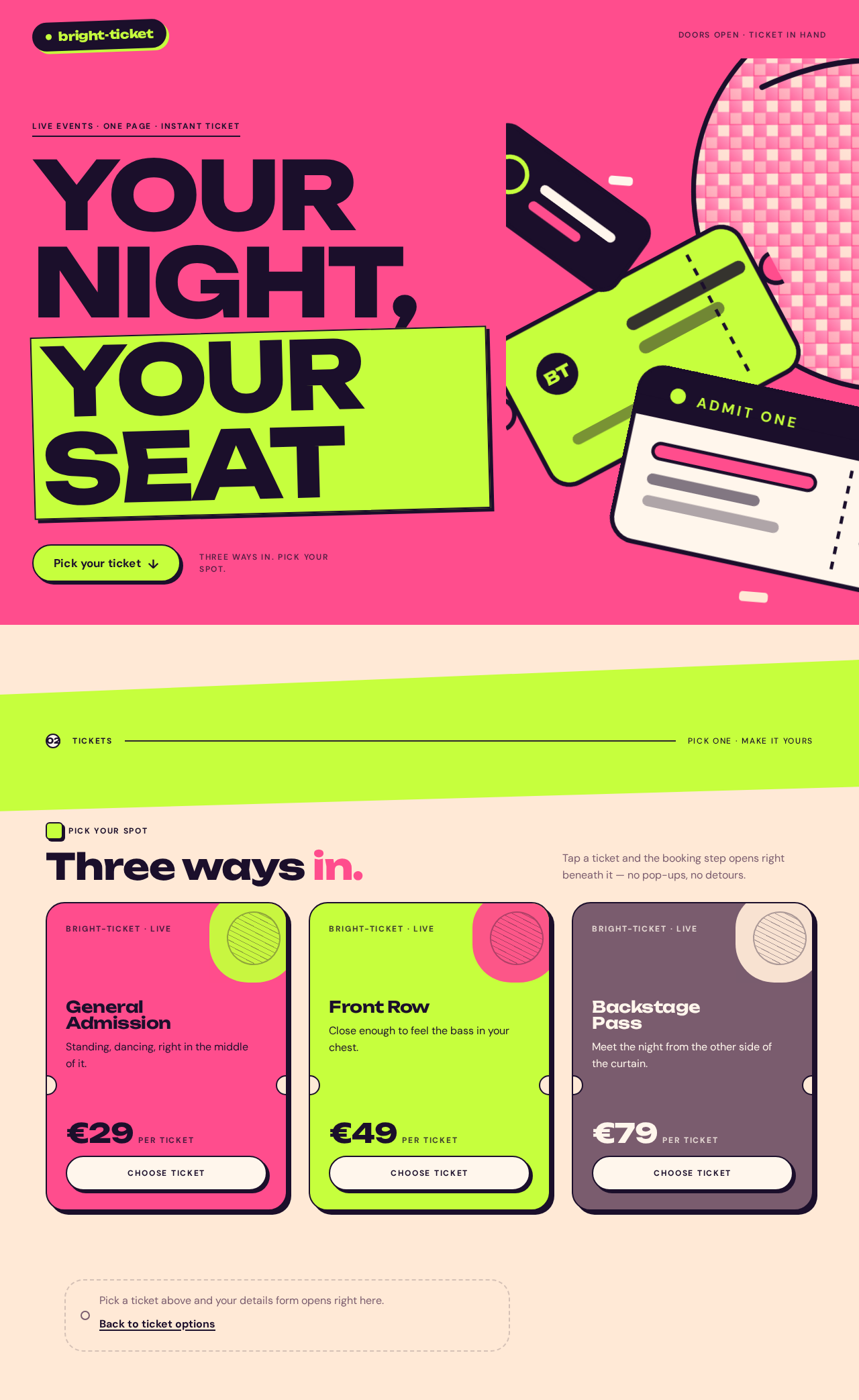
The single page of the application. It is one continuous scroll with four vertical regions: the hero band, the diagonal section divider, the ticket options row, and the inline booking/confirmation panel.
Information and state
- Product identity: the wordmark "bright-ticket" and the hero headline "YOUR NIGHT, YOUR SEAT".
- Micro-label above the headline: "LIVE EVENTS · ONE PAGE · INSTANT TICKET".
- The list of available ticket options, each with a name, a price, and a short descriptor.
- The currently selected ticket (highlighted with a lime selected state).
- The booking form state: name, email, quantity, and validation status.
- The booking result state: confirmed booking with ticket name, quantity, and booking reference.
- Page-level states: loading (catalog fetching), empty (no ticket options available), error (catalog fetch failed), and success (booking confirmed).
Primary actions
- "Pick your ticket" hero CTA — scrolls to the ticket options row.
- Select a ticket card — sets the selected ticket and unfolds the inline booking panel beneath it.
- Submit the booking form ("Confirm booking") — creates the booking and shows the confirmation.
- "Book another ticket" on the confirmation — resets the panel to the ticket selection state.
Supporting actions
- Adjust quantity within the booking panel.
- Edit name or email before confirming.
- Dismiss a validation or submission error and retry.
Domain entities
- Ticket option:
id,name,price,description,accent(colour field for the card). - Booking:
id,booking_reference,ticket_option_id,ticket_name,quantity,buyer_name,buyer_email,total_price,created_at.
Component responsibilities
- Hero band — full-bleed hot-pink field, three-line flush-left Unbounded headline, lime pill CTA, micro-label, and a layered 2D collage of oversized ticket stubs and a cropped disco ball bleeding off the right edge. Decorative only; never covers the headline or CTA.
- Diagonal lime band — hard-edged diagonal colour band separating hero from ticket list, carrying the section label in 12px caps.
- Ticket options row — horizontal row of chunky ticket cards (three-up on desktop, horizontally scrollable on mobile), each with a distinct colour field and prop, price set large, and a buy control pinned to the card's bottom.
- Booking panel — light surface panel that unfolds inline beneath the selected card, containing name, email, quantity, a lime caps progress marker ("1 PICK · 2 DETAILS · 3 GO"), and a single pink confirm button.
- Confirmation receipt — lime sticker-style receipt block that replaces the booking panel with a single bounce, showing ticket name, quantity, and booking reference in Unbounded, plus a "Book another ticket" control.
States
- Loading: ticket options row shows skeleton ticket cards; hero and copy render immediately.
- Empty: ticket options row shows a short message that no tickets are currently available; the hero CTA is disabled.
- Success: confirmation receipt replaces the booking panel; the selected card retains its lime selected state.
- Error (catalog): ticket options row shows a retry control and a short message; the rest of the page remains usable.
- Error (booking): the booking panel shows an inline error above the confirm button, preserves the entered values, and allows retry.
- Recovery: every error state offers a retry that re-issues the failed request without losing entered form values.
3. Functional Requirements
FR-1 — Single-page delivery (explicit) As a Ticket Buyer, I should reach the entire ticket booking experience on one page, so that I never have to navigate away to complete a booking.
- Trigger: visitor loads the app.
- Observable result: exactly one page renders, containing the hero, ticket options, booking panel, and confirmation region.
- Constraint: no route change, modal, or second screen is used at any point in the flow.
- Failure/recovery: not applicable — the page is the only surface.
FR-2 — Anonymous access (required_inference) As a Ticket Buyer, I should use the page without signing in or creating an account, so that I can book immediately.
- Trigger: visitor loads the app.
- Observable result: the page renders fully with no authentication gate.
- Constraint: no login, sign-up, or identity verification is presented.
- Failure/recovery: not applicable.
FR-3 — Available ticket options presented (required_inference) As a Ticket Buyer, I should see the available ticket options on the page, so that I can choose one.
- Trigger: page load.
- Input: ticket catalog fetched from the backend.
- Observable result: a row of ticket cards renders, each showing name, price, and descriptor, with distinct colour fields.
- Failure/recovery: if the catalog request fails, the row shows an error message and a retry control; retry re-issues the request. If the catalog is empty, the row shows an empty message and the hero CTA is disabled.
FR-4 — Select a ticket (required_inference) As a Ticket Buyer, I should select a ticket card, so that the booking step opens for that ticket.
- Trigger: visitor taps or clicks a ticket card's buy control.
- Observable result: the card enters a lime selected state with a springy scale-in; the inline booking panel unfolds beneath the selected card.
- Constraint: only one ticket is selected at a time; selecting another card moves the panel.
- Failure/recovery: not applicable — selection is local state.
FR-5 — Complete the booking inline (explicit) As a Ticket Buyer, I should enter my name, email, and quantity and confirm the booking on the same page, so that I complete the booking without leaving the page.
- Trigger: visitor submits the booking form.
- Input:
buyer_name,buyer_email,quantity, and the selectedticket_option_id. - Observable result: the backend creates a booking record with a generated booking reference and returns it; the confirmation receipt replaces the booking panel.
- Validation: name and email are required; email must be a valid address; quantity must be a positive integer within the ticket's available range.
- Failure/recovery: on validation failure, the panel shows inline field errors and preserves entered values. On submission failure, the panel shows an inline error above the confirm button, preserves entered values, and allows retry.
FR-6 — Booking confirmation shown on the page (required_inference) As a Ticket Buyer, I should see a confirmation on the page after booking, so that I know my booking succeeded and have a reference.
- Trigger: successful booking creation.
- Observable result: a lime sticker-style receipt block lands with a single bounce, showing the ticket name, quantity, and booking reference in Unbounded.
- Continuation: a "Book another ticket" control resets the panel to the ticket selection state.
- Failure/recovery: if the confirmation cannot be rendered from the response, the panel shows an error and allows retry of the booking.
FR-7 — Durable booking record (required_inference) As the system, I should persist each confirmed booking with its reference, so that the confirmation shown to the buyer corresponds to a durable record.
- Trigger: successful booking creation.
- Observable result: a row is written to the bookings table with the booking reference, ticket option, quantity, buyer name, buyer email, total price, and creation timestamp.
- Failure/recovery: if persistence fails, the booking is not confirmed and the buyer sees the inline submission error.
4. User Personas
Ticket Buyer
Product context. A member of a broad, young, going-out audience looking for live-event tickets. They arrive on the page with anticipation — the moment before the doors open — and expect the page to feel like a night out worth photographing, not a checkout form.
Primary goal. Book a ticket and walk away with a confirmed booking reference, without leaving the page.
Distinct accepted responsibilities.
- Browse the available ticket options presented on the page.
- Choose one ticket by selecting its card.
- Enter their name, email, and quantity in the inline booking panel.
- Confirm the booking and read the confirmation receipt.
Relevant inputs and decisions. Which ticket to pick; how many; the name and email to book under. The buyer decides when to commit by pressing the single pink confirm button.
Interactions with other participants. None — the Ticket Buyer is the only active human persona. The backend and database act on the buyer's behalf but are not human participants.
Observable success. A lime receipt block on the page showing the ticket name, quantity, and booking reference, with a "Book another ticket" control available.
5. Core User Flows
Flow 1 — Book a ticket
- Arrive. The Ticket Buyer loads bright-ticket. The Ticket Booking page renders: the hot-pink hero band with the headline "YOUR NIGHT, YOUR SEAT", the micro-label "LIVE EVENTS · ONE PAGE · INSTANT TICKET", and the lime "Pick your ticket" CTA. The ticket options row loads from the backend catalog.
- Browse. The buyer scrolls past the diagonal lime band into the ticket options row. Each card shows a distinct colour field, a prop, the ticket name, and the price set large.
- Pick. The buyer taps a card's buy control. The card springs into its lime selected state, and the inline booking panel unfolds beneath it with the progress marker "1 PICK · 2 DETAILS · 3 GO".
- Enter details. The buyer types their name and email and sets the quantity. Field-level validation runs on submit.
- Confirm. The buyer presses the single pink confirm button. The frontend posts the booking to the backend; the backend writes the booking to MariaDB and returns the booking reference.
- See confirmation. The booking panel is replaced by the lime sticker-style receipt block, which lands with a single bounce and shows the ticket name, quantity, and booking reference in Unbounded.
- Continue or finish. The buyer either leaves the page or presses "Book another ticket", which resets the panel to the ticket selection state.
Failure and recovery.
- Catalog fetch fails: the ticket options row shows an error message and a retry control; the hero remains usable. Retry re-issues the request.
- Catalog is empty: the row shows an empty message and the hero CTA is disabled.
- Validation fails: inline field errors appear and entered values are preserved.
- Booking submission fails: an inline error appears above the confirm button, entered values are preserved, and the buyer can retry.
Flow 2 — Recover from a failed booking submission
- The buyer has filled the booking panel and pressed confirm.
- The backend returns an error (for example, a transient failure or an unavailable ticket).
- The booking panel shows an inline error above the confirm button; the name, email, and quantity remain filled.
- The buyer corrects the issue if needed and presses confirm again.
- On success, the confirmation receipt replaces the panel as in Flow 1, step 6.
6. Visuals Colors and Theme
The creative direction is authoritative for this section. The muse is Jessica Walsh; the headline is "YOUR NIGHT, YOUR SEAT".
Colour tokens (light mode)
| Role | Hex | Usage |
|---|---|---|
| Background | #FFE9D6 | Warm peach-cream page field (~55%) |
| Surface | #FFF6EC | Light ticket cards and booking panel |
| Text | #1B0F2B | Deep aubergine-ink for all readable text (~12%) |
| Primary | #FF4D8D | Hot-pink hero band and primary CTA (~25%) |
| Accent | #C6FF3D | Acid lime for selected states, booking-step marker, sticker highlights (~8%) |
| Muted | #7A5C6E | Muted plum for secondary labels |
Lime is never placed behind body text — it is a sticker accent only.
Typography
- Headings: Unbounded, weights 700–800, tight leading 0.92, sentence case with occasional all-caps micro-labels.
- Body: DM Sans.
- Scale (1.5 modular on a 4-pt base): display
clamp(52px, 11vw, 148px); hero subheadclamp(22px, 2.6vw, 34px); section headerclamp(34px, 5vw, 64px); ticket name 24/22/20; price 40/32/28; body 17/16/16 with 1.55 line-height; micro-label 12px caps with 0.14em tracking.
Shape language
- Chunky rounded rectangles (24–32px radii) for ticket cards and buttons.
- Pill CTAs.
- Sticker-shaped lime badges with a 2px ink outline and a hard 4px offset shadow.
- Organic blob cut-outs used only as background colour fields — never behind readable text.
- Hard-edged diagonal colour bands separate the hero from the ticket list.
Layout
- Asymmetric editorial grid.
- Full-bleed pink hero band with the oversized headline stacked flush-left across 7 of 12 columns and a surreal ticket-prop collage bleeding off the right edge.
- Diagonal lime band introduces the ticket options as a horizontal row of chunky ticket cards (scrollable on mobile, three-up on desktop), each with the price set large and the buy control pinned to the card's bottom.
- The booking step unfolds inline beneath the chosen card as a light surface panel with name, email, quantity, and a single pink confirm button.
- The confirmation replaces the panel with a lime sticker-style receipt block.
- One page, one scroll, no modal maze.
Imagery
- Art-directed surreal props rather than stock photography: oversized 3D-rendered ticket stubs, a giant disco ball cropped by the viewport edge, a hand holding a ticket rendered as a flat cut-out with a hard shadow, confetti shards as flat vector shapes.
- Every image is a colour object, not a photo of a crowd.
Accessibility
- Readable text and controls stay whole at 375px, 768px, and 1280px; headlines, labels, numbers, cards' text, and controls stay entirely inside the viewport and their container, wrapping or scaling to fit.
- Imagery and decoration may be cropped, bled, rotated, or overlapped as the direction asks, as long as they cover no readable text or control.
- Under
prefers-reduced-motion, all looping motion pauses and a static composed arrangement is shown.
7. Signature Design Concept
The public entry is the Ticket Booking page itself, and its signature is the full-bleed hot-pink hero band that fills the first screen edge to edge.
- The headline "YOUR NIGHT, YOUR SEAT" is set in Unbounded at
clamp(52px, 11vw, 148px)in ink#1B0F2B, stacked in three flush-left lines across roughly seven columns. - To the right, a layered 2D collage of oversized 3D ticket stubs and a cropped disco ball bleeds off the top and right edges, overlapping the pink field but never the headline.
- A single acid-lime pill CTA — "Pick your ticket" — sits beneath the headline with a 2px ink outline and a hard offset shadow.
- A small caps micro-label above the headline reads "LIVE EVENTS · ONE PAGE · INSTANT TICKET".
- No centred stack, no gradient blob, no blue button.
The gesture continues down the page: the diagonal lime band cuts across between hero and ticket list, the ticket cards are chunky sticker-like objects with hard offset shadows and distinct colour fields, the booking panel unfolds inline beneath the chosen card, and the confirmation lands as a lime sticker-style receipt with a single bounce.
8. Interaction Model & Motion Direction
Interaction Model: Animated Motion Tempo: expressive Hero Dimensionality: layered_2d
Landing Hero Motion Brief
- Focal subject. The layered 2D collage of oversized 3D ticket stubs and a cropped disco ball bleeding off the top and right edges of the hot-pink hero band.
- Input → transformation → outcome thesis. On load, the ticket props settle into their composed arrangement; on a slow 12s float loop they drift gently, keeping the hero alive without competing with the headline. When the visitor presses "Pick your ticket", the page scrolls to the ticket options row, where the selected card springs into its lime state and the booking panel unfolds beneath it. On confirmation, the receipt block lands with a single bounce.
- Motion vocabulary. Slow 12s float loop on hero props; springy scale-in on lime sticker badges on selection; 120ms spring lift on ticket card hover; single bounce on the confirmation stamp.
- Composed first frame. The pink band fills the viewport; the three-line headline sits flush-left across seven columns; the collage is composed at rest with the disco ball cropped by the right edge; the lime CTA sits beneath the headline with its hard offset shadow; the micro-label sits above the headline in 12px caps.
- Reduced-motion state. All looping motion pauses; the hero props hold their composed arrangement; selection and confirmation transitions resolve instantly to their final states; the page remains fully usable as a static composition.
9. Non-Functional Requirements
NFR-1 — Single-page constraint (explicit) The application must be delivered as exactly one page. No additional routes, modals, or wizards may be introduced.
NFR-2 — Anonymous access (required_inference) The page must be reachable without authentication. No login, sign-up, or identity verification may gate the booking flow.
NFR-3 — Responsive readability (explicit, from creative direction) Headlines, wordmarks, labels, numbers, cards' text, and controls must stay entirely inside the viewport and their container at 375px, 768px, and 1280px, wrapping or scaling to fit. No other element may cover any part of them.
NFR-4 — Reduced motion (explicit, from creative direction)
All looping motion must pause under prefers-reduced-motion, leaving a usable static arrangement. Scrollable rows must allow every item to be brought fully into view.
NFR-5 — Durable booking state (required_inference) Confirmed bookings must be persisted in MariaDB with a unique booking reference so that the confirmation shown to the buyer corresponds to a durable record.
NFR-6 — Error recovery (required_inference) Catalog and booking failures must surface inline errors with retry controls that preserve entered form values.
NFR-7 — Contrast (basic_default) Text must meet WCAG AA contrast against its background; lime must never be placed behind body text.
10. Tech Stack
- Frontend: React application UI, rendering the single Ticket Booking page.
- Backend: shared FastAPI process for application APIs and domain modules, exposing the ticket catalog and booking-creation endpoints.
- Database: MariaDB for application-owned persistent data — the ticket options catalog and the bookings table.
- Infrastructure:
docker-compose.ymlwith thefrontend,backend, anddatabaseservices as provisioned. No additional services are required for the current scope.
11. Assumptions and Constraints
- A-1 (explicit) The app is a single page; no second route, modal, or wizard is introduced.
- A-2 (explicit) A user can book a ticket from that single page.
- A-3 (required_inference) Access is anonymous; no account system is introduced because the source specifies none and the single-page constraint leaves no room for an identity lifecycle.
- A-4 (required_inference) Ticket options are served from a backend catalog persisted in MariaDB; the catalog is seeded with the available ticket options.
- A-5 (required_inference) A booking produces a durable record with a generated booking reference; no payment step is included because none is specified by the source.
- A-6 (basic_default) The booking form collects name, email, and quantity, as specified by the creative direction's layout.
- A-7 (basic_default) The confirmation shows ticket name, quantity, and booking reference, as specified by the creative direction's signature moves.
12. Glossary
- Ticket Booking — the single page of the application; the only destination.
- Ticket option — an available ticket presented as a card on the page, with a name, price, and descriptor.
- Booking — a confirmed purchase of a quantity of one ticket option, recorded with a booking reference.
- Booking reference — the unique identifier shown on the confirmation receipt for a confirmed booking.
- Inline booking panel — the light surface panel that unfolds beneath the selected ticket card to collect name, email, and quantity.
- Confirmation receipt — the lime sticker-style block that replaces the booking panel after a successful booking.
- Hero band — the full-bleed hot-pink region at the top of the page carrying the headline, micro-label, and CTA.
LIVE EVENTS · ONE PAGE · INSTANT TICKET
YOURNIGHT,YOUR SEAT
Tickets
Pick a ticket above and your details form opens right here.
LIVE EVENTS · ONE PAGE · INSTANT TICKET
YOURNIGHT,YOUR SEAT
Tickets
Pick a ticket above and your details form opens right here.
No comments yet. Be the first!