better-notes
 Maciej Zdanowicz
I want to build an app like goodnotes (research) but without the paywalls so stylus tablet capabilities and also login on desktop to view files and notes


Comments (0)
Sign in to leave a comment
System Requirements
System Requirements Document for better-notes
1. Introduction
better-notes is a cross-device note-taking application for people who write, draw, and organize notes with a stylus on a tablet, then sign in on a desktop computer to view their stored notes and files.
The product is informed by research into GoodNotes as a comparable note-taking product, while deliberately excluding paid-tier feature gating. Current product scope focuses on unrestricted stylus-based note capture and drawing on tablets, durable storage of notes and files, and authenticated desktop viewing of those materials.
The active audience consists of:
- Stylus Note-Taker — captures handwritten notes and drawings on a stylus-capable tablet.
- Desktop Viewer — signs in on desktop to browse and read existing notes and files.
2. System Overview
better-notes provides an application-owned experience with identity continuity across tablet and desktop sessions.
Current delivery includes:
- An anonymous landing experience explaining the paywall-free handwriting and desktop-viewing proposition.
- First-use enrollment and returning login through the application’s Login page.
- A protected tablet Library for stored notes and files.
- A protected tablet Note Editor for stylus handwriting and drawing.
- Hand blocking while a stylus is in use so unintended hand or palm contact does not mark the page.
- A protected Desktop Viewer for read-only access to notes and files after desktop login.
- Durable storage and synchronization of notes and files so that tablet-created materials can be viewed in a desktop session.
- Responsive web-app compatibility with macOS, iPadOS, iOS, Android, Windows, and Linux in modern browsers.
- No paywalls, paid tiers, locked tools, upgrade prompts, or feature gating.
The system supports two accepted human roles. A person may use the product as a Stylus Note-Taker on tablet and as a Desktop Viewer on desktop, but these remain distinct product contexts and responsibilities.
2a. Product Interpretation and Delivery Boundary
better-notes is a note-taking and document-library application, not a paid productivity suite or enterprise storage system.
Tablet use is the writing and drawing context. Stylus Note-Takers create and revisit handwritten notes and drawings from their protected Library and Note Editor. The product stores those materials under the authenticated user’s application identity so they can be resumed later.
The application must operate as a responsive web app in modern browsers on macOS, iPadOS, iOS, Android, Windows, and Linux. It shall use stylus, pressure, palm-rejection, and tilt capabilities where the platform exposes them; where a native capability is unavailable, it shall provide browser-equivalent behavior or a graceful fallback without representing that technical limitation as a paid restriction.
Desktop use is intentionally limited to viewing. After logging in, Desktop Viewers can access stored files and notes in the Desktop Viewer, browse them, and read them in a large read-only canvas. Desktop viewing must not provide note authoring, drawing, editing, or annotation tools.
All current note-taking and app capabilities are available without payment gates. The product must not represent any capability as paid, locked, premium, upgrade-only, trial-only, or otherwise restricted by a paid tier.
The current scope does not include:
- Paid plans, subscriptions, upgrade flows, feature locks, or paid-tier messaging.
- Desktop note editing, handwriting, drawing, annotation, or document authoring.
- Role-based permissions or differentiated access controls.
- Account-management capabilities beyond the minimum enrollment and returning verification needed to access the user’s stored notes and files.
- Capabilities not directly required for stylus note capture, drawing, file/note organization, synchronization, and desktop viewing.
2c. Page Content and Component Coverage
Landing
-
Purpose and access
- Anonymous public entry surface for Stylus Note-Takers and Desktop Viewers.
- Introduces better-notes as a paywall-free application for stylus note-taking, drawing, stored files, and desktop viewing.
- Provides the route into Login before protected work begins.
-
Information and state
- States that note-taking and app capabilities are available without paid feature gates.
- Communicates tablet stylus writing and drawing capability.
- Communicates desktop login and read-only viewing of notes and files.
- Displays the current availability/synchronization concept without exposing private user content.
-
Primary actions
- Continue to Login to enroll or verify identity.
- Navigate to the public explanations of writing, organizing, and viewing within the Landing surface.
-
Supporting components
- Thin file-menu navigation reading:
better-notes / Library / Desktop view / Free forever. - A 32px pixel folder mark.
- Forest-green three-frame sync indicator at the far right.
- Oversized landing statement:
WRITE IT. KEEP IT. SEE IT ANYWHERE. - Layered, flat notebook-window illustration showing a handwritten tablet page, folder window, and read-only desktop viewer window.
- Oversized pixel file tabs for
WRITE,ORGANIZE, andVIEW.
- Thin file-menu navigation reading:
-
Loading, error, and recovery
- Landing content remains publicly available if protected content is unavailable.
- If Login cannot be opened, show a clear error state and provide a retry action.
- Protected Library, Note Editor, and Desktop Viewer content must not be exposed before identity verification.
Login
-
Purpose and access
- Anonymous identity-access surface for Stylus Note-Takers and Desktop Viewers.
- Supports first-use enrollment before protected Library, Note Editor, or Desktop Viewer access.
- Supports returning verification to resume access to stored notes and files.
-
Information and state
- Clearly distinguishes first-use enrollment from returning login without adding account-management features.
- Explains that successful verification restores access to the user’s stored notes and files.
- Shows processing, successful verification, and unsuccessful verification states.
-
Primary actions
- Establish identity during first use.
- Verify returning identity.
- Continue to the protected destination appropriate to the current device context:
- Tablet note-taking context continues to Library.
- Desktop viewing context continues to Desktop Viewer.
-
Supporting components
- Identity enrollment and verification form controls.
- Clear confirmation that access has been established.
- Context-preserving continuation control after successful verification.
-
Loading, error, and recovery
- Show an in-progress state while enrollment or verification is being processed.
- If verification fails, do not expose protected notes or files.
- Present an understandable failure message and permit the user to correct submitted information and try again.
- Preserve the selected access context so the user can continue to Library on tablet or Desktop Viewer on desktop after success.
Library
-
Purpose and access
- Protected tablet destination for the Stylus Note-Taker.
- Owns recurring browsing, retrieval, and organization of stored notes and files.
- Requires login.
-
Information and state
- Displays the authenticated user’s stored notes and files.
- Shows notebook/file identity, relevant visual cover or thumbnail, and exposed page count where applicable.
- Shows availability and saved/synchronized state using forest green.
- Shows an empty-library state when no stored notes or files are available.
-
Primary actions
- Start a new note.
- Open an existing note or file for tablet note-taking work.
- Return to the library after completing work in the Note Editor.
-
Supporting actions
- Browse stored note and file entries.
- Identify a notebook or file from its cover, title, thumbnail, and page count.
- Resume an existing note in the Note Editor.
-
Domain entities
- User library.
- Note.
- File.
- Notebook/file cover.
- Page count.
- Saved or synchronized state.
-
Supporting components
- Narrow left rail of large pixel icons.
- Collapsible notebook strip.
- Large illustrated file tiles with 2px charcoal outline, offset tab, 8-bit subject glyph, and page count stamped in the lower corner.
- New Note action using vermilion as the decisive action color.
- Sync/status indicator.
-
Loading, empty, success, error, and recovery
- Show loading feedback while the library is retrieved.
- Show an empty state that makes the New Note action available when no content exists.
- Confirm when saved/synchronized library content is available.
- If library retrieval fails, show a clear error state and retry action.
- If synchronization is pending or unavailable, preserve the visible state of known materials and indicate that the user should retry when connectivity or service availability returns.
Note Editor
-
Purpose and access
- Protected tablet writing and drawing destination for the Stylus Note-Taker.
- Requires login.
- Owns focused stylus-based note capture and drawing.
-
Information and state
- Displays the active note or file page in a clean, full-resolution writing canvas.
- Shows the active tool, selected color, and active hand-blocking state while stylus input is in use.
- Shows whether the active note is saving, saved, synchronized, or requires recovery.
- Preserves handwritten ink and drawings as note content associated with the authenticated user’s library.
-
Primary actions
- Write on the page using a stylus while unintended hand or palm contact is blocked from marking the page where supported by the platform.
- Draw on the page using a stylus.
- Select pen, highlighter, eraser, and lasso tools.
- Choose available color chips.
- Undo and redo supported writing or drawing actions.
- Return to Library after note work.
-
Supporting actions
- Open an existing stored note from Library.
- Create a new note from Library and begin stylus input.
- Observe save and synchronization outcomes.
-
Domain entities
- Note.
- Page.
- Handwritten ink.
- Drawing.
- Stylus tool.
- Tool color.
- Saved/synchronization state.
-
Supporting components
- Full-height page canvas.
- Narrow left rail and collapsible notebook strip where present in the tablet shell.
- Bottom tool dock for pen, highlighter, eraser, lasso, undo, and color chips.
- Square, outlined tactile tool tiles.
- Distinct 16px pixel symbol for each stylus tool.
- Active tool state that inverts from cream to vermilion.
- Visible saved/sync indicator.
- Hand-blocking behavior that distinguishes active stylus input from unintended hand or palm contact where platform input APIs expose that distinction.
-
Loading, success, error, and recovery
- Show loading feedback while an existing note is opened.
- Show a ready state when the canvas and note content are available.
- Show a saved or synchronized state when note changes have been durably stored.
- If a note cannot be opened, present an error and allow return to Library or retry.
- If hand blocking, pressure, or tilt is unavailable because the current browser or device does not expose the required input capability, identify it as a technical availability issue and retain browser-equivalent stylus behavior where possible.
- If a save or synchronization attempt fails, clearly identify that the note is not yet confirmed as saved/synchronized, retain the user’s current working canvas where technically possible, and provide retry/continuation once service becomes available.
- Do not use paid-gating states, locked tool imagery, or upgrade prompts.
Desktop Viewer
-
Purpose and access
- Protected desktop destination for the Desktop Viewer.
- Requires login.
- Provides read-only viewing of existing stored notes and files.
-
Information and state
- Displays the signed-in user’s notes and files created or stored through the tablet experience.
- Shows folder/file context, dates, page counts, notebook name, modified date, and current page number where available.
- Displays a visible read-only lock glyph.
- Shows loading, available, empty, unavailable, and error states.
-
Primary actions
- Browse available notes and files.
- Select a note or file to view.
- Read the selected note or file in the page viewer.
- Navigate between available pages of the selected material where applicable.
-
Supporting actions
- Browse folders and file index entries.
- Identify files through file names, dates, page counts, and thumbnails.
- Return from a viewed page to the desktop file index.
-
Domain entities
- Folder.
- File.
- Note.
- Page.
- Modified date.
- Page count.
- Read-only viewing state.
-
Supporting components
- Three-column archival layout:
- Folder rail.
- File index with dates and page counts.
- Large read-only page viewer.
- Faux archival window for opened notes.
- Pixel title bar showing notebook name, modified date, page number, and read-only lock glyph.
- Nearly edge-to-edge handwritten page display.
- Three-column archival layout:
-
Loading, empty, success, error, and recovery
- Show loading feedback while desktop content is retrieved.
- Show an empty state when the signed-in user has no notes or files available to view.
- Show the selected file or note clearly when it loads successfully.
- If file retrieval fails, show an understandable error and provide retry.
- If the desktop session is no longer verified, return the user to Login before protected material is shown.
- Do not present editing, drawing, handwriting, annotation, or authoring controls.
3. Functional Requirements
FR-01 — Paywall-Free Capability Access
As a Stylus Note-Taker or Desktop Viewer, I should be able to use current better-notes capabilities without paid-tier gating so that note-taking, drawing, stored-content access, and desktop viewing are not restricted by payment.
- Provenance: explicit.
- Access state: Applies to all public and protected application states.
- Trigger/input: A user accesses an available application capability.
- Required behavior:
- The system shall not gate note-taking or app capabilities behind paid tiers.
- The system shall not show paid-tier badges, locked-tool imagery, upgrade prompts, subscription prompts, or feature-gating messaging.
- The system shall make accepted current capabilities available without payment-based restriction.
- Observable result: The user can use available current capabilities without encountering a payment gate.
- Failure/recovery: If an application capability is unavailable for a technical reason, the system shall identify it as a technical availability issue and must not misrepresent it as a paid restriction. The user shall be able to retry when service is available.
- Continuation: The user continues with the relevant accepted journey: enrollment/login, tablet Library, Note Editor, or Desktop Viewer.
FR-02 — First-Use Identity Enrollment
As a Stylus Note-Taker or Desktop Viewer, I should be able to establish my identity on first use so that my stored notes and files can remain associated with me across future tablet and desktop sessions.
- Provenance: required_inference.
- Access state: Anonymous; owned by Login.
- Trigger/input: A first-time user chooses to begin protected note-taking or desktop viewing.
- Required behavior:
- The system shall provide first-use identity enrollment on Login before access to Library, Note Editor, or Desktop Viewer.
- The system shall establish application-owned identity sufficient to associate durable notes and files with the correct user.
- The system shall not expose protected notes, files, Library, Note Editor, or Desktop Viewer content before successful enrollment.
- Observable result: The user receives confirmation that identity access is established and is routed to the protected destination appropriate to the current context.
- Failure/recovery: If enrollment cannot be completed, the system shall explain that protected access is unavailable, allow correction of submitted information, and allow another attempt.
- Continuation: Tablet users continue to Library; desktop users continue to Desktop Viewer.
FR-03 — Returning Identity Verification
As a Stylus Note-Taker or Desktop Viewer, I should be able to verify my identity when returning so that I can resume access to my stored notes and files.
- Provenance: required_inference.
- Access state: Anonymous; owned by Login.
- Trigger/input: A returning user opens Login and submits verification information.
- Required behavior:
- The system shall verify returning identity before protected content is displayed.
- The system shall restore access only to notes and files associated with the verified identity.
- The system shall preserve the user’s current device context when determining the post-login destination.
- Observable result: Successful verification routes a tablet note-taking session to Library and a desktop viewing session to Desktop Viewer.
- Failure/recovery: If verification fails, the system shall not reveal protected content, shall show a clear failure message, and shall allow the user to correct information and retry.
- Continuation: After success, the user resumes the relevant tablet or desktop journey.
FR-04 — Tablet Stylus Note Capture and Drawing
As a Stylus Note-Taker, I should be able to write and draw in a note with a stylus on a tablet so that I can capture handwritten notes and sketches without feature gates.
- Provenance: explicit.
- Access state: Logged in; owned by Note Editor.
- Trigger/input: The Stylus Note-Taker creates a new note or opens an existing note from Library and applies stylus input to the page canvas.
- Required behavior:
- The system shall support stylus input on stylus-capable tablet hardware.
- The system shall provide stylus-based writing and drawing in the Note Editor.
- The system shall block unintended hand or palm contact from marking the page while a stylus is being used where the platform exposes the necessary input distinction.
- The system shall use pressure input where supported by the platform.
- The system shall provide pen, highlighter, eraser, lasso, undo, and color-chip controls as accepted editor tools.
- The system shall visibly indicate the active tool and selected tool state.
- The system shall keep handwritten ink and drawings on a clean, full-resolution page canvas.
- The system shall not place stylus writing or drawing behind a paywall or feature gate.
- Observable result: The user sees handwriting and drawings appear on the active note page and can continue working with the selected stylus tool.
- Failure/recovery: If a note cannot be opened, the system shall show an error and permit retry or return to Library. If stylus changes cannot be saved or synchronized, the system shall identify the unconfirmed state, retain the current working canvas where technically possible, and provide retry when service is available.
- Continuation: The user may continue writing/drawing, select another accepted tool, undo/redo work, or return to Library.
FR-04a — Stylus Hand Blocking
As a Stylus Note-Taker, I should be able to rest my hand on the tablet while writing with a stylus so that unintended hand contact does not create marks on my note page.
- Provenance: explicit.
- Access state: Logged in; owned by Note Editor.
- Trigger/input: The Stylus Note-Taker applies stylus input while a hand or palm also contacts the writing surface.
- Required behavior:
- The system shall research and implement hand blocking as palm/rest rejection for stylus-based writing and drawing.
- The system shall suppress unintended hand or palm marks while preserving intended stylus input where the browser and platform expose the required capability.
- Where palm rejection is not exposed, the system shall provide graceful browser-equivalent behavior and shall identify the limitation as a technical availability issue rather than a paid restriction.
- Observable result: The user can write or draw with the stylus without unintended hand contact marking the page where supported by the current platform.
- Failure/recovery: If the capability is technically unavailable, the system shall preserve available stylus editing behavior and communicate the technical limitation without showing paid-gating, locked-tool, or upgrade messaging.
- Continuation: The user continues writing or drawing, selects another accepted tool, undo/redo work, or returns to Library.
FR-05 — Durable Note and File Storage for Cross-Device Viewing
As a Stylus Note-Taker, I should have my notes and files stored with my application identity so that they can be revisited from my tablet and viewed after desktop login.
- Provenance: required_inference.
- Access state: Logged in; owned by Library and supported by Note Editor save/synchronization behavior.
- Trigger/input: The Stylus Note-Taker creates or updates note content in Note Editor.
- Required behavior:
- The system shall associate stored notes and files with the authenticated user identity.
- The system shall make stored materials available in the tablet Library.
- The system shall provide observable saved or synchronized state for materials intended to be available across sessions.
- The system shall make successfully stored and synchronized notes and files available to the same verified identity in Desktop Viewer.
- Observable result: A note or file appears in Library and, after successful synchronization and desktop verification, is available for read-only selection in Desktop Viewer.
- Failure/recovery: If storage or synchronization fails, the system shall show that the material is not yet confirmed as available across devices and shall provide a retry path. The user can continue from the current note context or return to Library.
- Continuation: The Stylus Note-Taker can reopen the material in Note Editor; the Desktop Viewer can later sign in and view the available material.
FR-06 — Tablet Library Browsing and Retrieval
As a Stylus Note-Taker, I should be able to browse my stored notes and files in a library so that I can start new notes and resume existing materials.
- Provenance: required_inference.
- Access state: Logged in; owned by Library.
- Trigger/input: The Stylus Note-Taker enters Library after login or returns from Note Editor.
- Required behavior:
- The system shall display the authenticated user’s stored notes and files.
- The system shall provide a New Note action.
- The system shall allow the user to select an existing note or file for tablet work.
- The system shall present recognizable file/notebook information, including visual cover or thumbnail and page count where applicable.
- The system shall provide an empty state when no notes or files exist.
- Observable result: The user can identify available materials, begin a new note, or open an existing note in Note Editor.
- Failure/recovery: If the library cannot be retrieved, the system shall show an error and offer retry. If no content exists, the user can begin with New Note.
- Continuation: The user proceeds to Note Editor for new or selected note work, or remains in Library to browse available materials.
FR-07 — Authenticated Desktop Viewing
As a Desktop Viewer, I should be able to log in on desktop and view my available files and notes so that I can read tablet-created materials from a desktop session.
- Provenance: explicit.
- Access state: Logged in; owned by Desktop Viewer.
- Trigger/input: The Desktop Viewer successfully verifies identity through Login on a desktop computer.
- Required behavior:
- The system shall require login before desktop notes and files are displayed.
- The system shall display notes and files associated with the verified user identity.
- The system shall provide browsing through folders and file-index entries.
- The system shall show available file names, dates, and page counts where applicable.
- The system shall allow selection and read-only viewing of notes and files.
- The system shall visibly communicate the read-only state.
- The system shall not provide desktop authoring, editing, handwriting, drawing, annotation, or document-modification controls.
- Observable result: The Desktop Viewer reads the selected stored note or file in a large read-only page viewer.
- Failure/recovery: If desktop content cannot be retrieved, the system shall show an error and permit retry. If the session is not verified, the system shall return the user to Login without exposing protected material.
- Continuation: The user may select another available note/file, navigate available pages, return to the desktop file index, or end the session.
FR-08 — Cross-Platform Browser Compatibility
As a Stylus Note-Taker or Desktop Viewer, I should be able to access better-notes from supported tablet, mobile, and desktop operating systems so that I can write on supported touch devices and view stored materials from desktop browsers.
- Provenance: explicit.
- Access state: Applies to all public and protected application states.
- Trigger/input: A user opens better-notes in a modern browser on macOS, iPadOS, iOS, Android, Windows, or Linux.
- Required behavior:
- The system shall operate as a responsive web app in modern browsers on macOS, iPadOS, iOS, Android, Windows, and Linux.
- The system shall support touch-friendly editing on iPadOS, iOS, and Android, and mouse-and-keyboard parity plus desktop Login and read-only viewing on macOS, Windows, and Linux.
- The system shall use stylus, pressure, palm-rejection, and tilt input where the platform exposes those capabilities and shall provide graceful browser-equivalent fallback otherwise.
- Observable result: The user can access the appropriate better-notes experience for the current device context without a platform limitation being presented as a paid restriction.
- Failure/recovery: If a requested input capability is unavailable for a technical reason, the system shall identify it as a technical availability issue and preserve available browser-equivalent behavior.
- Continuation: Tablet note-taking users continue to Library and Note Editor; desktop viewing users continue through Login to Desktop Viewer.
4. User Personas
Stylus Note-Taker
- Provenance: required_inference from Planning Scope.
- Product context: Uses better-notes on a stylus-capable tablet as the primary writing and drawing environment.
- Primary goal: Capture handwritten notes and sketches without feature gates, then keep those materials available for later retrieval and desktop viewing.
- Distinct responsibilities:
- Establish or verify identity before accessing durable personal content.
- Start new notes from Library.
- Open existing stored notes.
- Write and draw using a tablet stylus.
- Rest a hand on the tablet while writing without unintended hand or palm contact marking the page where supported by the platform.
- Select accepted editor tools: pen, highlighter, eraser, lasso, undo, and color chips.
- Observe whether note content is saved and synchronized.
- Return to Library to retrieve and resume stored materials.
- Relevant inputs and decisions:
- Whether to enroll or verify returning identity.
- Whether to create a new note or resume an existing note.
- Which stylus tool and color to use.
- Whether to retry when note loading, saving, or synchronization is unsuccessful.
- Interactions with other accepted participants: The same person’s stored materials become available to the Desktop Viewer context after successful storage, synchronization, and desktop verification. No separate human participant is required to approve or receive the note.
- Observable success: Handwritten notes and drawings are captured in the tablet Note Editor, available in Library, and confirmed as saved/synchronized for later access without paid restrictions.
Desktop Viewer
- Provenance: required_inference from Planning Scope.
- Product context: Uses better-notes from a desktop computer to browse and read notes and files created or stored through the tablet experience.
- Primary goal: Sign in on desktop and view available notes and files without gaining an editing surface.
- Distinct responsibilities:
- Verify identity on Login.
- Browse available folders and file-index entries.
- Select a stored note or file.
- Read content in the read-only Desktop Viewer.
- Navigate among available pages and return to the file index.
- Relevant inputs and decisions:
- Whether to enroll on first use or verify a returning identity.
- Which available note or file to open.
- Which page to view where the selected material includes multiple pages.
- Whether to retry after a content-retrieval failure.
- Interactions with other accepted participants: Views the same authenticated user’s notes and files that were captured or stored through the Stylus Note-Taker context. The Desktop Viewer does not alter those materials.
- Observable success: The user reaches the desktop archival viewer after login and can read available notes and files in a clearly marked read-only state.
5. Core User Flows
Flow 1 — First-Time Tablet Access and Note Creation
- The Stylus Note-Taker opens Landing on a stylus-capable tablet.
- The user reviews the paywall-free handwriting, drawing, and desktop-viewing proposition.
- The user chooses to continue to Login.
- On Login, the user completes first-use identity enrollment.
- The system confirms that identity access has been established.
- The system routes the user to the protected Library tablet context.
- If enrollment fails, the system keeps protected content unavailable, explains the failure, and allows the user to correct information and retry.
- In Library, the user selects New Note.
- The system opens Note Editor with a ready page canvas.
- The user selects an accepted stylus tool and writes or draws on the page while the system blocks unintended hand or palm contact from marking the page where the platform supports hand blocking.
- The system displays the resulting handwritten ink or drawing and indicates saving/synchronization status.
- When storage and synchronization succeed, the note is associated with the user’s identity and available in Library.
- If save or synchronization fails, the system identifies that the note is not yet confirmed as available across devices, retains the working canvas where technically possible, and provides retry.
- The user continues writing, changes an accepted tool, or returns to Library.
Flow 2 — Returning Tablet Note-Taking Session
- The Stylus Note-Taker opens Login on a tablet.
- The user submits returning identity verification information.
- The system verifies identity and routes the user to Library.
- If verification fails, the system does not expose notes or files, explains the failure, and allows correction and retry.
- In Library, the user browses stored notes and files using available covers, thumbnails, titles, and page counts.
- The user selects an existing note.
- The system opens the note in Note Editor.
- The user writes or draws with a stylus using the available accepted tools.
- The system displays save/synchronization state for the updated note.
- The user returns to Library to retrieve another item or leaves the protected session.
Flow 3 — Tablet Library Retrieval
- The Stylus Note-Taker enters the protected Library after successful login or after returning from Note Editor.
- The system retrieves and displays available stored notes and files.
- The user identifies a material using its visual file/notebook representation and page count where applicable.
- The user selects an existing material to resume tablet note work.
- The system opens the material in Note Editor.
- If the library cannot be retrieved, the system shows an error and provides retry.
- If the library is empty, the system presents the empty state and makes New Note available.
- The user either starts a new note or remains in Library until content becomes available.
Flow 4 — Desktop Login and Read-Only Viewing
- The Desktop Viewer opens Landing or directly reaches Login on a desktop computer.
- If starting on Landing, the user reviews the desktop-viewing proposition and continues to Login.
- On Login, the user establishes identity on first use or verifies a returning identity.
- The system verifies the user and routes the desktop session to Desktop Viewer.
- If verification fails, the system keeps protected notes and files unavailable, explains the failure, and allows retry.
- In Desktop Viewer, the system retrieves the user’s available notes and files.
- The user browses the folder rail and file index, using file names, dates, and page counts to identify material.
- The user selects a note or file.
- The system opens the selection in the large read-only page viewer and displays
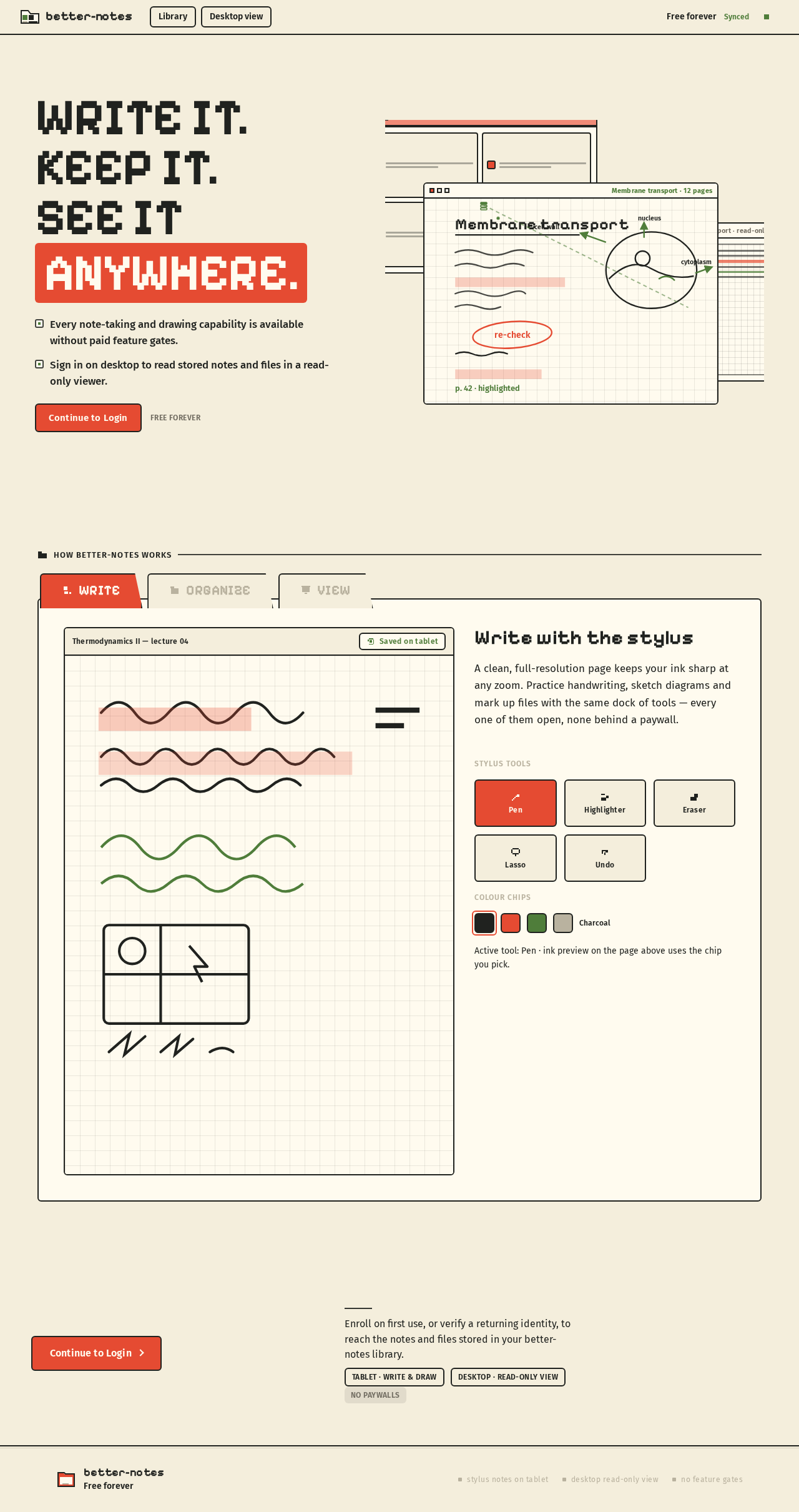
Write it.Keep it.See itAnywhere.
Every note-taking and drawing capability is available without paid feature gates.
Sign in on desktop to read stored notes and files in a read-only viewer.
How better-notes works
Write with the stylus
A clean, full-resolution page keeps your ink sharp at any zoom. Practice handwriting, sketch diagrams and mark up files with the same dock of tools — every one of them open, none behind a paywall.
Stylus tools
Colour chips
Active tool: Pen · ink preview on the page above uses the chip you pick.
Continue to login
Enroll on first use, or verify a returning identity, to reach the notes and files stored in your better-notes library.
- Tablet · write & draw
- Desktop · read-only view
- No paywalls
Write it.Keep it.See itAnywhere.
Every note-taking and drawing capability is available without paid feature gates.
Sign in on desktop to read stored notes and files in a read-only viewer.
How better-notes works
Write with the stylus
A clean, full-resolution page keeps your ink sharp at any zoom. Practice handwriting, sketch diagrams and mark up files with the same dock of tools — every one of them open, none behind a paywall.
Stylus tools
Colour chips
Active tool: Pen · ink preview on the page above uses the chip you pick.
Continue to login
Enroll on first use, or verify a returning identity, to reach the notes and files stored in your better-notes library.
- Tablet · write & draw
- Desktop · read-only view
- No paywalls
No comments yet. Be the first!